Dynamics GP – Steps for adding a new Currency in Dynamics GP

Introduction

This article outlines the steps needed to create a new currency in Dynamics GP. The article assumes you have the relevant security permissions to access the various windows and also the system password if one is used.

Adding a new currency

First you need to add the currency via “Tools > Setup > System > Currency”
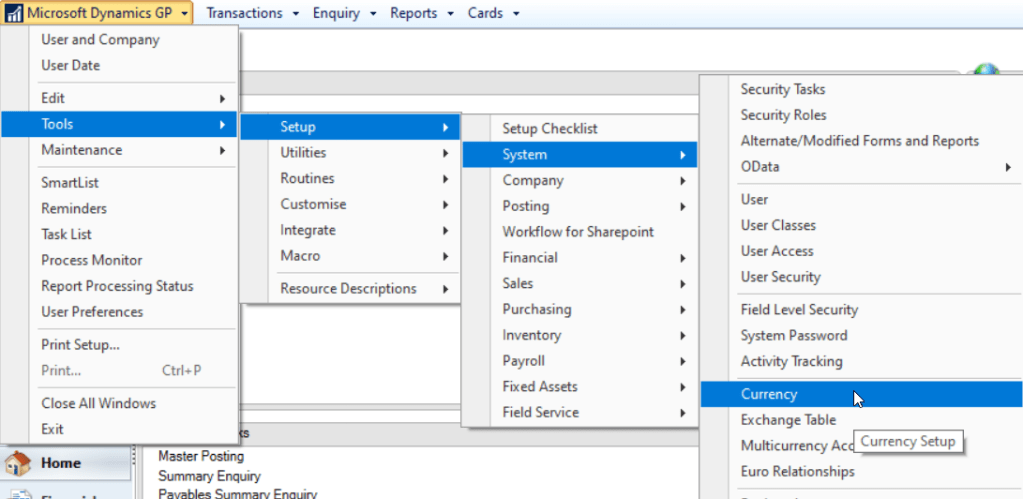
In this case I’m adding the Japanese Yen

After the currency has been added grant your Dynamics GP companies access to the new currency via “Tools > Setup > System > Multicurrency Access”
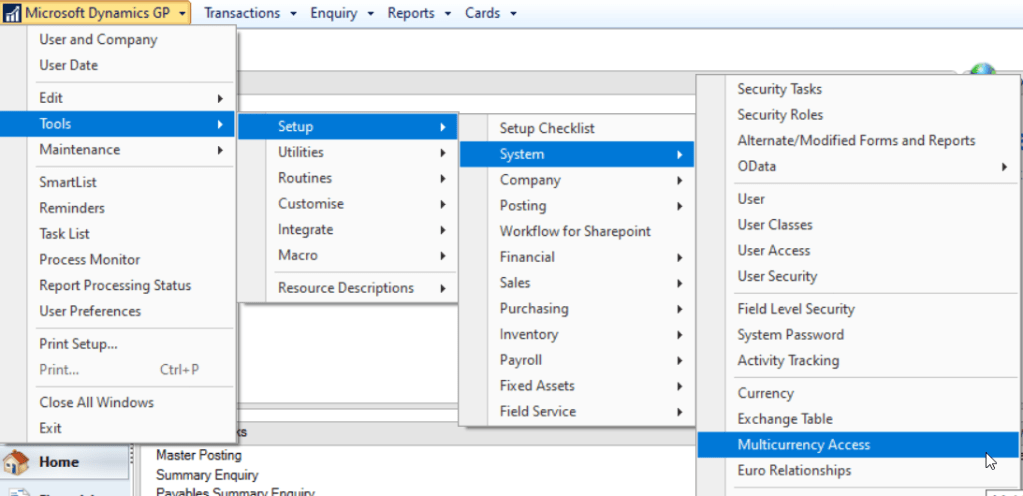
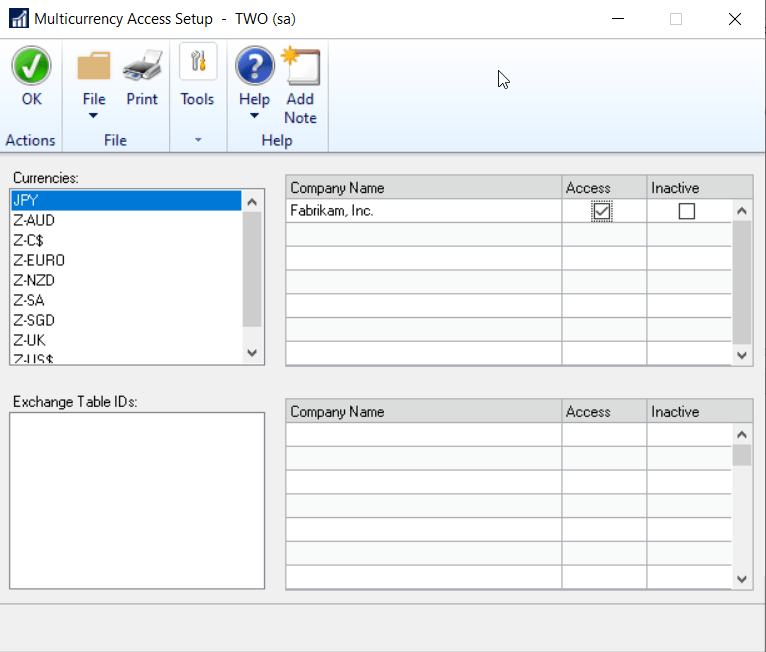
Once in the “Multicurrency Access Setup” window select the new currency and tick the relevant companies. (this requires all users are out of the system)
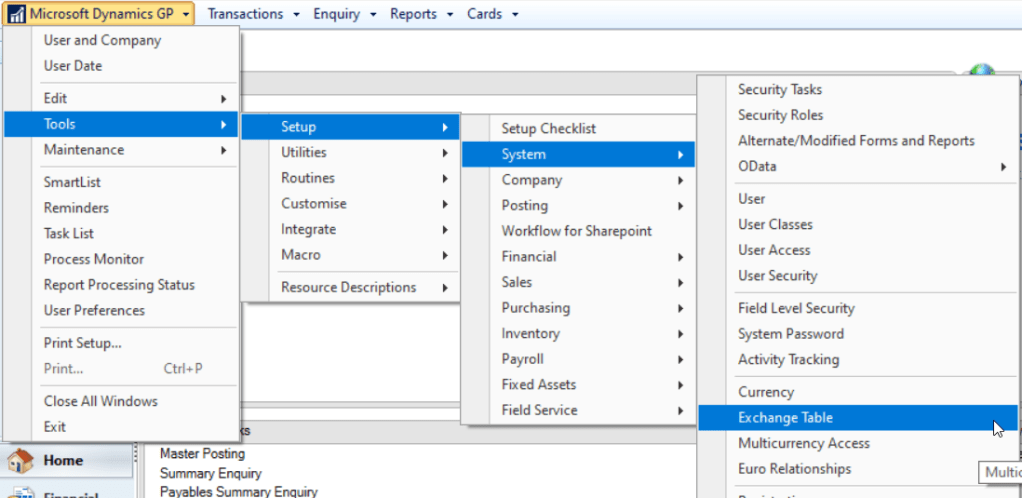
Next add the “Exchange Tables” via “Tools > Setup > System > Exchange Tables”
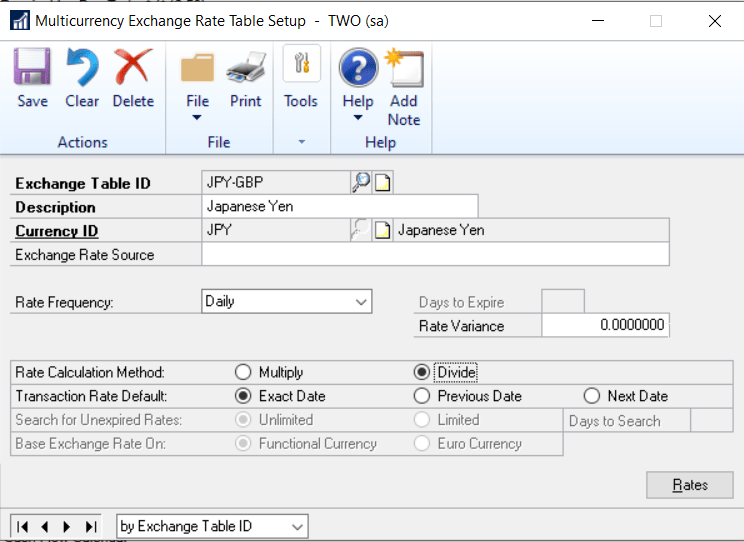
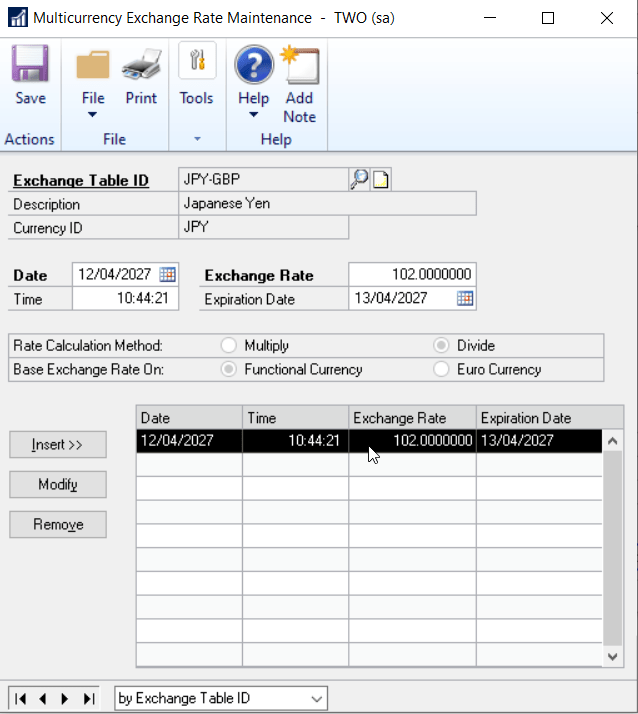
Once in the “Multicurrency Exchange Rate Table Setup” window create the Exchange Table ID and click “Rates” and add the exchange rates.

** You can review any existing exchange tables to confirm the settings used in your system. In my example I’m choosing “Divide” as the calculation method and “Exact Date” as the default rate. You may wish to use different settings on your system.
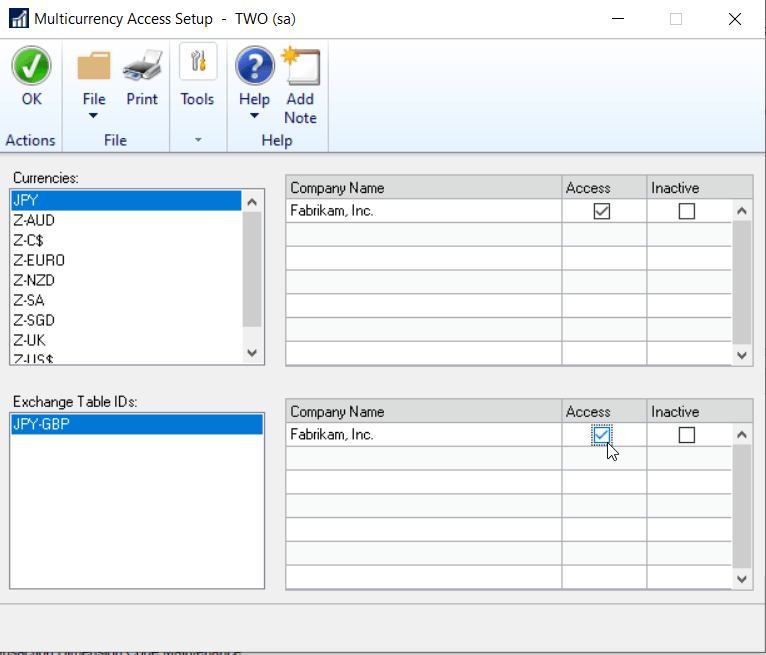
Next you need to go back to the Multicurrency Access Setup window and grant access to the Exchange Table ID we just created.
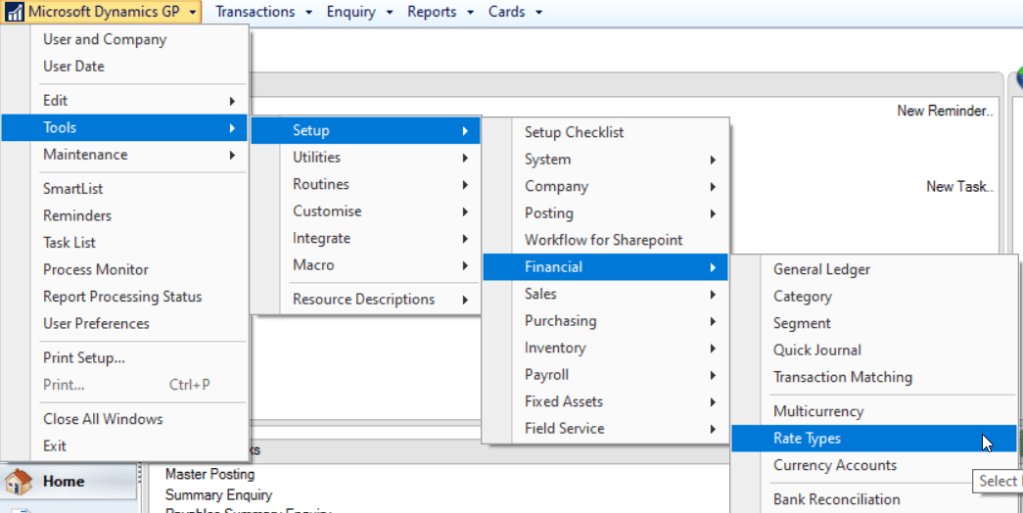
Once the currency and exchange table have been created, and access has been granted, we just need to assign the various rate types to the exchange table. We do this via “Tools > Setup > Financial > Rate Types”
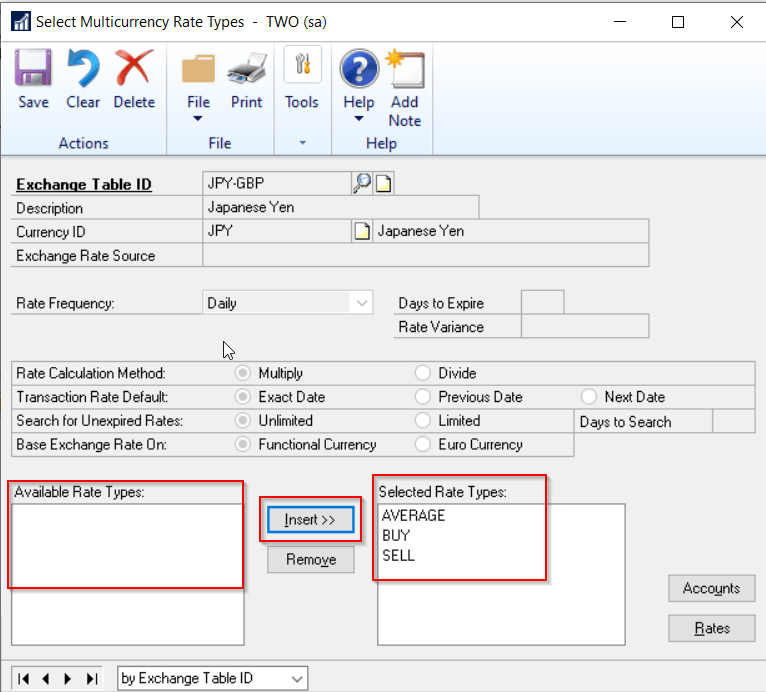
In my example I only intend to have one exchange table so I’ve assigned all the rate types to the new exchange table.

** Please note you may only have one rate type in your system. My example is based on adding a new currency for use in the Fabrikam demo company which has three rate types.
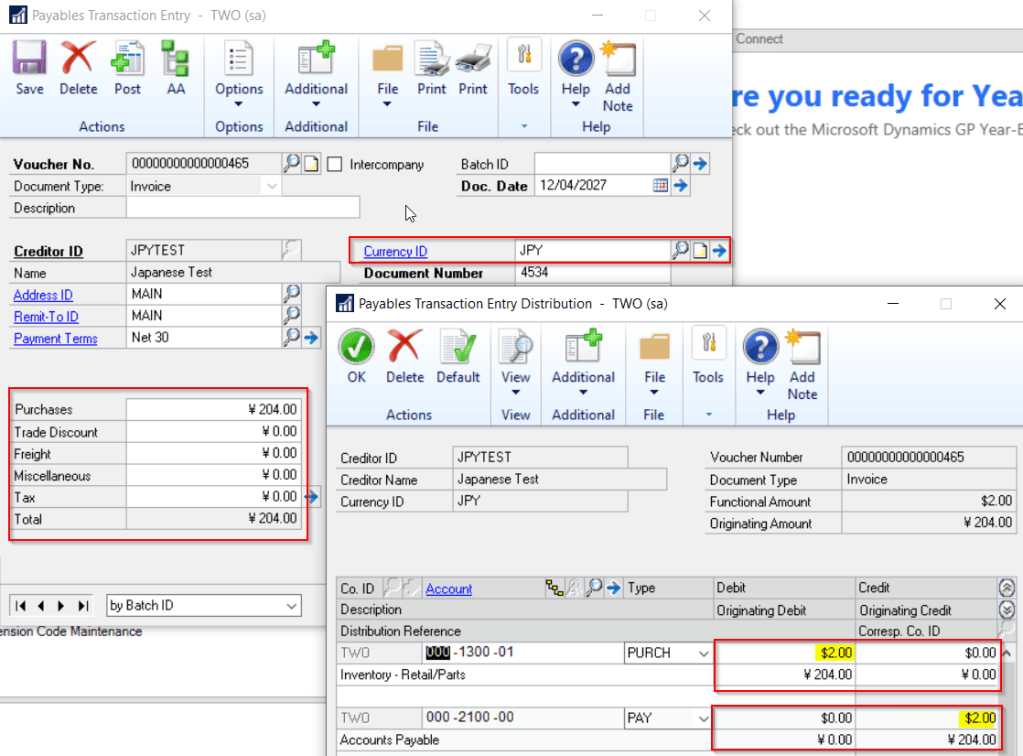
Once this is all setup I can test adding a transaction and this all works fine. I’ve added a transaction for 204 Japanese Yen which equates to 2 US Dollars.
If Inventory Items are used in your system you may also need to assign the new currency to either all or some of your Items. This can be done individually via “Cards > Inventory > Item Currency” or en masse via “Tools > Utilities > Inventory > Price List Utilities”

Conclusion

As you can see there are quite a few steps involved in creating a new currency but hopefully if you follow the steps outlined above it will assist you in setting this up.

Thanks for reading!

Thinking of making the move to Business Central? We can help
Dynamics GP – Error “No Obligations found for the year” when retrieving VAT Obligations – Issue with the version of the VAT100ElectronicSubmission DLL file

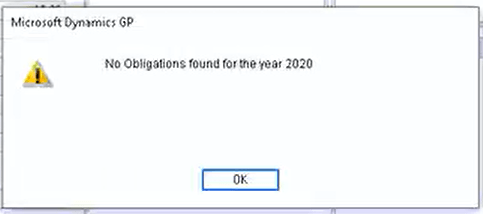
We had a client report the error “No Obligations found for the Year 2020” when trying to retrieve the obligations when doing the VAT return. They were running Dynamics GP 2018 version 18.00.0704.

The exact error is below

We checked all the usual things like company VAT number, and also tried when logged in as “sa” even though the relevant service pack has been applied, however the error persisted. (more details on troubleshooting can be found in this Microsoft link)

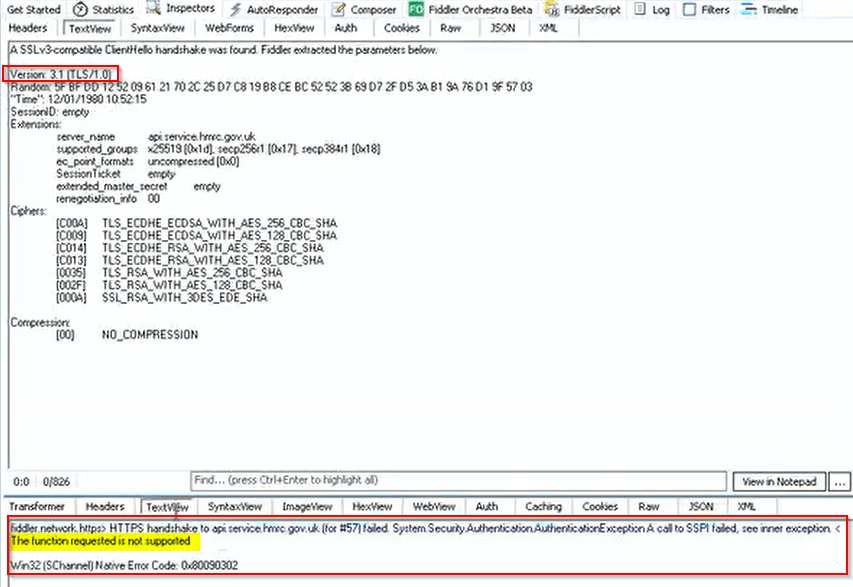
I then had a colleague run a fiddler trace and he noticed that on the tunnel to the HRMC API there were calls using TLS 1.0 and on further investigation the message “The function requested is not supported”

My colleague suspected a change on the HRMC side which was preventing TLS 1.0 from working.

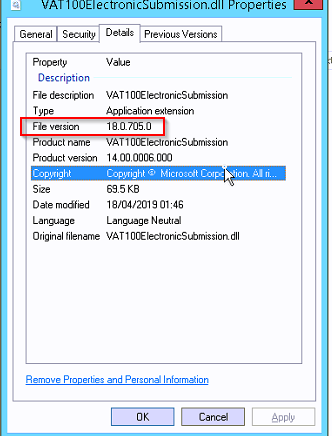
We suspected the file VAT100ElectronicSubmission.DLL located in the GP client folder was responsible for this functionality so I checked the version currently installed which was 18.0.705.0

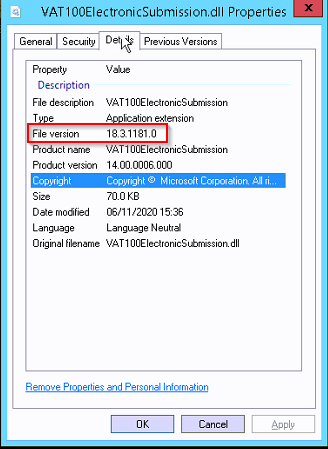
I then copied the VAT100ElectronicSubmission.dll file from my Dynamics GP 18.3 local install which is version 18.3.1181.0 to the users PC. (i.e. the latest version)

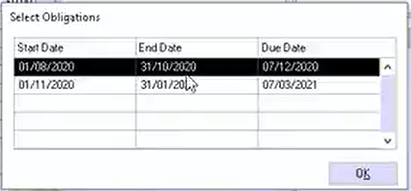
Now when we tried again this all worked! The obligations were retrieved successfully and we are now presented with the “Select Obligations” window

We also tried another PC which had previously had the same issue and this also worked!

Therefore we can only surmise that something has changed at HMRC’s side and there are now issues with certain versions of the VAT100ElectronicSubmission.dll files on older versions of GP.

We now plan on rolling out Dynamics GP 18.3 to all PCs at this site and are waiting to see if this affects other users on the older version.

Conclusion

Again we can only guess, however it seems something may have changed at the HMRC side which is preventing making tax digital submissions when you have an older version of the VAT100ElectronicSubmission.dll file. We found the solution is to replace this file with the most recent copy available with Dynamics GP 18.3.

Fingers crossed this helps others who may encounter this issue.

Thanks for reading!

Thinking of making the move to Business Central? We can help

Dynamics GP – Error Msg “Transaction Analysis information for this transaction is incorrect or missing” on Sales Edit List.

A client reported the error “Transaction Analysis information for this transaction is incorrect or missing” when trying to post a batch of sales invoices.

A screen shot of the error message on the edit list is below:

I connected to the clients system, ran an edit list, and found I also received the same error message.

I know this error is usually related to Multi Dimensional Analysis (MDA) or Analytical Accounting (AA) issues on the transaction, and as this client doesn’t use MDA, I figured it was most likely related to AA.

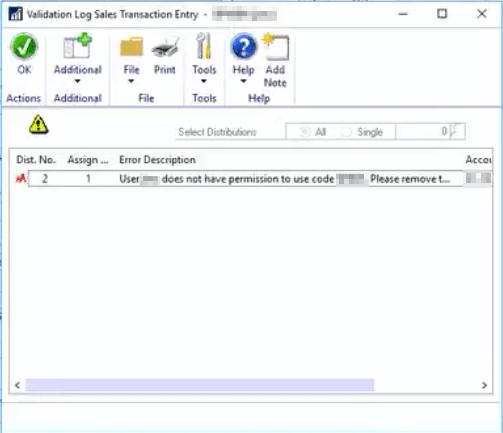
I therefore checked the AA window in the distributions on the transaction, expecting missing AA codes, however everything seemed fine. I then clicked “Validate” and was presented with the following permission error:

This indicates I don’t have permissions to some of the AA codes on the transaction.

I therefore went to “Tools > Setup > Company > Analytical Accounting > User Access” and granted permissions to all the relevant AA codes for my user. Then, I then ran another edit list of the batch and the error had gone.

Next I updated the clients permissions and they can now post the transaction.

I hope this helps anyone else encountering the same issue.

Thanks for reading!

Thinking of making the move to Business Central? We can help