
Subscribe to continue reading
Subscribe to get access to the rest of this post and other subscriber-only content.
Subscribe to get access to the rest of this post and other subscriber-only content.
If you lease a car through your business, you can only reclaim 50% of the input VAT on the lease cost unless you can demonstrate that it is used exclusively for business purposes. (i.e. a pool car or company van)
Therefore even though we still have to post the Purchase invoice at its full amount, including VAT, we can only reclaim a portion of that VAT. As a result, when posting the Purchase invoice we need a method to expense the amount of VAT we cant reclaim, while ensuring that only the reclaimable portion is included in the VAT Return.
In this post I’ll go through how you can configure VAT in Business Central to accommodate this using the “Non-Deductible VAT” feature.
The first thing to do is to switch on the “Non-Deductible” feature via the “VAT Setup” page
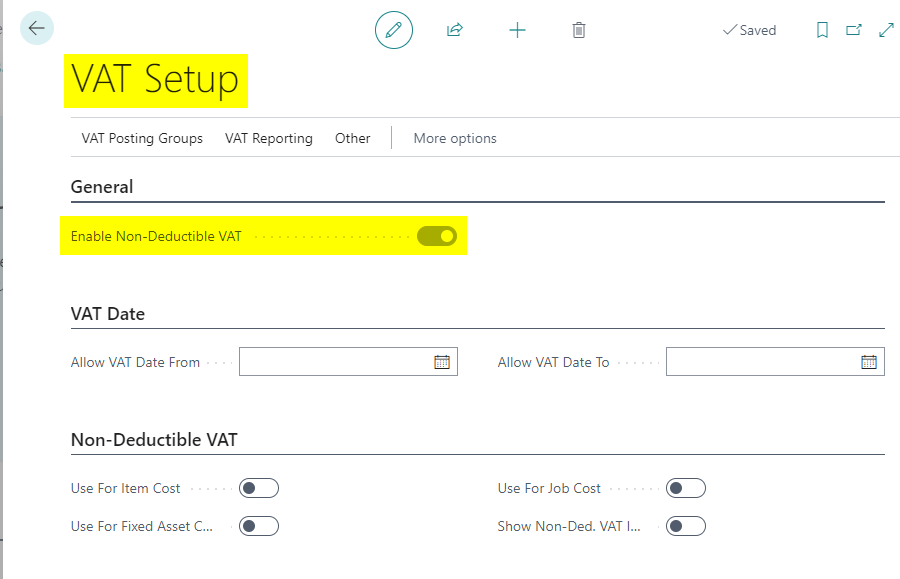
Enabling this gives more features in the “VAT Posting Setup” page, which we will utilise and look at in more detail later.
The next step is to create a new “VAT Product Posting Group” that we’ll select when posting our lease car Purchase Invoices.
In this case I’ll call is VAT20LEASE.

Next I’ll assign this new VAT Product Posting Group to my Lease Vehicles GL code as per below:

This will now be selected by default when I use this GL code directly in a Purchase Invoice.
We’ll now add the new VAT Product Posting Group into our VAT Posting Setup.
Since we have switched on “Enable Non-deductible VAT” we have extra features we can utilise for this new VAT Business/Product combination as per below:

If we break this down we can see the following:
Firstly, now we have enabled the “Non-Deductible VAT” feature we have three new options. These are shown above is point 3, 4 and 5. (click to enlarge the image)
In point 3 we have the option to “Allow” non-deductible VAT on this VAT combination. If this is set to “Allow” you can specify the non-deductible percentage, which we have set to 50%. Finally in point 4 you can either select a GL code to post the non-deductible VAT, such as an “Irrecoverable VAT” GL code, or you can leave it blank, so the expense is posted to the same expense code used on the Invoice.
Now we have this all configured we’ll now create a Purchase Invoice for a lease car for £1000.00+£200.00 VAT, which totals £1200.00.
Remember, although we still have to pay £1200.00, we can only reclaim 50% of the VAT.
When entering the Purchase Invoice it shows as per below

If we click “Invoice > Statistics” we can see the full VAT amount of £200.00 but we also see that £100.00 is “Non-Deductible”

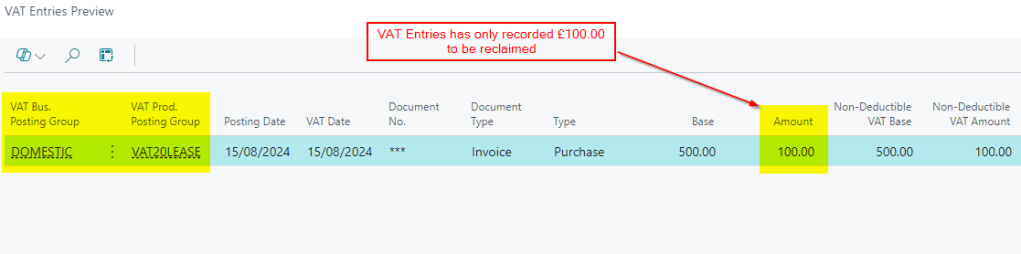
The VAT Entries for this Purchase Invoice also only record £100.00 to be reclaimed
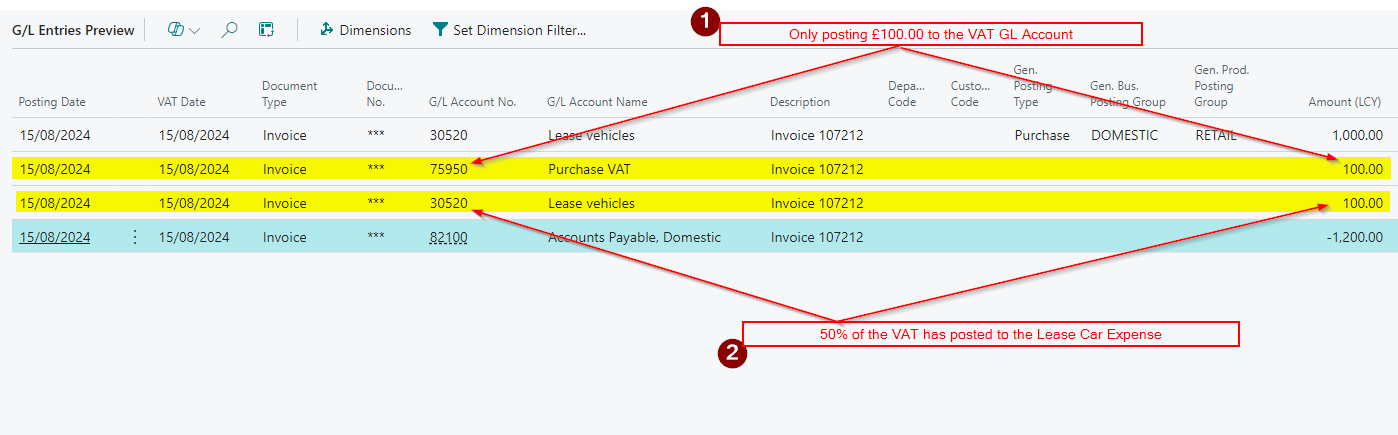
And finally the GL Entries only show £100.00 hitting our VAT GL account, with the other £100.00 hitting the Lease car expense
Remember we could have specified an “Irrecoverable VAT” code in the “VAT Posting Setup” for this if we preferred.
The final piece of the jigsaw to ensure we add the new combination on the VAT Statement so its included in our calculations and submission.
I therefore included it in the calculations so its picked up in the relevant boxes as per below

This may differ from your VAT statement as its taken from my demo and then I added the new VAT Product Posting Group
Previously we’d have had to manage this manually using journals however we can now utilise the “Non-Deductible” features to assist when posting Purchase Invoices for Lease Cars in Business Central.
Thanks for reading!
Introduction
This is the sixth video in the video series “Making the most of your Business Central Trial”. This video series is intended to help new users on their journey with the Business Central Trial, although it may also prove helpful for those already familiar with Business Central.
In this video I go one of the key concepts of Business Central: Posting Groups.
I cover the three different types of Posting Groups: Specific, General and VAT Posting Groups. I use the example of a Sales Order to show how Business Central uses all the predefined posting groups to produce the GL Entries when you post the Sales Order to an Invoice. I show why posting groups are such a fantastic feature of Business Central, offering lots of flexibility.
I also highlight how you can use this information to think about how your Chart of Accounts might work with Business Central.
I hope you enjoy the video 🙂
Thanks for reading!
If you’re a UK business ready to move from learning into implementation, take a look at our fixed-price Business Central packages and pricing at Rapid365.co.uk

