Introduction
Ever wondered why you have options to post to Vendors in a Sales Journal and Customers in a Purchase Journal? What do Documents and Journals have in common? How are Ledger entries and GL register created?
In this post I’ll explain more about Financial Journals and Documents and hopefully unlock some of their secrets along the way.
**Please note there are other journals such as Item Journals for inventory management which I wont cover in this post)
Journals
Journals are scattered throughout Dynamics 365 Business Central and can be used to record a whole manner of transactions. The most commonly used financial journals would be General Journals, Sales Journals, Purchase Journals, Cash Receipt Journals and Payment Journals.
Interestingly, under the hood all the journals are pretty much the same. All the journal pages are based on the Gen. Journal Line (81) table and all journals use the same Gen. Journal posting routine (codeunit) to create the relevant Ledger Entries and G/L Register.
As you can see from the image below although the General Journal and Sales Journal use different pages they are based on the same table.
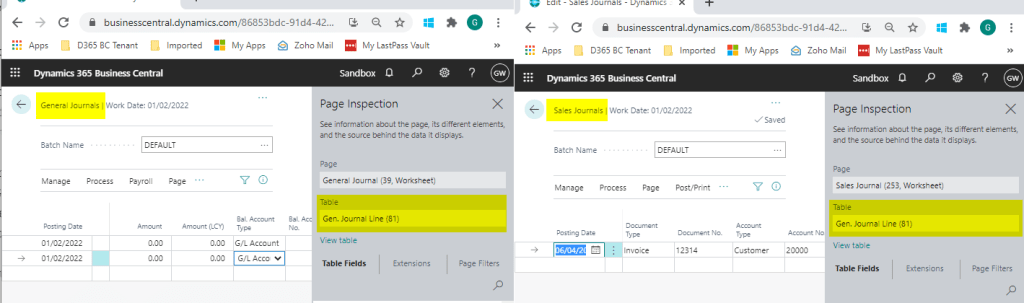
The difference between the journals only really exists on their Pages and the actions and options available on those Pages.
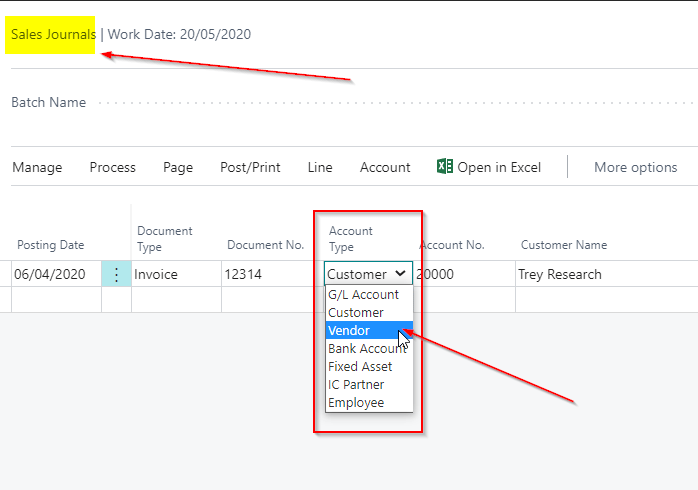
For example the Payment Journal page has an action to run the “Suggested Payment Routine”, which is relevant to paying suppliers, and the other journals also have different actions. However, as they are all technically the same, nothing stops me creating a Payables Payment transaction in a Sales Journal and getting the correct Ledger Entries.
For instance, as you can see below although I’m in a Sales Journal I can still choose an Account Type of “Vendor”.
When you post the journal the relevant Ledger Entries and G/L Register are created and the journal lines are removed. (some exceptions exist like for recurring journals).
Therefore, taking all this into consideration, we could technically just use the “General Journal” page to record all of our financial transactions in Business Central, whether they be Sales or Purchase entries. We can also use one journal to record a whole host of different types of transaction. (as I show in this post)
Documents – Overview
When we refer to documents in Dynamics 365 Business Central we are referring to things like Sales Invoices and Purchase Invoices. (there are of course others such as Sales Orders, Sales Shipments, Purchase Orders, and Purchase Receipts)
They will have a Header and Lines, with the Header typically containing information on the Customer or Supplier and various dates, and the lines containing information or what you are selling or buying, for example items or GL codes.
When you post an Invoice, postings routines are ran to create the Ledger Entries and G/L Registers and new Posted Documents are created and the unposted document is removed. (you can archive Sales Orders using the archiving options in Setup)
For example if I were to Post a Sales Order via the “Ship and Invoice” option a Posted Sales Shipment and Posted Sales Invoice would be created along with financial Ledger Entries such as General Ledger and Customer Ledger Entries.
Documents – Posting
So what do Documents and Journals have in common? What makes them technically the same when it comes to the creation of the Ledger Entries and GL Registers?
As mentioned above when you post a Document the system runs posting routines to create the relevant ledger entries and it turns out these are the exact same posting routines that run when you are posting a journal (whether that be a General Journal, Payment Journal etc).
The posting routine responsible for this is “Codeunit 12, Gen. Jnl.-Post Line”. This is responsible for creating all the Financial Ledger Entries and G/L Register regardless of whether you are posting a journal or a document.
Therefore when you post a document its converted into journal lines, the lines then validated, and finally its posted in the same way as a journal.
Conclusion
The Gen. Journal Line table and Gen. Jnl.-Post Line codeunit do feel like the heart of Dynamics 365 Business Central. (certainly the financial heart)
I hope this article helped explain some of the concepts around journals that I found confusing when I started out with Business Central.
Thanks for reading!

 thedynamicsexplorer.com