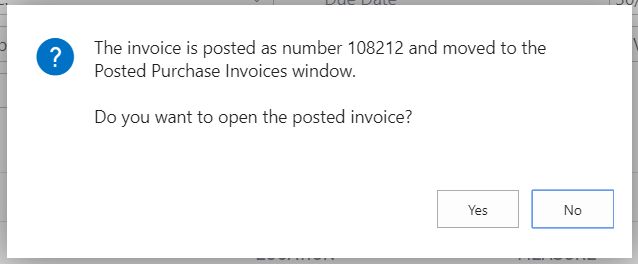
I’ve seen this error message crop up a few times. It occurs when you try to receive a Purchase Order in Receiving Transactions Entry and you are presented with the message below even though “Purchase Order Approvals” hasn’t been activated in the “Purchase Order Enhancement” module
As mentioned in several articles online it can be caused because a budget hasn’t been assigned in the “Commitment Setup” window for the year of the Purchase Order you are trying to receive against. Therefore if you go into “Commitment Setup” and assign a budget to the relevant year the issue is resolved. However, on some occasions I’ve found missing records in the commitment table causing the issue. (perhaps because several Purchase Orders have been raised whilst the Commitment Setup was missing a budget for that year)
At first I tried running “Checklinks” on the Purchase Order Enhancements tables via “Microsoft Dynamics GP > Maintenance > Purchase Order Enhancements” however when this failed I’ve fixed the issue by manually inserting data into the commitment tables based on data in the Purchase Order line table.
Just in case anyone else encounters the same issue I thought I’d share the script I’ve used.
INSERT INTO cpo10110
            (ponumber,
             ord,
             actindx,
             reqdate,
             vendorid,
             approvl,
             committed_amount,
             polnesta,
             qtycance,
             unitcost,
             postedsubtotal)
SELECT pop.ponumber,
       pop.ord,
       pop.invindx,
       pop.reqdate,
       pop.vendorid,
       '1',
       pop.extdcost,
       pop.polnesta,
       pop.qtycance,
       pop.unitcost,
       0.00
FROM   pop10110 pop
       LEFT JOIN cpo10110 poe
              ON pop.ponumber = poe.ponumber
                 AND pop.ord = poe.ord
WHERE  pop.polnesta IN ( 1, 2 )
       AND poe.ponumber IS NULL
As you can see this SELECTs data from the Purchase Order Line table (POP10110) and inserts into the Commitment tables (CPO10110) where its missing from the Commitment table (CPO10110).
As with any script that updates data please ensure you have a good backup of your data prior to running this. I’d also recommend testing this in a TEST company as well before implementing in the LIVE or production company.
Its also a good idea to just run the SELECT portion of the script in the first instance and see if it highlights the PO you are trying to receive against. If it does you can always investigate further, for example ensuring lines aren’t cancelled or checking if there definitely is a budget setup for the year of the purchase order. You also need to ensure the line item has a valid account number.
You can also adapt the script and change the WHERE clause so it just includes the POs you know to have the problem.
I hope this comes in handy for someone else in the future.
You receive the message “The Posting Date is not within your range of allowed posting dates” when trying to post a Purchase Invoice in Business Central.
According to the user setup the “Posting Date” of the document I’m posting is within the allowed posting range so why won’t the system allow me to post it?
Background – Value Entries
To provide a little more detail I’m trying to post a Purchase Invoice that I’ve matched to a Posted Purchase Receipt and I’ve increased the Unit Cost on the Purchase Invoice as the price has changed since the goods were received. I’ve also sold the items on a Sales Invoice before I’ve tried posting the Purchase Invoice.
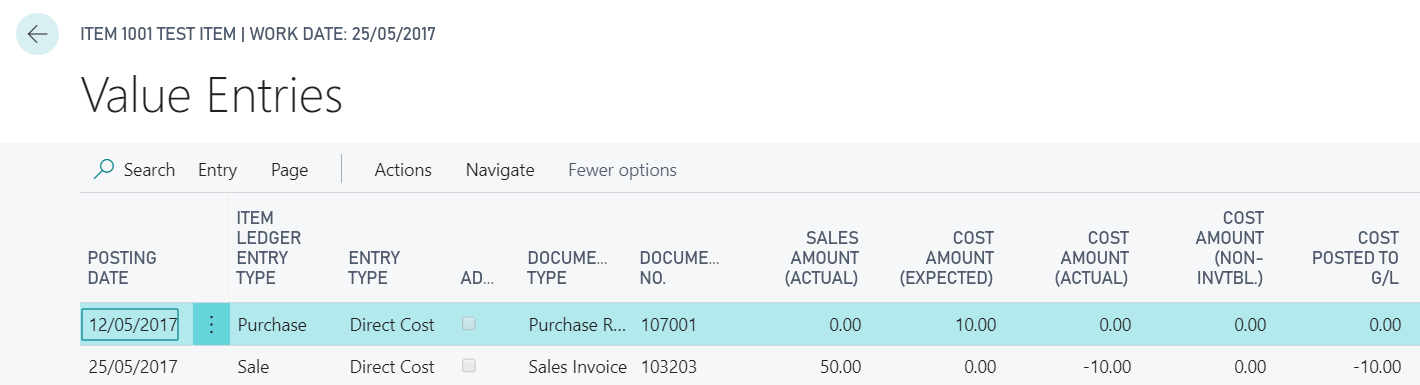
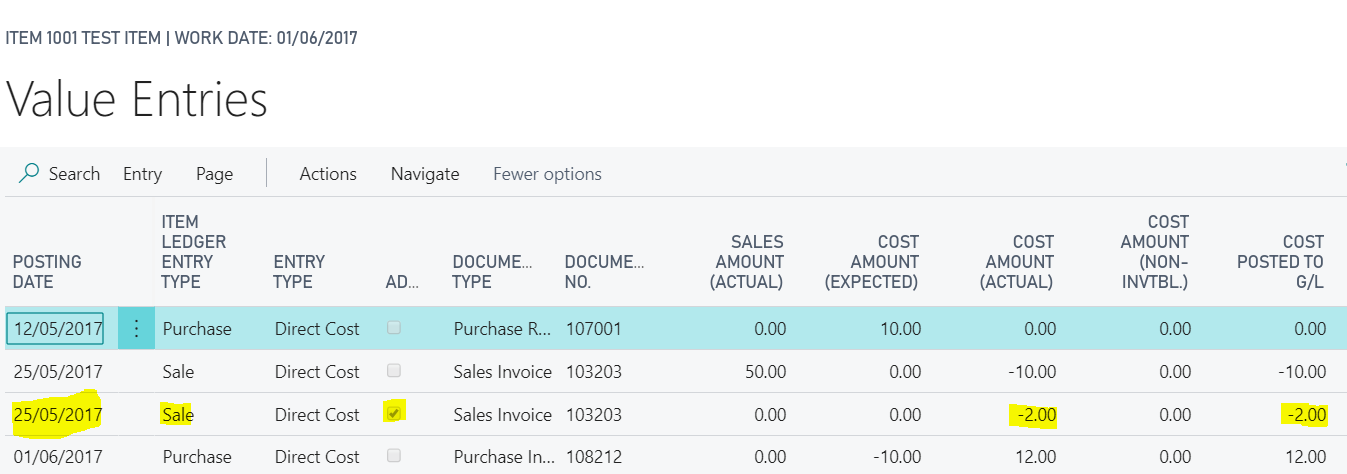
Therefore, if we look at the value entries of this item prior to attempting to post the Purchase Invoice they are as follows
We have a value entry for the Posted Purchase Receipt showing a date of 12/05/2017 and a “Cost Amount (Expected)” of £10.00 (this the amount I used when posting the Purchase Receipt)
We also have a value entry for the Sales Invoice showing a Posting date of 25/05/2017 and a “Cost Amount (Expected)” of £10.00.
Details of the Purchase Invoice
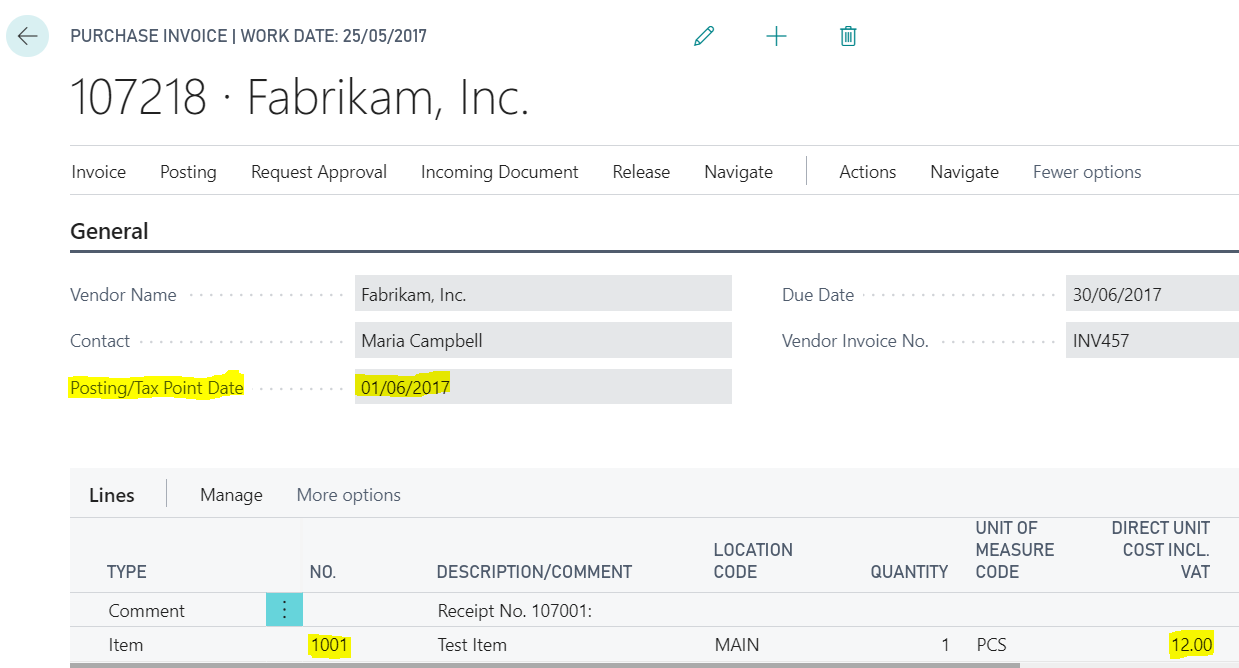
The Purchase Invoice I’m posting is dated 01/06/2017 and I’ve amended the Unit Cost from the original £10.00 that pulled through from the Posted Purchase Receipt to £12.00
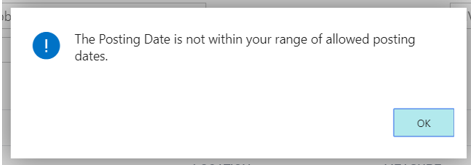
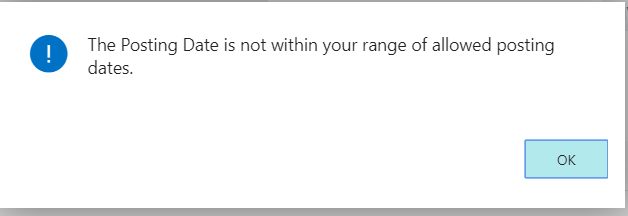
Now when I try and post this transaction, I receive the message
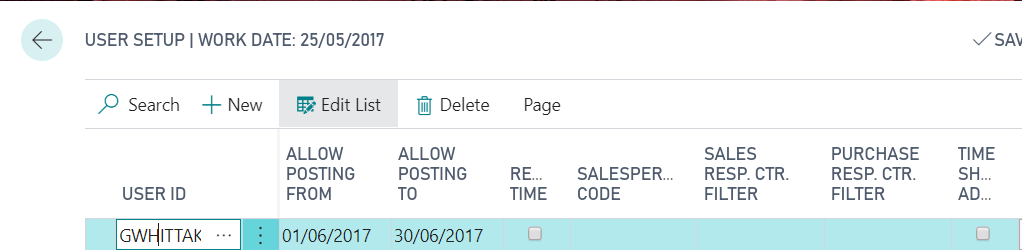
Therefore, just to confirm the Posting Date of the Purchase Invoice is within my allowed posting dates below is a screen shot of the User Setup window showing my Allow Posting Dates
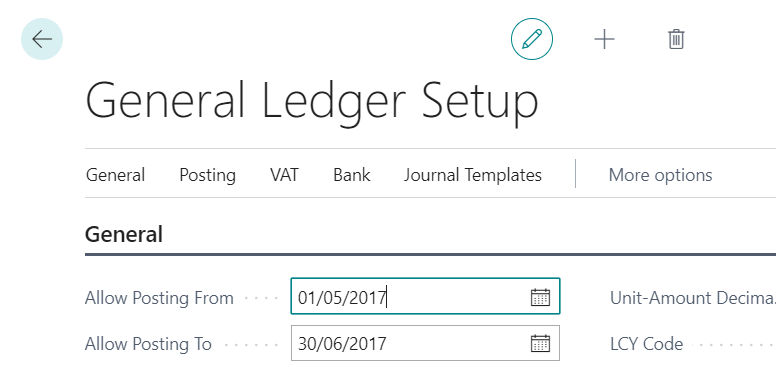
The dates are also within the General Ledger allowed posting dates as shown below
Therefore, at first glance its not apparent why the system isn’t allowing me to post this document? The Purchase Invoice posting date is 01/06/17 and this is within my range of allowed posting dates?
The Issue – Automatic Cost Adjustment and Adjust Cost Item Entries
When posting the Purchase Invoice, the system has detected that the cost has changed from the Posted Purchase Receipt, and as this has been sold on a Sales Invoice, the cost of goods sold need adjusting.
The system therefore tries to post an adjustment using the Posting Date of the entry its adjusting (in this case the Sale Entry on the 25/05/17), which is in May, and as this falls outside of my posting range I receive the error “The Posting Date is not within your range of allowed Posting Dates”.
** Please note there is a complex method for selecting the Posting Date if the Posting Date of the entry being adjusted also fell outside of the “Allowed Posting Dates” of the General Ledger and also if “Inventory Periods” are being used. More information on this can be found in this Microsoft document https://docs.microsoft.com/en-us/previous-versions/dynamicsnav-2016/dn948192(v=nav.90)
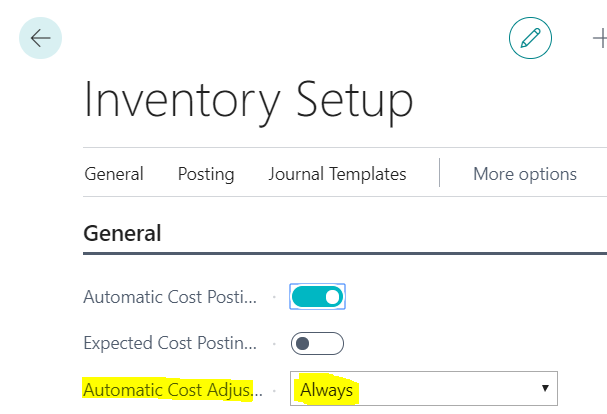
** Its also worth noting I’m getting this message when posting the Purchase Invoice because the option “Automatic Cost Adjustment” is set to “Always” in Inventory Setup. This means the system checks for cost adjustments when you post the transaction. If this wasn’t set to “Always”, then depending on its setting its possible the document would post however when the “Adjust Cost Item Entries” batch job was subsequently run the error would occur.
See below for my Inventory Setup
Solution
There are two possible solutions to my issue here. The first is to change my “Allowed Posting Dates” in the “User Setup” to 25/05/2017 through to 30/06/2017. This will then include the posting date of the entry that will be adjusted.
Alternatively, I could change the “Allowed Posting Dates” in the General Ledger Setup to 01/06/2017 through to 30/06/2017. Then, as per the article I linked to, the system would use the date of 01/06/2017 for the adjustment entries, (i.e. the first open date in the General Ledger Setup) which does fall in my allowed periods to post to.
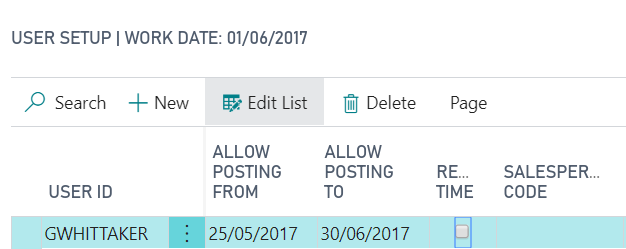
Therefore I’ll change my “Allowed Posting Dates” in the User Setup as per below
And now when I post the Purchase Invoice this is succecssful
If I now view the Value Entries you can see the adjustment entry created with a Posting Date of 25/05/17.
Conclusion
Although this is a simple example it shows why you may encounter this error when it seems the postings date configuration on the User Setup should allow a document to post.
On occasion a batch can be accidentally deleted from the system, and for one reason or another it would be interesting to find out which user did this. In this post I aim to show how this might be possible using some SQL functions to query the SQL transaction log. (I appreciate there are options available to prevent users deleting batches however I’m not covering this)
Pre-requisite and Considerations
One pre-requisite is that the SQL database must be in the FULL recovery model. This won’t work in the SIMPLE model as the transaction log information is lost at each checkpoint.
Another consideration
you must make is that the process of posting a batch in Dynamics GP effectively
deletes the batch header from the SY00500 table as well. Therefore, the result
set from the query could include both genuine deletes, caused by posting
batches, and deletes that have happened accidentally. However if you know a
little detail about the batch that you wish to track like the type of batch
that was deleted, and approximately the number of transactions in the batch, I’m
hoping the result you get back from this query will assist you in making an educated
guess as to if this is actually the deleted batch you were looking for.
The Theory
In SQL every
INSERT\UPDATE\DELETE operation is first logged in the transaction log before
being written to the database. Therefore, theoretically using a SQL function
you can query the transaction log looking for DELETEs to tables and objects.
I mentioned earlier that the database must be in the FULL recovery model. To expand on this if the database is in the SIMPLE recovery model then after the INSERT\UPDATE\DELETE transaction commits, and a checkpoint occurs, that transaction log information is lost. Therefore you won’t be able to query the transaction log for deletes when the database is in SIMPLE recovery model.
However when the database is in the FULL recovery model, the log information isn’t lost until a LOG backup is performed. Therefore using a SQL function you can query the log looking for deletes.
Finally, all is not lost if you have performed a log backup since the delete occurred as you can use another SQL function to query the transaction log backup file that resides on disk. You just need to know the file name of the backup and its location on disk.
Use FN_DBLOG to query the transaction log
To demonstrate the process, I first created the following batch in Dynamics GP which contains one transaction.
I then deleted the batch from Dynamics GP and using the query below I can identify SQL transactions that include a delete on the batch headers table. (SY00500). Please note this needs running the company database.
SELECT [transaction name],
       users.NAME,
       [transaction id],
       operation,
       allocunitname,
       [begin time],
       [end time],
       [transaction name]
FROM   Fn_dblog(NULL, NULL) trnlog
       LEFT JOIN sys.sysusers users
              ON trnlog.[transaction sid] = users.sid
WHERE  [transaction id] IN (SELECT [transaction id]
                            FROM   Fn_dblog(NULL, NULL)
                            WHERE  operation IN ( 'LOP_DELETE_ROWS' )
                                   AND allocunitname LIKE '%sy00500%')
This gives the following results
As you can from the results above there’s a SQL Transaction that includes a deletion to the batch header table (SY00500) and associated objects (i.e. the indexes). This is SQL Transaction ID 0000-00045d05. As part of the same transaction you can see deletes to GL tables and objects therefore its clear this is a GL batch that was deleted. You can also see the user who deleted the batch in the “name” column.
Use FN_DUMP_DBLOG to query the transaction log
If a transaction log backup has occurred since the batch was deleted, you won’t be able to use the query above as the log will have been cleared. However you can query the SQL transaction log backup file directly using a different SQL function called FN_DUMP_DBLOG.
To test this I performed a transaction log backup and gave it a file name of C:\Program Files\Microsoft SQL Server\MSSQL14.SQL2017\MSSQL\Backup\TWO18_3.trn and used the query below to look for the same delete I performed earlier. (please note in this query I had to change a few things as the object name didn’t work without joining to another system table)
This gave me the output below which is the same as the original output. Its just the data resides in the transaction log backup file now. (i.e. its the same SQL Transaction ID)
If you don’t find the delete you can just alter the backup file name and keep searching through your backups.
Conclusion
Therefore
although not 100% ideal this is one method that can assist in identifying a
user that has deleted a batch in Dynamics GP.
You can also use the same method to find out which user deleted other transactions you just need to alter the object name.
I’d also like to note that although I have tweaked the SQL scripts I’ve used in this post myself, I most certainly had to stand on the shoulders of several SQL giants along the way. I’m sure everyone is aware the SQL community is also awesome at sharing information to help others like me!
Thanks for reading!
Thinking of making the move to Business Central? We can help