Templates can be used to make adding static data quicker and easier however I found that after creating templates I was then forced to use one for any new customers or vendors I added. This post shows one way you can get around this.
The Issue
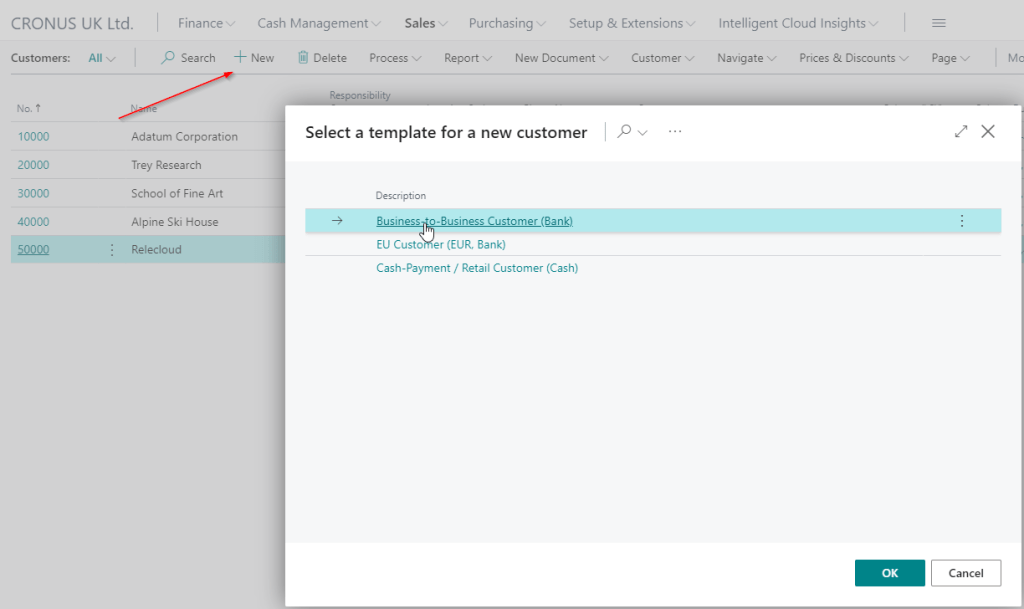
To highlight the issue when I click “New” in the customer list I’m presented with the template pop up.
The only options I have here are “OK” and “Cancel”. If I click “Cancel” I’m taken back to the Customer List and if I hit “OK” a new customer is created using the template defaults.
So how do I create a new customer without a template?
The Workaround
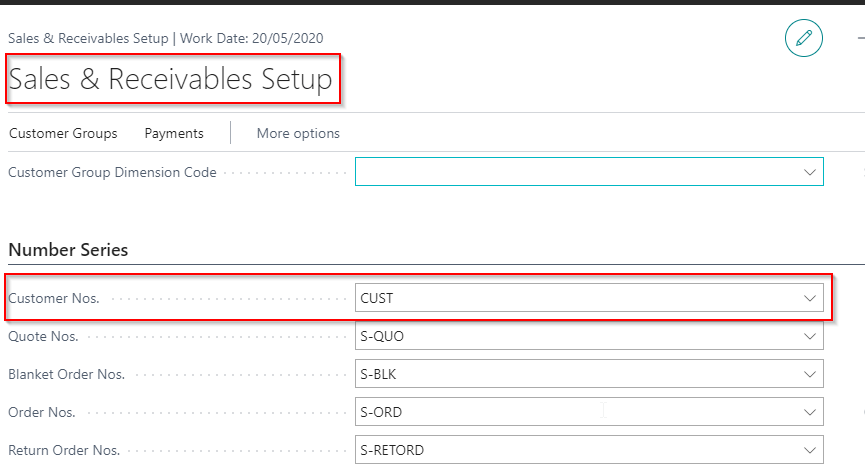
Firstly, if I check the Sales Setup window I can see the number series CUST is used for new Customers
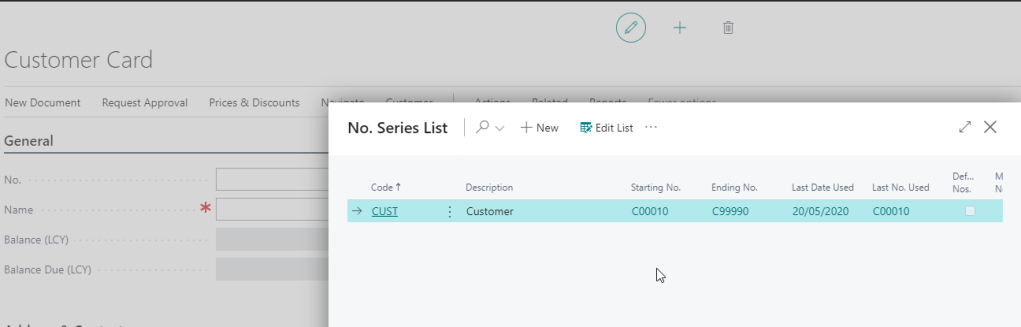
If I go to the Number Series page and check the Number Series for CUST its currently set to “Default Nos.”.
If I untick “Default Nos.” and go back to the “Customer List” I’m no longer prompted for a Template.
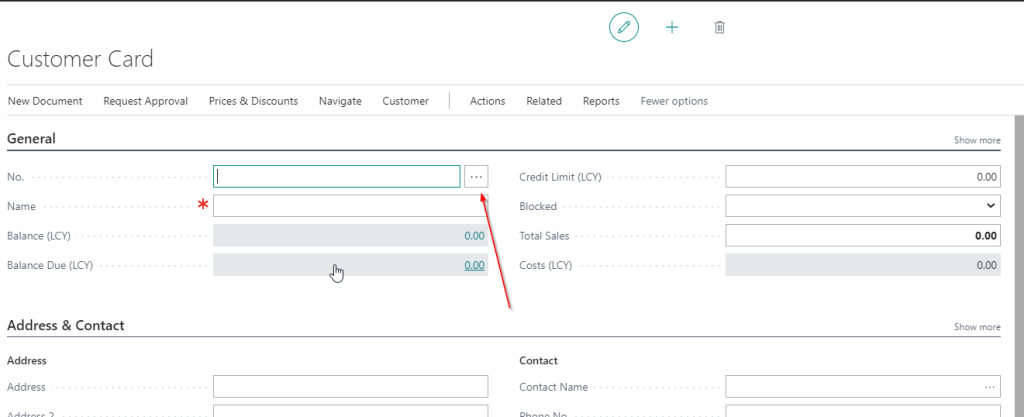
I can still use the Number Series by clicking the ellipse button as highlighted above and selecting the CUST number series. This is shown below:
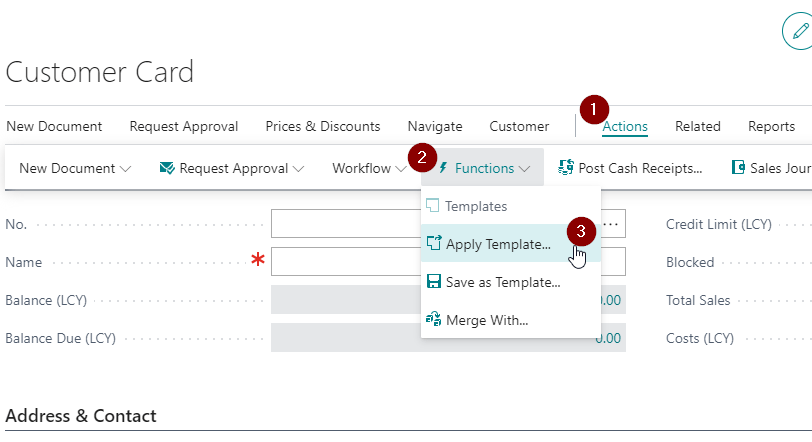
I can also apply a template by click “Actions > Functions > Apply Template” as per below
I can use the same technique on the Purchasing side by editing the number series used for Vendors.
Conclusion
There may be scenarios where you have templates but don’t necessarily want to use them when first creating the customer. This is one way of avoiding this.
This post highlights a great way to pay multiple invoices, on multiple suppliers quickly and easily from the Vendor Ledger Entry page.
Creating payments
There are numerous ways to pay vendors quickly and easily in Dynamics 365 Business Central.
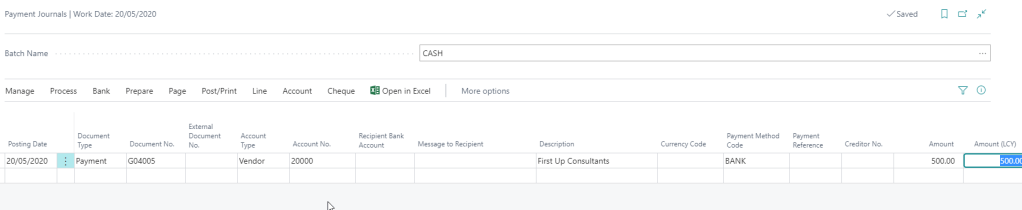
You can do this manually by going directly to a payment journal and entering the payment as per below
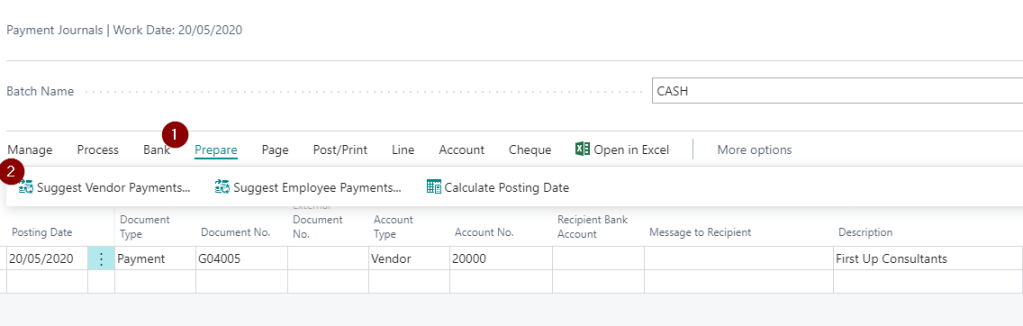
Alternatively you can use the “Suggest Vendor Payments” function from the Payment Journal to have the system build and suggest a list of payments based on criteria you enter. (I’ve covered this in more detail here)
However there’s also another method for creating payments directly from the “Vendor Ledger Entry” page which often goes unnoticed.
Create Payments in Vendor Ledger Entries
The “Create Payment” action you can use directly from the “Vendor Ledger Entries” and is a great tool for creating ad hoc payments.
You first open the “Vendor Ledger Entries” page and add a filter for “Open” items.
** I find the easiest way to do this is to select an invoice that is open and then click drop down on the “Open” column and choose “Filter to this value”
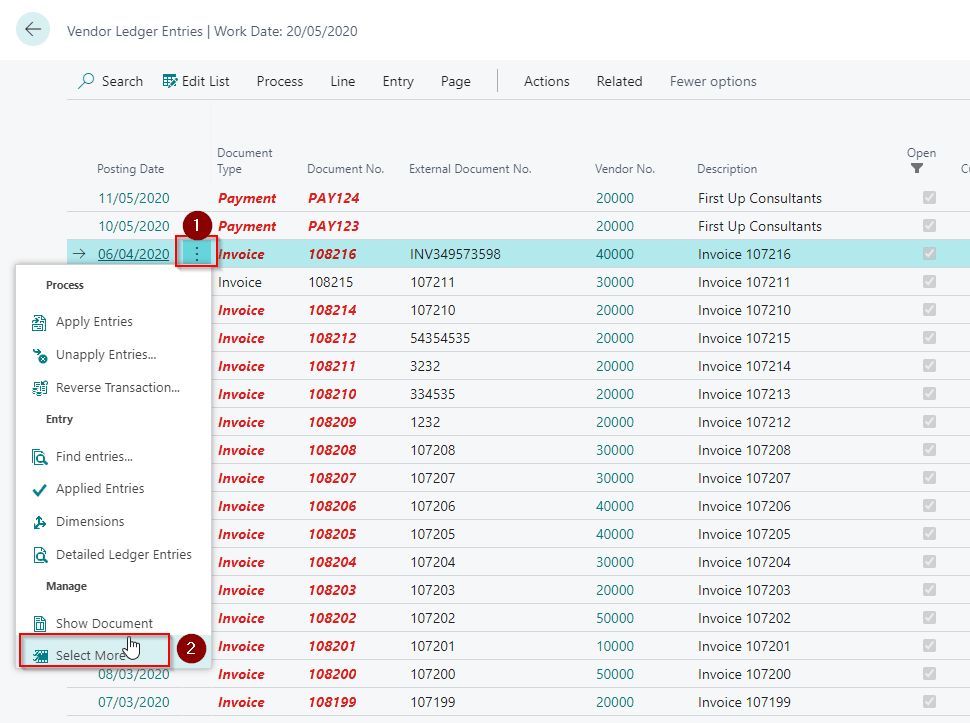
Once you have your list of open documents you can select multiple documents you wish to pay by clicking the ellipse button and selecting “Select more” from the menu:
Once you have selected all the invoices you wish to pay click “Create Payment”
** Please note you can select credit memos as well and the system will create a refund.
Next select the template, batch and other information as per below:
This will open and pre populate the payment journal with the payments which you can review and post.
Conclusion
There are many ways to create payments for your suppliers this is just another way Dynamics 365 Business Central makes this task that little bit easier 🙂
Situations can arise where batches show a status of “Receiving” or “Busy” in the various series post windows. This is generally nothing to worry about, it just means a user is active with that batch, however if the batch continues to say “receiving” or “busy” when no one is posting, further investigation may be needed. When this happens users and admins will often dive straight into SQL to investigate further, however this post shows how you can use the little known “Batch Enquiry” window to get a greater insight into what is happening with batches in Dynamics GP, without the need for SQL. You can then take some remedial action to hopefully prevent any long winded SQL fixes.
The Busy and Receiving Batch Statuses
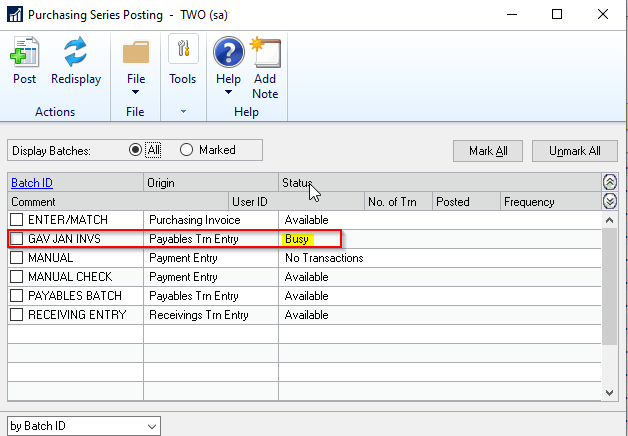
When you are working in a batch in Dynamics GP the batch status changes to record you are active in that batch. For example I’m working in the “GAV JAN INVS” batch so the series post window shows this batch as “Busy”
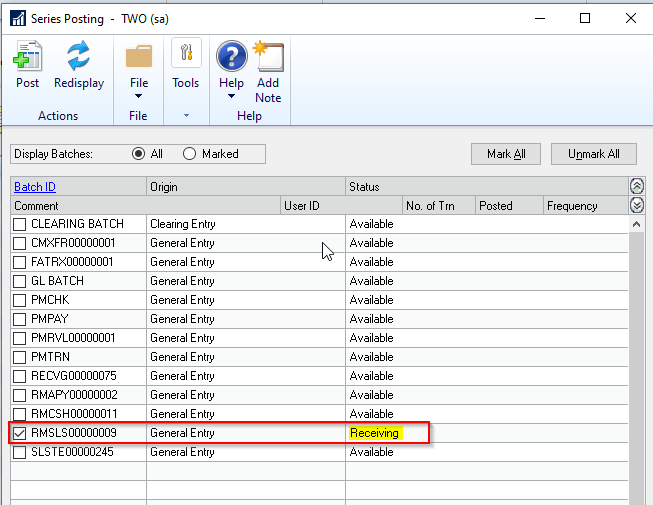
In the scenario below I’m posting some Sales Invoices, so the General Ledger Batch RMSLS000009 is showing a status of “Receiving”. (as this is receiving transactions from the Sales Invoice batch I’m posting)
As I mentioned above this is all normal behaviour, however instances can arise where no one is in the batch yet the batch status remains as “Busy” or “Receiving”.
Batch Enquiry
When this occurs users and admins can be tempted to delve straight into SQL however you can also use the “Batch Enquiry” window to see which users are active with those batches. The “Batch Enquiry” window is a little known window that gives you a peak into the “Batch Activity” table (the SY00800 table in the DYNAMICS database – a row is inserted into this table when a user is active in a batch).
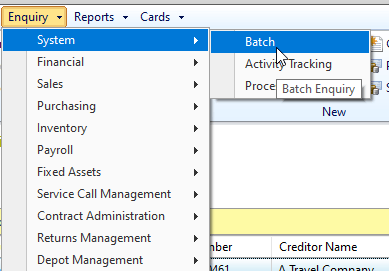
You can access the window via the option “Enquiry > System > Batch”
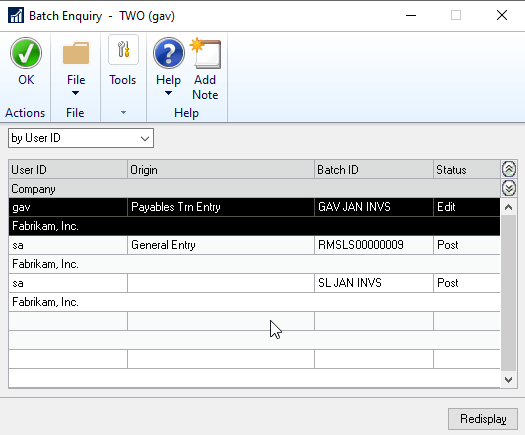
Once in this window it gives you an overview of what users have which batches open and a status of what is happening in those batches.
Armed with this information we can check directly with those users to see if they are indeed working in those batches. If they aren’t then the first course of action is to ask them to log out of GP and log back in. Doing this can trigger GP to automatically recover the batch for you, negating the need for any intervention at SQL level.
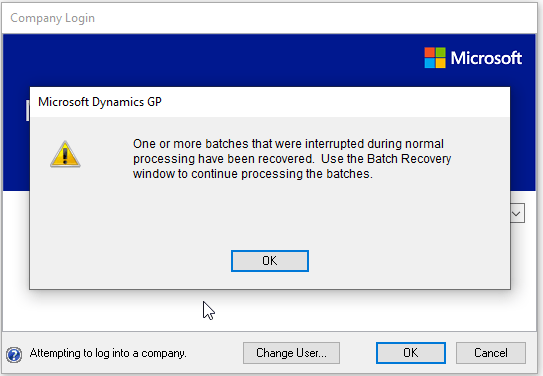
For example the user “sa” wasn’t active with the batches “SL JAN INVS” or “RMSLS0000009” so after logging the “sa” user back into GP we were prompted with the message below:
This indicates that the system has automatically recovered the batch for you and now you can just go to “Batch Recovery” to continue the posting of the batch. There was no need to go into SQL and start manually removing activity records. In fact doing that in the first instance could have made the fix much more difficult. (i.e. if the batch activity record was removed manually in SQL its likely you wouldn’t have been prompted with the message to recover the batch. Therefore fixing things would have been a manual process)
Conclusion
Hopefully using the batch enquiry can help identify which users need to log out and back into GP which can sometimes force GP to fix any issues with the batch for you without the need for SQL intervention.
It can also help you monitor the system more effectively, giving an insight into which batches users are working on.
Thanks for reading!
Thinking of making the move to Business Central? We can help




 thedynamicsexplorer.com