Dynamics 365 Business Central – How to post Purchase Invoices for Lease Cars using the non-deductible VAT feature

Introduction

If you lease a car through your business, you can only reclaim 50% of the input VAT on the lease cost unless you can demonstrate that it is used exclusively for business purposes. (i.e. a pool car or company van)

Therefore even though we still have to post the Purchase invoice at its full amount, including VAT, we can only reclaim a portion of that VAT. As a result, when posting the Purchase invoice we need a method to expense the amount of VAT we cant reclaim, while ensuring that only the reclaimable portion is included in the VAT Return.

In this post I’ll go through how you can configure VAT in Business Central to accommodate this using the “Non-Deductible VAT” feature.

VAT Setup

The first thing to do is to switch on the “Non-Deductible” feature via the “VAT Setup” page
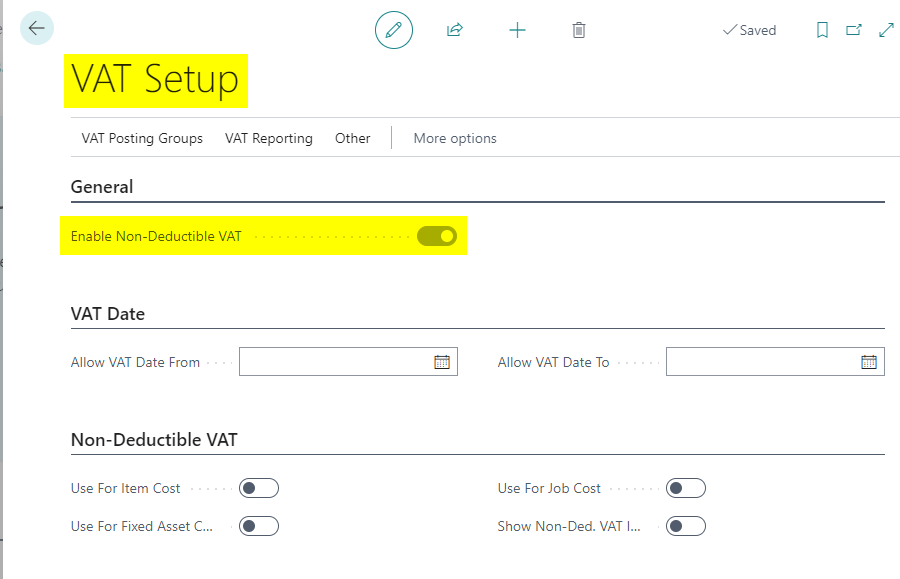
Enabling this gives more features in the “VAT Posting Setup” page, which we will utilise and look at in more detail later.

VAT Product Posting Group

The next step is to create a new “VAT Product Posting Group” that we’ll select when posting our lease car Purchase Invoices.

In this case I’ll call is VAT20LEASE.

Assign VAT Product Posting Group to GL Code

Next I’ll assign this new VAT Product Posting Group to my Lease Vehicles GL code as per below:

This will now be selected by default when I use this GL code directly in a Purchase Invoice.

VAT Posting Setup

We’ll now add the new VAT Product Posting Group into our VAT Posting Setup.

Since we have switched on “Enable Non-deductible VAT” we have extra features we can utilise for this new VAT Business/Product combination as per below:

If we break this down we can see the following:

Firstly, now we have enabled the “Non-Deductible VAT” feature we have three new options. These are shown above is point 3, 4 and 5. (click to enlarge the image)

In point 3 we have the option to “Allow” non-deductible VAT on this VAT combination. If this is set to “Allow” you can specify the non-deductible percentage, which we have set to 50%. Finally in point 4 you can either select a GL code to post the non-deductible VAT, such as an “Irrecoverable VAT” GL code, or you can leave it blank, so the expense is posted to the same expense code used on the Invoice.

Post a Purchase Invoice

Now we have this all configured we’ll now create a Purchase Invoice for a lease car for £1000.00+£200.00 VAT, which totals £1200.00.

Remember, although we still have to pay £1200.00, we can only reclaim 50% of the VAT.

When entering the Purchase Invoice it shows as per below

If we click “Invoice > Statistics” we can see the full VAT amount of £200.00 but we also see that £100.00 is “Non-Deductible”

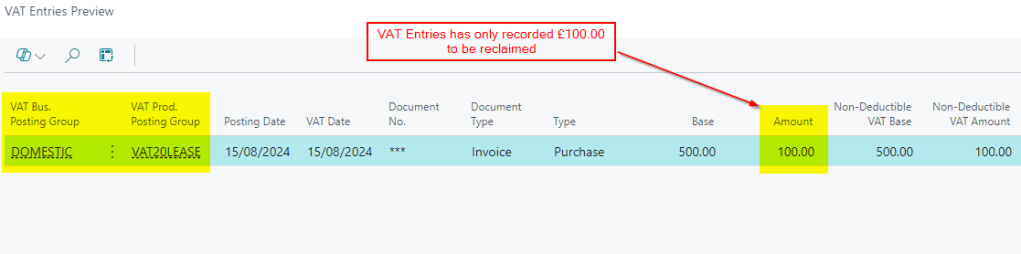
The VAT Entries for this Purchase Invoice also only record £100.00 to be reclaimed
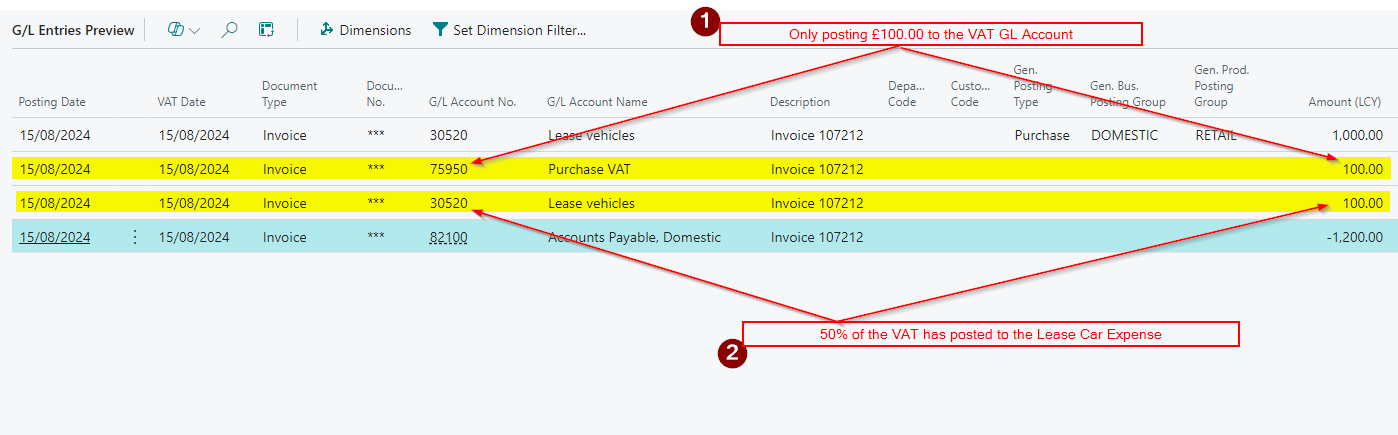
And finally the GL Entries only show £100.00 hitting our VAT GL account, with the other £100.00 hitting the Lease car expense

Remember we could have specified an “Irrecoverable VAT” code in the “VAT Posting Setup” for this if we preferred.
VAT Statement

The final piece of the jigsaw to ensure we add the new combination on the VAT Statement so its included in our calculations and submission.

I therefore included it in the calculations so its picked up in the relevant boxes as per below

This may differ from your VAT statement as its taken from my demo and then I added the new VAT Product Posting Group

Conclusion

Previously we’d have had to manage this manually using journals however we can now utilise the “Non-Deductible” features to assist when posting Purchase Invoices for Lease Cars in Business Central.

Thanks for reading!
Dynamics 365 Business Central – How to manage different VAT rates when posting Sales Prepayment Invoices

Introduction

In Business Central you can post a Sales Prepayment Invoice if you want to raise an invoice before shipping the goods or supplying a service.

Its therefore used when you require your customers to pay up front or pay a deposit before you supply the goods and services.

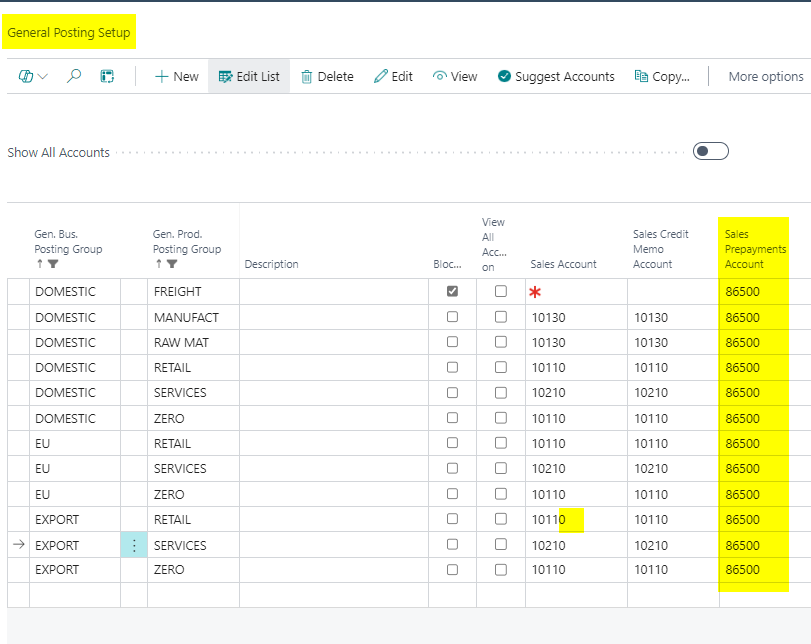
For this to work you specify a Sales Prepayment General Ledger code for the posting group combination in “General Posting Setup”. (this tends to be a Balance Sheet Liability account). The system then posts to this General Ledger code when you raise the Sales Prepayment Invoice. (incidentally this entry is reversed when you post the Sales Invoice and the relevant Income code is updated)

However this poses a problem if the goods or services you sell have different VAT rates, as when you raise the Sales Prepayment Invoice it uses the “VAT Product Posting Group” on the Sales Prepayment GL Account for VAT calculation purposes.

In this post I’ll go through the issue in more detail and also the solution I’ve used to resolve this.

Sales Prepayment Setup

Please note this doesn’t cover all of the Sales Prepayment Setup. You can find that in the Microsoft Learn site here

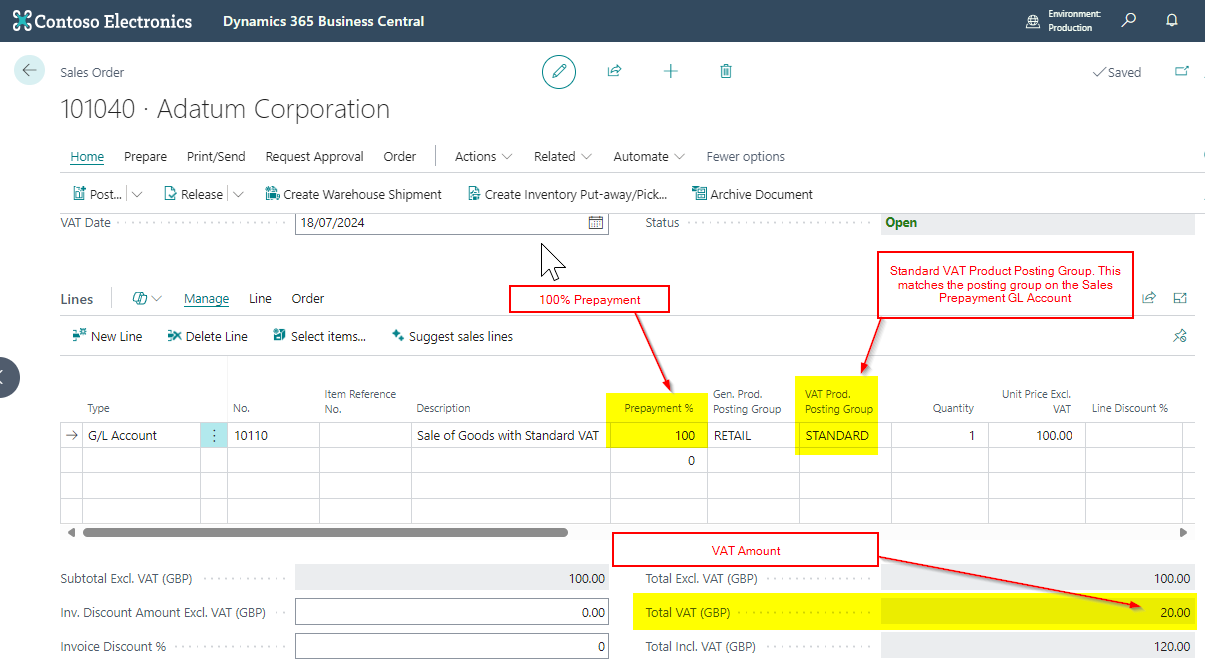
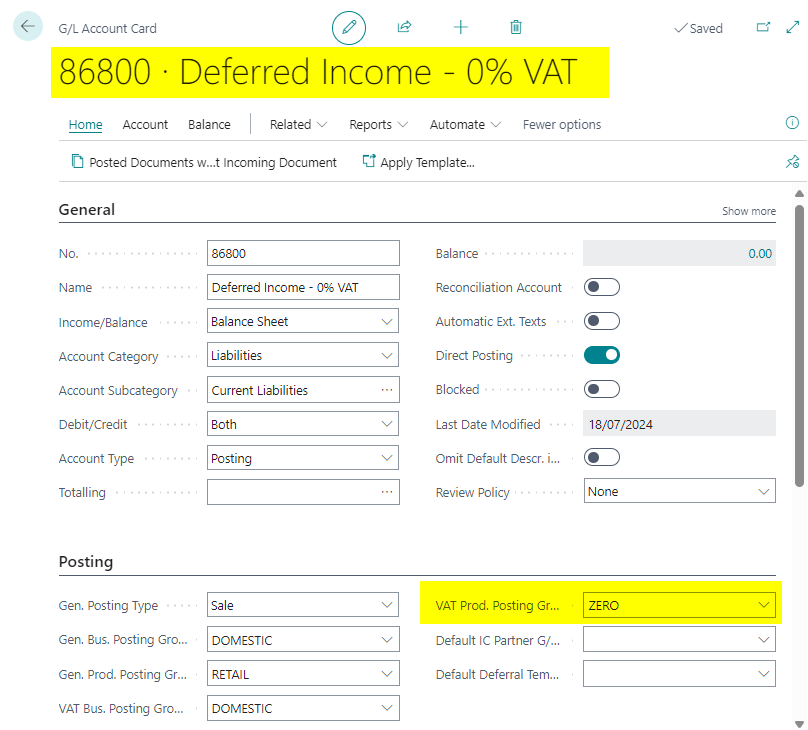
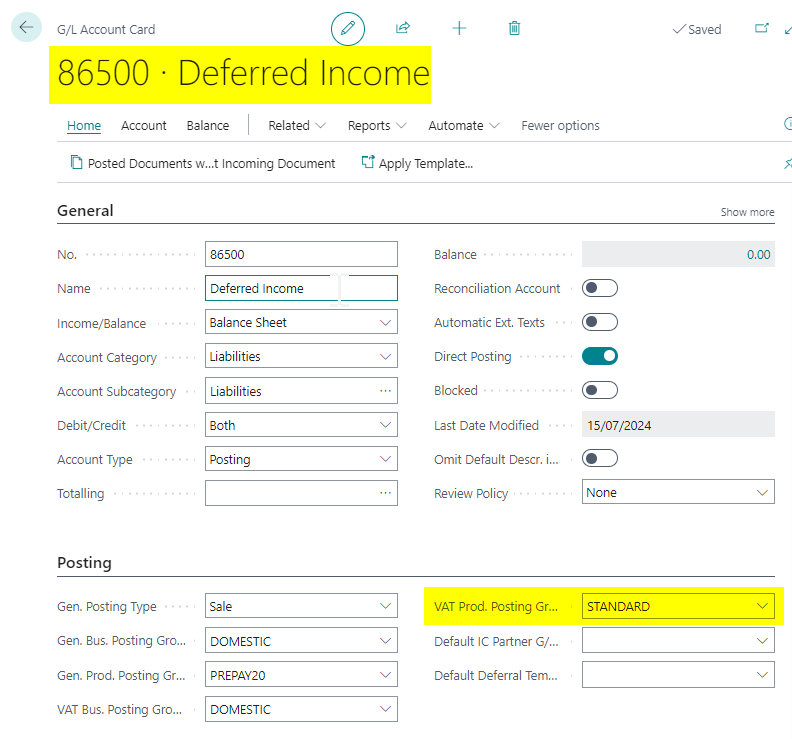
First I’ll create a General Ledger Code which we’ll then select in the “General Posting Setup” as the Sales Prepayment Account. When setting up the General Ledger Code, you specify the relevant posting groups, including the VAT Posting Groups. As the vast majority of the time it will be using standard VAT this is the posting group I’ll select as per below:

I’ll then select this in my “General Posting Setup” as the “Sales Prepayment Account” for all my posting combinations

I’ll now raise a Sales Order with 100% prepayment with Standard VAT and this works fine:

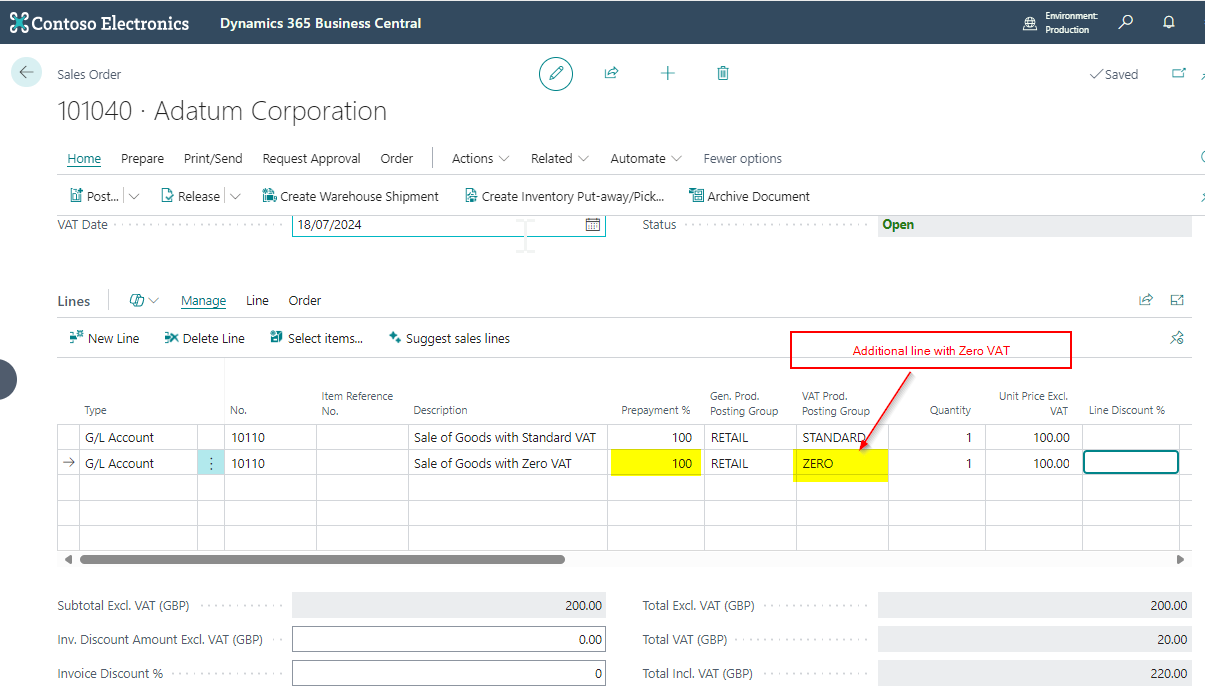
However what if I’m selling another line with a Zero VAT Product Posting Group:

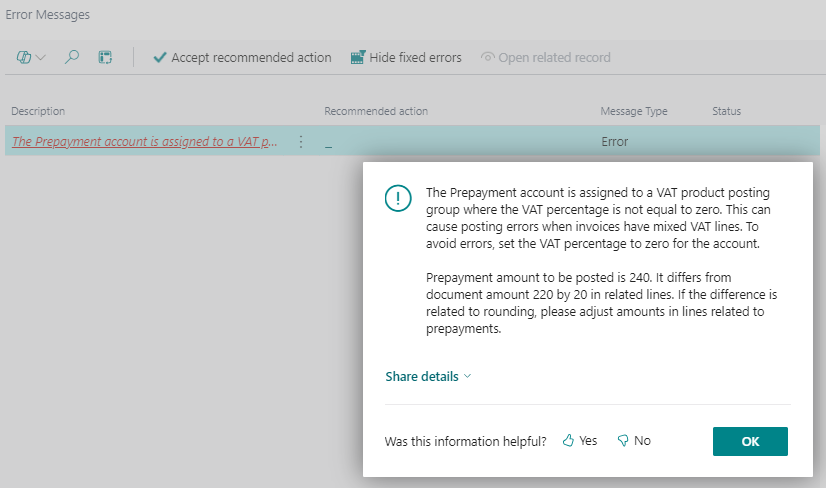
When I try creating the Sales Prepayment Invoice I now get the message “The Prepayment account is assigned to a VAT Product Posting Group where the VAT percentage is not equal to zero….” as shown below:

I’m getting this error because there is now a mismatch between the VAT Product Posting Group we assigned to the Sales Prepayment General Ledger Account, and the VAT Product Posting Group on the Sales Line.

Incidentally you would also get this error message if you had one single line item on the Sales Invoice with a VAT Product Posting Group of ZERO.

A Workaround

You can workaround this error by creating a second Sales Prepayment General Account and assigning it a VAT Product Posting Group of ZERO and then tweaking the General Posting Setup as I’ll demonstrate below.

I’ll therefore create another Sales Prepayment General Ledger Code with a VAT Product Posting Group of ZERO

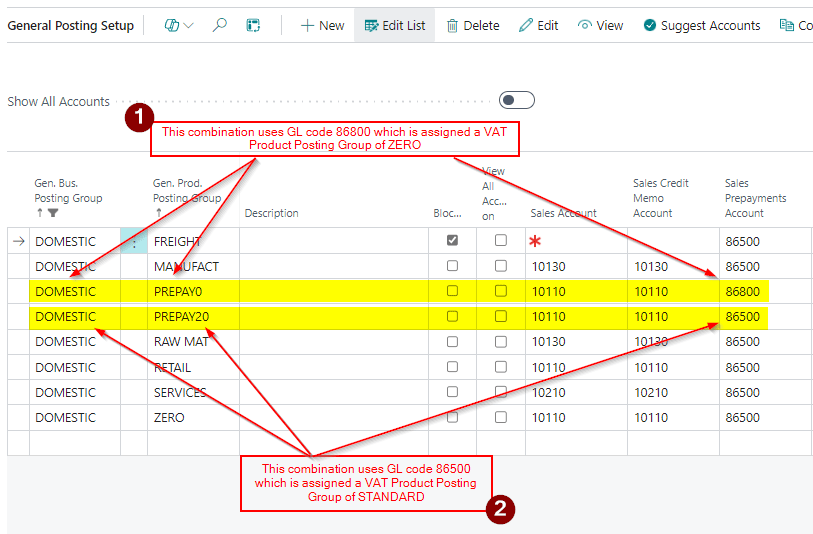
Next I create two new General Product Posting Groups called PREPAY0 and PREPAY20 and then set their combinations in the General Posting Setup page up as per below:

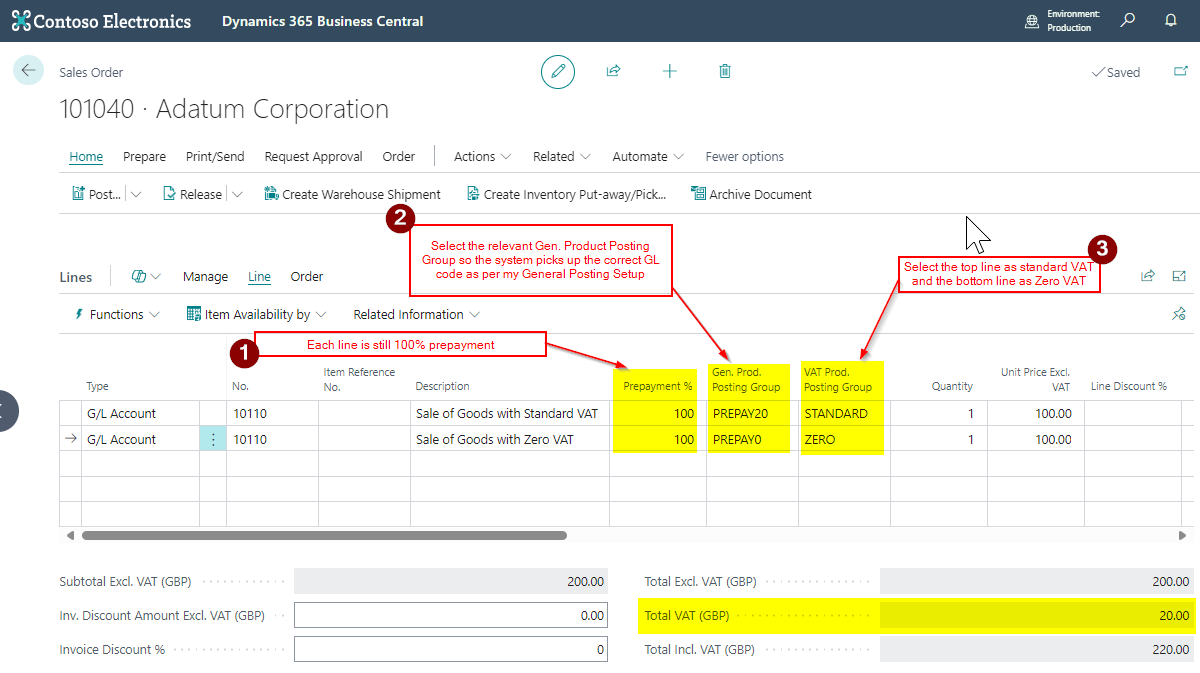
Now when I raise the Sales Order I just need to select the correct “General Product Posting Groups” for each line so they use the relevant Sales Prepayment Account.

I’ll therefore select “PREPAY20” for the line that has VAT and PREPAY0 for the line that has ZERO VAT.

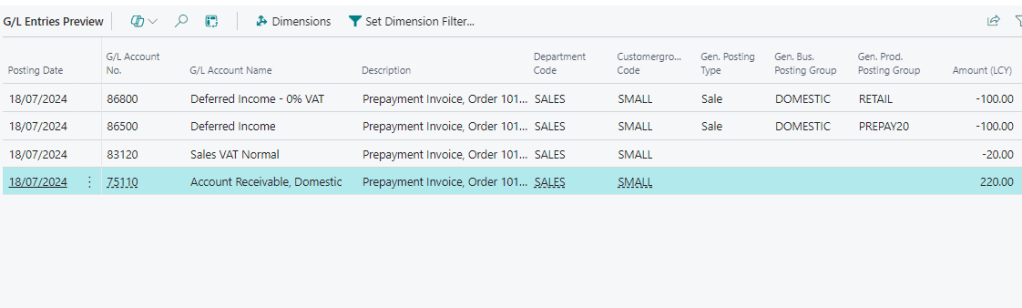
When I try and post this it works, and when I look at the General Ledger Entries I can see both my Sales Prepayment General Ledger accounts are being used.

Conclusion

Although I’ve had to create an additional Sales Prepayment Account this does provide a method of posting Sales Prepayment Invoices for items with differing VAT Amounts. (I could also post a journal at month end to transfer the balance from account to another using a journal)

It also solves the need to have to change the “VAT Product Posting Group” on a Sales Prepayment General Ledger account if you post Sales Prepayment invoices with different VAT amounts.

Thanks for reading!

Dynamics 365 Business Central – Configuring Partial Exemption VAT using standard features

Introduction

If your business is partially exempt for VAT, you’ll need a method for tracking your VAT entries, so you can post adjusting entries to the VAT return.

In this post I’ll go through the basics of what being partially exempt from VAT means, and how you can configure Business Central to accommodate this using standard features.

** Please note there are specific non-recoverable VAT features in Business Central which I don’t cover in this post however those features compliment this configuration rather than replace it.

Normal VAT

Normally, a business would supply goods or services and charge VAT (output VAT) and also buy goods or services and pay VAT (input VAT). Then, at the end of the VAT period, the business calculates whether they need to pay HMRC (i.e. the output VAT is more than the input VAT) or reclaim VAT from HMRC (i.e. their input VAT is more than their Output VAT).

This is easily setup using standard Business Central VAT Product Posting Groups as per below:

What is Partial Exemption for VAT

The above description of Normal VAT assumes all supplies the business makes are subject to VAT (i.e. all supplies the business makes are taxable at 20%, 5%, 0% VAT). These rules don’t apply when a business makes both taxable and exempt supplies. When a business makes exempt supplies, they can’t reclaim all the input VAT on all their expenses.

The rules for claiming input VAT when you make exempt supplies and taxable supplies are as follows:

Input VAT TypeRule
Input VAT that relates directly to exempt suppliesNone of the Input VAT can be reclaimed
Input VAT that relates directly to taxable suppliesAll of the VAT can be reclaimed.
Input VAT that can’t be directly attributed to exempt or taxable suppliesA portion of the VAT can be reclaimed.

With regards the final point, this relates to expenses like accountancy fees or rent. Basically any expenditure that is incurred for the business to operate. The business can only reclaim a portion of the incurred VAT for these expenses, with the amount that can be recovered being calculated based on the exempt and taxable supplies during the specified period. (worked out as a percentage)

Business Central Configuration

Now we know the basic rules around partial exemption, it becomes clear that if we qualify as partially exempt for VAT, we need a way of easily identifying whether our expenses relate to exempt supplies, taxable supplies, or are general business expenses when entering them in Business Central. (basically where they sit according to the table above)

Therefore, the first step is to add more VAT Product Posting Groups to our configuration.

We then need to add the the new VAT Product Posting Groups into the “VAT Posting Setup” as per below (note the new VAT Product Posting Groups still calculate VAT at 20%. This doesn’t change, only the amount of VAT we can reclaim is affected).

Using this new configuration, when entering a Purchase expense, and we can recover all the VAT, we should use the “VAT20” VAT Product Posting Group. When entering a Purchase expense, and none of the VAT can be recovered, we can use “PNVAT20” and when we can partially recover some VAT we should use “PRVAT20“.

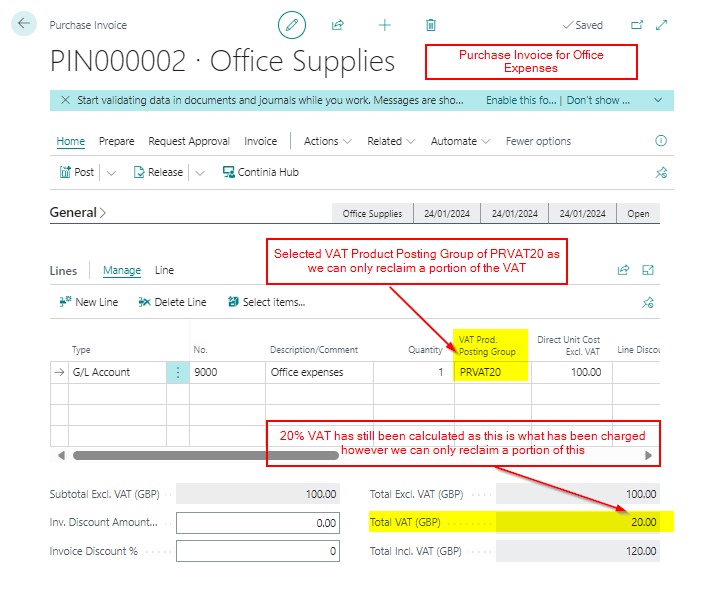
Therefore, if we had a Purchase Invoice for Office Expenses, which we know we can only reclaim a portion of the VAT back, we’d use the PRVAT20 VAT Product Posting Groups as per below. This would then be easily identified in the VAT Entries.

VAT Entries – Example

Now suppose we have entered transactions to the different VAT Product Posting Groups to get VAT entries as per below:

As we have posted our purchase expenses using the correct VAT Product Posting Groups we can easily identify the following:

  1. We have £60.19 posted to PNVAT20. We can’t reclaim any of this VAT.
  2. We have £45.86 posted to PRVAT20. We can reclaim a portion of this VAT.
  3. We have £88.85 posted to VAT20. We can reclaim all of this VAT.

VAT Adjustment

Let’s say we have reached the end of the VAT period, and the transactions shown above are the only transactions we have posted.

We have also performed our partial exemption calculation, and we can only reclaim 10% of the VAT posted to the PRVAT20 VAT Product Posting Group.

This means of the £45.86 posted to PRVAT20 we can’t reclaim £41.27. (90% we can’t reclaim)

We also can’t reclaim any of the £60.19 VAT posted to the PNVAT20 VAT Product Posting Group.

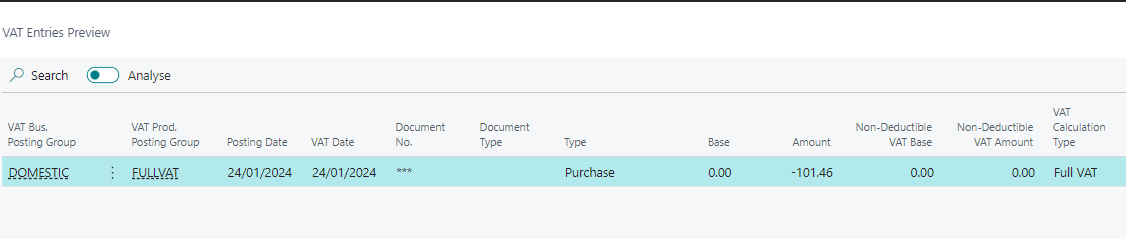
Therefore, we’ll need a combined adjustment of £101.46 to the VAT account, which we can offset against an irrecoverable VAT expense account. Therefore we would post a General Journal as per below:

When posting this journal we should also use the FULLVAT VAT Product Posting Group so we have a VAT entry that will be picked up the VAT Statement reducing the amount we can reclaim. (an adjustment to the VAT statement configuration may be needed for this if the FULLVAT Vat Product Posting Group isn’t on the VAT statement)

Conclusion

This is one method you can use for partial exemption in Business Central. It involves creating different VAT Product Posting Groups to post your purchase expenses against depending on whether the VAT will be fully recoverable, partially recoverable, or unrecoverable.

Its worth noting that Business Central does have additional irrecoverable VAT features that I’ve haven’t covered in this post. This includes a change to the VAT Posting Setup window giving you the ability to automatically post a portion of the VAT to an irrecoverable VAT GL code. I might do another post on that in the future 🙂

Thanks for reading!