Introduction
Personalisation is a great feature that allows users to add and remove fields on pages in Business Central. (assuming the role the user is assigned allows it). However sometimes there might be a field you wish to add that’s not available when you try and add it via personalisation.
In this post we’ll go through why the field isn’t available and also how you still add it by customising the role.
Why do we only get certain fields in Personalisation
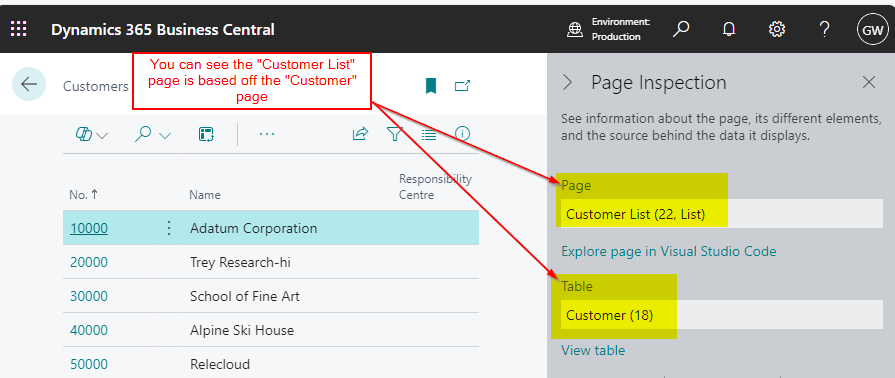
Every page in Business Central is based on a table, which you can verify using the “Page Inspector” tool. For instance, on the Customer List page, pressing CTRL+ALT+F1 reveals that it is built on the “Customer” table.
However, if I try and personalise and add the “City” field, its not available?
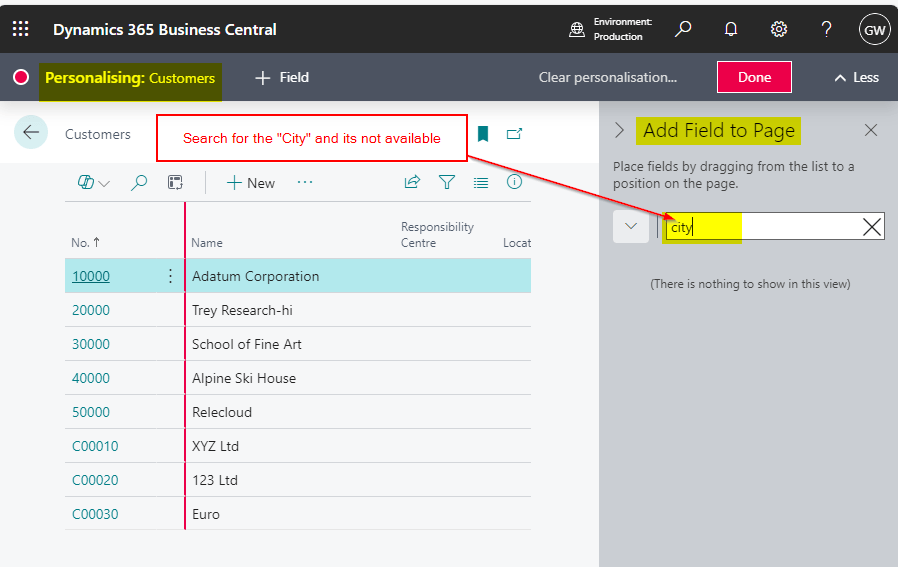
I’m fairly confident the “City” field is part of the “Customer” table, so why isn’t it available to add through personalisation?
This is because, while the “City” field exists in the “Customer” table, and the “Customer List” is based off the “Customer” table, it hasn’t been included in the “Customer List” page object.
Adding Fields by Customising the Role Centre
So, how can you add a field that isn’t available through personalisation, but exists in the table?
The answer is to customise the Role Centre! 😊 By using the “Customise” feature on the Role Centre, you can access all the fields in the table that the page is based on.
For example, to add the “City” field to the Customer List page, I just need to determine which Role Centre I’m using and customise the page from there.
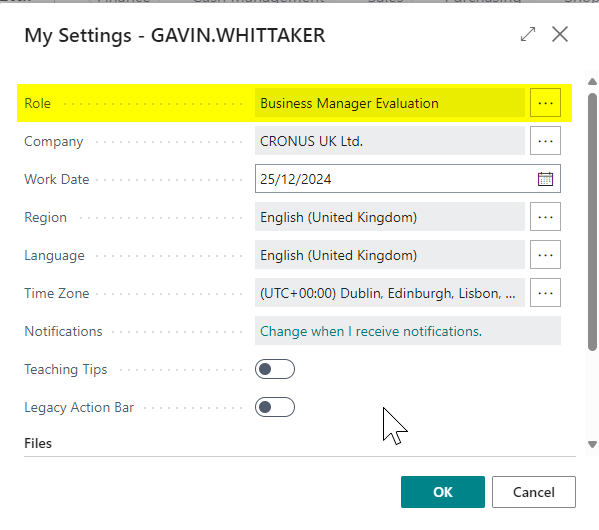
When checking, I found that my current Role Centre is “Business Manager Evaluation”.
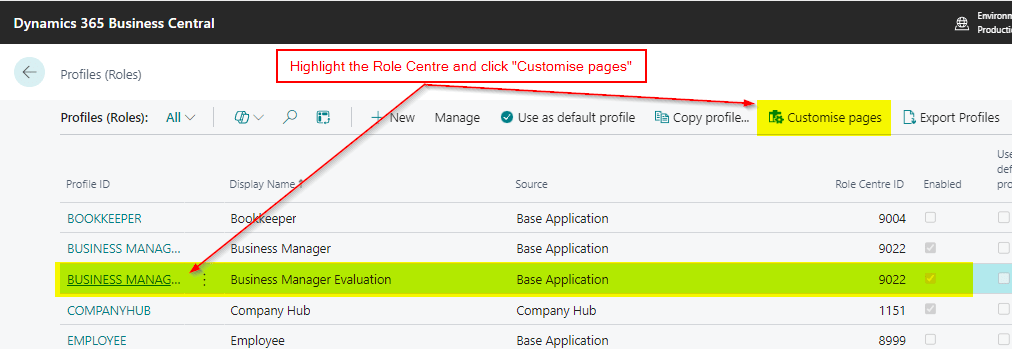
I can then locate that Role Centre on the “Profiles (Roles) page and click “Customise pages”
This opens another Business Central session that I can browse to the “Customer List” page and add the additional fields in just the same way as if I was personalising
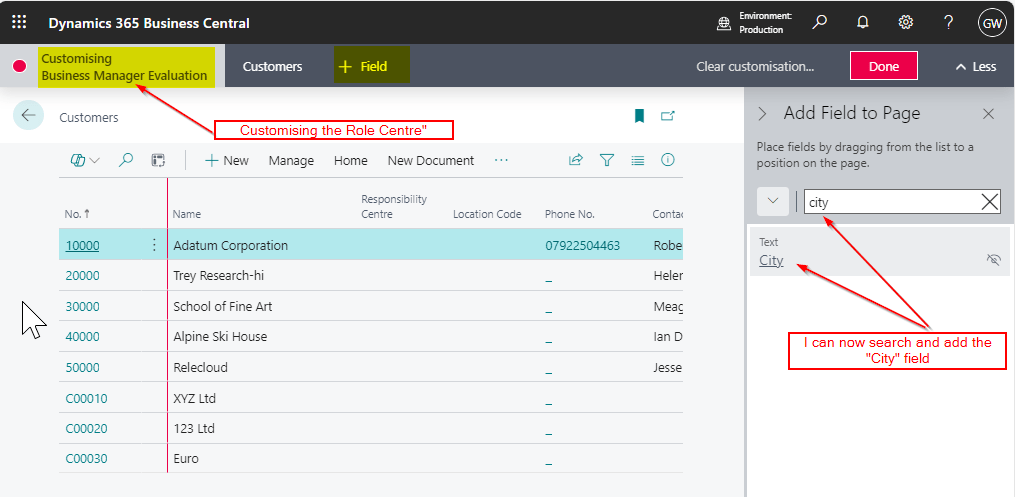
Once this has been added to the page, the City field will be available for everyone using that Role Centre (any users not wishing to see it use “Personalisation” to remove it).
Conclusion
This is one simple method you can use to add fields to a page that aren’t available via Personalisation.
You can read more on this in the following Microsoft article Customising Pages for Roles – Business Central | Microsoft Learn
Thanks for reading!

 thedynamicsexplorer.com