When discussing Direct Cost Applied and Purchases accounts with newcomers to Business Central, they invariably initiate a conversation about their purpose and significance. As a result of this, I decided to create a video where I share my insights 🙂
There may be times when you need to post a full VAT only journal to record a VAT adjustment. In these scenarios you want no effect in the General Ledger, but wish to have an adjusting VAT entry appear on the VAT statement.
In this post, I’ll walk through the necessary steps for setting up VAT for these scenarios. Once the setup is complete, I’ll explain the process for posting the VAT only journal.
VAT Setup
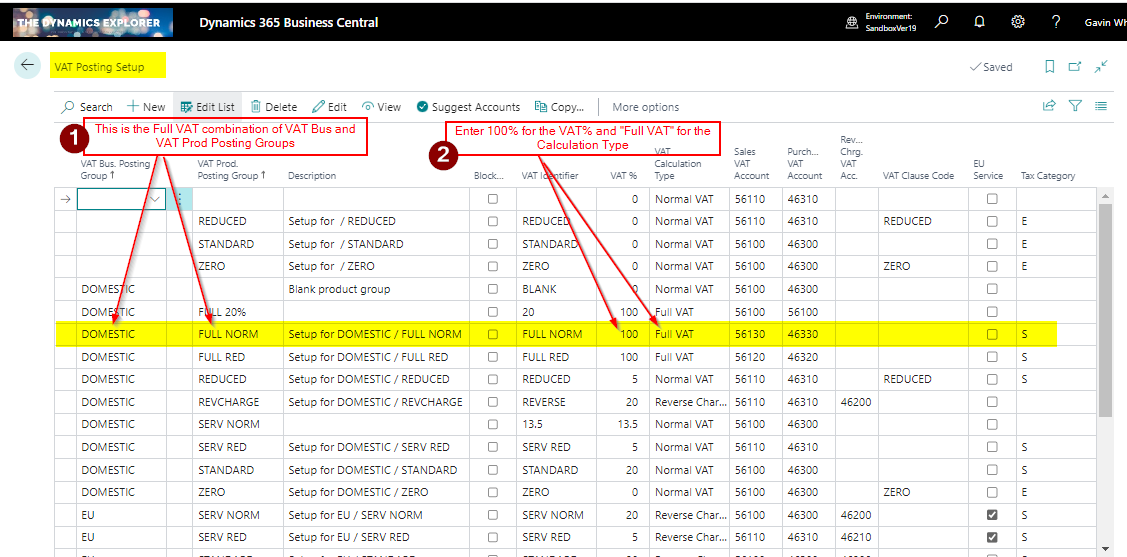
First, we need to add the necessary VAT combination in the VAT Posting Setup window. For this I go to the “VAT Posting Setup” window.
In this window I add the following VAT combination.
Now if I use the combination of “Domestic” and “Full Norm” in a journal this should calculate full VAT at 100%.
VAT Journal
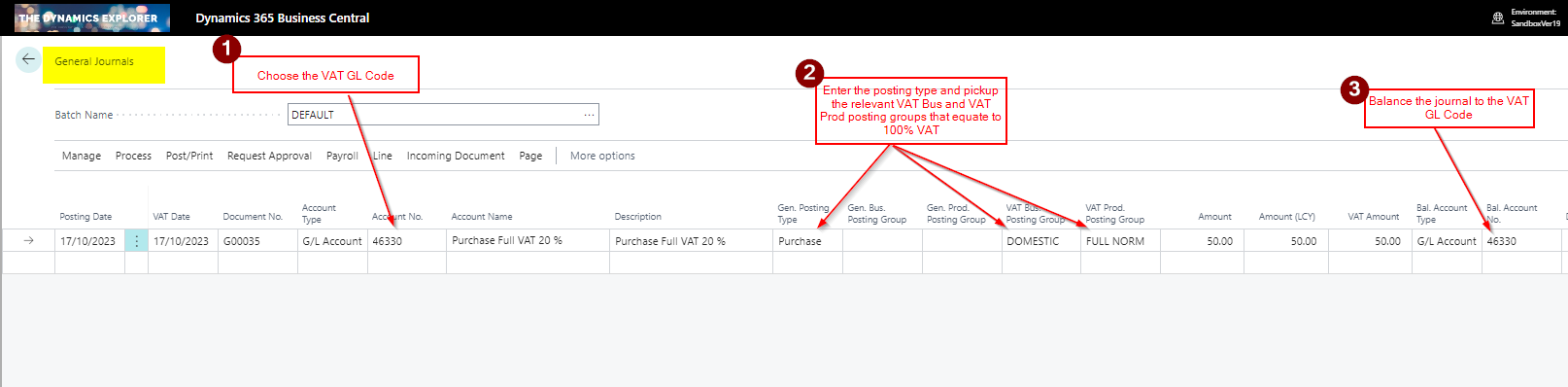
Now the VAT Posting Setup is complete, I’ll post the correcting VAT adjustment journal using the “General Journal” page as per the screen shot below.
In this journal I’m doing the following:
1) First I’m selecting the VAT GL Code
2) Then I’m selecting the relevant VAT Business and VAT Product Posting Group for the Full VAT combination
3) Lastly, I’m balancing the journal to the same VAT GL code
This produces the following GL Entries. As you can see there is no effect in the General Ledger.
The posting also creating this VAT Entry
Therefore, although we have no effect in the General Ledger, we have a VAT entry to record the adjustment on the VAT Statement. We just need to edit the VAT statement to pickup the VAT Business and VAT Product posting combinations
VAT Statement
To ensure this is picked up on the VAT Statement go to the VAT Statement page and add the combination:
Conclusion
This post shows how you can setup Business Central to post VAT adjustments that won’t affect the General Ledger but do create adjusting VAT entries.
When posting opening balances for reducing balance assets things can sometimes prove a little challenging.
In this post, I’ll walk through how I post opening balances for reducing balance assets, and the best practices I follow.
In this example I’m posting opening balances for a reducing balance asset as at 31/08/23 in the financial year 2023.
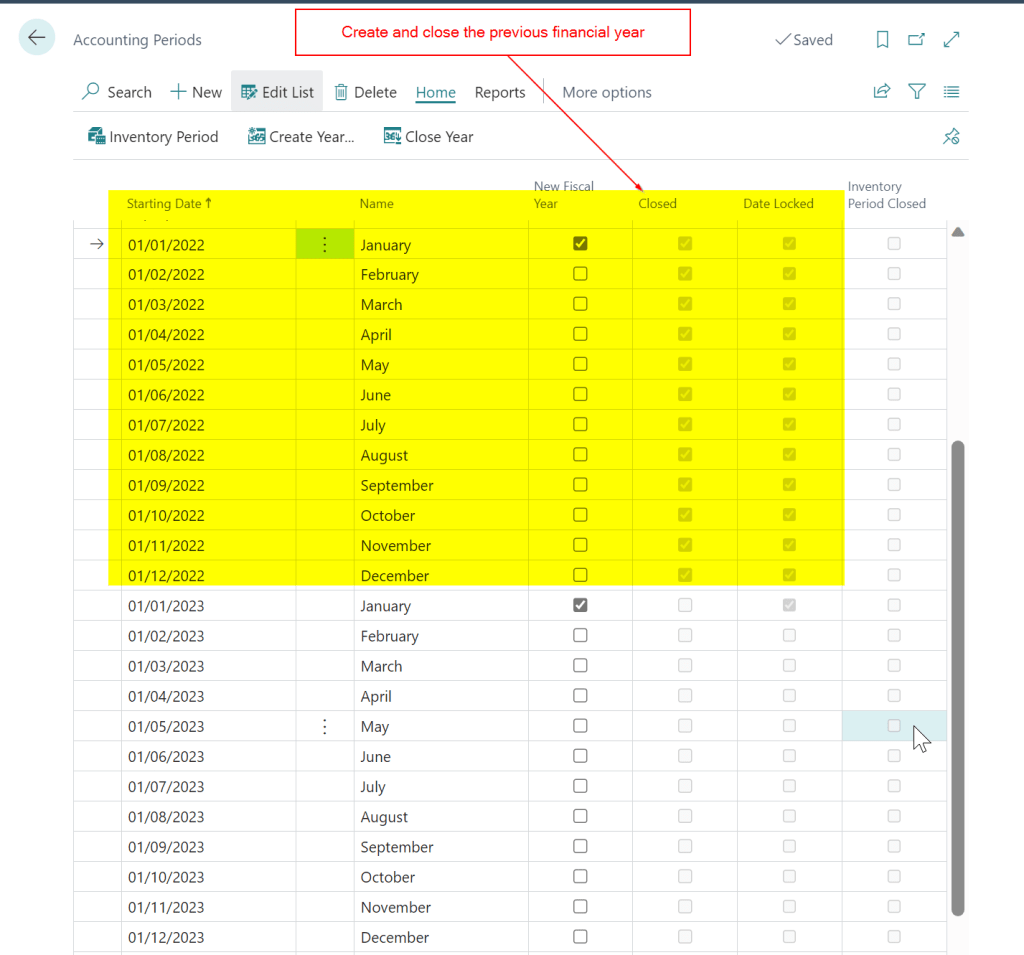
Step 1 – Create a close the previous Financial Year
When creating a new company in Business Central its common to only create the financial year you are posting opening balances for. However, when posting opening balances for fixed assets that have a depreciation method of “Reducing-Balance”, I’ve found a slightly different approach is needed. In such cases, I also create the preceding year and then close it.
Therefore, for my example, I go to “Accounting Periods” and ensure the previous financial year has been created and also closed. I’m posting the opening balance for 2023 so I’ve also created the year 2022 and closed it.
Step 2 – Depreciation Book Setup
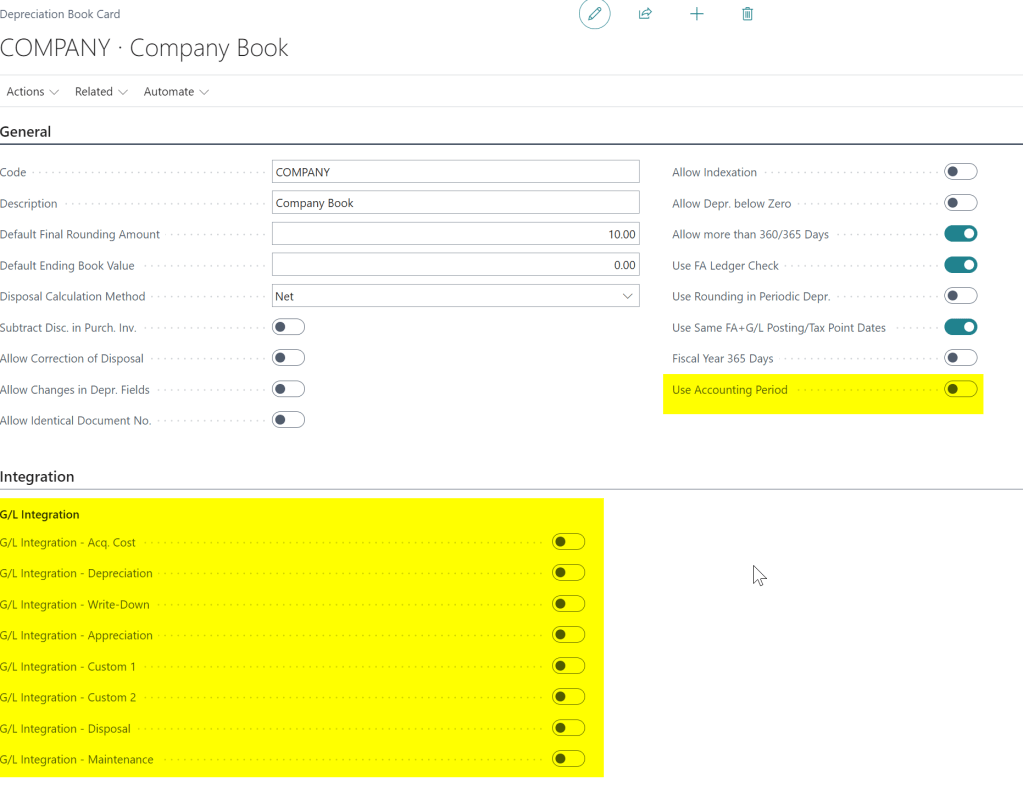
The next thing to do is to ensure the option “Use Accounting Period” is off in the Depreciation Setup and also switch off the GL Integration.
**I’ve already posted the opening position for the Asset Cost and Accumulated Depreciation in the General Ledger so I switch off GL Integration
Step 3 – Post the opening balance as at the end of 2022
As reducing balance depreciation is calculated on the carrying amount of the asset at the start of the financial year, you must post the opening balance at the end of the previous financial year, regardless of when you are going live with Business Central.
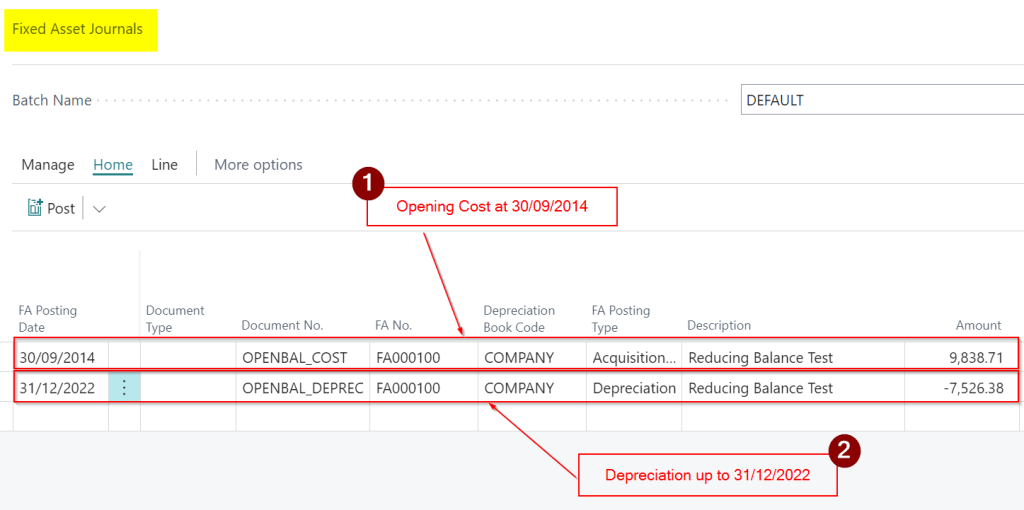
The asset in my example has an original cost of £9838.71 as at 30/09/2014, with accumulated depreciation as at the 31/08/2023 of £7,757.61.
However in order to post this correctly, and have the system create the correct depreciation, I need to post the depreciation at the end of 2022 which is £7526.38, giving a carrying amount (Net Book Value) as at the beginning of 2023 of £2312.33.
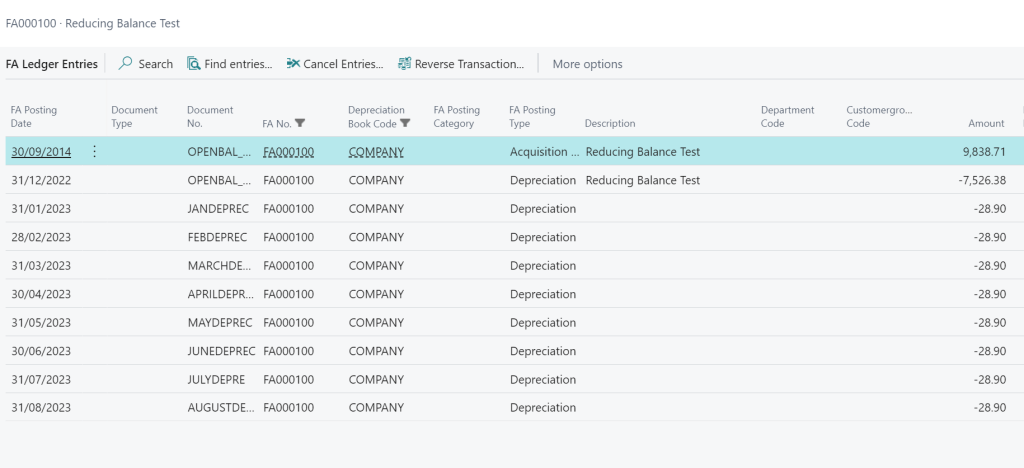
I’ll then post the depreciation for January through to August separately, to get the exact opening position of £2,081.13.
I therefore enter a Fixed Assets Journal as per below ensuring to use the original place in service date for the Opening Cost and the end of the previous financial year for the accumulated depreciation to give me the correct Net Book Value.
Step 4 – Run Depreciation and Check the Amount
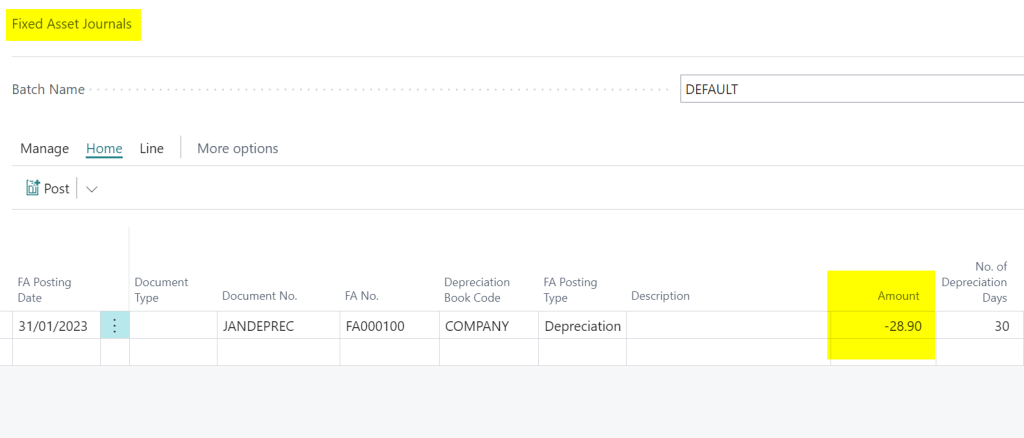
After posting the opening entries, I then run the Calculate Depreciation job with a date of 31/01/2023 and this gives me depreciation of £28.90, which is exactly what I was looking for 🙂
I then run the depreciation for January through to August as per below to get the opening position as pf the end of August.
Conclusion
The main takeaways are to create the previous financial year and close it, and also post the opening cost using the assets original place in service date, and post the depreciation on the last day of the previous financial year.
Thanks for reading!
Want further help with Business Central?
If you’d like more help with Business Central, I also run Rapid365, which provides Business Central implementation and support services for UK businesses, supporting you through setup and go-live.