Introduction
When entering a Number Series on a “Recurring General Journal” batch you receive the message “Only the Posting No. Series can be filled in on recurring journals”.
In this post we’ll take a quick look at the functionality of a Recurring General Journal, why I think the message appears, and look at two techniques you can use to ensure a unique document number is created each time the journal is posted, without the need to constantly update the document number before each posting.
A Brief Look at Recurring Journals
The Recurring Journal has unique features over and above a normal General Journal. Its designed for entries that are made regularly such as prepayments, depreciation or payroll journals etc.
The great thing about Business Central is there are many other features you can use for journals like prepayments and depreciation such as deferrals or standard journals however in this post we are focussing on recurring journals
One of the main features of the “Recurring General Journal” is that unlike a “General Journal”, after posting a Recurring General Journal the journal lines remain and the posting date is updated based on the recurring frequency. This means if don’t have to re-key the same journal every month.
However this also poses a question for what we do about the Document Number? Ideally we want to be presented with a unique document number after posting each iteration of the journal, so how can we accomplish this if this isn’t being updated?
The Error
The first thing we can try and do is use a “No. Series” on the batch, however when trying to select a “No. Series” on the “Recurring General Journal” batch you are presented with the error message below
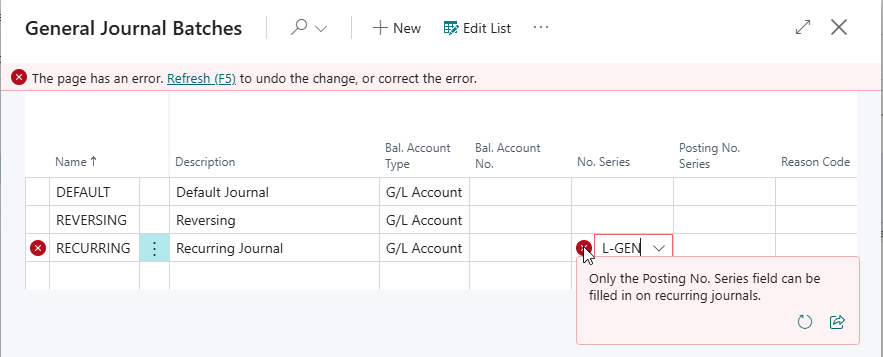
So I guess the first question is…..why is the system preventing us from using a “No. Series” on the batch?
Although I can’t be certain, I assume its because after we post the batch the lines on the recurring journal will remain. If this is the case the number in that number series will be used over and over again (unless we change it). Therefore the system is preventing this.
So the next question is…..how can I get a unique document number on the journal line without having to update it every time its posted?
Using a “Posted No. Series” on the Journal Batch
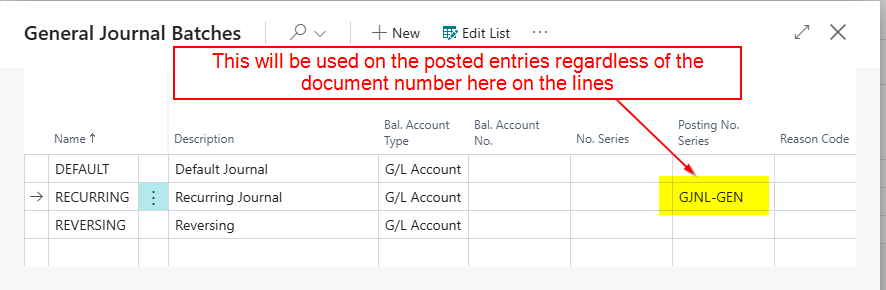
Now, its worth noting we could just enter a descriptive document number on the unposted journal lines and fill in the “Posting No. Series” on the batch header. The document number on the lines wouldn’t then be carried through to the General Ledger Entries.
For example here I’ve populated the “Posted No. Series” on the batch header:
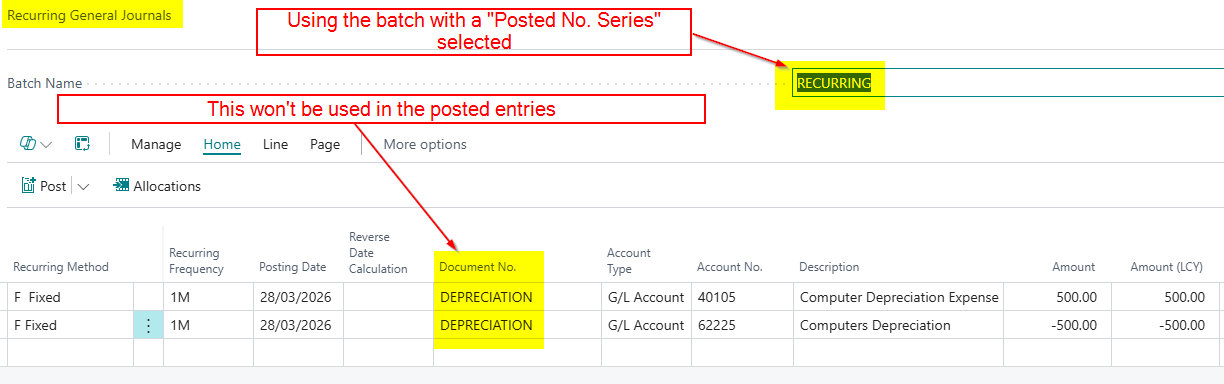
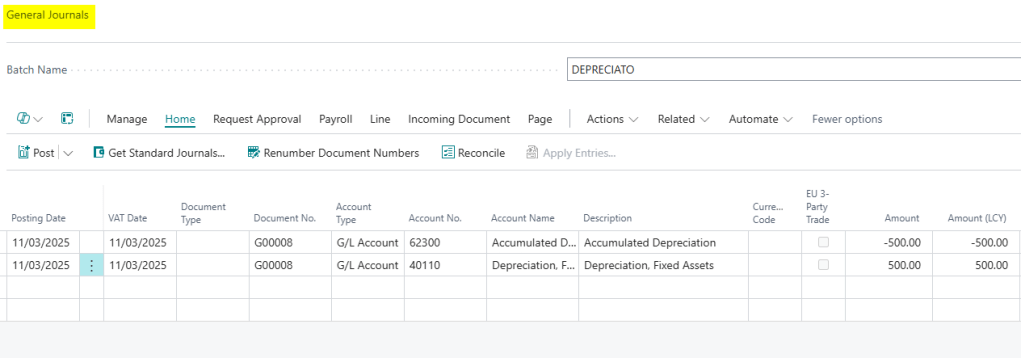
Now the document number I’ve entered on the lines on my Depreciation Journal below won’t be carried through to the “General Ledger Entries” when I post the batch
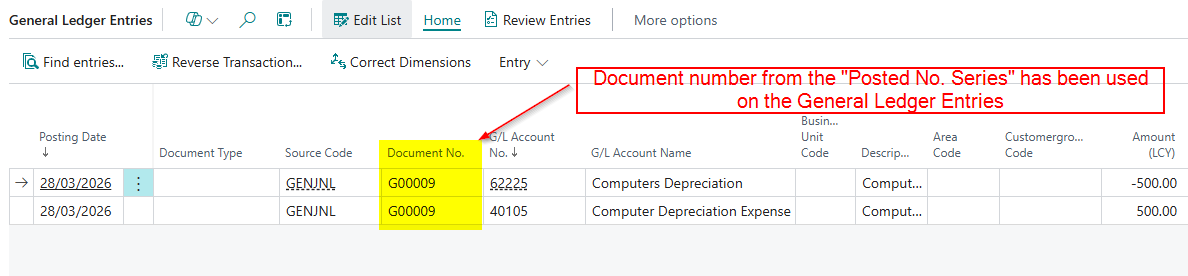
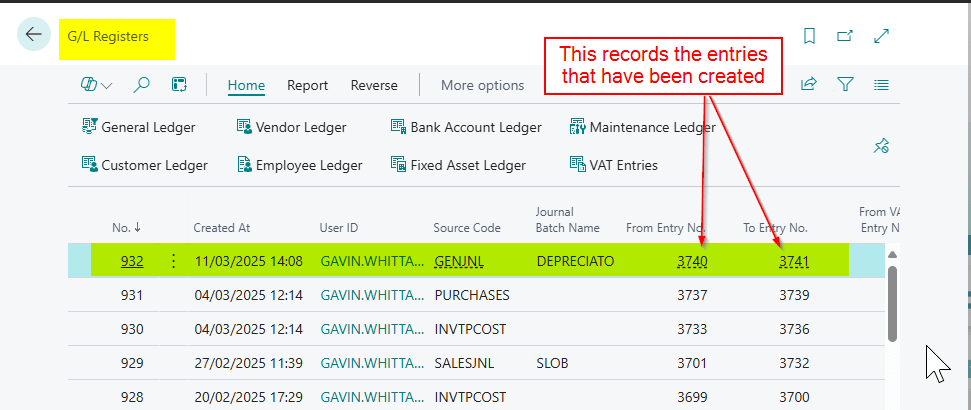
I’ve now posted the batch and you can see the document number being used has come from the “Posted No. Series” not the document number I used on the journal lines.
However, I want to use my own unique document number on the lines, but I don’t want to have to change it after each posting.
How can I achieve this?
Getting a Unique Document Number using Placeholders (Variables)
This is the final piece of the puzzle and its pretty cool 😊.
You can achieve unique document numbers by using placeholders right in the document number 😊
So going back to my Depreciation Journal, if I want the document number to include the date I can enter it as per below:
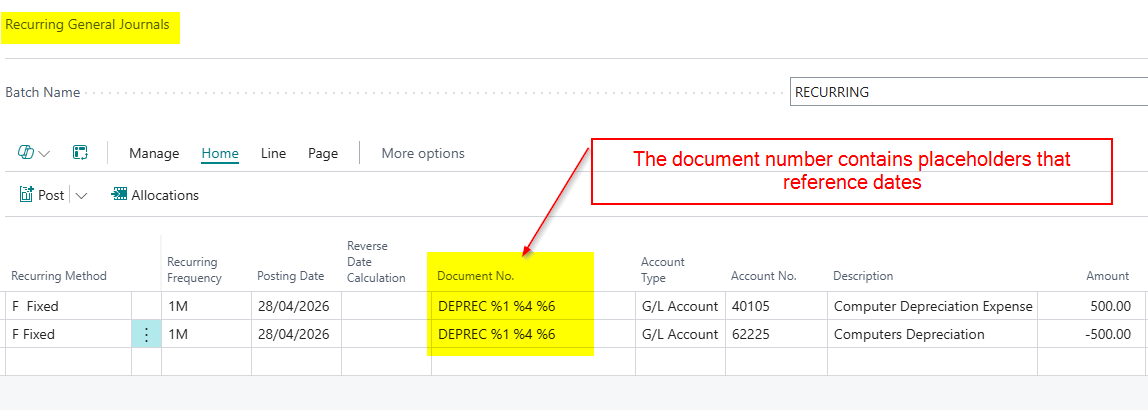
In the example above when I post the journal the system will replace the placeholder %1 with the Day number, %4 will be replaced with the Month name and %6 will be replaced with the year of the posting date of the journal.
The document number is then shown as per below in the “General Ledger Entries”
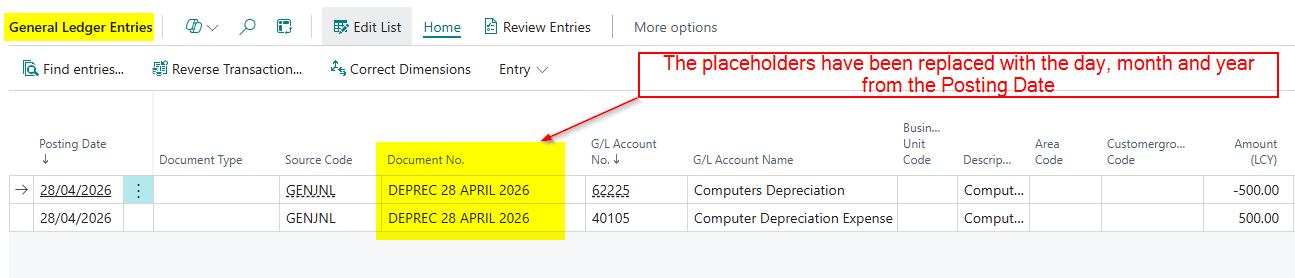
When I post this for May, there’s no need to update the document number. The system automatically replaces the placeholders using the posting date in the final document number in the posted entries.
If you’re curious about what other placeholders can be used. There is a full list below:
- %1 = The day number of the period posting date
- %2 = The week number of the period posting date
- %3 = The month number of the period posting date
- %4 = The month name of the period posting date
- %5 = The accounting period name of the period posting date
- %6 = The fiscal year of the period posting date
If anyone has used the deferral functionality they are exactly the same and more information on them can be found here https://learn.microsoft.com/en-gb/dynamics365/business-central/finance-how-defer-revenue-expenses
Conclusion
This post highlights the issue when using “Recurring General Journal”, in that you can’t use a “No. Series” on the journal batch.
We’ve looked at why I think that restriction exists, and how you can instead use the “Posting No. Series” on the batch header to ensure your posted entries receive a unique document number each time.
Alternatively, you can use placeholders within the Document No. field to dynamically generate meaningful document numbers without having to update them after every posting, which I find particularly useful 😊
Thanks for reading!



 thedynamicsexplorer.com