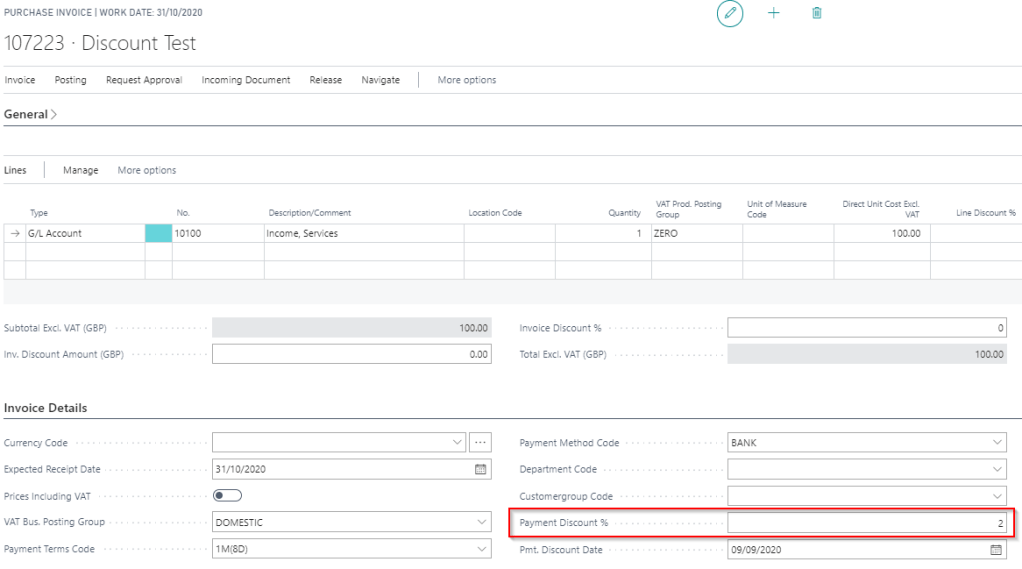
When posting a payables invoice in Dynamics 365 Business Central you can specify payment discount that can be taken if the invoice is paid early. You define this using the option below
Please note this can also be defaulted for you onto the purchase invoice from the payment terms on the vendor.
However what happens if the “Payment Discount %” wasn’t entered onto the invoice when it was posted? How can you take payment discount?
Scenario
Lets say I’ve posted an invoice as per below for £100.00 and I wish to take 5%, or £5.00, as a payment discount. (Therefore I should only pay £95.00 and take the £5.00 as discount). However at the time of posting the invoice I didn’t specify a “Payment Discount %’
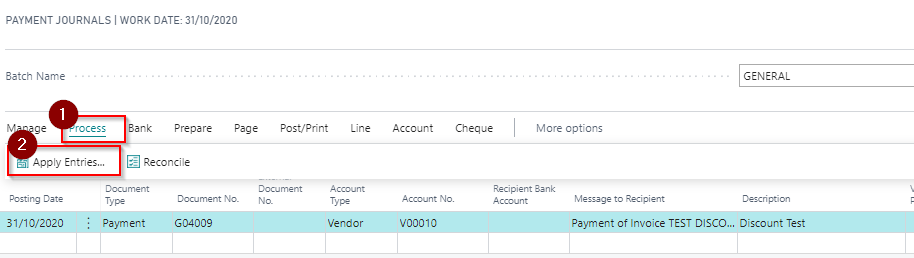
First create the payment journal selecting the Vendor as per below and click “Apply Entries”. (no need to enter an amount at this point)
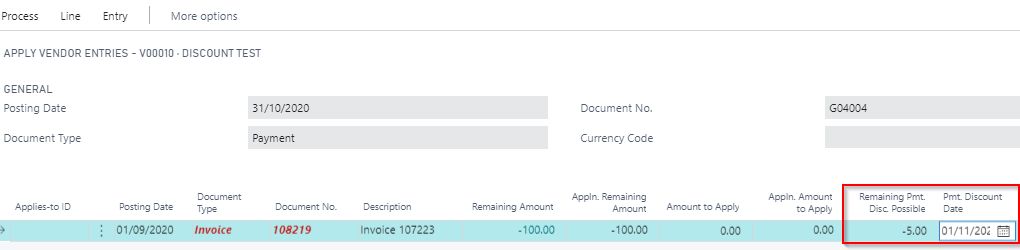
Once in the “Apply Entries” window click into “Remaining Pmt. Disc. Possible” and enter £-5.00. Also click into the “Pmt. Discount Date” and change the date to a date after the date of the payment. In my case I’ll change this to 01/11/2020, as my payment date is 31/10/2020
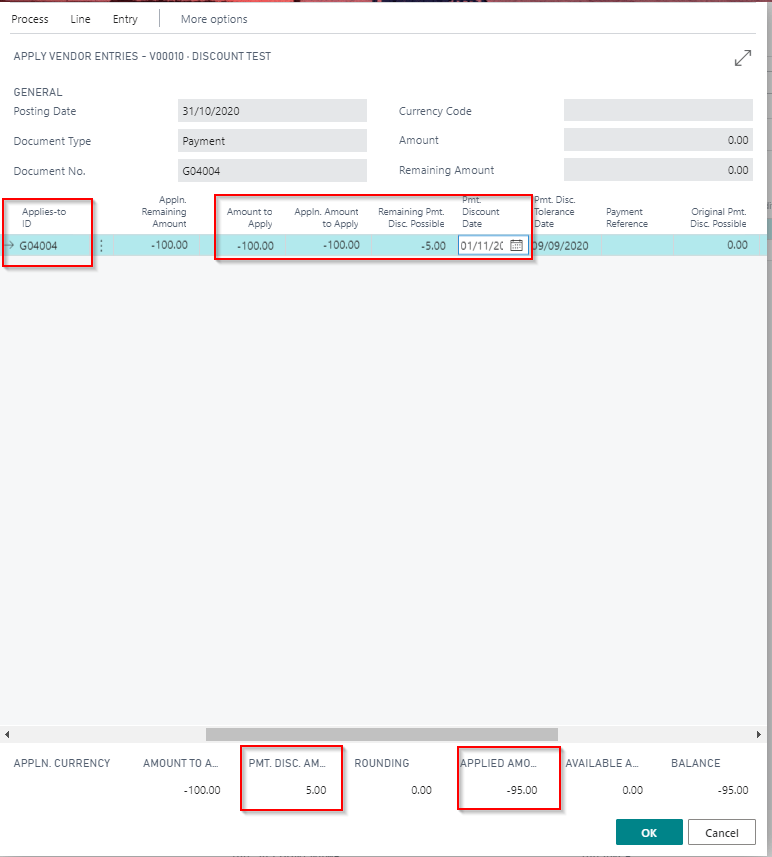
Now when I click “Process > Set Applies-to ID” although it appears to show the full amount being applied, if you look at the foot of page the Payment discount is showing £5.00 and the Applied Amount shows £-95.00
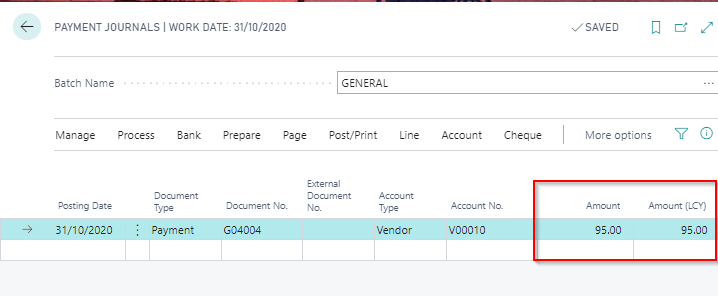
If I click OK this shows the payment amount of £95.00
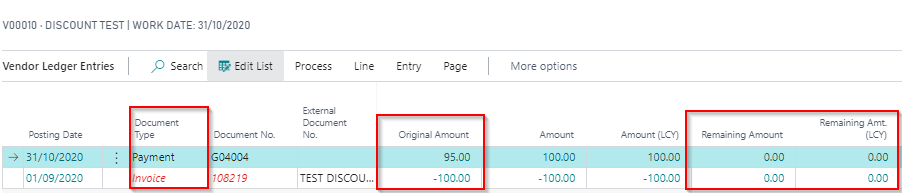
After I post the payment and check the ledger entries I can see a payment for £95.00 has cleared the full amount of the invoice
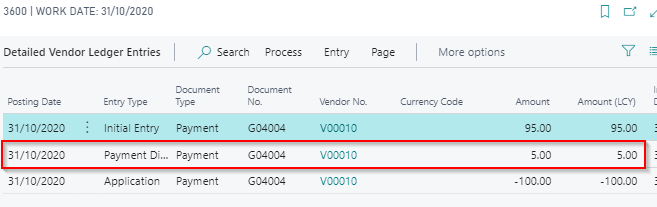
Also, drilling down on the “Remaining Amount” of the Payment you can see the additional “Detailed Ledger Entry” for the discount:
So the key things to note are, when applying the invoice ensure you enter the amount of discount you wish to take in the “Remaining Pmt. Disc. Possible” and also change the “Pmt. Discount Date” so its after the date of the payment.
I came across an interesting situation today that I thought was worth documenting to see if there’s any known reason for this behaviour or if I’ve misunderstood something.
I’m unsure if this is a software issue, or by design, however I noticed that even though I’d set the dimension value posting to “No Code” on a GL code, a value was still posting for the dimension in a certain scenario.
The scenario is outlined below but in short the G/L entries affected were exchange gain and loss postings that were automatically created after applying a foreign currency invoice to a foreign currency payment.
The G/L account in question is the exchange gains\losses account. As you see I’ve specified this shouldn’t have any analysis to the “CUSTOMERGROUP” dimension code.
I then posted an Invoice and Payment at different exchange rates and analysed both to the Dimension Code “CUSTOMERGROUP”. (I used different value codes for each transaction as part of the test)
Then I applied the payment to the invoice to force an exchange gain\loss postings as per below.
When posting the application I expected an error however to my surprise this worked, and when I check the G/L entries the GL code 31900 has dimension code analysis posted to “CUSTOMERGROUP”. (its taken from the Payment as I used the dimension value code “MEDIUM” on the payment)
To confirm I’d set this up correctly I tried posting a standard journal to the GL code and I correctly received the error below:
While I appreciate its unlikely the system would ever be setup like this its interesting that the rule of “No Code” appears to have been bypassed in this particular scenario.
It would be interesting to know if there’s any reason for this?
This is another blog in a series I’ve been writing comparing functionality in Dynamics GP to Dynamics 365 Business Central.
In this post I’m looking at multi currency revaluation in Dynamics GP compared with adjust exchange rates in Dynamics 365 Business Central.
Both routines perform the same task of revaluing foreign currency entries, and both are great and easy to use solutions, however I’ve found some key differences which I’ll highlight below.
** Please note this article doesn’t go into how rates are selected and what filters can be used. It focuses on the options available to revalue.
Dynamics GP
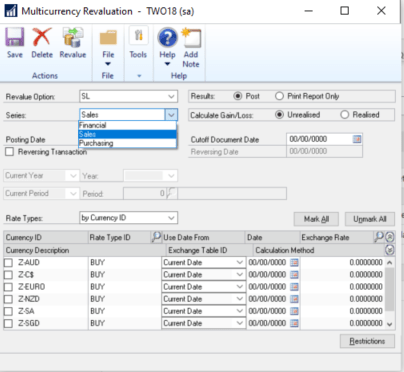
In Dynamics GP you run the revaluation using the “Multi currency Revaluation” window below:
The first thing to note is the revaluation routine is ran separately for the Financial (GL), Sales and Purchasing modules and for all three modules you can select to run a “Realised” or “Unrealised” revaluation.
In my experience a “Realised” revaluation is only ever ran on the financial series against G/L codes for foreign currency bank accounts. However the option exists to run a realised revaluation against the sales and purchase series as well.
** I suspect this would be useful if a sales or purchase transaction had either been outstanding on the ledger for a while, or was expected to be outstanding on the ledger for a while, and in that time a significant change in the exchange rate had, or would occur.
When you do run a “Realised” revaluation on the sales or purchasing series the functional (LCY) currency amounts are updated on the original transaction, and G/L entries are posted to the relevant realised exchange gains and losses accounts.
The “Unrealised” revaluation can also be ran against the Financial, Sales and Purchasing series however in my experience this is only generally ran against the Sales and Purchasing series.
Interestingly the “unrealised” revaluation can be ran with or without the “reversing” option being ticked.
With the option ticked entries are posted to the unrealised gains and losses accounts as expected however a reversing journal is also posted on the date specified backing out those postings. Also, when this is selected, the functional amounts (LCY amounts) on the original sales or purchasing transactions aren’t updated.
When the option for a reversing entry isn’t ticked the unrealised gains and losses are updated along with the functional amounts on the original transactions. When the transaction is applied the unrealised gains and losses are reversed and the realised gains and losses are updated. (in my experience this is the option that is most commonly used)
Finally you can also “print report only” prior to running the actual revaluation. This gives you a sneak preview of what would happen if you were to run the revaluation. I find this very useful and always recommend using this prior to posting the revaluation.
Dynamics 365 Business Central
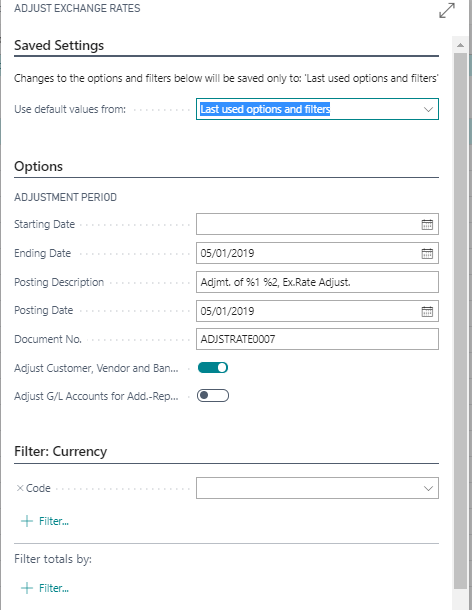
The window below is used to run the “Adjust Exchange Rates” in Dynamics 365 Business Central:
The first thing to note is that in Dynamics 365 Business Central there’s no option to run the “Adjust Exchange Rates” separately for each ledger (or series).
There’s also no option to revalue the G/L codes other than the bank accounts. (which are revalued by adjusting the bank account ledger entries. The G/L entries aren’t affected)
** This is because interestingly unlike Dynamics GP the foreign currency amounts aren’t stored in the G/L Entries table. Only “additional currency amounts” are stored in the G/L entries….more on that later.
In also interesting to note that unlike Dynamics GP there’s no specific option to run a “realised” or “unrealised” revaluation.
When you run the “Adjust Exchange Rates” job and select “Adjust Customer, Vendor and Bank Accounts” the system posts adjustments to the “unrealised” gains and losses for the Customer and Vendor Ledger entries and to “realised” gains and losses accounts for bank accounts. Any “unrealised” gains and losses are tracked on the original transactions via “Detailed Ledger Entries”. As with Dynamics GP these are reversed when the transaction is applied and amounts posted to the “realised” exchange gains\losses accounts.
Dynamics 365 Business Central also offers the ability to record transactions in an “Additional Reporting Currency”. Although this is beyond the scope of this article, when this is configured amounts are posted to the G/L entries in the selected reporting currency using the current rate for the selected additional currency. Depending on the configuration of the G/L code these can be adjusted by selecting the option “Adjust G/L accounts for Add. Reporting Currency” in the “Adjust Exchange Rate” window as per above.
Although you can specify a reporting currency in Dynamics GP you can’t revalue it in the same way you can in Dynamics 365 Business Central.
Conclusion
I’ve found there are quite a number of differences in functionality between Dynamics GP and Dynamics 365 Business Central in this particular area.
For example you can’t run a realised revaluation of the Sales and Purchasing ledgers or revalue G/L codes other than bank accounts. There’s also no option to preview the potential posting prior to running the routine.
This said, in my experience, the functionality offered by Dynamics 365 Business Central would be adequate for all Dynamics GP users thinking of making the transition to Dynamics 365 Business Central.
** Please note based on my findings running the “Adjust Exchange Rates” job and selecting “Adjust Customer, Vendor and Bank Accounts” is the equivalent of running a realised revaluation on the financial series restricted to bank accounts, and running the unrealised revaluation in Dynamics GP on the Sales and Purchasing series and not ticking the “reversing” option.
I’d be interested to hear if anyone knows of users needing to run realised revaluations of the Sales and Purchasing ledgers and the reasons for this. Also if anyone runs an unrealised revaluation and marks the option to reverse this.
Thanks for reading!
Thinking of making the move to Business Central? We can help






 thedynamicsexplorer.com