Recently I encountered an issue when a user was attempting to login to Dynamics GP. After entering their user name and password they were receiving the error below which prevented access:
Your login failed because of a database error. Contact your system administrator for assistance.
On this occasion I found to fix the issue I had to remove the users login from the ACTIVITY and SY00800 tables in the DYNAMICS database using the SQL statements below:
DELETE FROM
DYNAMICS..ACTIVITY WHERE USERID=’<UserID>’
DELETE FROM
DYNAMICS..SY00800 WHERE USERID=’<UserID>’
Replace <UserID> with the User ID in question.
After running the scripts the user could then access Dynamics GP without issues.
I hope this helps anyone else who stumbles across this issue in the future.
All ERP systems aim to make data entry simple, fast and accurate. One way to achieve this is to default as much data as possible when the user is entering transactions, including the General Ledger distributions. In this post I aim to show how Dynamics NAV \ Business Central defaults the General Ledger codes when entering a Sales Invoice using inventory Items. Also, as I come from a Dynamics GP background, I’ll start off by providing a quick overview of how Dynamics GP achieves this, to offer a comparison between the two Dynamics systems.
The Dynamics GP way
In Dynamics
GP you enter default General Ledger codes on entities like customers, vendors,
items, fixed assets and then the “catch all” which is the Posting Accounts Setup window.
Once this has been configured the General Ledger codes default automatically onto the transaction. For example, when creating a Sales Invoice for an inventory item usually the control account would default from the customer card and the revenue code would default from the inventory item (you can change this but usually it would be setup this way). At this point the user can potentially edit and change the General Ledger codes on the transaction prior to posting thus overriding the system defaults. Being able to edit the General Ledger codes inside the transaction gives the user more flexibility however it can also introduce mistakes or errors. An example would be someone changing the control account, which would likely cause a reconciliation issue at month end.
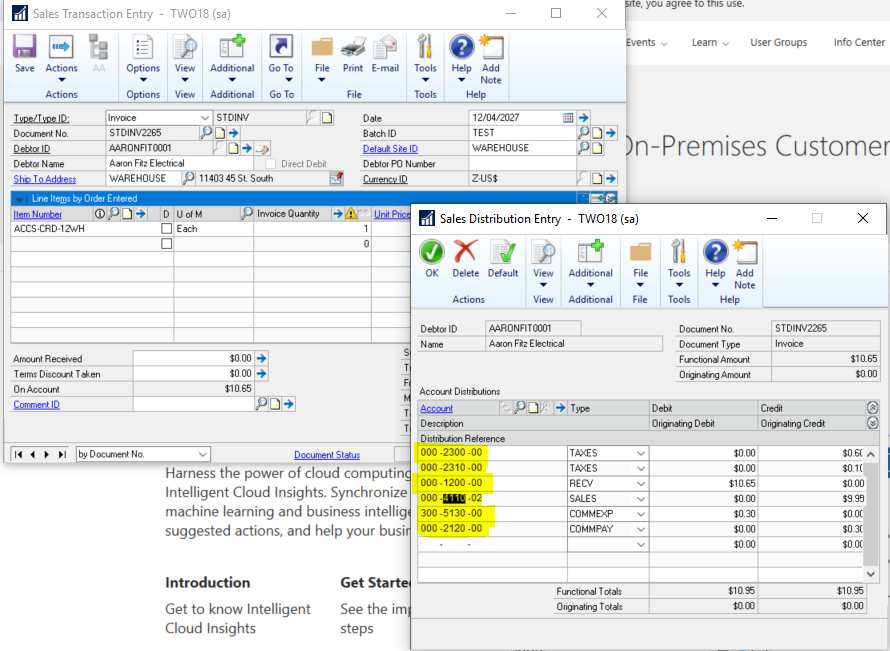
Dynamics GP – Default SOP Distributions can be edited as per above
The Dynamics NAV \ Business Central way
From a Dynamics GP perspective things change quite dramatically when you look at how Dynamics NAV \ Business Central defaults the General Ledger codes. Instead of assigning specific General Ledger codes on customers, vendors, items, fixed assets, you assign Posting Groups to each of these entities. It’s the posting groups that have the General Ledger codes assigned and based on the combination of the posting groups used, general ledger postings are automatically performed when the transaction is posted. This means unlike Dynamics GP you can’t edit or change the default General Ledger codes prior to posting which gives less flexibility but there’s also less chance of mistakes being made.
So how do Dynamics NAV \ Business Central posting groups work?
There are two main types of posting groups – Specific and General.
Specific posting groups are used to default the control accounts. For example, I’ve assigned the specific Customer Posting Group “DOMESTIC” to the customer below:
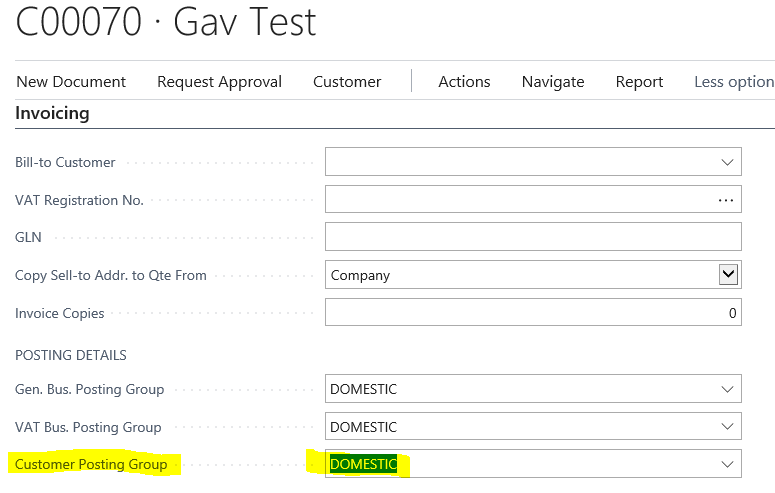
Business Central – Customer Card
If we open the Customer Posting Group window and look at the setup, we can see when I post a transaction for this customer the General Ledger code 40400 will be used for the receivables control account.
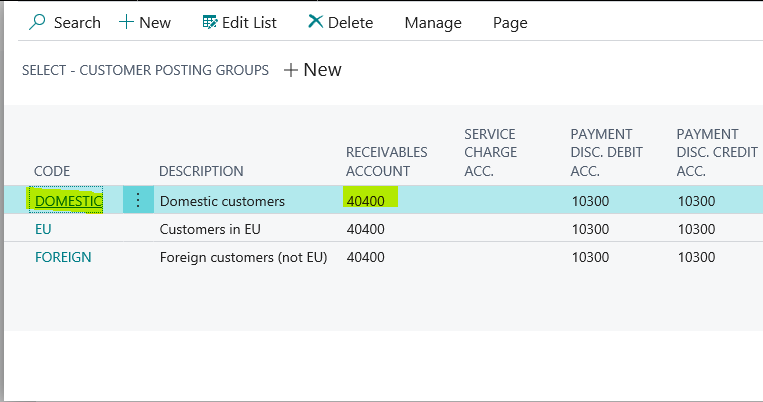
Business Central – Customer Posting Groups
Moving on
to the General Posting Groups things
become a little more complex.
General
posting groups can be split into two further groups – Business and Product. You
assign “Business” posting groups to customers and vendors and “Product”
postings groups to Items.
The
combination of the General Business
Posting group from the customer and the General
Product Posting Group from the item determines the General Ledger codes
that will be used. This is something that is best explained via an image, so
I’ve included a screen shot below of the General
Posting Setup window from my demo version of Business Central.
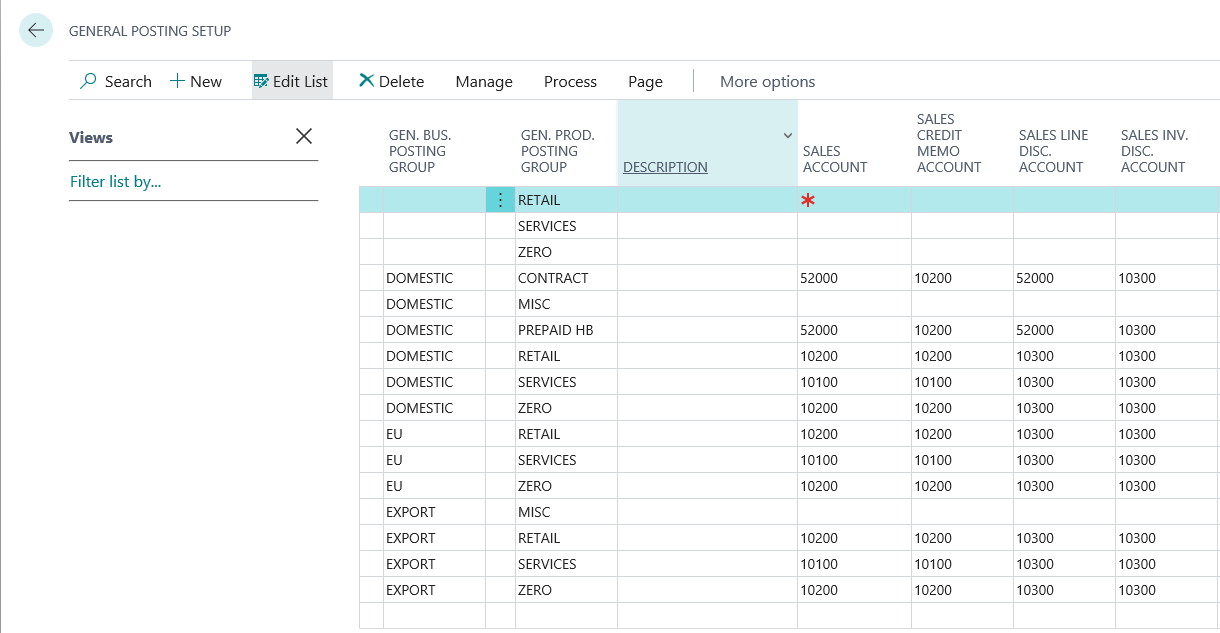
Business Central – General Posting Setup
As you can see the posting groups form a matrix and the combination of “Business” (labelled Gen. Bus. Posting Group in the window) and “Product” (labelled Gen. Prod. Posting Group in the window) determines the General Ledger codes used when you post a transaction.
Therefore,
based on the General Posting Setup
above, if a customer has been assigned a Gen.
Bus Posting Group of DOMESTIC as per below:
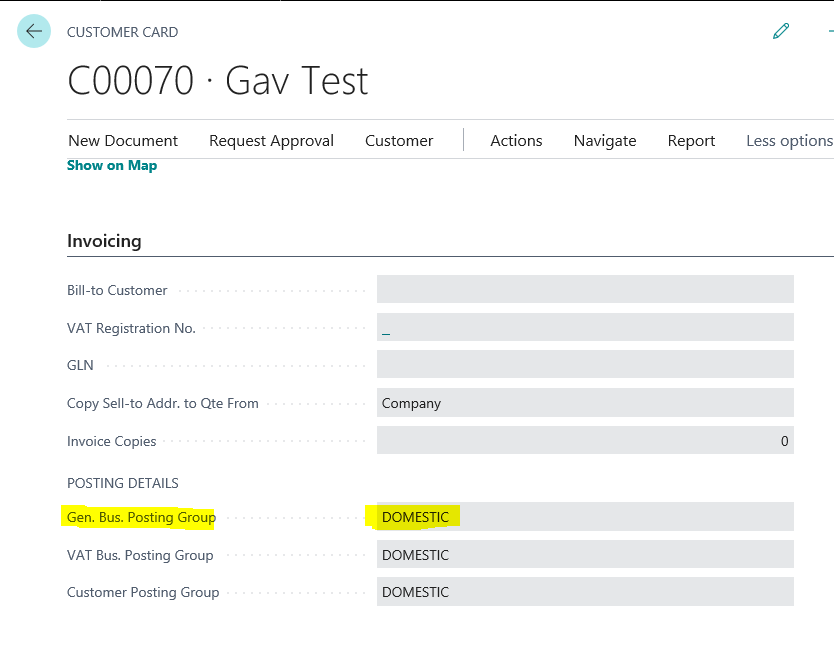
Business Central – Customer Card
And the
item they are buying has been assigned a Gen.
Prod Posting Group of RETAIL as per below:
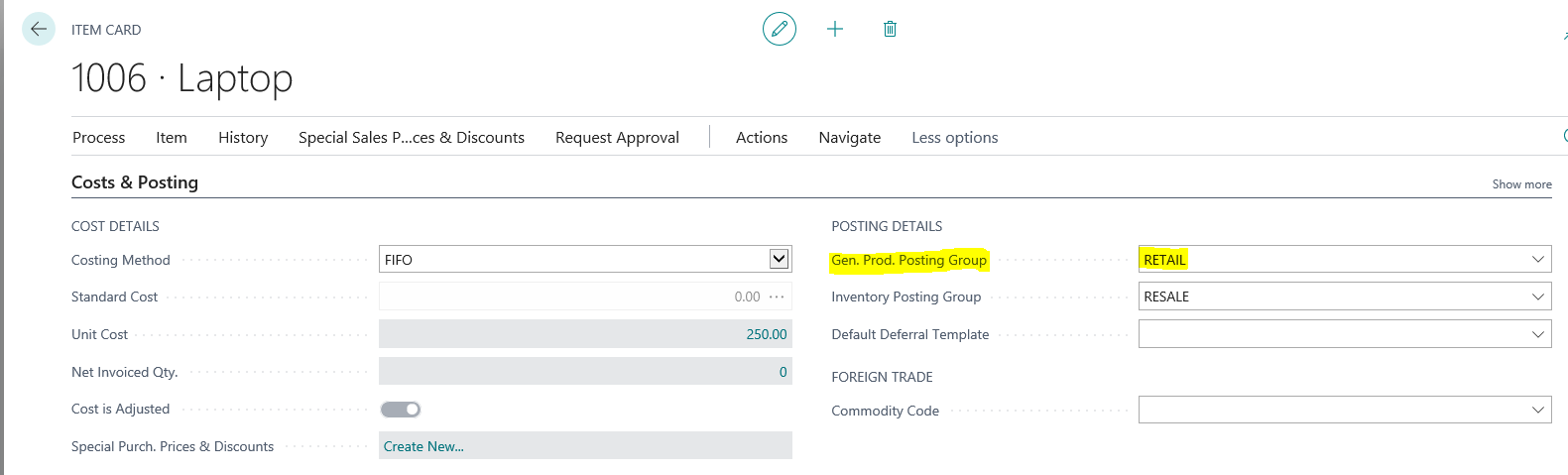
Business Central – Item Card
Then based on the General Posting Setup matrix defined in the General Posting Setup window the General Ledger sales account that will be used when the transaction is posted is 10200.
Defaulting the VAT Codes – VAT Posting Groups
A similar concept
is used when Business Central is determining the VAT percentage and VAT General
Ledger codes to be used. The matrix is defined in the VAT Posting Setup window as per below:
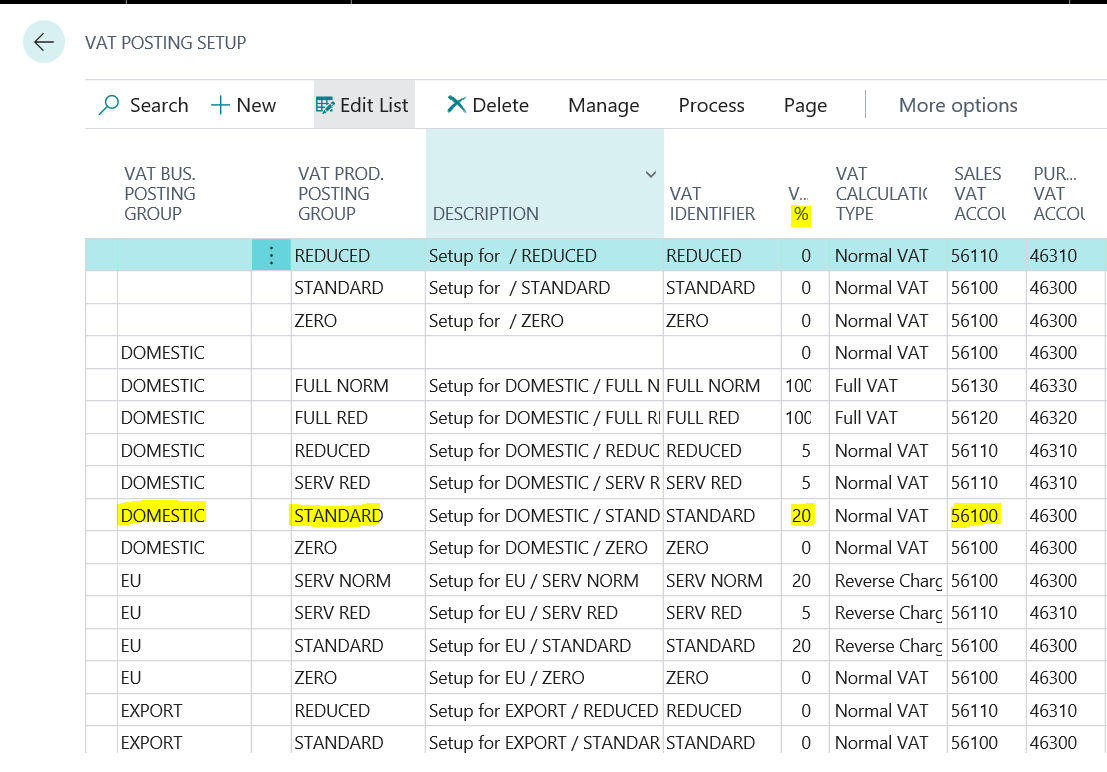
Business Central – VAT Posting Setup
So, in this
example if the VAT Bus. Posting Group
on the customer was “DOMESTIC” and the VAT
Prod. Posting Group used on the Item is “STANDARD” the VAT percentage used
would be 20 and the General Ledger code used would be 56100.
So there you have it. A very quick overview of how Dynamics NAV \ Business Central uses Posting Groups to create the General Ledger distributions when posting a Sales Invoice with inventory items.
Its month end and when you come to reconcile the General Ledger control accounts to Receivables or Payables there’s a difference! You check all the usual things like unposted General Ledger batches or manual journals that may have been inadvertently posted to a control account, but this proves fruitless. So where do you start to track down the difference? There’s quite a lot of information out there on this however one technique I’ve found that gives me the most success is to narrow down the difference to a single day using the Historical Aged Trial Balance and the General Ledger Trial Balance and then use smartlists to focus on the transactions on that day. So without further ado here’s the full process.
Step 1: Find
the date the ledgers last balanced.
This is very important. For this to work you need a point in time when the Receivables (or Payables) Historical Aged Trial Balance matches the control account. In reality the ledgers should be reconciled at least monthly so this shouldn’t be a problem
Step 2: Run
the Historical Aged Trial Balance periodically and compare this to the General
Ledger Trial Balance of the control account.
Now you
have a starting point when the ledgers balance run the historical aged trial balance
report periodically using the “Print/Age as of” field and compare this to the General
Ledger trial balance for the same date range until you find the difference.
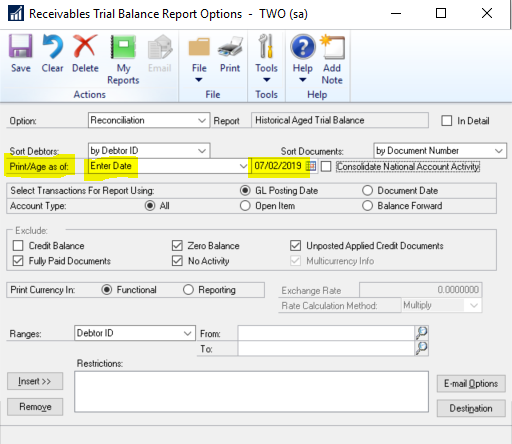
For example, let’s say the General Ledger and Receivables last balanced at the end of February but don’t balance at the end of March 2019. In this scenario you’d run the historical aged trial balance with a “Print/Age as of” date of the 7th of February as per below:
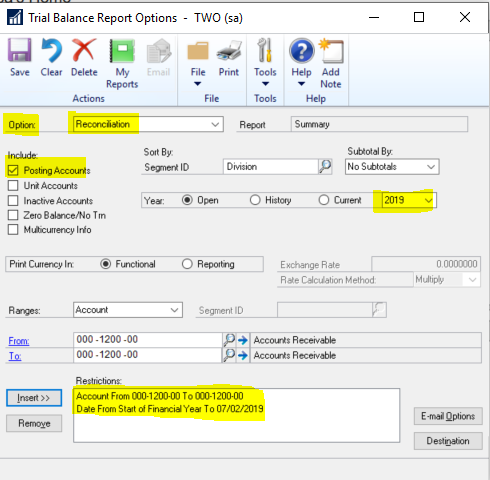
You’d then
run the General Ledger Trial Balance for the control account up to the 7th
of February as per below:
If the Historical Aged Trial Balance matches the General Ledger Trial Balance you can safely assume the difference occurred later in the month and therefore you repeat the process running the same reports but advance the date. For example, you’d run the Historical Aged Trial Balance report with a “Print/Age as of” of the 14th of February and the General Ledger Trial Balance report with a date of 14th of February. Once you find a point where the reports no longer match you alter the date working backwards until ultimately you have one day when the reports match and the following day when the reports don’t match. You have now found the date the ledger goes out of balance!
Step 3: Run a smartlist of the General Ledger and Receivables transactions for the day the ledgers went out of balance
Now you have the exact date the ledgers went out of balance you can run a smartlist of the General Ledger and Receivables transactions and compare them looking for differences.
To do this
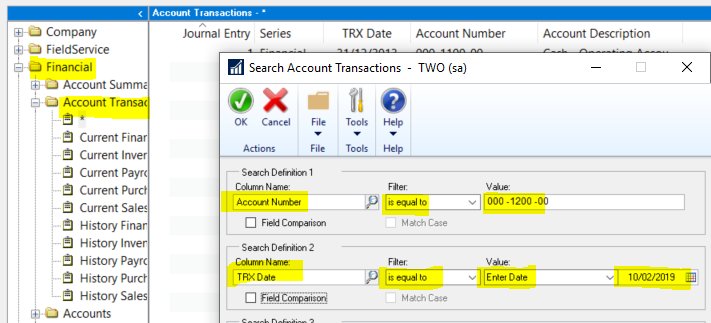
use the “Account Transactions” smartlist for the General Ledger using the date the
ledgers go out of balance.
Therefore, assuming the date we have identified when the ledgers went out of balance is the 10th of February, you’d run the smartlist using the following search criteria:
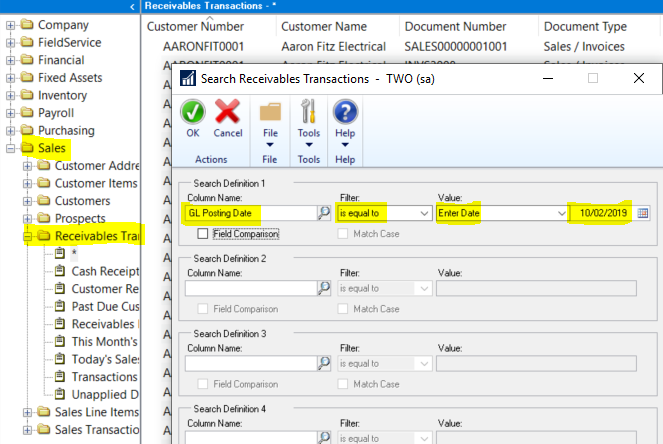
Next run the “Receivables Transactions” smartlist for the Sales Ledger using the same date as per below:
If you output both smartlists to Excel you can compare the two datasets and hopefully this will highlight the transaction(s) causing the difference. However if you still can’t find the difference Step 4 may help.
Step 4: Check
the Apply records
Normally by Step 3 I’ve identified the difference and can take corrective action. However, on the rare occasion this doesn’t help I’ve had to examine the apply tables in SQL as I’ve found a journal hasn’t posted for a multi-currency exchange gain or loss.
To explain in more detail when one or more foreign currency transactions are applied with difference exchange rates a journal is created in the General Ledger to adjust the control account. This is also recorded on the RZGANLOS field in the Receivables apply tables namely RM20201\RM30201.
To see if
this is causing an issue you need to have access to SQL to run a query. The
query I use is below assuming the date the ledgers went out of balance is the 10th
of February:
set dateformat dmy select * from RM20201 where DATE1 = ’10 Feb 2019′ AND RLGANLOS<>0 select * from RM30201 where DATE1 = ’10 Feb 2019′ AND RLGANLOS<>0
In my experience you should have at least one journal for each record produced by the query. In the General Ledger smartlist they would have a source document of “RMAPY”. (apply journal). If not a manual journal may have to be posted for any missing journals.
After
following these steps I can usually find the difference.
Thanks for reading!
Thinking of making the move to Business Central? We can help