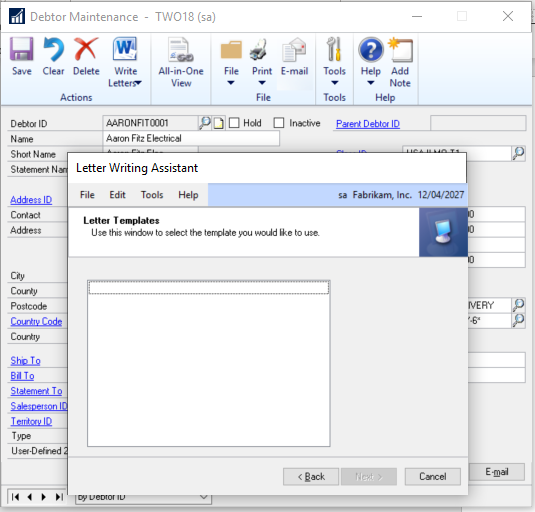
Following a recent client upgrade of Dynamics GP to version 2018 R2 I found that when selecting “Write Letters > Print Debtors” the window was blank:
I opened the C:\Program files (x86)\Microsoft Dynamics\GP2018R2\Data\DEX.INI file to find the Letters Directory location and when I checked each sub folder in this shared folder the word documents (.DOC files) were present.
On investigation it seems previous versions of Dynamics GP used to expect files in the DOC format however its now expecting them to be in the DOCX format. Therefore, I opened each one and saved them as DOCX files and they are now available.
I hope this helps anyone else who may encounter this issue.
As I’ve mentioned previously I mainly come from a Dynamics GP background. Recently I’ve been posting transactions in Dynamics NAV \ Dynamics 365 Business Central and trying to follow things through to the General Ledger entries as I try and piece together how the system works.
Why two G\L Registers?
When you post a transaction in Dynamics NAV\Business Central General Ledger Entries are automatically created. You can view these by looking at the G\L Register.
G\L Register
When posting a Purchase Invoice for an Inventory Item and viewing the G\L Register one thing stood out. Instead of one set of G\L Registers for the transaction there were two? Furthermore, one set of G\L registers had a Source Code of PURCHASES (G\L Register No 898) and the other set of G\L registers had a Source Code of INVTPCOST (G\L Register No 897)
G\L Register for Purchase Invoice
Coming from a Dynamics GP background this seemed quite strange? I can see WHAT the system is doing, its splitting out the inventory postings, but I couldn’t understand WHY it was doing this? In Dynamics GP all the General Ledger distributions for this one transaction would have been posted and given one G\L Register No (or Journal Number in Dynamics GP) and one Source Code. (or Source Document in Dynamics GP)
So why two
sets of General Ledger postings? Why not just post one set of General Ledger
posting which included all the General Ledger distributions for this one
transaction?
To test things further I posted a Sales Invoice for an inventory item and the same thing happened? Two sets of General Ledger posting and two different Source Codes:
One Conclusion
After playing around a little more it finally dawned on me why it could be splitting this one transaction out into two G\L registers, with two Source Codes, rather than making one posting like Dynamics GP.
There’s a setting in Inventory Setup called Automatic Cost Posting that you can switch ON or OFF. Throughout my testing this had always been ON.
However when I tested posting a Purchase Invoice with this switched OFF I found you don’t get any inventory related postings.
With the option switched OFF its only when you subsequently run the Post Inventory Cost to G/L batch job that the inventory postings are made.
So, in the case of my Purchase Invoice earlier, if Automatic Cost Posting had been switched OFF, only one G\L register with a Source Code of PURCHASES would have been posted.
Therefore, my assumption is that one of the reasons Dynamics NAV \ Business Central creates separate G\L Registers and Source Codes for transactions with Inventory is because the system might not immediately post the Inventory postings when you post the initial transaction. Depending on the Automatic Cost Posting setting it could post the Inventory part of the transaction hours, days or weeks later. (basically when the Post Inventory Costs to GL batch job is ran)
I still need to do lots more reading and studying on Inventory costing and Inventory accounting in Dynamics NAV\Business Central so in time I may see other reasons but for now this seems like one reasonable explanation.
If someone
knows of other reasons, I’d love to hear them 😊.
Recently I encountered an issue when a user was attempting to login to Dynamics GP. After entering their user name and password they were receiving the error below which prevented access:
Your login failed because of a database error. Contact your system administrator for assistance.
On this occasion I found to fix the issue I had to remove the users login from the ACTIVITY and SY00800 tables in the DYNAMICS database using the SQL statements below:
DELETE FROM
DYNAMICS..ACTIVITY WHERE USERID=’<UserID>’
DELETE FROM
DYNAMICS..SY00800 WHERE USERID=’<UserID>’
Replace <UserID> with the User ID in question.
After running the scripts the user could then access Dynamics GP without issues.
I hope this helps anyone else who stumbles across this issue in the future.




 thedynamicsexplorer.com