I recently had an issue where a user was stuck in a batch in the Bank Management module. You can usually run the “Clear Activity” option to resolve the issue however on this occasion it didn’t work. I found I had to manually delete a row in an SQL table to clear the lock and allow the user access to the batch.
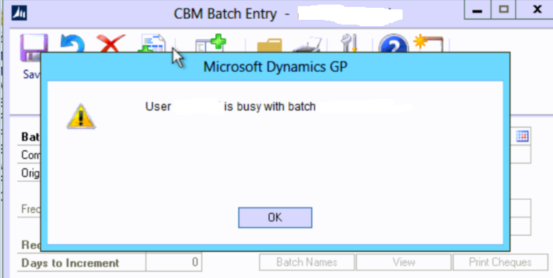
The exact issue they received is as follows:
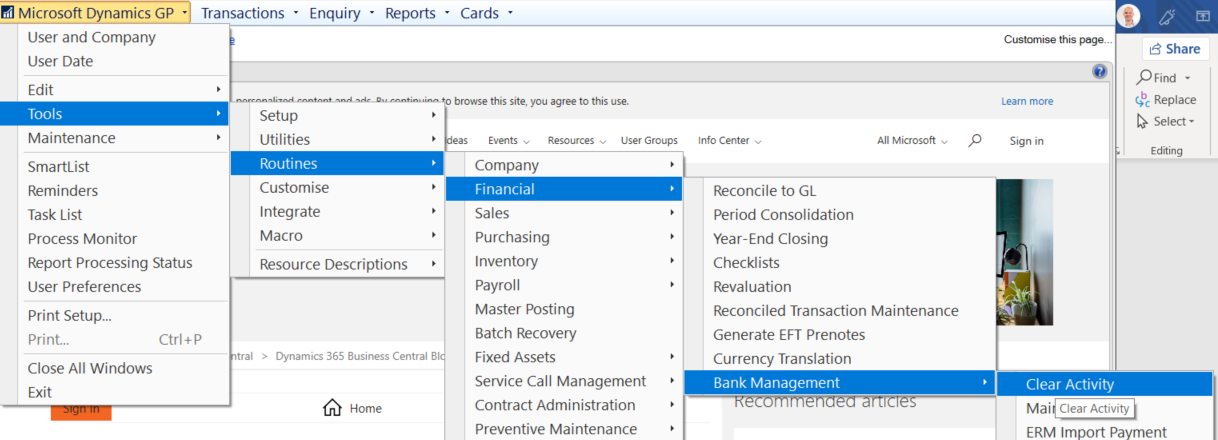
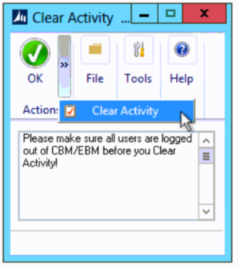
With this error message the first thing to try is to clear activity and although this didn’t work on this occasion I’ll detail the steps below.
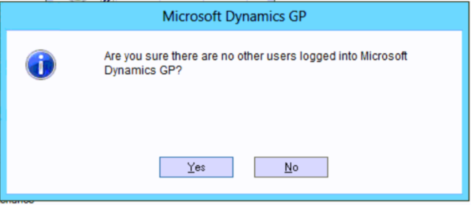
Ensure there are no users in Dynamics GP and click “Yes” to the message below. (rather than asking everyone to log out I usually just ensure there’s nobody doing any Bank Management activities)
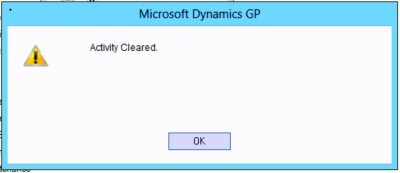
After doing this you will be prompted with the message below confirming activity is cleared
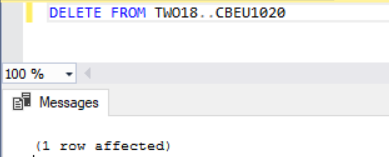
However I found I still couldn’t access the batch. On investigation there is still some activity for the batch in the CBEU1020 table which needed clearing. I therefore ran the SQL query below in the company database to delete the row. (replace TWO18 with the name of your company database)
I could then access the batch.
Thanks for reading!
Thinking of making the move to Business Central? We can help
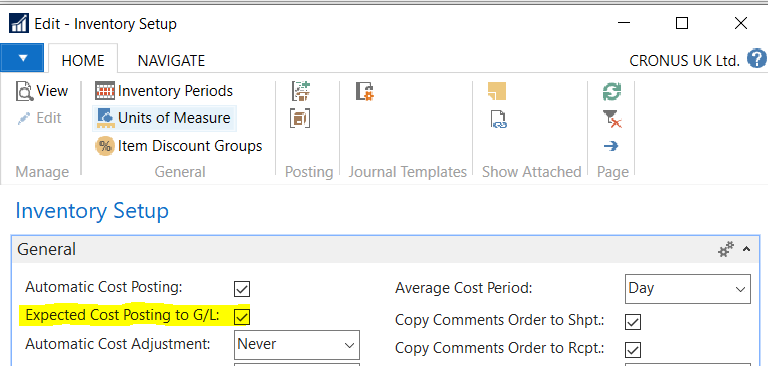
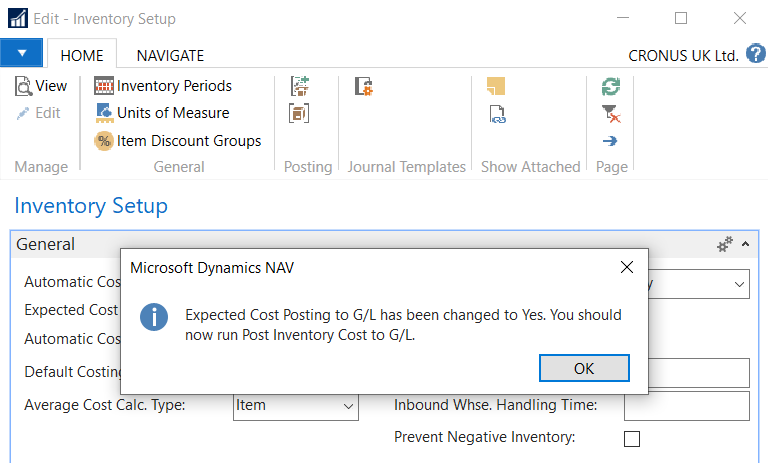
Within Dynamics NAV \ Business Central you can switch Expected Cost Posting to G/L both ON and OFF via the option below in Inventory Setup.
In this post I’ve been playing with this feature to see how things work and how the various postings differ to Dynamics GP. I also take a look at how the Value Entries in Inventory play a pivotal role in this. I end by taking a closer look at the SQL tables involved and how things fit together.
Expected Costs in Dynamics GP
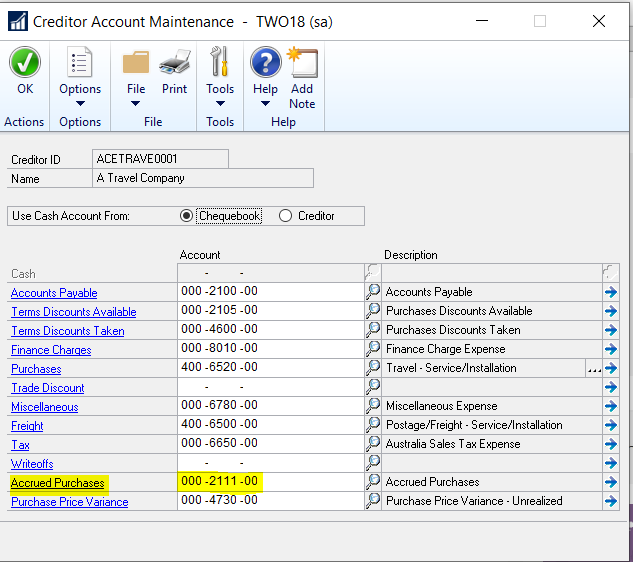
When you receive goods via a Shipment transaction in Dynamics GP a Purchase Accrual is automatically created to a General Ledger accrual account to record the expected cost in the General Ledger. This account is generally taken from the Creditor Card as per below:
Dynamics GP – Creditor Account Maintenance
The
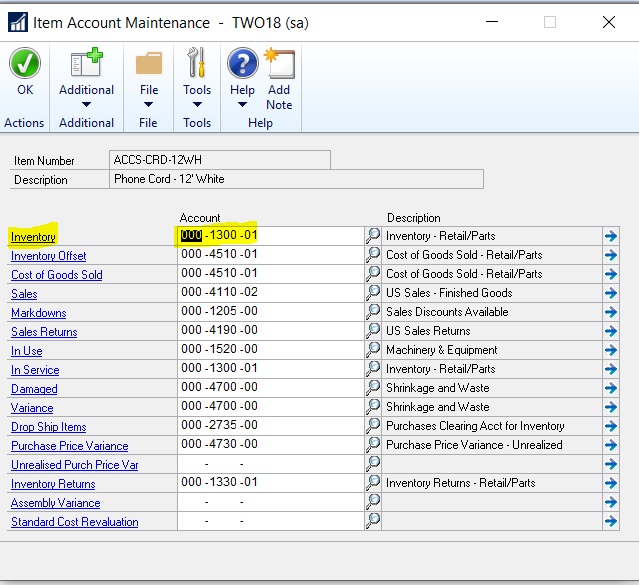
opposite debit entry is taken from the Inventory Item card as per below:
Dynamics GP – Item Account Maintenance
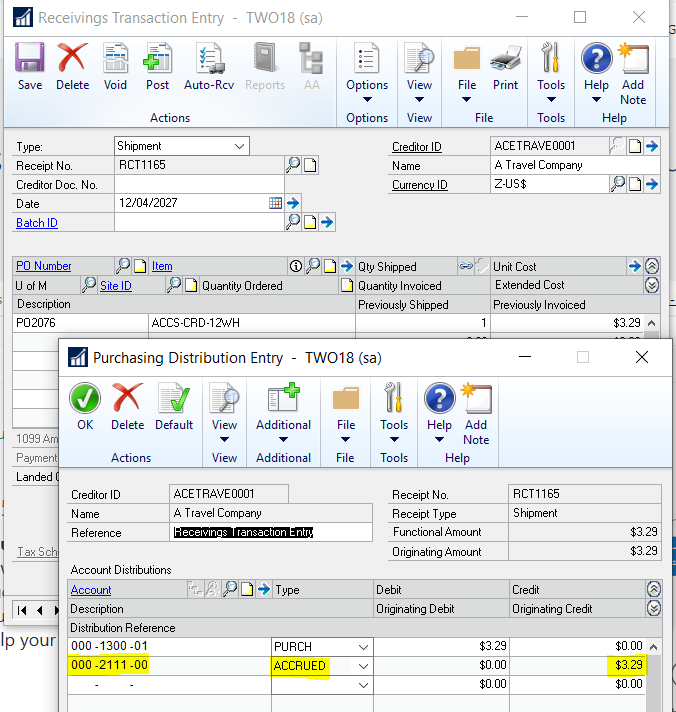
Let’s add a Purchase Order Shipment transaction in Dynamics GP and see this in action:
Dynamics GP – Receiving Transaction Entry
As you can
see from the screen shot above, I’m receiving one Inventory item, and this has
created an accrual distribution crediting the 000-2111-00 accrued purchases
account I specified on the creditor card. The balancing debit side is to the
Inventory code that we specified on the Inventory Item card.
Now let’s
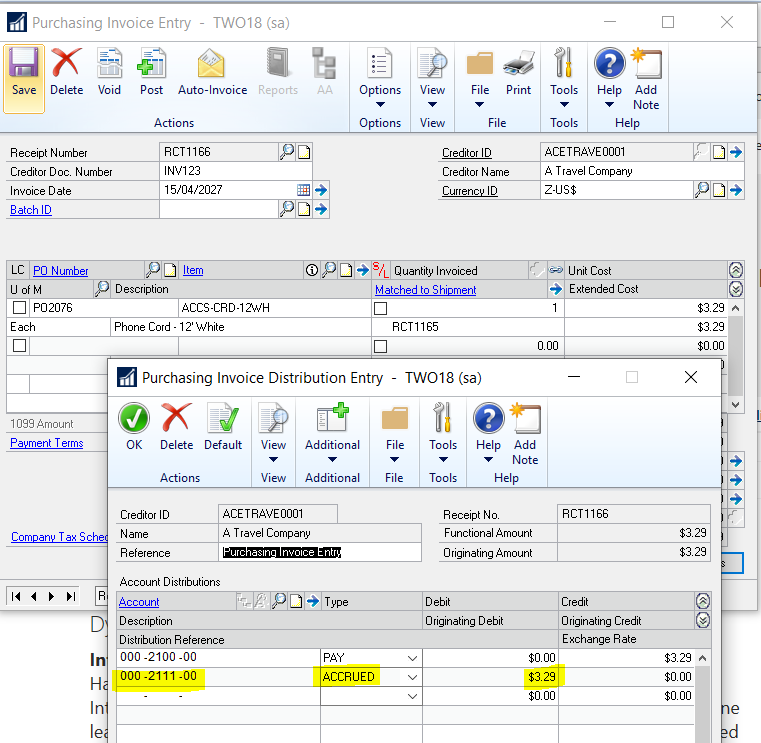
see what happens when we invoice the Shipment:
Dynamics GP – Purchase Invoice Entry
Just as expected the accrual is reversed via a Debit entry to the 000-2111-00 accrued purchases account and the accounts payable is credited. Therefore, the balance in the accrual account is now nil.
There’s no way to disable this behaviour in Dynamics GP. When you post a “Shipment” for some Inventory Items General Ledger entries are always created. (however you can prevent the entries posting through to the General Ledger via the Posting Setup)
Expected Costs in Dynamics NAV \ Business Central
Before we look at Expected Costing in Dynamics NAV \ Business Central we first have to take a step back and look at the various inventory entries that are created when you post inventory transactions.
When you post an inventory transaction in Dynamics NAV \ Business Central the system creates a minimum of two inventory entries: an Item Ledger Entry and a Value Entry. The Item Ledger Entry records the change in quantity and the Value Entry records the change in inventory values. For the purposes of this post we just need to know that when posting Purchase receipts Value Entries are created for Expected Costs, and when you post Purchase Invoices, Value Entries are created for Actual Costs, and Expected Costs are reversed.
Expected Cost Posting to G/L – Switched ON
Unlike Dynamics GP you can switch ON and OFF accrual postings in Dynamics NAV \ Business Central via the Expected Cost Posting to G/L option in Inventory Setup. When you switch Expected Cost Posting to G/L ON interim accounts are used to post the accrual and inventory entries for Purchase receipt transactions.
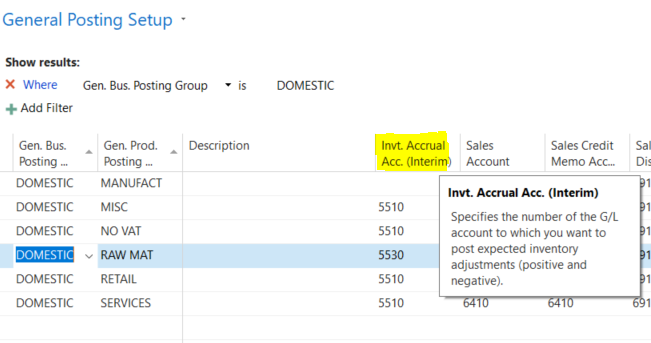
The equivalent Dynamics GP accrued purchases account is called Invt. Accrual Acc. (Interim) and is specified in the General Posting Setup window and is selected based on the Posting Groups used on the Item and Creditor. (see my previous post for more details on the posting groups). I’ve highlighted this below
Dynamics NAV \ Business Central – General Posting Setup
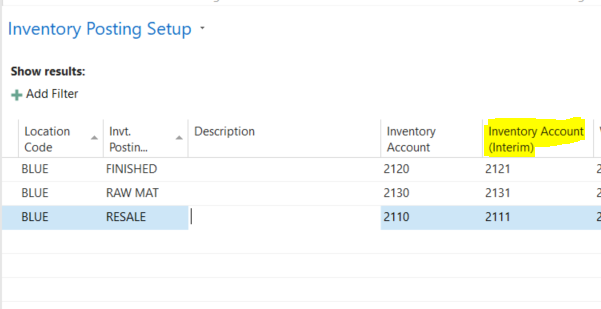
The Inventory code for the debit side of the transaction is taken from the Inventory Posting Group and again is based on the combination of posting groups used. I’ve highlighted this below
Dynamics NAV \ Business Central – Inventory Posting Setup
The key difference here is Dynamics GP doesn’t use an interim Inventory account whereas Dynamics NAV \ Business Central does.
In my Cronus demo data, the option Expected Cost Posting to G/L is currently switched ON so let’s see how this works when I create a Purchase Order for an Inventory item and receive it.
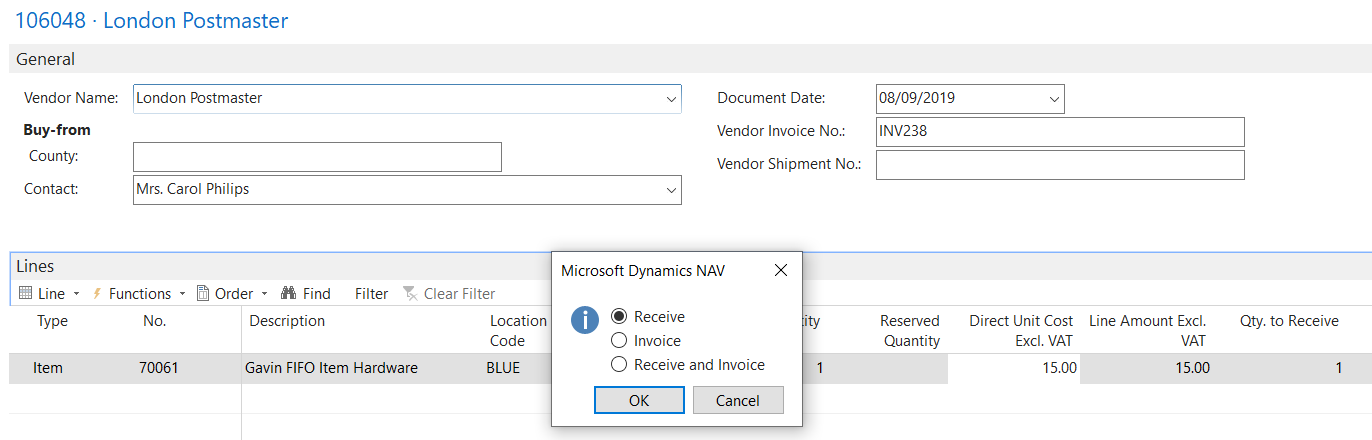
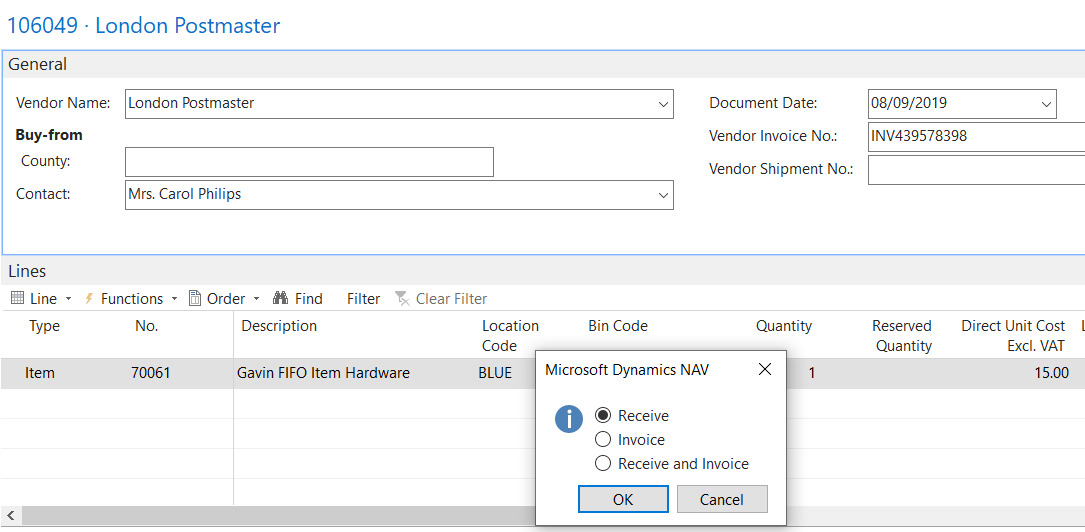
Here’s my Purchase Order and after clicking Post I’m going to choose receive so I receive the items into the Inventory:
When I view the item I can see this has created the following Value Entry (Number 454) which shows the Cost Amount (Expected) and Expected Cost Posted to G/L both populated.
If I highlight the Value Entry and click Navigate > General Ledger I can see the G/L Entries associated with the Value Entry
As expected,
we can see the 5510 Accrual account is being credited and the debit entry is
posting to the 2111 “Interim” Inventory code.
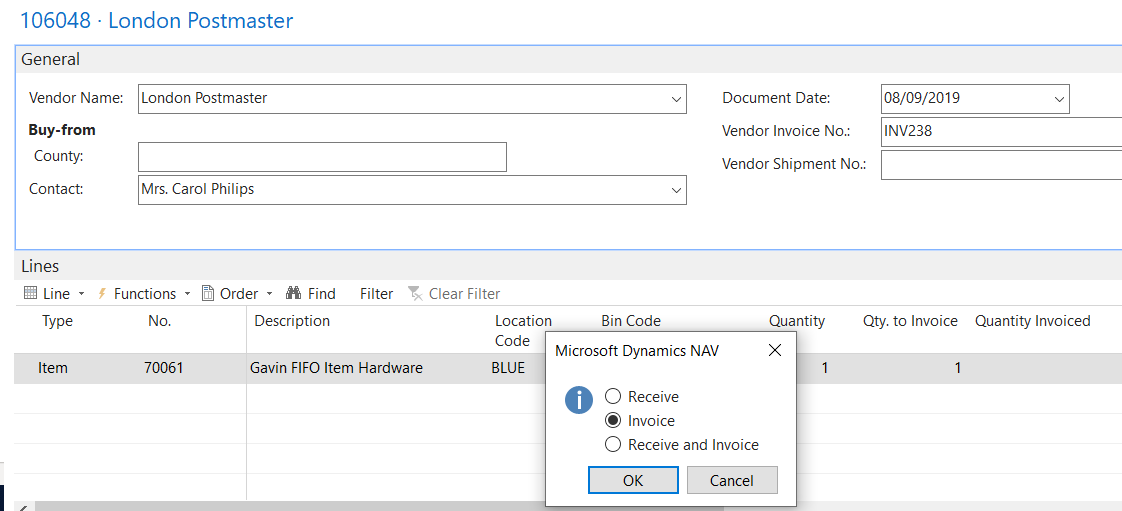
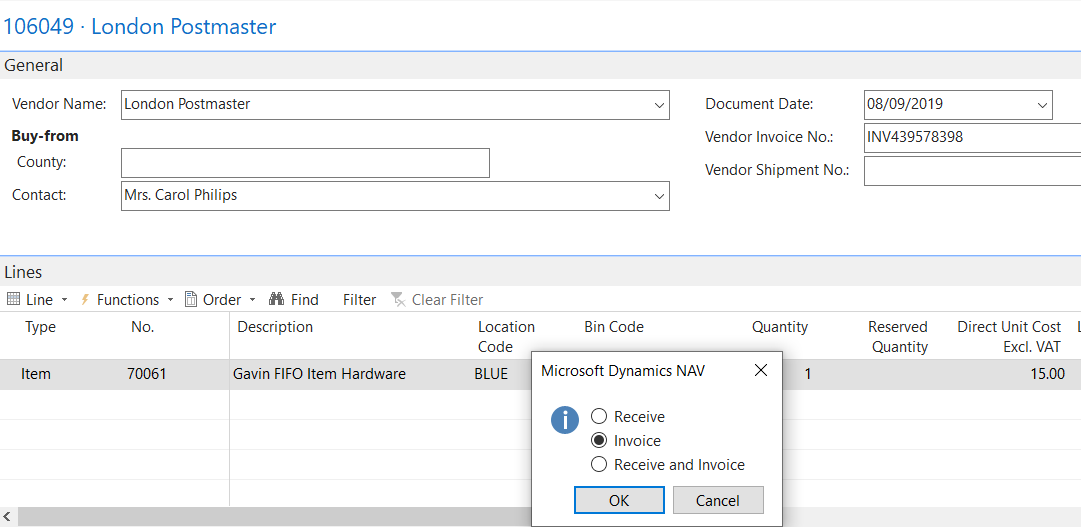
Now let’s invoice the purchase order and take a look at the G/L entries. First I click Post and select Invoice on the Purchase Order. (Incidentally if I were to select Receive and Invoice the system recognises I’ve already received the items. It doesn’t receive them again)
This has created the a new Value Entry (Number 455) . There’s a few things to note here. Firstly the Cost Amount (Expected) and the Expected Cost to G/L have been reversed. Secondly the Cost Amount (Actual) and Cost Posted to G/L have been populated.
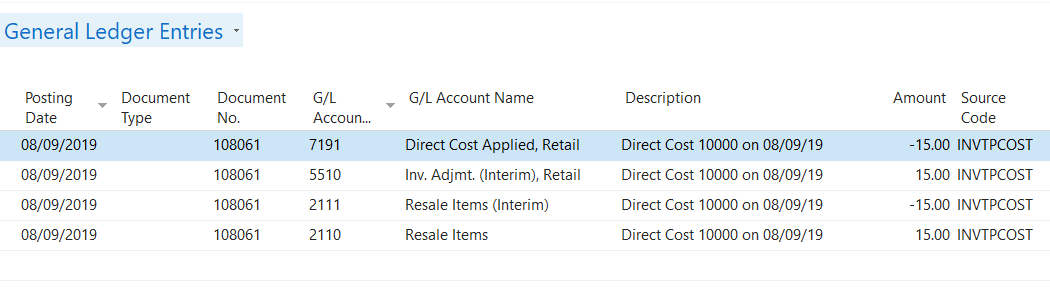
Again if I highlight the Value Entry and choose Navigate > General Ledger we can the G/L Entries associated with this Value Entry.
As you can see the original entries created via the Purchase Receipt have been reversed by posting a debit to the 5510 Inventory accrual account and a credit to the 2111 Interim Inventory account. The system has then posted new entries to the 2210 Resale items inventory account (debit) and the direct cost applied account (credit). (for more info on the direct cost applied account see my previous post).
So that’s it. Although there are a few extra distributions to Dynamics GP everything makes sense. Its also apparent that the Value Entries have a direct relation to the G/L entries that are created.
Expected Costing to G/L – Switched OFF
Now let’s see what happens when we post a Purchase Receipt with the Expected Cost Posting to G/L switched OFF. First I switch the option OFF and then create and post the Purchase Receipt
This has created the following Value Entries (Number 456)
The key thing to note here is that although the Cost Amount (Expected) is populated the Expected Cost Posted to G/L isn’t. This means no G/L Entries have been created. To prove this click Navigate > General Ledger to view any G/L Entries
Let’s now invoice the Purchase Order and see what happens:
This has created the following Value Entry
This Value Entry records the Cost Amount (Expected) being reversed and the Cost Amount (Actual) and Cost Posted to G/L are also populated. Therefore we get the following G/L Entries
As expected no expected cost postings have been created or reversed for this transaction.
Bonus – G/L Item Ledger Relation and Post Value to G/L SQL tables
An unexpected bonus of writing this post was the chance to geek out on some of the Dynamics NAV tables. Unlike Dynamics GP, I don’t have much of a grasp of the SQL tables in Dynamics NAV however while going through the various scenario’s I was curious about how a couple of things worked which encouraged me to dig a little deeper.
The first thing was how I was able to drill down on the G/L Entries from the Value Entries screen? This meant there must be a direct or indirect relationship between the tables.
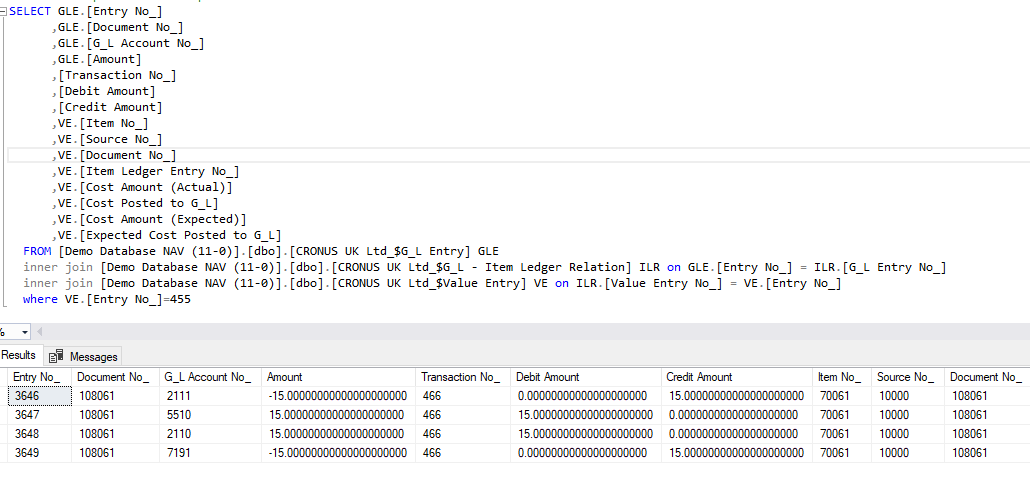
After some digging I found the link was via the G_L – Item Ledger Relation table. Therefore writing the SQL query below enabled me to join the G/L Entries and Value Entries table to see all the details for Value Entry Number 455
The next thing I was curious about was what would happen if the Expected Cost Posting to G/L was switched from OFF to ON when there were lots of Purchase Receipts that hadn’t yet been invoiced?
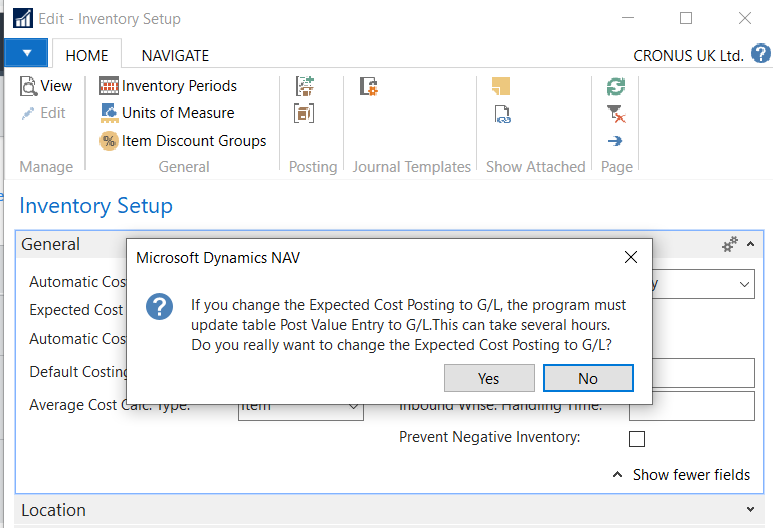
I found the answer to this question lay in the two prompts you receive when you switch Expected Cost Posting to G/L from OFF to ON (or ON to OFF). Below are the two messages you get when toggling the setting
Dynamics NAV \ Business Central – Inventory Setup
As per the first message it seems when you switch the option Expected Cost Posting to G/L ON the system determines if the Actual Costs for the Purchase Receipt have been posted and if not a record is written for that Value Entry to the Post Value Entry to G_L SQL table. This has a link back to the Value Entry so the system knows to create the Expected Cost interim postings for this Value Entry.
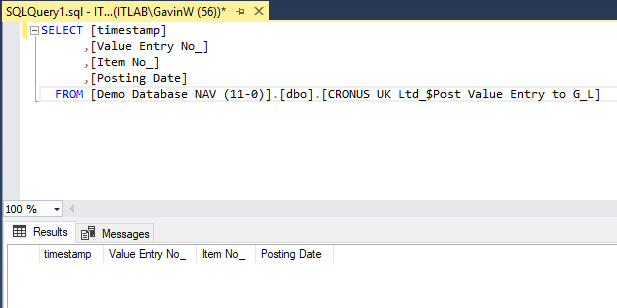
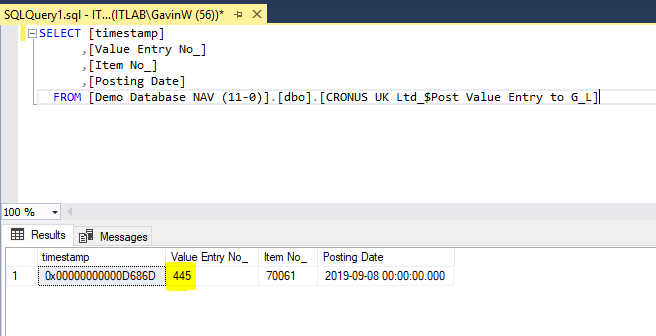
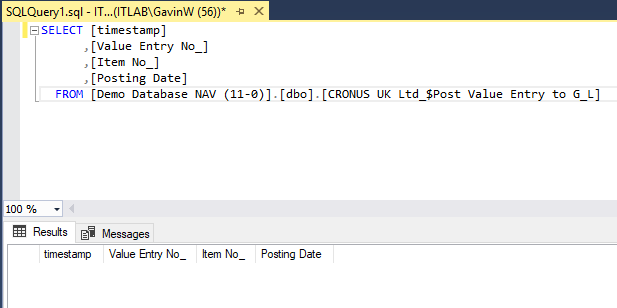
To show this in action, I switched the Expected Cost Posting to G/L option OFF and queried the SQL table:
SQL Query on Post Value Entry to GL Table
As per the image above the SQL table is currently blank.
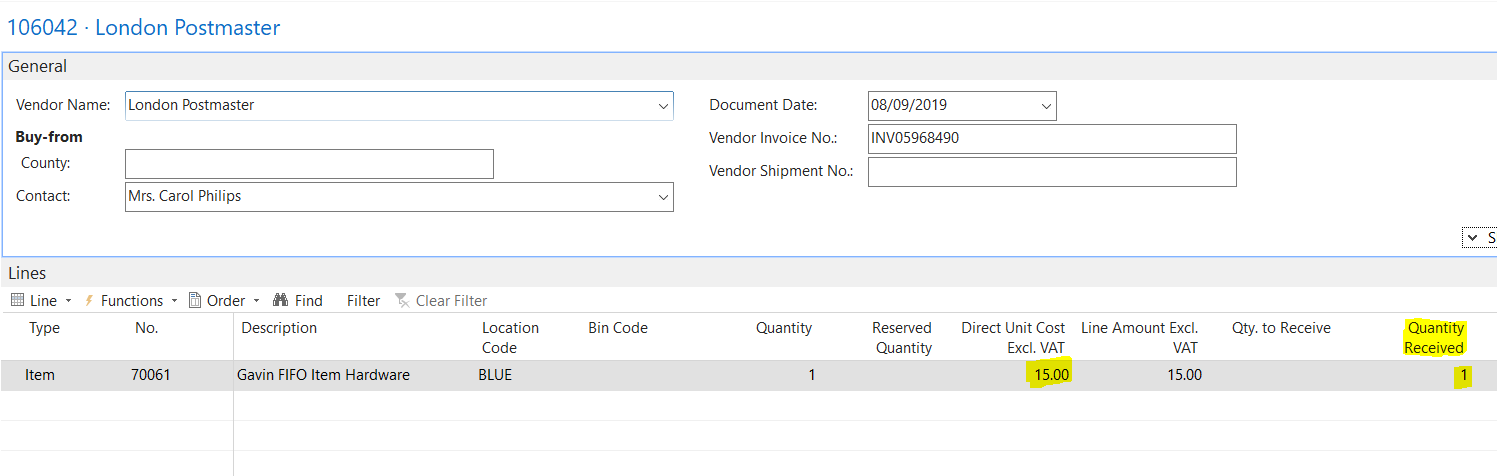
I then created
a Purchase Order and received it as per below:
Dynamics NAV \ Business Central – Purchase Order
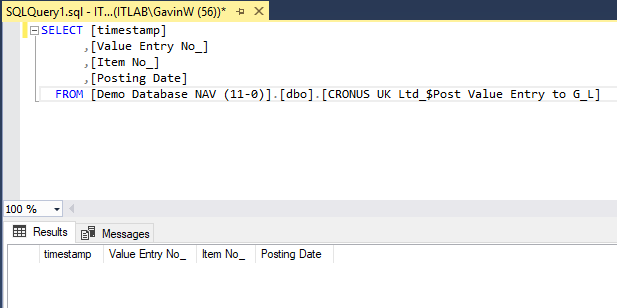
After posting this I queried the Post Value Entry to G/L SQL table again to see if any new rows had been added and the table was still blank
SQL Query on Post Value Entry to GL Table
I then checked the Value Entry for my receipt and as per the screen shot below the Cost Amount (Expected) is populated but the Expected Cost Posted to G/L is blank. As this is only the Purchase Receipt the Cost Posted to G/L is also zero.
Dynamics NAV \ Business Central – Value Entries
I then went back to Inventory Setup and switched Expected Cost Posting to G/L back ON and clicked YES to the prompt and now when I check the Post Value Entry to G/L table its populated as per below
SQL Query on Post Value Entry to GL Table
After toggling the Expected Cost Posting to G/L option to ON the system has determined that this Value Entry has no G/L Entries for the Expected Costs and has inserted a record into the Post Value Entry to G_L table with a direct link back to the Value Entry that was created when I posted my receipt.
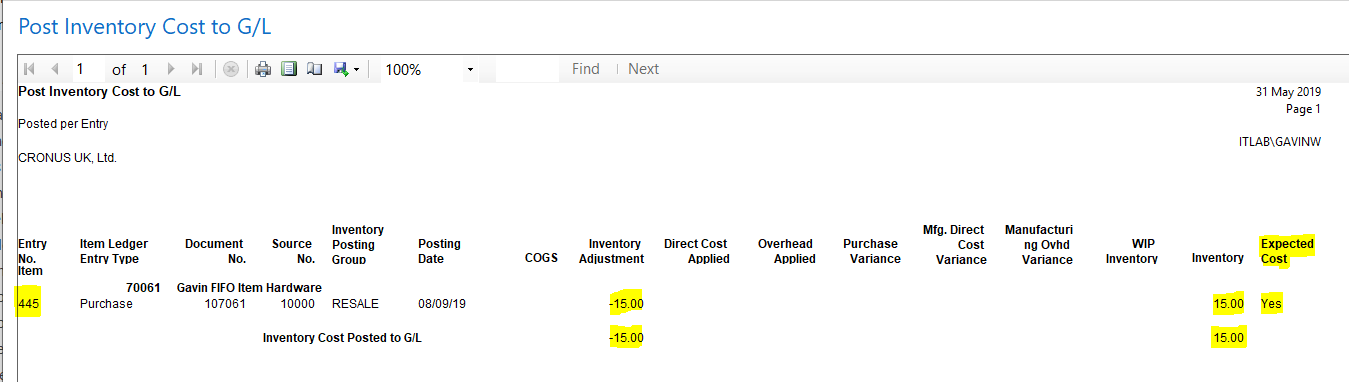
Now if I run the Post Inventory Cost to G/L batch job as instructed in the second message G/L entries are created for the purchase receipt, the SQL table is cleared, and the Value Entry is updated. See below:
The report output
of the “Post Inventory Cost to G/L” shows entries have been created:
Dynamics NAV \ Business Central – Post Inventory Cost to G/L
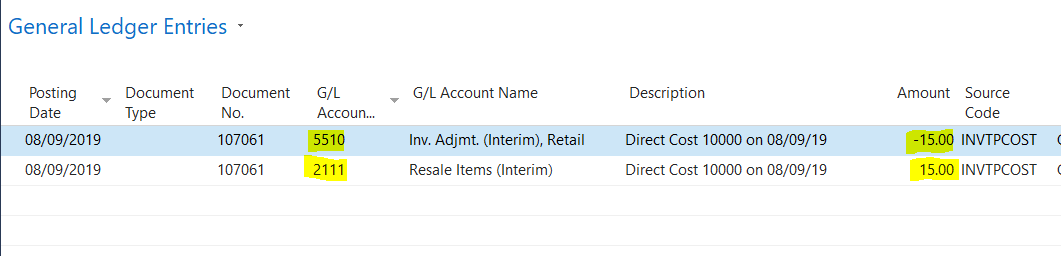
Below are the expected cost General Ledger entries created to the interim accounts. (in my previous example these were created immediately because I had Post Expected Costs to G/L switched ON)
Dynamics NAV \ Business Central – General Ledger Entries
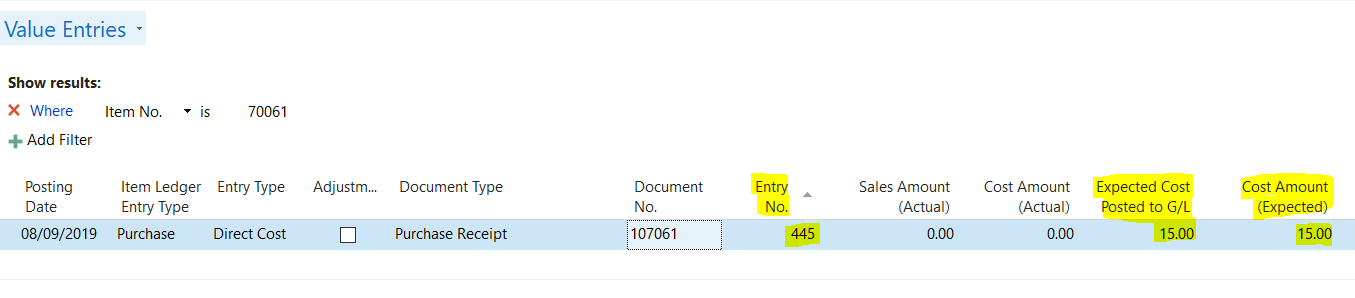
And finally the Expected Cost Posted to G/L field on the Value Entry has been updated to show the General Ledger entries have been created and posted.
Dynamics NAV \ Business Central – Value Entries
If I now check the Post Value Entry to G_L table in SQL I can see its been cleared.
Incidentally if I were to switch OFF Expected Cost Posting to G/L before running the Post Inventory Cost to G/L batch job the SQL row is removed from the Post Value Entry to G_L table.
Conclusion
In conclusion I find the way Dynamics GP deals with expected costs to be a much more conventional and simple approach however there’s no doubting that Dynamics NAV \ Business Central gives more flexibility.
Although I don’t know much about the inner workings of Dynamics NAV \ Business Central it also seems to me that G/L Entries are created based on the Value Entries.
In another post I hope to look at how Expected Costs work with Sales Shipments and Sales Invoices.
One thing I’ve noticed when posting Purchase Invoices with Inventory items in Dynamics NAV \ Business Central are the additional distributions to the Direct Cost Applied and Purchases accounts?
I’ve never been quite sure what the Direct Cost Applied account is, and when I’ve looked into it, I can’t find much information out there either. While researching for a previous post (here) a theory struck me for why the system might be posting to this account. Therefore, in this post I’ll detail my thoughts as to why Dynamics NAV \ Business Central posts to the Direct Costs Applied and Purchases accounts when posting Purchase Invoices using Inventory Transactions.
Purchase Invoicing in Dynamics GP
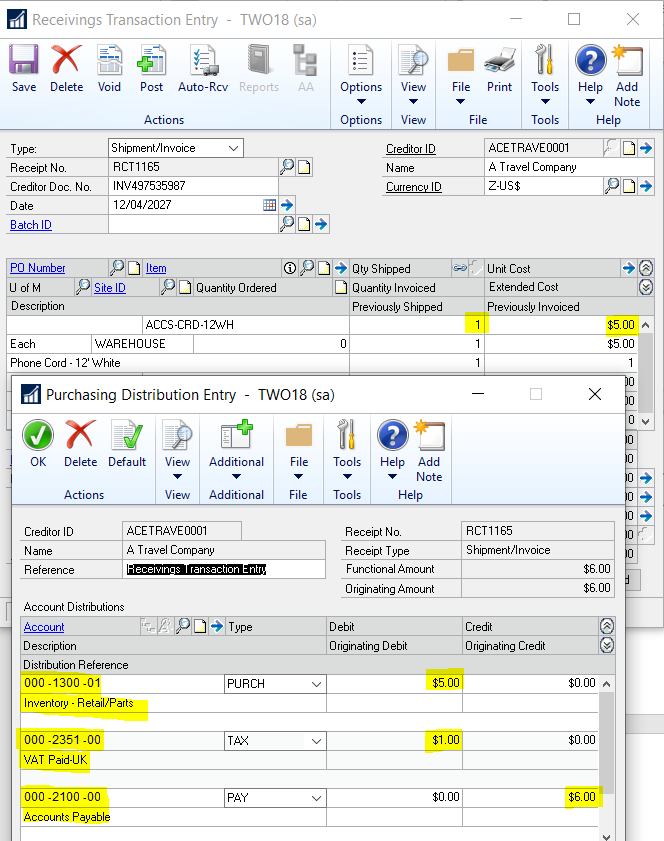
Firstly, I’ll go back to my roots – let’s see what distributions Dynamics GP creates when posting a Purchase Invoice with an Inventory Item. In this example we are receiving the Item and posting the invoice at the same time. Dynamics GP calls this a Shipment \ Invoice.
Dynamics GP – Shipment\Invoice Distributions
As you can see the distributions created are as follows:
Debit: Inventory
Credit: Accounts Payables
Debit: VAT
This would also create one General Ledger Journal in Dynamics GP (G/L Register is the NAV\BC equivalent) with one Source Document (Source Code is the NAV\BC equivalent).
I’m not an accountant but this makes sense to me. We bought something for £6 so we have a Credit postings to Accounts Payables. We have increased our Inventory so we have a £5 Debit to Inventory, and finally a Debit to VAT.
As this is not an expense invoice there are no P&L implications at this point. We will have Cost of Goods Sold postings when we sell the item.
Purchase Invoicing in Dynamics NAV \ Business Central
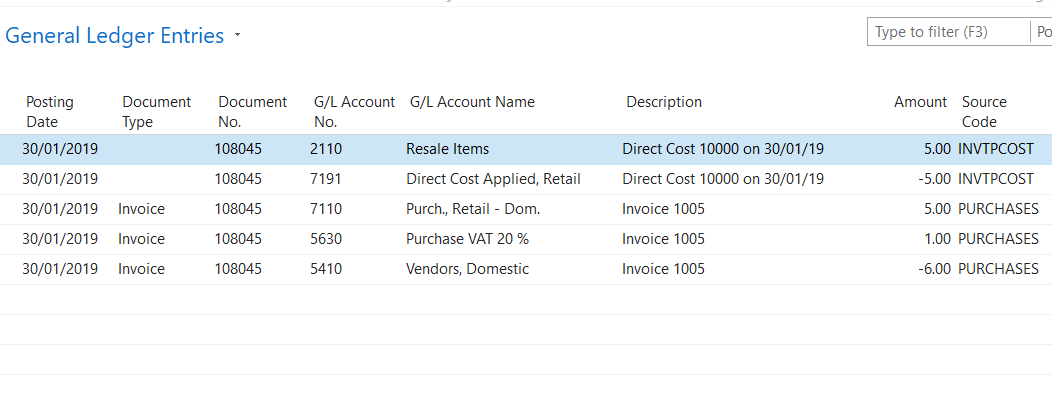
When I post a Purchase Invoice for an Inventory Item in Dynamics NAV \ Business Central the distributions created are below. (*Please note I have Automatic Cost Posting switched ON in Inventory Setup)
General Ledger Entries – Purchase Invoice – Automatic Post to GL switched OFF
There’s a couple of things to note here. Firstly, there are two more distributions when compared to Dynamics GP. We have distributions to the Direct Cost Applied account (7191) and the Purchases account (7110). Secondly, some GL Entries have a Source Code of PURCHASES and others have a Source Code of INVTPCOST.
Why the extra distributions?
If we dig deeper and go to the G/L Registers for this Purchase Invoice we can see the system has created two separate G/L Registers.
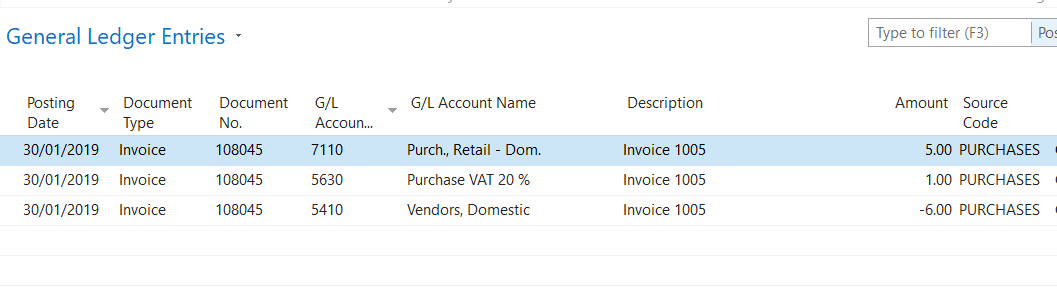
This G/L Register for the PURCHASES portion of the transaction:
G/L Register for PURCHASES
And this G/L Register for the INVPTCOST portion of the transaction
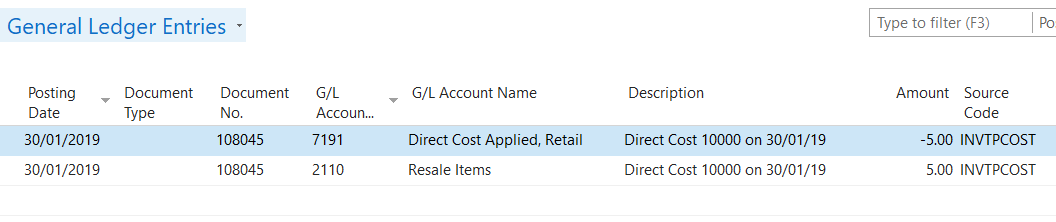
G/L Register for INVPTCOST
The system has created two G/L registers because in Dynamics NAV \ Business Central you can defer the INVPTCOST portion of the GL postings via the “Automatic Cost Posting” option in the Inventory Setup.
Because of this each of these separate G/L Registers needs a balancing entry in order for the debits and credits to balance and the posting to work. In the case of the PURCHASES G/L Register of the transaction the 7110 Purch, Retail account is used and for the INVPTCOST G/L Register the 7191 Direct Cost Applied account is used.
One Possible Conclusion
Based on these findings one theory I have for the postings to the Purchases and Direct Costs Applied accounts when dealing with Inventory Items is to accommodate the Automatic Cost Posting option in the Inventory Setup. (the ability to defer the posting of the Inventory portion of the transaction). It could also be because for other aspects of the costing engine that I haven’t delved into yet.
If this option didn’t exist, and Inventory postings were always posted in real time, I can’t see why there would be a need to post to these additional accounts.
This is just an observation. I have no clear evidence to back this up. I’m just a Dynamics NAV \ Business Central newbie wondering why this works differently to Dynamics GP.
Above all I’m here to learn so if there are other reasons for the additional distributions I’d love to hear them.
Thanks for reading!
UPDATE: I’ve also created a YouTube video on this subject 🙂








 thedynamicsexplorer.com