Dynamics 365 Business Central – Error drilling back to the Purchase Order from a Sales Order drop shipment

I recently ran into an issue drilling back on a Purchase Order from a Sales Order with drop shipment lines. The exact error was “Purchase Order No. must have a value in Sales Line…….It cannot be zero or empty” as shown in the screen shot below:

Purchase Order No. must have a value in Sales Line

On investigation this only affected the lines on the Sales Order that had been shipped and invoiced. If I drilled back on an outstanding line on the Sales Order the Purchase Order is displayed without issue. After troubleshooting this it seems when you receive and invoice the line item on a drop shipment the system removes the link back to the Purchase Order and consequently you receive an error trying to drill down.

I’ve detailed how you can recreate the issue below, with a neat trick that can be used to view the data in the Sales Order tables via your browser.

To recreate the error first add a Sales Order with more than one drop shipment line as per below:

Sales Lines marked as Drop Shipment

Next create the Purchase Order and pull through the Sales Order using the function below

Function to Get Sales Order lines

Finally go back to the Sales Order and ship and invoice the first line

The first line has been shipped and invoiced

Now highlight the first line and try and drill back to the Purchase Order using the option below

On doing this you are prompted with the error

Purchase Order No. must have a value in Sales Line

Using the information detailed in this Microsoft article we can view the actual data even though this is the SaaS version of Business Central and I have no access to a development environment https://docs.microsoft.com/en-us/dynamics365/business-central/dev-itpro/developer/devenv-view-table-data

Therefore following this document I added &table=37 to the end of my URL to view the full contents of the Sales Line table

On viewing the data in the table I can see the Purchase Order Number has been removed from the shipped and invoiced line

Purchase Order No. and Purch Order Line No. removed once shipped and invoiced

This is preventing me from drilling back on the Purchase Order. If you check the Purchase Line table (table 39) you can see the Sales Order number has also been removed, so you wouldn’t be able to drill down on the Sales Order from the Purchase Order either.

I also worked through the issue on my local Dynamics NAV install and observed the same behaviour, therefore I’m sure this is by design, however I’m unsure of the reasons. It seems the link to the Purchase Order is permanently removed once the sales line has been shipped and invoiced.

I also checked table 113, which is the Sales Invoice Line table, but this also doesn’t seem to keep the link back to the purchase order.

I’d be interested to know if I’m missing something here. Perhaps there is a way to get back to the Purchase Order from the sales document once its been posted. If there is I’d be very grateful if you could let me know.

Thanks for reading

Dynamics GP – Error Message Invalid length parameter passed to LEFT or SUBSTRING function in Edit Payables Check Window

I encountered this error when a client was trying to select a vendor in the “Edit Payables Cheque Batch” window. A screen shot of the error is below

The error occurred when trying to select a vendor from the list in the left hand pane of the window.

To troubleshoot this I created a SQL trace to capture all the SQL statements and also any error messages when the error occurred. This highlighted the exact error and offending SQL statement as per below:

Next I copied the offending SQL statement to SQL management studio and ran it in a query window. (I do have to tweak it a little and I also checked it wasn’t going to do any updates or inserts that could cause data issues). This gave me the same error being returned by Dynamics GP

Now it was a question of finding all the LEFT or SUBSTRING statements, commenting them out, and re-running the query until it worked. After some trial and error I found when commenting out the highlighted portion of the SQL statement below it executed without error

Therefore I now know the issue is with the A.KEYSOURC field. At this point I suspected it was blank and therefore the LEN calculation is producing a 0. The alias A has been given to the PM20100 table so I queried this table for the vendor in question and as suspected there is a blank KEYSOURC for this vendor.
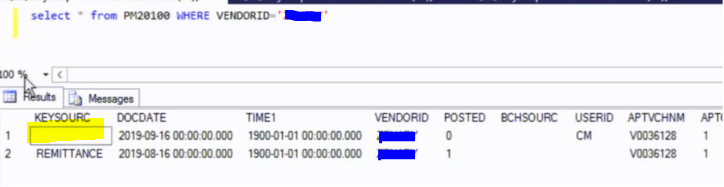
I therefore deleted this blank record using a simple SQL script

DELETE PM20100 WHERE VENDORID='<InsertVendorid>' AND KEYSOURC=''

And now I can successfully select the vendor in the “Edit Payables Cheque Batch” window.

I hope this helps explain the issue and also how it can be fixed if anyone else encounters this in the future.

Thanks for reading!
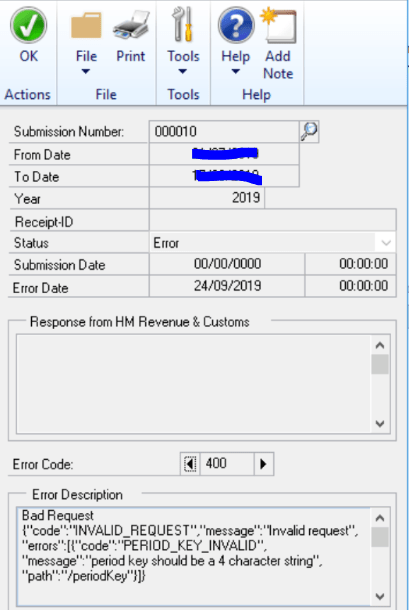
Dynamics GP – Error Message PERIOD_KEY_INVALID when submitting VAT Return to HMRC

I had a client report this issue recently which was preventing them submitting the VAT return to HMRC via the government gateway. The exact error is below

After some digging it seems the period key is passed down from HMRC when the obligations are retrieved therefore its strange that the error is produced when submitting the VAT return as it should be using the same period key.

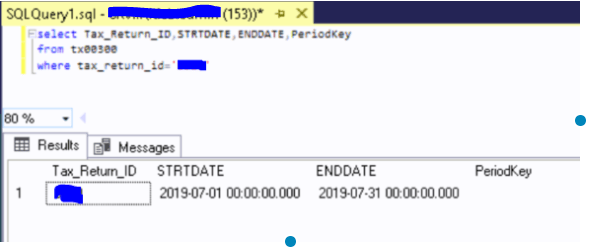
I looked at the TX00300 table (VAT Return Header) and I can see the PeriodKey was blank for the VAT Return ID in question

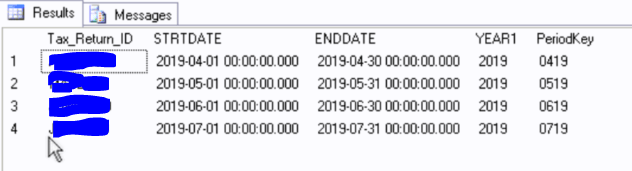
I then checked a clients system who I know has managed to process their VAT return successfully and this showed a PeriodKey in the TX00300 as per below

Therefore I can only assume that after pulling down the obligations either the PeriodKey wasn’t written to the TX00300 table correctly or the client accidentally changed a date in the VAT Return window which blanked the PeriodKey. Then, when they then tried to submit the VAT return they received the “PERIOD_KEY_INVALID” error.

To resolve the issue I had the client delete and recreate the VAT return ensuring no dates were altered after selecting the obligation and this then worked fine. (I did want to work through the whole process with them so I could check the PeriodKey in the TX00300 at every stage however unfortunately they processed everything before I had chance i.e. I wanted to check the PeriodKey value after getting the obligations, and then check it again after calculating and then prior to submitting)

In was a simple fix in the end but it was interesting piecing things together.

Thanks for reading.