Why did my Microsoft SQL Transaction log grow so big and how do I shrink it and reclaim the space?

Background

Working primarily on support for Microsoft Dynamics ERP systems I often see tickets logged where the SQL transaction log has grown uncontrollably and is filling (or almost filling) the drive where its located. This post aims to explain the most common reason why this happens and some steps you can take to truncate and shrink the SQL transaction log and reclaim the space. Please note I only mention the FULL and SIMPLE recovery models as these are the recovery models I have most experience with.

What is the SQL transaction log?

The transaction log is a fundamental part of the SQL database. All changes that are made to the database are described and written into the SQL transaction log before the changes are written to the main database file.

My basic\novice understanding of how this works based on a typical UPDATE transaction is as follows:

  1. An UPDATE statement is issued to update some data in the database.
  2. If the page containing the data being updated isn’t in memory the page is retrieved into memory.
  3. The data is changed in memory and log records describing the changes are written to the transaction log.
  4. At some point later the updated page in memory is written to the SQL database file when the CHECKPOINT runs. (this can be before the UPDATE statement COMMITS)
  5. UPDATE statement COMMITS

Its also important to highlight that this process of logging to the transaction log happens whether the database is in the FULL or SIMPLE recovery model.

SQL Recovery Models and Log Truncation

If the database is in the SIMPLE recovery model the log records are automatically truncated when they are no longer needed. This means the space within the transaction log file can be reused and theoretically the transaction log file won’t grow. (caveats here because for example if you were to delete a large number of rows in one SQL transaction this would also cause the log file to grow however generally the log file will be much more manageable in SIMPLE recovery model)

When the database is in the FULL recovery model the transaction log records aren’t automatically truncated when they are no longer needed. Therefore new database changes will be written to the end of the log and the log file will continue to expand and grow.

The only way to truncate the log, so the space can be reused, is to perform a SQL transaction log backup. When you do this log records are written to the SQL transaction log backup file and portions (VLFs) of the transaction log can be used again*. If a SQL transaction log backup isn’t performed the transaction log will continue growing and growing until it fills the disk. (assuming auto growth is switched on).

Therefore the most common reason I have experienced for a transaction log file to have grown extremely large is because the database is in the FULL recovery model and LOG backups haven’t been taken for a long time.

* Its important to note that the space within the transaction log is just marked as available again. The transaction log file itself isn’t physically shrank by the transaction log backup.

How to reclaim the space. Truncate, Shrink or both?

A transaction log backup doesn’t physically shrink the transaction log file on disk. The transaction log backup truncates the log records that are no longer needed making the space within the log file available for use again.

Therefore, if you have a very large transaction log file, the first thing I do is check the recovery model and the available space in the log using the script below. (run this against the target database)

SELECT 
	[name] as [Database Name]
	,[recovery_model_desc] as [Recovery Model]
	,log_reuse_wait_desc as [Log Reuse Description]
	,total_log_size_in_bytes*1.0/1024/1024 as [Total Log Size Mb]
	,used_log_space_in_bytes*1.0/1024/1024 as [Log Used Space Mb]
	,(total_log_size_in_bytes - used_log_space_in_bytes)*1.0/1024/1024 as [Free Log Space Mb]
	,((total_log_size_in_bytes - used_log_space_in_bytes)*1.0/1024/1024)/((total_log_size_in_bytes*1.0/1024/1024))*100 as [% Space Free in Log]
FROM sys.dm_db_log_space_usage loginfo
inner join sys.databases dbs on dbs.database_id=loginfo.database_id;

If the “% Space Free in Log” is very small and the “Recovery Model” isn’t SIMPLE and the “Log Reuse Description” is LOG_BACKUP you need to truncate and shrink the log to reclaim the space. For example this log file needs truncating and then shrinking to reclaim the space:

If the “% Space Free in Log ” is very large and the recovery model is FULL then you just need to shrink the transaction log to reclaim the space. For example after backing up the log you can see the “% Space Free in the Log” has increased so this log file just needs shrinking.

Truncating the log

If after running the script above you have determined you need to truncate the log file before shrinking it, you can perform a log backup to do this using the command below:

BACKUP LOG [DBName]
TO DISK = N’C:\<Location>\<FileName>’ WITH NOFORMAT, NOINIT,
NAME = N’DBName-Log Backup’, SKIP, NOREWIND, NOUNLOAD, STATS = 10

If you re-run the script you should notice the ” % Space Free in the Log ” has increased, as the log has been truncated, and you can now move towards shrinking the log to reclaim that free space.

However, what if the log has grown so large you don’t have enough disk space to perform a transaction log backup? How can you truncate the log? In this situation I try the following:

  1. Backup the transaction log to NUL.

This discards all the data as the backup is taken and therefore doesn’t use up disk space creating the backup (basically backing up to nothing). The syntax for this is below:

BACKUP LOG <DBName> TO DISK = ‘NUL’;

After doing this you can shrink the log. You’ll also need to immediately perform a FULL backup as well.

2. Change the recovery model of the database to SIMPLE and back to FULL.

This is a little more drastic and should be a last resort. This breaks the log chain therefore after shrinking the log file its imperative to take a FULL backup to restart the log chain. You also need to ensure no features are being used that utilise the log file like replication or mirroring. You can change the recovery model using the statement below:

ALTER DATABASE <DBName> SET RECOVERY SIMPLE;

IMPORTANT:- Please note after backing up the log file its wise to keep the transaction log backup file handy in case you ever need to restore it.

Shrinking the log file

Once you have truncated the transaction log you can now shrink the log file to reclaim the space on disk. One thing to note is not to shrink the log too much. If you do its inevitable the log file will have to grow when a large operation occurs i.e. something like a rebuild of an index on a very large table which has to be logged in the transaction log. I tend to shrink to about 10% of the size of the database.

To shrink the log you do the following:

DBCC SHRINKFILE ('<TransactionLogLogicalFileName>' , 1024);

This example will shrink the log file to 1GB.

You can find out the “Logical File Name” of the transaction log file using the statement below against the database in question:

select name as [LogicalFileName] 
from sys.database_files 
where type_desc = 'LOG'

As an example if I run the following shrink operation against my example database it shrinks it to approx 400Mb:

USE [LargeLogFileDB]
GO
DBCC SHRINKFILE (N'LargeLogFileDB_log' , 400)
GO

If I now run the original script I can see the size of the transaction log has shrank and therefore the space on disk has been reclaimed:

Going forwards

To prevent this happening again ensure you have regular LOG backups for all databases in the FULL recovery model. This may also entail checking any other third backup software you may use that can backup the log file.

Also, if point in time recovery isn’t needed consider changing the database recovery model to SIMPLE so the transaction log auto truncates and you’ll never have to work about a runaway transaction log again. (I use this for practice databases etc. I often get asked why the logs have grown for those databases, as they are hardly ever used by end users, however if you have regular index maintenance jobs on those databases, this is all logged in the transaction log, and if this isn’t backed up will cause the log file to grow and grow)

Conclusion

I’m more of an SQL enthusiast than a SQL expert however these are the general steps I take to resolve the issue of a very large transaction log. There are so many good blog posts online on this subject that I’d highly recommend anyone wanting to learn more about this topic to take a look at. (Google is your friend here :)).

I hope this post helps other Dynamics ERP System Admins out there that come across large transaction log files.

Thanks for reading!

Dynamics GP – Payables Payments not updating the Bank Management module

Recently I ran across an interesting issue affecting the bank management module following an upgrade from Dynamics GP 2010 to Dynamics GP 2018 R2. (I think the bank management module is more widely used here in the UK)

A client reported that when posting a EFT payables payment run the payments weren’t hitting the bank management reconciliation window. i.e. by EFT I mean they select “EFT” on the payables batch as per below:

I tested posting a batch of payment using the option “Cheque” on the batch header and this updated the bank management reconciliation fine.

After some troubleshooting I found this was because “Use Cheque Numbers” was selected on the chequebook as per below. (this option is available via “Cards > Financial > Chequebook > EFT Bank > Payables Options”)

When I selected “Use EFT Numbers” the bank management module is updated.

I’m not sure if this is a change in functionality as this client used to work fine prior to the upgrade.

I have tested Dynamics GP 2016 however I get the same behaviour. It seems “Use EFT Numbers” has to be selected for the bank management module to be updated.

I hope this helps anyone else who stumbles across this issue.

Thanks for reading.

Brief overview and comparison of how summary values are stored and calculated in Dynamics GP, Dynamics NAV and Dynamics 365 Business Central

Introduction

There was an interesting conversation on twitter over the weekend with regards summary values and Dynamics 365 Business Central. Much like myself the person asking the question came from a Dynamics GP background and was wondering where in the database Dynamics 365 Business Central stored summary values i.e. GL period balances.

Now this is one area of the system that I really like about Dynamics NAV and Dynamics 365 Business Central so I thought I’d write this up.

The Dynamics GP way

Dynamics GP stores summary values in a variety of different summary tables. For example the GL open years transactional data is stored in one table (GL20000) and its summarised in a summary balance table (GL10110).

This means you can quickly access the summary values in an enquiry window. For example below is a GL enquiry window showing the GL period balances for a cash account.

What’s great is as this window is accessing a summary table rather than summing and sub totalling the main transaction table the performance is great, so you have access to summary data very quickly. i.e. you could 10 million rows of transactional data for this GL code but its all nicely summarised into a handful of rows in the summary table.

As I mentioned this provides fantastic performance however anyone who has worked with Dynamics GP for any length of time will realise the one issue that comes with storing data in this way. Unfortunately if there is an issue when posting a transaction “sometimes” the summary values aren’t updated and therefore they become “out of sync” with the actual transaction data i.e. if you were to manually sum the transaction data it wouldn’t match the summary data. This can cause problems and prompt awkward conversations with clients as they (understandably) ask “why” this is the case, and (even worse) how they can prevent this in the future. (I hate it when this question crops up)

*** A wider discussion here would be why Dynamics GP doesn’t update all the SQL tables (transaction table and summary table) using one SQL transaction which would negate this issue however that is beyond of the scope of this article.

To compensate for this Dynamics GP has “reconcile” features for nearly all ledgers so you can re-align the summary balances with the actual transactions. For example below is the “reconcile” utility for the General Ledger. Running this will recalculate all the summary balances based on the transactional data and update the summary table I mentioned earlier.
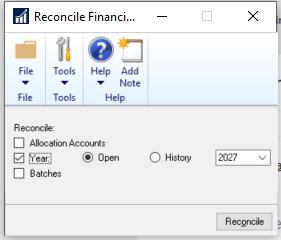
The Dynamics NAV \ Dynamics 365 Business Central way

The first thing to say is that Dynamics NAV and Dynamics 365 Business Central doesn’t store summary values in specific SQL tables like Dynamics GP. Instead it uses something called “Flow fields” for the summary totals which are implemented using SQL Indexed views. (therefore technically the summary values are materialised in the database just not in actual SQL tables). In the Dynamics NAV and Dynamics 365 Business Central world they are referred to as SIFT Indexes.

So for example, when you view the GL balances in Dynamics NAV as per the screen shot below the system is running queries using the SQL indexed views to present the summary values and therefore performance is still extremely good. (technically its the SQL optimiser that will choose to use this index when asked to return the summary values for this page because its much more efficient)

Digging a little deeper if you go into the Dynamics NAV development environment you can see how the SQL indexed views (SIFT Indexes) are implemented.

For example if I select the GL entry table and click “Design”
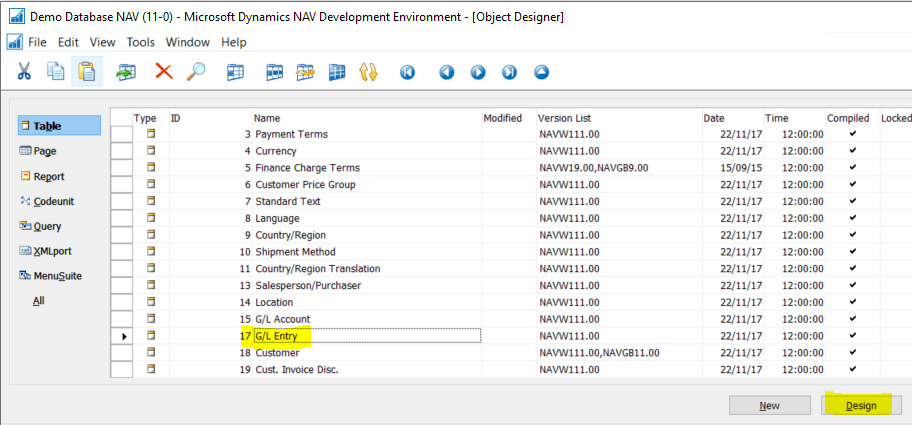
And then select “View > Keys” to look at the indexes
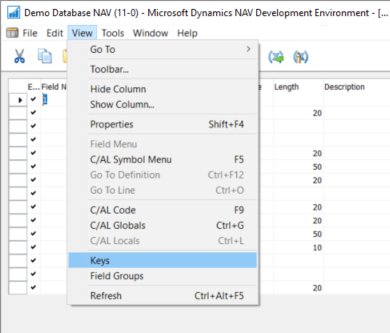
You can now see the keys (Indexes) on the left and some of the keys have an associated “SumIndexField” (i.e. a SIFT Index which is implemented via a SQL Indexed View). In the highlighted example an SQL indexed view is created summing the fields Amount, Debit Amount, Credit Amount, Additional-Currency Amount, Add.-Currency Debit Amount, Add.-Currency Credit Amount and grouping by GL Account No and Posting Date.

Therefore if I open SQL Management Studio and browse to my Dynamics NAV database I can see all the SQL indexed views on the GL Entry table (there are four which matches the number of enabled keys with SumIndexFields columns in my development environment)
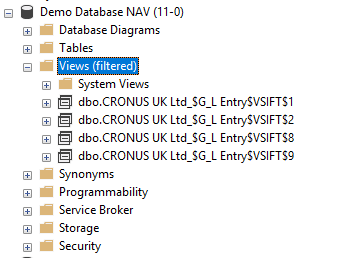
Finally if I take a look at the definition of the SQL indexed view named “CRONUS UK Ltd_$G_L Entry$VSIFT$1” we can see this is implementing the key that I highlighted earlier

CREATE VIEW [dbo].[CRONUS UK Ltd_$G_L Entry$VSIFT$1]
WITH schemabinding
AS
SELECT “17”.”g_l account no_”,
“17”.”posting date”,
Count_big(*) AS “$Cnt”,
Sum(“17″.”amount”) AS “SUM$Amount”,
Sum(“17″.”debit amount”) AS “SUM$Debit Amount”,
Sum(“17″.”credit amount”) AS “SUM$Credit Amount”,
Sum(“17″.”additional-currency amount”) AS
“SUM$Additional-Currency Amount”,
Sum(“17″.”add_-currency debit amount”) AS
“SUM$Add_-Currency Debit Amount”,
Sum(“17″.”add_-currency credit amount”) AS
“SUM$Add_-Currency Credit Amount”
FROM dbo.”cronus uk ltd_$g_l entry” “17”
GROUP BY “17”.”g_l account no_”,
“17”.”posting date”

I suppose you could argue the one draw back on this is that whenever a transaction is posted in Dynamics NAV and Dynamics 365 Business Central then SQL has extra CPU and disk work to do as it maintains the SQL indexed views associated with the transaction tables.

Conclusion

Although I love so many things about Dynamics GP I do think Dynamics NAV and Dynamics 365 Business Central has the edge here. By allowing the database to handle the maintenance of summary values through the implementation of SQL indexed views the data can never go out of sync with the summary values.

Thanks for reading.