Dynamics 365 Business Central – Using a Negative Quantity on a Sales Order to Return Items

I ran into a situation recently where a user had shipped some goods from a Sales Order, which had subsequently been returned prior to the Sales Order being Invoiced. This led me to discover an interesting way to return the goods, and then invoice the Sales Order all at the same time.

After some testing I realised they could add a negative line for the same item, and ship and invoice this all at the same time.

The exact situation and steps I took are described below.

Below is a Sales Order that has a quantity of 10 that have been shipped:
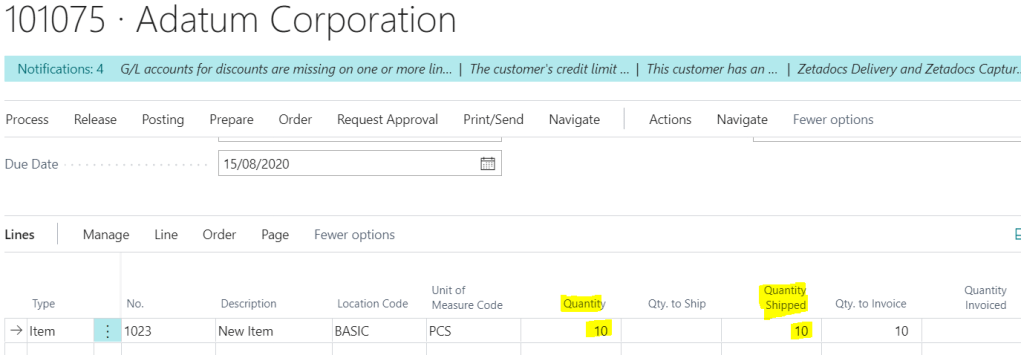
Prior to invoicing this the client has returned 2 therefore I’ve reopened the Sales Order and added an additional line item for -2 for the same item.
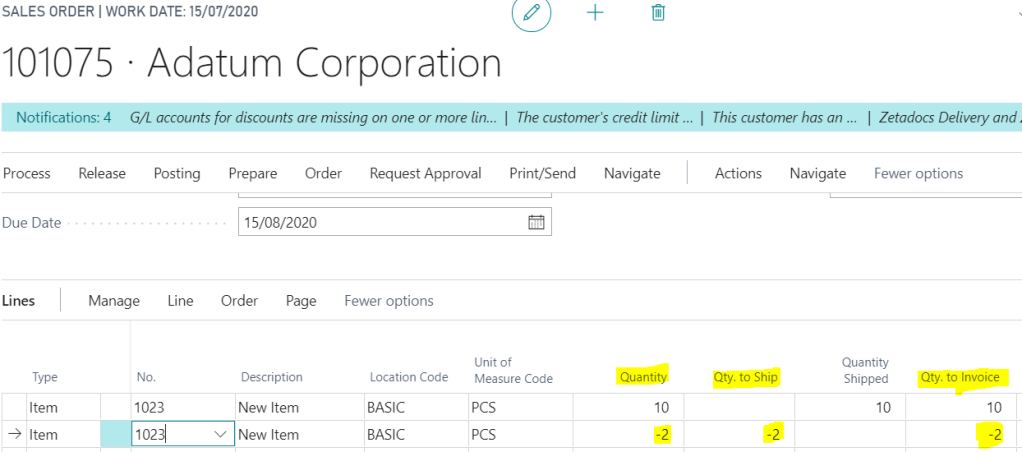
I can now Ship and Invoice all the lines which will return 2 into my inventory and also only invoice a total of 8.

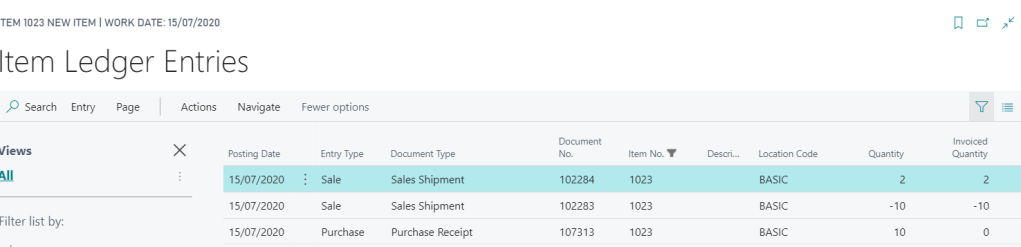
If I now check my Item Ledger Entries I can see both entries for this item. There’s a negative 10, as we originally shipped 10, and a positive 2 for the items returned.
I tested this with and without different location settings such as “Require Warehouse Receive” and “Require Warehouse Shipment” and it seems to work fine. I didn’t test it with full WMS switched on and I suspect it may hit problems there.

Thanks for reading!
Dynamics 365 Business Central – Message “Nothing to Handle” creating a Warehouse Pick from a Warehouse Shipment

I’ve seen this error message a few times and although there are likely many reasons for this I wanted to document the most common one I’ve found when troubleshooting it.

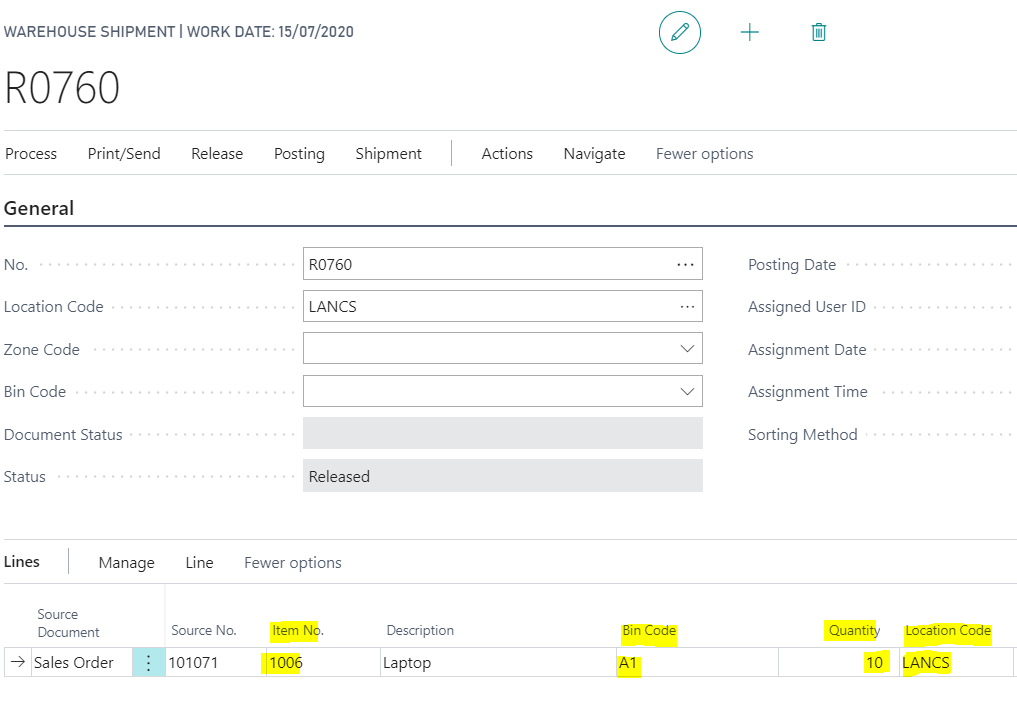
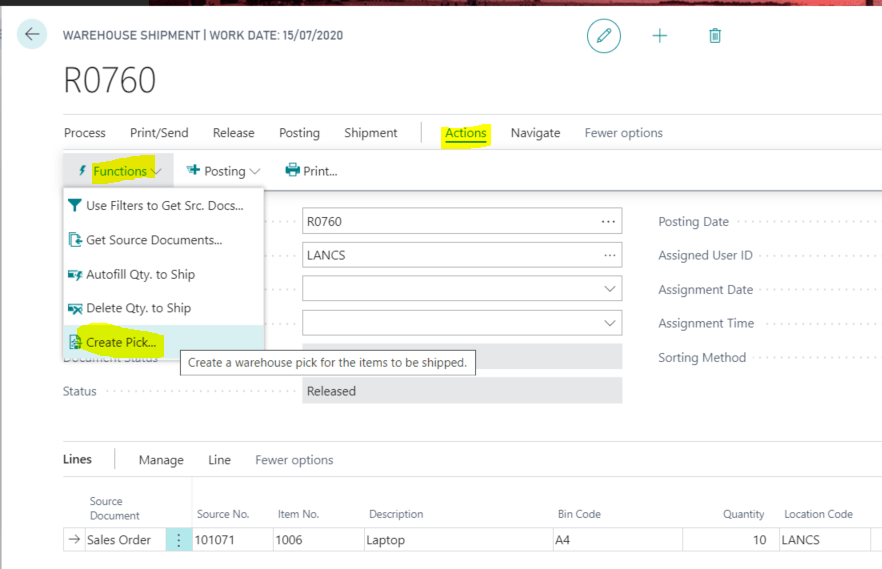
My scenario is trying to create a Warehouse Pick directly from a Warehouse Shipment using the options below:

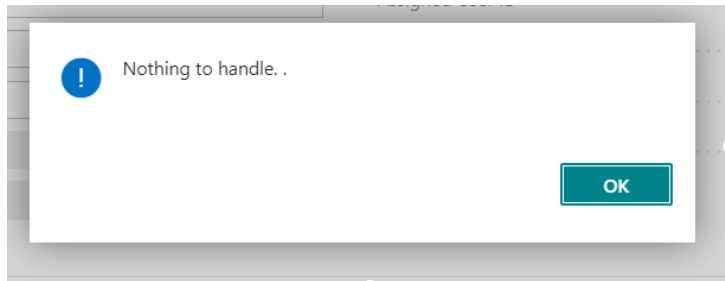
After selecting the option you are presented with the error:

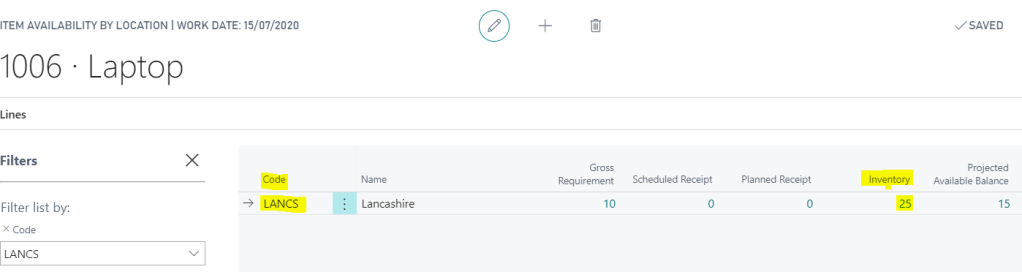
The first assumption is that the error is occurring because there’s no inventory of the item. However on checking the Item Card we can see we have 25 in inventory for this item:

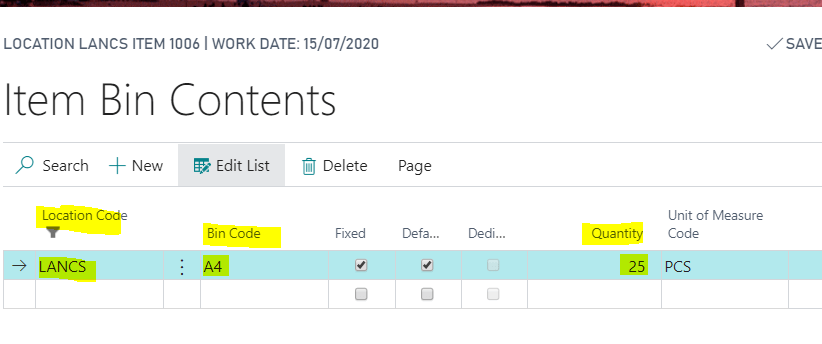
The next thing I checked is to ensure there is adequate Bin Content and at first glance this also seems ok.

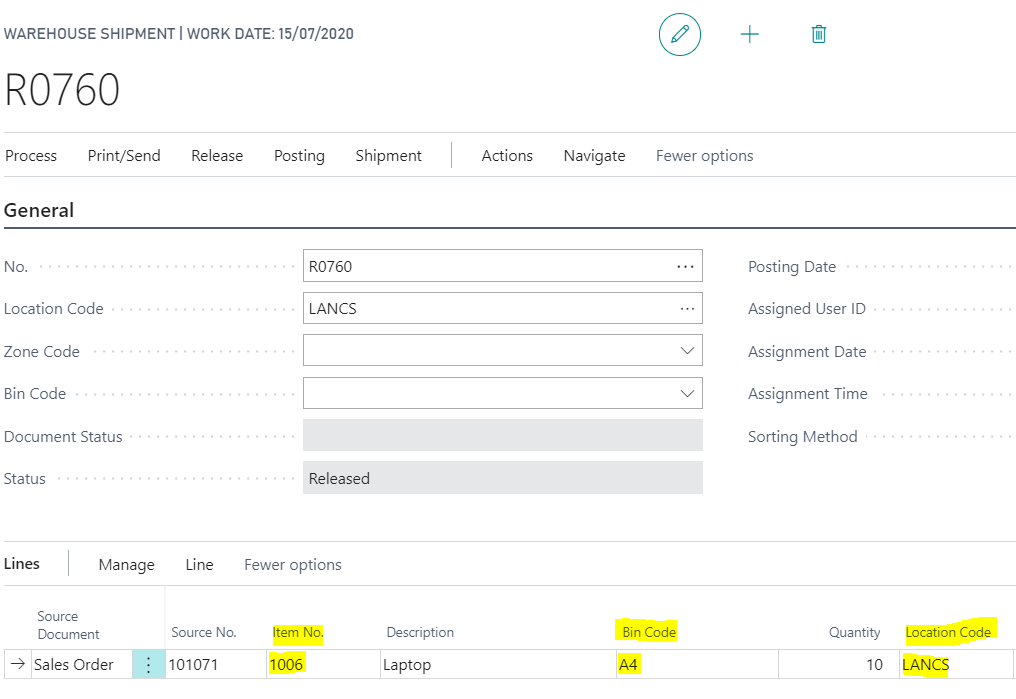
However if we look closely we have 25 in Bin Code A4 however this is the Bin Code we have selected to “Ship” from on the Warehouse Shipment.

Therefore when you create the Warehouse Pick the system is looking for Inventory in other Bins that you can “Take” and “Place” into the A4 Bin Code. (its irrelevant that we already have inventory in the A4 Bin code).

As there is no inventory in any other Bin Code you are presented with the “Nothing to Handle” message when you attempt to create the pick.

The fix here is to either move Inventory from the A4 Bin Code to another Bin Code or alternatively change the Bin Code on the “Warehouse Shipment”.

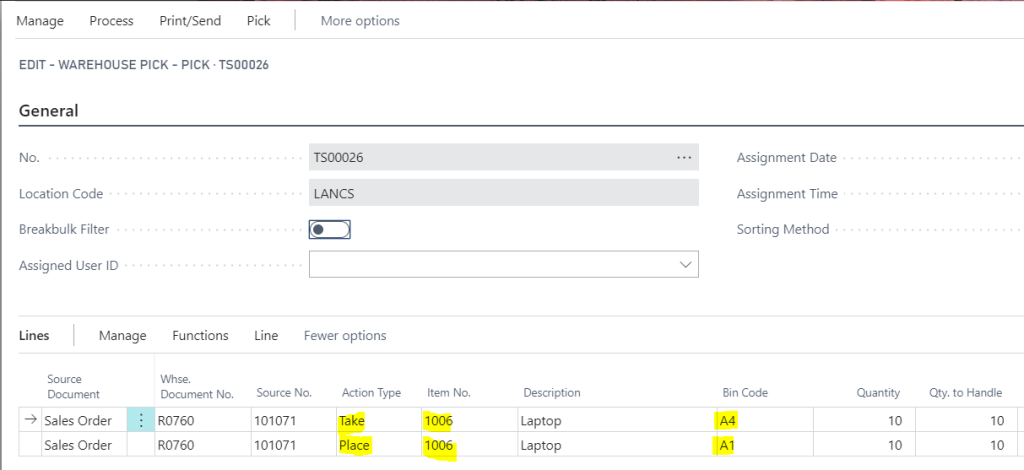
Below I’ve changed the Bin Code on the “Warehouse Shipment” and when I now create the pick this works fine.

If we look at the “Warehouse Pick” you can see the system is now suggesting to “Take” from Bin Code A4 , which has an inventory of 25, and “Place” into Bin Code “A1”. (as “A1” is now the “Ship” bin on the Warehouse Shipment)

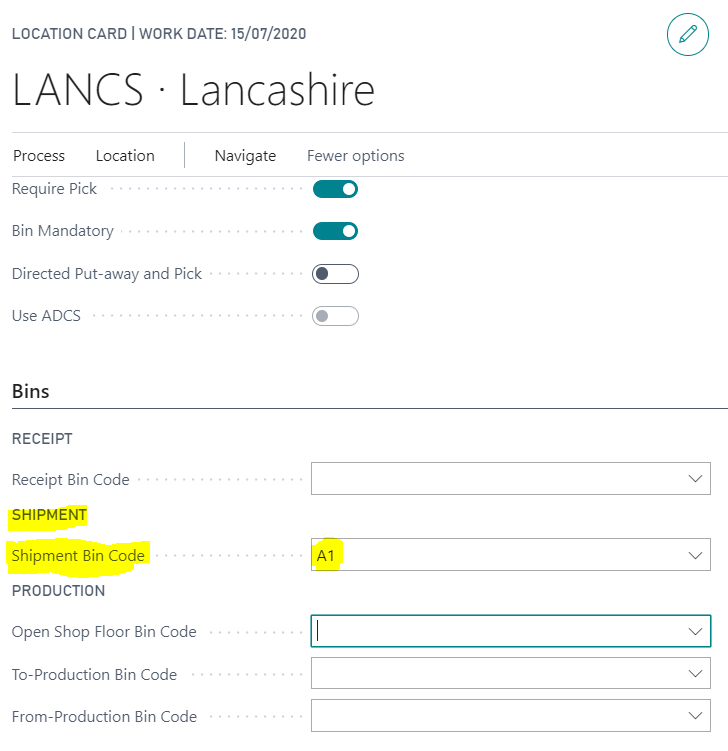
In this scenario you can see that in essence the wrong Bin Code had been used on the “Warehouse Shipment”. To prevent this we recommend adding a default “Shipment Bin Code” on the location. As per below I’ve now selected “A1” as the default “Shipment Bin Code”. Therefore, going forwards, this will be the Bin Code that will be used when we create the “Warehouse Shipment” from this location.

As this hadn’t been specified originally the system had chosen “A4” as the Bin Code on the shipment thus creating the problems and confusion.

Thanks for reading!

Dynamics 365 Business Central: Posting a Sales Refund and applying to a Credit Memo

Introduction

I come from a Dynamics GP background and I’ve always found the process for refunding in Dynamics GP to be rather long winded and not very intuitive. The main issue is there’s no specific option for creating a refund, so I was very interested to test out the option in Dynamics 365 Business Central.

In this article I’ll first explain a potential scenario when a refund would need raising and applying to a credit note, then briefly explain how I’d do this in Dynamics GP, before finally going through the refund process in Dynamics 365 Business Central.

The Scenario

The scenario is as follows:

A customer buys some goods so we issue an invoice. The customer sends us payment which we apply to the invoice however they subsequently send the goods back so a credit note is issued. Finally some time later the customer requests their money back as they aren’t planning on doing business with us anymore.

Therefore, prior to issuing the refund, the account would have an Invoice applied to a Payment and a unapplied Credit Memo as per below

To complete the process we now need to issue the customer with a refund and apply this to the credit memo.

Dynamics GP

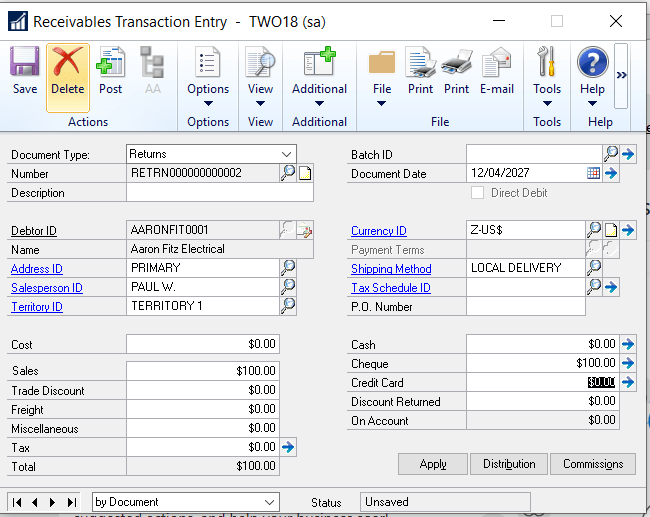
In Dynamics GP its not possible to post a “Refund” type cash receipt and apply it to the credit memo. One solution would be to void the credit memo and post a “Return with cash” similar to below:

Alternatively you could post a debit type document, apply this to the credit memo and then create the customer in payables and post a payment, however both cases aren’t ideal. (you can also use “Refund Cheques”, but again this involves having the customer setup in payables which again isn’t ideal)

Dynamics 365 Business Central

In Dynamics 365 Business Central you can post a “Refund” and apply it to the “Credit Memo” using the “Cash Receipts Journal”. Below are the steps to achieve this:

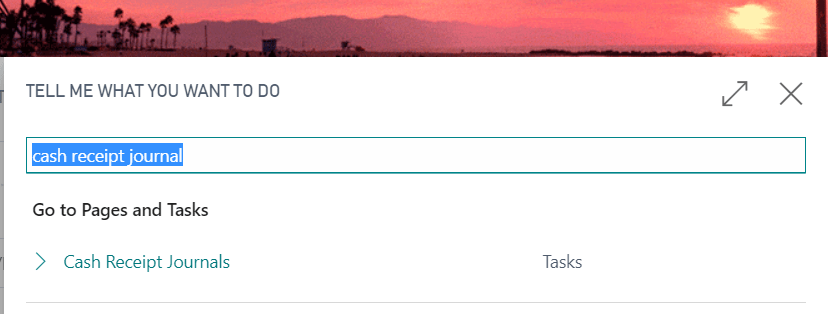
First go to the “Cash Receipt Journal” page:

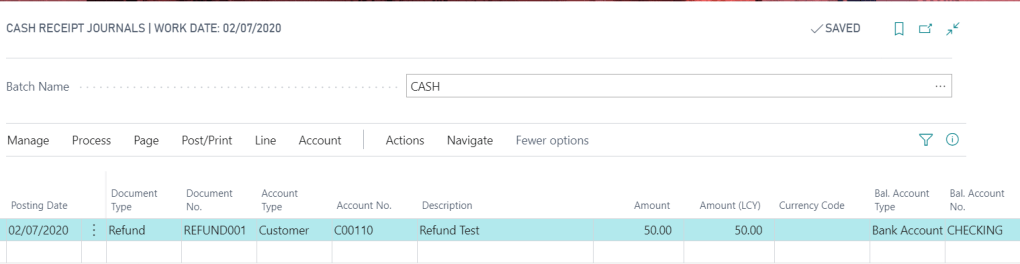
Enter the refund as per below:

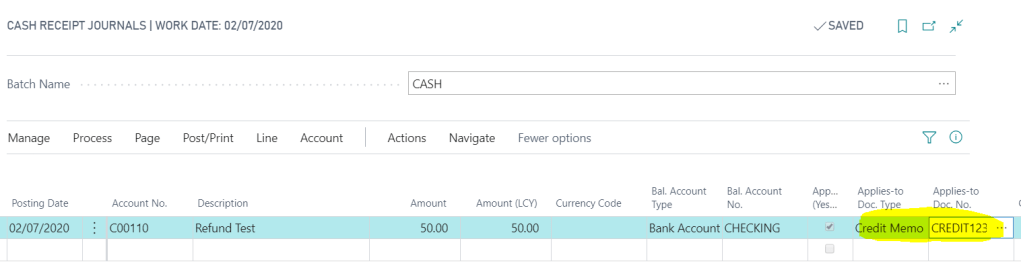
Next apply this to the credit memo we are refunding:

And then post the Cash Receipt Journal.

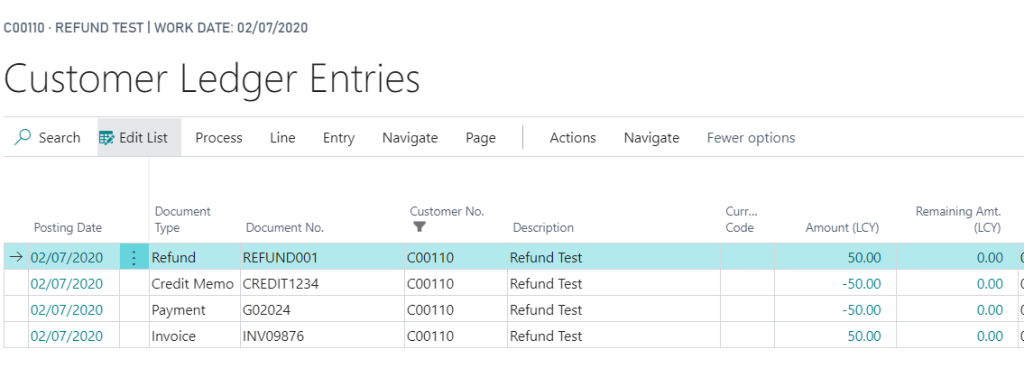
If we now review the account we can see the refund has been successfully applied to the Credit Memo.

Conclusion

I do like this functionality in Dynamics 365 Business Central. Its intuitive and doesn’t require lots of different steps. Although I’m a firm fan of Dynamics GP I do find this an improvement when compared to the current functionality available in Dynamics GP.

Thanks for reading.