Dynamics 365 Business Central – How to post one Bank Account Ledger Entry for multiple payment entries in the Payment Journal

Introduction

When creating multiple payments in the payment journal you can have the system create one bank ledger entry per payment or alternatively one bank account ledger entry for the whole batch of payments.

The decision as to whether to have one bank account ledger entry or multiple bank ledger entries is largely driven by how you want the payments to appear on the bank reconciliation. If you are likely to see them individually on your bank statement, then you’d want the system create one bank ledger entry per payment. However, if the payments show on the bank statement as one grand total for the whole batch, you can have the system create one bank account ledger entry for all the payments.

In this article I’ll cover both scenarios. Firstly, how to create individual bank account ledger entries per payment, and then how to create one bank account ledger entry for multiple payments.

Individual Bank Account Ledger Entries

To create individual bank account ledger entries per payment you can add a bank account as a balancing entry on each individual payment as per below
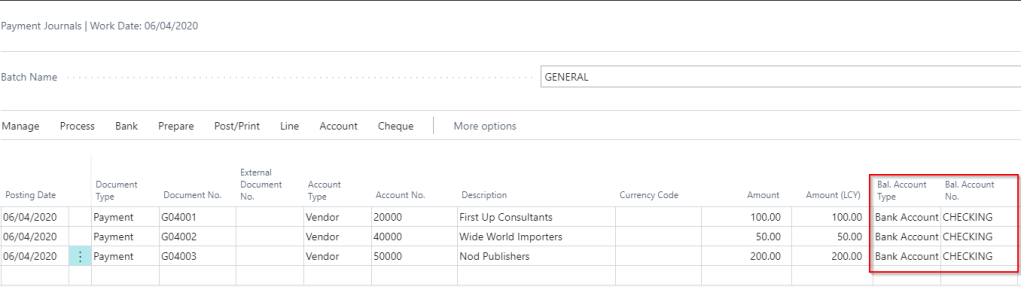
If I were to post this I’d get three individual bank account ledger entries
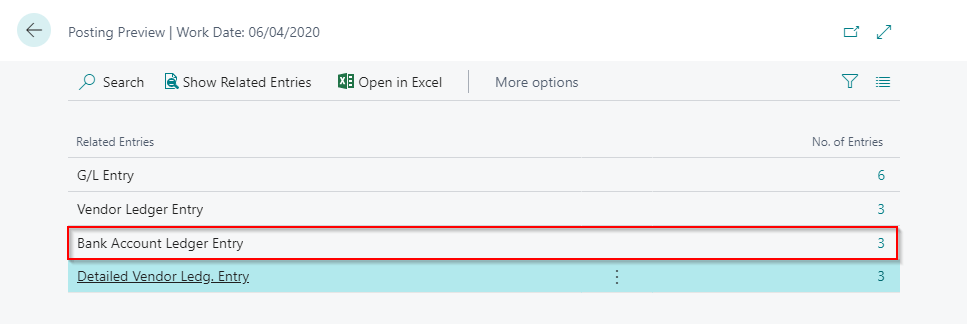
** Please note, as per the screen shot, you’ll also get 6 G/L Entries posting this way.

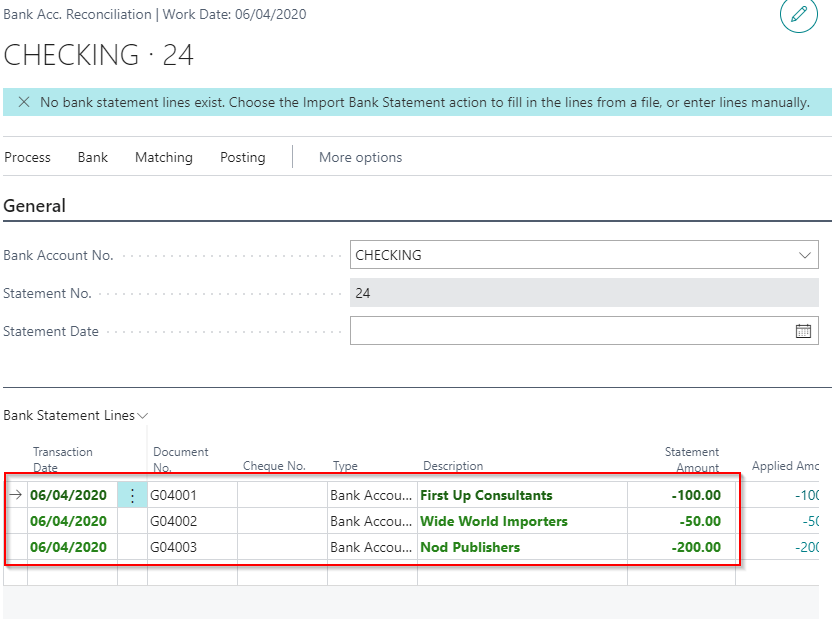
Now when I pull the Bank Account Ledger Entries into the bank statement I’ll get 3 individual lines for each payment.
One Bank Account Ledger Entry for multiple payments

To create one bank account ledger entry for multiple payment lines you can leave the “Bal. Account No.” blank on each payment line and create a balancing entry instead as per below:
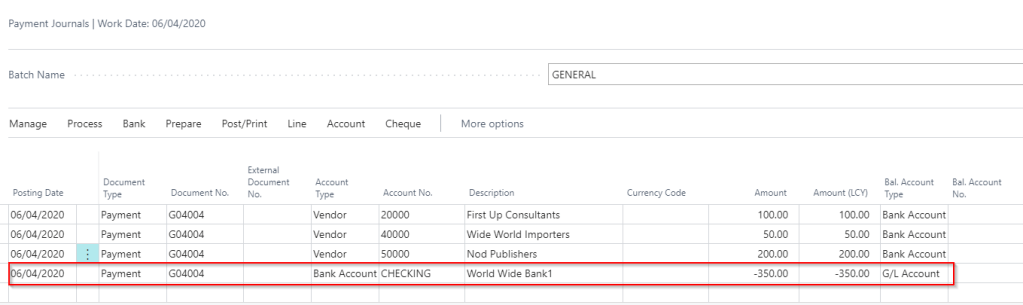
** Please note all entries require the same Document Number as per the screen shot above.

** Alternatively you can switch the option “Force Doc Balance” off on the General Journal Template and have different document numbers. You then only have to ensure all documents on the same Posting Date balance.
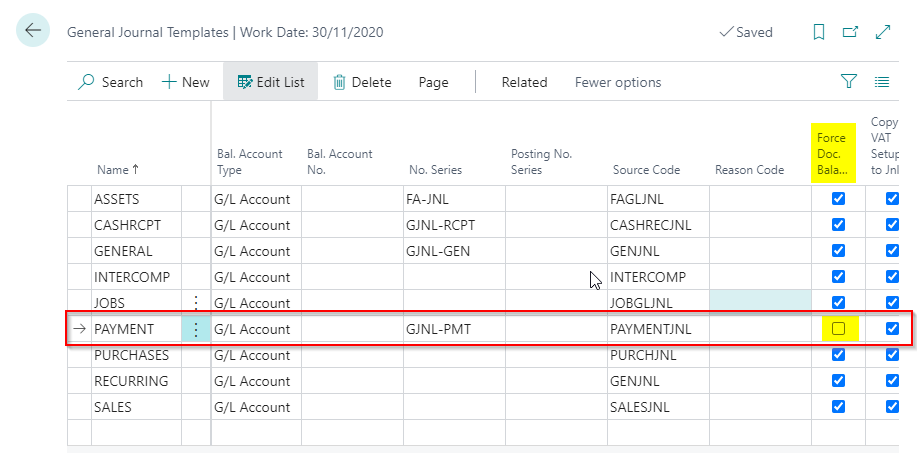
Now when you post this batch of payments you only get one bank account ledger entry for all 3 payments.
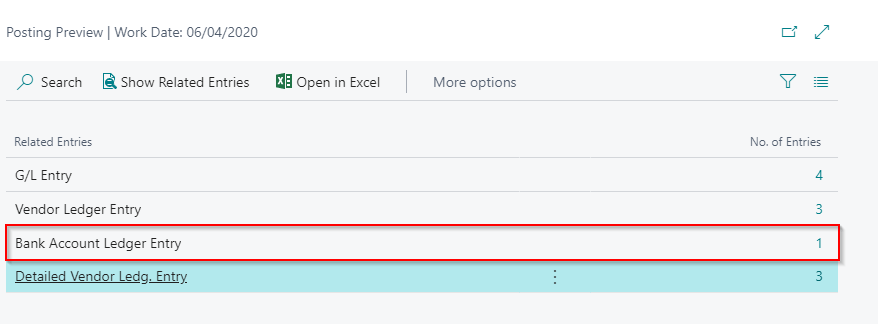
** Please note you also get a reduced number of G/L Entries as well.

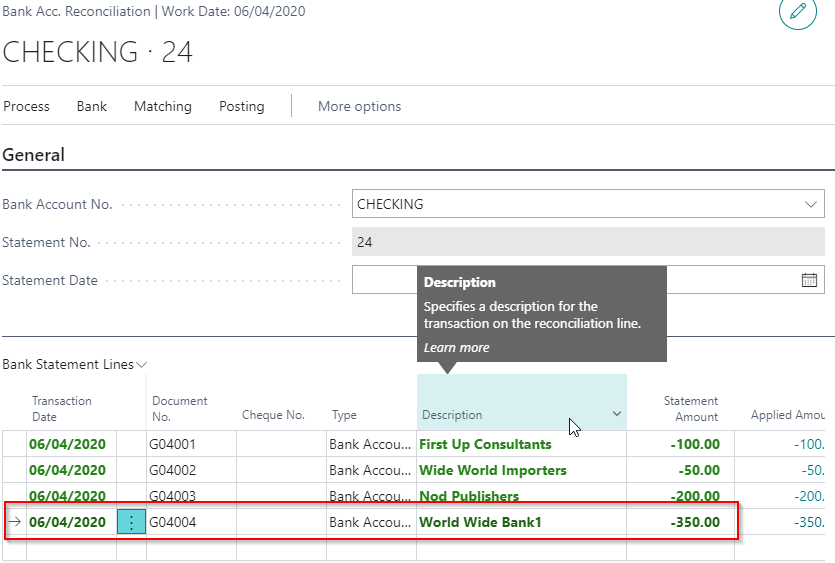
Now when I pull the bank account ledger entries into the bank reconciliation I get one total of £350.00 for the whole batch of payments rather than individual amounts
One caveat I can think of to the second approach is if you need to reverse one of the payments via the in built “Reverse” feature, you are required to reverse them all. Whereas the individual approach you can reverse them individually.

*Please note you could just create a manual entry to reverse one of the payments though.

As always its best to work through the steps in a sandbox or test company first to see if this meets your individual needs.

Thanks for reading!

Dynamics GP – Error Msg “Transaction Analysis information for this transaction is incorrect or missing” on Sales Edit List.

A client reported the error “Transaction Analysis information for this transaction is incorrect or missing” when trying to post a batch of sales invoices.

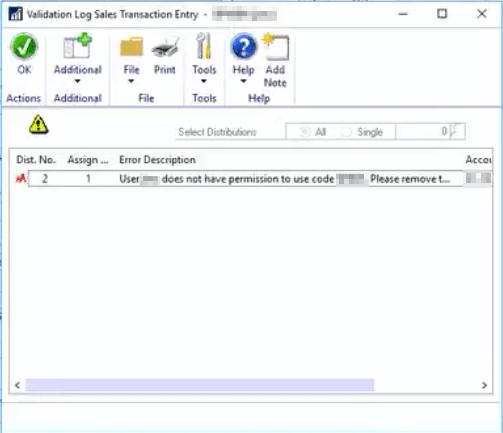
A screen shot of the error message on the edit list is below:

I connected to the clients system, ran an edit list, and found I also received the same error message.

I know this error is usually related to Multi Dimensional Analysis (MDA) or Analytical Accounting (AA) issues on the transaction, and as this client doesn’t use MDA, I figured it was most likely related to AA.

I therefore checked the AA window in the distributions on the transaction, expecting missing AA codes, however everything seemed fine. I then clicked “Validate” and was presented with the following permission error:

This indicates I don’t have permissions to some of the AA codes on the transaction.

I therefore went to “Tools > Setup > Company > Analytical Accounting > User Access” and granted permissions to all the relevant AA codes for my user. Then, I then ran another edit list of the batch and the error had gone.

Next I updated the clients permissions and they can now post the transaction.

I hope this helps anyone else encountering the same issue.

Thanks for reading!

Thinking of making the move to Business Central? We can help

Dynamics 365 Business Central – Use Payment Tolerance to Write Off Amounts

Introduction

There might be occasions when you wish to write off the amount of an invoice. For example if a customer has underpaid and you don’t wish to leave the balance on the invoice. You can achieve this using a payment tolerance.

Please note there’s an updated post here that shows under and over payments 🙂

Scenario

In this scenario I have a posted invoice for £101.00 and the customer has sent a payment of £100.00. Instead of applying the payment and leaving a balance on the invoice of £1.00, we’ll write off the £1.00 using a payment tolerance.

Below is the invoice for £101.00 as shown in the Customer Ledger Entries page:

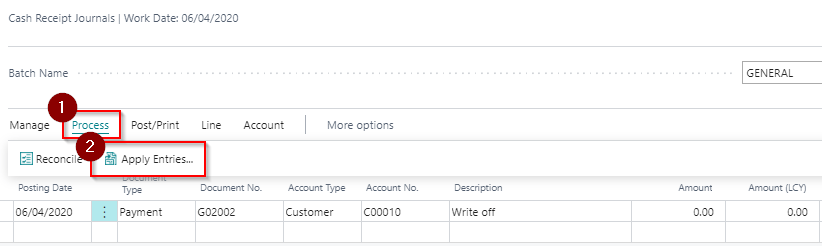
I’ll now go to a Cash Receipts Journal and raise the payment below and click “Apply Entries” to apply this to the Invoice (* Please note you can also post the payment for £100.00 and apply afterwards using the same technique)

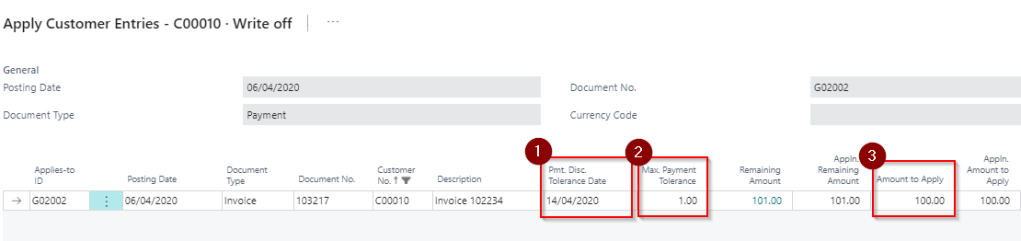
Once in the “Apply Customer Entries” page I first change the “Pmt. Disc. Tolerance Date” so its after the posting date of the invoice, then I’ll add a “Max. Payment Tolerance” of £1.00 and finally enter £100.00 in the “Amount to Apply” as per below

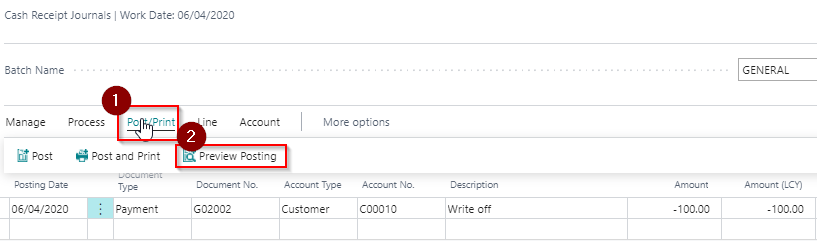
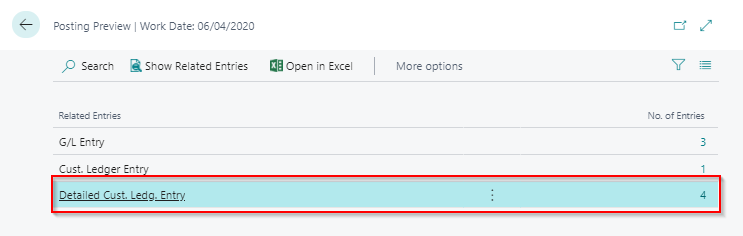
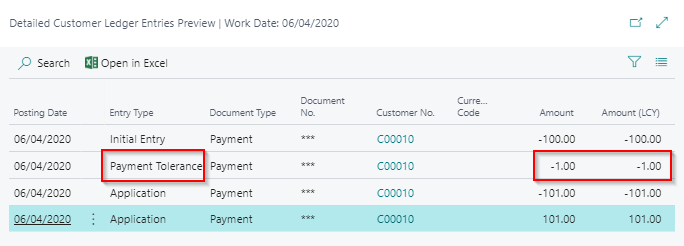
Now, back in the Cash Receipt Journal window I’ll select “Preview Postings” so I can double check this is going to work as intended prior to clicking “Post”. I can check this by viewing the “Detailed Ledger Entries” and in this scenario everything seems to be fine as I have a “Payment Tolerance” entry type in the Detailed Ledger Entries.

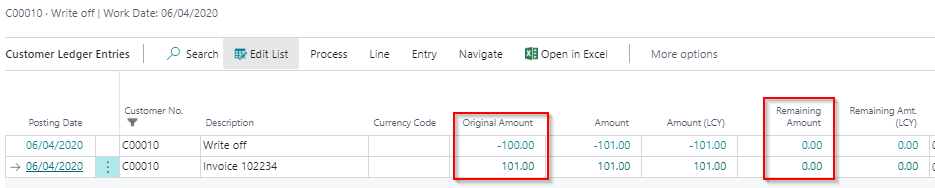
As everything is fine I’ll now post this transaction, which will close the Invoice as fully applied:

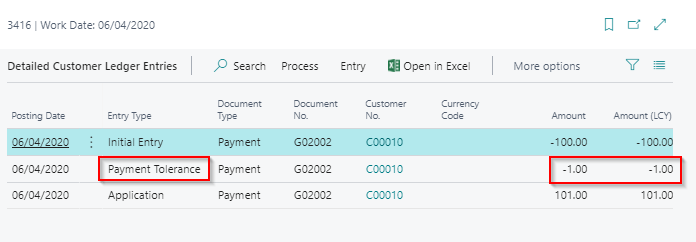
After posting the Payment the remaining amount on the Payment and Invoice are both £0.00. If I click “Remaining amount” on the Payment I can see the “Payment Tolerance” in the Detailed Ledger Entries.

I hope you find this useful.

Thanks for reading!