There might be instances where you want to remove a users access to certain pages in Business Central. This blog walks through how to achieve this by creating a new permission set and utilising the “exclude” feature, using the Chart of Accounts page as an example.
The User
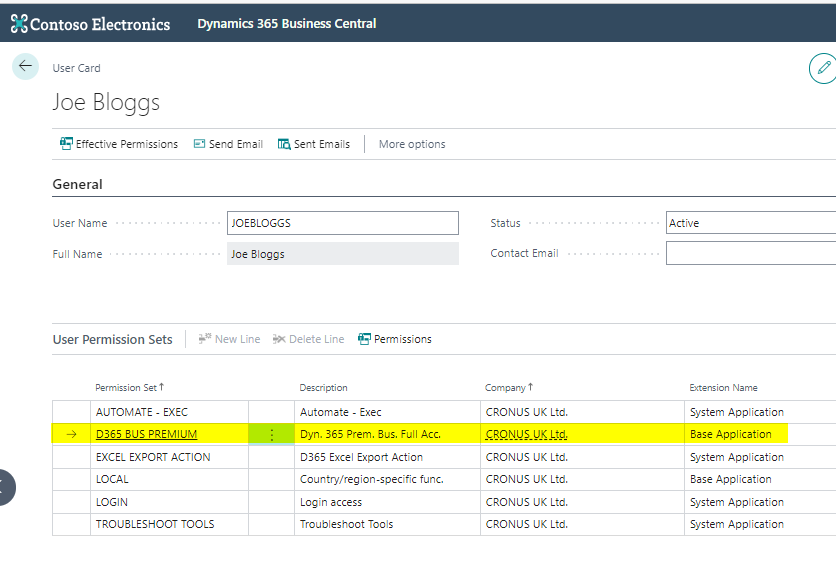
The user below has been configured with a standard full access permission set, which is fine, however I want to remove the permission to the Chart of Accounts page.
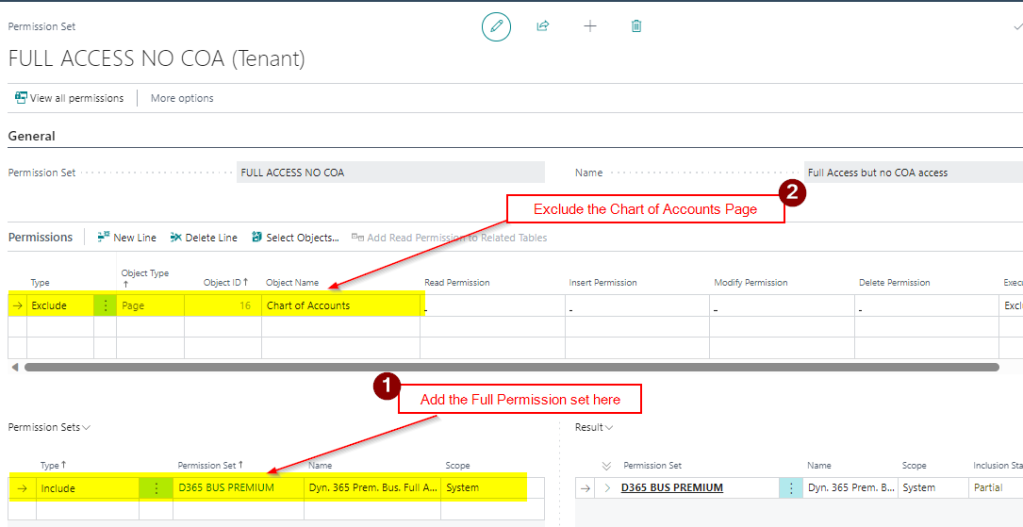
I therefore go to “Permissions set” and create a new permission called “FULL ACCESS NO COA” as per below
I then add the old D365 BUS PREMIUM permission set to this, and exclude the Chart of Accounts page
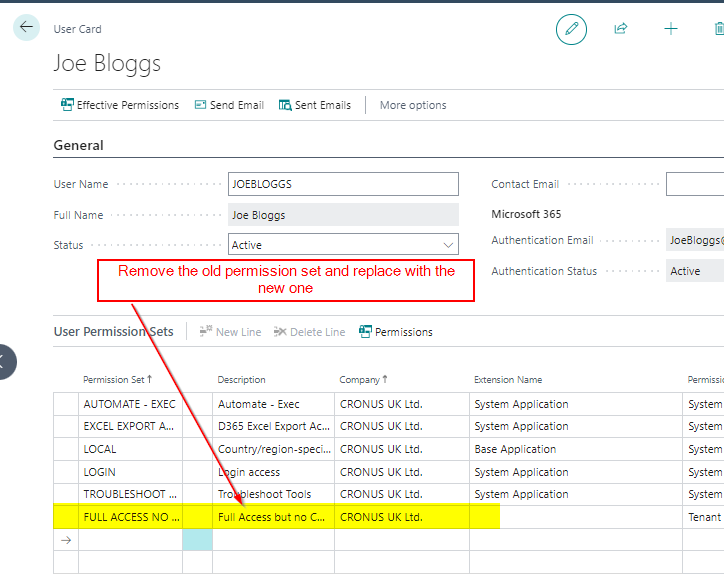
Finally, I go back to the User page and remove the “D365 BUS PREMIUM” permission set and replace with the newly created “FULL ACCESS NO COA” permission set
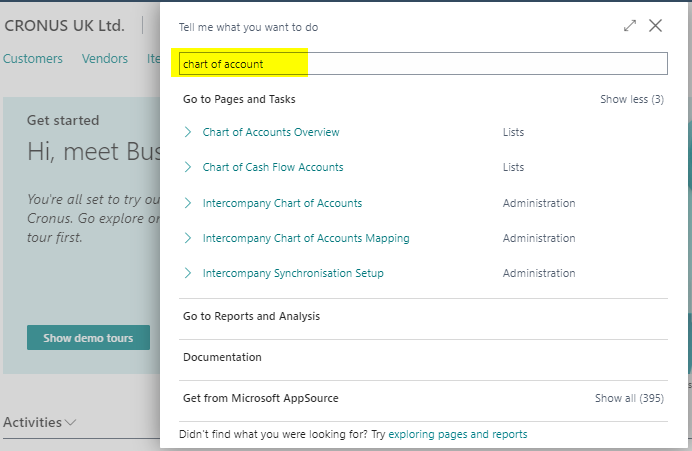
Now the user can no longer see or search for the “Chart of Accounts” page
Conclusion
This is an easy way to remove access to certain pages in Business Central. Hopefully it will help someone in the future.
Business Central provides users with the ability to email from a Shared Mailbox. For example, if you want to email all Sales Invoices from the generic email address “AccountsReceiveable@CompanyName.com” rather than an individuals email address.
This blog walks through the steps to add a Shared Mailbox in the Microsoft 365 Admin Centre called “Accounts Receivable” and subsequently integrating the Shared Mailbox into Business Central so users can email using the Shared Mailbox.
Add the Shared Mailbox in the Microsoft 365 Admin Centre
The first step is to create the Shared Mailbox in the Microsoft 365 Admin Centre and grant the users permissions to the Shared Mailbox.
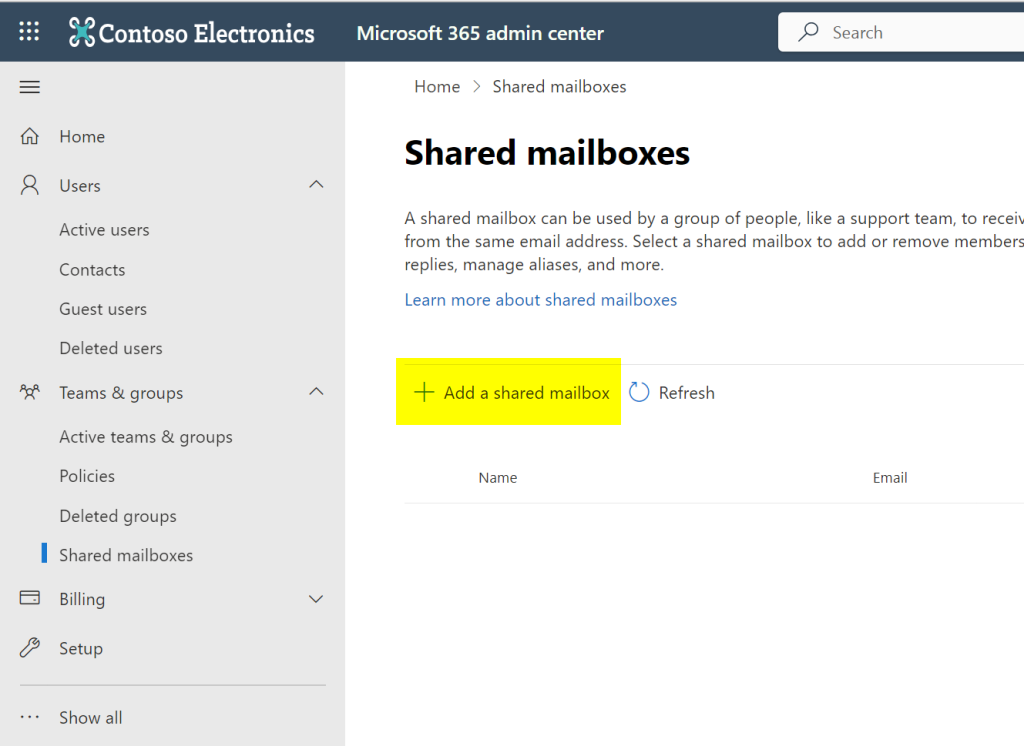
Therefore log into the Microsoft 365 Admin Centre as an administrator and click “Shared mailboxes”.
Next click “Add a shared mailbox”
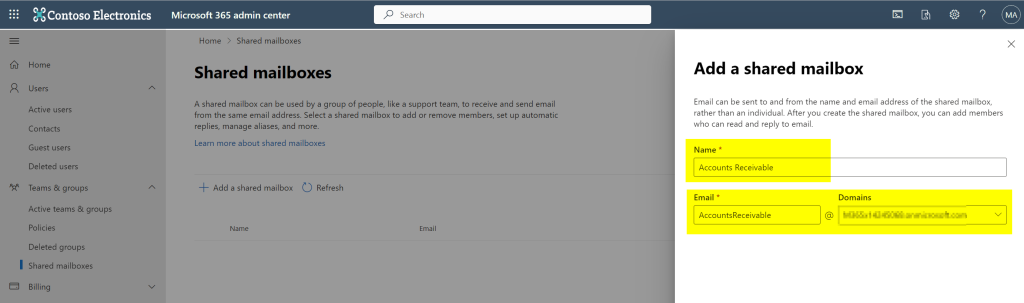
Enter the Name of “Accounts Receivable” and an email address of “AccountsReceivable@yourdomain.com” and click “Save Changes”
Next we need to grant the users the “Send As” permission to the Shared Mailbox
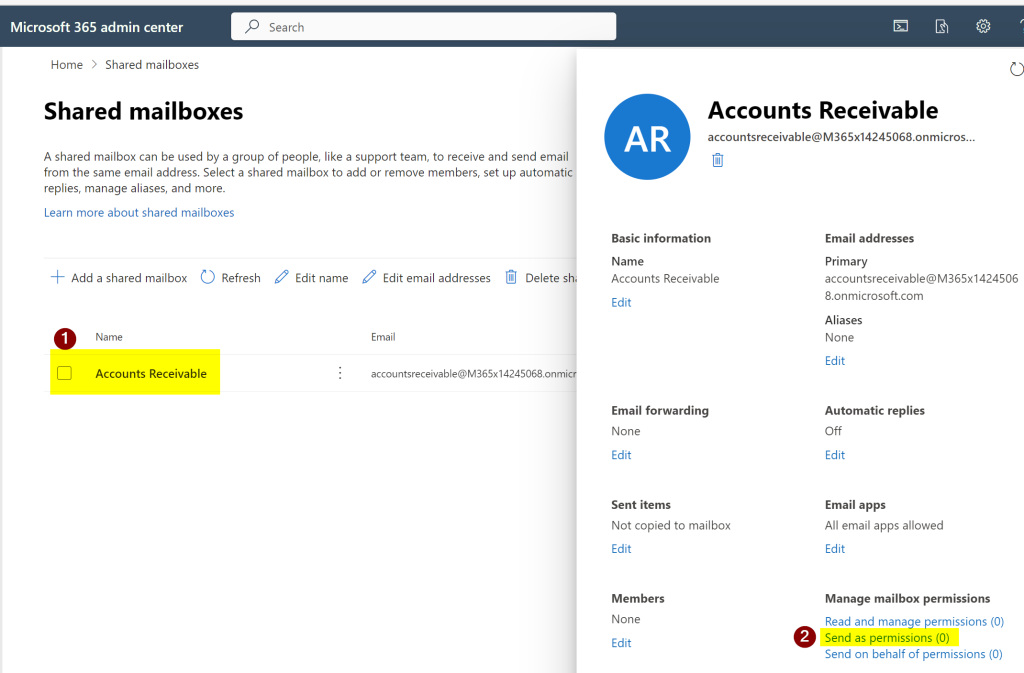
To do this click “Accounts Receivable” and then “Send as permissions”
Next click “Add Permissions” and select the users you wish to be able to send from this mailbox
The Shared Mailbox has now been created in the Microsoft 365 Admin Centre.
Adding the Shared Mailbox in Business Central
Now the Shared Mailbox has been created in the Microsoft 365 Admin Centre we can add it in Business Central so we can use it to send emails from.
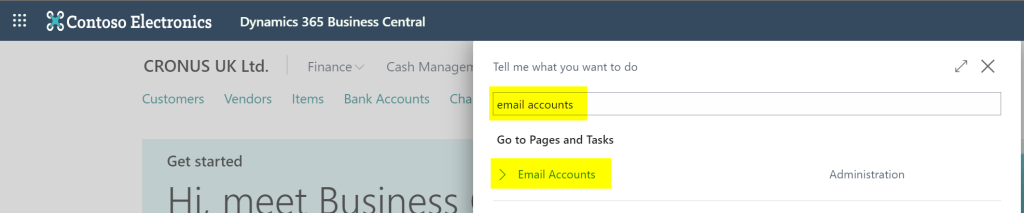
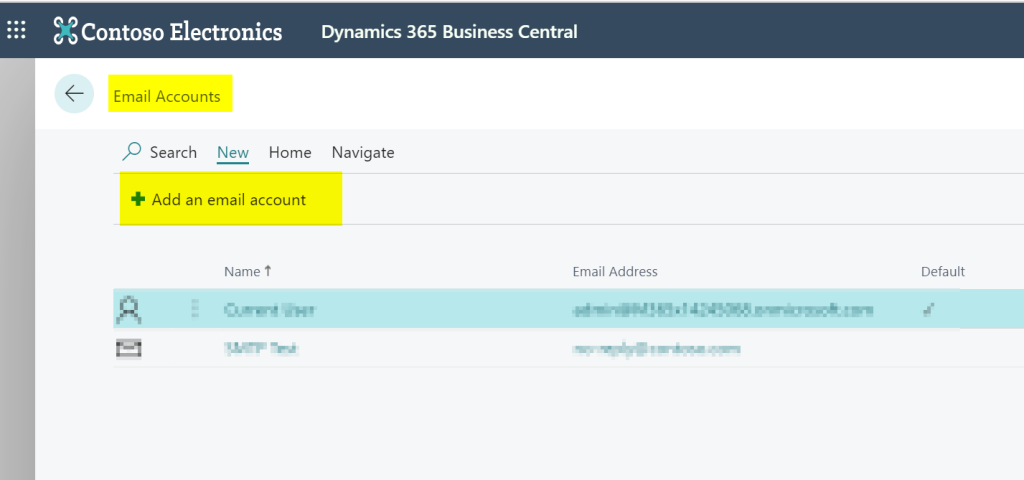
To do this log into Business Central as a user who has the “SUPER” permission or the “EMAIL – ADMIN” permission and search for “Email Accounts” and click the link “Email Accounts”
Next click “Add an Email Account”
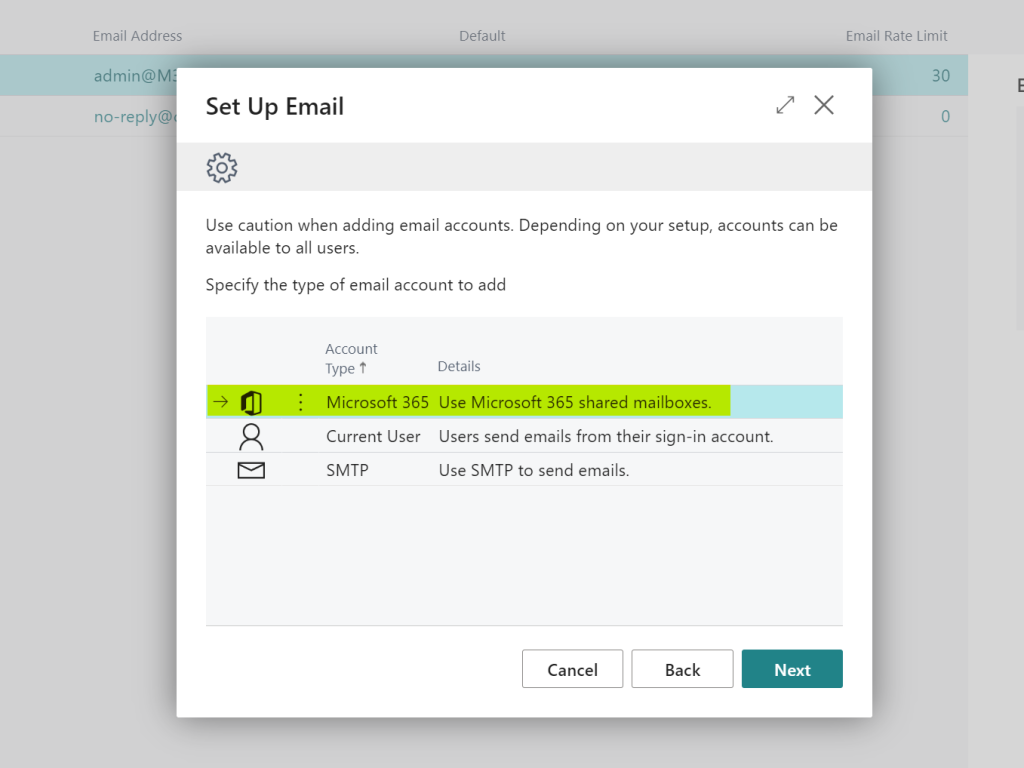
Now select the “Account Type” of “Microsoft 365” as per below
Enter the details of the Shared Mailbox you have created and click “Next”
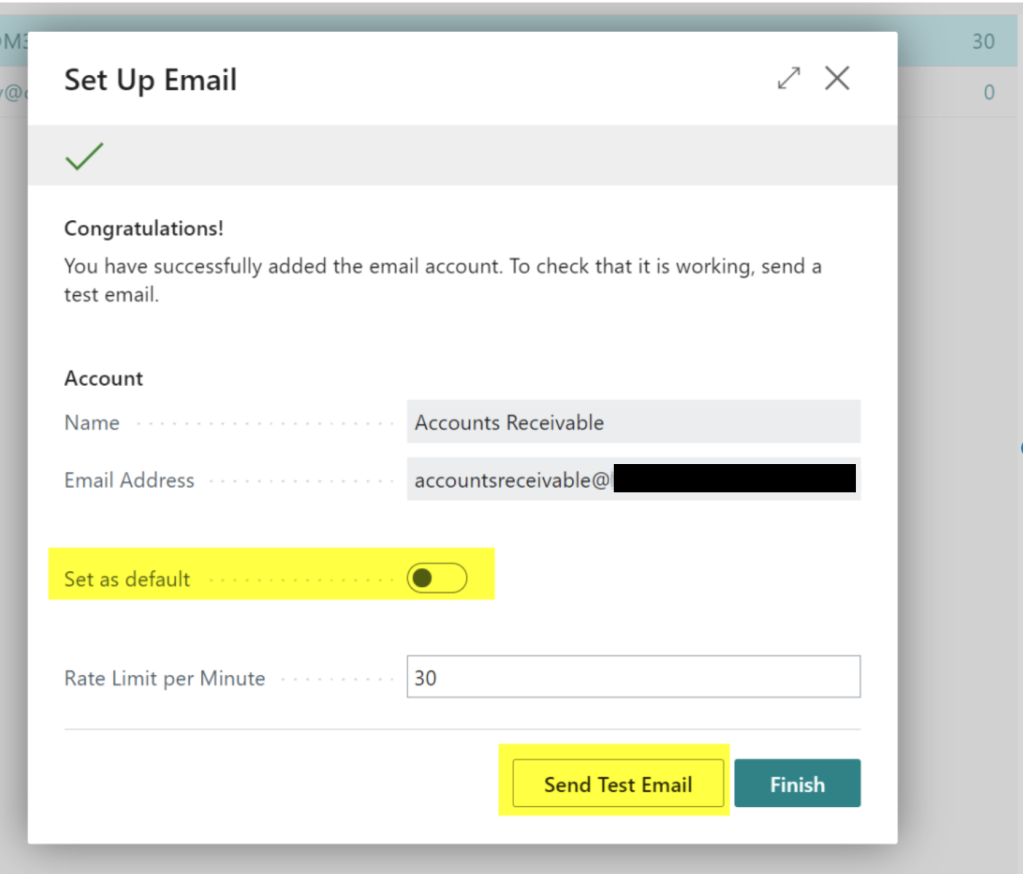
Finally you can choose to “Set as default” (this is optional) and then “Send Test Email” to test if everything is working as expected.
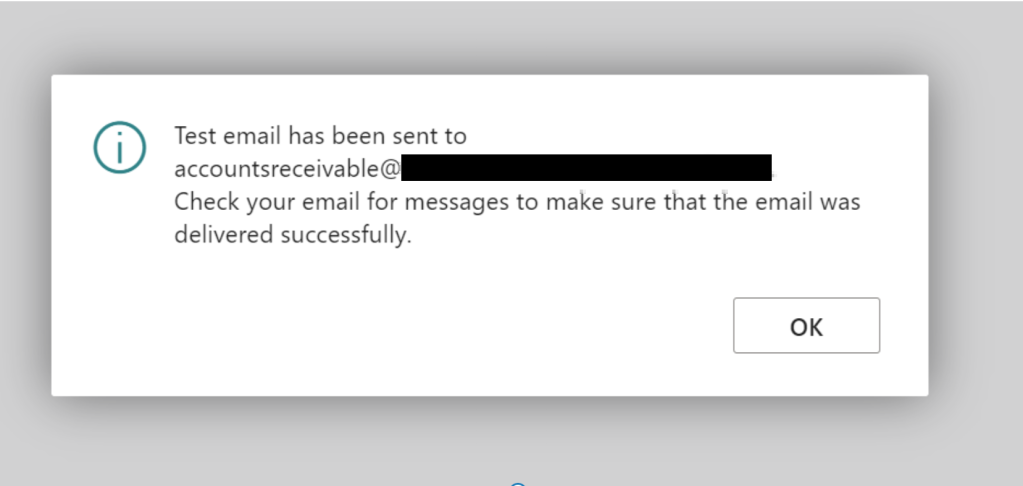
I selected the mailbox in question and clicked “OK” and I receive a notification to say the email is sent
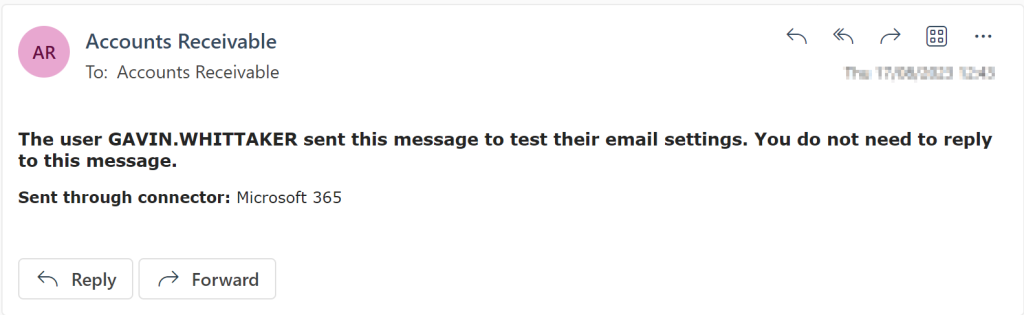
I check the emails and Success! I received the email
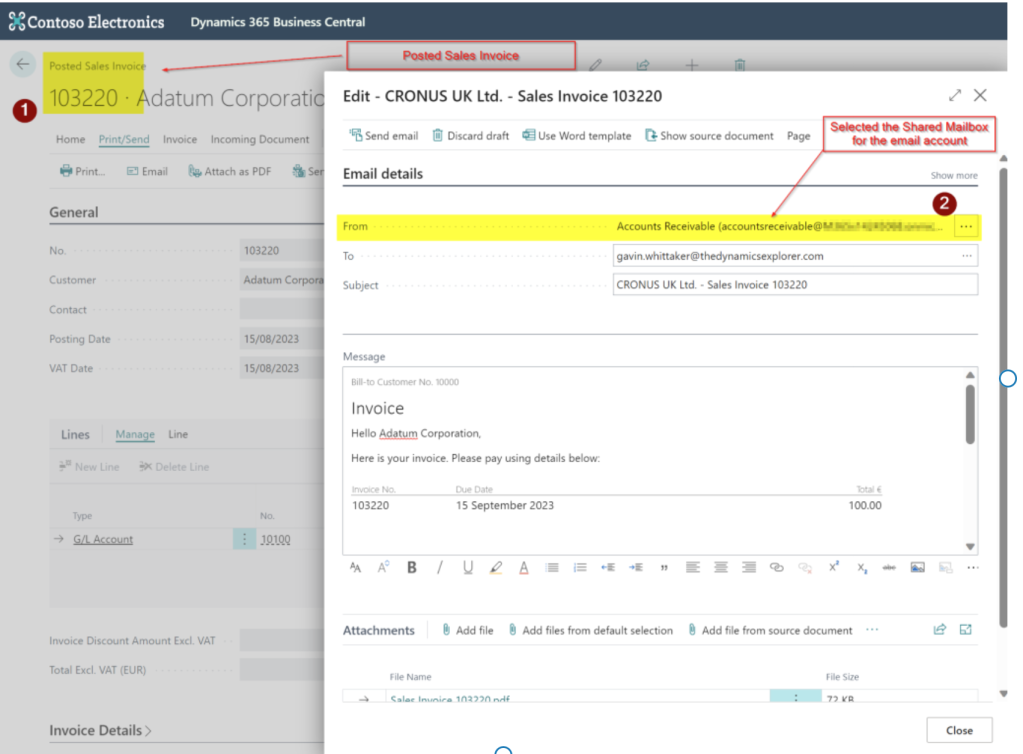
I can now use this to send Sales Invoices and Customer statements etc
I can also setup email scenarios so the Shared Mailbox is used as a default 🙂
Conclusion
Shared Mailboxes are extremely useful when sending documentation such as Sales Invoices and Sales Credits. I hope this walk through helps you configure them on your system.
There may be occasions when customers overpay or underpay a particular invoice, and you’d like to write off the amount rather than leave it on their account. In this blog, I’ll walk through how you can automatically write off amounts when entering Cash Receipts using a Payment Tolerance. First, I’ll explain an underpayment write-off, followed by an overpayment write-off.
Setup
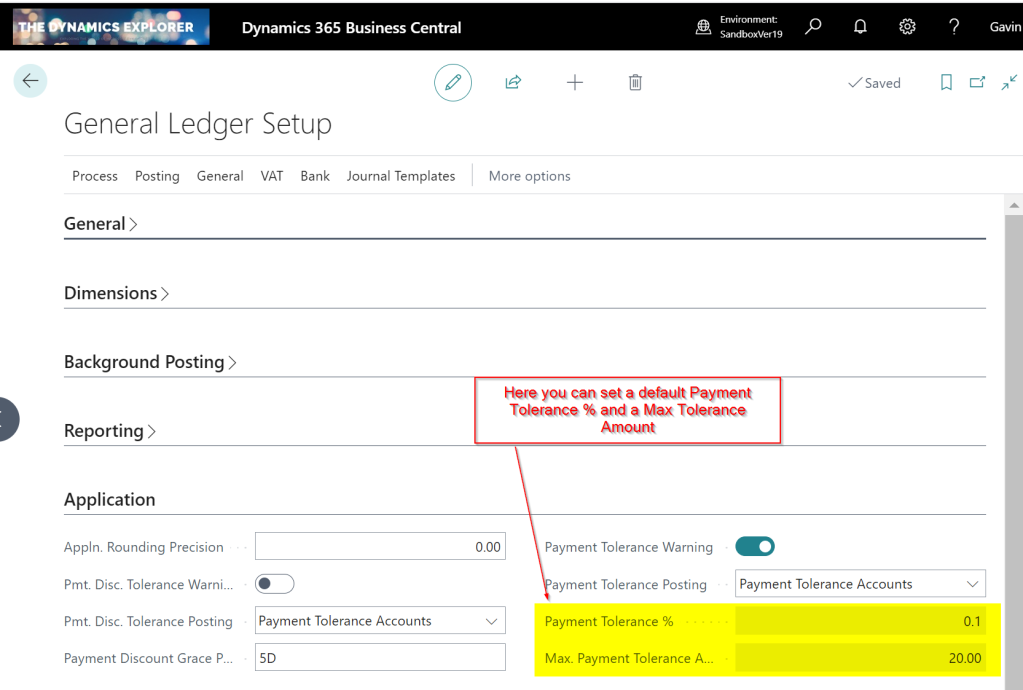
The setup for Payment Tolerance is located in the General Ledger Setup page.
The “Payment tolerance % amount” is the default amount that can be written off an invoice. Therefore, for example, if you had an invoice for £100.00, the default you could write off would be £0.10. (as we’ll see below this is a suggestion that can be over written when applying)
The Max. Payment Tolerance Amount is the maximum you’ll allow to be written off an invoice.
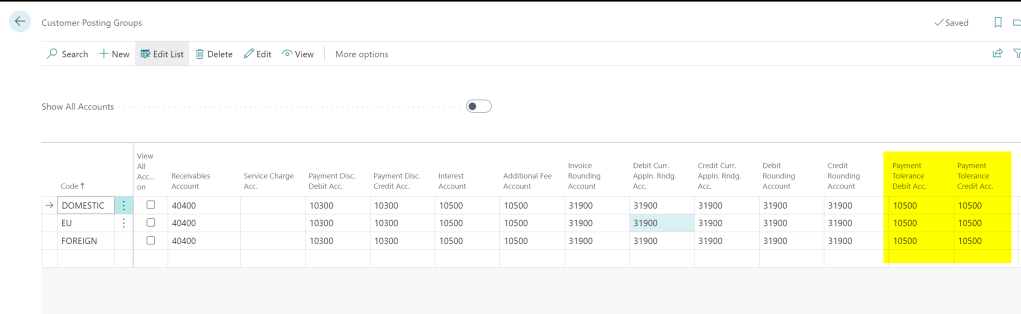
Finally, you also need to setup the Payment Tolerance General Ledger codes in the Customer Posting Group.
Under Payment Scenario
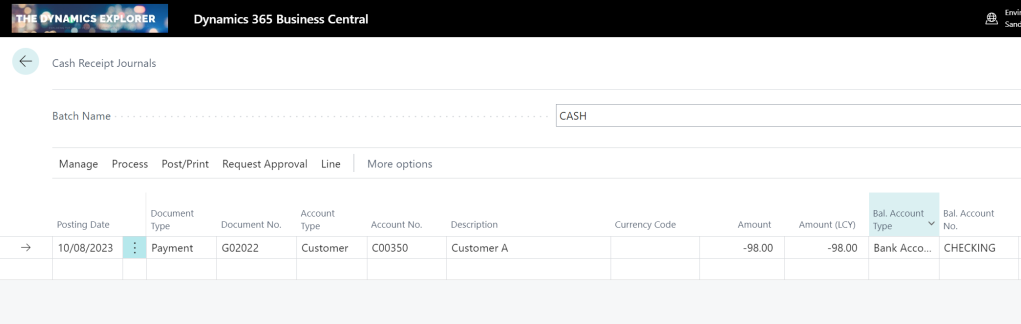
In this first scenario, we have a Sales Invoice for £100.00, but we have only received £98.00, and we wish to write off the £2.00.
The cash receipt is created for £98.00 as per below:
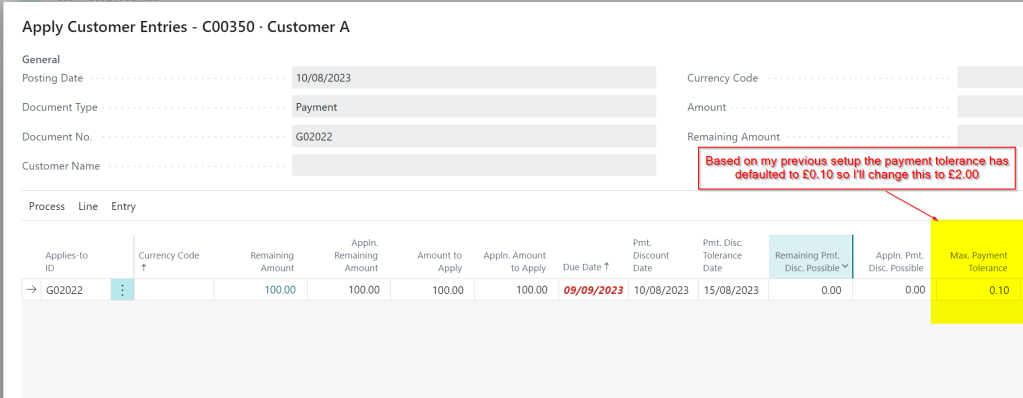
I then click “Process > Apply Entries” and find and apply the cash receipt to the invoice.
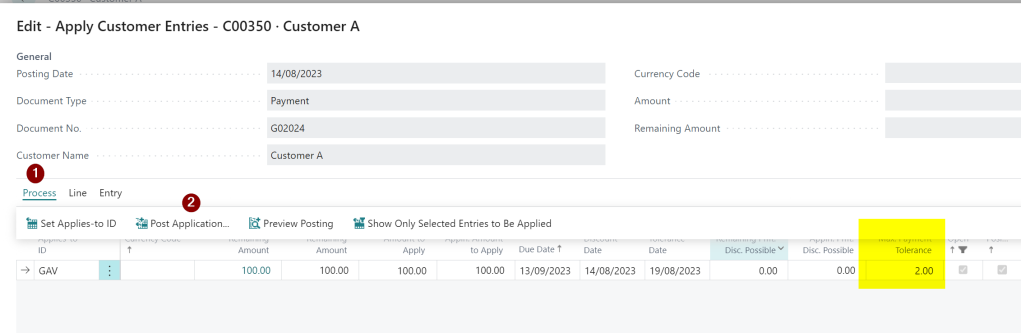
Once in the apply screen I can see the £100.00 and the Max Payment Tolerance has defaulted to £0.10 as per my setup. (this is 10% of the Sales Invoice Total)
Next I change this to 2.00 and then click “Process > Set Applies-to ID”
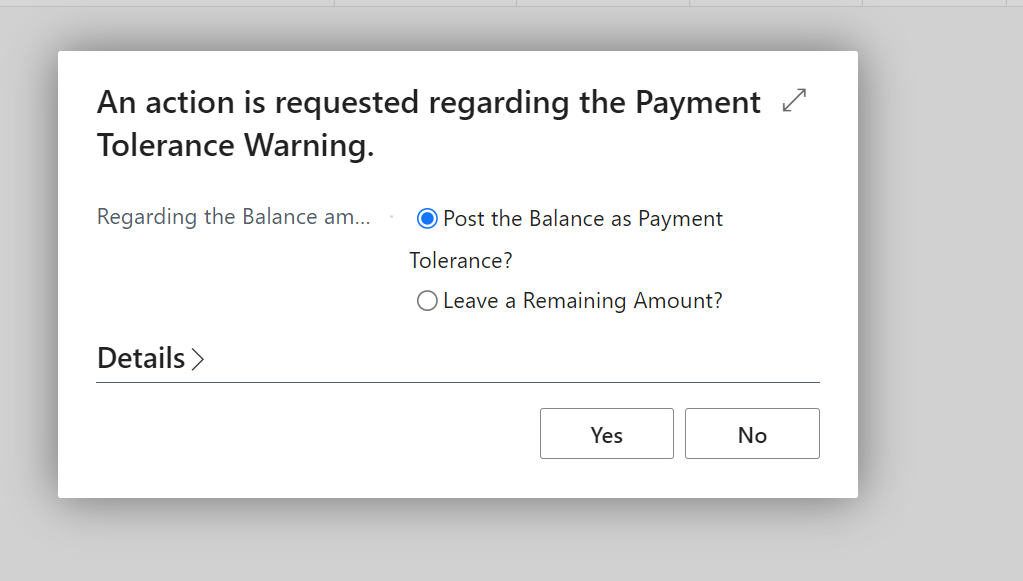
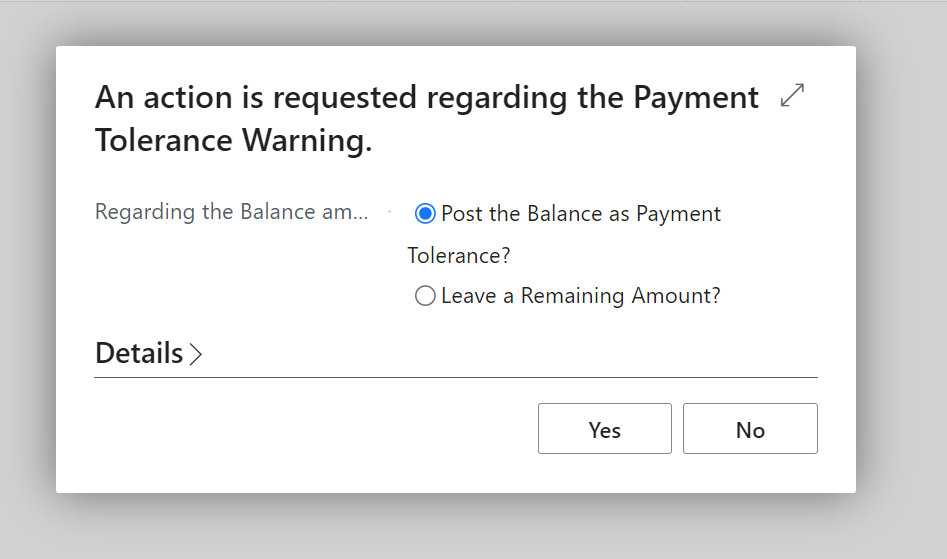
Now, when I click OK, I’m presented with the following message:
The default is “Leave a Remaining Amount?” however I change this to “Post the Balance as a Payment Tolerance?” and click “Yes”.
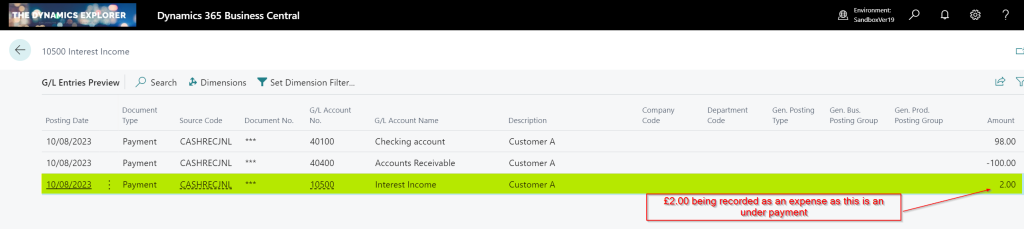
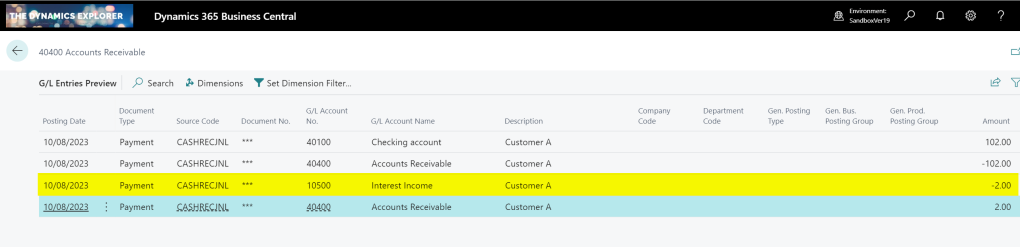
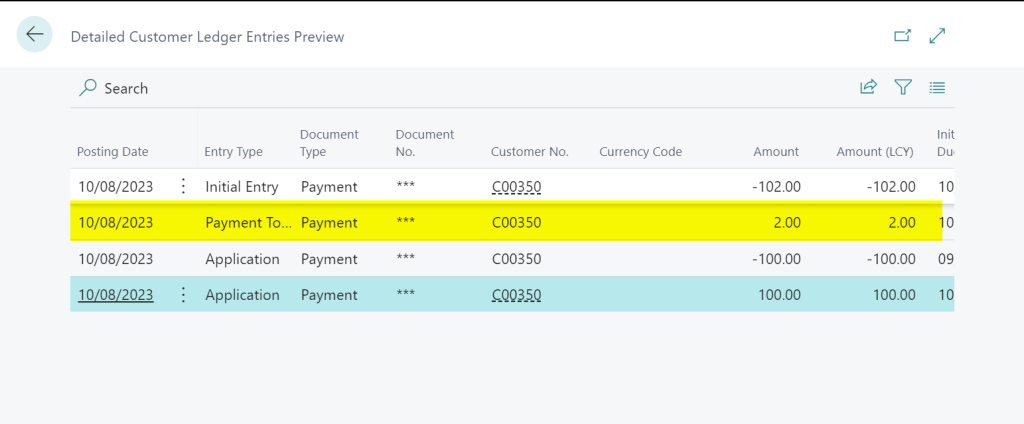
Now, when I preview the postings, I can see amounts being recorded in the Payment Tolerance GL accounts to account for the Payment Tolerance in the General Ledger. Additionally, there are Detailed Customer Ledger Entries to rectify the remaining amount on the Sales Invoice.
The General Ledger entries have an extra entry for the £2.00 underpayment, which is recorded as an expense. (i.e. a Debit amount)
There is also an extra detailed ledger entry to correct the remaining amount on the Sales Invoice
Over Payment Scenario
In the second scenario, we have a Sales Invoice for £100.00, and we have received £102.00. Instead of returning the £2.00 or leaving it on account, we opt to write off the £2.00 using payment tolerance.
Again we create a Cash Receipt for £102.00 as per below:
We then find the Sales Invoice and change the Payment Tolerance to £2.00 and select “Set Applies-to ID”
Again, we are prompted with the payment tolerance warning so select “Post the Balance as a Payment Tolerance?” and click “Yes”.
This posts additional General Ledger Entries for the £2.00 overpayment, but this time crediting the tolerance account. (as this is additional Income)
We also get additional Detail Customer Entries to correct the amount remaining on the Payment
Taking Payment Tolerance on Posted Documents
In the previous examples we walked through the process of applying the Payment Tolerance while posting the Cash Receipt. Now, let’s consider a scenario where the Cash Receipt has already been posted, and we aim to apply it to an invoice while also considering a payment tolerance.
Below is a posted sales invoice and a posted cash receipt. The sales invoice is for £100.00 and the cash receipt is £98.00. We will now apply them together and take the payment tolerance rather than leave £2.00 outstanding on the invoice.
First I go to “Customer Ledger Entries” and highlight the Cash Receipt and select “Process > Apply Entries”
Next I change the “Max Payment Tolerance” amount to £2.00 and click “Process > Set Applies-to ID”
I then click “Process > Post Application” and click OK
I’m then presented with the option of how to deal with the Payment Tolerance.
I select “Post the Balance as Payment Tolerance” and click “Yes” and the entries are posted and both documents will show an amount remaining of £0.00.
Conclusion
As you can see, the payment tolerance feature can be incredibly useful for writing off amounts when applying cash receipts.
If you encounter numerous instances of underpayments and overpayments, leveraging this functionality eliminates the need for manually entering adjustments to clear these minor sums.











 thedynamicsexplorer.com