Dynamics 365 Business Central – How I post opening balances for reducing balance Fixed Assets

Introduction

When posting opening balances for reducing balance assets things can sometimes prove a little challenging.

In this post, I’ll walk through how I post opening balances for reducing balance assets, and the best practices I follow.

In this example I’m posting opening balances for a reducing balance asset as at 31/08/23 in the financial year 2023.

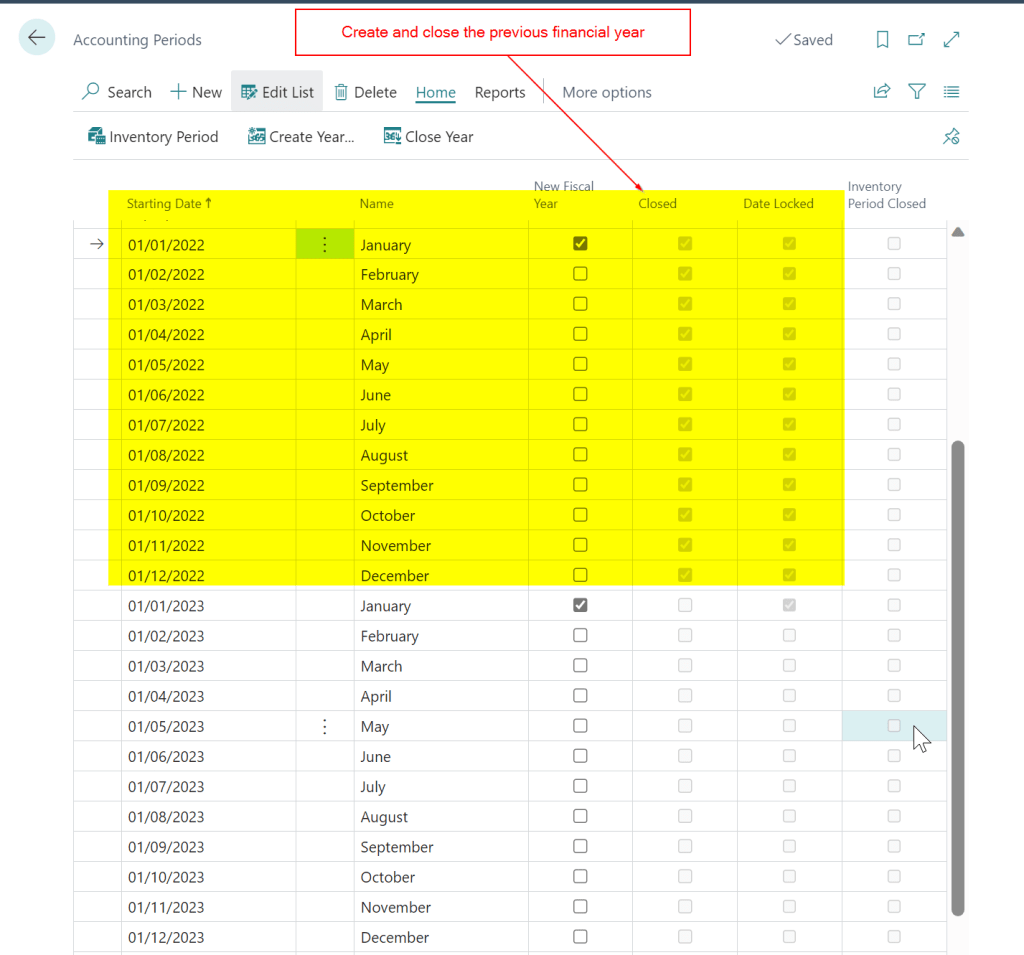
Step 1 – Create a close the previous Financial Year

When creating a new company in Business Central its common to only create the financial year you are posting opening balances for. However, when posting opening balances for fixed assets that have a depreciation method of “Reducing-Balance”, I’ve found a slightly different approach is needed. In such cases, I also create the preceding year and then close it.

Therefore, for my example, I go to “Accounting Periods” and ensure the previous financial year has been created and also closed. I’m posting the opening balance for 2023 so I’ve also created the year 2022 and closed it.

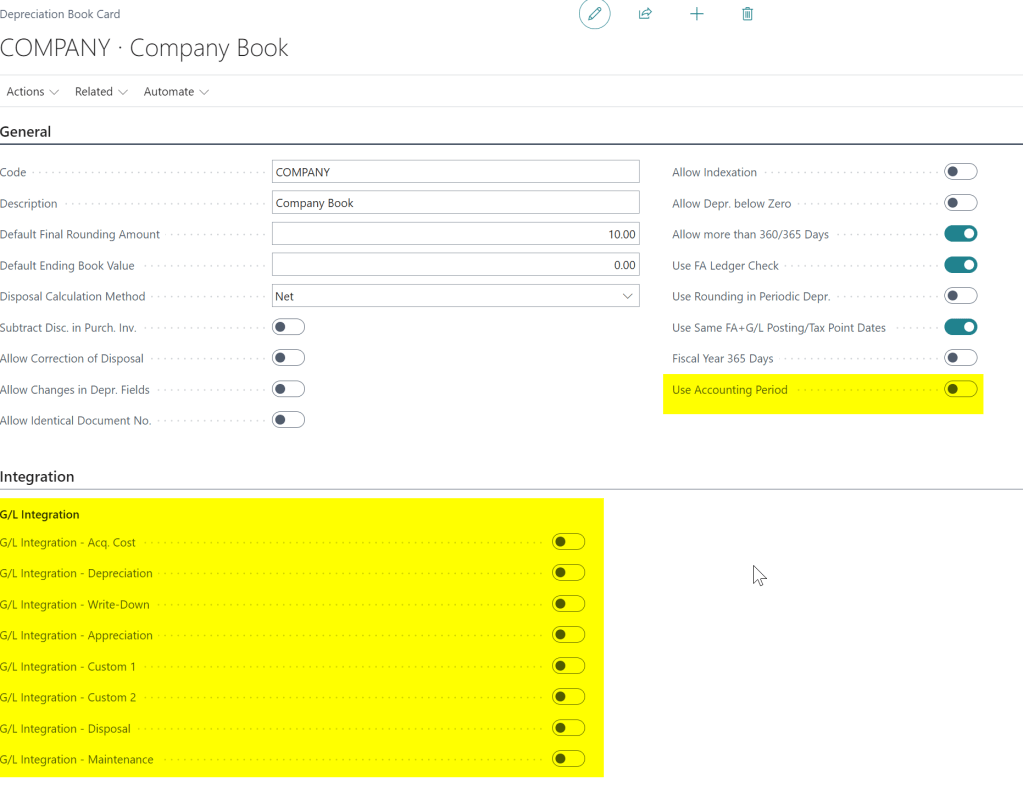
Step 2 – Depreciation Book Setup

The next thing to do is to ensure the option “Use Accounting Period” is off in the Depreciation Setup and also switch off the GL Integration.

**I’ve already posted the opening position for the Asset Cost and Accumulated Depreciation in the General Ledger so I switch off GL Integration

Step 3 – Post the opening balance as at the end of 2022

As reducing balance depreciation is calculated on the carrying amount of the asset at the start of the financial year, you must post the opening balance at the end of the previous financial year, regardless of when you are going live with Business Central.

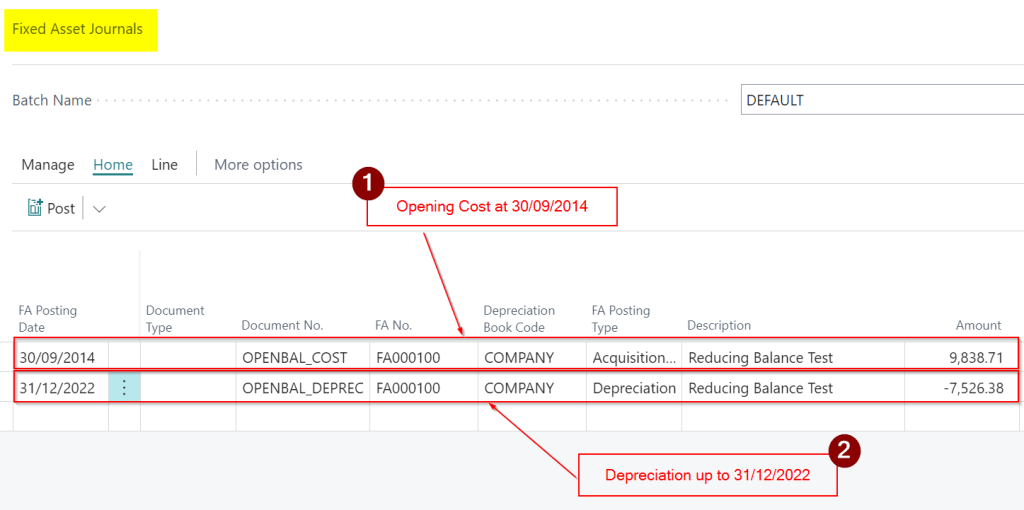
The asset in my example has an original cost of £9838.71 as at 30/09/2014, with accumulated depreciation as at the 31/08/2023 of £7,757.61.

However in order to post this correctly, and have the system create the correct depreciation, I need to post the depreciation at the end of 2022 which is £7526.38, giving a carrying amount (Net Book Value) as at the beginning of 2023 of £2312.33.

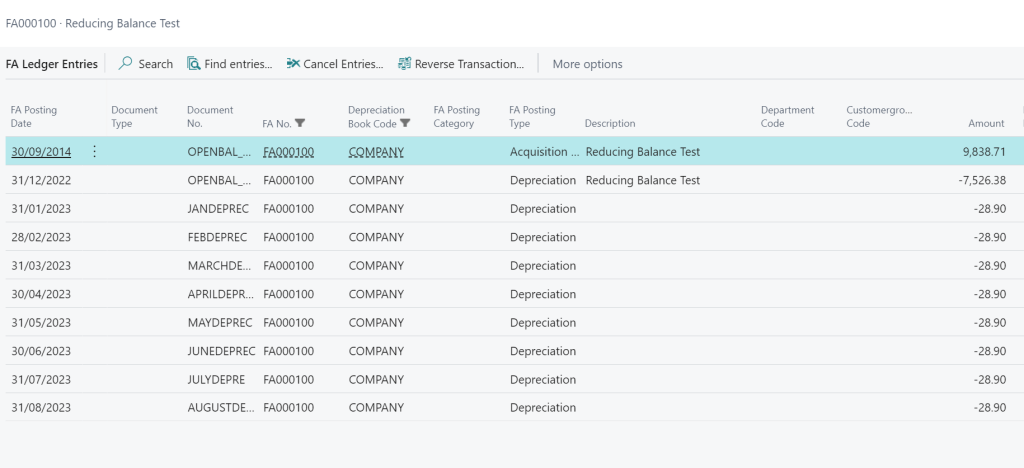
I’ll then post the depreciation for January through to August separately, to get the exact opening position of £2,081.13.

I therefore enter a Fixed Assets Journal as per below ensuring to use the original place in service date for the Opening Cost and the end of the previous financial year for the accumulated depreciation to give me the correct Net Book Value.

Step 4 – Run Depreciation and Check the Amount

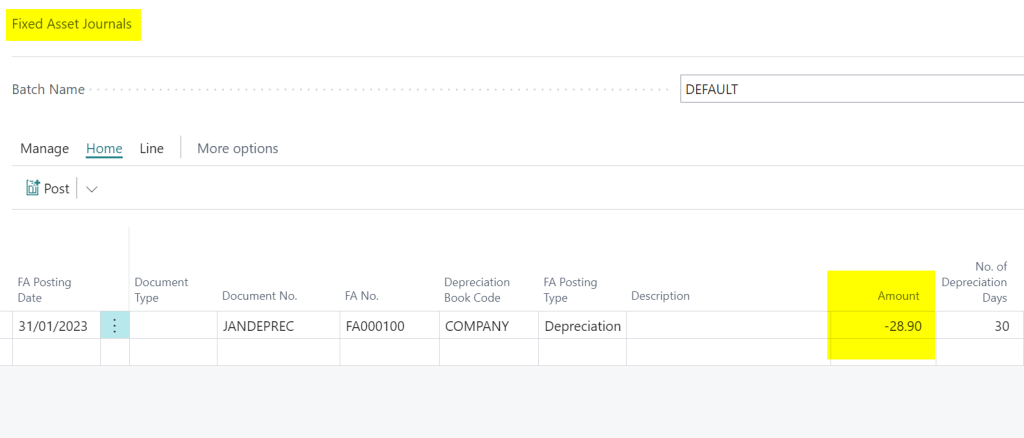
After posting the opening entries, I then run the Calculate Depreciation job with a date of 31/01/2023 and this gives me depreciation of £28.90, which is exactly what I was looking for 🙂

I then run the depreciation for January through to August as per below to get the opening position as pf the end of August.

Conclusion

The main takeaways are to create the previous financial year and close it, and also post the opening cost using the assets original place in service date, and post the depreciation on the last day of the previous financial year.

Thanks for reading!

Want further help with Business Central?

If you’d like more help with Business Central, I also run Rapid365, which provides Business Central implementation and support services for UK businesses, supporting you through setup and go-live.

Dynamics 365 Business Central – How to setup and configure Postponed VAT in the UK

Introduction

When you import goods into the UK, you have to pay VAT if the goods are over a certain amount. You can either pay this immediately, and then reclaim it later on your VAT return, or declare and recover on the same VAT return, using the postponed VAT method.

This post goes through how to setup Business Central if you use the Postponed VAT scheme. I’ll then post a journal to record the Postponed VAT and show it on the newly configured VAT statement.

VAT Product Posting Group

The first thing to do is to configure a new VAT Product Posting Group. I’ve created one below called “PVAFULL” with a description of “Postponed VAT”

VAT Posting Setup

I then add the new VAT Product Posting Group into the “VAT Posting Setup” as per below. The key thing to note is that is set as 100% VAT and the VAT Calculation Type is “FULL VAT”

VAT Statement Configuration

The final thing to do is to add the new combination to the VAT Statement so any transactions posted to the PVAFULL posting group are recorded on the VAT return.

With postponed VAT you both declare this in Box 1 of the VAT return as an amount due, and also in Box 4 as an amount owed.

Therefore the VAT Statement is configured as per below

In the first and second step I add the new VAT combination to the detail of the report, and then in the third and fourth steps I included the added lines in the Box 1 and Box 4 calculations.

Test by posting a Postponed VAT Journal

Now to test the configuration I’ll post a VAT only journal for Postponed VAT as per below

This gives the following GL entries which give a net effect of nil in the GL.

We also get the following VAT entry which is picked up the VAT statement.

Now when I test the VAT Statement I can see the £1000.00 amount appearing in both Box 1 and Box 4 and the amount owing to HMRC in Box 5 is £0.00

Conclusion

I hope this post helps anyone who needs to configure Business Central to work with Postponed VAT. As always please ensure you test thoroughly before implementing and then submitting the VAT return.

Thanks for reading!

Need help with Business Central? Contact me

Dynamics 365 Business Central – View all Sent Emails by modifying Email Policies

Introduction

By default, users can only see their own sent emails via the Sent Emails page, however there may be a requirement for some users to view all emails that have been sent in Business Central. In this post, I’ll go through how this can be achieved via the “User Email View Policies” page.

Sent Emails

When you open the “Sent Emails” page, you will only see what emails you have sent. For example, if I open the Sent Emails page as my admin user, the page is blank.

Email Policies

If you search “User Email View Policies” you can change the permissions to Sent Emails on a user by user basis.

I therefore change this for my ADMIN user to “View all emails”

Now, when I go back to “Sent Emails” page, I can see all emails that have been sent via Business Central.

Problem solved :). Now my admin user can see all emails sent from Business Central.

Thanks for reading!

Need help with Business Central? Contact me