Introduction
When you reverse a journal entry using the standard “Reverse” feature there’s no option to change the posting date. By default the journal will automatically reverse on the same date as the original journal postings. This isn’t ideal if you have closed the period and want the reversal to post into a different period.
In this post I’ll show how you can reverse a journal and change the date using the “Posted General Journal” feature. I’m a big fan of this feature as it not only gives the ability to reverse a journal with a different date but you can also reverse multiple journals.
The Issue
As discussed, when reversing a journal using the standard functionality there’s no way to change the “Posting Date”. The field highlighted below isn’t editable.

If the financial period is closed, posting the reversal into a different period becomes necessary, which prevents the ability to use the standard feature.
Configuring Posted General Journal Functionality
Before we can use the Posted General Journal functionality we first have to ensure its enabled on the various General Journal Templates.
Therefore search “General Journal Templates” and tick the option “Copy to Posted Jnl” as per below:

When the option has been selected on the General Journal Template, it can then be toggled off and on at a Journal Batch level as well:
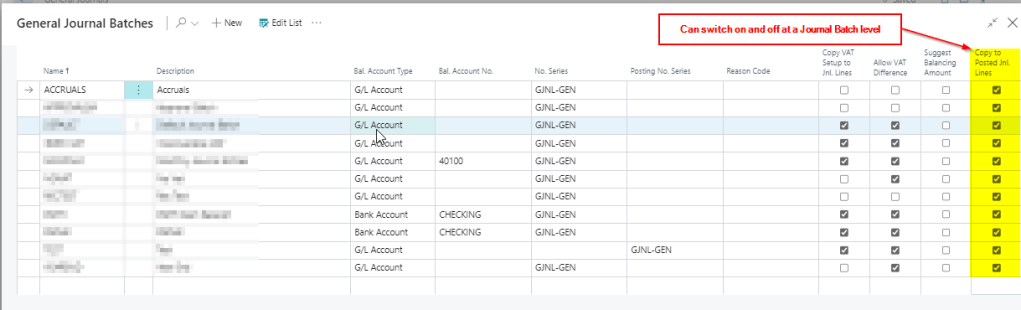
With this option enabled any journal that’s subsequently posted creates “Posted Gen. Journal Lines” in addition to the usual General Ledger Entries.
For example I clicked “Find Entries” on a General Ledger Entry and I can see additional “Posted Gen. Journal Lines”
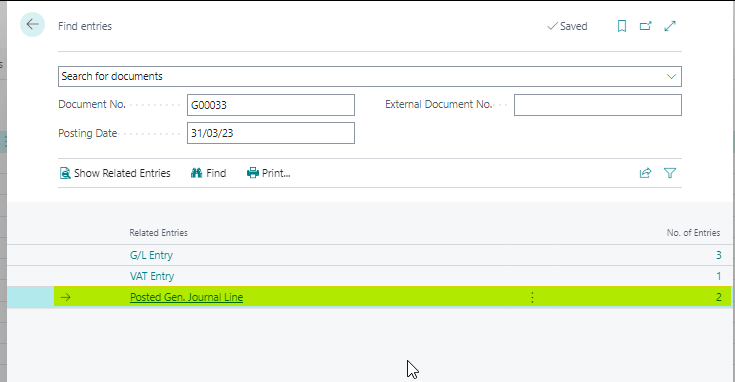
I find this really useful as if you drill down on the “Posted Gen. Journal Line” it opens the Posted General Journal page which provides a snapshot of the journal that was posted.
This is very similar to how a snapshot of a Sales Invoice is taken and saved as a “Posted Sales Invoice” which you can refer back to.
Reversing a Journal using the Posted General Journal Page
Now we have the option switched on we can walk through how to reverse a journal.
First open the “Posted General Journal” page. You can either search this directly or drill down from the “Find Entries” page.
Once in the “Posted General Journal” page locate the entry you wish to reverse. In my example I’m going to reverse document number G00033.
I therefore filter on this document number and select both lines and choose “Copy Selected Lines to General Journal” as per below:
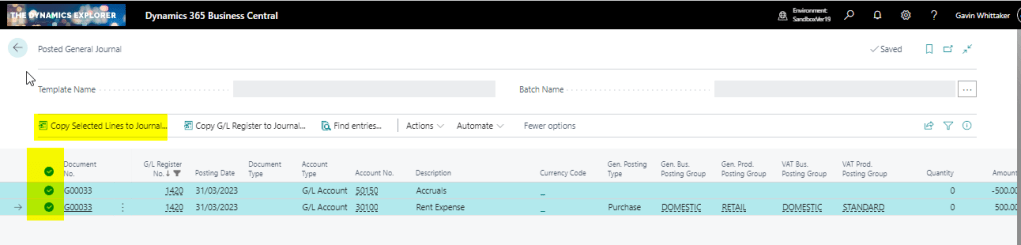
** Please note you can also select “Copy G/L Register to General Journal Lines” **
Next I’ll choose to replace posting date with an April date and also to reverse the sign:

Now when I open the ACCRUALS batch its the reversing journal is ready to post.
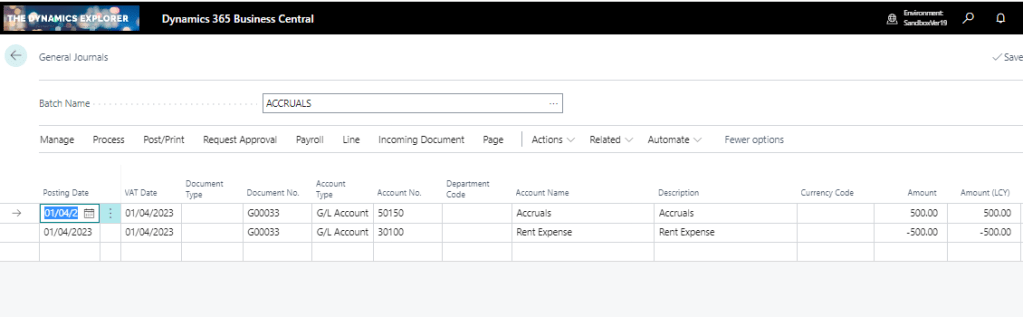
You can also use this functionality to reverse more than one journal at once and I’ve also used it to find out the G/L Register number of a journal postings 🙂
Conclusion
As you can probably tell I’m a big fan of this functionality. I think this is because of my background using Dynamics GP which creates similar snapshots of posted journals.
Thanks for reading!
 thedynamicsexplorer.com
Hi Gavin, when try reverse from Posted General Journal encounter message “You cannot copy the posted general journal lines with G/L register number 20 because they contain customer, vendor, or employee ledger entries that were posted and applied in the same G/L register”. Do this mean not all line in Posted General Journal can using above feature?
LikeLike
I receive the same error message. This solution does not work for me.
LikeLike
Hi. Yes it seems its a limitation of the reverse feature in the Posted General Journal page 😦
LikeLike
Hi, You are correct. I’ve tested a scenario where I applied a document in the Journal and then posted and I get the same error message. Therefore it seems you can’t reverse an entry using the Posted General Journal Page if the entry was applied during the posting :(. You can click “Reverse” in the GL entries page but you won’t be given the opportunity to change the posting date. Thanks
LikeLike