Dynamics 365 Business Central – Exploring the Different Options when running the “Close Income Statement” Routine

Introduction

In this post, we’ll explore the various options available when running the “Close Income Statement” routine in Business Central, and we’ll also look at the outcomes of running each option.

This routine is used to close the income statement General Ledger accounts and transfer the balances to the retained earnings account as part of the General Ledger year end routine.

Depending on your needs, Business Central offers several ways to customise how these accounts are closed, and in this post, we’ll walk through each of these options, showing the results when the routine is run using the different settings.

Please note this post assumes you have followed any year end processes such as ensuring all General Ledger accounts are correctly set as either Income Statement or Balance Sheet and the Financial Year has been closed via the “Accounting Periods” page.

Option 1 – Post to Retained Earnings in Summary with no Dimensions

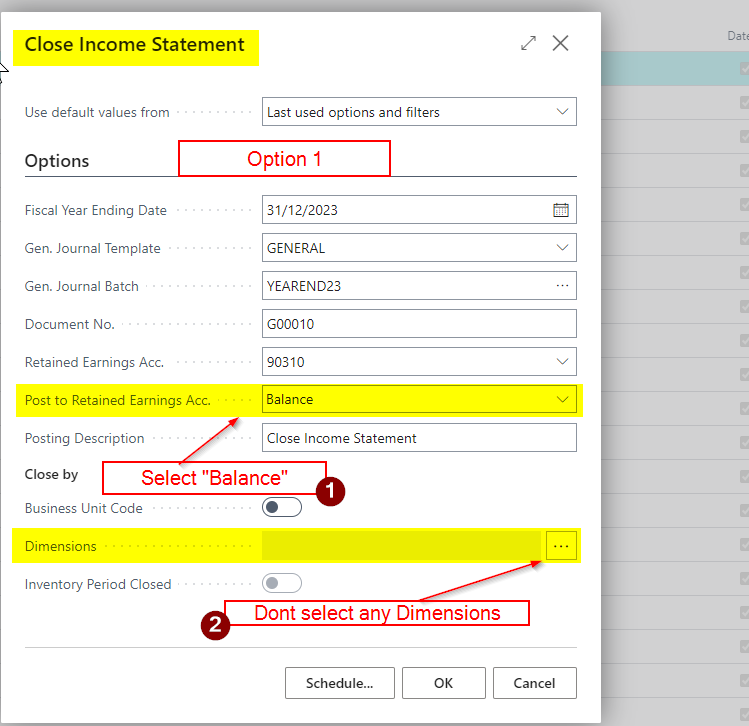
With option 1 we select the following options in the “Close Income Statement” page

  1. Post to Retained Earnings Acc. = Balance
  2. Dimensions = None Selected

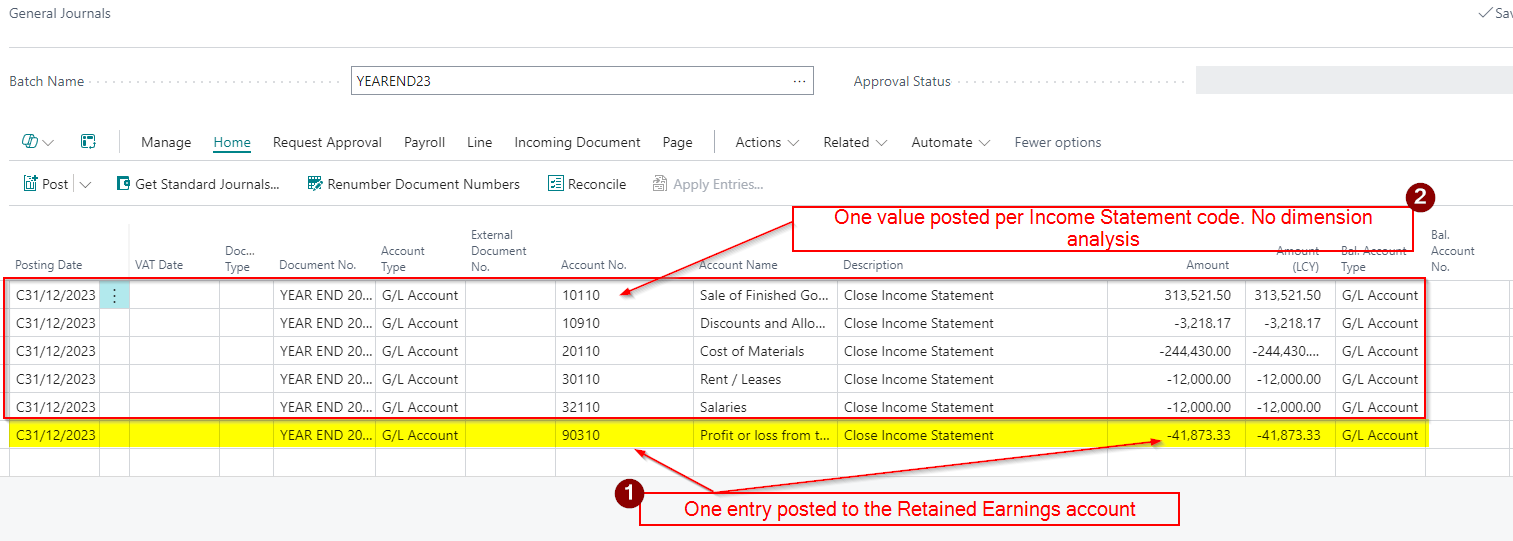
Using the options above the system closes each income statement at GL account level, without any breakdown by dimension. Therefore is I were to have multiple postings to an income statement GL account, and each posting had different dimension analysis, I’d just get one entry in my closing journal for the total balance of the income statement account, rather than a posting per dimension combination.

Additionally, as we have selected “Balance”, the system will make a single entry to the retained earnings account, consolidating all income and expense balances into one summarised posting.

The outcome of using these options in my demo data is shown below.
Option 2 – Post in Detail to the Retained Earnings but no Dimension Analysis

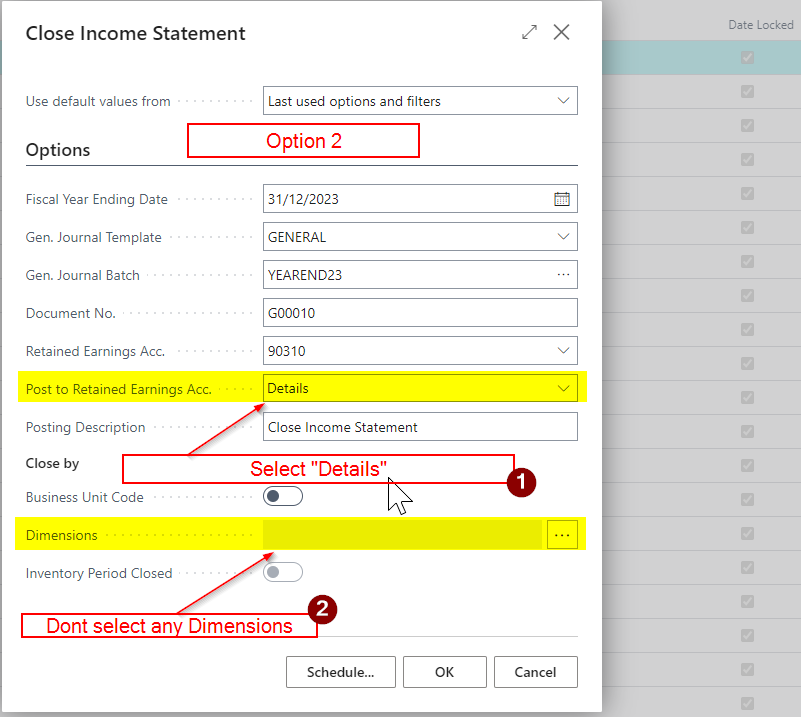
With option 2 we select the following options in the “Close Income Statement” page

  1. Post to Retained Earnings Acc. = Detail
  2. Dimensions = None Selected

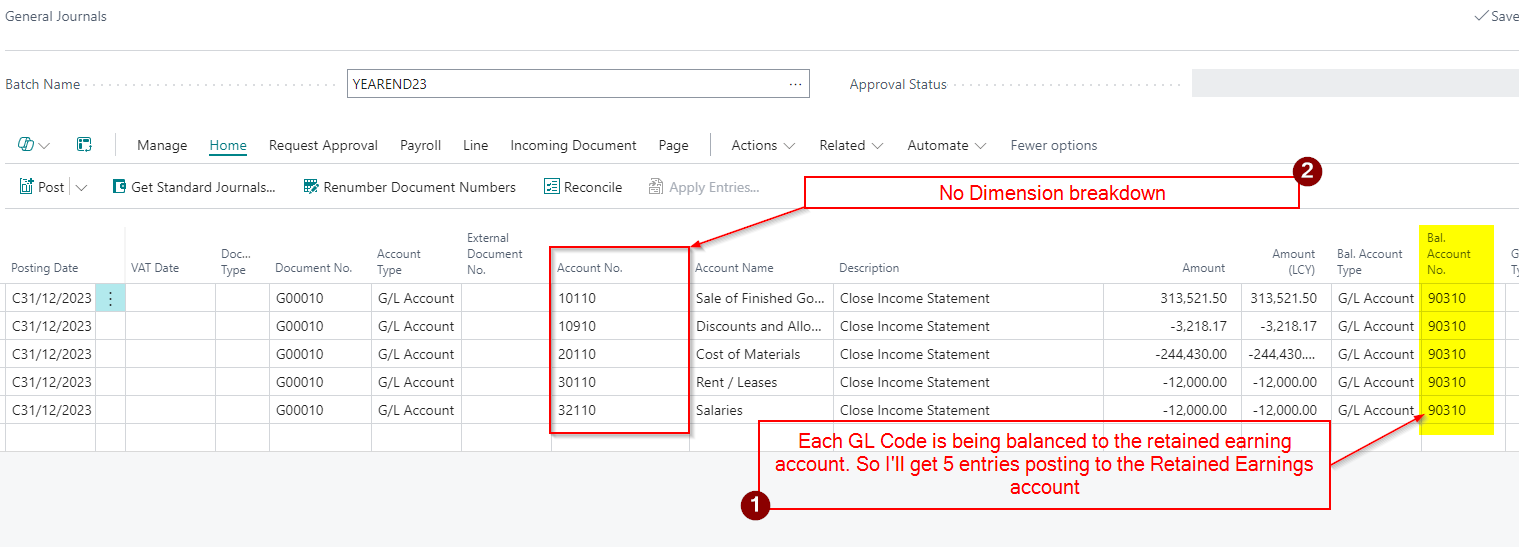
When you run the “Close Income Statement” process in Business Central and select “Detail” rather than “Balance,” the system posts an entry to the Retained Earnings account for each individual income statement GL account its closing. I’ll therefore get multiple entries (“Detail”) to the retained earnings account rather than a “Balance”.

However, as I’ve still not selected “Dimension”, I’d still only get one posting per income statement account, regardless of any dimension postings.

The outcome of using these options in my demo data is shown below.
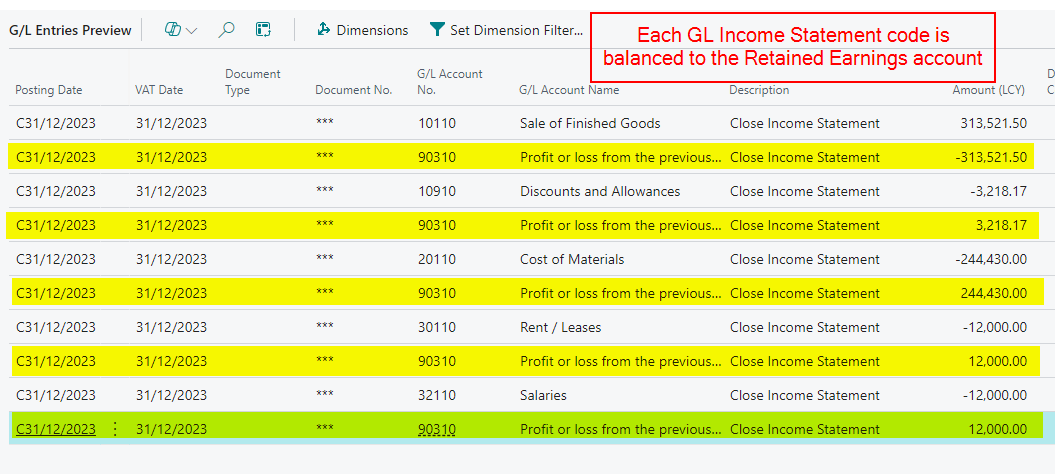
To highlight the additional “detail” posting to the Retained Earnings account, if I preview post this journal I can see the 5 posting to the Retained Earnings account rather than one entry.
Option 3 – Post in Summary to Retained Earnings and close by Dimension

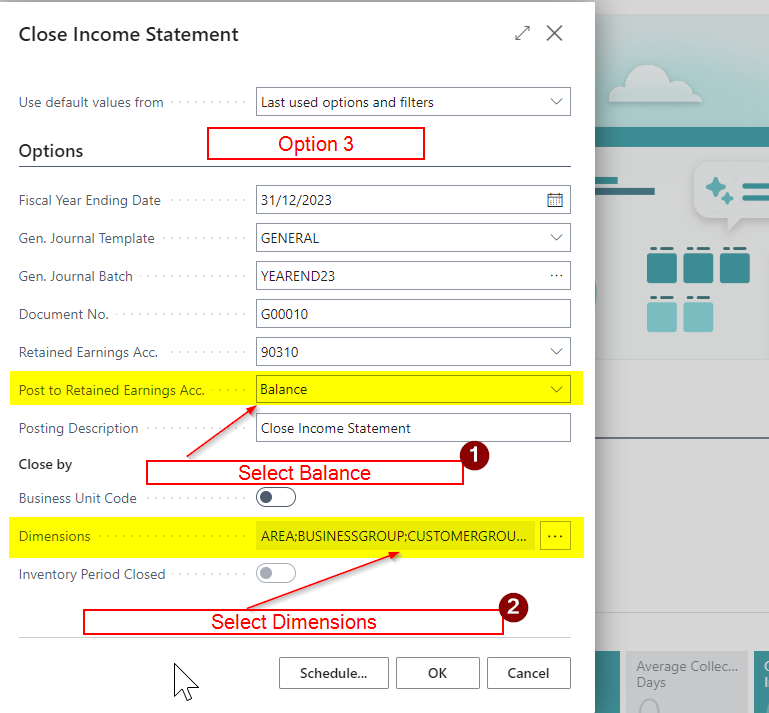
With option 3 we select the following options in the “Close Income Statement” page

  1. Post to Retained Earnings Acc. = Summary
  2. Dimensions = All Selected

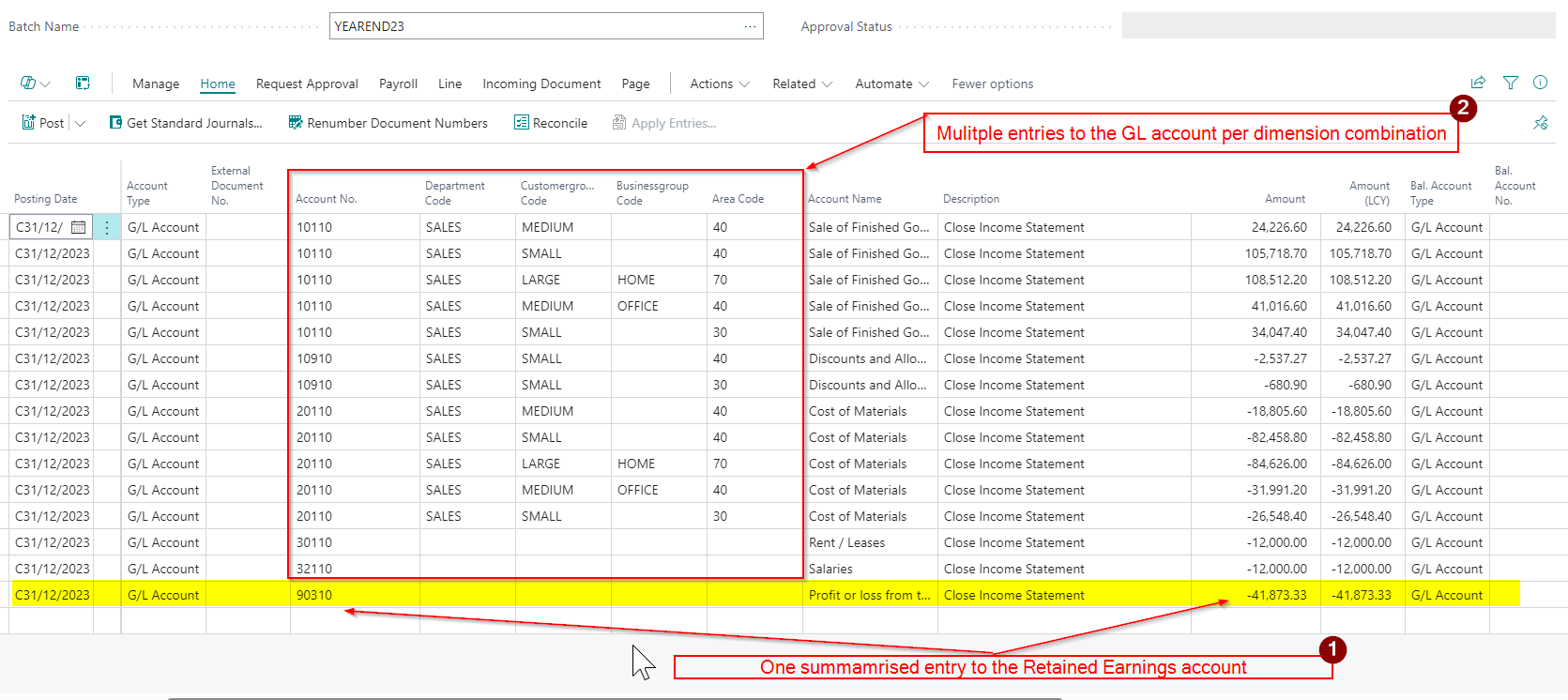
With “Balance” and dimensions enabled as per the above screen shot, we are now back to posting a summarised entry to retained earnings account, however we will now have breakdown of the GL posting by dimension for each income statement, creating separate entries per dimension.

The outcome of using these options in my demo data is shown below.

There are now multiple entries to the GL accounts per dimension combination all balanced to one entry to the Retained Earnings account
Option 4 – Post in Detail to Retained Earnings and close by Dimension

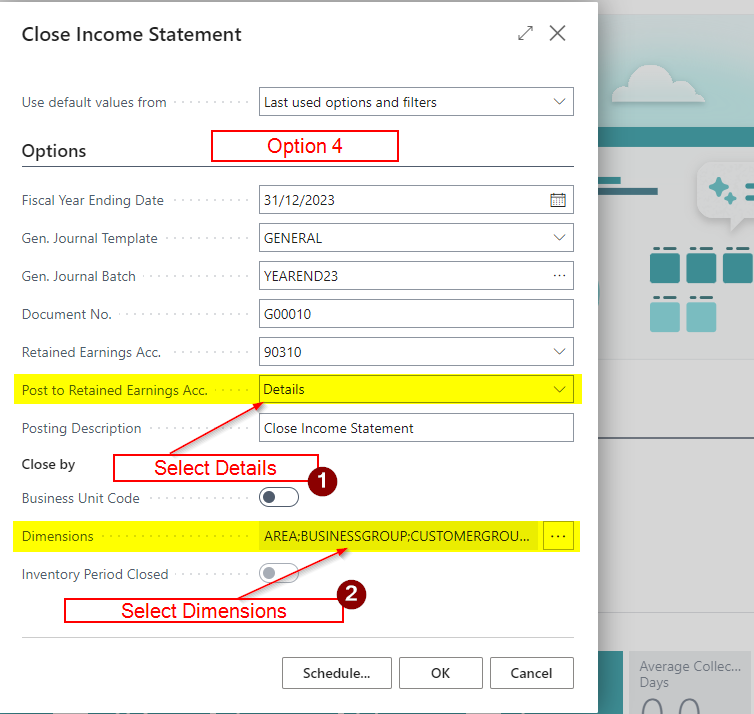
With option 4 we select the following options in the “Close Income Statement” page

  1. Post to Retained Earnings Acc. = Detail
  2. Dimensions = All Selected

The final option we’ll look at when running the “Close Income Statement” process is to select “Detail” and tick “Dimension” as per the screen show above.

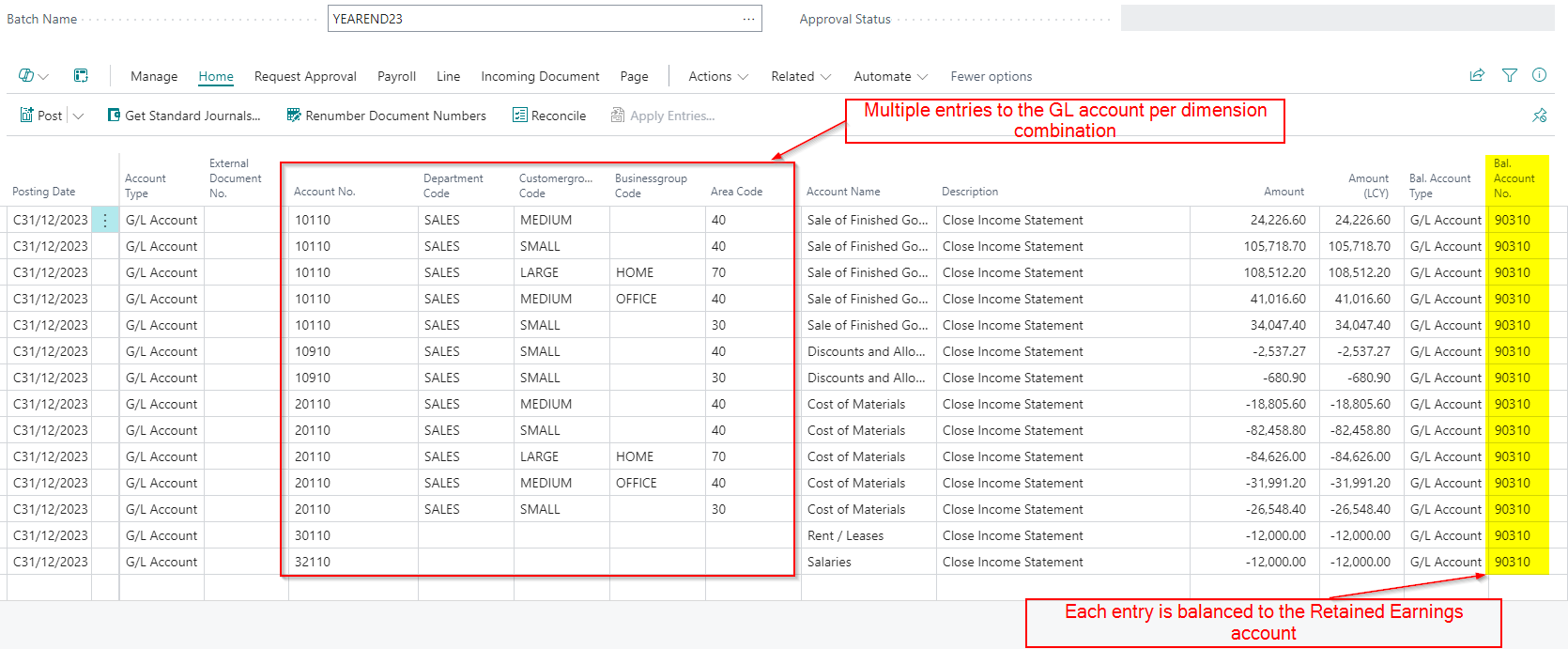
Having these options selected will post a separate entry to the retained earnings account for each income statement GL account (Detail) and further breaks down for each entry by dimension. (as we have ticked the Dimensions). This provides the highest level of detail.

The outcome of using these options in my demo data is shown below.
Conclusion

As we can see the “Close Income Statement” routine in Business Central offers several options to customise how income statement balances are posted to retained earnings.

Whether you choose to post a single summarised entry to the Retained Earnings account, or want more detailed posting, each method allows for different levels of analysis and reporting.

Thanks for reading!
Dynamics GP – 10 tips when running a General Ledger Year End on a large SQL Database

Introduction

A few weeks ago I assisted with a General Ledger year end for a GP user with a very large number of journals and consequently a very large SQL database.

Usually a year end is a fairly straight forward routine, however as this user has such a large database, along with additional SQL bits and pieces for disaster recovery and bespoke reporting, it required a little more thought to ensure things went as smoothly as possible.

In this post I thought I’d share the steps I took to hopefully assist anyone else facing a similar situation in the future.

Here goes…..

1) Do the basics first.

By basics I mean following Microsoft’s general Year End prerequisites which can be found here.

I find the most important steps are ensuring you have a good backup and also ensuring the general ledger codes have the correct posting type as this can be a pain to correct post year end.

2) Ensure you have enough disk space for the SQL Data and SQL Log files.

This usually isn’t a consideration when running the Year End however given the size of the data its something that needs planning when dealing with GL tables in the 100’s of GBs.

Microsoft’s official guidance on disk space is included in the Year End documentation that I’ve linked to above however I’ve copied the section on disk space below:

During the year-end closing routine, all the records that will be moved are put in a temporary table before they are moved to the GL30000 table. You must have free disk space that is equal to the size of the GL20000 table to perform the routine.

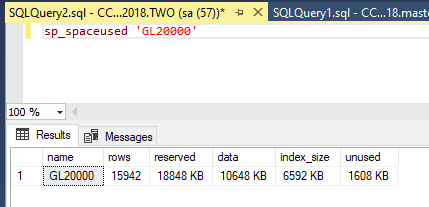
To find the current size of the GL20000 you can use the sp_spaceused system stored procedure i.e.

However I’d also add that when dealing with large data volumes you also need to plan for extraordinary SQL transaction log growth as well.

For example the SQL transaction log grew to 240GB when I did this particular year end. This is because various statements including the INSERT statements into GL30000 are completed in one SQL transaction. Therefore no matter what the SQL recovery model is of your database, the log file is going to grow while the process completes. This is standard behaviour so SQL can roll the whole transaction back should any issue occur.

3) Remove any Database Mirroring or Availability Groups.

In my scenario the user has database mirroring for disaster recovery. I could have left this on however this would result in a lot of transaction log being sent over the wire while the Year End ran potentially doubling the length time it takes. I always see the amount of time something takes, as the size of the window of opportunity for something to go wrong. The quicker I could get the Year End process to go, the less chance I had of something going wrong. On the down side it does mean I had additional configuration to complete post year end, but I was fine with this.

4) Remove any custom indexes

If you have any additional custom indexes on GL20000 and GL30000 its best to remove them. Again its not a problem if you don’t remove them, however it can slow things down and also increase the amount of transaction log that SQL will produce. This is because if you are DELETEing and INSERTing data into tables the indexes also have to be updated. Therefore the less indexes you have the better. This requires additional space and also additional log to record the operations.

**Don’t remove any of the standard indexes though.

5) Stop the SQL Agent.

Maintenance tasks like reindex routines sometimes use the SQL agent to run. As I suspected the Year End will run for a very long time, I stopped the SQL agent to prevent this from happening. Its always best to check that critical operations won’t be affected by this though. If so just disable any SQL jobs that run maintenance on the Dynamics databases.

6) Temporarily revoke permissions for any Reporting Logins.

Ideally I’d like to set the database to single user mode while the Year End ran however as I wanted to monitor the process I didn’t want to restrict this too much. I therefore disable logins that I knew were used for reporting in case anyone sets off a large report in the middle of the year end.

7) Ensure SQL log growth on the database is set sensibly.

As I mentioned above the SQL transaction log is going to grow during this operation regardless of the recovery model. Therefore go to the properties of the SQL database and ensure the growth is set correctly, and its set in MB’s rather than a percent. I set it to grow 10GB increments for this particular year end process.

8) Use SQL monitoring scripts

I like to nosy under the hood when running most things but I especially want a sneak peak on the General Ledger Year End. My tool of choice for this is Adam Machanic’s awesome free monitoring tool sp_whoisative. This is a free script you can use to monitor activity in SQL. Using this I can pretty much see at what point the Year End was up to. i.e. INSERTing the data to GL30000 etc.

**If you didn’t know about this free script, and this is all you take away from this blog I’d be happy :). Its a really cool free tool you can use when troubleshooting all sorts of things in SQL i.e. blocking etc.

I also want to monitor my database and log growth as the process is running. If I monitor this I can predict when the log will run out of space and need to grow. I then check the disk space to ensure the growth will happen smoothly. To do this I use this script

SELECT DB_NAME() AS DbName, 
name AS FileName, 
size/128.0 AS CurrentSizeMB, 
size/128.0 - CAST(FILEPROPERTY(name, 'SpaceUsed') AS INT)/128.0 AS FreeSpaceMB 
FROM sys.database_files; 

9) Be patient 🙂

One of the most important things is to be patient as this routine can last hours on a large data set. Its also important to never cancel the operation by manually closing GP down even if it says “Not Responding”. If it doubt you can run the sp_whoisactive stored procedure and check what’s happening on the server.

10) Once complete

After a huge sigh of relief I performed an additional backup and then started recreating the indexes, setting up the mirroring and restarting the SQL agent. I also shrank the SQL transaction log back down to a reasonable size.

Conclusion

I hope you find the information in this post useful. Although you may not need to follow all the points I outlined, I think the most important are disk space for the SQL transaction log, monitoring and lots of patience 🙂

Thanks for reading!

Thinking of making the move to Business Central? We can help