Introduction
There may be times when you regularly use the same General Ledger code on a Purchase Invoice for a certain Vendor. For example, a rent GL account when posting an overhead invoice for your rent.
In this case it would be great if the system would default the GL account onto the Purchase Invoice after you select the supplier.
In this post we’ll look at how this is possible using “Recurring Purchase Lines” in Business Central.
The Scenario
The scenario we have is every month we receive a rent invoice from our landlord for our business premises.
Every month when keying this into Business Central we have to select the supplier and then manually pickup the relevant GL account.
We want a method to streamline this process by having Business Central automatically populate the Purchase Invoice detail with the GL code as soon as we select the Vendor.
We are going to achieve this by configuring and using “Recurring Purchase Lines”
Setup the Recurring Purchase Line
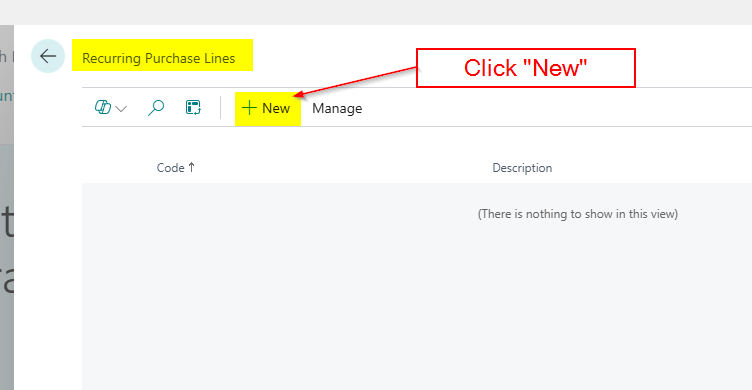
The first step is to search “Recurring Purchase Lines” and open the page
Once in the page I’ll click “New”
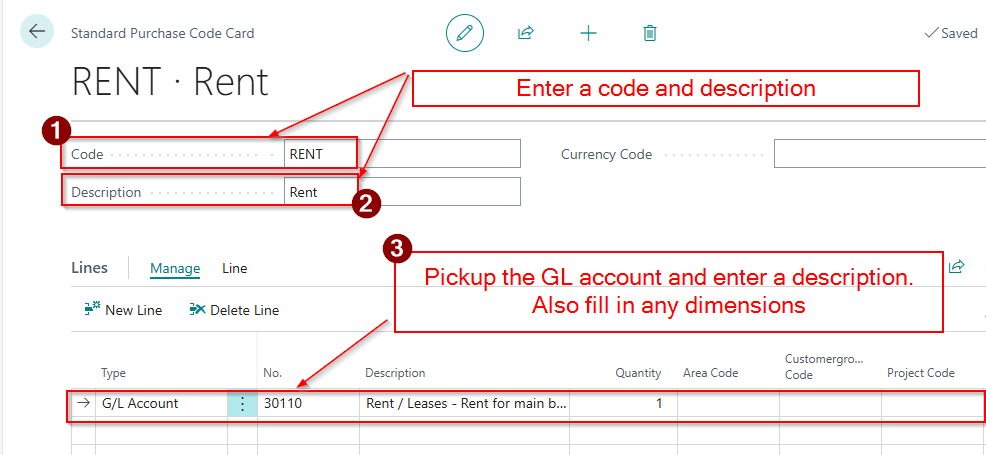
I’ll then enter a code and a description and then select the GL code and any dimensions I also want to default.
Now the Recurring Purchase Line is setup we need to go and add it to our supplier.
Add the Recurring Purchase Line to the Vendor
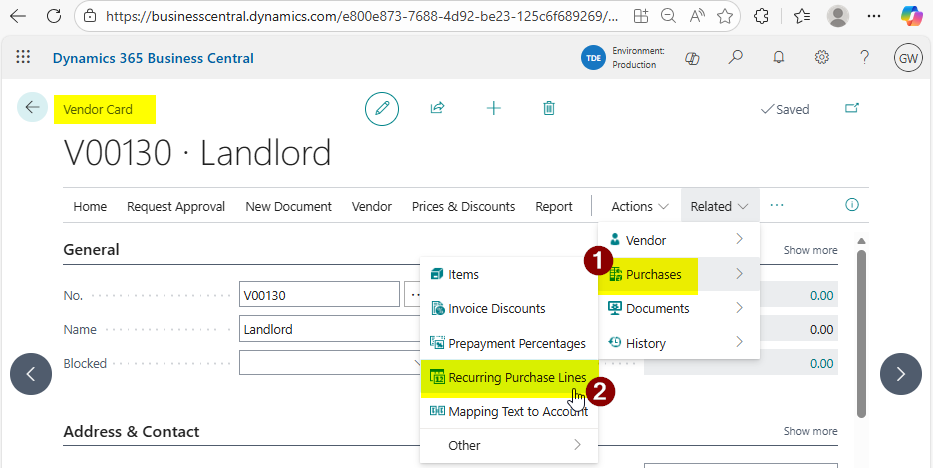
I’ll therefore go to “Vendors” and click “Related > Recurring Purchase Lines”
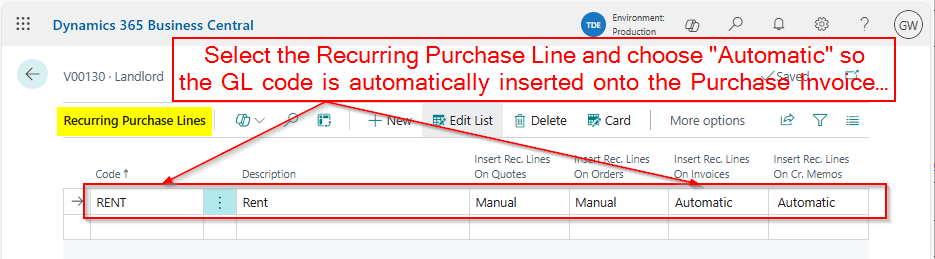
You then pick the Recurring Purchase Line we just created and select “Automatic” so the associated GL code is automatically inserted when we create new Invoices and Credits
Now the setup is complete all that’s left is to test it 😊
Let’s create a Purchase Invoice
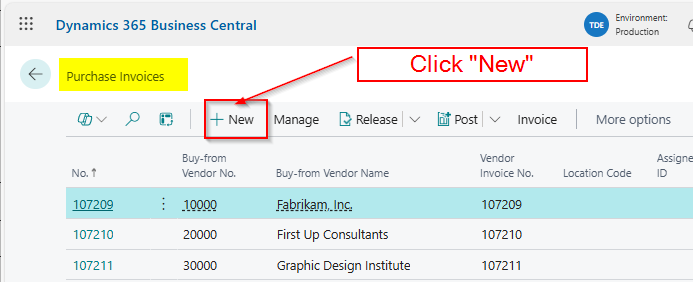
To test I’ll go to the “Purchase Invoice” page and create a new invoice. (I could do this from the Vendor by clicking “New Document > Purchase Invoice” but for this demonstration I’ll go the long way round 😊)
Next I’ll pickup the Vendor, and as you can see the GL account has been automatically pulled through onto the Invoice lines.
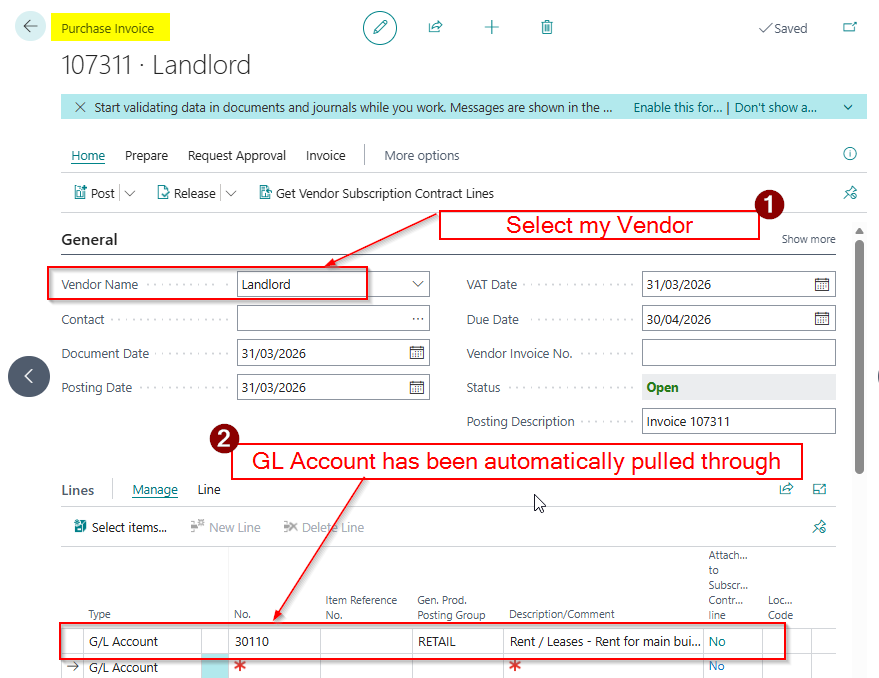
This is a great time saver and ensures the correct GL code is always picked up.
Conclusion
This post has been through how to setup and configure Recurring Purchase Lines. This can help with the speed and accuracy of entering Purchase transactions.
Its also worth noting this functionality can be used for Items as well as GL Accounts. You can also assign the Recurring Purchase Lines to multiple suppliers and add multiple lines to each Recurring Purchase Line.
All in all its just another fantastic feature of Business Central 😊
Thanks for reading!
 thedynamicsexplorer.com