Dynamics 365 Business Central – How to quickly find the VAT entries closed by a VAT Statement using the G/L Register page

Introduction

In this post I’ll walkthrough a method I use to quickly find all VAT entries that have been closed on a previous VAT statement using the G/L Registers page.

You can then export the entries to Excel and recalculate the submitted VAT return by summing each VAT Business and VAT Product posting group combination.

I use this technique if I’m investigating a VAT issue following the “Calculate and Post VAT Statement” routine and I want to see the detailed VAT entries that were closed.

G/L Register

The G/L Register page records an entry for every posting that is made in Business Central, including the posting that’s created when you run the “Calculate and Close VAT Statement” process. As a side note, It also happens to be one of my favourite pages in Business Central 🙂

Therefore if you open the “G/L Register” page and then filter on “Source Code” equal to VATSTMT you get a list of all G/L registers that have been created when closing the VAT statement.
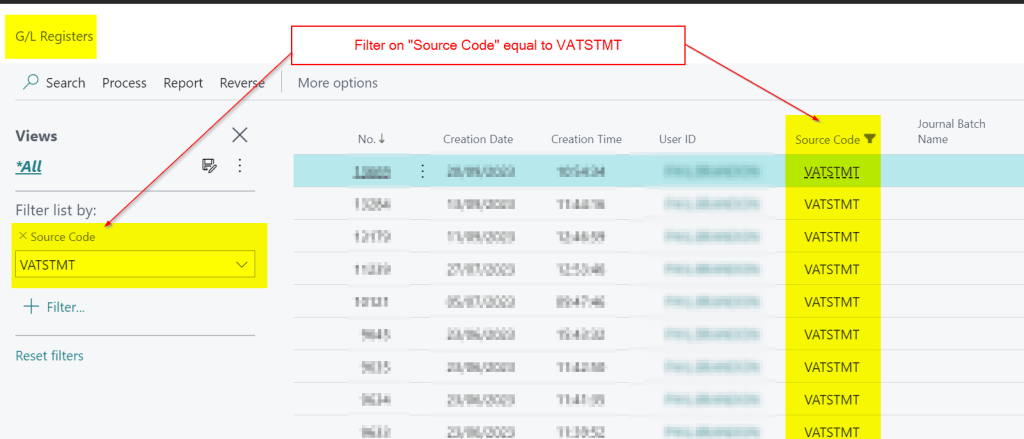
Now you can highlight the G/L Register that relates to the VAT Statement you want to view closed entries for and select “Process > VAT Entries”

This lists the “Settlement” VAT entries that were created when the “Calculate and Close VAT Statement” was ran.
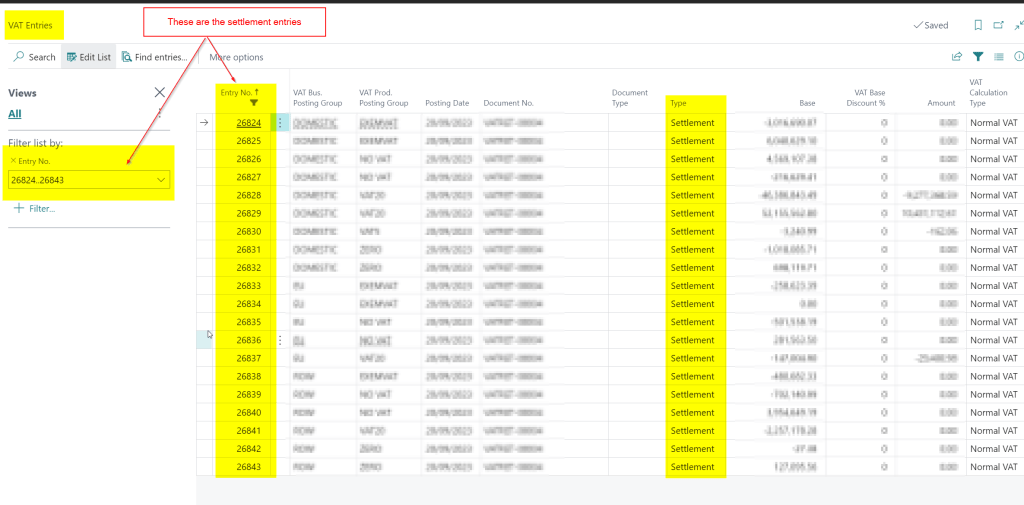
Now take the Entry No’s shown in the filter and create a new filter using the same range but using the “Closed by Entry No” column
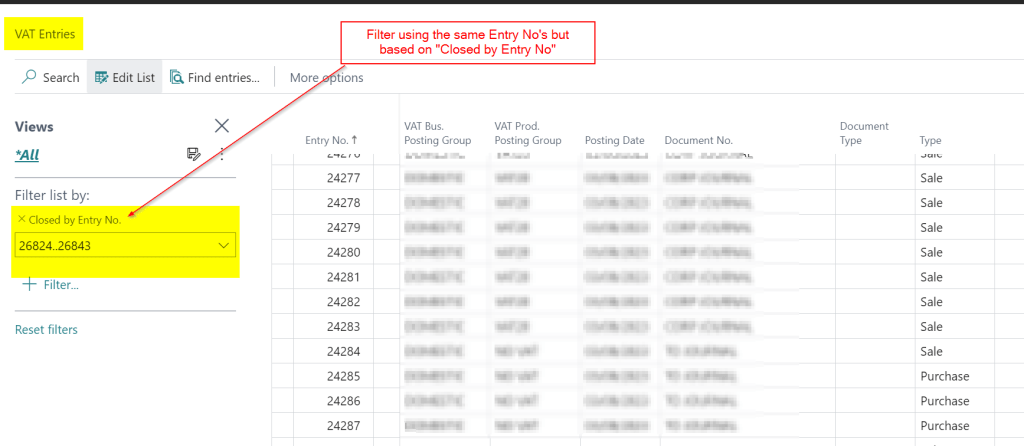
This will list all VAT entries closed by the settlement entries, which is effectively a reprint of the VAT statement 🙂

You can now take this to Excel and continue your investigations.

Conclusion

This is just one technique you can use to get a list of the closed VAT entries however I find it the quickest and it also gives me an excuse to use the G/L Register page 🙂

Thanks for reading!
Dynamics 365 Business Central – How to setup and configure Postponed VAT in the UK

Introduction

When you import goods into the UK, you have to pay VAT if the goods are over a certain amount. You can either pay this immediately, and then reclaim it later on your VAT return, or declare and recover on the same VAT return, using the postponed VAT method.

This post goes through how to setup Business Central if you use the Postponed VAT scheme. I’ll then post a journal to record the Postponed VAT and show it on the newly configured VAT statement.

VAT Product Posting Group

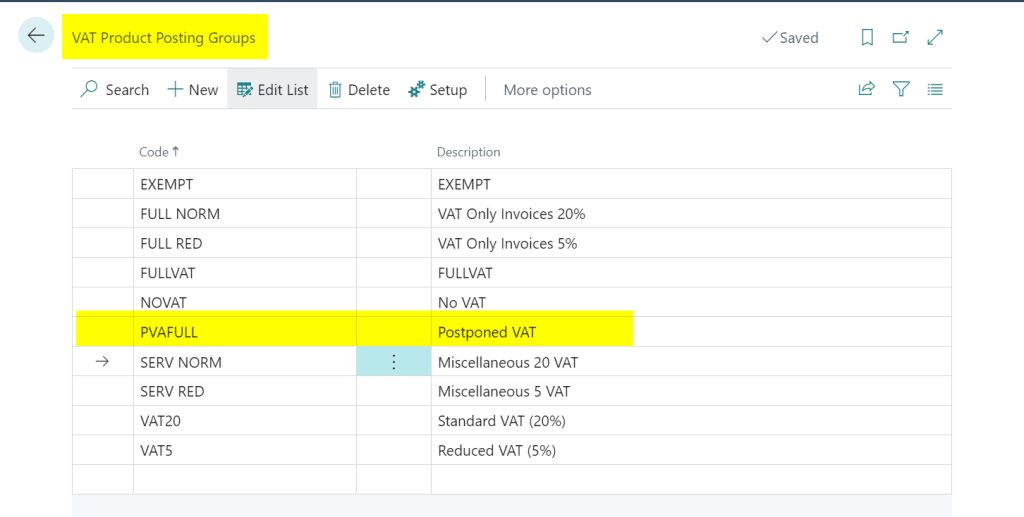
The first thing to do is to configure a new VAT Product Posting Group. I’ve created one below called “PVAFULL” with a description of “Postponed VAT”

VAT Posting Setup

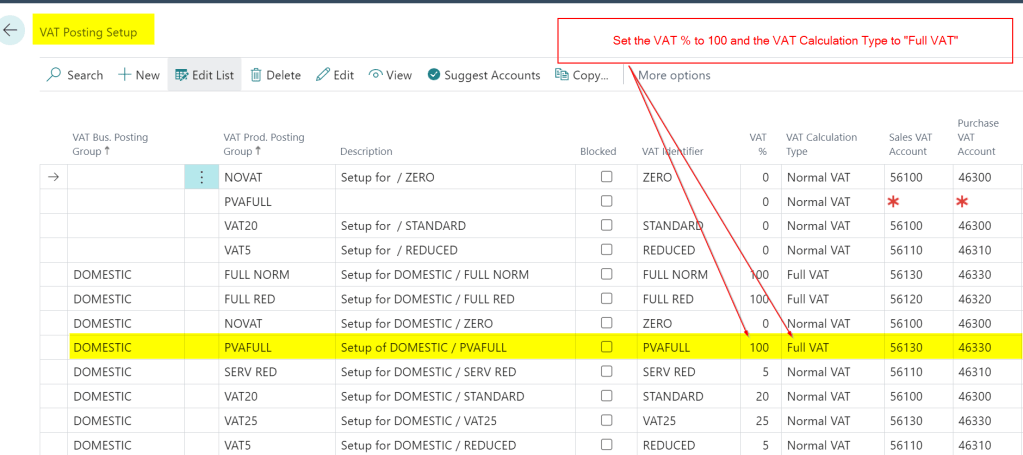
I then add the new VAT Product Posting Group into the “VAT Posting Setup” as per below. The key thing to note is that is set as 100% VAT and the VAT Calculation Type is “FULL VAT”

VAT Statement Configuration

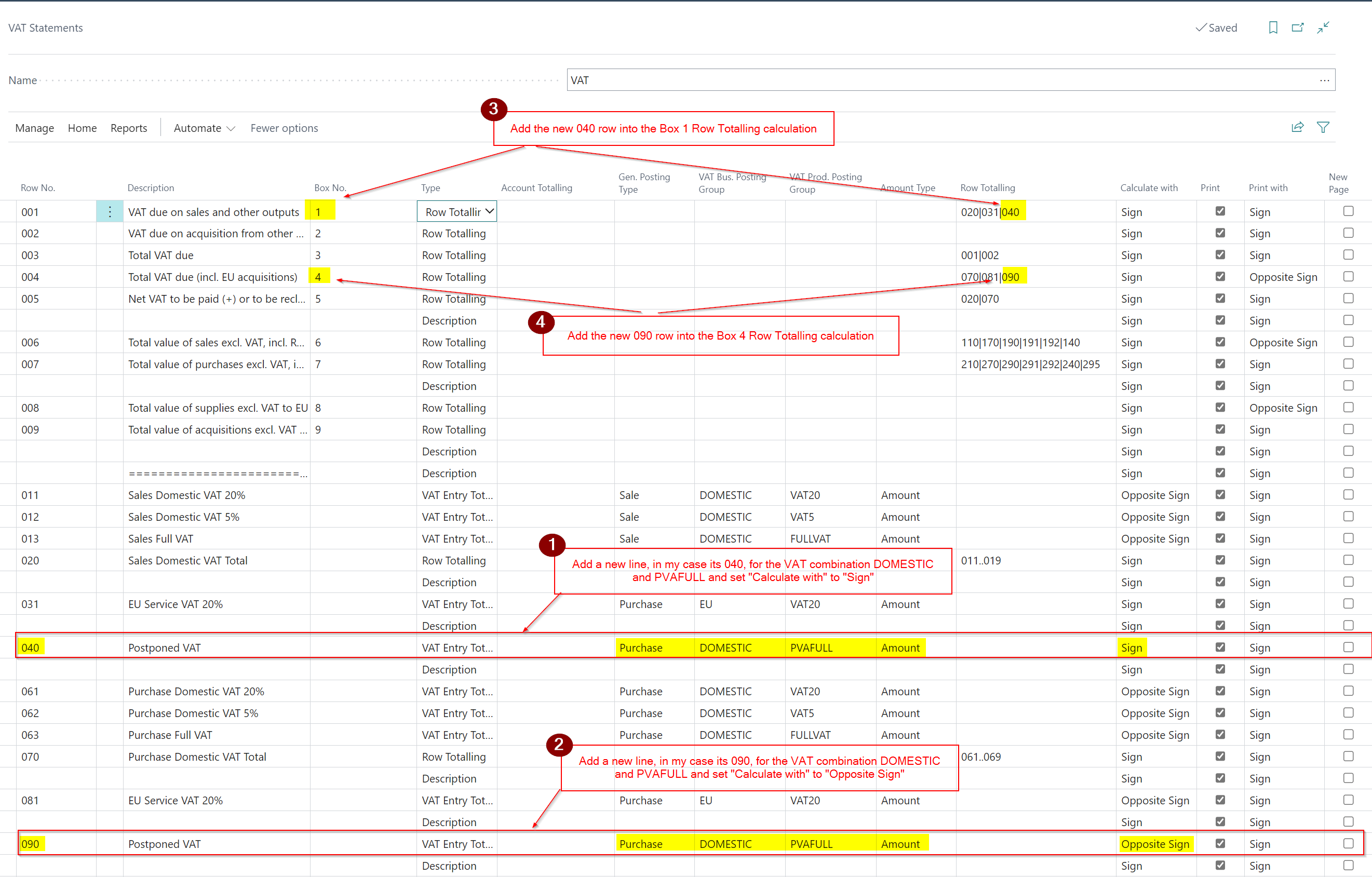
The final thing to do is to add the new combination to the VAT Statement so any transactions posted to the PVAFULL posting group are recorded on the VAT return.

With postponed VAT you both declare this in Box 1 of the VAT return as an amount due, and also in Box 4 as an amount owed.

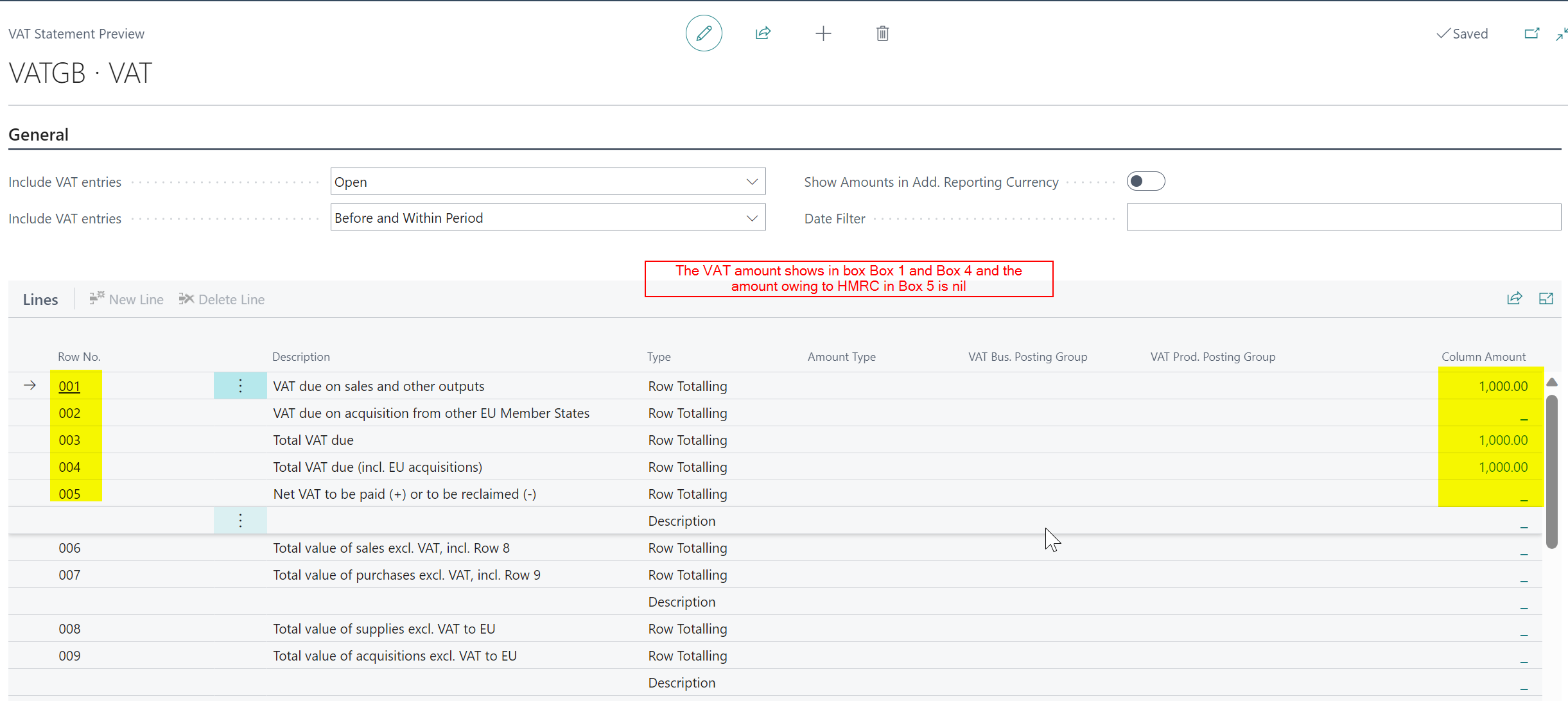
Therefore the VAT Statement is configured as per below

In the first and second step I add the new VAT combination to the detail of the report, and then in the third and fourth steps I included the added lines in the Box 1 and Box 4 calculations.

Test by posting a Postponed VAT Journal

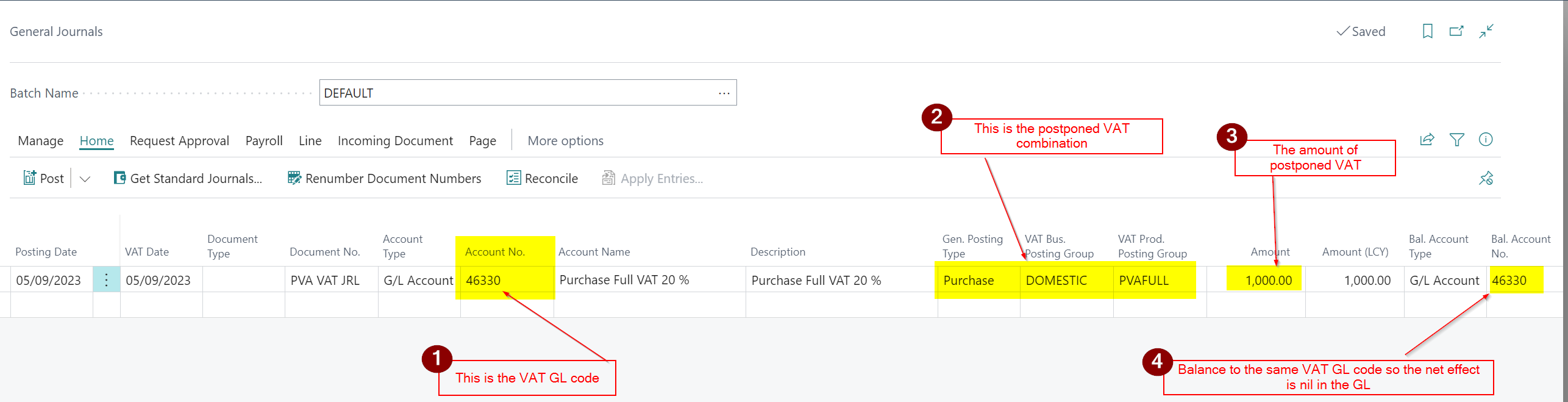
Now to test the configuration I’ll post a VAT only journal for Postponed VAT as per below

This gives the following GL entries which give a net effect of nil in the GL.

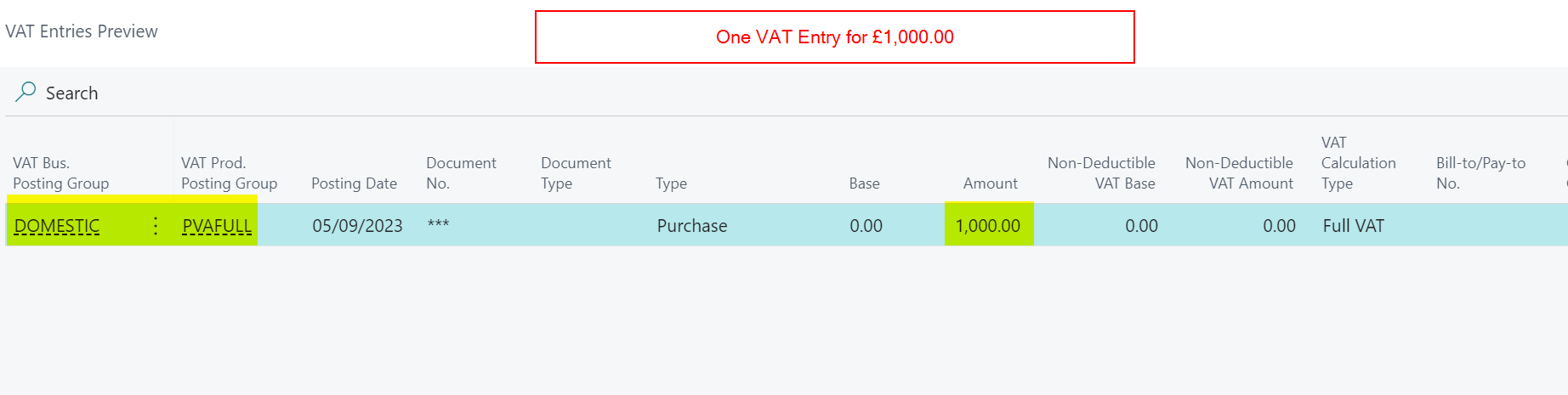
We also get the following VAT entry which is picked up the VAT statement.

Now when I test the VAT Statement I can see the £1000.00 amount appearing in both Box 1 and Box 4 and the amount owing to HMRC in Box 5 is £0.00

Conclusion

I hope this post helps anyone who needs to configure Business Central to work with Postponed VAT. As always please ensure you test thoroughly before implementing and then submitting the VAT return.

Thanks for reading!

Need help with Business Central? Contact me

Dynamics GP – Error “No Obligations found for the year” when retrieving VAT Obligations – Issue with the version of the VAT100ElectronicSubmission DLL file

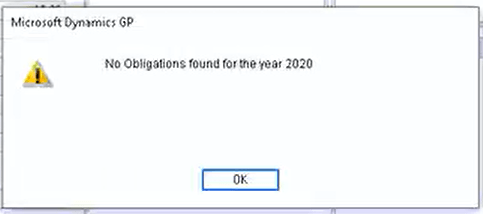
We had a client report the error “No Obligations found for the Year 2020” when trying to retrieve the obligations when doing the VAT return. They were running Dynamics GP 2018 version 18.00.0704.

The exact error is below

We checked all the usual things like company VAT number, and also tried when logged in as “sa” even though the relevant service pack has been applied, however the error persisted. (more details on troubleshooting can be found in this Microsoft link)

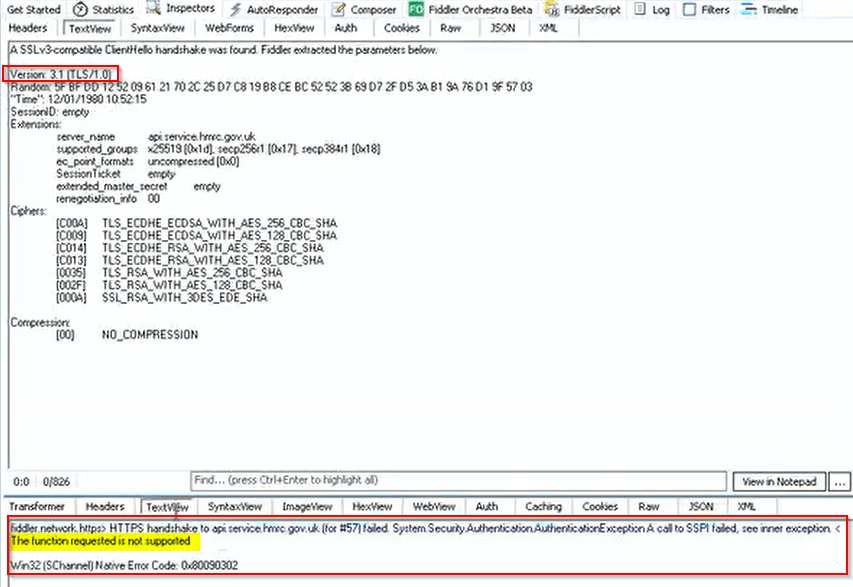
I then had a colleague run a fiddler trace and he noticed that on the tunnel to the HRMC API there were calls using TLS 1.0 and on further investigation the message “The function requested is not supported”

My colleague suspected a change on the HRMC side which was preventing TLS 1.0 from working.

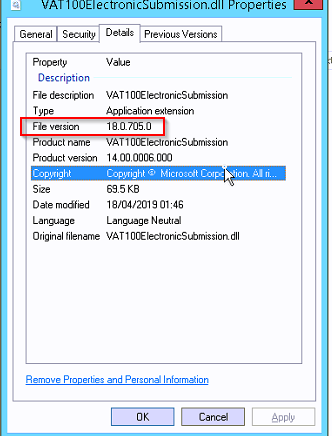
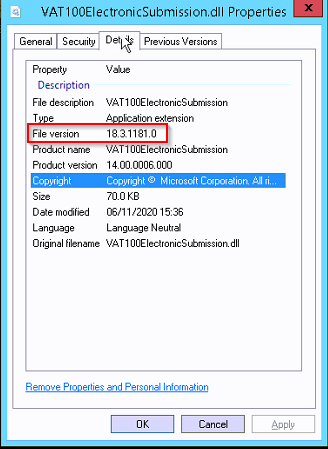
We suspected the file VAT100ElectronicSubmission.DLL located in the GP client folder was responsible for this functionality so I checked the version currently installed which was 18.0.705.0

I then copied the VAT100ElectronicSubmission.dll file from my Dynamics GP 18.3 local install which is version 18.3.1181.0 to the users PC. (i.e. the latest version)

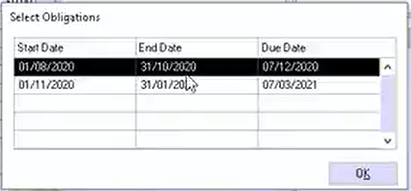
Now when we tried again this all worked! The obligations were retrieved successfully and we are now presented with the “Select Obligations” window

We also tried another PC which had previously had the same issue and this also worked!

Therefore we can only surmise that something has changed at HMRC’s side and there are now issues with certain versions of the VAT100ElectronicSubmission.dll files on older versions of GP.

We now plan on rolling out Dynamics GP 18.3 to all PCs at this site and are waiting to see if this affects other users on the older version.

Conclusion

Again we can only guess, however it seems something may have changed at the HMRC side which is preventing making tax digital submissions when you have an older version of the VAT100ElectronicSubmission.dll file. We found the solution is to replace this file with the most recent copy available with Dynamics GP 18.3.

Fingers crossed this helps others who may encounter this issue.

Thanks for reading!

Thinking of making the move to Business Central? We can help