Dynamics 365 Business Central – A couple of methods I use when posting opening balances for Sales and Purchase Ledger

Introduction

In previous posts I’ve looked at how I post opening balances for Fixed Assets, Expected Costs and Bank Accounts. Links to these articles can be found below:

Today I wanted to discuss how I post opening balances for Sales and Purchase Ledger.

The post will focus on opening balances for Sales Ledger, however I follow the exact same process for Sales and Purchase Ledger.

I used to stick with one tried and trusted method however I recently encountered an issue which has made me reassess and try something new.

I’ll detail both methods below including the issue I recently encountered with the first method.

Preparation

In order to prepare for the opening balances, there’s a couple of very important things to check and do.

Firstly, unless there are exceptional circumstances, I will only bring in outstanding Sales Ledger transactions, therefore I always recommend applying all open invoices, credits, payments in the source system. I then ask the client to ensure the debtors report balances to the General Ledger Accounts Receivable code.

Once everything is reconciled in the source system, I provide a data pack in the form of a Excel spreadsheet for the client to complete with their Sales Ledger opening balance transactions that can be easily imported into a General Journal via a configuration package.

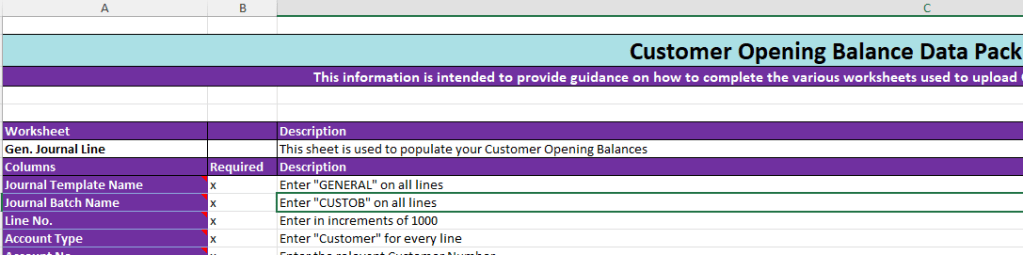
I also include a “Readme” sheet as part of the Excel spreadsheet. This has more information on each column included in the data pack, to make this easier for the client to complete. A snippet of the readme is shown below however you can download the Excel Sheet from here along with other Free Stuff 🙂
Its also worth noting the General Ledger opening balances for the Accounts Receivable and Accounts Payable is posted separately via the GL Opening Balance Trial Balance.

Method 1 – Balance every entry to the Accounts Receivable code

Method one involves importing the data pack into a General Journal and then balancing each Sales Ledger opening balance entry (i.e. open Invoice, Credit, Payment etc) to the Accounts Receivable control account. This produces GL entries that will both Debit and Credit the same Accounts Receivable control account. (I do this as the Accounts Receivable opening balance is posted as part of the General Ledger opening balances).

After everything is posted I’ll then check the “Aged Accounts Receivable” report balances to the General Ledger Accounts Receivable code.

For example in the demo company below the Accounts Receivable GL account is 1030 and has a posted opening balance of £12,500.00
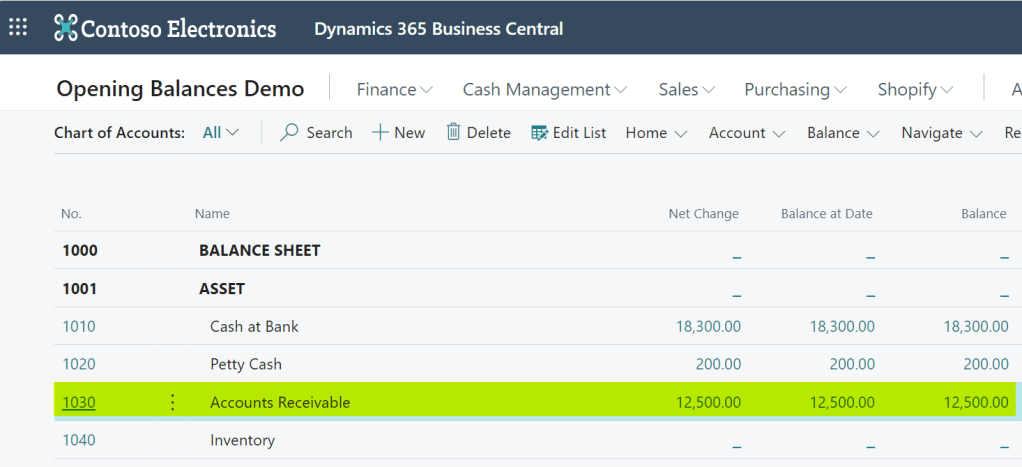
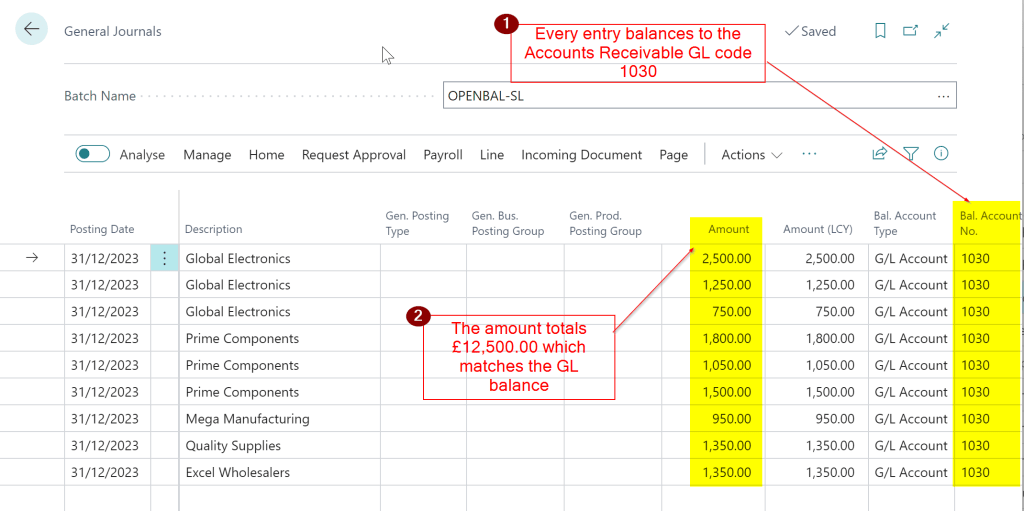
Therefore I import the Sales Ledger opening balances from the data pack into a General Journal and then ensure each entry balances to GL code 1030 and the total balances to £12,500.00.
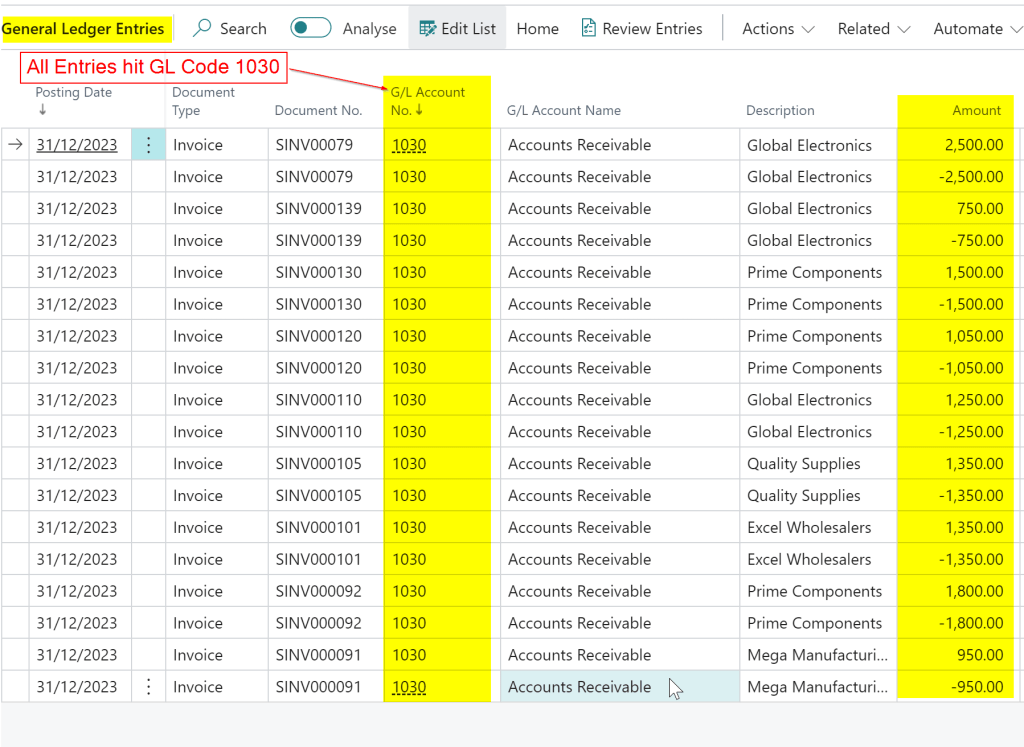
When posted every entry then Debits and Credits the GL Code 1030 making no effect to the GL balance.
As a final check, after posting the opening balance I run the “Aged Accounts Receivable” report and ensure it balances to £12,500.00 and therefore matches the General Ledger balance.
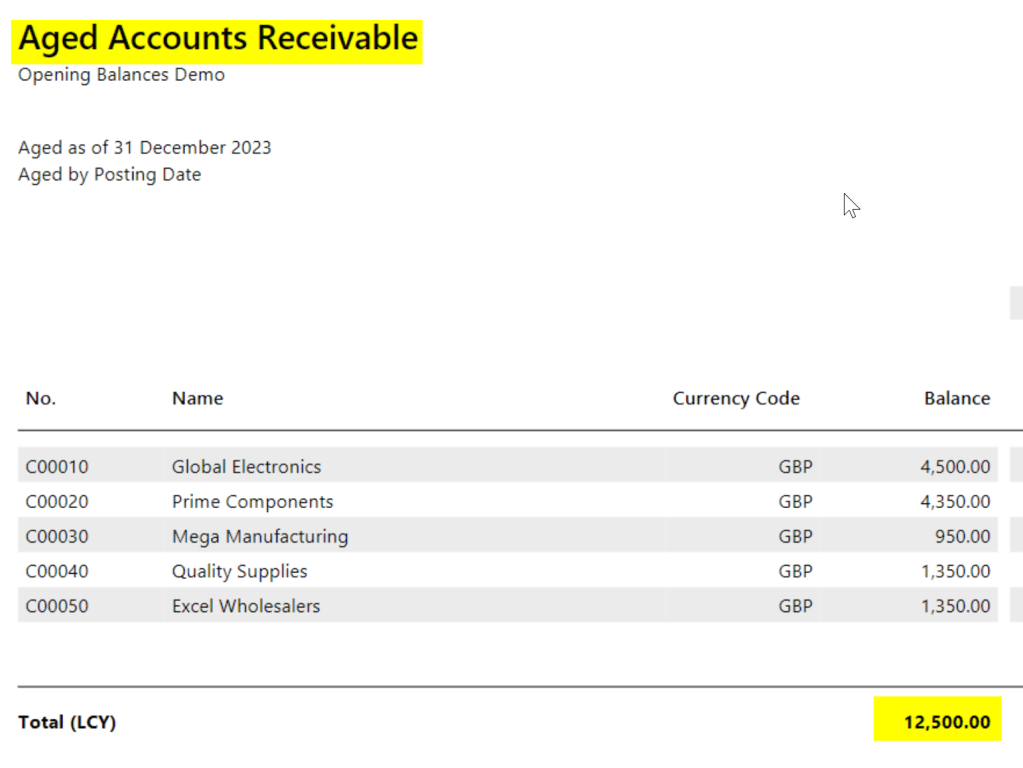
At the end of the process I have a balance on the General Ledger for GL code 1030 of £12,500.00 and a balance on my Sales Ledger of £12,500.00.

Therefore everything balances 🙂

** There is a slight flaw with this which I’ll detail after Method 2 **

Method 2 – Balance every entry to a Suspense Code

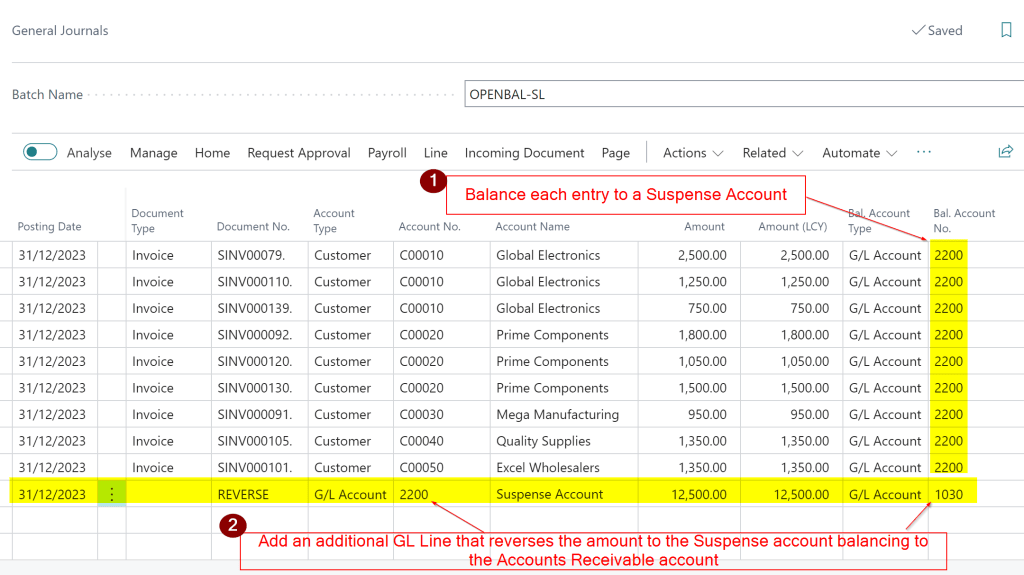
The next method follows the same process except you balance each entry to a Suspense Account.

You then add an additional line that reverses the balance in the Suspense Account to the Accounts Receivable GL Code
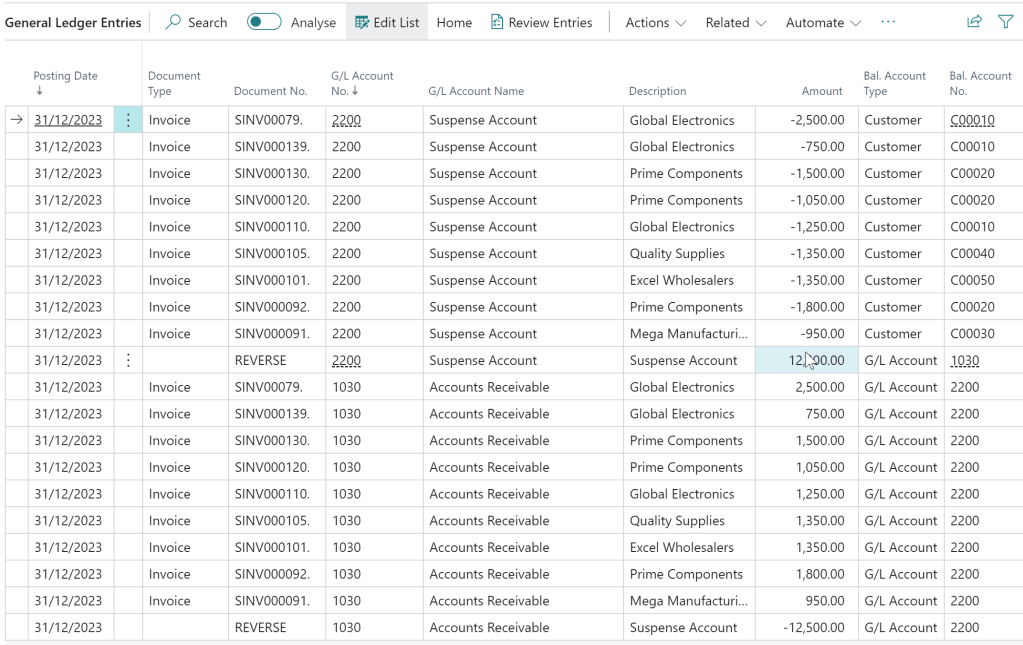
The GL Entries for both the Accounts Receivable and Suspense net off to £0.00.
The final check would be to ensure the “Aged Accounts Receivable” report matches the Accounts Receivable GL balance just like Method 1.

Issue with Method 1

The issue with method one arises if someone reverses one of the Sales Ledger opening balance entries.

If this happens the GL entries debit and credit the Accounts Receivable GL code, as these were the original entries, which causes an imbalance between the GL and the “Aged Accounts Receivable” report (as the transaction drops off this report).

I’ve historically found this a tricky issue to spot and resolve without significant manual reconciliation.

If you were to reverse an opening balance entry posted using Method 2 this wouldn’t the case. The Suspense Account would be affected, as well as the Accounts Receivable account. Therefore the Aged Accounts Receivable would still balance, and you could also easily spot an issue as the suspense account would have a balance.

Conclusion

Both methods offer good solutions for importing and posting opening balances for both Sales and Purchase ledger opening balances.

Although the issue with Method 1 doesn’t happen often its something to be aware of as it can cause issues following a go live.

Thanks for reading!

Dynamics 365 Business Central – Write off overpayments and underpayments using Payment Tolerance

Introduction

There may be occasions when customers overpay or underpay a particular invoice, and you’d like to write off the amount rather than leave it on their account. In this blog, I’ll walk through how you can automatically write off amounts when entering Cash Receipts using a Payment Tolerance. First, I’ll explain an underpayment write-off, followed by an overpayment write-off.

Setup

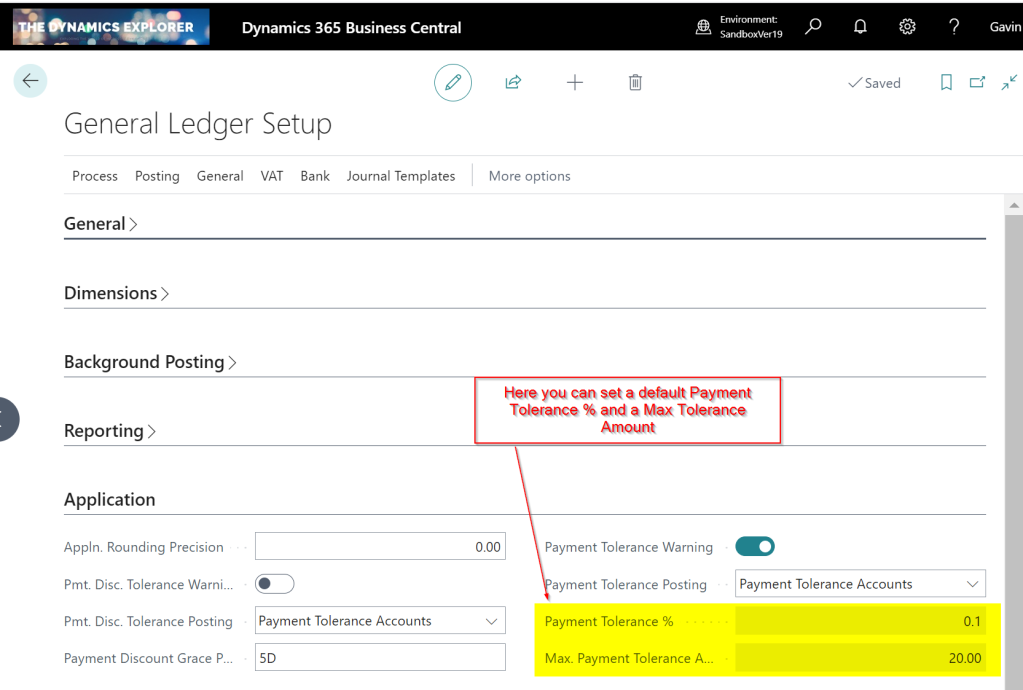
The setup for Payment Tolerance is located in the General Ledger Setup page.

The “Payment tolerance % amount” is the default amount that can be written off an invoice. Therefore, for example, if you had an invoice for £100.00, the default you could write off would be £0.10. (as we’ll see below this is a suggestion that can be over written when applying)

The Max. Payment Tolerance Amount is the maximum you’ll allow to be written off an invoice.

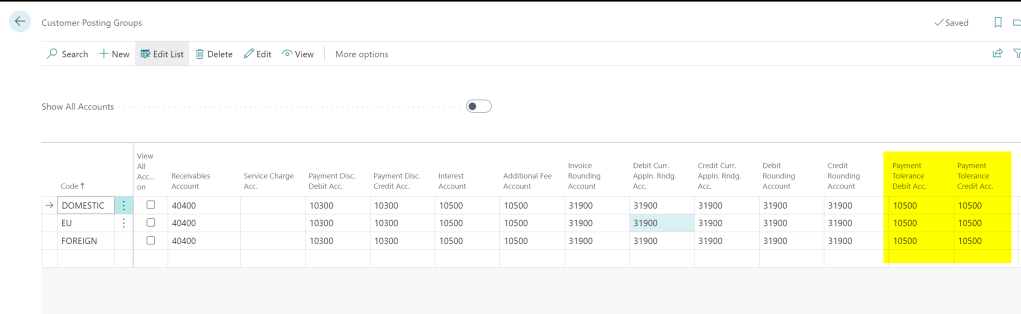
Finally, you also need to setup the Payment Tolerance General Ledger codes in the Customer Posting Group.

Under Payment Scenario

In this first scenario, we have a Sales Invoice for £100.00, but we have only received £98.00, and we wish to write off the £2.00.

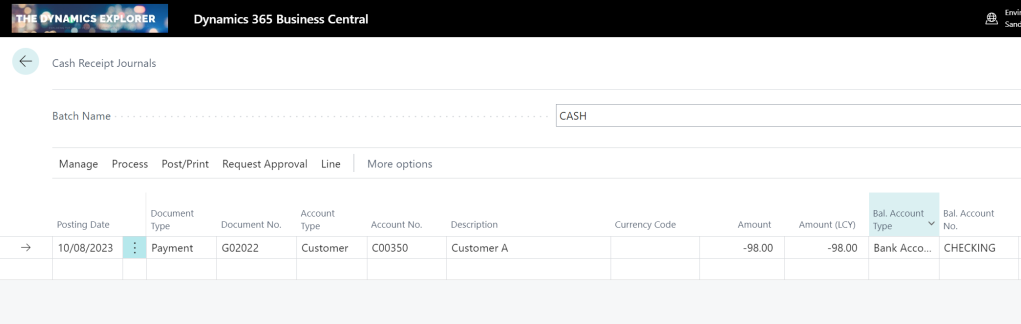
The cash receipt is created for £98.00 as per below:

I then click “Process > Apply Entries” and find and apply the cash receipt to the invoice.

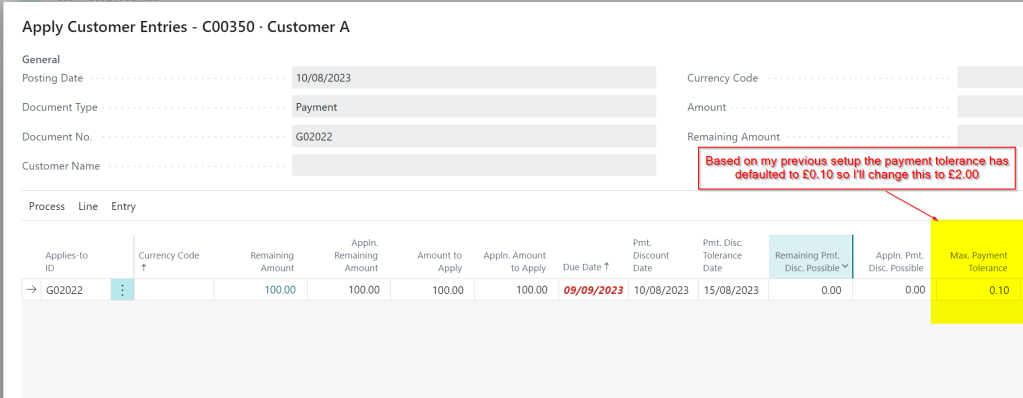
Once in the apply screen I can see the £100.00 and the Max Payment Tolerance has defaulted to £0.10 as per my setup. (this is 10% of the Sales Invoice Total)

Next I change this to 2.00 and then click “Process > Set Applies-to ID”

Now, when I click OK, I’m presented with the following message:

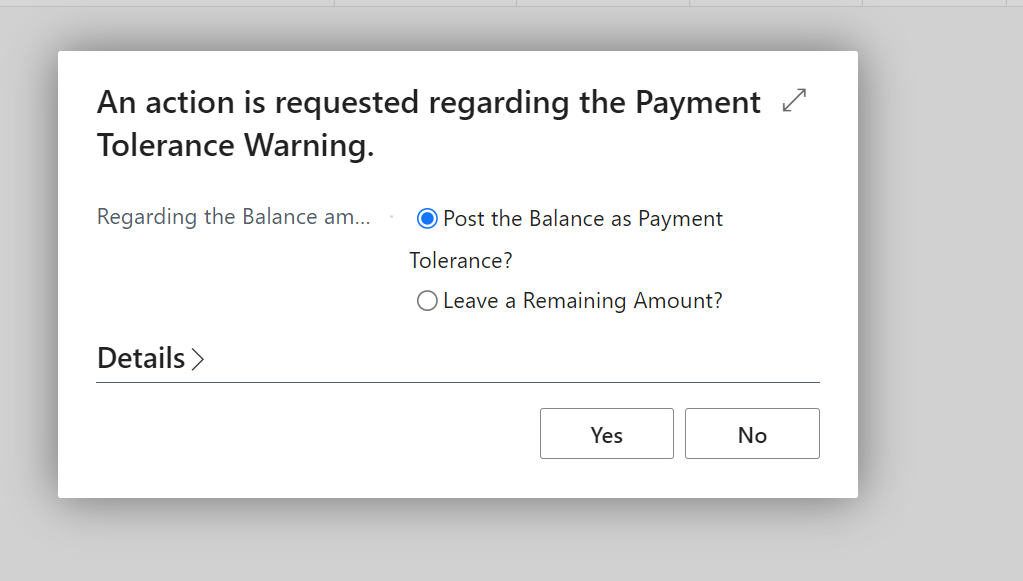
The default is “Leave a Remaining Amount?” however I change this to “Post the Balance as a Payment Tolerance?” and click “Yes”.

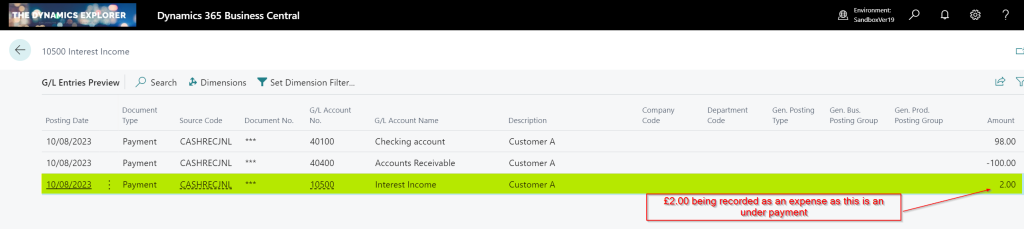
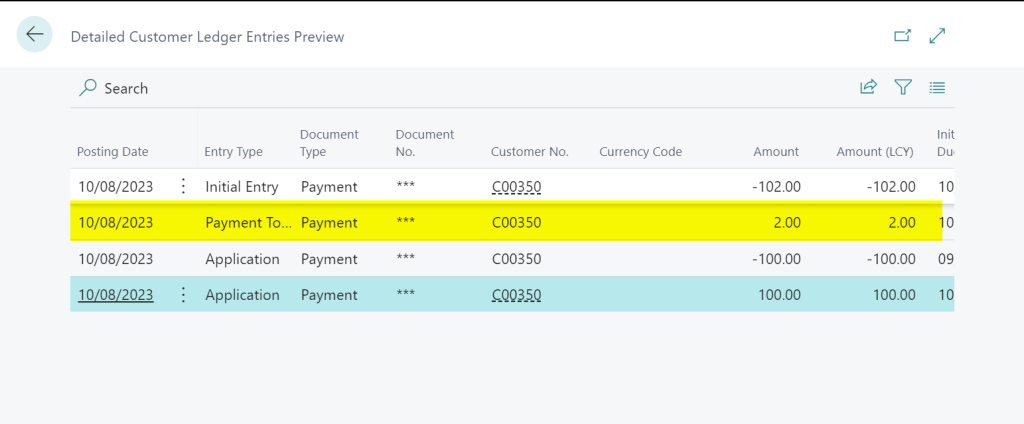
Now, when I preview the postings, I can see amounts being recorded in the Payment Tolerance GL accounts to account for the Payment Tolerance in the General Ledger. Additionally, there are Detailed Customer Ledger Entries to rectify the remaining amount on the Sales Invoice.

The General Ledger entries have an extra entry for the £2.00 underpayment, which is recorded as an expense. (i.e. a Debit amount)

There is also an extra detailed ledger entry to correct the remaining amount on the Sales Invoice

Over Payment Scenario

In the second scenario, we have a Sales Invoice for £100.00, and we have received £102.00. Instead of returning the £2.00 or leaving it on account, we opt to write off the £2.00 using payment tolerance.

Again we create a Cash Receipt for £102.00 as per below:

We then find the Sales Invoice and change the Payment Tolerance to £2.00 and select “Set Applies-to ID”

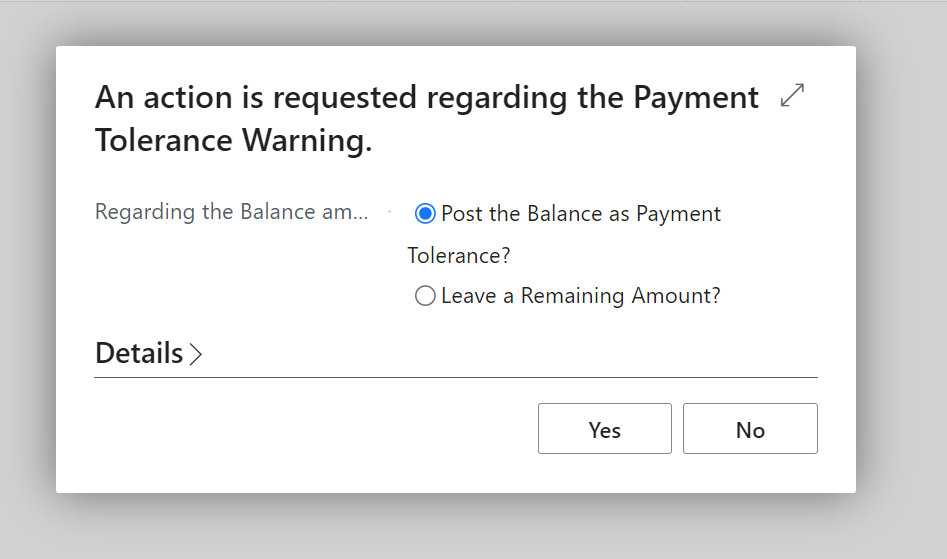
Again, we are prompted with the payment tolerance warning so select “Post the Balance as a Payment Tolerance?” and click “Yes”.

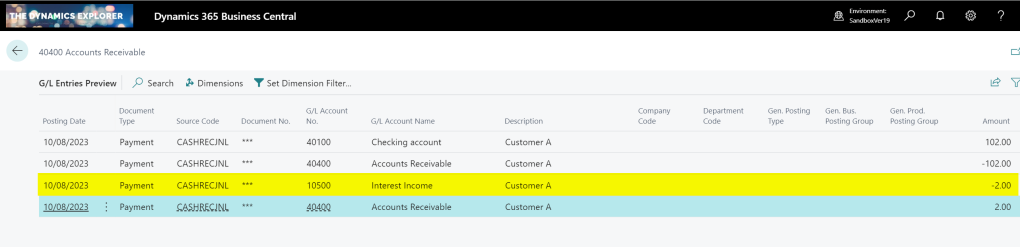
This posts additional General Ledger Entries for the £2.00 overpayment, but this time crediting the tolerance account. (as this is additional Income)

We also get additional Detail Customer Entries to correct the amount remaining on the Payment

Taking Payment Tolerance on Posted Documents

In the previous examples we walked through the process of applying the Payment Tolerance while posting the Cash Receipt. Now, let’s consider a scenario where the Cash Receipt has already been posted, and we aim to apply it to an invoice while also considering a payment tolerance.

Below is a posted sales invoice and a posted cash receipt. The sales invoice is for £100.00 and the cash receipt is £98.00. We will now apply them together and take the payment tolerance rather than leave £2.00 outstanding on the invoice.

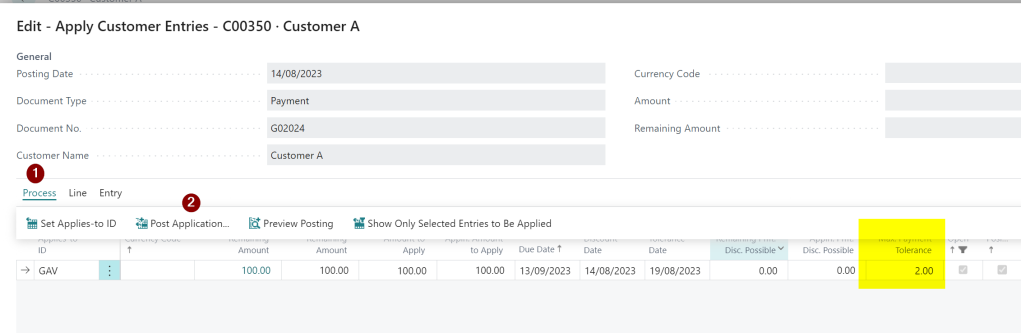
First I go to “Customer Ledger Entries” and highlight the Cash Receipt and select “Process > Apply Entries”

Next I change the “Max Payment Tolerance” amount to £2.00 and click “Process > Set Applies-to ID”

I then click “Process > Post Application” and click OK

I’m then presented with the option of how to deal with the Payment Tolerance.

I select “Post the Balance as Payment Tolerance” and click “Yes” and the entries are posted and both documents will show an amount remaining of £0.00.

Conclusion

As you can see, the payment tolerance feature can be incredibly useful for writing off amounts when applying cash receipts.

If you encounter numerous instances of underpayments and overpayments, leveraging this functionality eliminates the need for manually entering adjustments to clear these minor sums.

Thanks for reading!

Need help with Business Central? Contact us

Dynamics GP Vs Dynamics 365 Business Central – Multi currency revaluation / Adjust Exchange Rates

Introduction

This is another blog in a series I’ve been writing comparing functionality in Dynamics GP to Dynamics 365 Business Central.

In this post I’m looking at multi currency revaluation in Dynamics GP compared with adjust exchange rates in Dynamics 365 Business Central.

Both routines perform the same task of revaluing foreign currency entries, and both are great and easy to use solutions, however I’ve found some key differences which I’ll highlight below.

** Please note this article doesn’t go into how rates are selected and what filters can be used. It focuses on the options available to revalue.

Dynamics GP

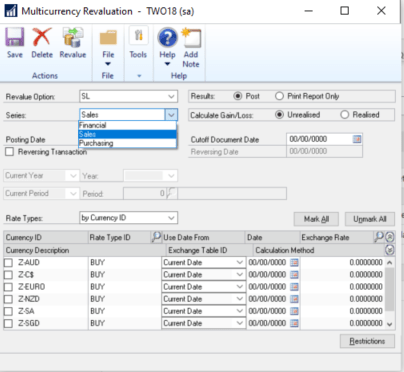
In Dynamics GP you run the revaluation using the “Multi currency Revaluation” window below:

The first thing to note is the revaluation routine is ran separately for the Financial (GL), Sales and Purchasing modules and for all three modules you can select to run a “Realised” or “Unrealised” revaluation.

In my experience a “Realised” revaluation is only ever ran on the financial series against G/L codes for foreign currency bank accounts. However the option exists to run a realised revaluation against the sales and purchase series as well.

** I suspect this would be useful if a sales or purchase transaction had either been outstanding on the ledger for a while, or was expected to be outstanding on the ledger for a while, and in that time a significant change in the exchange rate had, or would occur.

When you do run a “Realised” revaluation on the sales or purchasing series the functional (LCY) currency amounts are updated on the original transaction, and G/L entries are posted to the relevant realised exchange gains and losses accounts.

The “Unrealised” revaluation can also be ran against the Financial, Sales and Purchasing series however in my experience this is only generally ran against the Sales and Purchasing series.

Interestingly the “unrealised” revaluation can be ran with or without the “reversing” option being ticked.

With the option ticked entries are posted to the unrealised gains and losses accounts as expected however a reversing journal is also posted on the date specified backing out those postings. Also, when this is selected, the functional amounts (LCY amounts) on the original sales or purchasing transactions aren’t updated.

When the option for a reversing entry isn’t ticked the unrealised gains and losses are updated along with the functional amounts on the original transactions. When the transaction is applied the unrealised gains and losses are reversed and the realised gains and losses are updated. (in my experience this is the option that is most commonly used)

Finally you can also “print report only” prior to running the actual revaluation. This gives you a sneak preview of what would happen if you were to run the revaluation. I find this very useful and always recommend using this prior to posting the revaluation.

Dynamics 365 Business Central

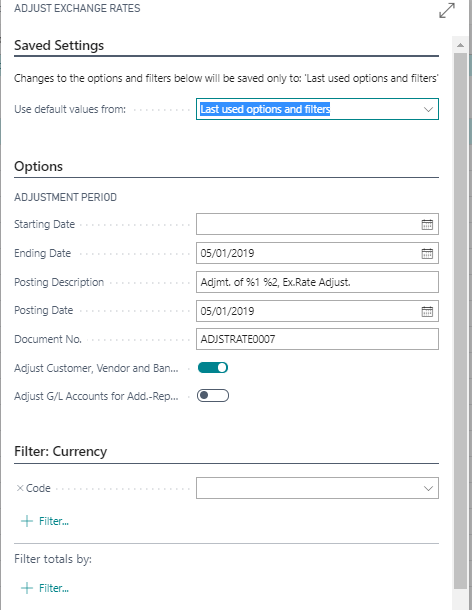
The window below is used to run the “Adjust Exchange Rates” in Dynamics 365 Business Central:

The first thing to note is that in Dynamics 365 Business Central there’s no option to run the “Adjust Exchange Rates” separately for each ledger (or series).

There’s also no option to revalue the G/L codes other than the bank accounts. (which are revalued by adjusting the bank account ledger entries. The G/L entries aren’t affected)

** This is because interestingly unlike Dynamics GP the foreign currency amounts aren’t stored in the G/L Entries table. Only “additional currency amounts” are stored in the G/L entries….more on that later.

In also interesting to note that unlike Dynamics GP there’s no specific option to run a “realised” or “unrealised” revaluation.

When you run the “Adjust Exchange Rates” job and select “Adjust Customer, Vendor and Bank Accounts” the system posts adjustments to the “unrealised” gains and losses for the Customer and Vendor Ledger entries and to “realised” gains and losses accounts for bank accounts. Any “unrealised” gains and losses are tracked on the original transactions via “Detailed Ledger Entries”. As with Dynamics GP these are reversed when the transaction is applied and amounts posted to the “realised” exchange gains\losses accounts.

Dynamics 365 Business Central also offers the ability to record transactions in an “Additional Reporting Currency”. Although this is beyond the scope of this article, when this is configured amounts are posted to the G/L entries in the selected reporting currency using the current rate for the selected additional currency. Depending on the configuration of the G/L code these can be adjusted by selecting the option “Adjust G/L accounts for Add. Reporting Currency” in the “Adjust Exchange Rate” window as per above.

Although you can specify a reporting currency in Dynamics GP you can’t revalue it in the same way you can in Dynamics 365 Business Central.

Conclusion

I’ve found there are quite a number of differences in functionality between Dynamics GP and Dynamics 365 Business Central in this particular area.

For example you can’t run a realised revaluation of the Sales and Purchasing ledgers or revalue G/L codes other than bank accounts. There’s also no option to preview the potential posting prior to running the routine.

This said, in my experience, the functionality offered by Dynamics 365 Business Central would be adequate for all Dynamics GP users thinking of making the transition to Dynamics 365 Business Central.

** Please note based on my findings running the “Adjust Exchange Rates” job and selecting “Adjust Customer, Vendor and Bank Accounts” is the equivalent of running a realised revaluation on the financial series restricted to bank accounts, and running the unrealised revaluation in Dynamics GP on the Sales and Purchasing series and not ticking the “reversing” option.

I’d be interested to hear if anyone knows of users needing to run realised revaluations of the Sales and Purchasing ledgers and the reasons for this. Also if anyone runs an unrealised revaluation and marks the option to reverse this.

Thanks for reading!

Thinking of making the move to Business Central? We can help