I’m come across this error a few times so thought I’d document on my blog.
The user is presented with the below error when opening the “Enquiry > Purchasing > Transaction by Document” window in Dynamics GP
When the window does open there’s a blank record showing in the scrolling window:
When you expand the window and attempt to select it you are prompted with the message “The selected record has been deleted by another user” and it disappears from the window
In this particular instance the issue is being caused by an incorrect PM Keys Record in the PM00400 table.
If I search for an incomplete record in the PM00400 table using the SQL query below this returns one record:
SELECT * FROM PM00400
WHERE VENDORID='' AND DCSTATUS=3 AND DOCNUMBR='' AND DOCTYPE=0
If I then remove this record using the DELETE statement below the error no longer occurs when I open the window
* Always ensure you have adequate backups prior to deleting data from SQL
DELETE FROM PM00400
WHERE VENDORID='' AND DCSTATUS=3 AND DOCNUMBR='' AND DOCTYPE=0
Please note you could also delete the entire contents of the PM00400 table and have the system recreate it using checklinks however this isn’t practical in my case.
I hope this helps anyone who encounters this issue in future.
Thanks for reading!
Thinking of making the move to Business Central? We can help
As I learn and familiarise myself with Dynamics 365 Business Central I often post something in Dynamics GP and then wonder how this same task could be achieved in Dynamics 365 Business Central.
Today’s pondering was looking for the equivalent to the “Payables Transaction Entry” window that we have in Dynamics GP.
I know you can post to G/L accounts via the “Purchase Invoice” page in Dynamics 365 Business Central but to me this is primarily a “Purchase Order Processing” type window. I wanted to post a sundry payables invoice, onto a vendor, to multiple GL codes, without the need to touch the “Purchase Invoice” window.
As usual there is more than one way to do this however I focus on the “Purchase Journal” page. I also elude to why I think you can achieve the same using other “journal” pages, although you might not necessarily want to use those anyway 🙂
Dynamics GP – Payables Transaction Entry
In Dynamics GP you can post a sundry payables invoice in a very straight forward and easy to understand window called “Payables Transaction Entry”.
This window has no link to Purchase Order Processing. We tend to advise users to use this window for posting invoices for sundry items and things you wouldn’t necessarily have a Purchase Order for. You can click “Distributions” and record multiple GL codes for this one invoice. Its also handy to import transactions into very quickly and users seem to prefer this window for speed of entry.
Dynamics 365 Business Central – Purchase Journal
There are various “journal” pages in Dynamics 365 Business Central so I turned to the “Purchase Journal” page to achieve my goal.
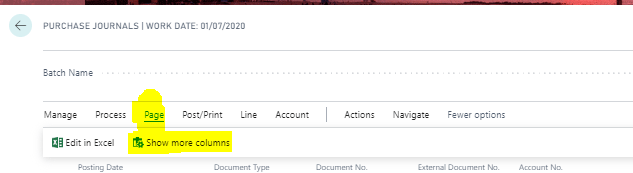
The first thing I found I had to select was the option “Show more columns” as per below.
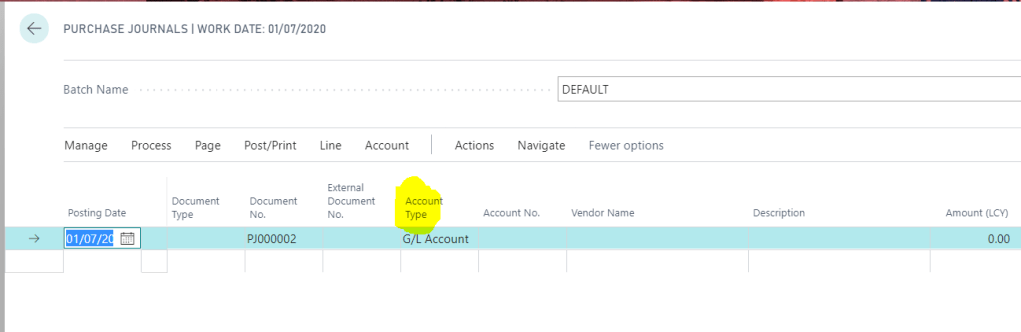
Crucially this adds the “Account Type” option which gives the user the ability to add “G/L Account” when keying in the Payables document:
Now I had the “Account Type” field available for entry I found as long as you keep the Document Number, External Document No and Posting Date the same you are able to add a payables document with multiple lines.
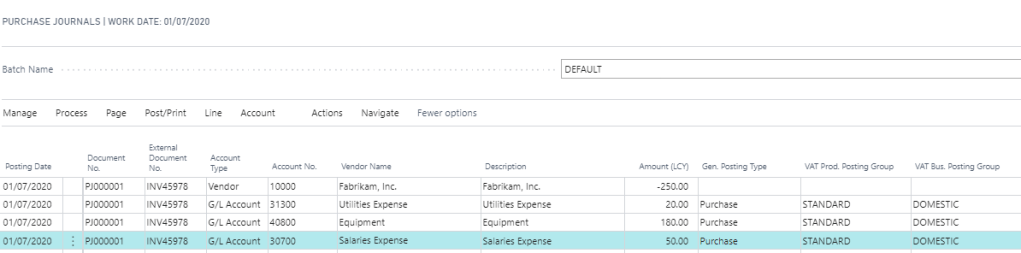
First you add the “Account Type” of “Vendor” and key in the first line with the total amount of the document. On the subsequent lines you can choose “G/L Account” as the account type and enter the G/L distribution breakdown. Also, if you wish to analyse tax to any of the distributions you must populate the “Gen. Posting Type” with “Purchases” and then populate the “VAT Prod. Posting Group”.
In the end you should have something like this and the document will post successfully
Other takeaways
As with any investigation you usually find some interesting things along the way.
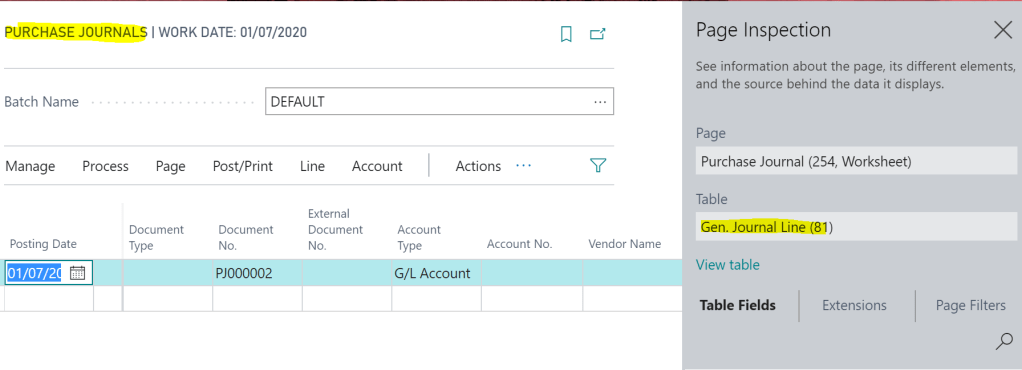
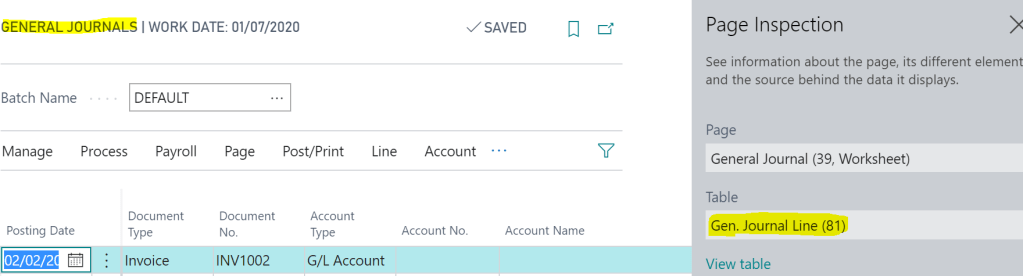
The major takeaway I found is that you can post the same purchase invoice using the “General Journal” page. After looking more closely it seems this is possible as both pages are based on the “Gen. Journal Line” table. Therefore all the fields (and business logic) you need are available on the “General Journal” page as well.
See below. The “Purchase Journal” and “General Journal” pages are based on the same table:
Purchase JournalGeneral Journal
However, as a word of caution, if you were to post the same purchase invoice from the “General Journal” page the transaction is given a “Source Document” of “GENJNL” in the “G/L Register” rather than “PURCHJNL”.
See below. The top G/L Register was posted using the “General Journal” page and the other using the “Purchase Journal” page.
Therefore I’d suspect its best to use the specific “Purchase Journal” for these postings.
A quick one but hopefully it will help someone else in the future.
We had an issue raised last week with a client running the “Select Cheques” routine in payables and although it appeared to be running normally it was taking much longer than usual and never seemingly completing.
As usual my first port of call is to run a SQL Profile Trace of the process (should probably be using extended events by now) to monitor exactly what’s happening.
When I setup an SQL trace I generally start with RPC:Completed and SQL:BatchCompleted as per below:
After running this trace I could see that the process seems to be showing a loop where’s its SELECTing data and them attempting to INSERT into the DEX_LOCK table over and over again for the same document:
To investigate further I stopped the trace and added “Errors and Warning” and restarted the trace again
The trace now shows the issue. The system is producing a duplicate key error when trying to INSERT into the DEX_LOCK table.
Because of this it seems to loop back and then try the INSERT again. The error isn’t being reported to the end user so they just think the process is running but taking longer than usual.
As expected when i query the DEX_LOCK table the row_id (42468782 – yes this client posts LOTS and LOTS of payables data) relates to the DEX_ROW_ID in the PM20000 for the document mentioned in the SELECT in the trace:
To fix the issue I deleted the offending row in the DEX_LOCK table as per below and the “Select Cheques” process continued as normal. (I didn’t even have to stop the “Select Cheques” process, I just deleted the row and it went through fine)
I hope this helps anyone else facing a similar issue.