Dynamics 365 Business Central – How to change the VAT amount on a Purchase Invoice or Purchase Order

Introduction

Sometimes, when entering a Purchase Invoice from a supplier into Business Central, the system calculates the VAT slightly differently than what appears on the supplier’s invoice.

When this happens we need to change the VAT on the Purchase Invoice in Business Central to reflect the suppliers Invoice.

In this post we’ll go through how to do this when raising the Purchase Invoice via the “Purchase Order” page and also the “Purchase Invoice” page.

First a little Config

Before we do this we must first configure Business Central to allow us to change the VAT on documents and journals.

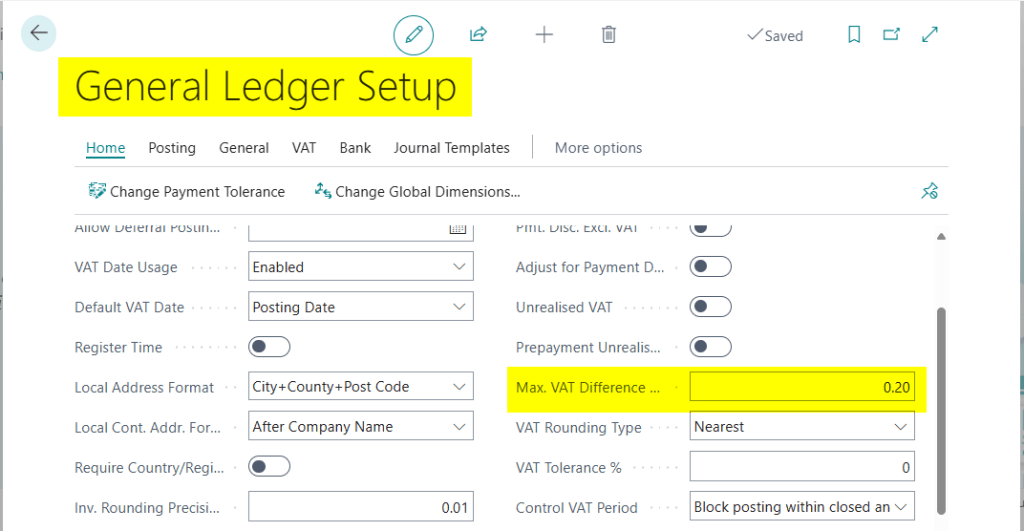
We first do this by setting the “Max. VAT Difference Allowed” in the General Ledger Setup. I’m going to set this to 0.20 which means I’m allowed to change the VAT by up to £0.20p

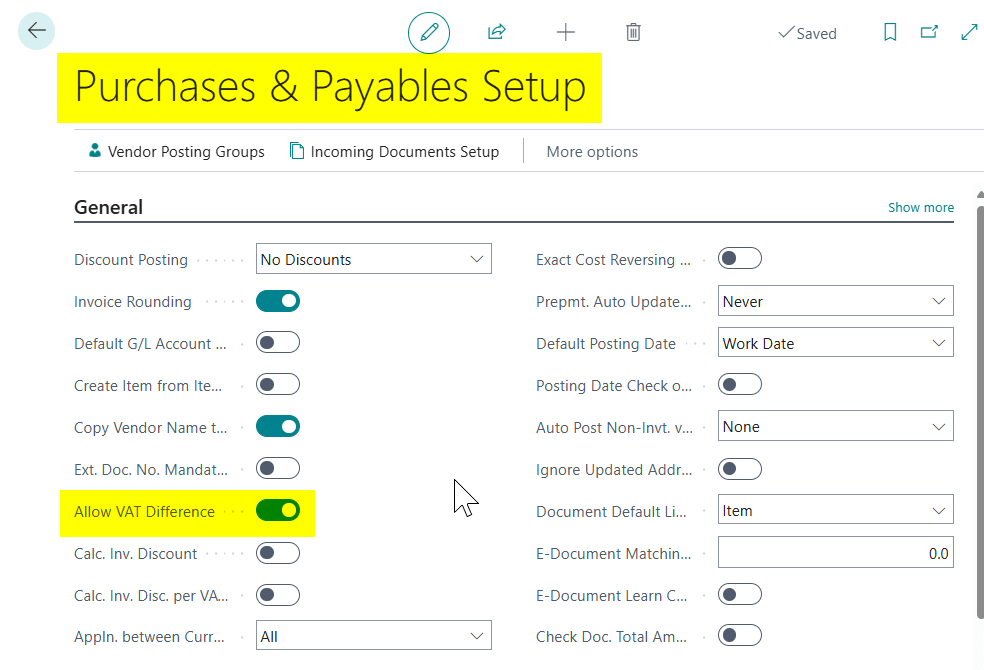
Next I need to switch the “Allow VAT Difference” option ON in the “Purchase & Payables Setup” page. This will allow me to change the VAT amount on a Purchase transaction.

Now I have the configuration setup, we can go through changing the VAT on a Purchase transaction.

First we’ll tackle a Purchase Invoice entered via the “Purchase Invoice” page.

Changing VAT in the Purchase Invoice page

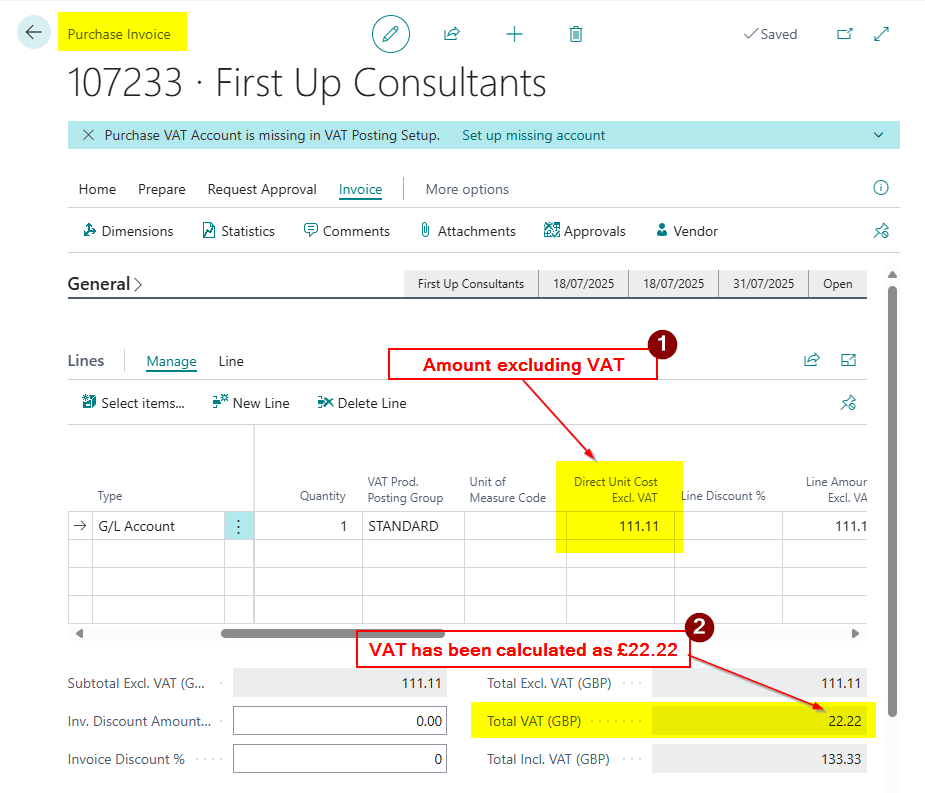
In this scenario, we have a Purchase Invoice for £111.11 with 20% VAT, and Business Central has calculated the VAT as £22.22. However, the supplier’s invoice shows a VAT amount of £22.23. We therefore need to change the VAT to reflect the suppliers invoice correctly in Business Central.

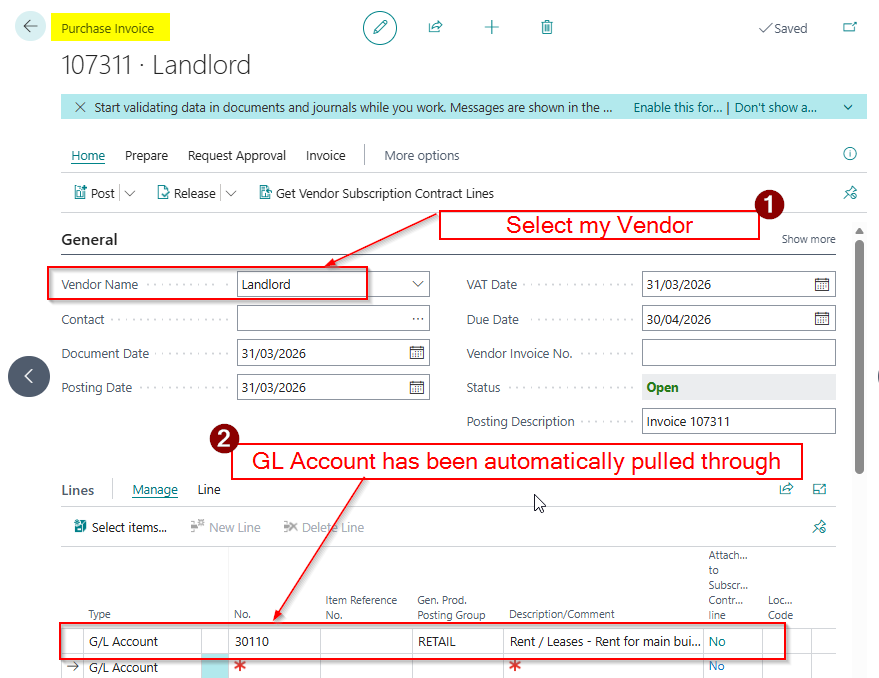
Below is the Purchase Invoice with the VAT calculated as £22.22.

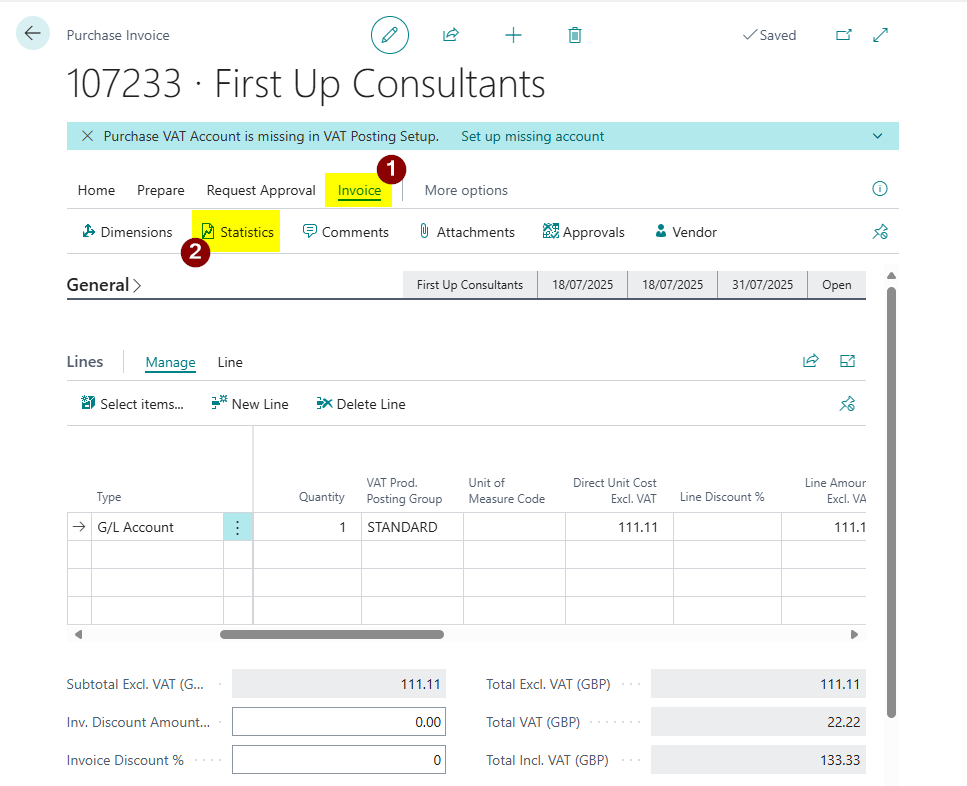
To change the VAT I need to click “Invoice > Statistics”

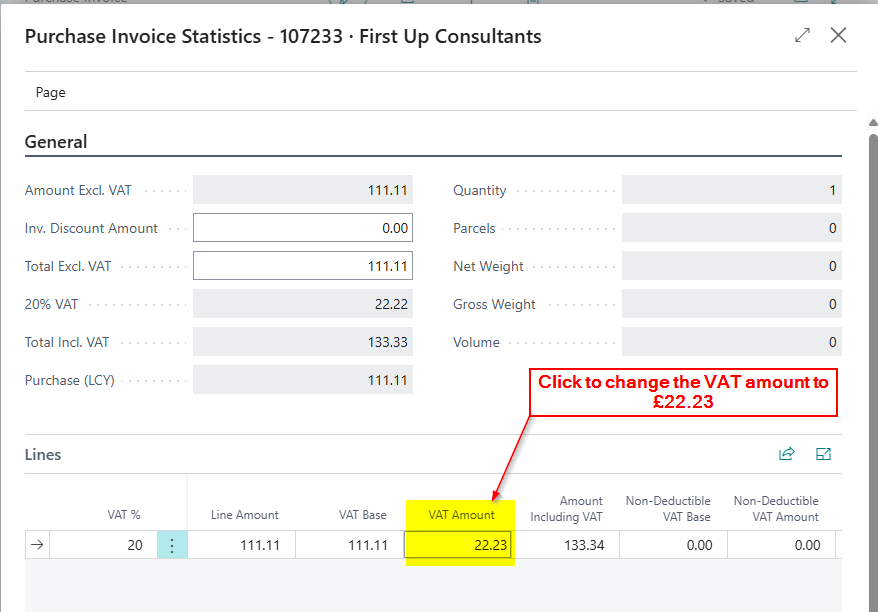
I then click into the VAT Amount and change it to £22.23 which matches the suppliers invoice

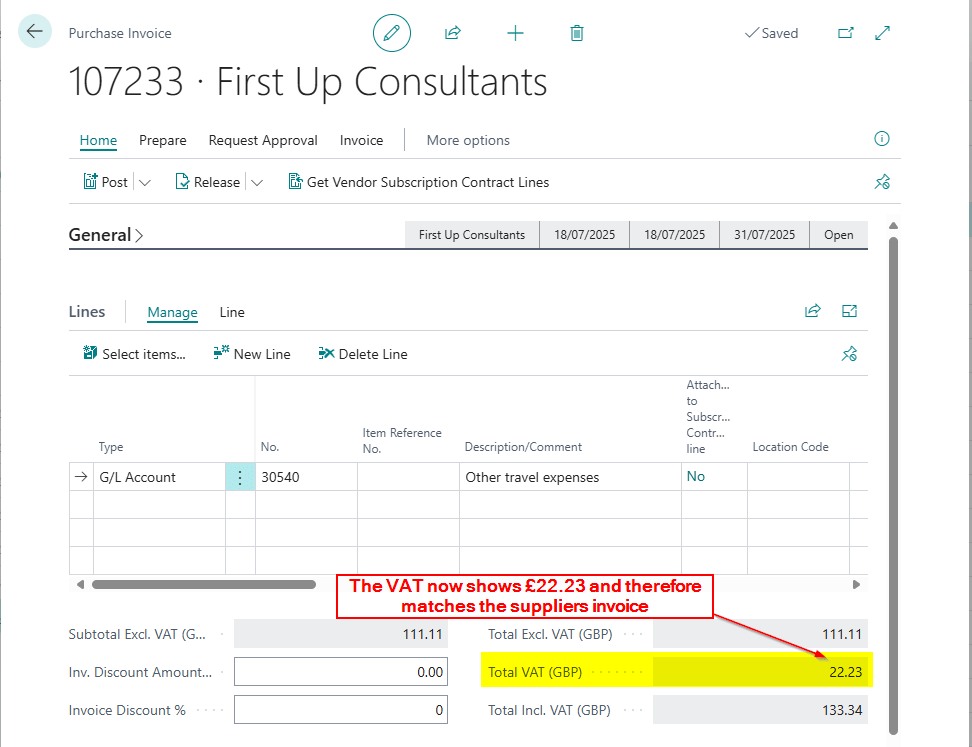
The VAT is now reflected correctly in Business Central

Changing VAT on the Purchase Order page

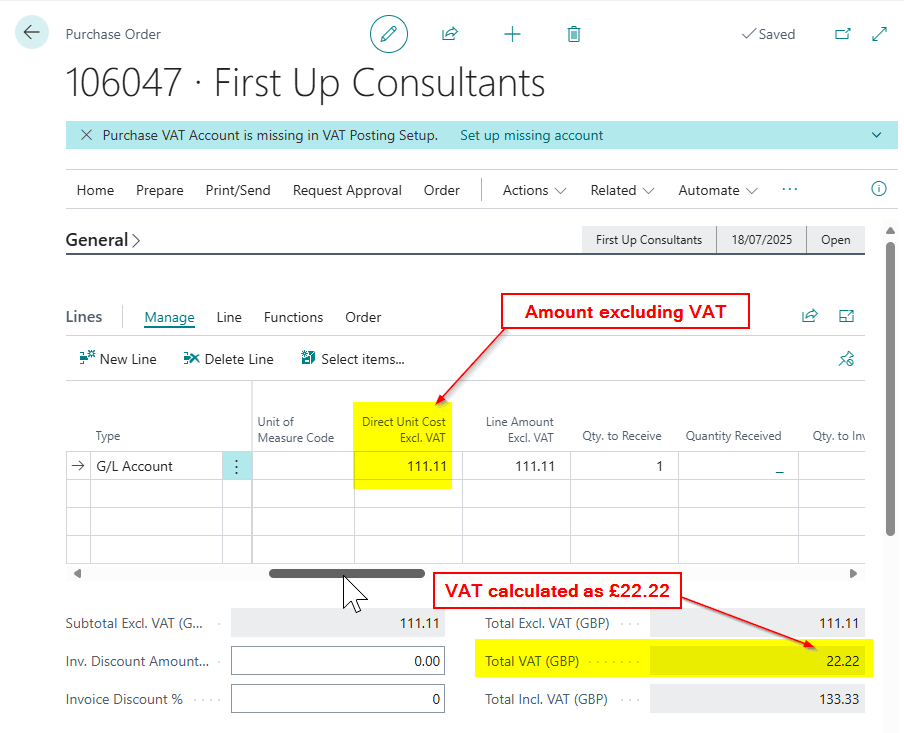
Suppose you’re entering the same Purchase Invoice, however this time we are using the “Purchase Order” page to raise the Purchase Invoice. In this case we need to do the following

Below is the Purchase Order with the VAT calculated as £22.22

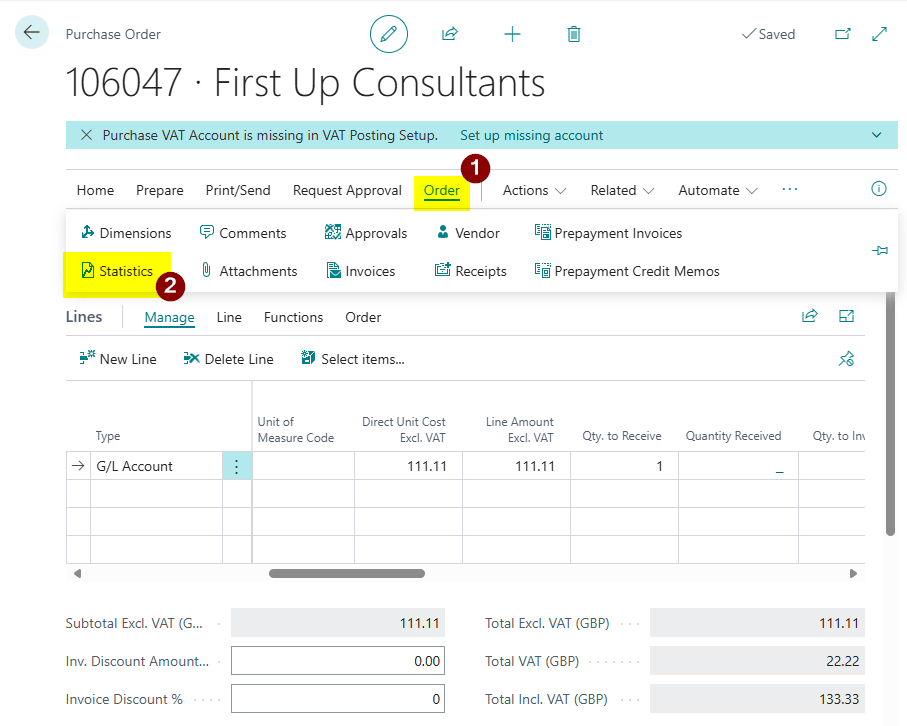
We now click “Order > Statistics”

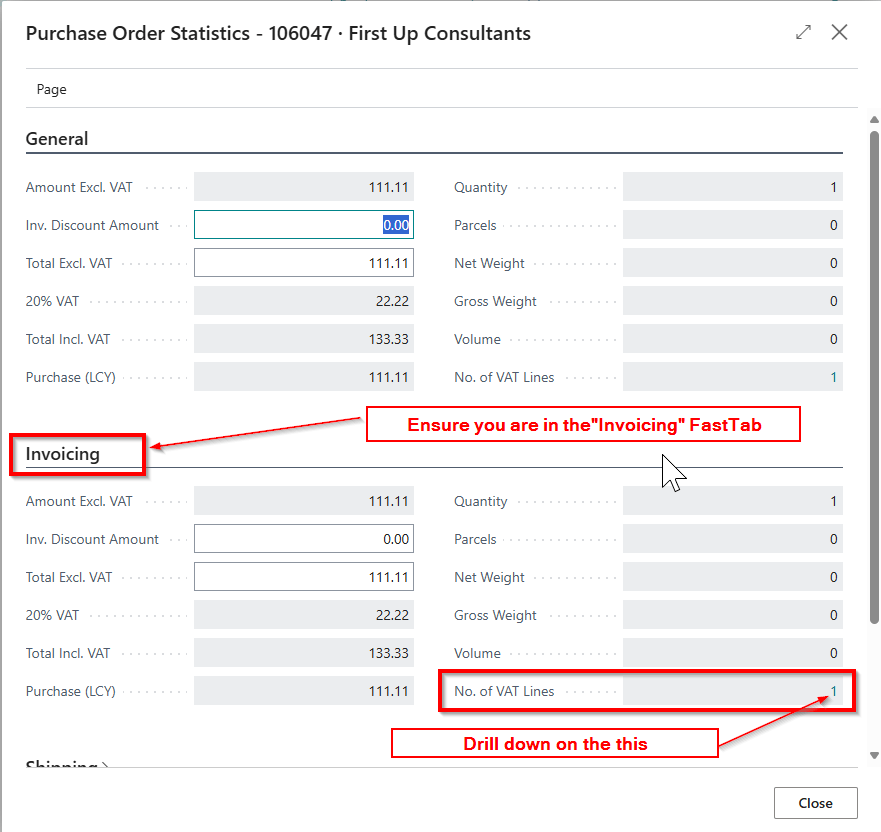
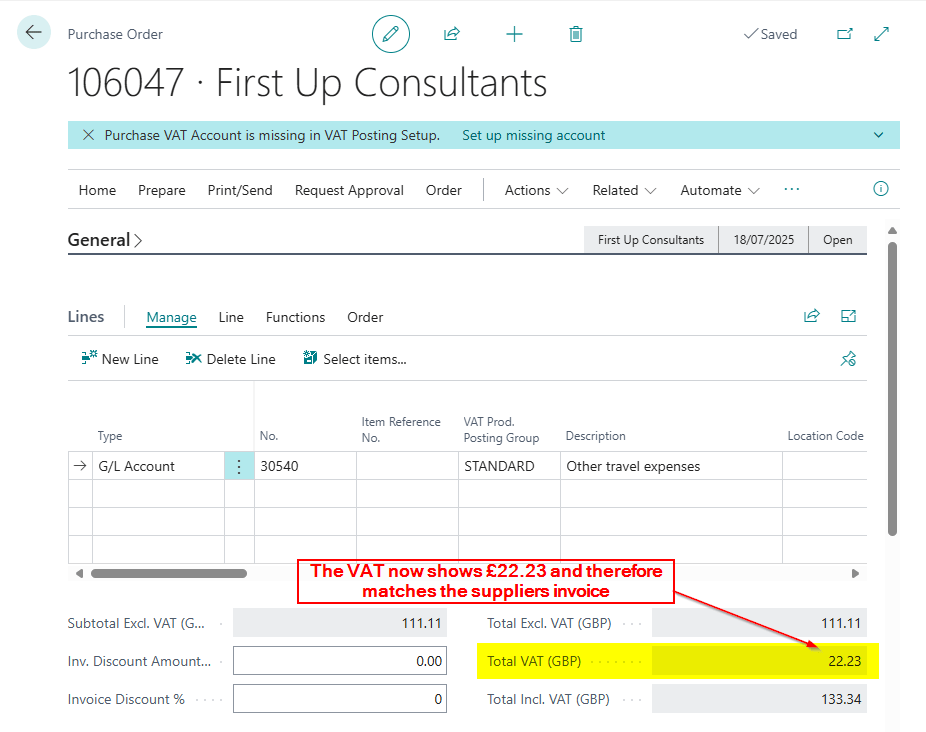
You now drill down on the “No. of VAT Lines” in the “Invoicing” FastTab

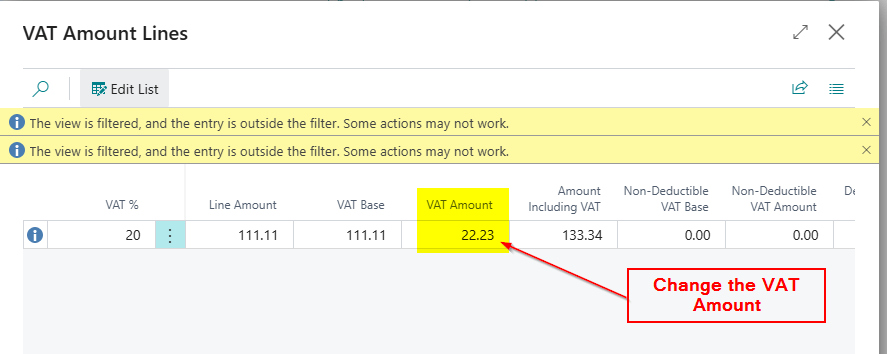
You can now edit the VAT amount

And now the VAT is reflected correctly on the Purchase Order page

Conclusion

This post has outlined how to change the VAT amount on various Purchase documents when the VAT calculated by Business Central differs from the actual supplier invoice.

Thanks for reading!

Dynamics GP to Dynamics 365 Business Central – How to post a batch of Sales or Purchase Invoices using the same Posting Date

Introduction

During a recent training session with a client transitioning from Dynamics GP, a question came up regarding batch posting.

In Dynamics GP, it’s possible to use the batch’s “Posting Date” as the posting date for all transactions within the batch. The client wanted to know if this same functionality is available in Business Central.

In this post, I’ll walk you through how to achieve this in Business Central.

Dynamics GP Batch Setting

The setting the client is referring to is configured in the “Posting Setup” window in Dynamics GP as shown below:

Here, you can configure, on a ledger and per-transaction type (origin) basis, whether the system should use the posting date from the individual transaction or the batch when posting transactions.

Business Central “Post Batch” Feature

In Business Central, when posting multiple Sales or Purchase Invoices, you can control which date the system uses as the “Posting Date” through the following option.

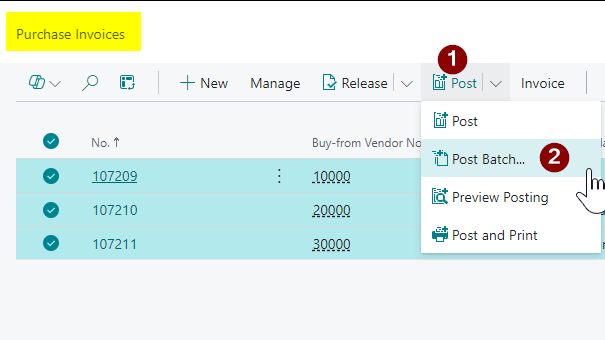
See below, I can select multiple Purchase Invoices and select “Post > Post Batch”

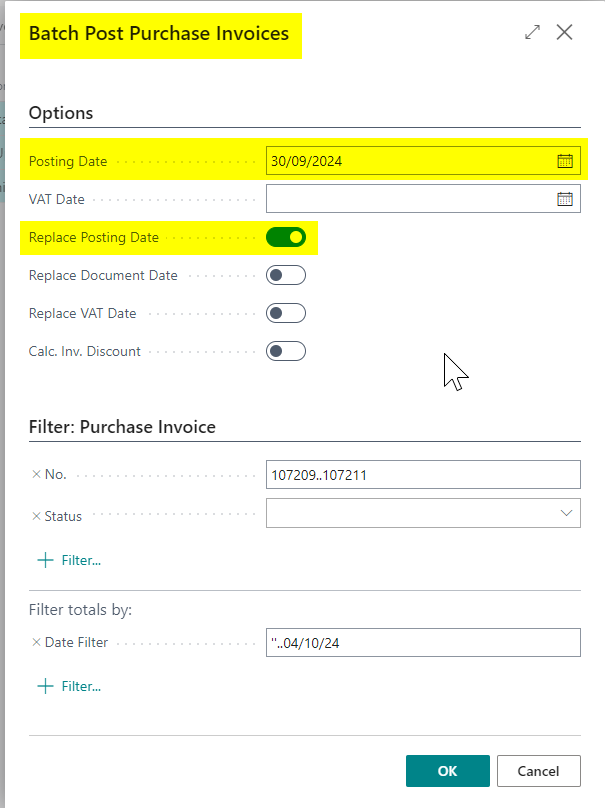
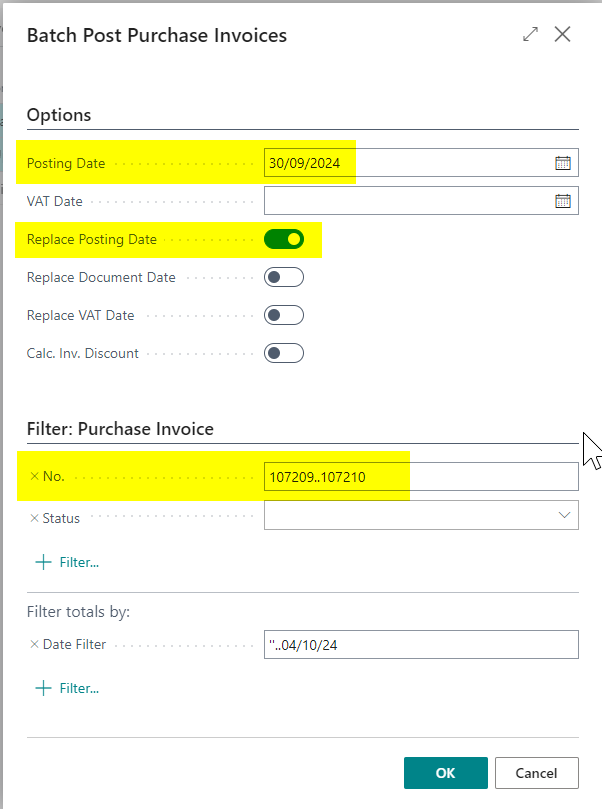
And then enter the Posting Date you wish the system to use for each of your Purchase Invoices:

Let’s walkthrough an example with Purchase Invoices

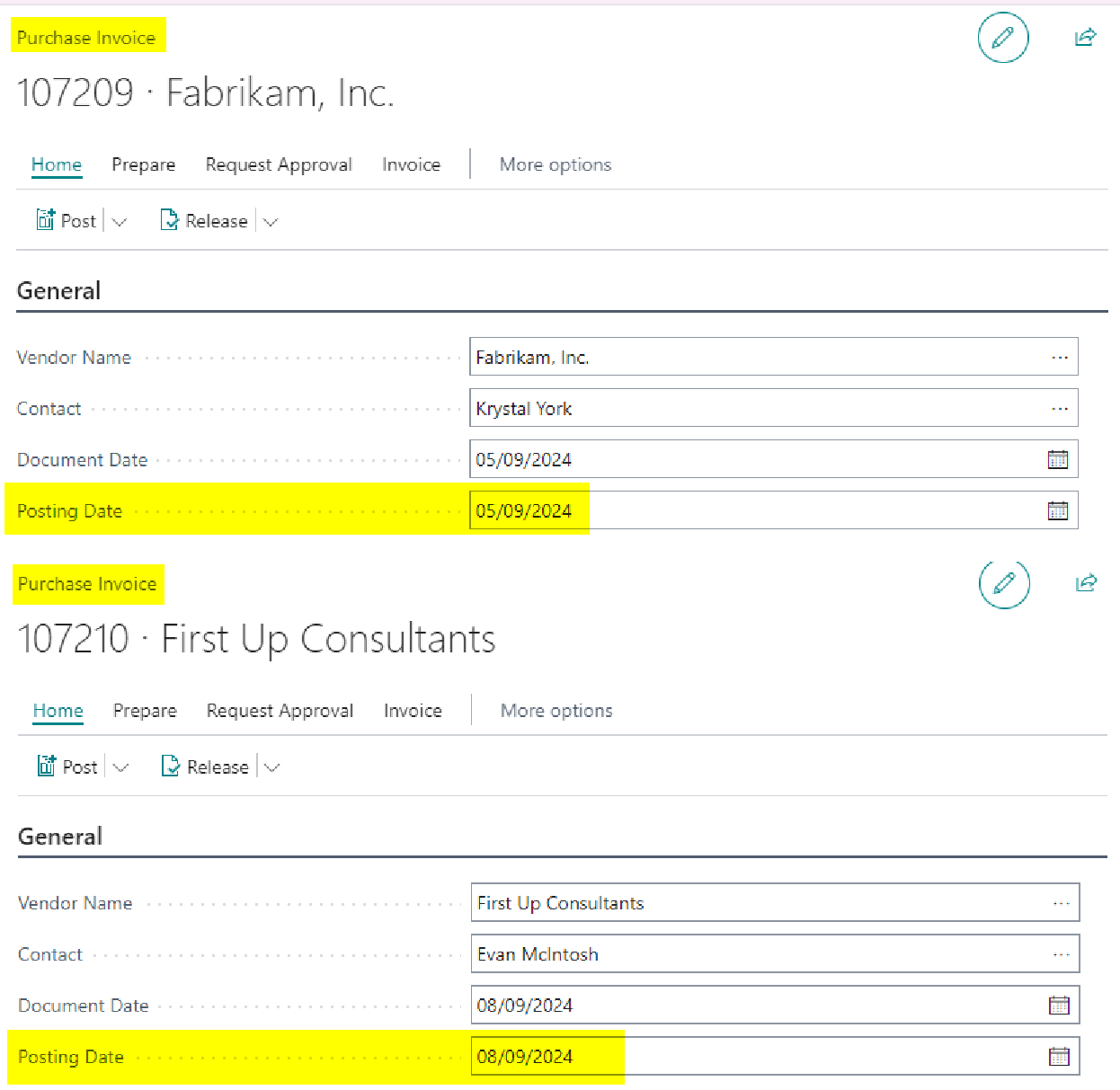
Let’s say you have the two Purchase Invoices shown below, each with a different posting date in September, but you want both to be posted using a Posting Date of September 30, 2024:

First, you select both Purchase Invoices in the Purchase Invoice list page, choose “Post > Post Batch,” and choose to replace the Posting Date as shown below.

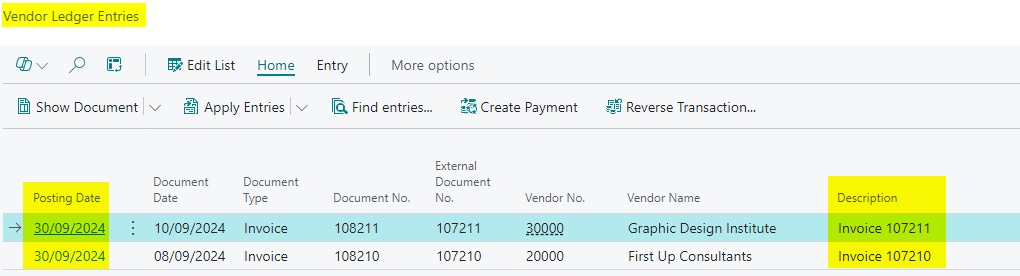
Now when I view the Purchase Invoices I can see both invoices have a Posting Date of 30/09/2024

Conclusion

This post shows how you can batch post Sales or Purchase Invoices using a single Posting Date, replicating the functionality available in Dynamics GP.

Thanks for reading!

Dynamics GP – Changing the Voucher Number of a Posted Payables Transaction

Introduction

Recently I had a situation where I had to change the voucher number of a posted payables document. There is no standard way to do this via the application however it was causing issues with a third party integration so we had to investigate how this could be done. To do this task I teamed up with a developer and we came up with the following solution.

Please note there may be additional tables/columns you would have to update. Hopefully this article will not only outline the solution we used, but also how you can track down any additional tables you may need to update that we didn’t.

Find the tables with a VCHRNMBR column

The first thing we did was to find all the Dynamics GP tables that contained the VCHNMBR column. To do this we used the script below:

SELECT col.NAME AS 'Column',
       tab.NAME AS 'Table'
FROM   sys.columns col
       INNER JOIN sys.tables tab
         ON col.object_id = tab.object_id
WHERE  col.NAME LIKE '%VCHRNMBR%' 

This gave us a full list of tables that contained the VCHRNMBR column.

Next we decided to find which of those columns contained the actual voucher number we needed to change.

Find the tables that contained our voucher number

The previous query gave us quite an extensive list of tables that needed to be updated, and we weren’t sure we would need to update all of those tables and columns. Therefore we ran a query to find all the tables that contained a column with our actual voucher number in. For this I found this excellent query which I’ve used many times before when troubleshooting data issues. (This query has been taken from this forum post over on stack overflow)


USE DATABASE_NAME
DECLARE @SearchStr nvarchar(100) = 'SEARCH_TEXT'
DECLARE @Results TABLE (ColumnName nvarchar(370), ColumnValue nvarchar(3630))

SET NOCOUNT ON

DECLARE @TableName nvarchar(256), @ColumnName nvarchar(128), @SearchStr2 nvarchar(110)
SET  @TableName = ''
SET @SearchStr2 = QUOTENAME('%' + @SearchStr + '%','''')

WHILE @TableName IS NOT NULL

BEGIN
    SET @ColumnName = ''
    SET @TableName = 
    (
        SELECT MIN(QUOTENAME(TABLE_SCHEMA) + '.' + QUOTENAME(TABLE_NAME))
        FROM     INFORMATION_SCHEMA.TABLES
        WHERE         TABLE_TYPE = 'BASE TABLE'
            AND    QUOTENAME(TABLE_SCHEMA) + '.' + QUOTENAME(TABLE_NAME) > @TableName
            AND    OBJECTPROPERTY(
                    OBJECT_ID(
                        QUOTENAME(TABLE_SCHEMA) + '.' + QUOTENAME(TABLE_NAME)
                         ), 'IsMSShipped'
                           ) = 0
    )

    WHILE (@TableName IS NOT NULL) AND (@ColumnName IS NOT NULL)

    BEGIN
        SET @ColumnName =
        (
            SELECT MIN(QUOTENAME(COLUMN_NAME))
            FROM     INFORMATION_SCHEMA.COLUMNS
            WHERE         TABLE_SCHEMA    = PARSENAME(@TableName, 2)
                AND    TABLE_NAME    = PARSENAME(@TableName, 1)
                AND    DATA_TYPE IN ('char', 'varchar', 'nchar', 'nvarchar', 'int', 'decimal')
                AND    QUOTENAME(COLUMN_NAME) > @ColumnName
        )

        IF @ColumnName IS NOT NULL

        BEGIN
            INSERT INTO @Results
            EXEC
            (
                'SELECT ''' + @TableName + '.' + @ColumnName + ''', LEFT(' + @ColumnName + ', 3630) 
                FROM ' + @TableName + ' (NOLOCK) ' +
                ' WHERE ' + @ColumnName + ' LIKE ' + @SearchStr2
            )
        END
    END    
END

SELECT ColumnName, ColumnValue FROM @Results

To run this on your system just changed the DATABASE_NAME to your Dynamics GP company database and also enter the string you wish to search in place of the SEARCH_TEXT.

We now had a list of tables and columns that contained the voucher number we needed to change.

The final update script

Pulling the information we had gleaned from the queries above, and using knowledge of their system and of the Dynamics GP table structure (for example the column name we needed to change in the apply table is APTVCHNM rather than VCHRNMBR) we used the script below to update the voucher number:

USE TWO
GO
/****** Object:  StoredProcedure [dbo].[ChangePMVoucherNumber]   ******/
SET ANSI_NULLS ON
GO
SET QUOTED_IDENTIFIER ON
GO
CREATE PROCEDURE [dbo].[ChangePMVoucherNumber]
	@OldVoucher	   AS VARCHAR(17),
	@NewVoucher        AS VARCHAR(17)

AS
BEGIN

	
	-- Example of execution:  exec ChangePMVoucherNumber '00000000000000398', '10000000000000398'


	-- Environment
	SET NOCOUNT ON
	SET DATEFORMAT DMY
	

        -- Declare variables
	DECLARE @DocType SMALLINT 


	-- Checks
	IF @OldVoucher IS NULL BEGIN 
		PRINT 'Old voucher must be specified'
		RETURN
	END
	IF @NewVoucher IS NULL BEGIN 
		PRINT 'New voucher must be specified'
		RETURN
	END
	IF @OldVoucher = @NewVoucher BEGIN 
		PRINT 'Old must differ from new voucher'
		RETURN
	END

	----Get document type from keys of original voucher
	--SELECT	@DocType = DOCTYPE
	--FROM	TWO.dbo.PM00400
	--WHERE	CNTRLNUM = @OldVoucher
	--AND	DOCTYPE = 1

	--IF @DocType IS NULL BEGIN 
	--	PRINT 'Voucher is not an invoice / Not Found'
	--	RETURN
	--END 


	-- Process
	BEGIN TRY

		BEGIN TRANSACTION A_Wrapper	

			Print 'Starting change of ' + @OldVoucher

			-- Query (PM Key Master File)
			UPDATE TWO.dbo.PM00400
			SET		CNTRLNUM = @NewVoucher
			WHERE	CNTRLNUM = @OldVoucher


			-- Query (PM Transaction OPEN File)
			UPDATE TWO.dbo.PM20000
			SET		VCHRNMBR = @NewVoucher
			WHERE	VCHRNMBR = @OldVoucher

			-- Query (Multicurrency Payables Transactions)
			UPDATE TWO.dbo.MC020103
			SET		VCHRNMBR = @NewVoucher
			WHERE	VCHRNMBR = @OldVoucher

			-- Query (Multicurrency PM Revaluation Activity)
			UPDATE TWO.dbo.MC020105
			SET		VCHRNMBR = @NewVoucher
			WHERE	VCHRNMBR = @OldVoucher

			-- Query (Purchasing Receipt History)
			UPDATE TWO.dbo.POP30300
			SET		VCHRNMBR = @NewVoucher
			WHERE	VCHRNMBR = @OldVoucher

			-- Query (PM Tax Invoices)
			UPDATE TWO.dbo.PM30800
			SET		VCHRNMBR = @NewVoucher
			WHERE	VCHRNMBR = @OldVoucher

			-- Query (PM Tax History File)
			UPDATE TWO.dbo.PM30700
			SET		VCHRNMBR = @NewVoucher
			WHERE	VCHRNMBR = @OldVoucher

			-- Query (PM Distribution WORK OPEN)
			UPDATE TWO.dbo.PM10100
			SET		VCHRNMBR = @NewVoucher
			WHERE	VCHRNMBR = @OldVoucher

			-- Query (PM Tax Work File)
			UPDATE TWO.dbo.PM10500
			SET		VCHRNMBR = @NewVoucher
			WHERE	VCHRNMBR = @OldVoucher

			-- Query (PM Paid Transaction History File)
			UPDATE TWO.dbo.PM30200
			SET		VCHRNMBR = @NewVoucher
			WHERE	VCHRNMBR = @OldVoucher

			-- Query (PM Distribution History File)
			UPDATE TWO.dbo.PM30600
			SET		VCHRNMBR = @NewVoucher
			WHERE	VCHRNMBR = @OldVoucher

			-- Query (PM History Removal Temporary File)
			UPDATE TWO.dbo.PM50100
			SET		VCHRNMBR = @NewVoucher
			WHERE	VCHRNMBR = @OldVoucher

			-- Query (PM Apply To History File)
			UPDATE  TWO.dbo.PM30300
			SET		APTVCHNM = @NewVoucher
			WHERE	APTVCHNM = @OldVoucher

			-- Query (PM Apply To WORK OPEN File)
			UPDATE TWO.dbo.PM10200
			SET		APTVCHNM = @NewVoucher
			WHERE	APTVCHNM = @OldVoucher

			-- Query (PM Payment Apply To Work File)
			UPDATE TWO.dbo.PM10201
			SET		APTVCHNM = @NewVoucher
			WHERE	APTVCHNM = @OldVoucher

			-- Query (PM Reprint Posting Journal Apply To File)
			UPDATE TWO.dbo.PM80500
			SET		APTVCHNM = @NewVoucher
			WHERE	APTVCHNM = @OldVoucher

			Print 'Ending change of ' + @OldVoucher

		COMMIT TRANSACTION A_Wrapper
			
	END TRY

	BEGIN CATCH
							
		ROLLBACK TRANSACTION A_Wrapper
		
		PRINT 'Issue changing voucher number ' + @OldVoucher + ' ' + ERROR_MESSAGE()
		
	END CATCH


END

To change a voucher number using the script you first create the procedure by executing the script and then execute the stored procedure as per below. (this would change voucher number 00000000000000398 to 10000000000000398)

exec ChangePMVoucherNumber '00000000000000398', '10000000000000398'

Conclusion

This script worked well but it was vitally important we did the research on other affected tables using the two scripts at the top of the article.

I also recommend doing this in a practice company prior to execution and also running reports such as a the Historical Aged Trial Balance before and after the voucher number has been changed.

Finally always have a goof full backup of your system that can be quickly restored if need be.

Thanks for reading!

Thinking of making the move to Business Central? We can help