Introduction
Business Central offers the feature to manually adjust Inventory directly from the Item card. This is really handy if you want to make quick adjustments to your Inventory level, without having to post an Item Journal. (please note an Item Journal is still posted to ensure system integrity. You can check this via the “Item Register” page after adjusting Inventory)
However, there are certain situations where a location might not appear even when the feature is enabled. In this post we’ll explore why, and along the way delve into Page Filters 😊.
Inventory Setup
Firstly, if you want the ability to quickly adjust inventory on the Item Card, you must enable the option below in the “Inventory Setup” page as per below.
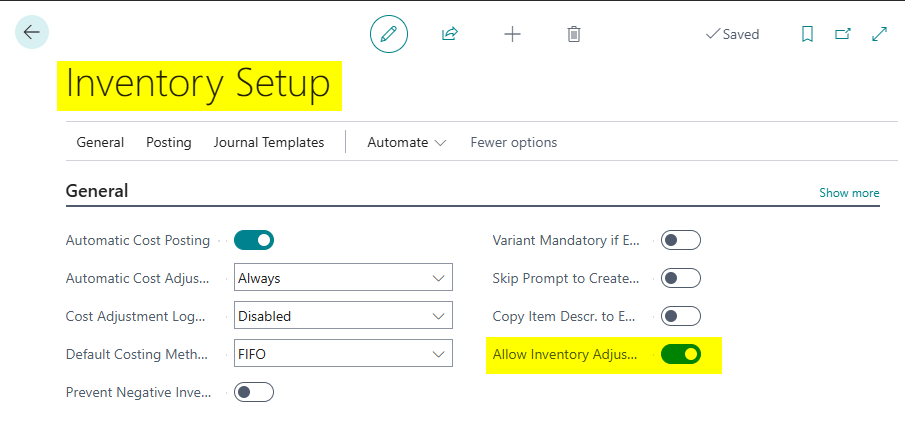
Now that I’ve enabled this option, I can manually adjust the inventory directly from the Item card. Let’s give it a try.
Manually Adjust Inventory
Before we make the adjustment, let’s take a look at my list of locations. Therefore I’ve opened my “Locations” page and here you can see I have locations called BINS, EAST, MAIN, WEST, WHITE and YELLOW.
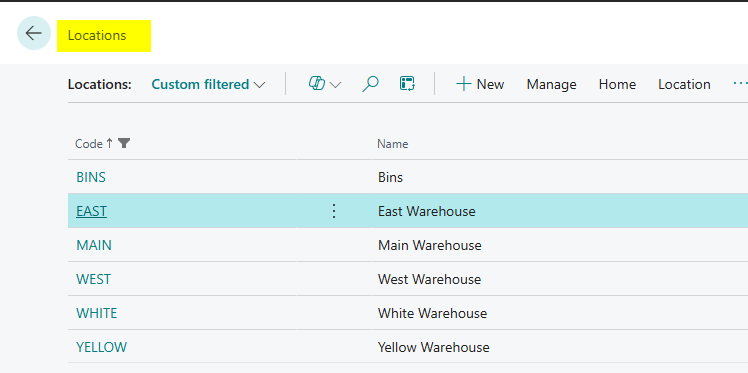
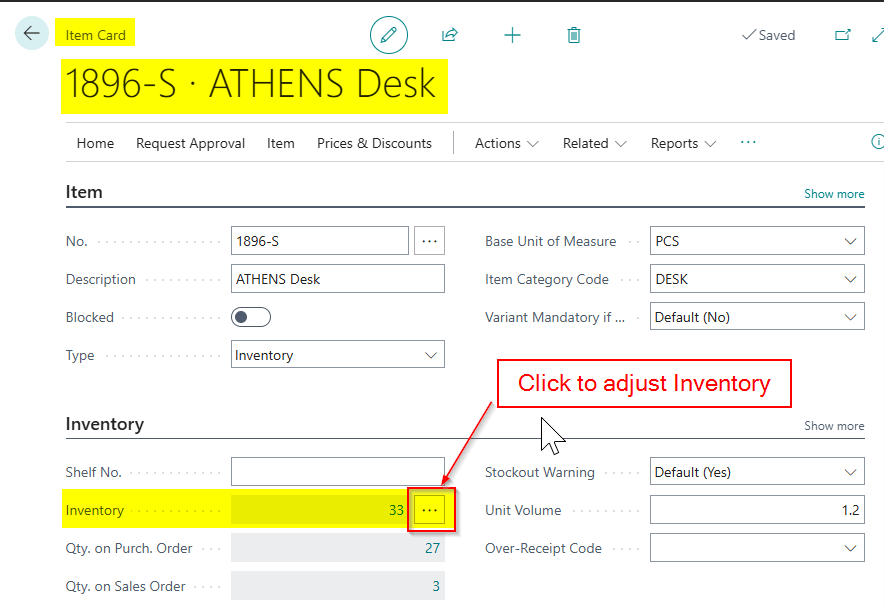
I want to make an adjustment to the Inventory level in the BINS location for Item 1896-S. I’ll therefore go to the Item card and click the option below
However this isn’t showing my BINS location? (its also not showing the WHITE location)
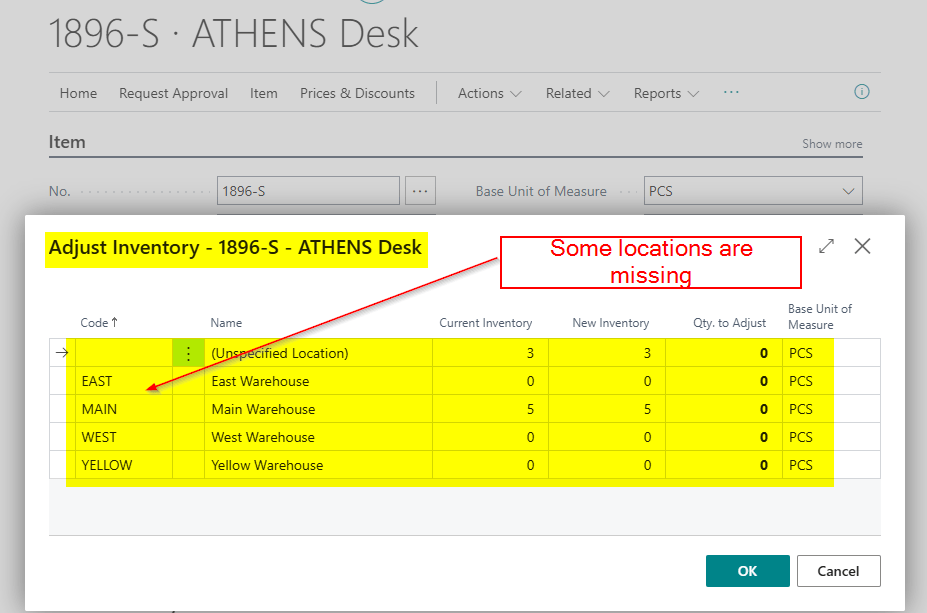
Why is the system not allowing me to manually adjust Inventory for the BINS location? As we have previously seen, this isn’t a location specific settings, its a global setting in the “Inventory Setup”
Let’s go and take a closer look at the BINS location and it quickly becomes apparent:
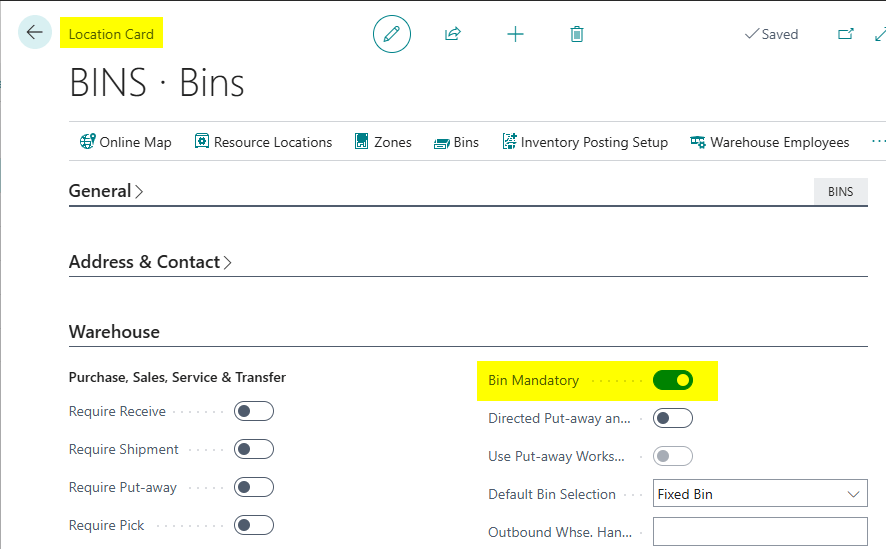
As highlighted above, the problem lies in having “Bin Mandatory” selected. This setting prevents me from manually adjusting inventory because by manually adjusting I wouldn’t be able to choose a bin for adding or removing inventory.
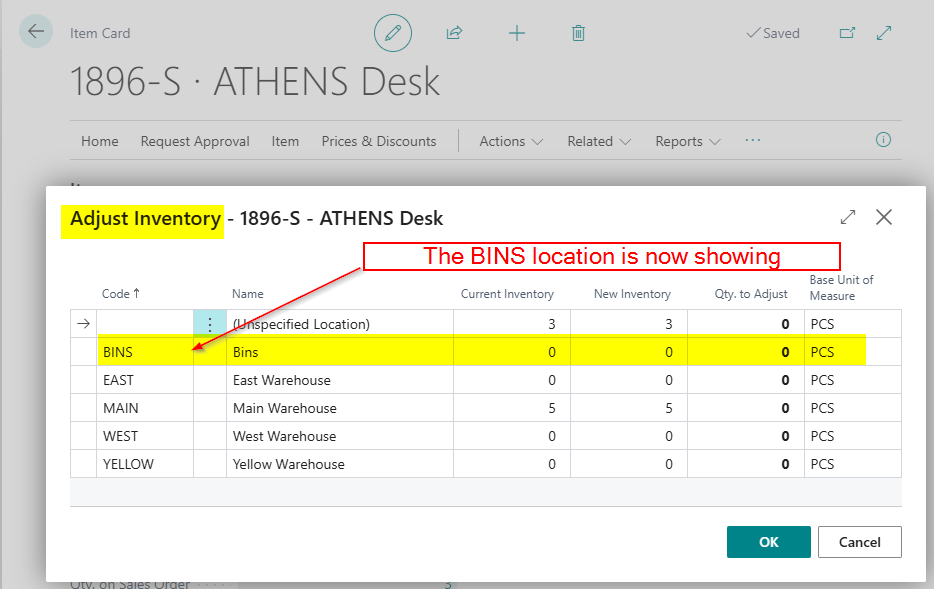
If I turn this setting OFF (which I can do since no entries have been posted to this location yet) and return to the “Adjust Inventory” page, the option now becomes available 😊 (see below)
A little more Technical
If we go back to the “Adjust Inventory” page, I could have quickly identified the issue using the “Page Inspector” 😊.
Therefore, I’ll return to my Item Card, click on the “Adjust Inventory” ellipse, and press CTRL+ALT+F1 to open the “Page Inspector”
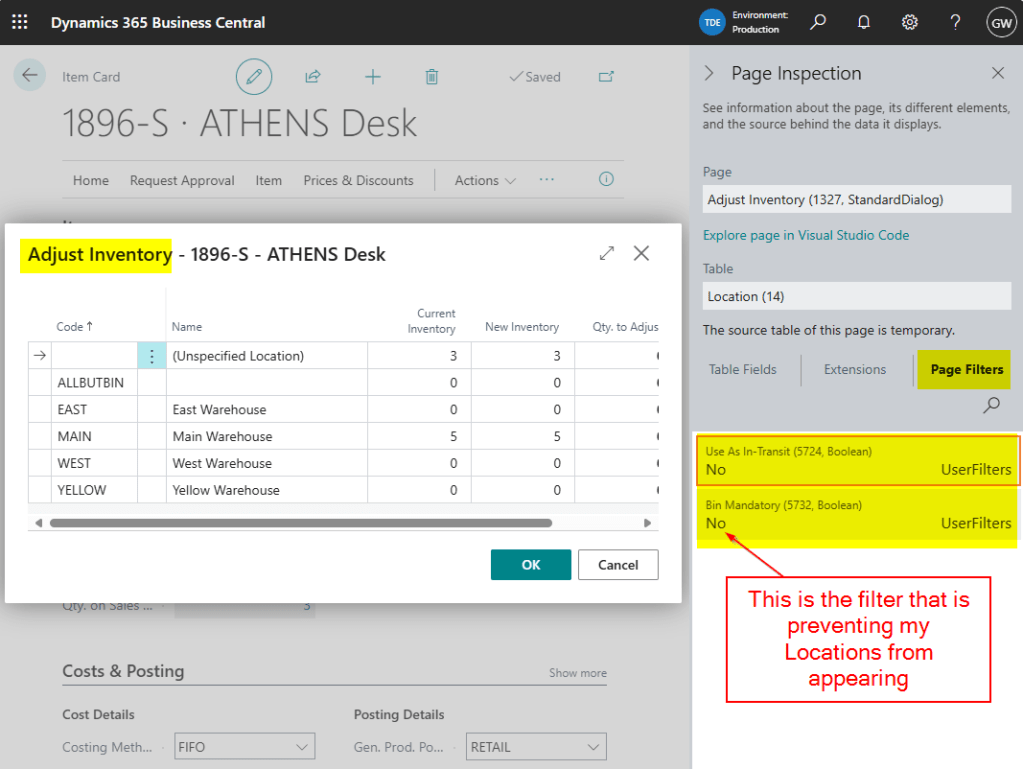
The Page Inspector tells me all sorts of useful information about the Page including, which table the page is based off (in this case the “Location” table), all the fields in the table (Click “Table Fields”) , whether its been extended (click “Extensions”) and crucially whether its being “Filtered”. (as highlighted above)
Here I can see that the page does have a predefined filter that automatically excludes (filters) locations that have Bin Mandatory or Use As-In-Transit switched ON.
I often use the “Page Inspector” to see if Page Filters exist or if the Page has extensions I might not know about that are changing standard behaviour 😊.
Conclusion
This post shows why some locations won’t be available to manually adjust Inventory even when the global setting “Allow Inventory Adjustment” is switched ON.
It also gives a handy tip on how you can check predefined filters on pages using the “Page Inspector” 😊.
Thanks for reading!

 thedynamicsexplorer.com