Introduction
In Business Central you can post a Sales Prepayment Invoice if you want to raise an invoice before shipping the goods or supplying a service.
Its therefore used when you require your customers to pay up front or pay a deposit before you supply the goods and services.
For this to work you specify a Sales Prepayment General Ledger code for the posting group combination in “General Posting Setup”. (this tends to be a Balance Sheet Liability account). The system then posts to this General Ledger code when you raise the Sales Prepayment Invoice. (incidentally this entry is reversed when you post the Sales Invoice and the relevant Income code is updated)
However this poses a problem if the goods or services you sell have different VAT rates, as when you raise the Sales Prepayment Invoice it uses the “VAT Product Posting Group” on the Sales Prepayment GL Account for VAT calculation purposes.
In this post I’ll go through the issue in more detail and also the solution I’ve used to resolve this.
Sales Prepayment Setup
Please note this doesn’t cover all of the Sales Prepayment Setup. You can find that in the Microsoft Learn site here
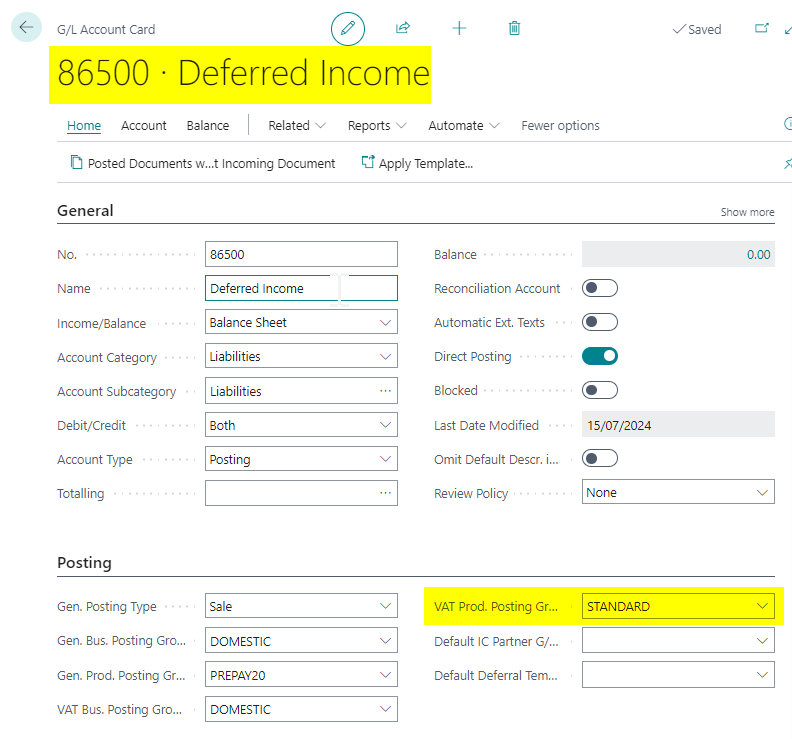
First I’ll create a General Ledger Code which we’ll then select in the “General Posting Setup” as the Sales Prepayment Account. When setting up the General Ledger Code, you specify the relevant posting groups, including the VAT Posting Groups. As the vast majority of the time it will be using standard VAT this is the posting group I’ll select as per below:
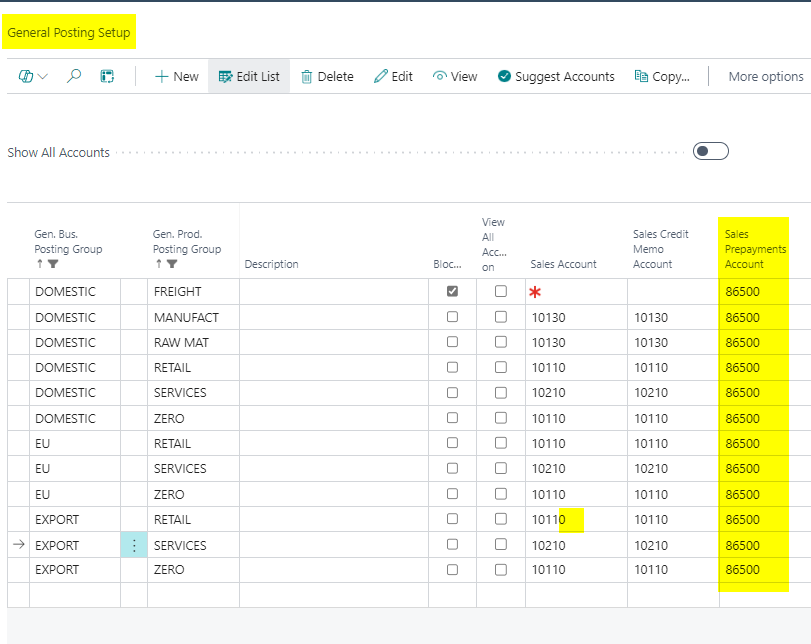
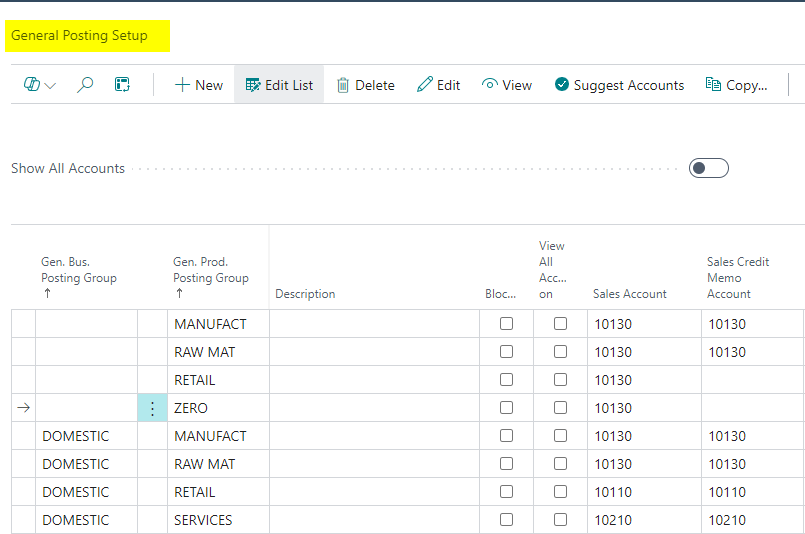
I’ll then select this in my “General Posting Setup” as the “Sales Prepayment Account” for all my posting combinations
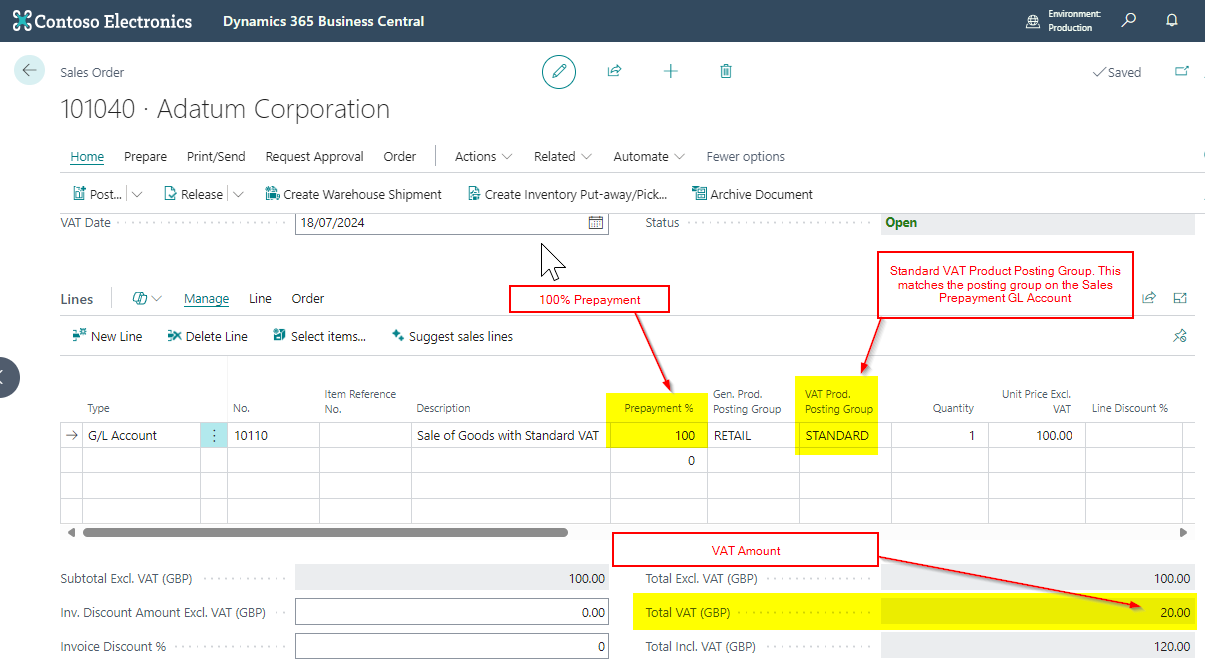
I’ll now raise a Sales Order with 100% prepayment with Standard VAT and this works fine:
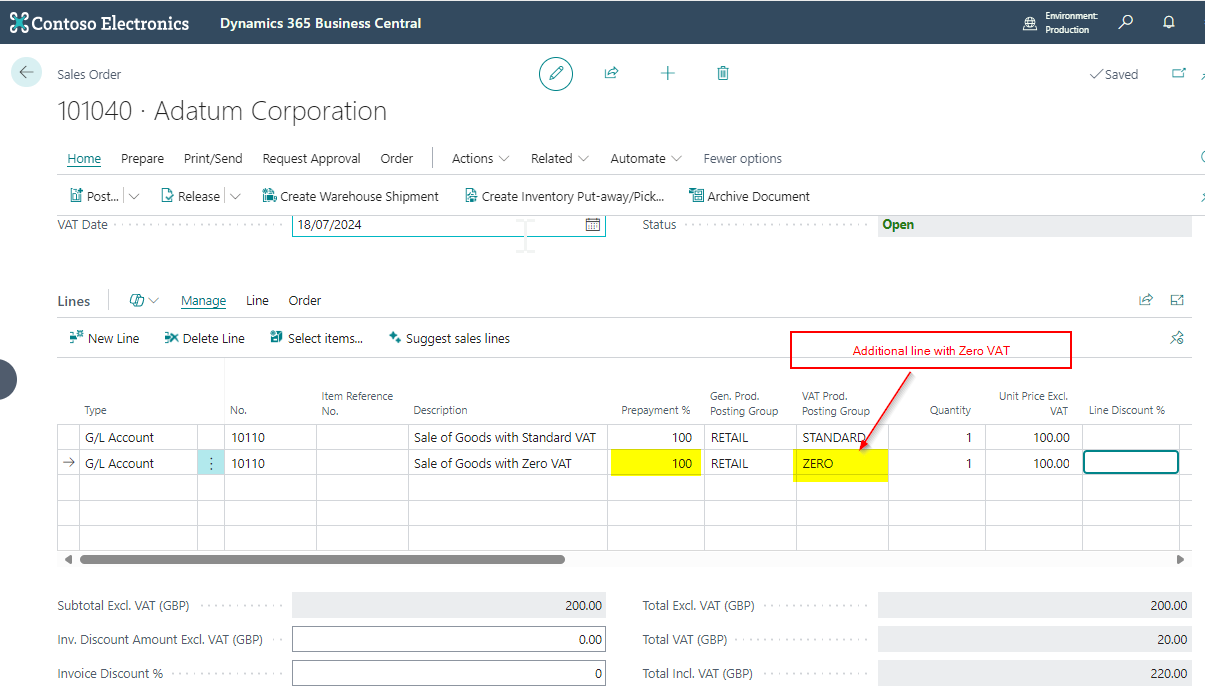
However what if I’m selling another line with a Zero VAT Product Posting Group:
When I try creating the Sales Prepayment Invoice I now get the message “The Prepayment account is assigned to a VAT Product Posting Group where the VAT percentage is not equal to zero….” as shown below:
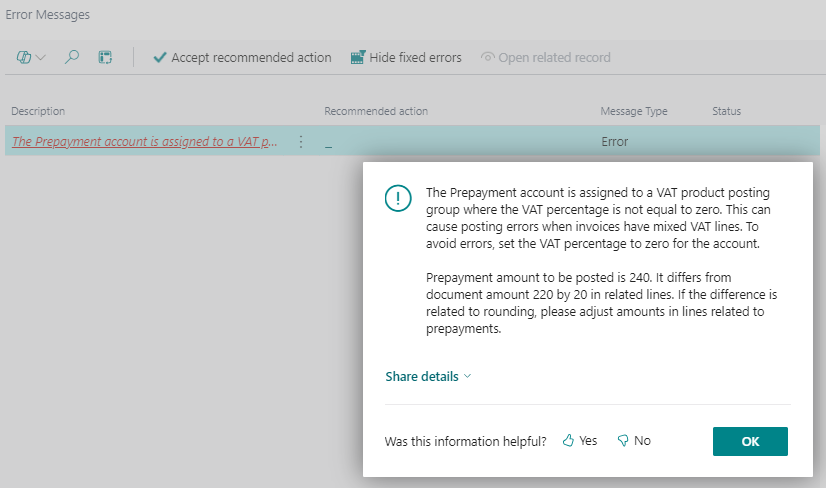
I’m getting this error because there is now a mismatch between the VAT Product Posting Group we assigned to the Sales Prepayment General Ledger Account, and the VAT Product Posting Group on the Sales Line.
Incidentally you would also get this error message if you had one single line item on the Sales Invoice with a VAT Product Posting Group of ZERO.
A Workaround
You can workaround this error by creating a second Sales Prepayment General Account and assigning it a VAT Product Posting Group of ZERO and then tweaking the General Posting Setup as I’ll demonstrate below.
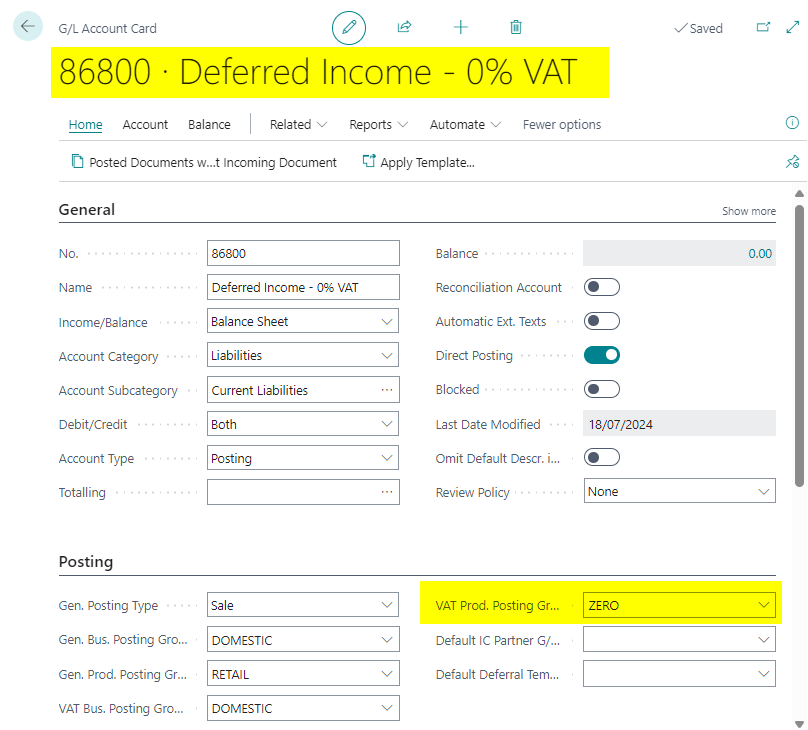
I’ll therefore create another Sales Prepayment General Ledger Code with a VAT Product Posting Group of ZERO
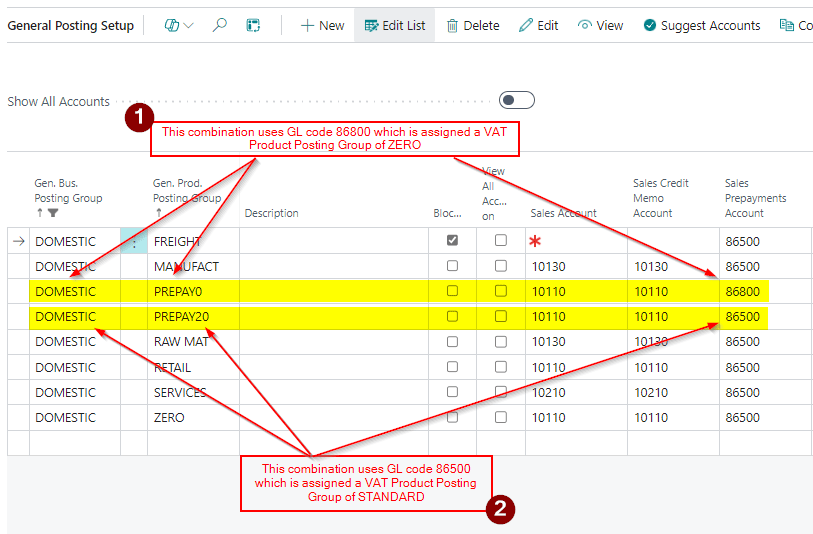
Next I create two new General Product Posting Groups called PREPAY0 and PREPAY20 and then set their combinations in the General Posting Setup page up as per below:
Now when I raise the Sales Order I just need to select the correct “General Product Posting Groups” for each line so they use the relevant Sales Prepayment Account.
I’ll therefore select “PREPAY20” for the line that has VAT and PREPAY0 for the line that has ZERO VAT.
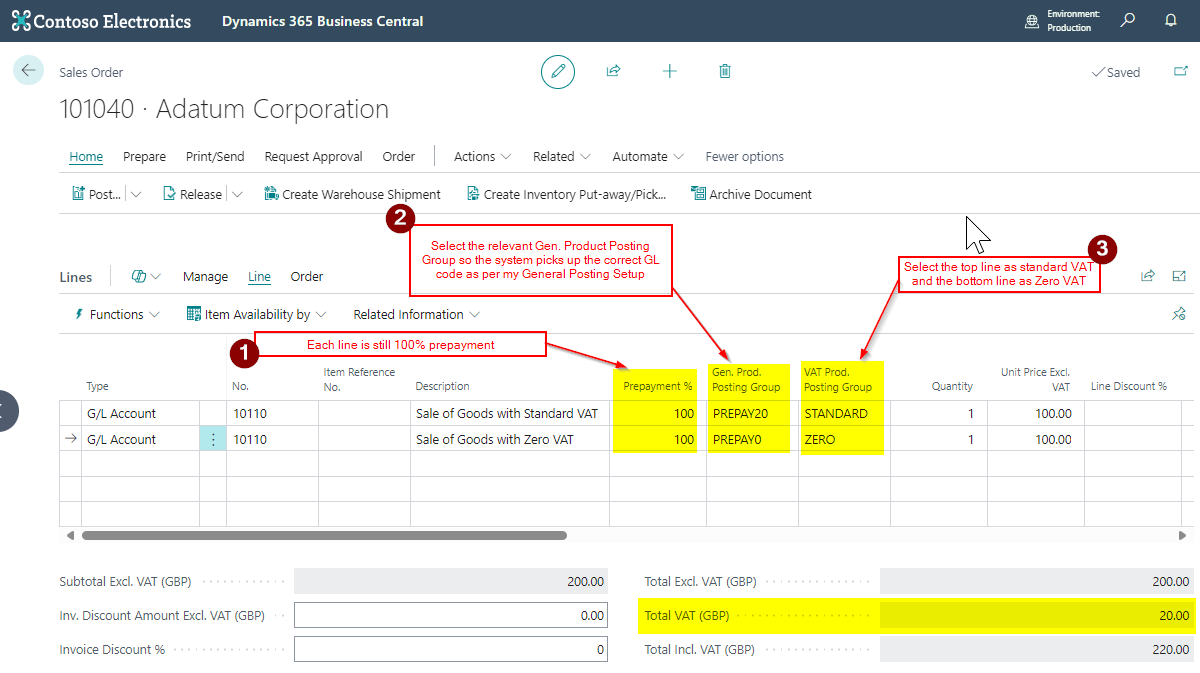
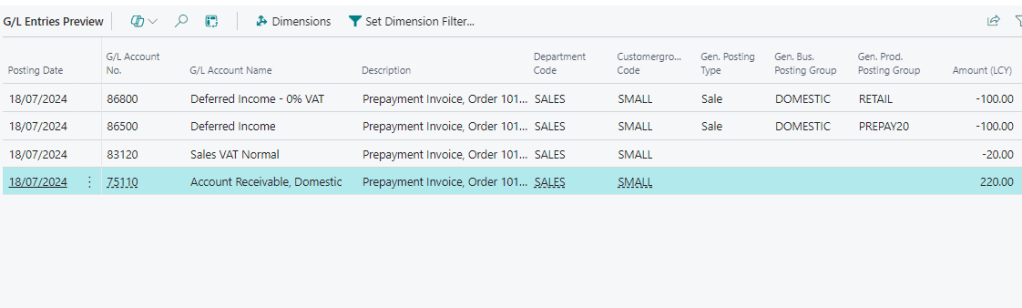
When I try and post this it works, and when I look at the General Ledger Entries I can see both my Sales Prepayment General Ledger accounts are being used.
Conclusion
Although I’ve had to create an additional Sales Prepayment Account this does provide a method of posting Sales Prepayment Invoices for items with differing VAT Amounts. (I could also post a journal at month end to transfer the balance from account to another using a journal)
It also solves the need to have to change the “VAT Product Posting Group” on a Sales Prepayment General Ledger account if you post Sales Prepayment invoices with different VAT amounts.
Thanks for reading!

 thedynamicsexplorer.com