Dynamics 365 Business Central – How to quickly split the balance of a General Ledger account across Dimensions using a Recurring General Journal

Introduction

At the end of a period it maybe necessary to split the balance of an General Ledger account across dimensions. This might be useful if you accumulate costs in a General Ledger account and only split those across cost centres at the period end.

In this post I’ll go through how this can be achieved quickly and easily using the Recurring Journal.

Recurring Journal

The recurring journal in Business Central provides the means of handling repetitive journals that occur on a regular basis.

One example might be a monthly depreciation journal or recurring revenue and expenses. (although I’d hope anyone would be using the Fixed Assets module for monthly depreciation 😊). Typically you’d be using the same or very similar amounts so would use a “Recurring Method” of “Fixed” or “Variable” for those journals.

However there is a “Recurring Method” of “Balance” that provides the ability to transfer the balance of an General Ledger account to another General Ledger account, or more interestingly, split the balance of an account across dimension values.

For example, let’s say I’ve been accumulating “Office Supplies” expenses under one General Ledger code and at the end of the month I want to split this by departmental cost centres.

This see how this works with a Recurring General Journal.

Worked Example

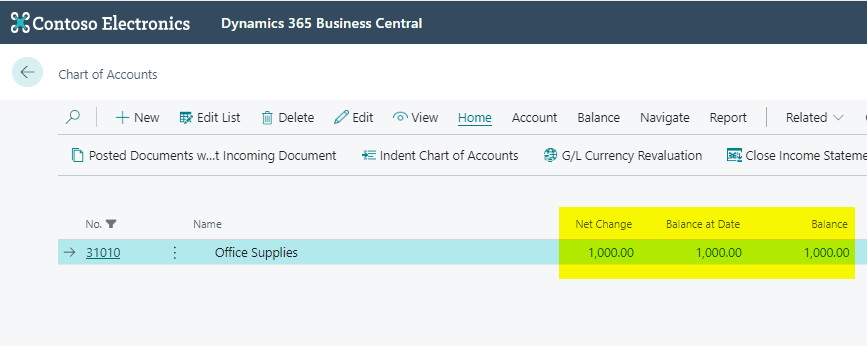
Through the month I’ve accumulated £1000 worth of costs in the “Office Supplies” account.

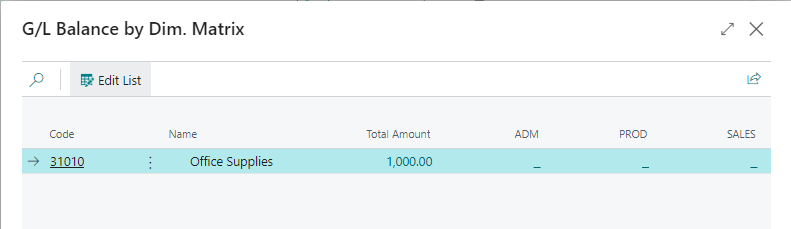
If I look at a “G/L Balance by Dimension” you can see I have no Dimensional analysis.

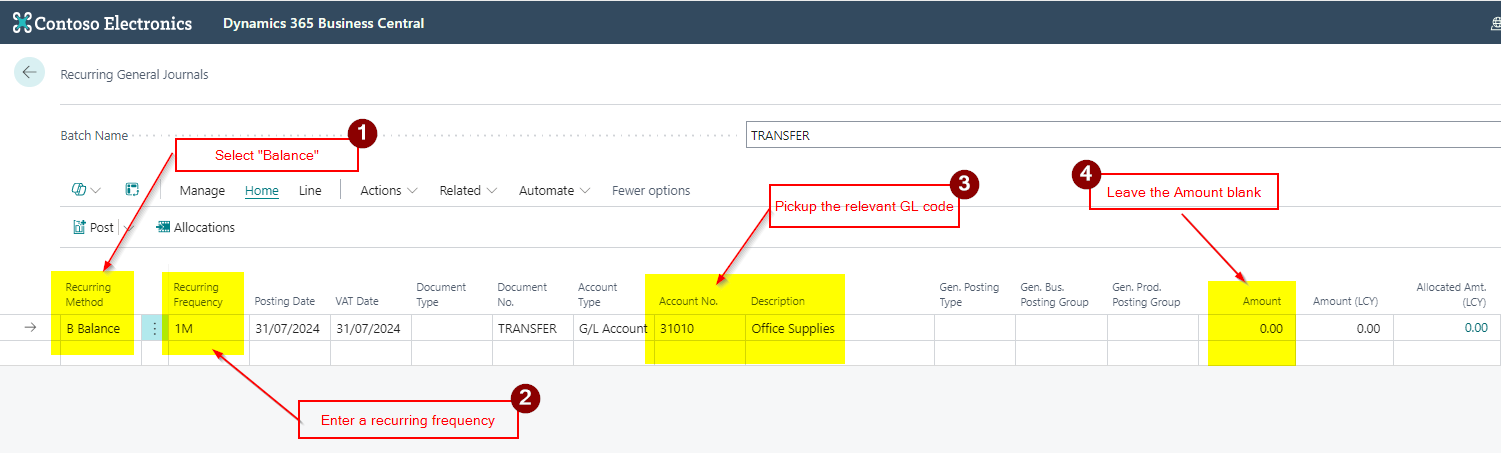
At month end I now want to split these costs across my departments. To do this I open the “Recurring General Journal” page, select the “Balance” recurring method, and pickup the “Office Supplies” account. (Note I don’t enter any amount in the journal)

Next we’ll allocate the balance across the “Department” dimension. I want to allocate 20% to the Sales department, 50% to Production and 30% to Admin.

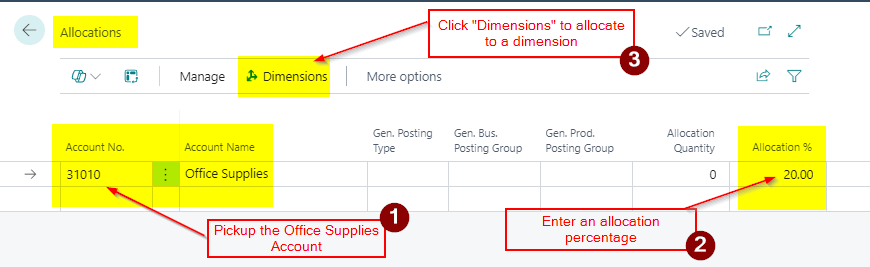
To do this click “Allocations” in the ribbon and pickup the Office Supplies General Ledger account and enter 20% percentage and click “Dimensions”

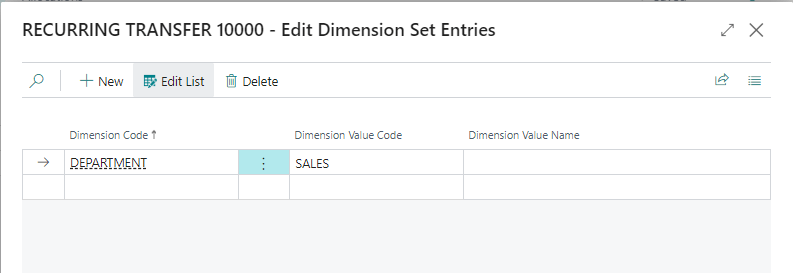
I then select “Department” as the Dimension Code and “SALES” as the Dimension Value.

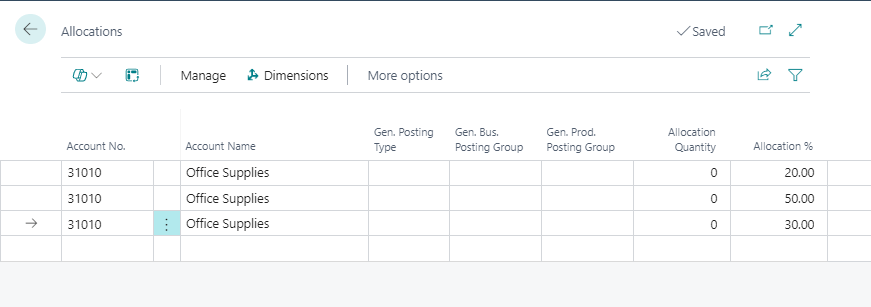
I repeat this for Dimension Values “ADM” and “PRODUCTION”, each time entering the Office Supplies General Ledger account, then clicking “Dimension” in the ribbon, and picking up the relevant dimension value.

I now have the allocations I require as per below.

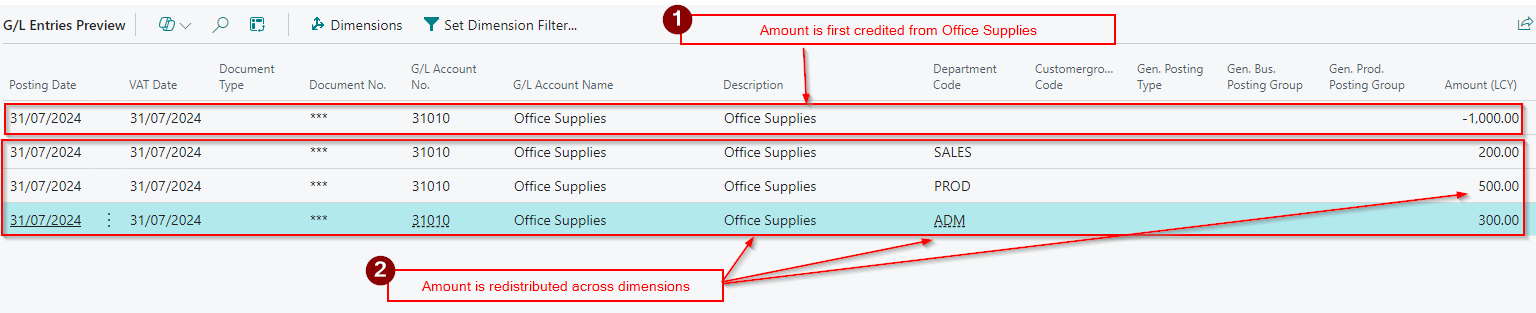
Now when I preview post the journal I can see how this will now be split over the various departments

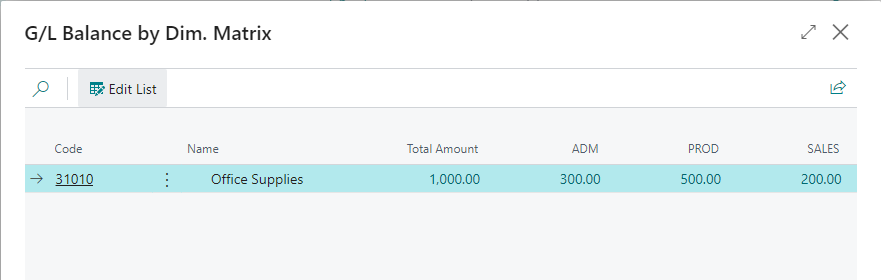
Finally when I view the “G/L Balance by Dimension” I can see the split across my Department dimension

Conclusion

Although I could have used a normal “General Journal” for this entry, this method shows how you can utilise the “Recurring General Journal” to split costs across dimensions, without needing to know the actual balance of the account therefore reducing errors and saving time.

Thanks for reading!

Dynamics 365 Business Central – How I post opening balances for the General Ledger in Business Central

Introduction

In previous posts I’ve looked at how I post opening balances for various modules in Business Central. Links to these articles can be found below:

Today I wanted to discuss how I post opening balances for the General Ledger. (I perhaps should have started with this one 😀)

I use a couple of approaches when posting opening balances for the General Ledger, choosing the method based on the level of transactional detail required. In this post I’ll discuss all three methods including which one I commonly recommend and why.

Please note in all the methods described below, right after posting the opening balance journal, I print and save a copy of the General Ledger Trial Balance. I also make a note of the G/L Register from the “G/L Register” page in Business Central. (although I name the batch OPENBAL-GL so its easy to spot anyway)

Preparation

For all the methods, I use a predefined configuration package that I export to Excel, ask the client to populate with data, and then import back into Business Central.

This includes key fields like the Posting Date, Account Number, Dimensions, and Amounts. A copy of the configuration package can be found here along with other free stuff 😊

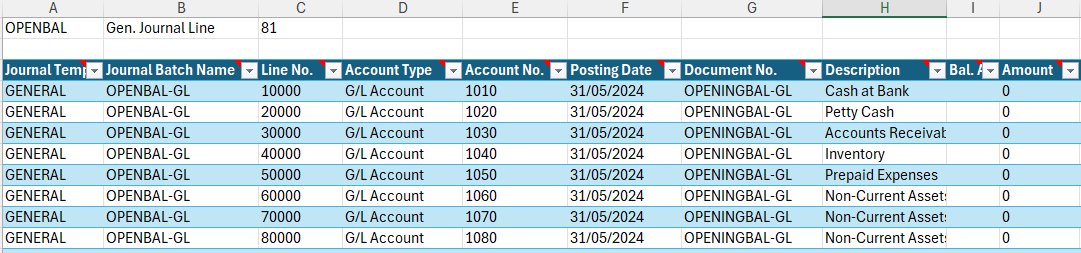
A screen shot of Excel Spreadsheet is below:

Example of Excel Template for Opening Balances

Method 1 – Post Total Opening Balances as of Go Live Date

This method involves posting the balance of each General Ledger code in one journal, using one document number, on the required go live date.

Therefore if you were going LIVE with Business Central on the 31st of May 2024 you’d collect your General Ledger balances as of this date from your existing system and populate the Excel Spreadsheet with this data.

Important considerations should be given to the control accounts such as the Sales and Purchase control account to ensure these balance to any imported Sales and Purchase Ledger transactions.

Once the journal has been imported, and you are happy with the balances, you can post the journal to record the opening balances.

This is the quickest and easiest way to post opening balances for the General Ledger, but it has limitations. The primary drawback is the lack of historical financial reporting in Business Central. In contrast, Method 2, while more time-consuming, provides greater detail.

Method 2 – Post Total Opening Balances and Period Balances

This method involves posting opening balances for a set period prior to your go-live date and then posting additional period balances up to the go-live date, resulting in a final go-live balance.

For example, if you plan to go live with Business Central on 31st of May 2024, and want 12 months’ worth of summary information prior to this, you would post an opening position as of 31st of May 2023, using a document number like “OPENBAL-GL-MAY23.” Then, you would post balances for each of the 12 monthly periods from June 2023 through May 2024 using different document numbers, such as “PERIODBAL-GL-JUN23” and “PERIODBAL-GL-JUL23.” all building up to a total balance as of May 2024.

This approach allows you to report month-on-month using only Business Central data as soon as you start using the system. For instance, after being live with Business Central for June 2024, you could compare June 2023 data to the live data for June 2024.

Method 3 – Posting Opening Balances and Detailed Information

The final method can only realistically be used when the company is very small and doesn’t have lots of transactions.

This method involves posting an opening position followed by the detail information for a set period of time.

For example if your year end is 31st of December 2023 and you wanted to go live with Business Central as of 31st of May 2024 you could post the opening balance from your existing system as of the 31st of December 2023 and then enter each transaction manually from 31st of December 2023 to the 31st of May 2024. (in this scenario it doesn’t really matter when you go live as you are entering detailed information from the 31st of December 2023)

As you can imagine this is the most labour intensive method so is generally only used on companies with few transactions.

** You also have to post opening balances for the sub ledgers as of 31st of December 2023 and then enter detail information. This can be very labour intensive if there are lots of transactions.

Conclusion

All methods provide a solution for posting opening balances into Business Central. I prefer to use Method 2 because, although it requires a bit more effort, it allows for comparison reporting as soon as you go live with Business Central.

Thanks for reading!

Dynamics 365 Business Central – Why do I have the popup “General Journal Template List” when opening the General Journal page

Introduction

A client reported different behaviour when accessing the “General Journal” page across their various companies in Business Central.

When searching and selecting “General Journal” in one company, it opened the “General Journal” page immediately. However, in another company, they were presented with a “General Journal Template List” page. At this point, they had to select a template, before they could being entering the journal.

In this post, I’ll show why the companies are exhibiting different behaviour when trying to do the same task.

The Pop Up

In one company, when searching and selecting “General Journal” they are presented with the “General Journal Template List” page below:

This differs from the other company, which immediately takes them into the “General Journal” page so they can begin entering journals.

More on General Journal Templates

The clue for why this is happening lies in the heading of page that pops up – “General Journal Template List”.

Although we don’t have much interaction with General Journal Templates, one exists for each type of Journal that you can create (i.e. Payment Journal, Cash Receipt Journal, General Journal etc), providing default information for all their journal batches.

For example, a General Journal Template exists for journals that are entered via the “Payment Journals” page, one exists for journals that are entered via the “Cash Receipts Journals”, one exists for Journals entered via the “General Journal” page and so on.

The batches into which journals are entered are specific to the General Journal Template. Incidentally, this explains why a batch created in a “General Journal” page isn’t visible in the “Payment Journals” page, and vice versa.

The Issue

As the pop up is asking us to select a “General Journal Template”, the answer to the issue must lie in how these are configured.

I therefore open the “General Journal Template” page and spotted someone had created an additional template of Type “General”.

After a little digging, it appears a new user had mistakenly created the “GENERAL2” template when trying to create a new batch.

To resolve the issue I simply deleted the duplicate General Journal Template and the pop up has now disappeared.

Conclusion

While it’s technically possible to have multiple General Journal Templates for each Type, it’s not typically considered standard practice.

Rather than creating multiple General Journal Templates, its generally recommended to create multiple batches within each Template.

Thanks for reading!