When you run the year end routine on the General Ledger in Dynamics GP the system automatically creates a journal to bring forward the balances for the Balance Sheet codes and it also closes all the profit and loss codes to the retained earnings account.
When you look at the header of the year end journal that’s created it shows a source document of BBF (Balance Brought Forward)
However if you take a closer look at the year end journal in smartlist you can see that some of the lines have a source document of “P/L”.
So why the mixture of BBF and P/L source documents for the year end journal?
The BBF entries are created to bring forward the balances of the “Balance Sheet” accounts and the “P/L” entries are created by closing the profit and loss accounts to the retained earnings account. As my demo data has multi currency postings to various profit and loss codes I get one entry per currency.
To confirm the correct amounts have been posted to the retained earnings account I can run the query below in SQL that sums all the amounts posted to the profit and loss accounts for the year 2024, and this reconciles back to the amounts posted to the retained earnings account on the year end journal:
The BBF entries are quite well known but I couldn’t find much information on the P/L source document which is why I created this post.
Thanks for reading!
Thinking of making the move to Business Central? We can help
As I learn and familiarise myself with Dynamics 365 Business Central I often post something in Dynamics GP and then wonder how this same task could be achieved in Dynamics 365 Business Central.
Today’s pondering was looking for the equivalent to the “Payables Transaction Entry” window that we have in Dynamics GP.
I know you can post to G/L accounts via the “Purchase Invoice” page in Dynamics 365 Business Central but to me this is primarily a “Purchase Order Processing” type window. I wanted to post a sundry payables invoice, onto a vendor, to multiple GL codes, without the need to touch the “Purchase Invoice” window.
As usual there is more than one way to do this however I focus on the “Purchase Journal” page. I also elude to why I think you can achieve the same using other “journal” pages, although you might not necessarily want to use those anyway 🙂
Dynamics GP – Payables Transaction Entry
In Dynamics GP you can post a sundry payables invoice in a very straight forward and easy to understand window called “Payables Transaction Entry”.
This window has no link to Purchase Order Processing. We tend to advise users to use this window for posting invoices for sundry items and things you wouldn’t necessarily have a Purchase Order for. You can click “Distributions” and record multiple GL codes for this one invoice. Its also handy to import transactions into very quickly and users seem to prefer this window for speed of entry.
Dynamics 365 Business Central – Purchase Journal
There are various “journal” pages in Dynamics 365 Business Central so I turned to the “Purchase Journal” page to achieve my goal.
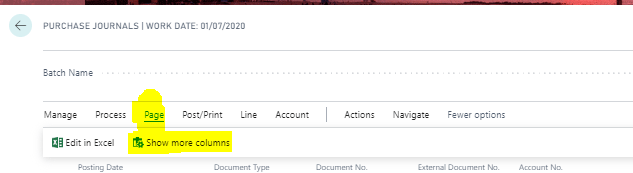
The first thing I found I had to select was the option “Show more columns” as per below.
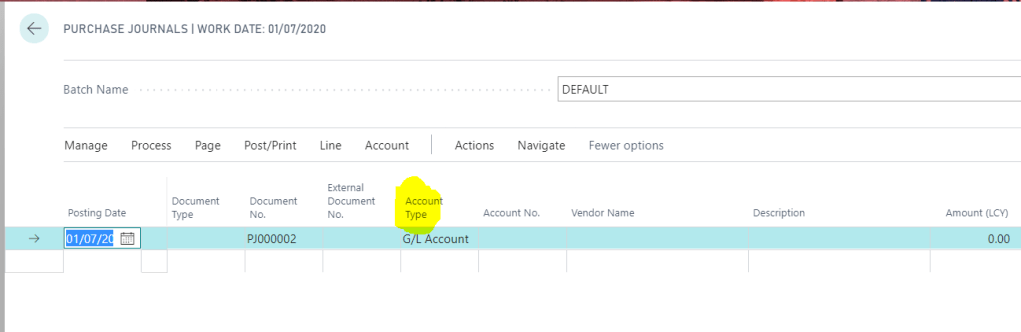
Crucially this adds the “Account Type” option which gives the user the ability to add “G/L Account” when keying in the Payables document:
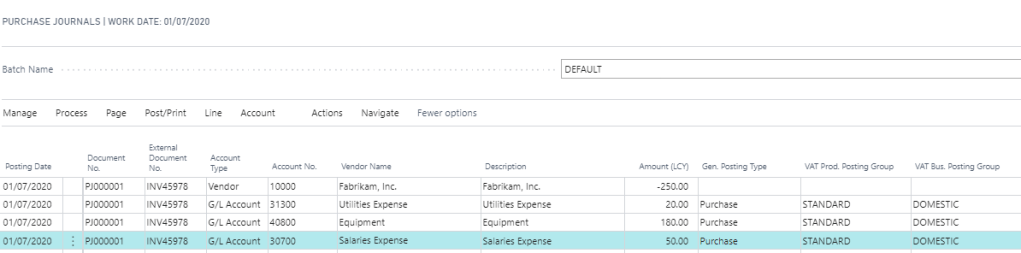
Now I had the “Account Type” field available for entry I found as long as you keep the Document Number, External Document No and Posting Date the same you are able to add a payables document with multiple lines.
First you add the “Account Type” of “Vendor” and key in the first line with the total amount of the document. On the subsequent lines you can choose “G/L Account” as the account type and enter the G/L distribution breakdown. Also, if you wish to analyse tax to any of the distributions you must populate the “Gen. Posting Type” with “Purchases” and then populate the “VAT Prod. Posting Group”.
In the end you should have something like this and the document will post successfully
Other takeaways
As with any investigation you usually find some interesting things along the way.
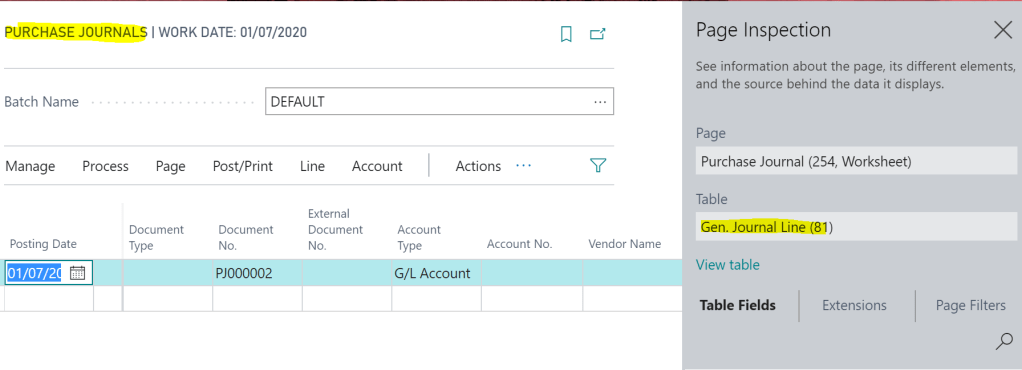
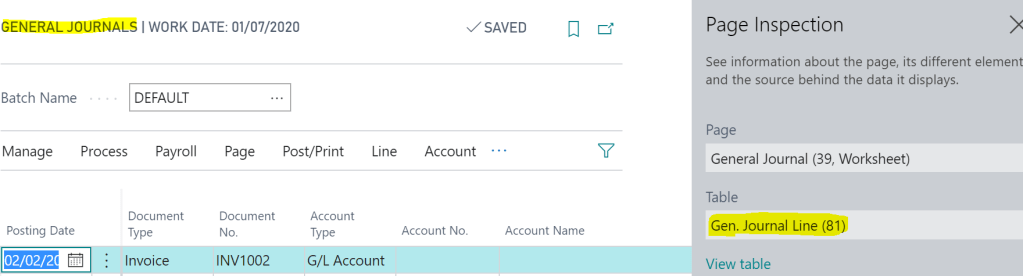
The major takeaway I found is that you can post the same purchase invoice using the “General Journal” page. After looking more closely it seems this is possible as both pages are based on the “Gen. Journal Line” table. Therefore all the fields (and business logic) you need are available on the “General Journal” page as well.
See below. The “Purchase Journal” and “General Journal” pages are based on the same table:
Purchase JournalGeneral Journal
However, as a word of caution, if you were to post the same purchase invoice from the “General Journal” page the transaction is given a “Source Document” of “GENJNL” in the “G/L Register” rather than “PURCHJNL”.
See below. The top G/L Register was posted using the “General Journal” page and the other using the “Purchase Journal” page.
Therefore I’d suspect its best to use the specific “Purchase Journal” for these postings.
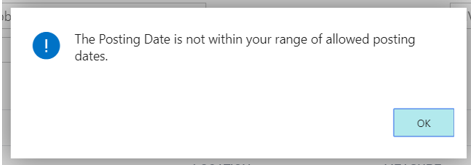
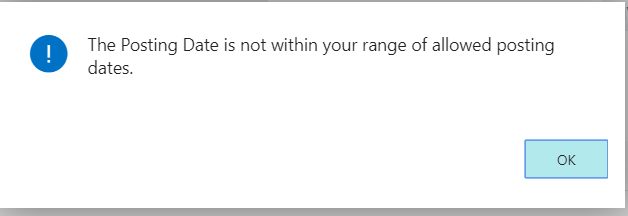
You receive the message “The Posting Date is not within your range of allowed posting dates” when trying to post a Purchase Invoice in Business Central.
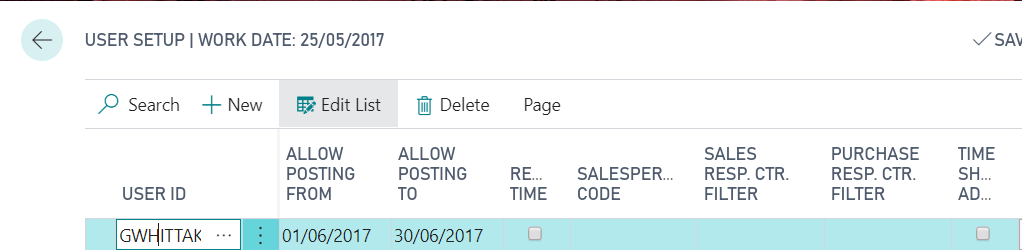
According to the user setup the “Posting Date” of the document I’m posting is within the allowed posting range so why won’t the system allow me to post it?
Background – Value Entries
To provide a little more detail I’m trying to post a Purchase Invoice that I’ve matched to a Posted Purchase Receipt and I’ve increased the Unit Cost on the Purchase Invoice as the price has changed since the goods were received. I’ve also sold the items on a Sales Invoice before I’ve tried posting the Purchase Invoice.
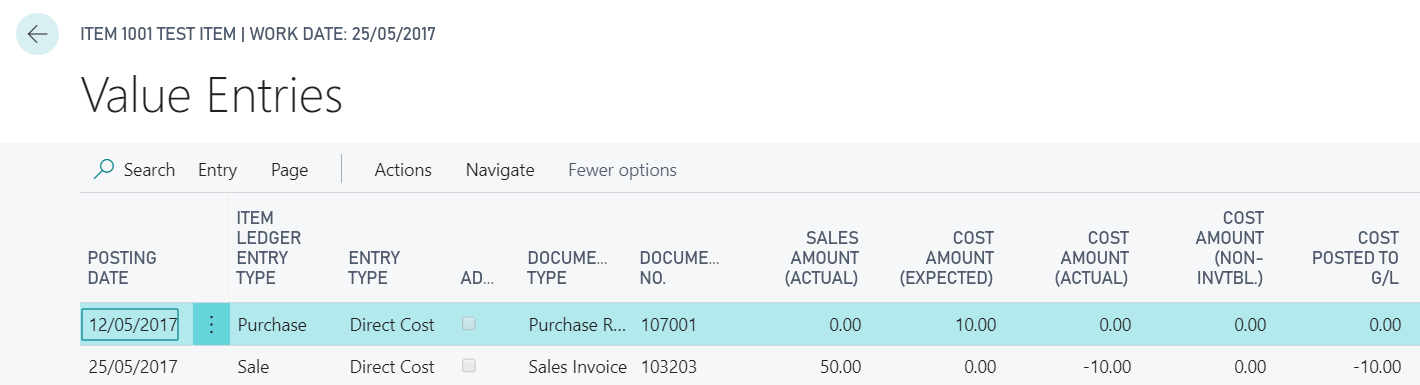
Therefore, if we look at the value entries of this item prior to attempting to post the Purchase Invoice they are as follows
We have a value entry for the Posted Purchase Receipt showing a date of 12/05/2017 and a “Cost Amount (Expected)” of £10.00 (this the amount I used when posting the Purchase Receipt)
We also have a value entry for the Sales Invoice showing a Posting date of 25/05/2017 and a “Cost Amount (Expected)” of £10.00.
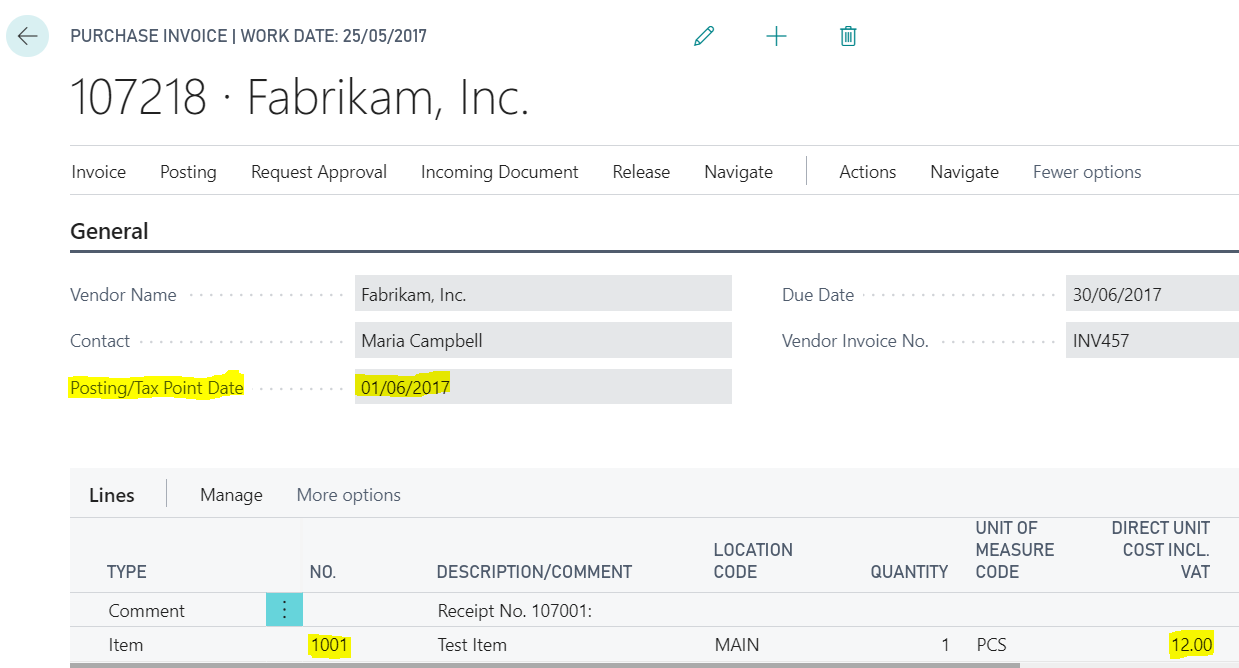
Details of the Purchase Invoice
The Purchase Invoice I’m posting is dated 01/06/2017 and I’ve amended the Unit Cost from the original £10.00 that pulled through from the Posted Purchase Receipt to £12.00
Now when I try and post this transaction, I receive the message
Therefore, just to confirm the Posting Date of the Purchase Invoice is within my allowed posting dates below is a screen shot of the User Setup window showing my Allow Posting Dates
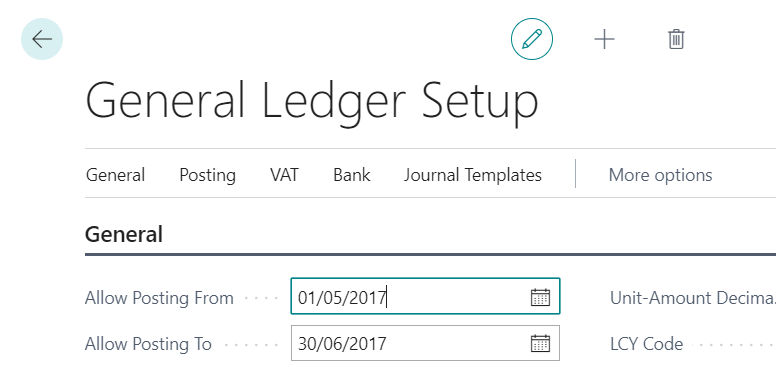
The dates are also within the General Ledger allowed posting dates as shown below
Therefore, at first glance its not apparent why the system isn’t allowing me to post this document? The Purchase Invoice posting date is 01/06/17 and this is within my range of allowed posting dates?
The Issue – Automatic Cost Adjustment and Adjust Cost Item Entries
When posting the Purchase Invoice, the system has detected that the cost has changed from the Posted Purchase Receipt, and as this has been sold on a Sales Invoice, the cost of goods sold need adjusting.
The system therefore tries to post an adjustment using the Posting Date of the entry its adjusting (in this case the Sale Entry on the 25/05/17), which is in May, and as this falls outside of my posting range I receive the error “The Posting Date is not within your range of allowed Posting Dates”.
** Please note there is a complex method for selecting the Posting Date if the Posting Date of the entry being adjusted also fell outside of the “Allowed Posting Dates” of the General Ledger and also if “Inventory Periods” are being used. More information on this can be found in this Microsoft document https://docs.microsoft.com/en-us/previous-versions/dynamicsnav-2016/dn948192(v=nav.90)
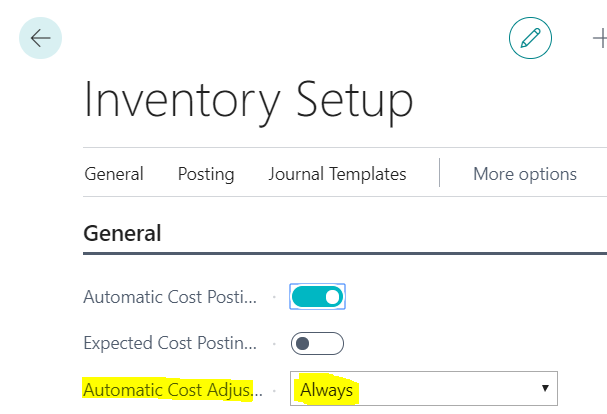
** Its also worth noting I’m getting this message when posting the Purchase Invoice because the option “Automatic Cost Adjustment” is set to “Always” in Inventory Setup. This means the system checks for cost adjustments when you post the transaction. If this wasn’t set to “Always”, then depending on its setting its possible the document would post however when the “Adjust Cost Item Entries” batch job was subsequently run the error would occur.
See below for my Inventory Setup
Solution
There are two possible solutions to my issue here. The first is to change my “Allowed Posting Dates” in the “User Setup” to 25/05/2017 through to 30/06/2017. This will then include the posting date of the entry that will be adjusted.
Alternatively, I could change the “Allowed Posting Dates” in the General Ledger Setup to 01/06/2017 through to 30/06/2017. Then, as per the article I linked to, the system would use the date of 01/06/2017 for the adjustment entries, (i.e. the first open date in the General Ledger Setup) which does fall in my allowed periods to post to.
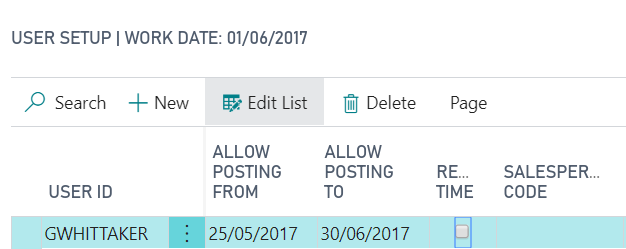
Therefore I’ll change my “Allowed Posting Dates” in the User Setup as per below
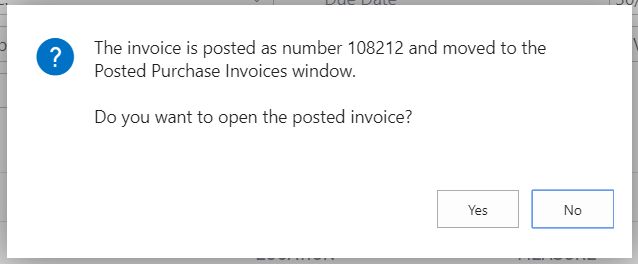
And now when I post the Purchase Invoice this is succecssful
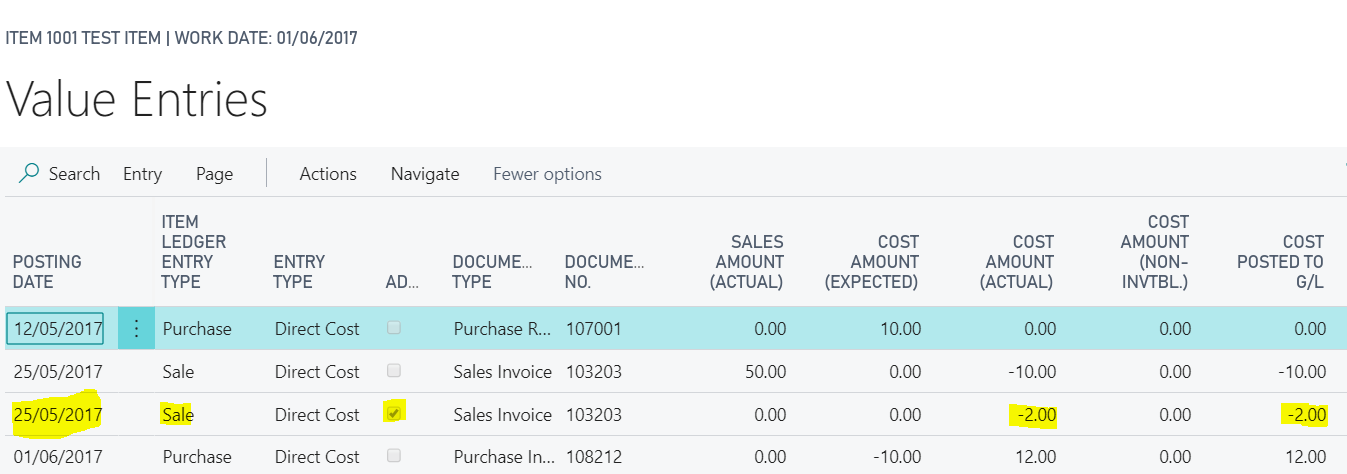
If I now view the Value Entries you can see the adjustment entry created with a Posting Date of 25/05/17.
Conclusion
Although this is a simple example it shows why you may encounter this error when it seems the postings date configuration on the User Setup should allow a document to post.



 thedynamicsexplorer.com