A client reported different behaviour when accessing the “General Journal” page across their various companies in Business Central.
When searching and selecting “General Journal” in one company, it opened the “General Journal” page immediately. However, in another company, they were presented with a “General Journal Template List” page. At this point, they had to select a template, before they could being entering the journal.
In this post, I’ll show why the companies are exhibiting different behaviour when trying to do the same task.
The Pop Up
In one company, when searching and selecting “General Journal” they are presented with the “General Journal Template List” page below:
This differs from the other company, which immediately takes them into the “General Journal” page so they can begin entering journals.
More on General Journal Templates
The clue for why this is happening lies in the heading of page that pops up – “General Journal Template List”.
Although we don’t have much interaction with General Journal Templates, one exists for each type of Journal that you can create (i.e. Payment Journal, Cash Receipt Journal, General Journal etc), providing default information for all their journal batches.
For example, a General Journal Template exists for journals that are entered via the “Payment Journals” page, one exists for journals that are entered via the “Cash Receipts Journals”, one exists for Journals entered via the “General Journal” page and so on.
The batches into which journals are entered are specific to the General Journal Template. Incidentally, this explains why a batch created in a “General Journal” page isn’t visible in the “Payment Journals” page, and vice versa.
The Issue
As the pop up is asking us to select a “General Journal Template”, the answer to the issue must lie in how these are configured.
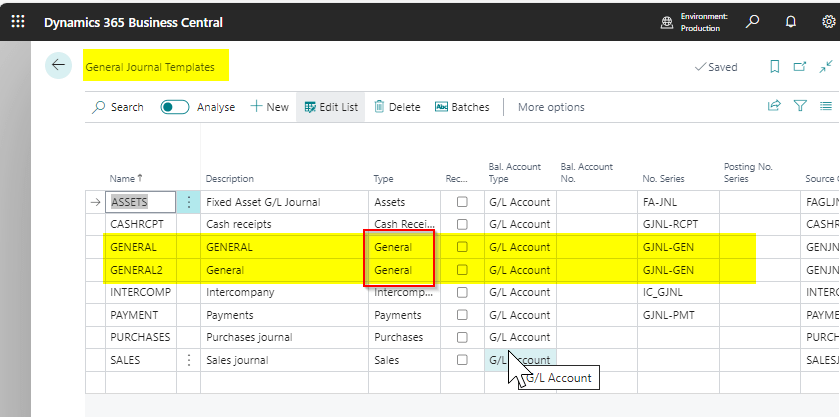
I therefore open the “General Journal Template” page and spotted someone had created an additional template of Type “General”.
After a little digging, it appears a new user had mistakenly created the “GENERAL2” template when trying to create a new batch.
To resolve the issue I simply deleted the duplicate General Journal Template and the pop up has now disappeared.
Conclusion
While it’s technically possible to have multiple General Journal Templates for each Type, it’s not typically considered standard practice.
Rather than creating multiple General Journal Templates, its generally recommended to create multiple batches within each Template.
If your business is partially exempt for VAT, you’ll need a method for tracking your VAT entries, so you can post adjusting entries to the VAT return.
In this post I’ll go through the basics of what being partially exempt from VAT means, and how you can configure Business Central to accommodate this using standard features.
** Please note there are specific non-recoverable VAT features in Business Central which I don’t cover in this post however those features compliment this configuration rather than replace it.
Normal VAT
Normally, a business would supply goods or services and charge VAT (output VAT) and also buy goods or services and pay VAT (input VAT). Then, at the end of the VAT period, the business calculates whether they need to pay HMRC (i.e. the output VAT is more than the input VAT) or reclaim VAT from HMRC (i.e. their input VAT is more than their Output VAT).
This is easily setup using standard Business Central VAT Product Posting Groups as per below:
What is Partial Exemption for VAT
The above description of Normal VAT assumes all supplies the business makes are subject to VAT (i.e. all supplies the business makes are taxable at 20%, 5%, 0% VAT). These rules don’t apply when a business makes both taxable and exempt supplies. When a business makes exempt supplies, they can’t reclaim all the input VAT on all their expenses.
The rules for claiming input VAT when you make exempt supplies and taxable supplies are as follows:
Input VAT Type
Rule
Input VAT that relates directly to exempt supplies
None of the Input VAT can be reclaimed
Input VAT that relates directly to taxable supplies
All of the VAT can be reclaimed.
Input VAT that can’t be directly attributed to exempt or taxable supplies
A portion of the VAT can be reclaimed.
With regards the final point, this relates to expenses like accountancy fees or rent. Basically any expenditure that is incurred for the business to operate. The business can only reclaim a portion of the incurred VAT for these expenses, with the amount that can be recovered being calculated based on the exempt and taxable supplies during the specified period. (worked out as a percentage)
Business Central Configuration
Now we know the basic rules around partial exemption, it becomes clear that if we qualify as partially exempt for VAT, we need a way of easily identifying whether our expenses relate to exempt supplies, taxable supplies, or are general business expenses when entering them in Business Central. (basically where they sit according to the table above)
Therefore, the first step is to add more VAT Product Posting Groups to our configuration.
We then need to add the the new VAT Product Posting Groups into the “VAT Posting Setup” as per below (note the new VAT Product Posting Groups still calculate VAT at 20%. This doesn’t change, only the amount of VAT we can reclaim is affected).
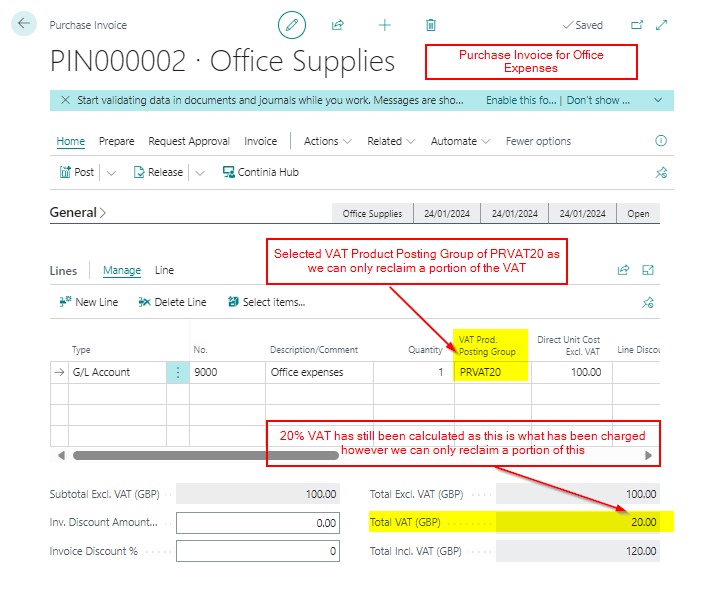
Using this new configuration, when entering a Purchase expense, and we can recover all the VAT, we should use the “VAT20” VAT Product Posting Group. When entering a Purchase expense, and none of the VAT can be recovered, we can use “PNVAT20” and when we can partially recover some VAT we should use “PRVAT20“.
Therefore, if we had a Purchase Invoice for Office Expenses, which we know we can only reclaim a portion of the VAT back, we’d use the PRVAT20 VAT Product Posting Groups as per below. This would then be easily identified in the VAT Entries.
VAT Entries – Example
Now suppose we have entered transactions to the different VAT Product Posting Groups to get VAT entries as per below:
As we have posted our purchase expenses using the correct VAT Product Posting Groups we can easily identify the following:
We have £60.19 posted to PNVAT20. We can’t reclaim any of this VAT.
We have £45.86 posted to PRVAT20. We can reclaim a portion of this VAT.
We have £88.85 posted to VAT20. We can reclaim all of this VAT.
VAT Adjustment
Let’s say we have reached the end of the VAT period, and the transactions shown above are the only transactions we have posted.
We have also performed our partial exemption calculation, and we can only reclaim 10% of the VAT posted to the PRVAT20 VAT Product Posting Group.
This means of the £45.86 posted to PRVAT20 we can’t reclaim £41.27. (90% we can’t reclaim)
We also can’t reclaim any of the £60.19 VAT posted to the PNVAT20 VAT Product Posting Group.
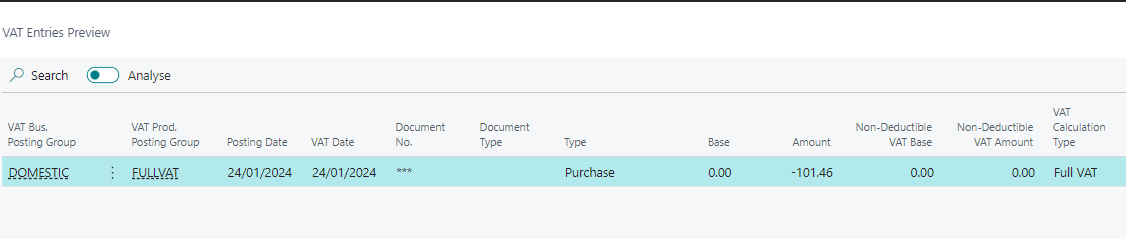
Therefore, we’ll need a combined adjustment of £101.46 to the VAT account, which we can offset against an irrecoverable VAT expense account. Therefore we would post a General Journal as per below:
When posting this journal we should also use the FULLVAT VAT Product Posting Group so we have a VAT entry that will be picked up the VAT Statement reducing the amount we can reclaim. (an adjustment to the VAT statement configuration may be needed for this if the FULLVAT Vat Product Posting Group isn’t on the VAT statement)
Conclusion
This is one method you can use for partial exemption in Business Central. It involves creating different VAT Product Posting Groups to post your purchase expenses against depending on whether the VAT will be fully recoverable, partially recoverable, or unrecoverable.
Its worth noting that Business Central does have additional irrecoverable VAT features that I’ve haven’t covered in this post. This includes a change to the VAT Posting Setup window giving you the ability to automatically post a portion of the VAT to an irrecoverable VAT GL code. I might do another post on that in the future 🙂
There might be situations when you only want to post part of a Journal batch, rather than the whole batch. For example, if you have several monthly adjustment journals in one batch, you might only want to post a selection of the entries, rather than the whole batch. In this post I’ll walk through how this can be achieved using filters.
Scenario
Let’s say you have a month end journal batch that contains several monthly adjustments you are working on. Now you just want to post a selection of the entries in the of the journal batch, and continue working on the rest.
As there is only a “Post” option on the menu bar, its not obvious how you can achieve this, however this can be done using filtering on the journal lines.
Filtering in a Journal
Below is a journal batch that contains a depreciation entry, an accrual and a journal for bad debt that hasn’t yet been finalised.
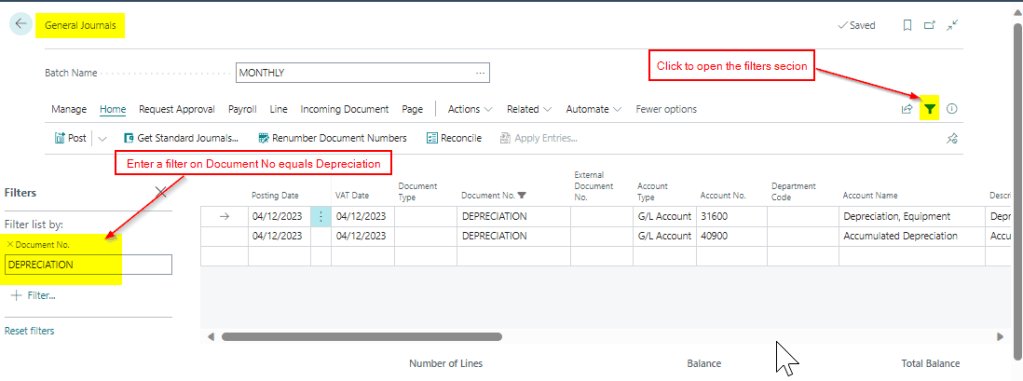
In this scenario, I only want to post the depreciation entry, and continue working on the other journals in the batch. To do this I can click the “Filter” option and filter the lines to my depreciation journal as per below.
Now, when I click “Post”, Business Central honours the filter and only posts what is currently filtered. As you can see below only two GL entries have been created. (and in fact the journal wouldn’t have posted without the filter as it didn’t fully balance)
Conclusion
Its common to advise users to create a journal batch per task in Business Central. For example, a journal batch for Adjustments, Accruals etc however you can use one batch and use filters to post just what you need.







 thedynamicsexplorer.com