Introduction
A client reported different behaviour when accessing the “General Journal” page across their various companies in Business Central.
When searching and selecting “General Journal” in one company, it opened the “General Journal” page immediately. However, in another company, they were presented with a “General Journal Template List” page. At this point, they had to select a template, before they could being entering the journal.
In this post, I’ll show why the companies are exhibiting different behaviour when trying to do the same task.
The Pop Up
In one company, when searching and selecting “General Journal” they are presented with the “General Journal Template List” page below:

This differs from the other company, which immediately takes them into the “General Journal” page so they can begin entering journals.
More on General Journal Templates
The clue for why this is happening lies in the heading of page that pops up – “General Journal Template List”.
Although we don’t have much interaction with General Journal Templates, one exists for each type of Journal that you can create (i.e. Payment Journal, Cash Receipt Journal, General Journal etc), providing default information for all their journal batches.
For example, a General Journal Template exists for journals that are entered via the “Payment Journals” page, one exists for journals that are entered via the “Cash Receipts Journals”, one exists for Journals entered via the “General Journal” page and so on.
The batches into which journals are entered are specific to the General Journal Template. Incidentally, this explains why a batch created in a “General Journal” page isn’t visible in the “Payment Journals” page, and vice versa.
The Issue
As the pop up is asking us to select a “General Journal Template”, the answer to the issue must lie in how these are configured.
I therefore open the “General Journal Template” page and spotted someone had created an additional template of Type “General”.
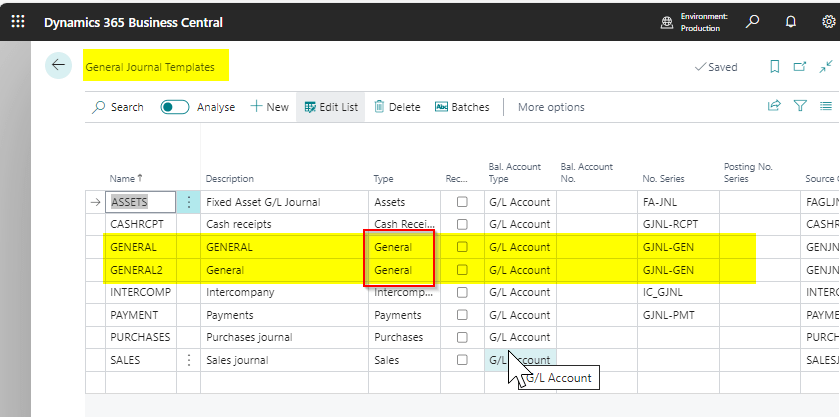
After a little digging, it appears a new user had mistakenly created the “GENERAL2” template when trying to create a new batch.
To resolve the issue I simply deleted the duplicate General Journal Template and the pop up has now disappeared.
Conclusion
While it’s technically possible to have multiple General Journal Templates for each Type, it’s not typically considered standard practice.
Rather than creating multiple General Journal Templates, its generally recommended to create multiple batches within each Template.
Thanks for reading!
 thedynamicsexplorer.com