Dynamics 365 Business Central – How to cancel a full month of Depreciation in the Fixed Assets module

Introduction

I recently encountered an issue where the fixed assets depreciation had been ran incorrectly and therefore it all had to be cancelled.

In this post, I’ll show a couple of ways you can cancel all depreciation in a given time frame or filter. These include using the “Cancel Entries” on the “FA Ledger Entries” page, and my preferred option, the “Cancel FA Entries” function on the Deprecation Book.

Scenario

In this scenario, I’ve posted depreciation for the month of August, impacting more than 300 assets. However, I’ve identified an error and now wish to cancel all depreciation for August.

There are a couple of approaches I could use to address this issue.

Option 1:- Multi select in the FA Ledger Entries Page

One way I could resolve this is to go the “FA Ledger Entries” page and filter for the entries I wish to cancel and click “Cancel Entries”.

For example, below I’ve filtered on the “AUGUSTDEPREC” document number and then selected all the entries and clicked “Cancel Entries”.
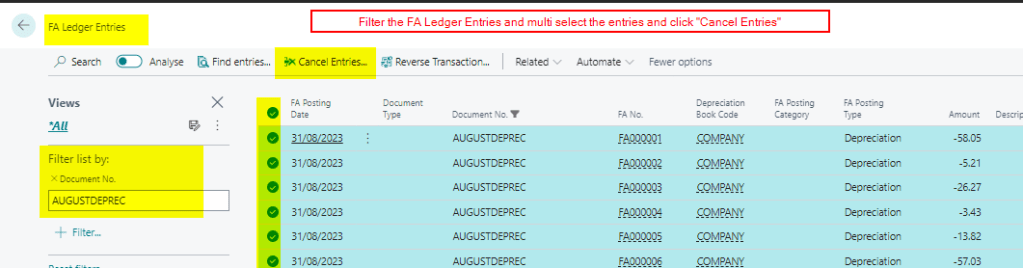
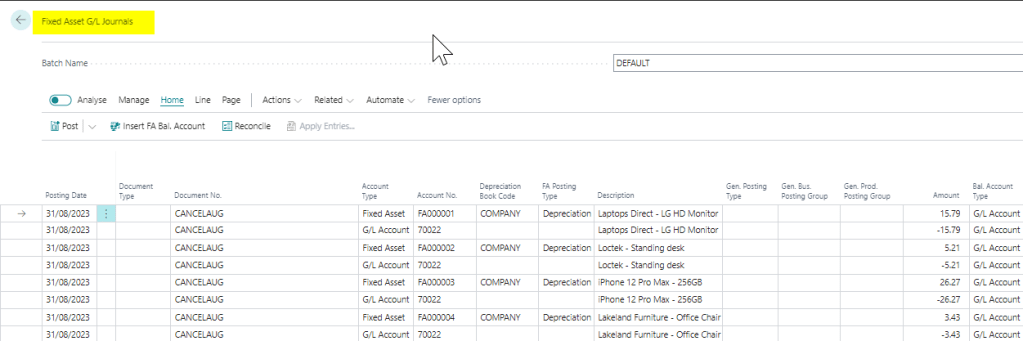
Although this would create me a Fixed Assets G/L Journal to cancel the entries, it wouldn’t automatically populate the balancing account. I’d then have to open the “Fixed Asset G/L Journal” page and highlight all the rows and click “Insert FA Bal Account”
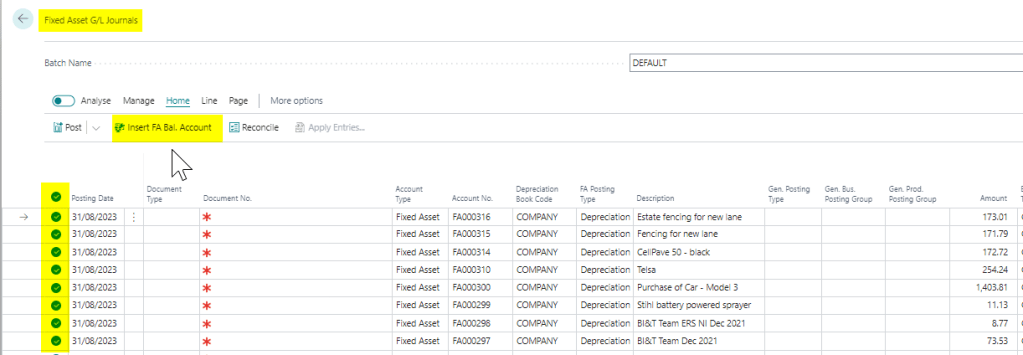
I could then post the journal which would cancel the entries.

Option 2 – Use “Cancel FA Ledger Entries” on the Depreciation Book

I find that another, more efficient way of doing this, would be to use the “Cancel FA Ledger Entries” function on the Depreciation Book.

To do this search “Depreciation Book”, select the relevant Depreciation Book, and then click to edit it. Next, select the option “Actions > Functions > Cancel FA Ledger Entries”
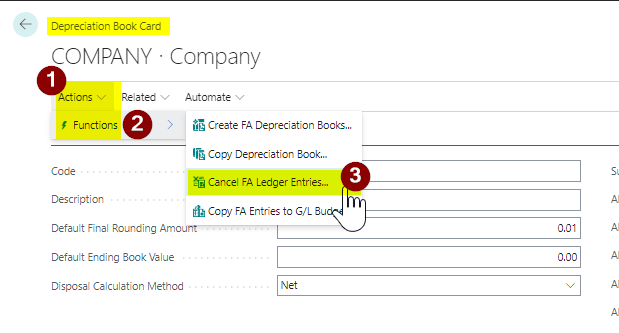
This will open a dialog box with various options for cancelling different types of Fixed Assets transactions including Depreciation.

I’ll therefore choose the options below and click OK.
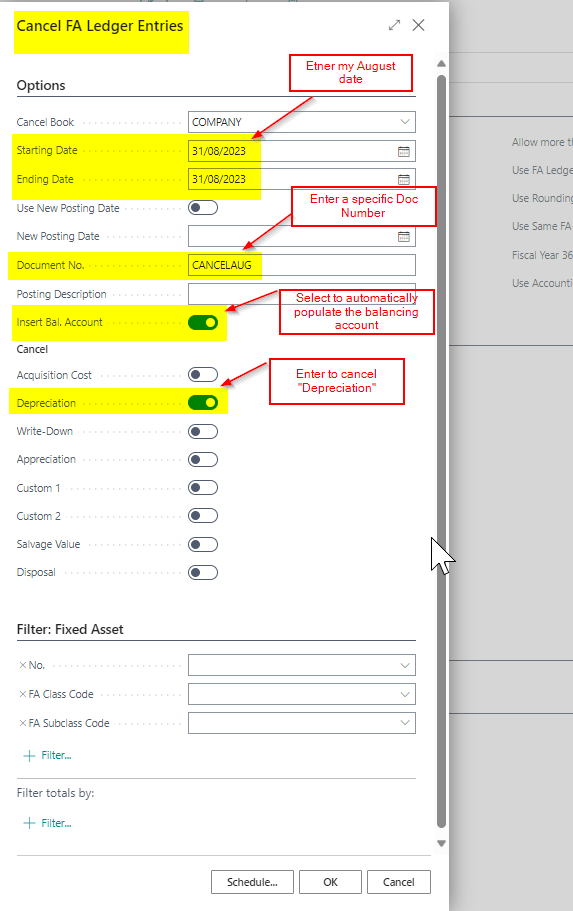
Using this method, I’m sure to cancel all depreciation entries within the specified date range. Additionally, it allows me to include the balancing account and specify a document date, all conveniently on a single page.

This will then create the relevant Fixed Asset G/L Journal I can post to cancel the entries
Final Note

When you choose to “Cancel” entries although all entries are reversed, including GL entries, they don’t appear in the “FA Ledger Entries” page. (this includes the FA Ledger Entry you cancelled). They can be viewed via the “FA Error Ledger Entries” page. This is by design as the entries have been cancelled.

Conclusion

There are various methods available for cancelling Fixed Assets entries. However, when I need to cancel multiple entries simultaneously, such as monthly depreciation, I prefer using the “Cancel FA Ledger Entries” page. When cancelling individual entries, I find the “Cancel FA Entries” option on the “FA Ledger Entries” page to be more convenient.

Thanks for reading!
Dynamics 365 Business Central – How I post opening balances for reducing balance Fixed Assets

Introduction

When posting opening balances for reducing balance assets things can sometimes prove a little challenging.

In this post, I’ll walk through how I post opening balances for reducing balance assets, and the best practices I follow.

In this example I’m posting opening balances for a reducing balance asset as at 31/08/23 in the financial year 2023.

Step 1 – Create a close the previous Financial Year

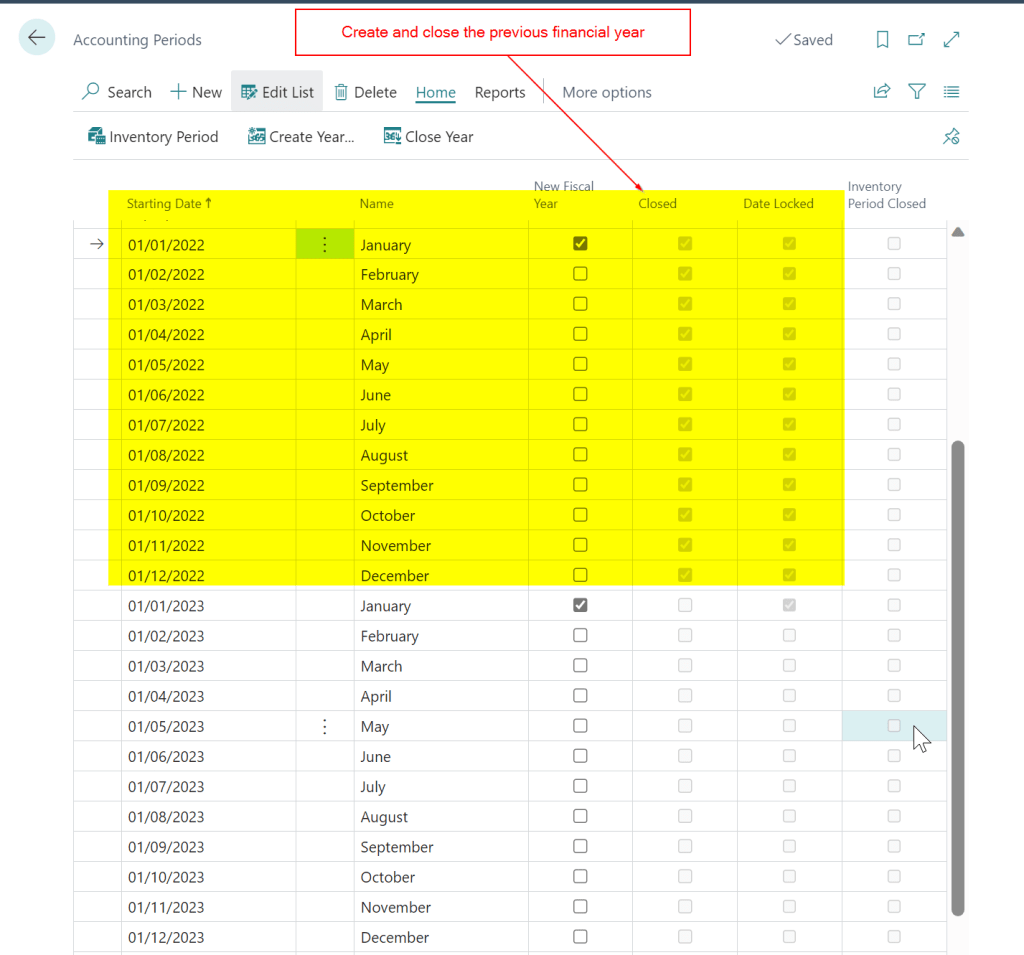
When creating a new company in Business Central its common to only create the financial year you are posting opening balances for. However, when posting opening balances for fixed assets that have a depreciation method of “Reducing-Balance”, I’ve found a slightly different approach is needed. In such cases, I also create the preceding year and then close it.

Therefore, for my example, I go to “Accounting Periods” and ensure the previous financial year has been created and also closed. I’m posting the opening balance for 2023 so I’ve also created the year 2022 and closed it.

Step 2 – Depreciation Book Setup

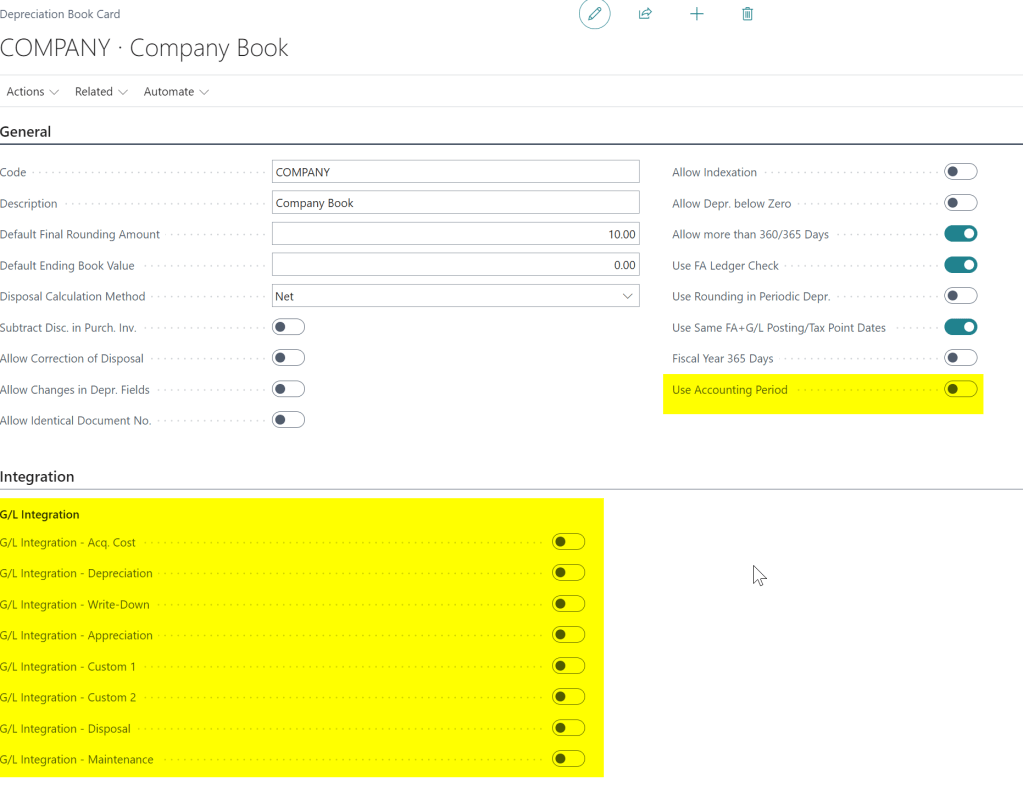
The next thing to do is to ensure the option “Use Accounting Period” is off in the Depreciation Setup and also switch off the GL Integration.

**I’ve already posted the opening position for the Asset Cost and Accumulated Depreciation in the General Ledger so I switch off GL Integration

Step 3 – Post the opening balance as at the end of 2022

As reducing balance depreciation is calculated on the carrying amount of the asset at the start of the financial year, you must post the opening balance at the end of the previous financial year, regardless of when you are going live with Business Central.

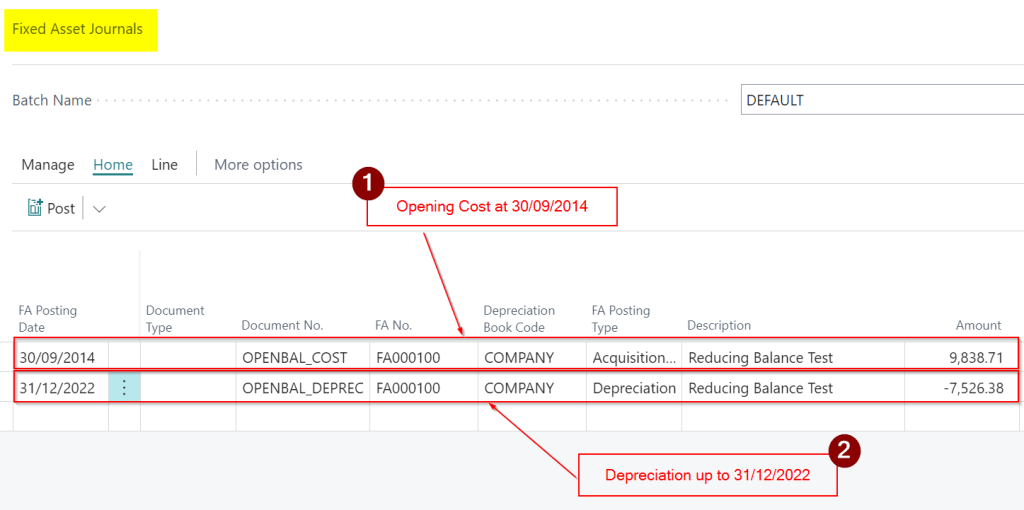
The asset in my example has an original cost of £9838.71 as at 30/09/2014, with accumulated depreciation as at the 31/08/2023 of £7,757.61.

However in order to post this correctly, and have the system create the correct depreciation, I need to post the depreciation at the end of 2022 which is £7526.38, giving a carrying amount (Net Book Value) as at the beginning of 2023 of £2312.33.

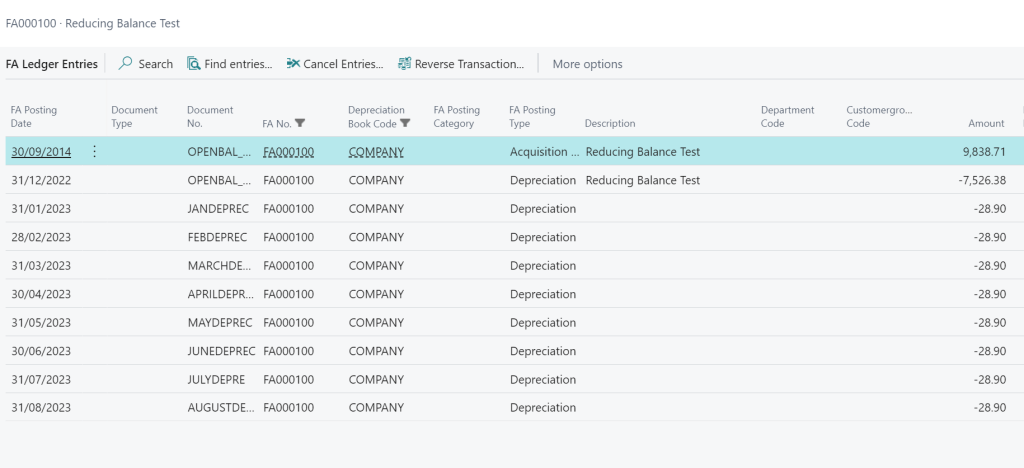
I’ll then post the depreciation for January through to August separately, to get the exact opening position of £2,081.13.

I therefore enter a Fixed Assets Journal as per below ensuring to use the original place in service date for the Opening Cost and the end of the previous financial year for the accumulated depreciation to give me the correct Net Book Value.

Step 4 – Run Depreciation and Check the Amount

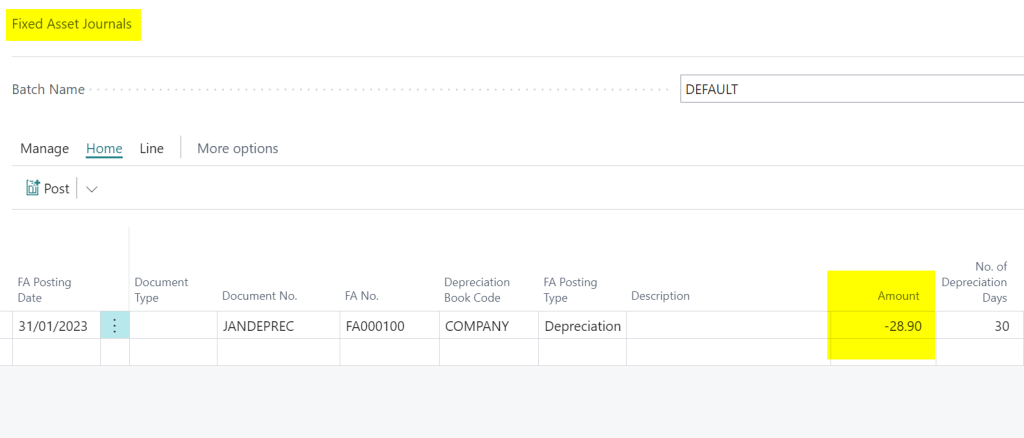
After posting the opening entries, I then run the Calculate Depreciation job with a date of 31/01/2023 and this gives me depreciation of £28.90, which is exactly what I was looking for 🙂

I then run the depreciation for January through to August as per below to get the opening position as pf the end of August.

Conclusion

The main takeaways are to create the previous financial year and close it, and also post the opening cost using the assets original place in service date, and post the depreciation on the last day of the previous financial year.

Thanks for reading!

Need help with Business Central? Contact me 🙂

Dynamics 365 Business Central – Message “Date is not valid” running Depreciation in Fixed Assets module

Introduction

A client reported the error “Date is not valid” when running Depreciation on their Fixed Assets register and as it took a little while for me to find the solution I thought I’d share 🙂

The Error

The client had been running depreciation without issues when they suddenly started receiving the error below:

I checked dates being used for the Depreciation job and this seemed fine. I also checked the regional date settings in the “User Settings” page but again all looked fine.

After investigation several new assets had been imported without a “Depreciation Starting Date” on the Depreciation book.

I therefore updated “Depreciation Starting Date” and re-ran the Depreciation and it went through fine.

Only a short post but hopefully will help someone else who encounters this issue.

Thanks for reading!