Dynamics 365 Business Central – How to setup and configure Postponed VAT in the UK

Introduction

When you import goods into the UK, you have to pay VAT if the goods are over a certain amount. You can either pay this immediately, and then reclaim it later on your VAT return, or declare and recover on the same VAT return, using the postponed VAT method.

This post goes through how to setup Business Central if you use the Postponed VAT scheme. I’ll then post a journal to record the Postponed VAT and show it on the newly configured VAT statement.

VAT Product Posting Group

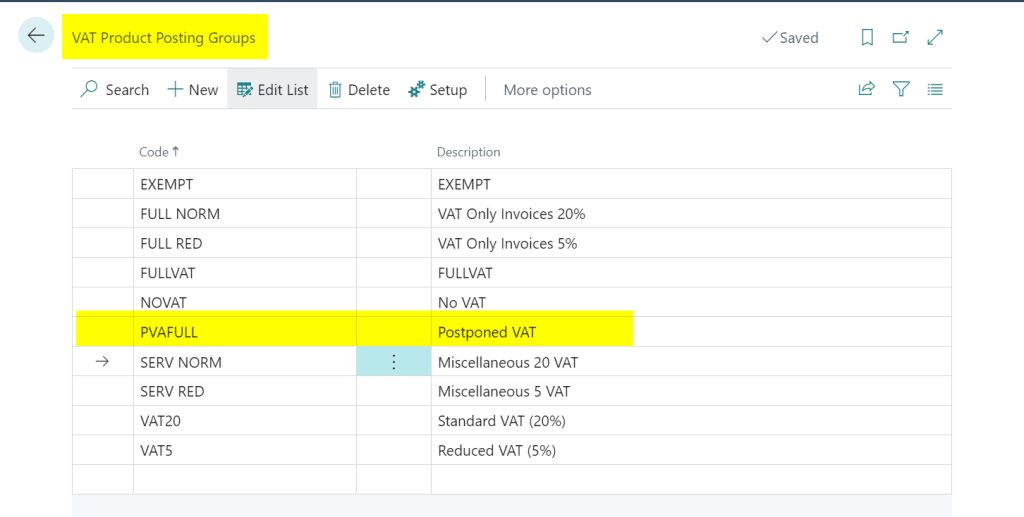
The first thing to do is to configure a new VAT Product Posting Group. I’ve created one below called “PVAFULL” with a description of “Postponed VAT”
VAT Posting Setup

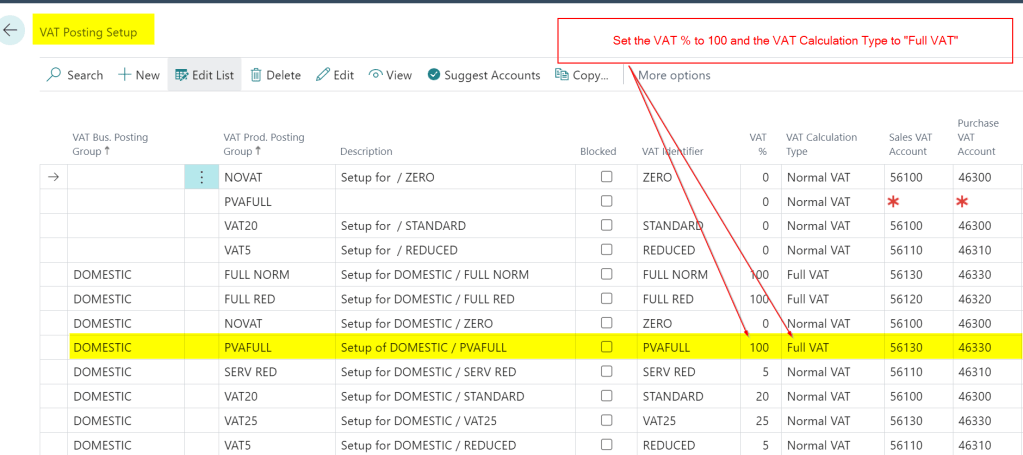
I then add the new VAT Product Posting Group into the “VAT Posting Setup” as per below. The key thing to note is that is set as 100% VAT and the VAT Calculation Type is “FULL VAT”
VAT Statement Configuration

The final thing to do is to add the new combination to the VAT Statement so any transactions posted to the PVAFULL posting group are recorded on the VAT return.

With postponed VAT you both declare this in Box 1 of the VAT return as an amount due, and also in Box 4 as an amount owed.

Therefore the VAT Statement is configured as per below
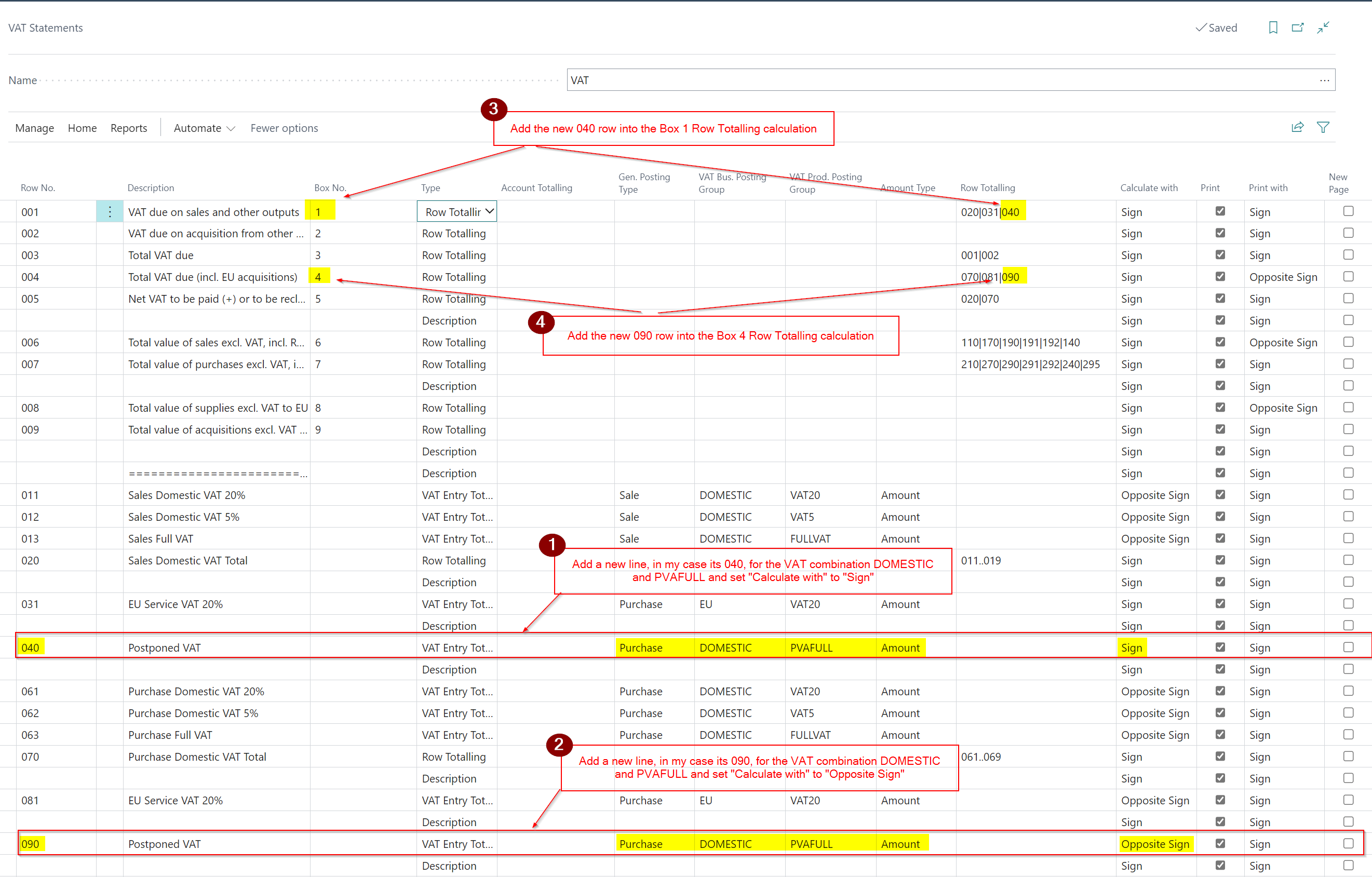
In the first and second step I add the new VAT combination to the detail of the report, and then in the third and fourth steps I included the added lines in the Box 1 and Box 4 calculations.

Test by posting a Postponed VAT Journal

Now to test the configuration I’ll post a VAT only journal for Postponed VAT as per below
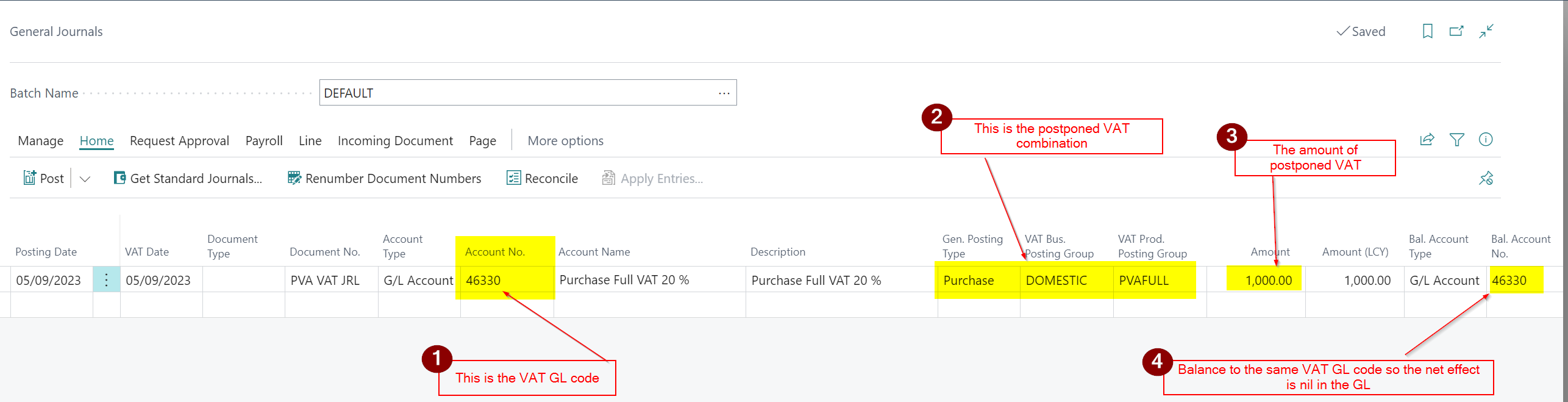
This gives the following GL entries which give a net effect of nil in the GL.

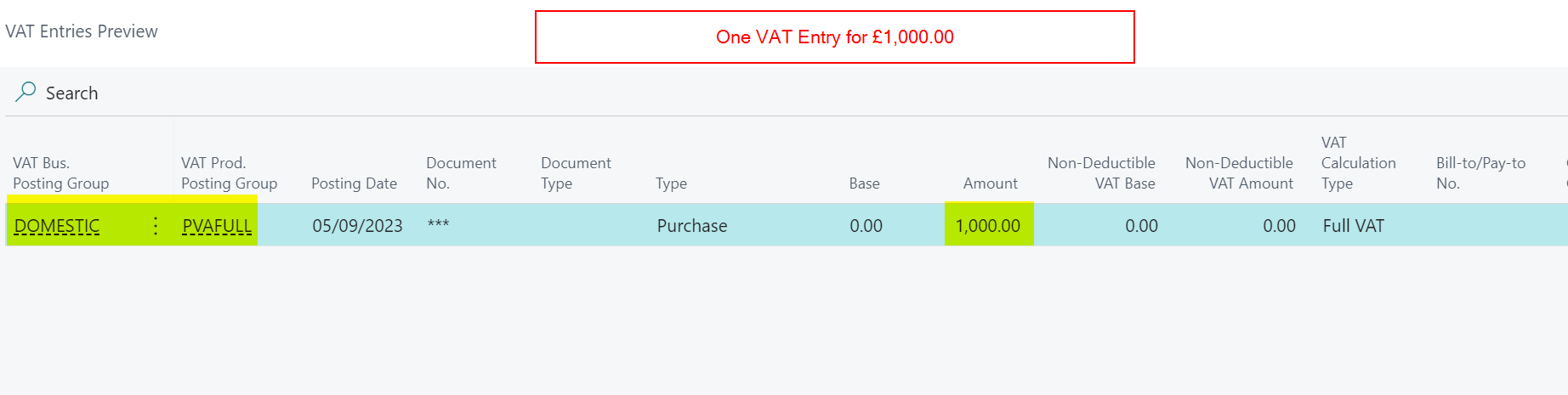
We also get the following VAT entry which is picked up the VAT statement.
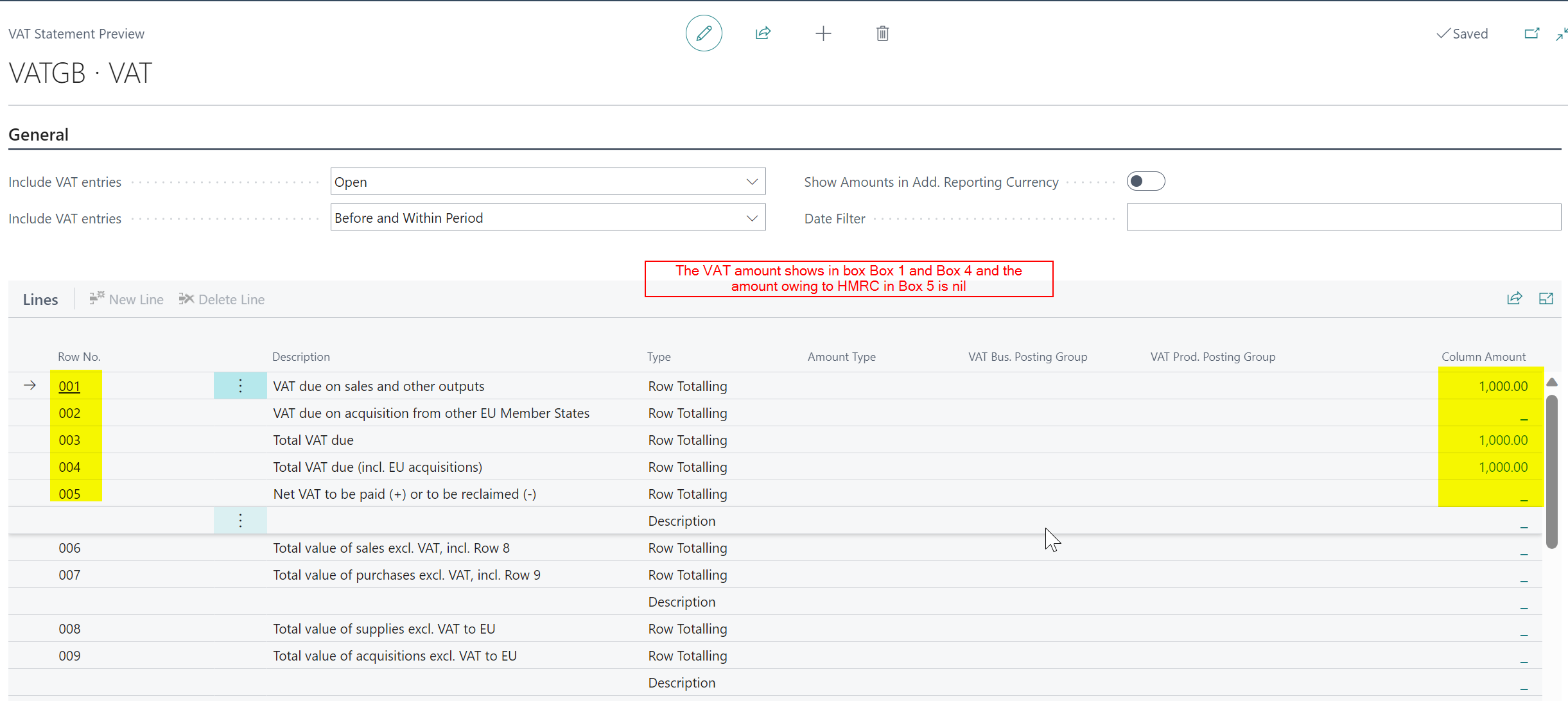
Now when I test the VAT Statement I can see the £1000.00 amount appearing in both Box 1 and Box 4 and the amount owing to HMRC in Box 5 is £0.00
Conclusion

I hope this post helps anyone who needs to configure Business Central to work with Postponed VAT. As always please ensure you test thoroughly before implementing and then submitting the VAT return.

Thanks for reading!

Need help with Business Central? Contact me
Dynamics 365 Business Central – Removing access to pages such as the Chart of Accounts Page

Introduction

There might be instances where you want to remove a users access to certain pages in Business Central. This blog walks through how to achieve this by creating a new permission set and utilising the “exclude” feature, using the Chart of Accounts page as an example.

The User

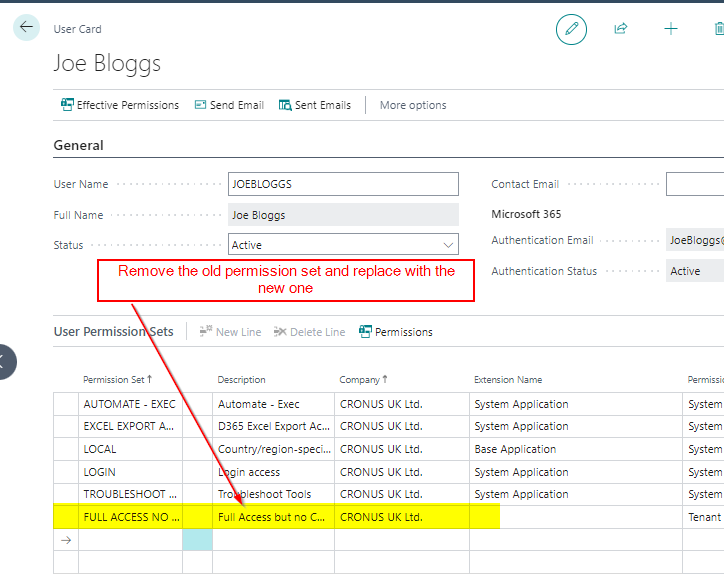
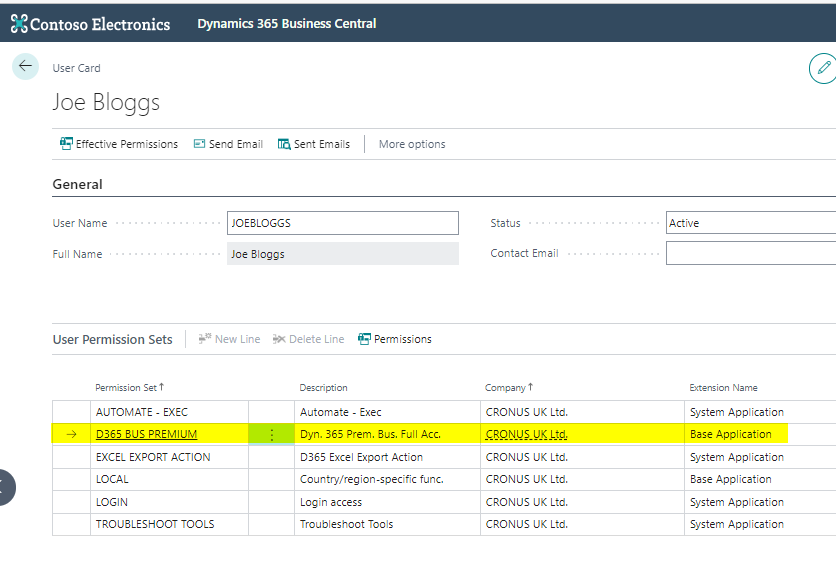
The user below has been configured with a standard full access permission set, which is fine, however I want to remove the permission to the Chart of Accounts page.

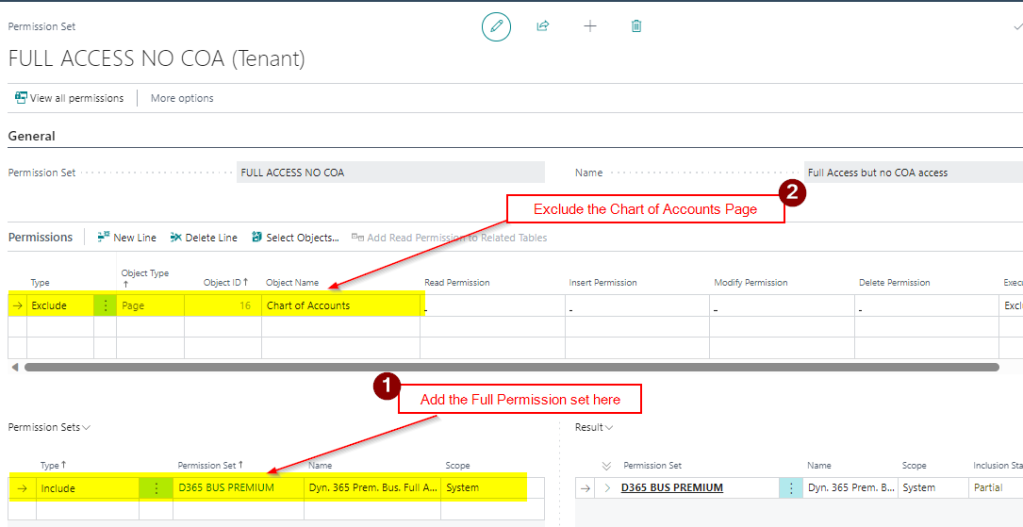
I therefore go to “Permissions set” and create a new permission called “FULL ACCESS NO COA” as per below

I then add the old D365 BUS PREMIUM permission set to this, and exclude the Chart of Accounts page

Finally, I go back to the User page and remove the “D365 BUS PREMIUM” permission set and replace with the newly created “FULL ACCESS NO COA” permission set

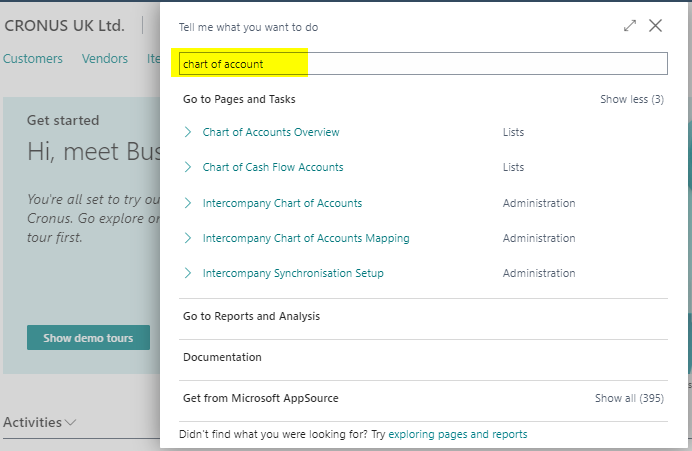
Now the user can no longer see or search for the “Chart of Accounts” page

Conclusion

This is an easy way to remove access to certain pages in Business Central. Hopefully it will help someone in the future.

Thanks for reading!

Need help with Business Central. Contact us

Dynamics 365 Business Central – Message “There is nothing to post because the journal does not contain a quantity or amount” when posting a Recurring General Journal

Introduction

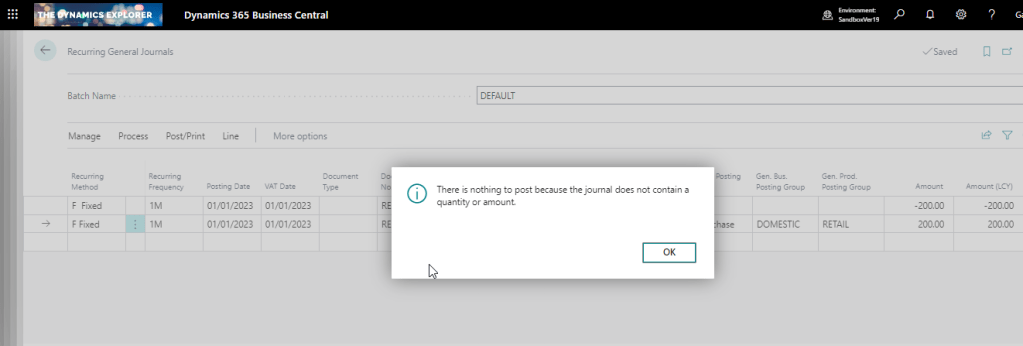
When attempting to post a recurring general journal you receive the message “There is nothing to post because the journal does not contain a quantity or amount” even though you have specified the General Ledger codes and the amounts and everything appears fine.

This is a common query that crops up, and also something I see from time to time in the forums, so I thought I’d write it up for reference and to hopefully help anyone else who receives this message.

The Recurring General Journal

Below is a recurring general journal. I’ve populated all the required fields however when I try and post it I get the message below:

The Solution

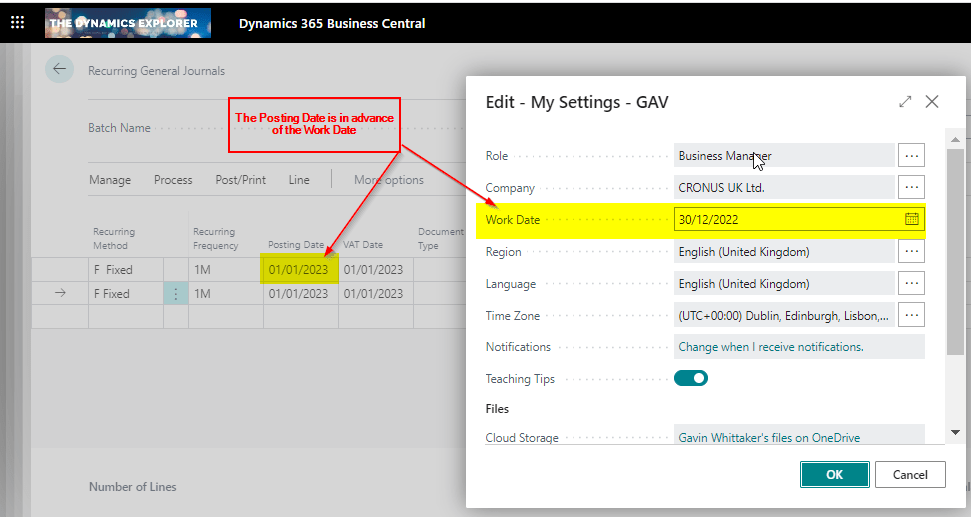
The reason I’m getting this message is because of the unique way in which a recurring general journal works. In a Recurring General Journal the “Posting Date” is compared to the “Work Date” and if the posting date is greater than the work date you receive this message.

I’ll therefore compare the Posting Date on my journal to my Work Date, and as you can see the Posting Date is in advance of my Work Date:

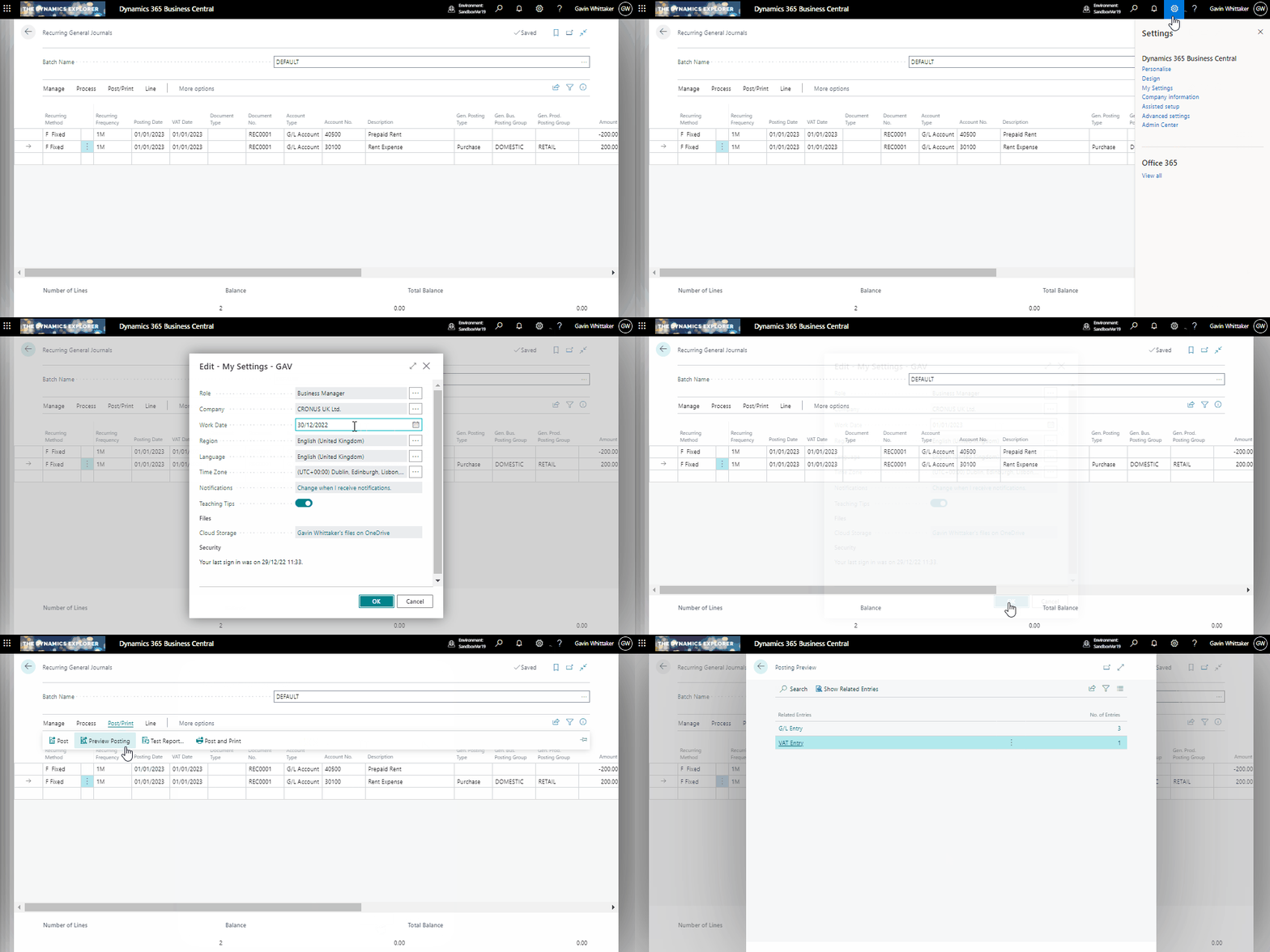
Therefore, in my case, the solution is to change the user date to a date of 01/01/23 (or a date in advance of 01/01/23) and try again:

After doing this my journal will now post 🙂

Conclusion

As far as I’m aware, this is the only journal that behaves this way. For example, I can post a General Journal and the system won’t check the Work Date against the Posting Date.

I suspect the primary reason for this behaviour is to prevent a user mistakenly posting a recurring general journal numerous times, as by default the lines remain on a recurring general journal after you have posted it, and the posting date automatically advances based on the “Recurring Frequency”. (i.e. if the recurring frequently in 1M the Posting Date changes by one month).

Therefore you could post the journal once and then post it again by accident. Having the system perform this simple check prevents this.

Thanks for reading!