Introduction
On the majority of list pages in Business Central you can click “Edit In Excel” to take the data into Excel. Once in Excel you can then delete, modify or add data and “publish” any changes back to Business Central.
The great thing is, as the Excel spreadsheet is a stand alone workbook with a connection back to Business Central via the Excel Add-in, you can save the Excel spreadsheet on your PC, and reopen it without the need to keep clicking “Edit in Excel” to download a fresh workbook.
However, if you inadvertently close the Excel Add-In, how do you get it back? This post shows you how to easily reopen the Excel Add-In in Excel, so you don’t have to click “Edit in Excel” to download a new workbook.
Edit in Excel
If you have the required permissions you can click “Edit in Excel” to download an Excel spreadsheet with a link back to Business Central.
Below I click “Edit in Excel” on the Customer List

Excel Add-In
If you open the workbook the Excel Add-in should open as per below:
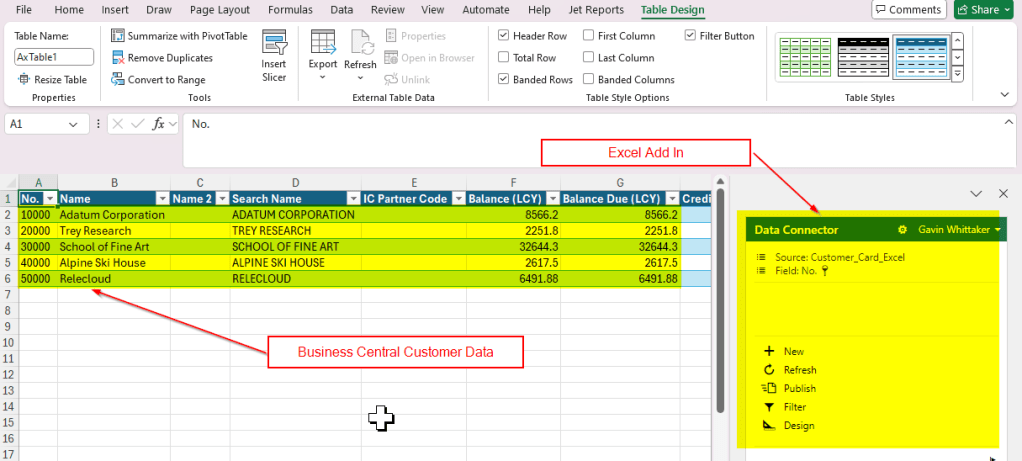
As this is a Excel workbook, with a link to my Business Central data via the Excel Add-in, I can click “Design” and just add the columns I want and then save the Excel spreadsheet and use it over and over again to make changes to my Business Central customers. There’s no need to click “Edit on Excel” again on the Customer list whenever I want to edit my Customer data in Excel.
However what happens if I accidentally close the Excel Add-in? How do I get it back?
Recovering the Excel Add-in
I’m sure there are many ways to recover the Excel Add-in pane, however the method I use is to click “Home” on the ribbon and then “Add-ins” and then click the “Business Central” add-in as per below:

Conclusion
This post shows a quick method to reopen the Business Central Excel Add-in if its accidentally closed. Its something I’m constantly forgetting so hopefully this will help others 😊.
I also wanted to highlight how cool it is that you can save the Excel spreadsheet and reuse it over and over again 😊.
Thanks for reading!
 thedynamicsexplorer.com