Introduction
Business Central provides functionality to consolidate companies, enabling reporting at a group level. This consolidation feature also supports combining companies that operate with different local currencies.
In this post, we’ll explore how consolidation works when integrating one company that uses the same local currency as the consolidation company, and another company that uses a different local currency.
We’ll cover various setup aspects, including General Ledger (GL) code configurations in both companies. Then, we’ll consolidate transactions over two months and review the resulting GL entries.
It’s important to note that in my configuration, all companies share the same chart of accounts. In reality, this is often not the case, so we’ll also discuss how to map GL accounts from source companies to the consolidation company.
My Configuration
To walkthough this, I’ve created two trading companies in Business Central, both based on the Cronus demo data.
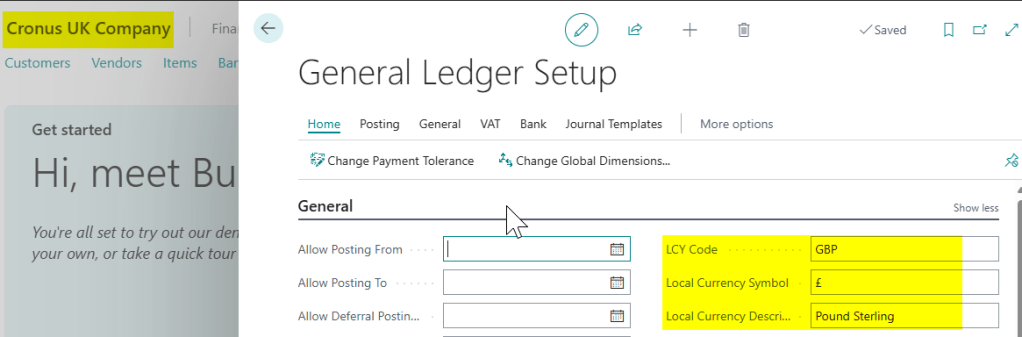
One company is a UK-based entity called “Cronus UK Company,” which uses GBP as its local currency (set in the General Ledger Setup page).
The other company is called “Cronus EURO Company,” and it uses Euros as its local currency.
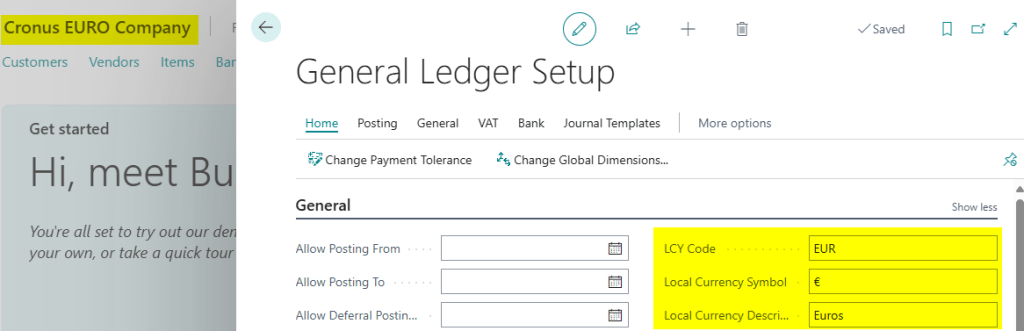
** Both companies are created using evaluation data in the same way. I’ve just changed the currency in the General Ledger Setup
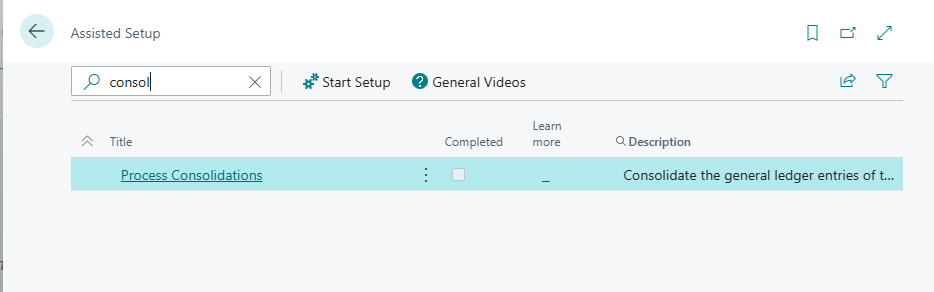
Finally, I’ve been through the assisted setup to create a “Consolidation Company” that I’ll be consolidating the data from both companies into.
**The purpose of the post to look at the multi currency aspect of the consolidation so I won’t be going through this part, however its a fairly simple wizard to follow 😊
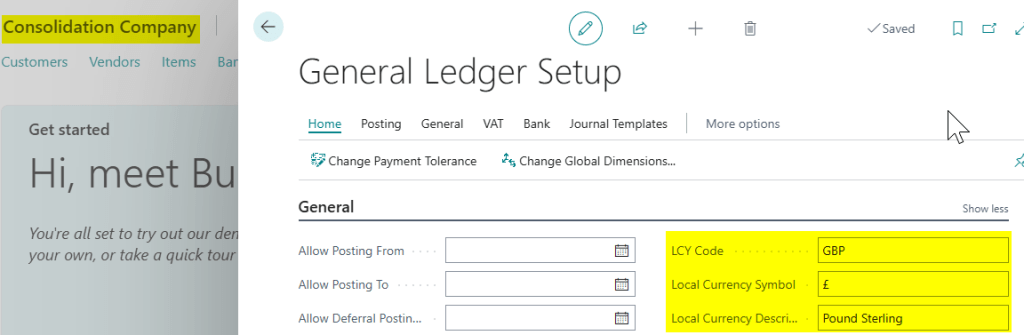
This has created me the following Consolidation Company, which is also GBP, adding both my trading companies as “Business Units”. (for more information on setting up a Consolidation Company see this link)
Chart of Account Configuration
Before we run the consolidation there are a couple of setting on the Chart of Accounts I want to focus on in each trading entity which are shown below:
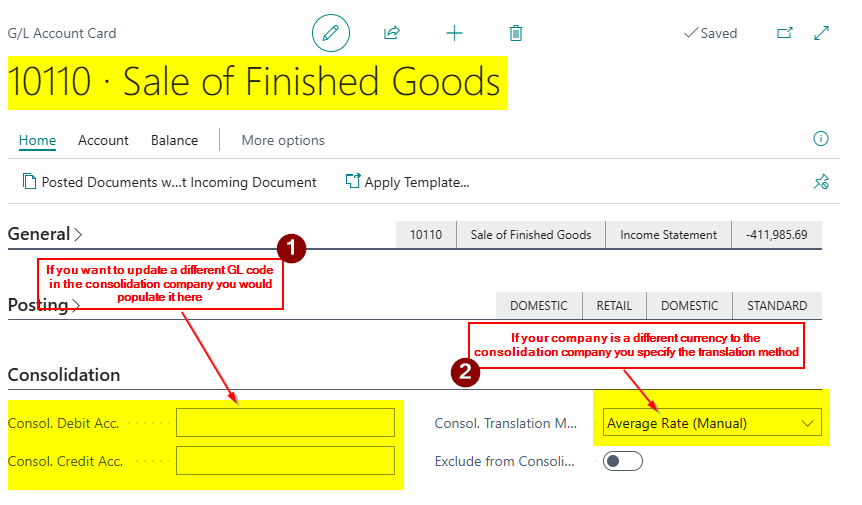
With regards the “Consol Debit Acc.” and “Consol Credit Acc.“, these fields are used if you want to consolidate the balance in a General Ledger (GL) account to a different account in the consolidation company. Since all my companies use the same Chart of Accounts, as mentioned in the introduction, I will leave these fields blank so that the balances consolidate into the same GL accounts.
For the “Consol Translation Method“, if the company you are consolidating operates in a different currency than the consolidation company, it’s necessary to set a translation method. I will use “Average Rate (Manual)” for my Income Statement accounts and “Closing Rate” for my Balance Sheet accounts.
There are other translation method you can use which can be found here however in my experience Average Rate is typically used for Income Statement to smooth out rate differences over a period and closing rate is used for balance sheet to reflect the value at the end of the reporting period
Business Unit Configuration in the Consolidation Company
Now that we have configured the Chart of Accounts in each company, let’s take a closer look at the Business Units that have been set up in the Consolidated company using the Assisted Setup.
You can add these manually via the “Business Units” page in the consolidation company if you choose to setup the Consolidation company manually.
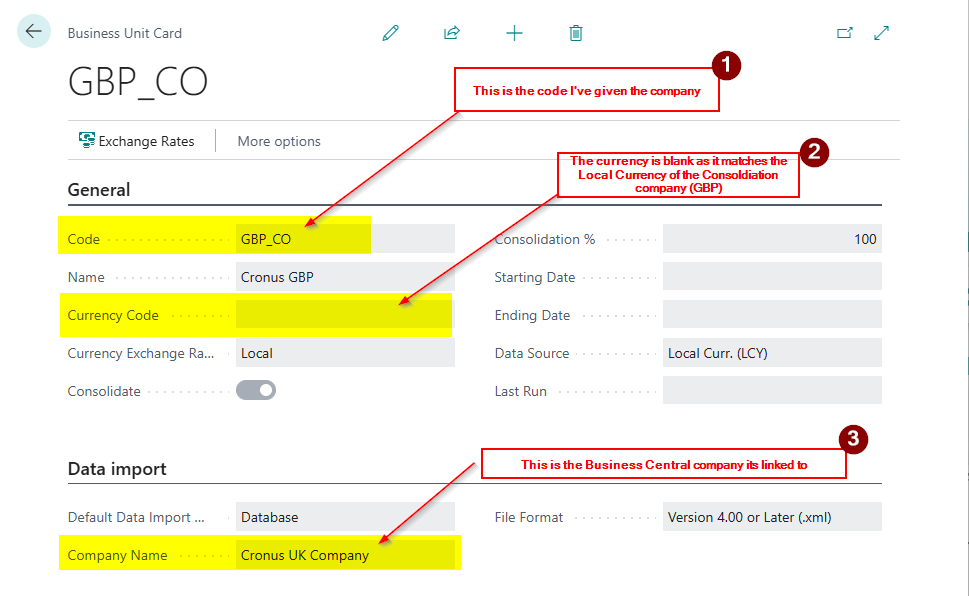
The Cronus UK company business unit configuration is below:
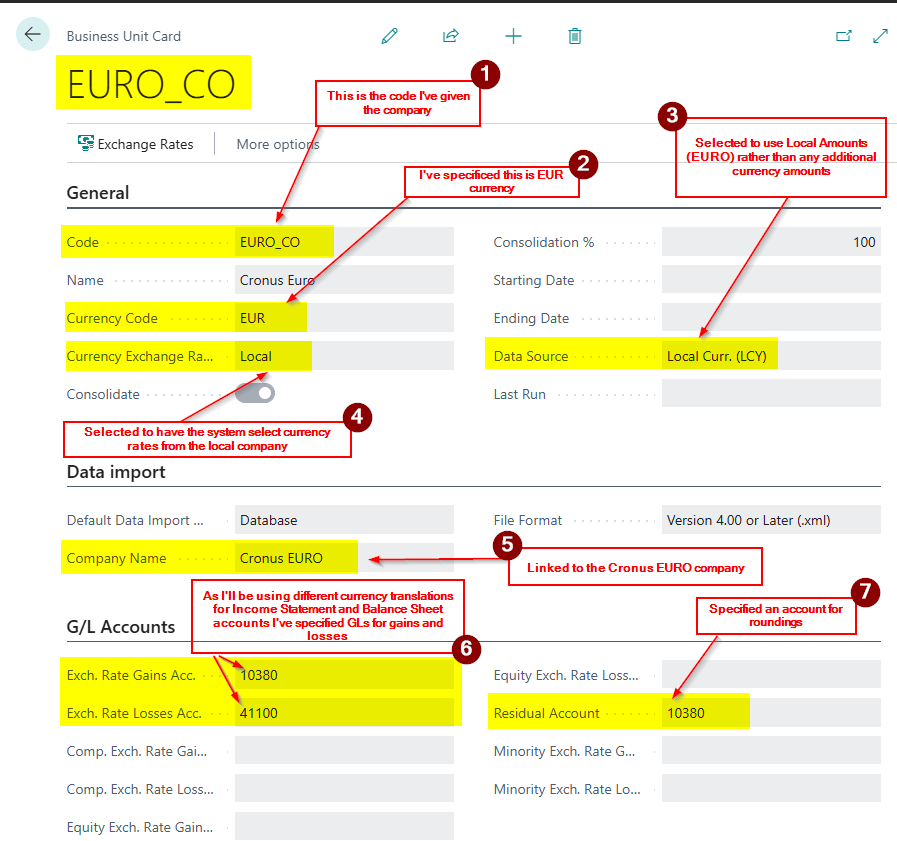
The Cronus EURO company business unit configuration is below.
Test Transactions
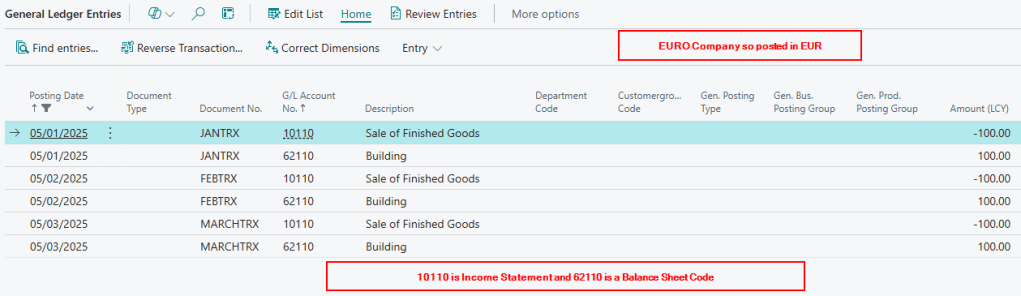
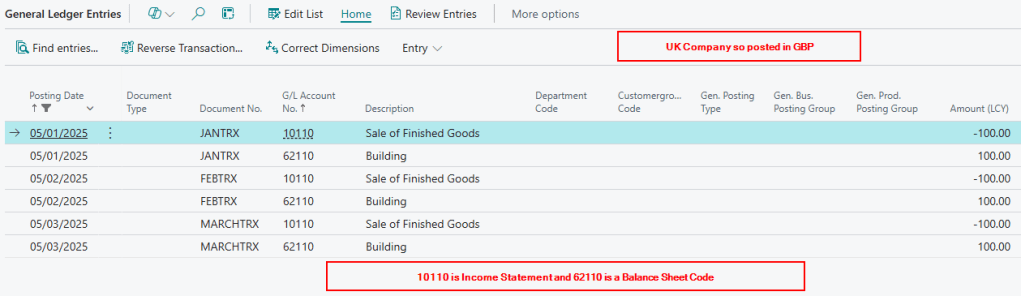
In each trading entity I’ve posted a series of General Journals to create the following General Ledger Entries
Cronus EURO Company: The GL account 10110 is an Income Statement Account and therefore is going to be consolidated with an Average Rare and the GL account 62110 is a Balance Sheet Account which is going to be consolidated using a Closing Rate. (more on how we set the rates when consolidating below)
Cronus UK Company :- As per above he GL account 10110 is an Income Statement Account and the GL account 62110 is a Balance Sheet Account. (rates are irrelevant for this company as its the same currency as the consolidation company)
Run Consolidation
Now we have configured the Chart of Accounts, the Business Units, and posted some transactions, we can run the consolidation and then review the resulting General Ledger Entries.
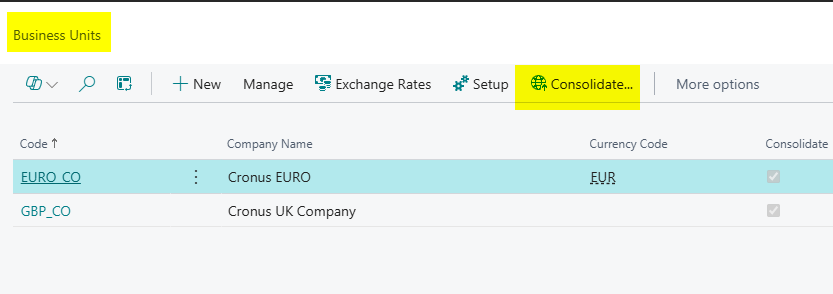
To do this we’ll need to go to the “Business Unit” page and click “Consolidate”
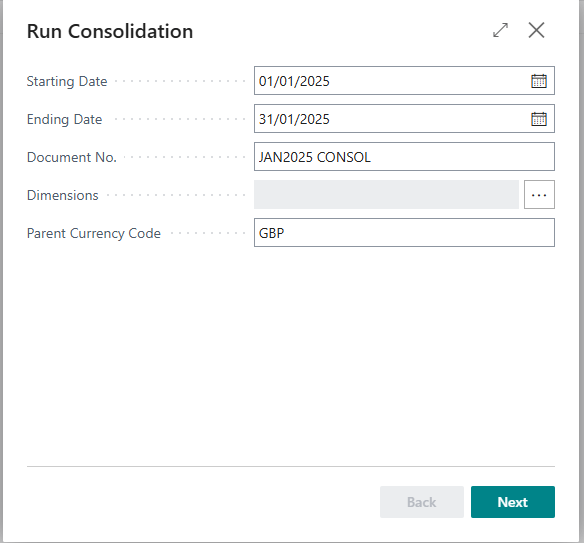
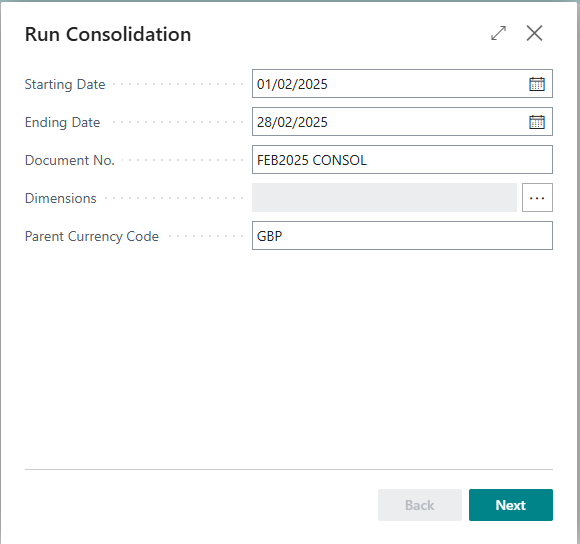
Next I enter the dates I want to consolidate, fill out the Document No, and click Next. (in this case I’m consolidating January first)
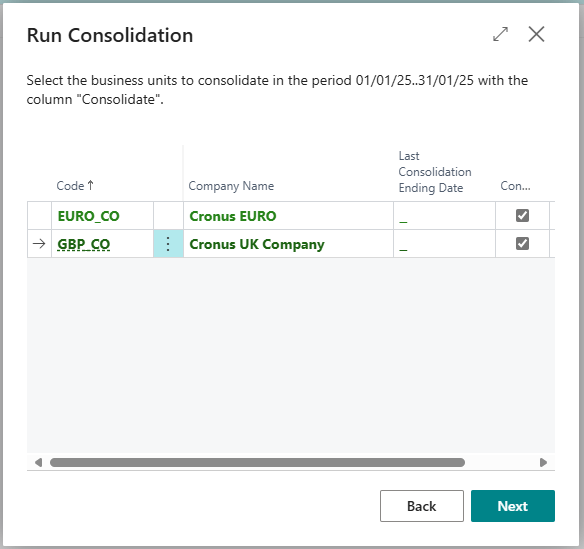
Then I tick the companies I wish to Consolidate and click “Next”
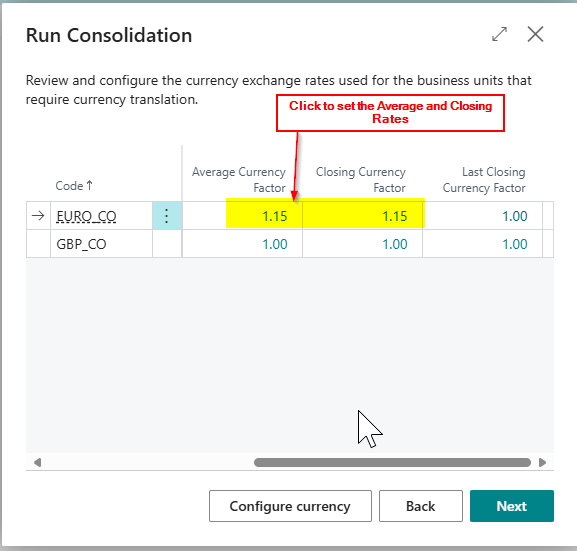
Now I’ll set the Average and Closing Rates for the EURO company. (the system will suggest a rate as well however I’m going to overtype this). To do this drill back on the “Average Currency Factor” as per below
This opens the “Setup Business Unit Currencies” page, where I can adjust the “Average” and “Closing” rates and then click OK. (I have used rates of 1.5 and 2 to simplify the calculations when we review the General Ledger Entries.)
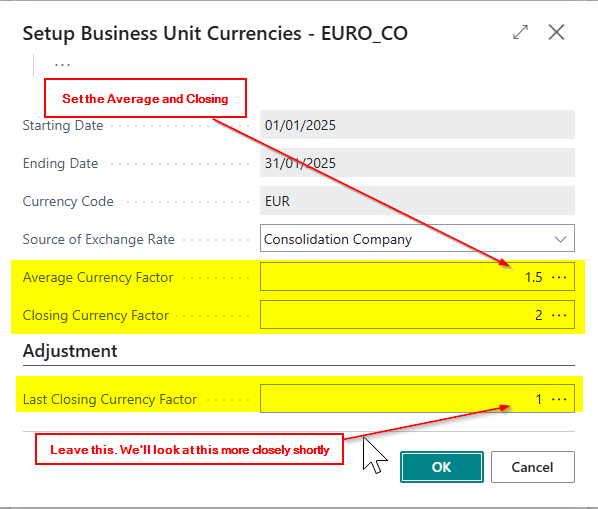
** Therefore the balances on account 10110 will use a rate of 1.5 and the balances on account 62110 will use a rate of 2
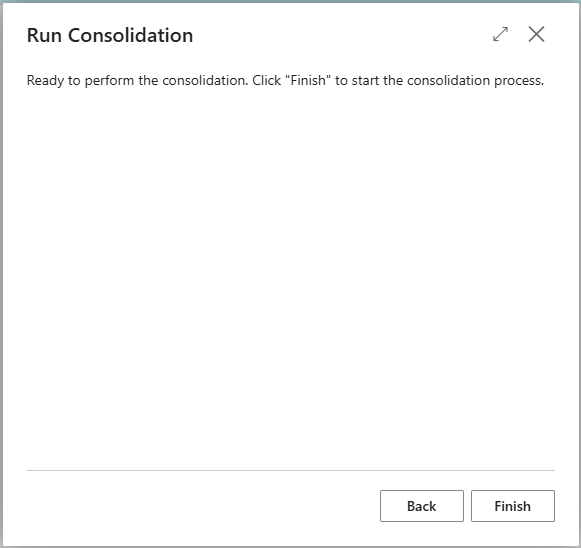
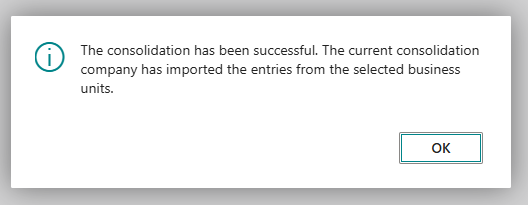
Now this has all been set we can click “Next” and “Finish” to complete the Consolidation.
The Consolidation Entries
Now we have consolidated let’s have a look at the “General Ledger Entries” that have been produced by the consolidation process. (click to enlarge)
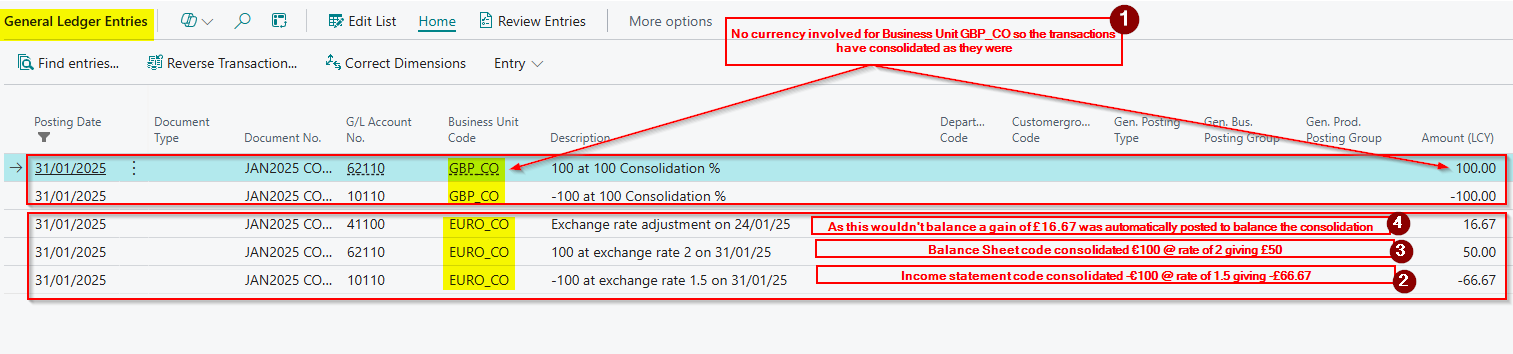
As you can see, the GBP_CO business unit has consolidated all the transactions exactly as expected with no adjustments.
However as we had different rates for Income Statement (Average) and Balance Sheet (Closing) we have an additional entry thats been post automatically. This is to balance the consolidation as we are using different rates.
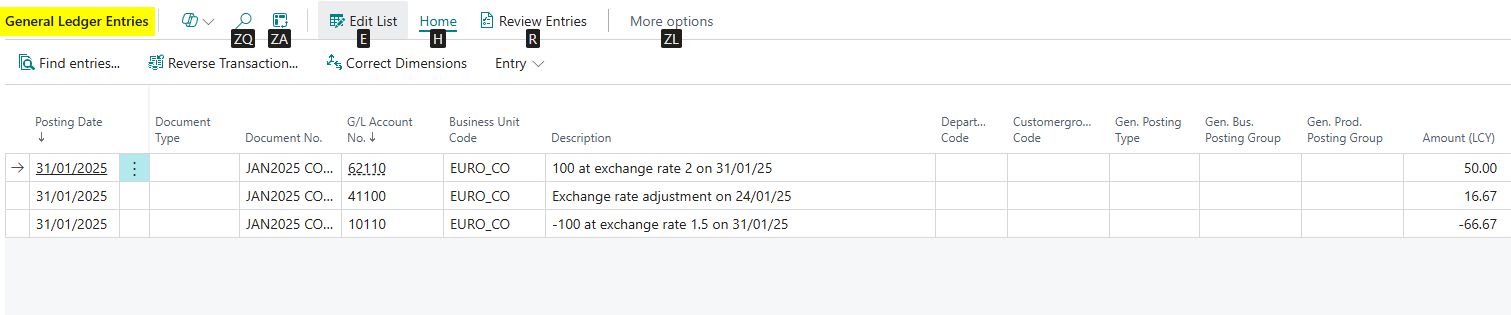
This also shows nicely on the G/L Register, as a G/L register is created for each Business Unit that is consolidated

Here you can see the General Ledger Entries for the EURO_CO business unit
Consolidation for the next month
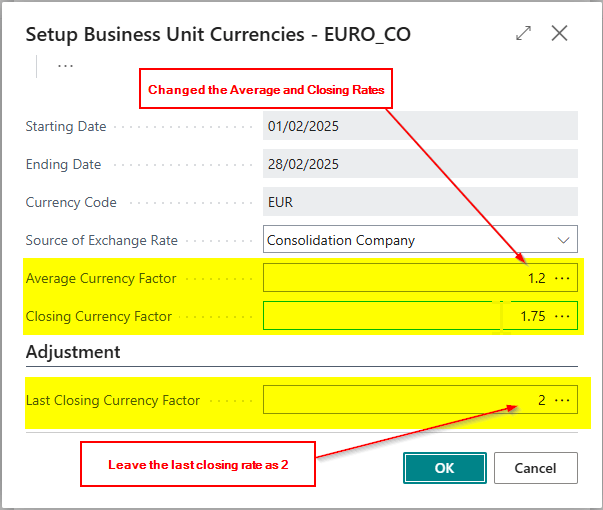
Let’s see what happens when we consolidate the next month using different rates again.
Enter the new Rates:
And then Consoldiate
Now let’s look at the General Ledger Entries (click to enlarge)
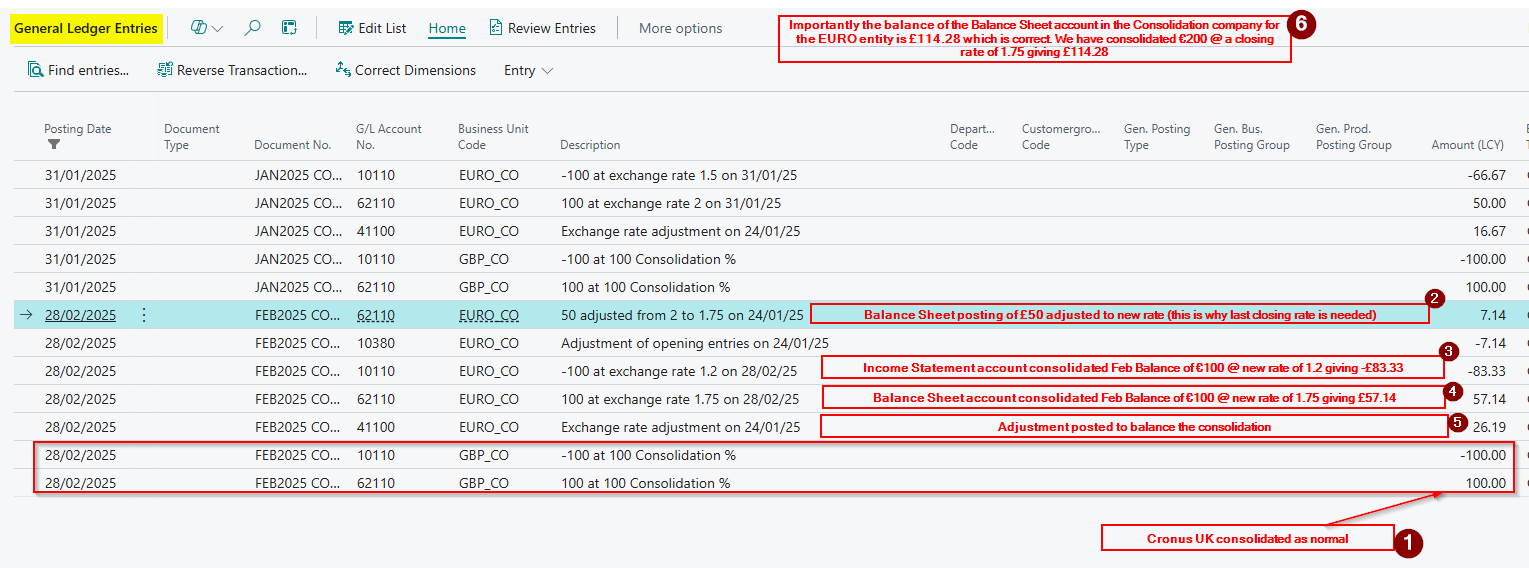
One important point here is we needed to leave the “Last Closing Rate” at 2 as the system first posted an adjustment recalculating the balance of the Balance Sheet account for the EURO_CO business unit to match the new rate of 1.75. (this is shown in point 2 in the screen shot above). This ensures the balance at the end of February reflects the Balance Sheet transactions at a “Closing Rate” of 1.75. i.e.
Prior to the February consolidation, the balance of the balance sheet account (62110) for the EURO_CO business unit was £50. The system then used the “Last Closing Rate” to calculate this equates to €100 using the “Last Closing Rate” of 2. It then calculated the GBP at the new “Closing Rate” of 1.75 as £57.14 (€100/1.75=£57.14). Therefore as the GBP balance was £50.00 an adjustment was posted for £7.14 (point 4 on the screen shot above)
Conclusion
This post walks through a consolidation process that involves business units with different currencies showing the different posting and adjustments that are made when using different translation methods.
Thanks for reading!
 thedynamicsexplorer.com