Dynamics 365 Business Central – How to manually reconcile the Bank Account without a Bank Statement in the Bank Reconciliation page

Introduction

This post was inspired by a forum question I responded to a few weeks ago. You can find the community thread here.

In the thread the poster was looking for a way to manually reconcile the bank account in Business Central without importing a Bank Statement. They mentioned how they could do this in Dynamics GP and wanted to know if similar functionality existed in Business Central.

In this post I’ll go through how this is possible using the “Suggest Lines” functionality in the Bank Reconciliation page.

Bank Reconciliation

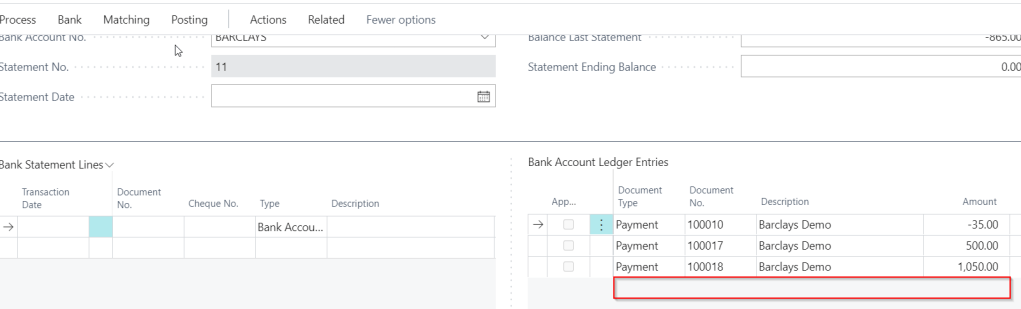
When you open the Bank Reconciliation page in Business Central, and enter a Bank Account No. and Statement Date, the unreconciled Bank Account Ledger Entries are automatically pulled into the page on the right hand pane, ready to reconcile. See below:
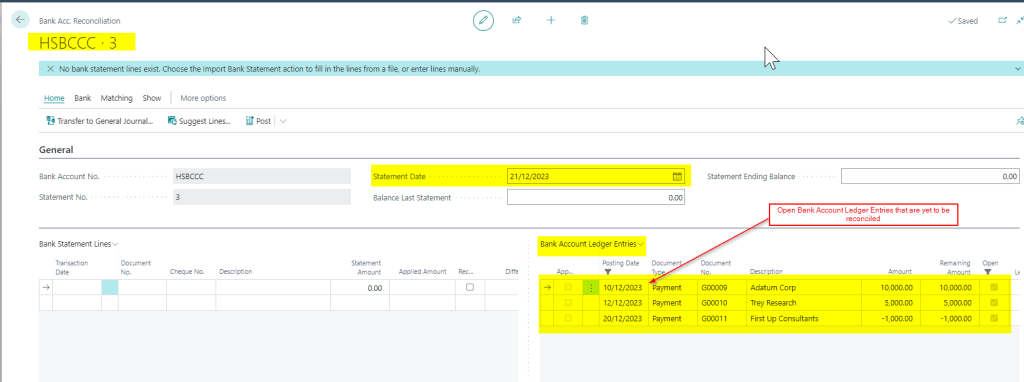
You can then either import the bank statement to populate the left hand pane, or manually key in each entry on your bank statement into the left hand pane. Once this has been done you can reconcile the items in each pane.

However, if you don’t want to import your Bank Statement, or the import Bank Statement functionality hasn’t been configured, how do you manually reconcile these Bank Account Ledger Entries?

Suggest Lines

In order to manually reconcile the Bank Account Ledger entries you can use the “Suggest Lines” function on the ribbon as shown below:

This will open the dialog below which you can complete with the relevant dates

When you click OK the Bank Statement Lines pane is populated with the Bank Account Ledger Entries and automatically matched.
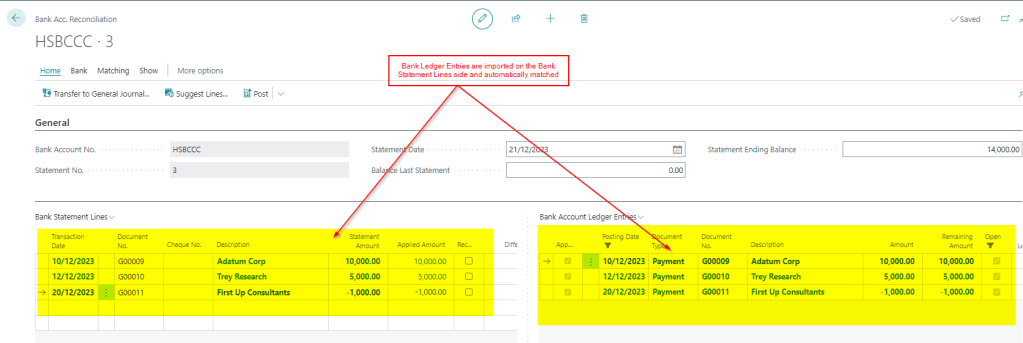
If necessary you can then remove any lines you don’t want to reconcile and when you’re happy click post to reconcile the bank and close the Bank Account Ledger Entries.

Conclusion

If you don’t want to import a bank statement but still wish to reconcile your bank accounts this is quick and easy solution to manually reconcile your bank.

Thanks for reading!
Dynamics 365 Business Central – An Overview of the fields in the Bank Reconciliation page

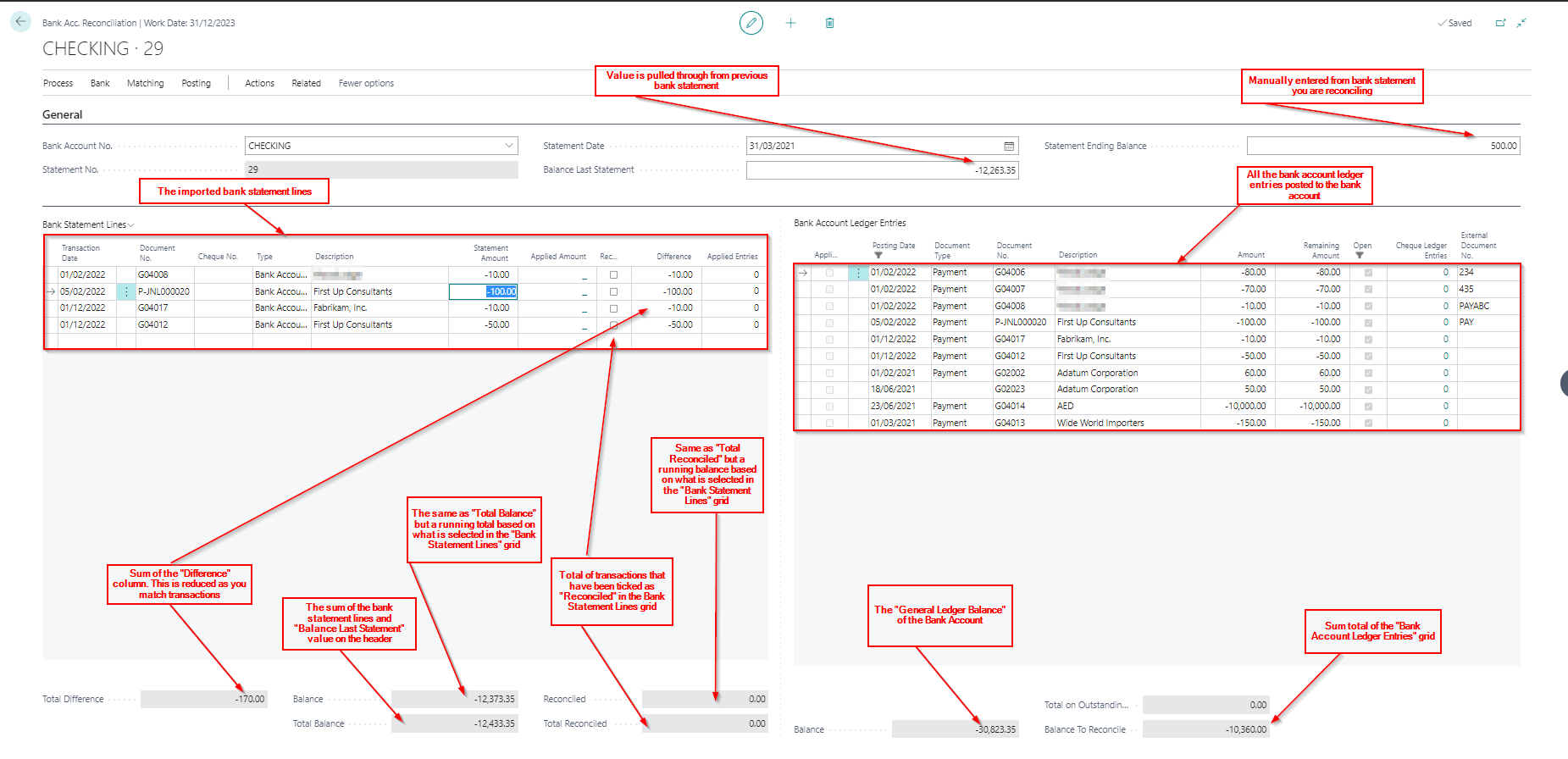
When performing a bank reconciliation in Business Central I tend to only ever reference a few of the fields on the reconciliation page however I’m often asked what others are used for and how they are calculated.

As a consequence I’ve created the cheat sheet below which highlights what most of the fields are and therefore how they can be used.

You can click the image to enlarge it 🙂

I hope others find this useful.

Thanks for reading!

Dynamics 365 Business Central – How to close reversed Bank Account Ledger Entries that have been automatically removed from the bank reconciliation

Introduction

I’ve noticed that when you reverse a bank account ledger entry its removed from the “Bank Account Ledger Entries” (right hand pane) in the Bank Account Reconciliation window however the entries remain “Open”.

To close the bank account ledger entries I’ve found you have to run the “Suggest Lines” function to populate the “Bank Statement Lines” (left hand pane) with the entries and reconcile them.

In this article I’ll walk through this whole process

The Scenario

Below I’ve posted a payment journal entry for £50.00 which is correctly appearing on the “Bank Account Ledger Entries” side for reconciliation.

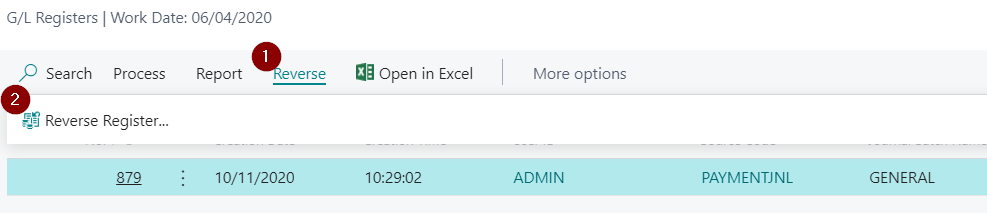
However I realised I’ve posted this incorrectly and therefore I navigate to G/L Registers, find the register, and select to reverse it:

Once this has all been reversed I return to the bank account reconciliation and the entry has disappeared, which is correct, as there won’t be a reconciling entry on the imported bank statement:

However when I check the “Bank Account Ledger Entries” both entries are showing as “Open”

So the question is, as these items will never be reconciled to a genuine imported bank statement entry, how do we close the bank account ledger entries?

The Fix

In order to close the bank account ledger entries I found I had to pull them into the “Bank Statement Lines” pane using the “Suggest Lines” function.

**Please note you would normally use the “Suggest Lines” function for your reconciliation if you don’t import a bank statement downloaded from your bank

To do this, from within the “Bank Account Reconciliation” page, I selected “Suggest Lines” as per below:

I then selected my date range and clicked OK which pulls all open bank account ledger entries into the “Bank Statement Lines” pane.

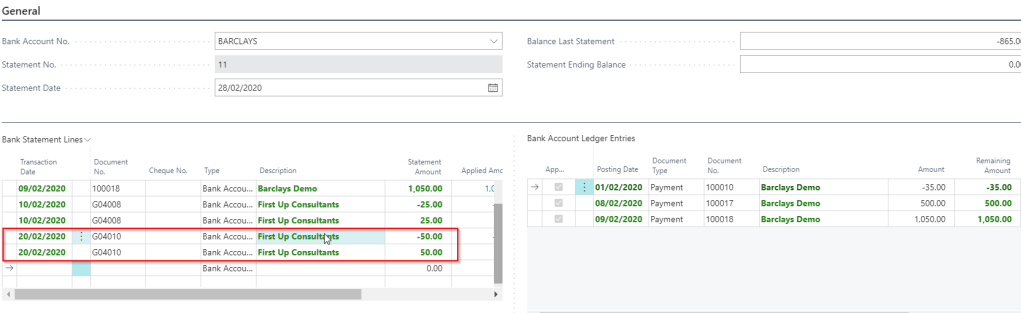
Now, along with other open bank account ledger entries which were also pulled through, I can see the incorrect payment and the corresponding reversal in the “Bank Statement Lines” pane.

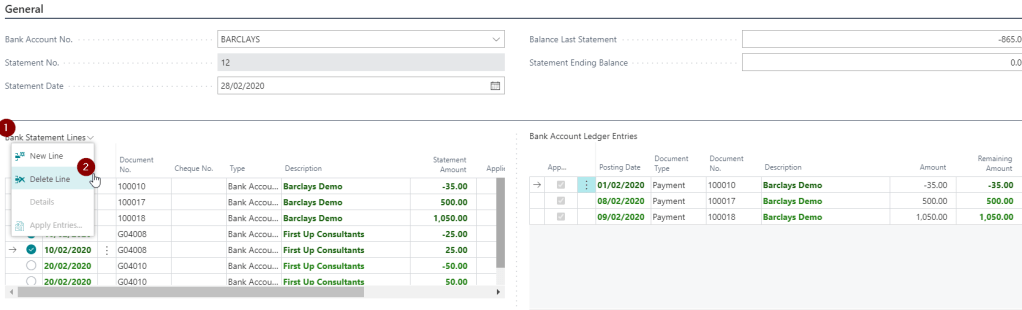
So, in order to close these entries I need to reconcile them. To do this I first delete all other entries from the “Bank Statement Lines” pane. To do this I multi select them and click “Bank Statement Lines > Delete Line”

I’m now left with the two entries I wish to close in the “Bank Statement Lines” pane (and no other reconciled items):

Next I populate the “Bank Ending Balance” which is identical to the “Bank Last Statement” as nothing has changed with the balance, and post the reconciliation

Now, when I check the “Bank Account Ledger Entries” I can see both entries have been closed.

Conclusion

This does seem like a fairly long winded way of closing the bank account ledger entries that have been reversed. If anyone knows of a quicker way please let me know 🙂

Thanks for reading!