Skip to content
  • Home
  • Free Stuff
  • Need help with Business Central?
  • GP to BC Migration
  • YouTube Channel
  • Blog
    • Dynamics 365 Business Central Posts
    • Dynamics GP Posts
    • Dynamics GP Vs Dynamics 365 Business Central Posts
    • YouTube Videos
    • Microsoft SQL Server Posts

Bank Account

Dynamics 365 Business Central – How to post part payments due to bank fees and still fully apply the Sales Invoice using a Cash Receipt Journal

30th Aug 202430th Aug 2024Gavin WhittakerLeave a comment

Introduction

There may be instances when you receive payments from a customer and need to account for bank fees. This is especially common with certain credit cards, like American Express.

In this post, I’ll walk you through how to record both the cash received and the fee while applying the full invoice amount.

The Scenario

In this example, we have a sales invoice for £1,200.00, which the client has paid using American Express. American Express has deducted a £50.00 fee, resulting in only £1,150.00 being deposited into our bank account.

We therefore need to account for 3 things:

  1. The Cash Receipt of £1150.00
  2. The Bank Fee of £50.00
  3. Ensure the full Sales Invoice is applied

The third point is crucial, as the client has paid the invoice in full, even though we have only received a partial payment due to the bank fee deduction.

Walkthrough

First, here’s the customer ledger entry for the sales invoice that the customer has paid. As shown below, the invoice is for £1,200.00 and is currently fully outstanding.
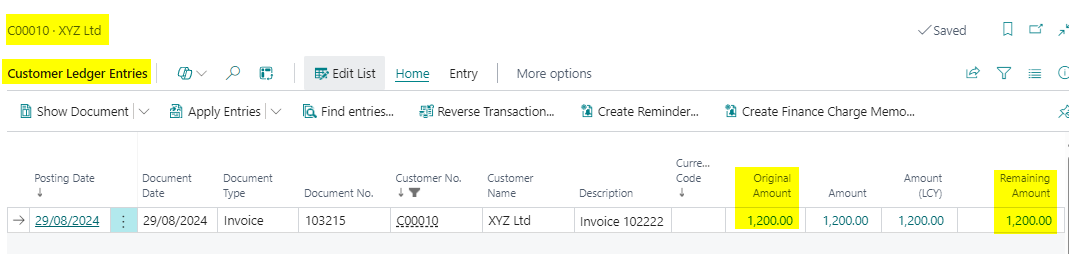
As with many tasks in Business Central there are a number of different approaches I could take when posting the cash. However I’m going to use my good old friend the Cash Receipt Journal.

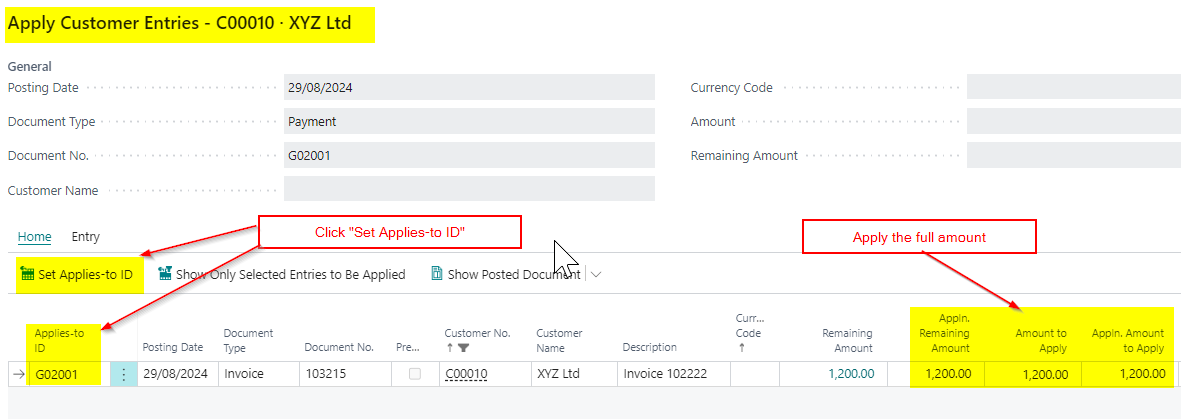
Once in the Cash Receipt Journal I’ll pickup the Customer and click “Apply Entries” as per below:
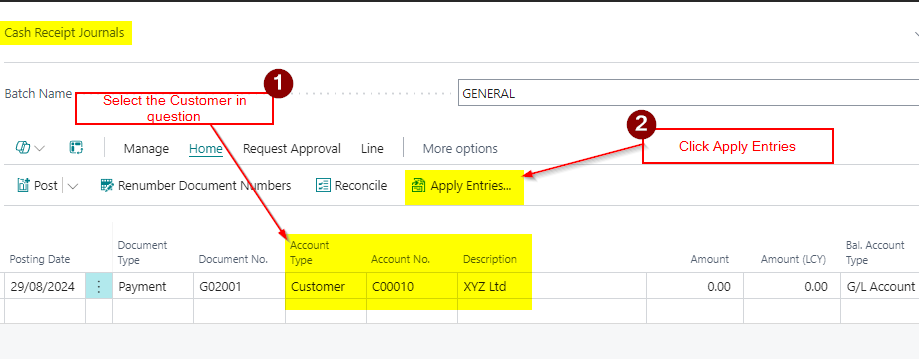
Next, I’ll apply the full amount of the Sales Invoice
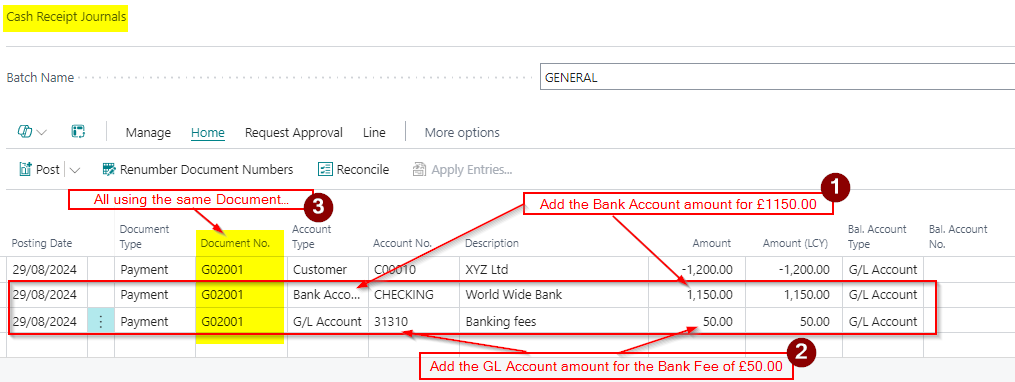
Then, I’ll add the payment amount of £1150.00 and the Bank Fee of £50.00 as part of the same document number:
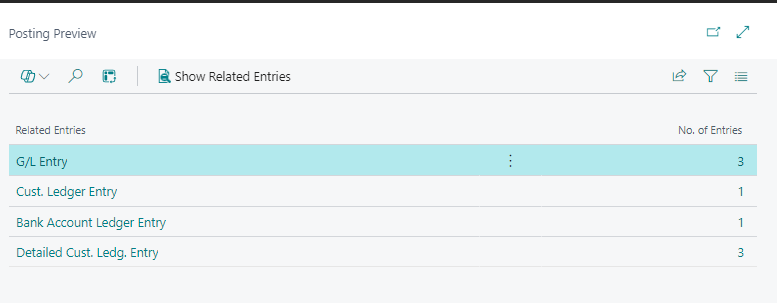
When I preview post this we can see the following entries
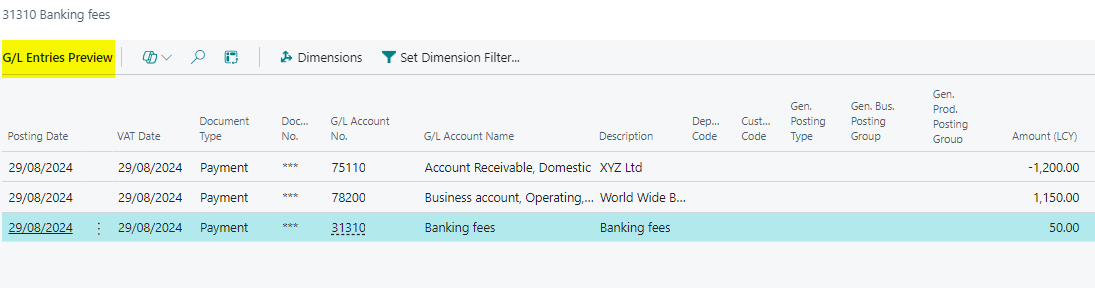
If we take a closer look at the G/L entries we can see Debtors being reduced by the full £1200.00, the Bank Account has an entry for £1150.00 and the Fee an entry of £50.00
We also have a Customer Ledger entry for the full amount along with a Bank Account Ledger Entry for £1150.00.
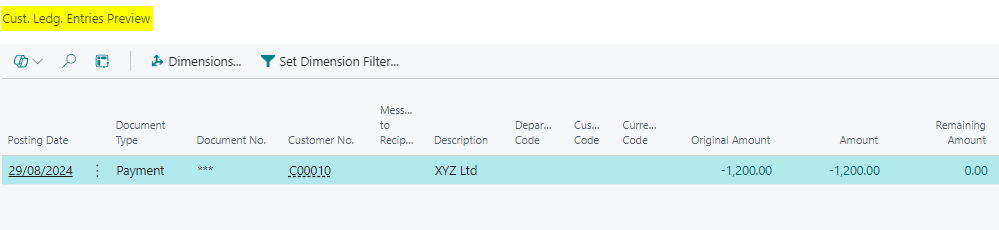
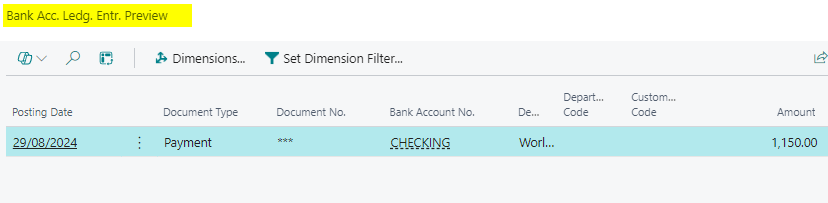
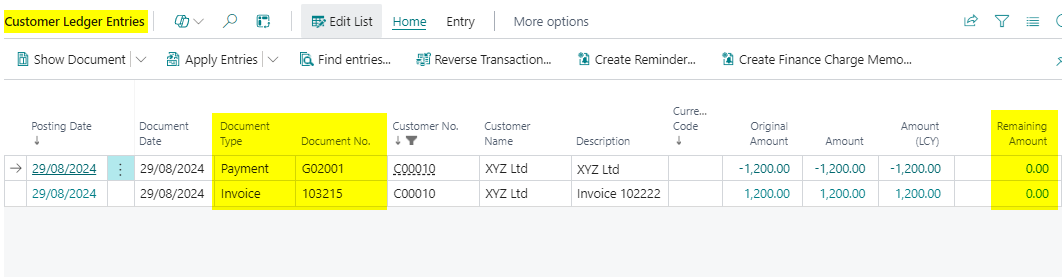
Finally, I’ll post the entry, and by reviewing the original Customer Ledger Entry for the Sales Invoice, we can see that it has been fully applied.
Conclusion

This post provides a straightforward method for handling bank fees on customer payments, ensuring that the sales invoice is fully applied and the correct amounts are recorded for both the bank reconciliation and bank fees.

Thanks for reading!
Dynamics 365 Business CentralBank Account, bank reconciliation, Cash Receipt Journal

Dynamics 365 Business Central – How to Post a Single Bank Ledger Entry for Multiple Cash Receipts from Different Customers using the Cash Receipt Journal

22nd Aug 202422nd Aug 2024Gavin WhittakerLeave a comment

Introduction

On occasions, you may need to post a single bank ledger entry (deposit) that includes payments from multiple customers, all of which need to be applied to different transactions.

This situation is common when accepting payments from certain credit card companies, like American Express, which often batch multiple customer payments into one deposit in your bank account.

In this post, I’ll go through how to post these transactions in Business Central so your Bank Reconciliation matches your Bank Statement.

The Scenario

In this scenario, let’s say we’ve received three payments via American Express on the same day. Instead of depositing each payment individually, American Express has grouped the three payments together and deposited them into our bank account as a single total amount.

Please note that since this involves American Express, we would also need to account for any fees they deduct before depositing the total amount. However, I’ll cover how to handle those fees in a future post

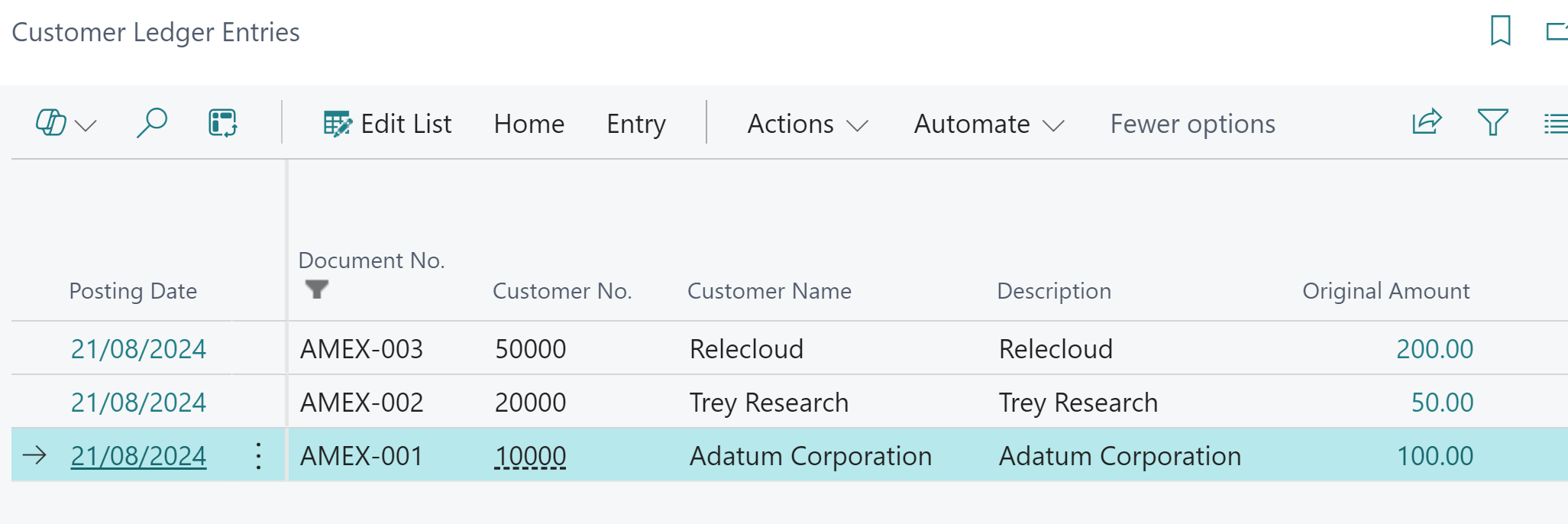
The customer ledger entries for the three Sales Invoices I’ve received payment for are detailed below. As you can see they are Sales Invoices relating to three different customers.

Posting the Cash

My goal now is to post a single bank ledger entry that matches my bank statement while still applying it to the three different customers.

There are a few ways I could do this but I’m going to use the “Cash Receipt Journal”. (the good old fashioned way 😊)

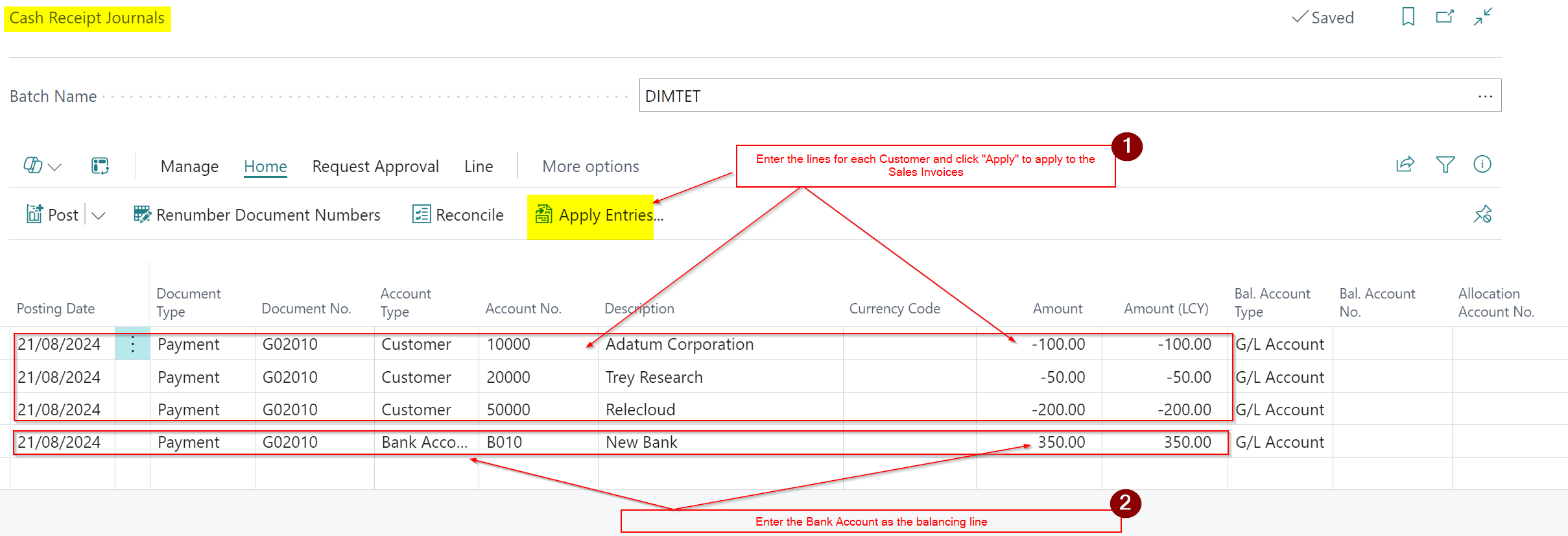
I therefore enter the cash into the Cash Receipt Journal page as per below

To summarise, in step 1, I’ve entered all three customer lines and clicked “Apply Entries” and applied to the Invoices on each individual Customer.

In step 2, I’ve then balanced these entries with a single Bank Account line for the total amount.

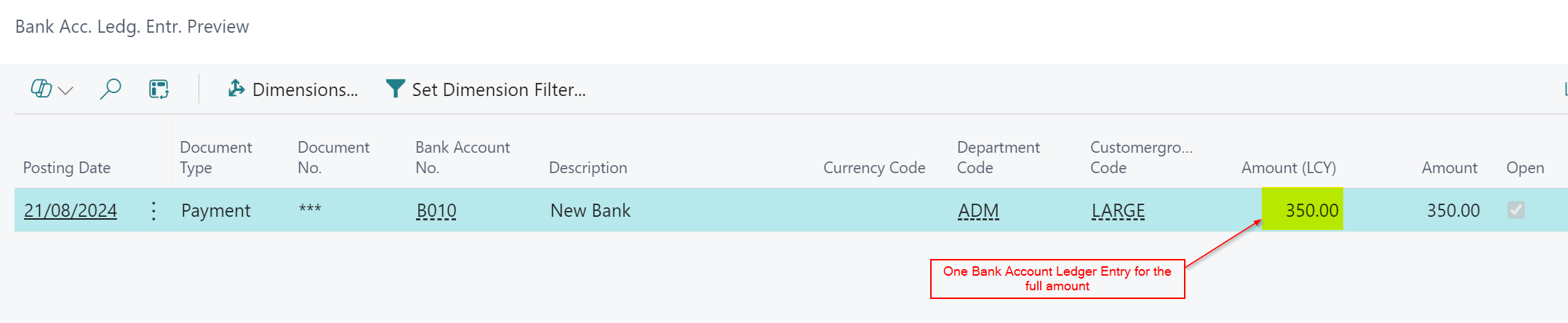
As shown below, this process has produced a single Bank Account Ledger Entry, which I can now reconcile with my bank statement, reflecting exactly how the cash was deposited into my Bank Account

Now when I come to do my bank reconciliation in the system, Business Central matches my actual Bank Statement.

Conclusion

This was a quick post showing how to apply a single Cash Receipt to multiple customers. I could have used another page called “Bank Deposit” however I choose to use the trusty “Cash Receipt Journal”.

I’ve posted this because I’ve noticed that users often manually split and post the cash separately, so hopefully this will help someone else in the future.

Thanks for reading!

Dynamics 365 Business CentralBank Account, bank reconciliation, Cash Receipt Journal

Dynamics 365 Business Central – How I configure Business Central when using Invoice Factoring or Invoice Discounting for Cash Collection

13th Mar 2024Gavin WhittakerLeave a comment

Introduction

At its core Invoice factoring or discounting is a service businesses can use to improve cash flow. There are various flavours and services that are offered by different institutions and companies but essentially its a service that enables businesses to “sell” some of its debts (i.e. its outstanding Sales Invoices) to an invoice factor/discounting company and receive immediate cash for a fee or commission.

In this blog I’ll go through how I’ve configured Business Central to manage this scenario.

Configuring the Bank Accounts

The first thing to do is to configure the relevant bank accounts in Business Central.

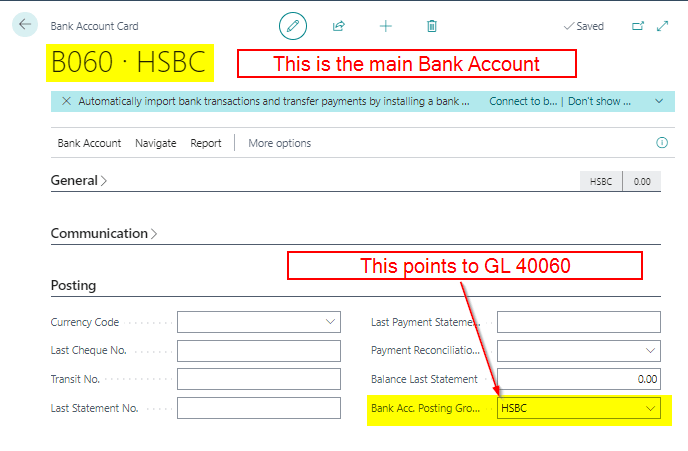
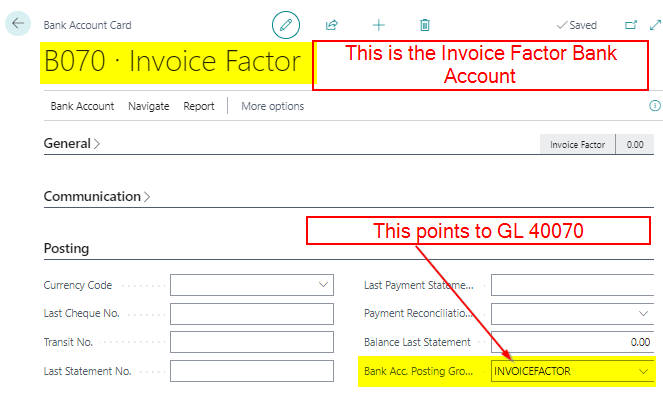
To do this I’ll configure my main Bank Account and also a Bank Account for the Invoice Factoring company.

Scenario / Walkthrough – Drawing down from the Invoice Factor Account

The scenario I have is I’ve sold goods for £10,000.00 on 30 day payment terms to my Customer. However, rather than wait for the Customer to pay, I’ve passed this sales invoice to the Invoice Factor company. This means I can now “draw down” some of the cash from the Invoice Factor immediately to improve my cash flow :).

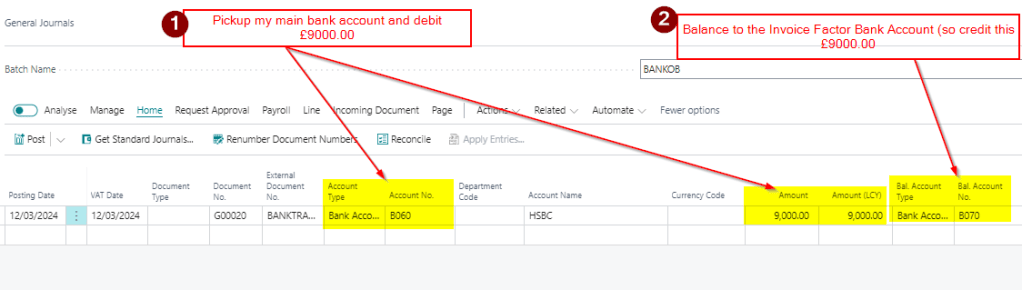
I therefore post a bank transfer of £9,000.00 from the Invoice Factor to my Main Bank Account. I’ll do this as a General Journal as per below:

I’ll now have £9000.00 in my main Bank Account as an Asset and my Invoice Factor account is showing a £9000.00 liability.

I also have a reconciling entry in both accounts I can reconcile from the relevant bank statements of my main bank account and the invoice factoring account.

Scenario / Walkthrough – Applying the Customer Invoice

Once the customer has paid the invoice to the factoring company I need to post and apply this to the Sales Invoice as the invoice is now fully paid.

I’ll use a Cash Receipt for this and pickup the Invoice Factoring Bank Account as this is where the cash has been paid:

This has fully paid the invoice, therefore reducing my Accounts Receivable to £0.00, and also posting a Debit of £10,000.00 to the Invoice Factoring bank account.

I now have a £9000.00 debit balance on my Main Bank Account and a £1000.00 debit balance on my Invoice Factoring account.

Scenario / Walkthrough – Paying the Invoice Factoring Fee

Now when I receive my statement from the Invoice Factoring company I have a fee of £200.00 for their services.

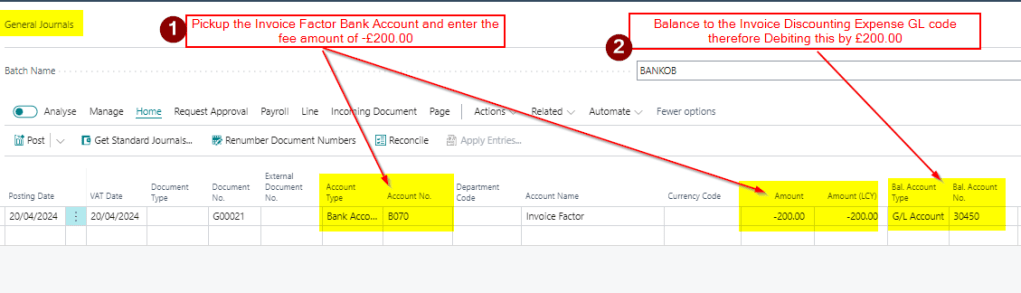
I therefore need to post this to the Invoice Factor Bank Account as a Credit and balance this to an expense code.

I’ll use a General Journal for this as per below:

Scenario / Walkthrough – Bank Reconciliation

All these transactions have been posted to either the main bank account or the invoice factoring bank account. I can therefore reconcile both Bank Accounts in same way I would any other Bank Account.

My main bank account will have a reconciling entry for the £9,000.00 I transferred from the Invoice Factoring Bank Account and my Invoice Factoring Bank Account has the £10,000.00 I received from my customer and the £200.00 fee.

Conclusion

This is a very simple contrived example showing one transaction in an invoice factoring scenario however the theory is the same for many transactions.

You can continue sending Sales Invoices to the factoring company and “drawing down” cash via bank transfers and posting and applying cash when its been received by the invoice factor. You can also keep posting entries to the Invoice Factoring account for fees therefore reducing its balance.

As with most things in Business Central there are many different ways to achieve the same goal, this is just one way to configure Business Central when using Invoice Factoring facilities and services.

Thanks for reading!

Dynamics 365 Business CentralBank Account, Invoice Factoring
Previous Articles

Enjoying our Business Central insights? Subscribe for exclusive updates and more content!

Join 1,904 other subscribers.

ERP

  • Dynamics 365 Business Central
  • Dynamics GP
  • Dynamics NAV
  • GP Vs BC
  • SQL
  • Subscriber
  • Uncategorized
  • YouTube
  • YouTube – GP to BC Fundamentals

Recent Posts

  • Dynamics 365 Business Central – Error Message “You have one or more documents that must be posted before you post document no….” when posting a Journal
  • Dynamics 365 Business Central – How to post a Sales Credit for an Item without affecting Inventory using an Item Charge
  • Dynamics 365 Business Central – Three ways to post Sales Ledger Cash Receipts in Business Central
  • Dynamics 365 Business Central – Month End Accruals for GRNI Purchase Orders and Unposted Purchase Invoices
  • Dynamics GP to Business Central – The Arrival of Smartlist Features via “Add Fields from Related Tables in Analysis Mode”

Tags

Activity adjust exchange rates Admin Centre Bank Account Bank Management bank reconciliation Cash Receipt Journal configuration configuration packages Cost Adjustment Costing Currency Customers Dimensions Direct Cost Applied Drop Shipment Dynamics GP Email Emailing Expected Cost FIFO Financial Fixed Assets Flow field General Journal General Ledger General Posting Setup GP to BC HMRC Inventory Inventory Put-away Inventory Setup journals Making Tax Digital Multicurrency opening balance Payables Payment Payment Journal personalisation Picks Posting Group Posting Groups purchase Purchase Invoice Purchase Journal Purchase Ledger Purchase Order Purchase Order Processing Purchases Purchasing Receivables Reconciliation Refund Reporting revaluation Sales Sales Order Sales Return Sandbox Security Shipments SQL SQL Server Trial Value Entries VAT VAT Posting Setup VAT Statement Warehouse Warehouse Put-away Warehouse Receipt Warehousing workflow Year End

RSS Feed

RSS Feed RSS - Posts

Powered by WordPress.com.
  • Subscribe Subscribed
    • thedynamicsexplorer.com
    • Join 251 other subscribers.
    • Already have a WordPress.com account? Log in now.
    • thedynamicsexplorer.com
    • Subscribe Subscribed
    • Sign up
    • Log in
    • Report this content
    • View site in Reader
    • Manage subscriptions
    • Collapse this bar
 

Loading Comments...