Introduction
When posting certain expenses in Business Central, you may want to split the costs proportionally over several cost centres using a specific value or metric. For example you may want to split a heating expense across the Factory and Office cost centres based on the square footage that each occupies.
In this post, I’ll show how this can be achieved by combining Statistical Accounts and Allocation Accounts to automatically distribute costs across dimensions.
Scenario
In our demo scenario we want to split the heating costs of the business automatically across our department cost centre based on the square footage they occupy.
The heating costs are recorded via the Purchase Invoice from our supplier. When keying this into the system we want to be able to simply select one Allocation account, enter a total amount of the invoice, and then the system to automatically post this to one heating GL account but split across the Department dimension.
This will seamlessly record the heating costs more accurately across the Department dimension.
This post assumes you have a dimension called “Department” already configured with the relevant values.
Statistical Account Configuration
First, we need to create a statistical account. But before that, a quick introduction to why they are useful 😊.
Statistical accounts allow you to store non-financial information such as square footage or employee count. You can then use this information in multiple ways, such as in calculations in financial reports or allocating costs.
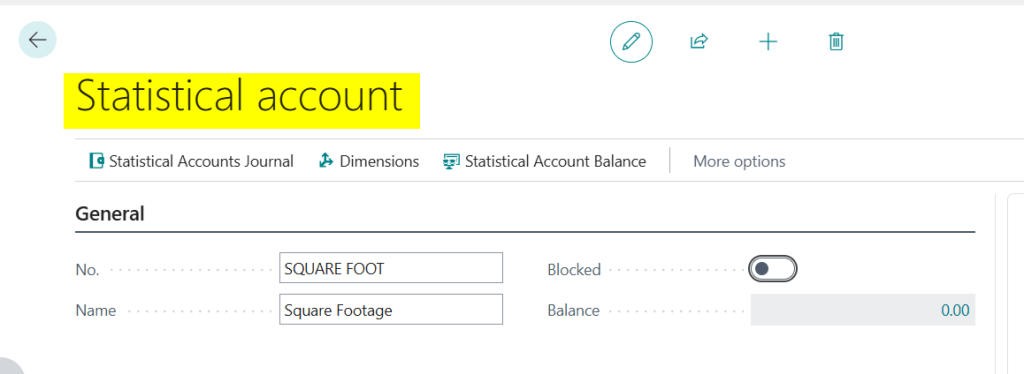
For this scenario I’m going to create one called SQUARE FOOT and configure it as per below:
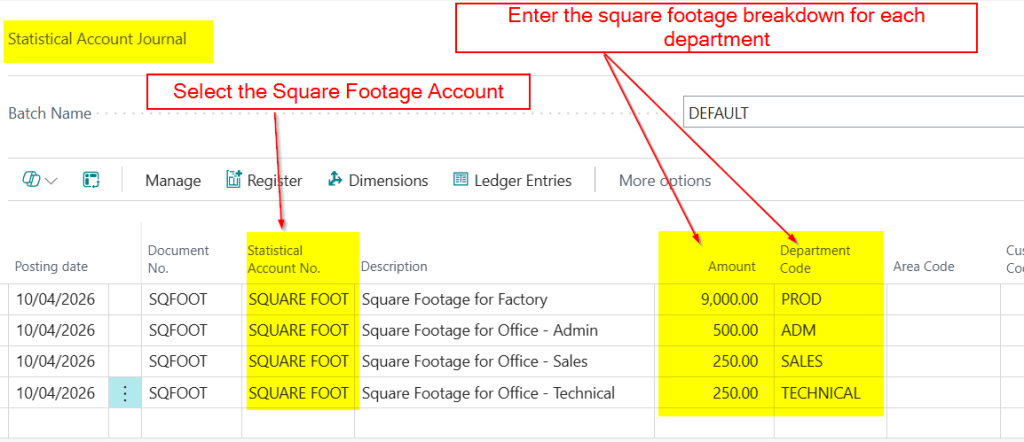
Next, I’ll click “Statistical Accounts Journal” and post the entries to record the square footage for each department.
I’ve done this as per below:
In reality, the square footage figures are unlikely to be this straightforward, but I’ve kept them simple here so the calculations are easier to follow when posting the Purchase Invoice 😊
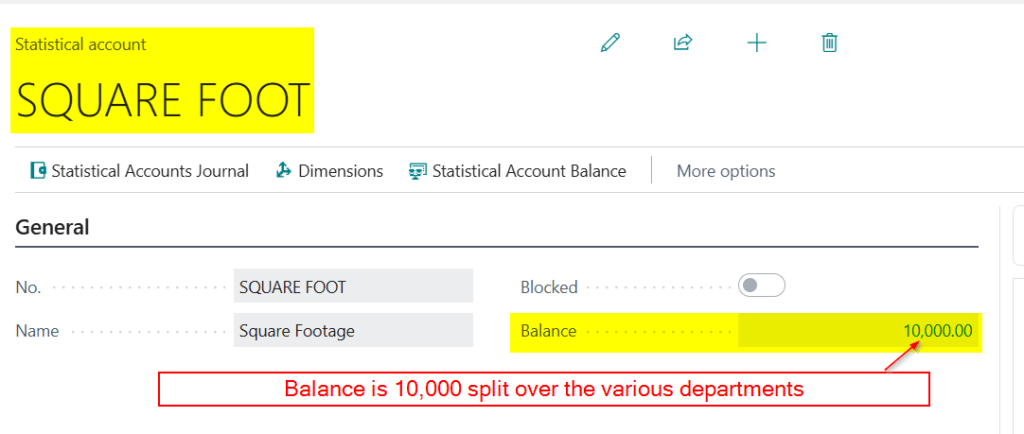
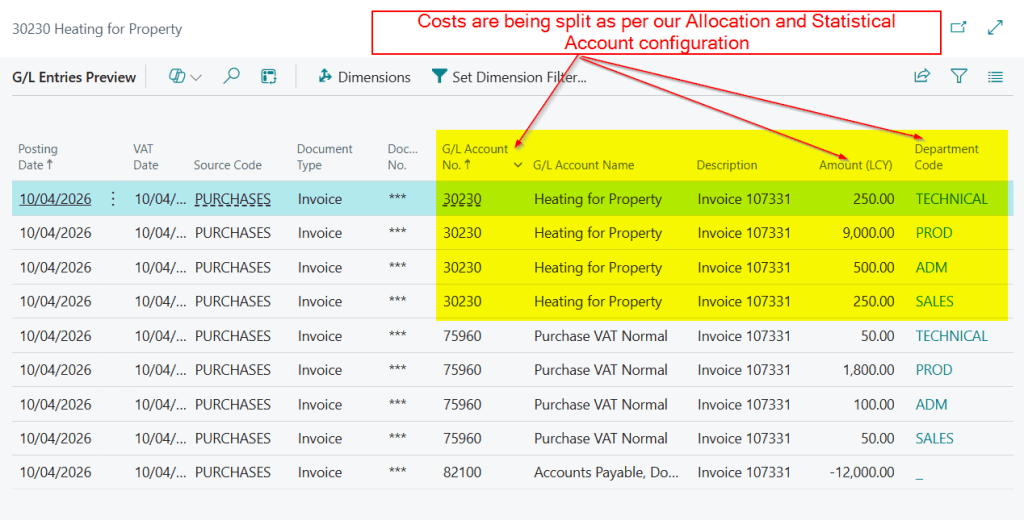
The balance on the Statistical Account is now 10000 which is split as 9000 to the PROD (Factory) department, 500 to the ADM department, 250 to the SALES department, and 250 to the TECHNICAL department.
Allocation Account Configuration
Now we have configured the Statistical Account we need to create the Allocation Account and use the Statistical Account in the breakdown 😊.
We will therefore go to “Allocation Account” page and set this up. We’ll go through in steps and explain each one as we go.
The first step is to add the “Allocation Account” and select the GL account we want to break the costs over and what the breakdown account will be.
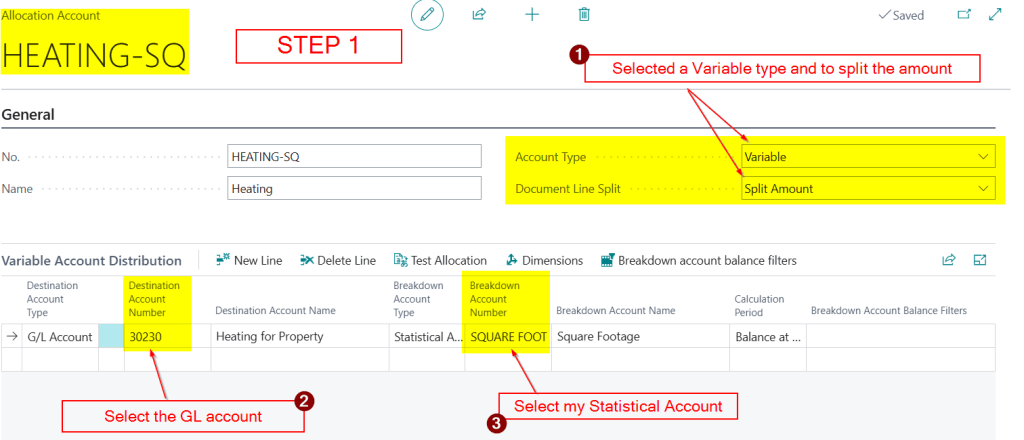
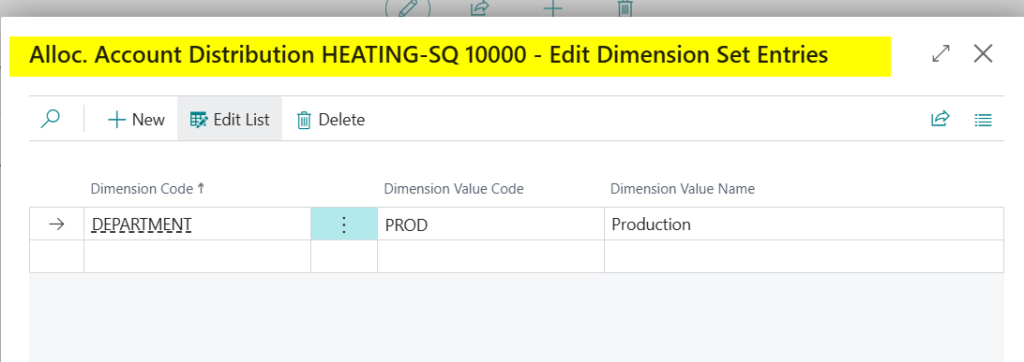
Next, while on the line, I’ll click “Dimensions” and select the Department dimension and the dimension value PROD.
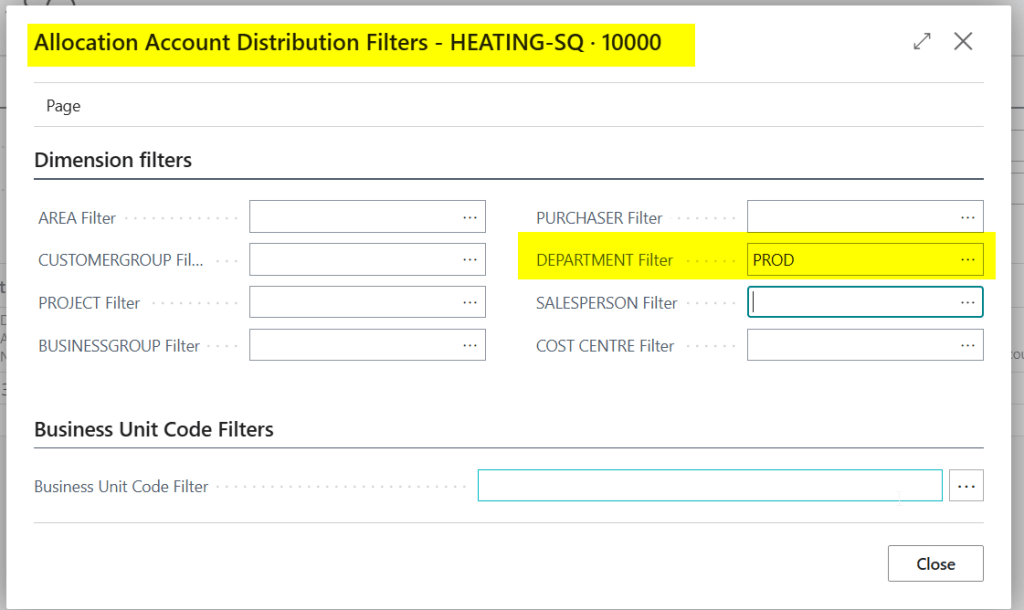
Now, back on the main Allocation Account screen I’ll click “Breakdown account balance filters” and enter the Department of PROD.
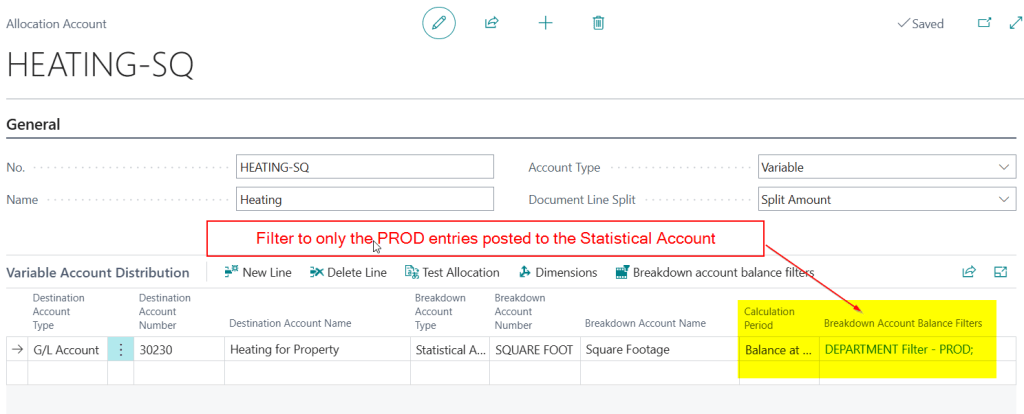
Returning back to the “Allocation Account” and you can see this line is filtered for the balances posted to the PROD dimension value.
I need to repeat this process for all the dimensions in the statistical account I want to break the costs down over.
Therefore my final configuration looks like the below.
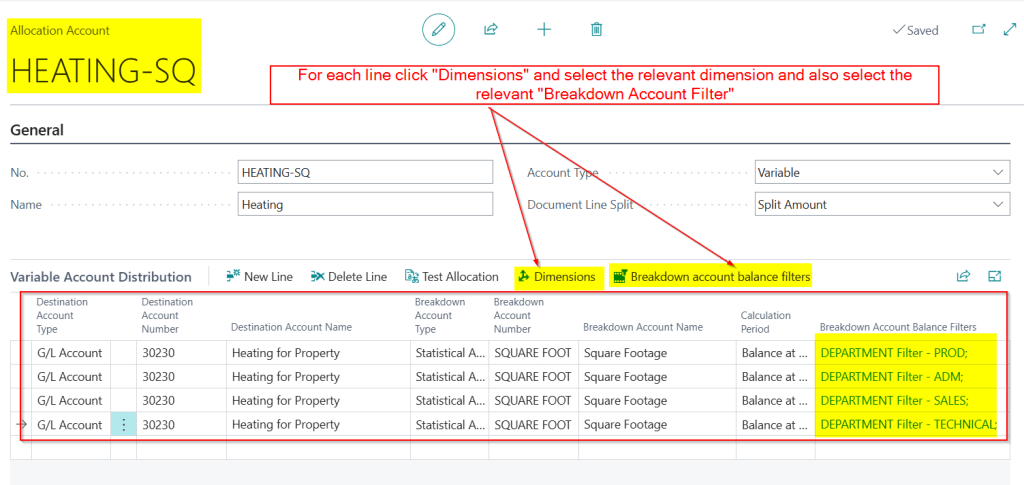
For example, on the second line I selected the ADM dimension value under “Dimensions” and then applied the same value within the breakdown account filters. On the third line, I repeated this process for the SALES dimension, and on the fourth line for TECHNICAL.
I’ve now completed the configuration 😊. Now, when I post a Purchase Invoice I should be able to select the HEATING-SQ “Allocation Account” and have the costs split across dimensions automatically based on the values in my Statistical Account.
Let’s give it a try 😊
Posting a Purchase Invoice to the Allocation Account
Now I’ve completed the configuration lets give it a try.
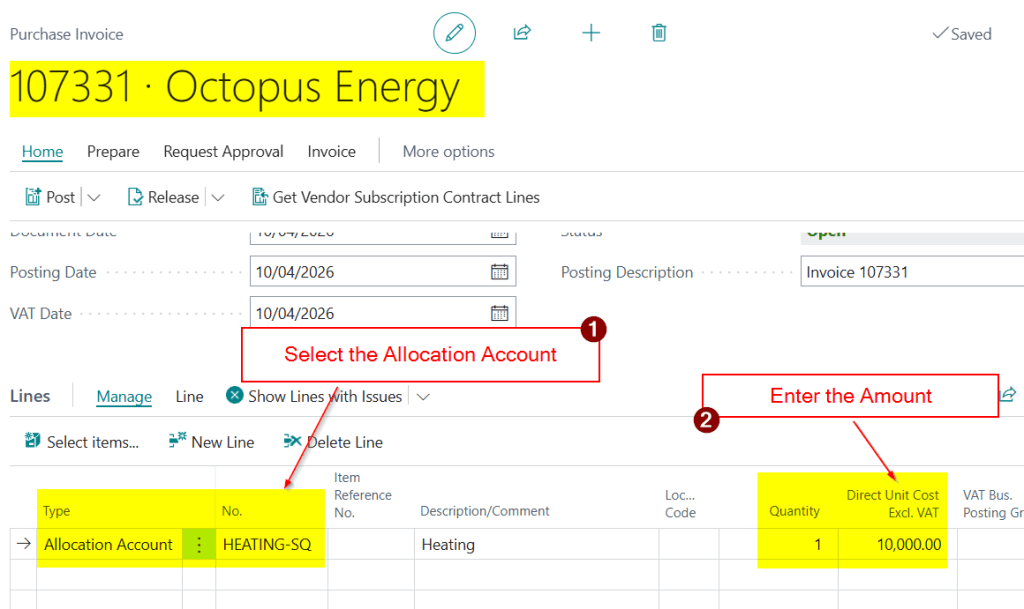
I now have a Purchase Invoice from my energy supplier for the total heating costs for our business premises. As discussed this includes a factory and office space.
I’ll therefore create the invoice for the total cost as per below ensuring I choose the Allocation Account called HEATING-SQ.
Then, when I select “Preview Posting” you can see the cost is being automatically split across the various dimensions using the statistical account
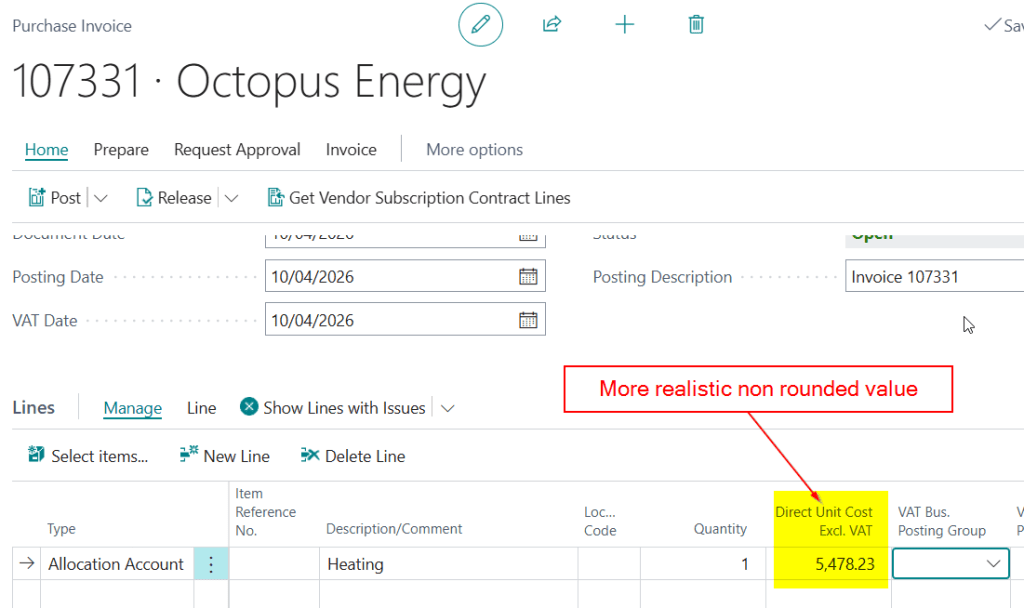
To make this more representative of a real scenario, I’ll use a non-rounded invoice value instead of 10,000.00 so you can see how the system calculates and splits the amounts more precisely across the dimensions.
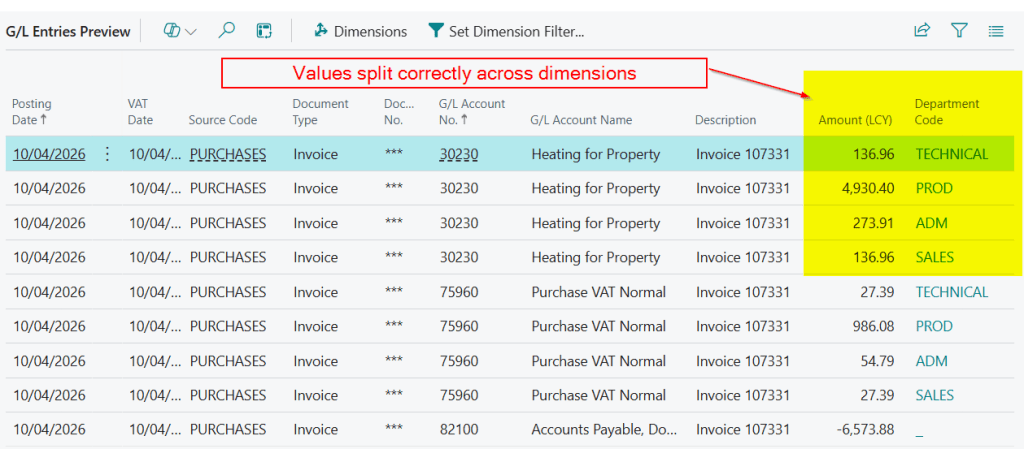
And you can see the values split nicely across the dimensions
Conclusion
This blog goes through how you can automatically split costs across dimensions based on non-financial information like square footage. It goes through how to configure a Statistical and Allocation Account to acheive this.
What’s amazing about this feature is if the office space changes or the factory is expanded, you only have to post another Statistical Journal entry reflecting the updated figures and the system will automatically use the revised values the next time allocations are run, ensuring your cost distributions always stay accurate without any need to amend your allocation setup 😊
Thanks for reading!
 thedynamicsexplorer.com