Introduction
If you are thinking of moving from Dynamics GP to Business Central, Microsoft provide an absolutely amazing tool that can migrate your Dynamics GP data to Business Central 😊
This tool will not only migrate your master data, but also some opening balances, and crucially your historical data.
In this two part blog series, we’ll take a closer look at what gets migrated and how it appears in Business Central.
In Part 1 (this post) we’ll focus on opening balances, in particular your Customer and Vendor transactions and your General Ledger opening balance.
In Part 2 will take a look at how the historical data is migrated, and what it looks like once it’s in Business Central.
What do my Sales and Purchasing Opening Balances look like in Business Central?
The migration will transfer Customer and Vendor unapplied transactions currently in the OPEN tables in Dynamics GP.
Customer and Vendor opening balances are posted in separate batches during the migration. After the migration has finished, The first place I usually review them is on the G/L Register page, which provides a complete view of all the opening balance G/L Registers.
You can learn more about Registers and how they function in Business Central in my blog post here
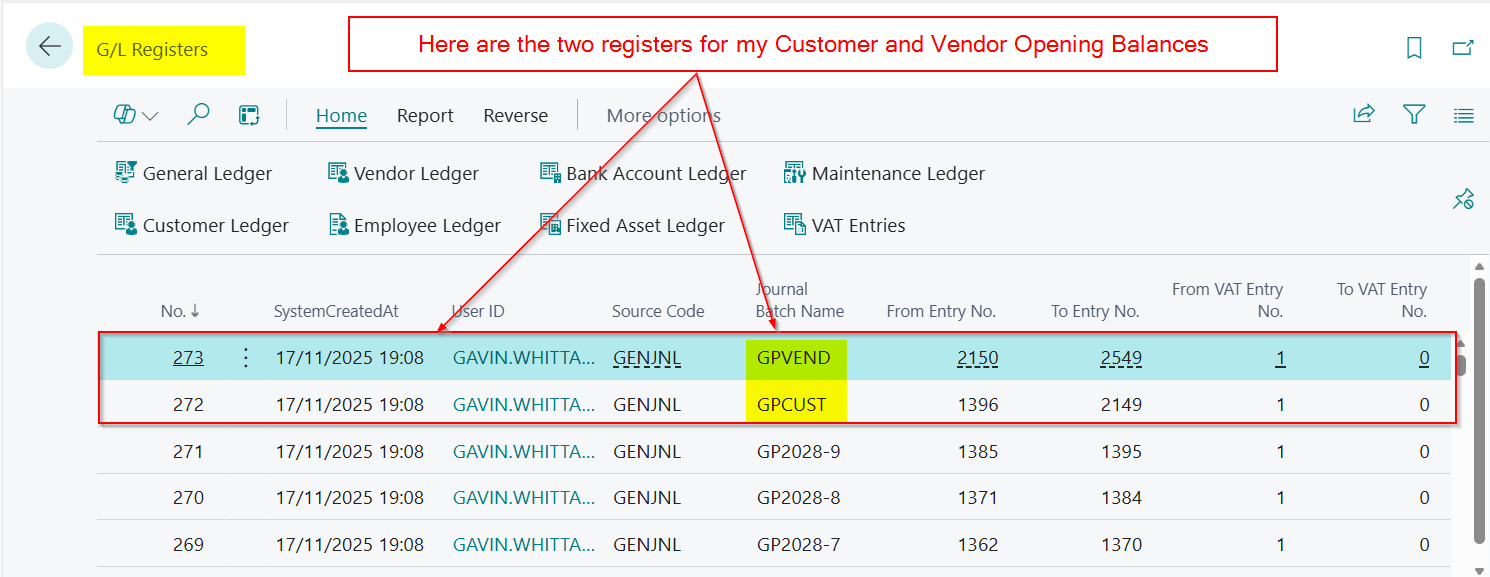
From here I can I highlight one of the batches and click the “General Ledger Entries” button which will show me the General Ledger Entries for the highlighted batch.
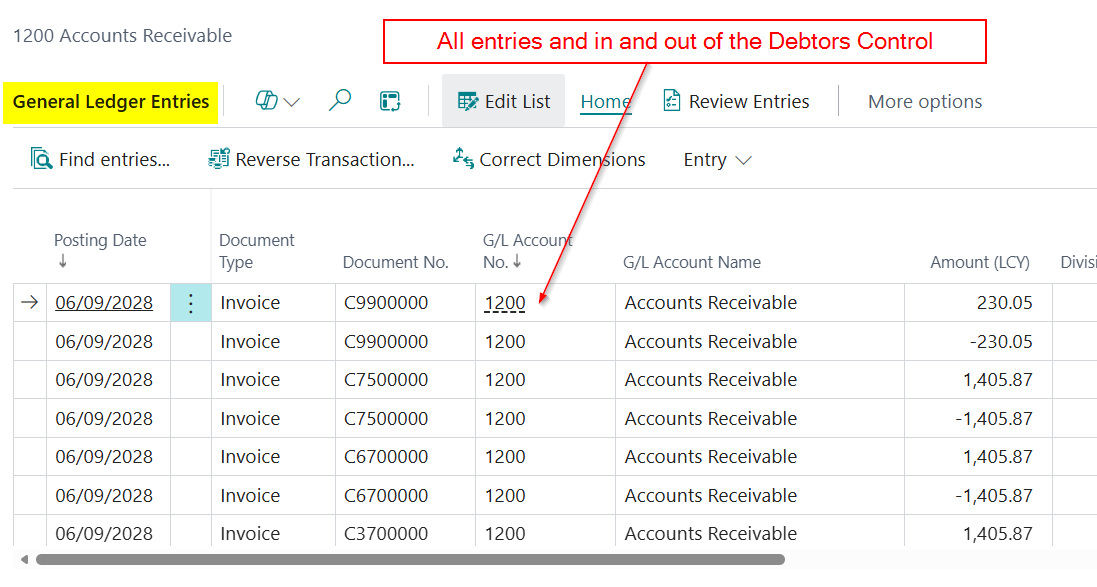
As you can see the General Ledger Entries post in and out of the Debtors Control account. This is because the balance for the Debtors and Creditors is migrated as part of the General Ledger Opening Balance.
I can follow the same steps to view the General Ledger entries related to the Vendors by simply highlighting the G/L Register from the Vendors
You can then click “Customer Ledger Entries” to view a list of the OPEN unapplied Sales transactions. The sum of this should match your outstanding Sales transactions in Dynamics GP.
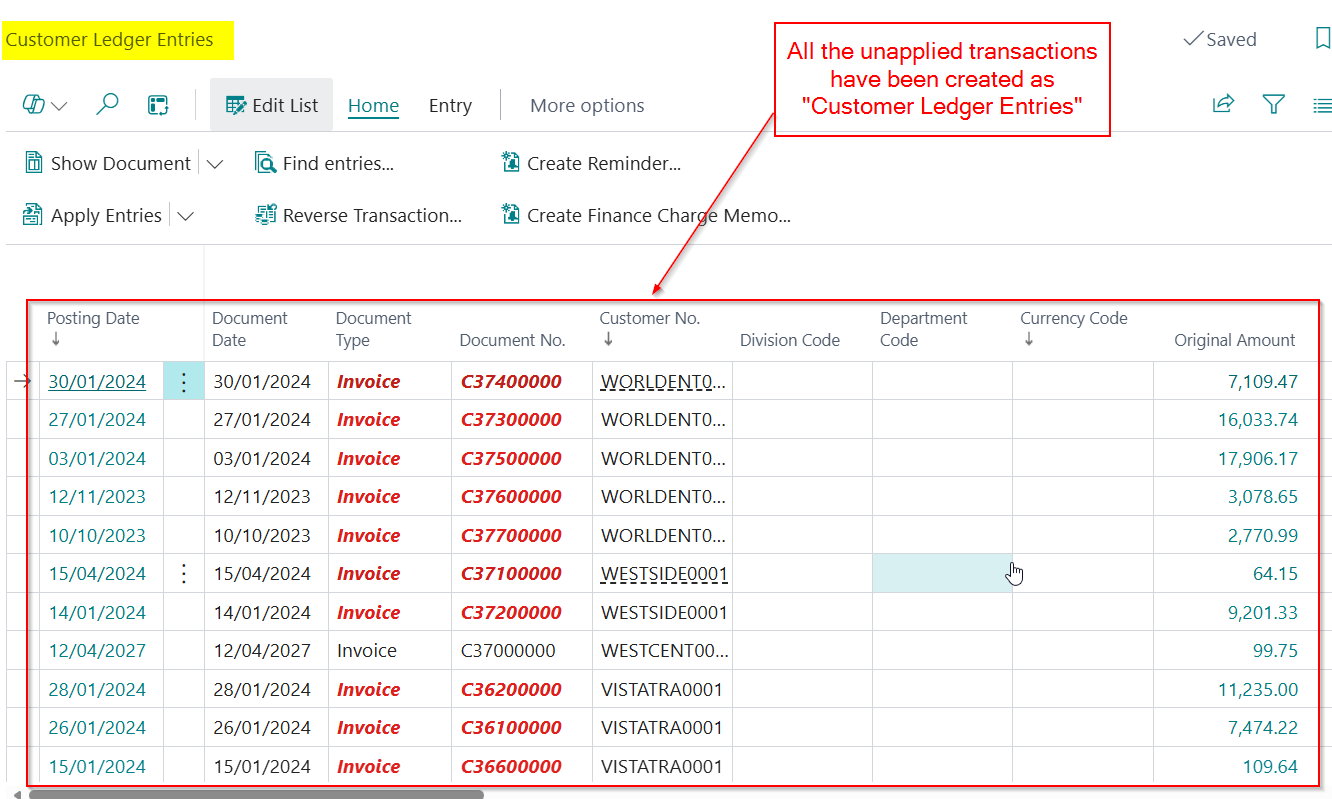
If I want to see the “Customer Ledger Entries” on the actual Customer, I can simply go to the Customer List and drill down on the Balance as per below
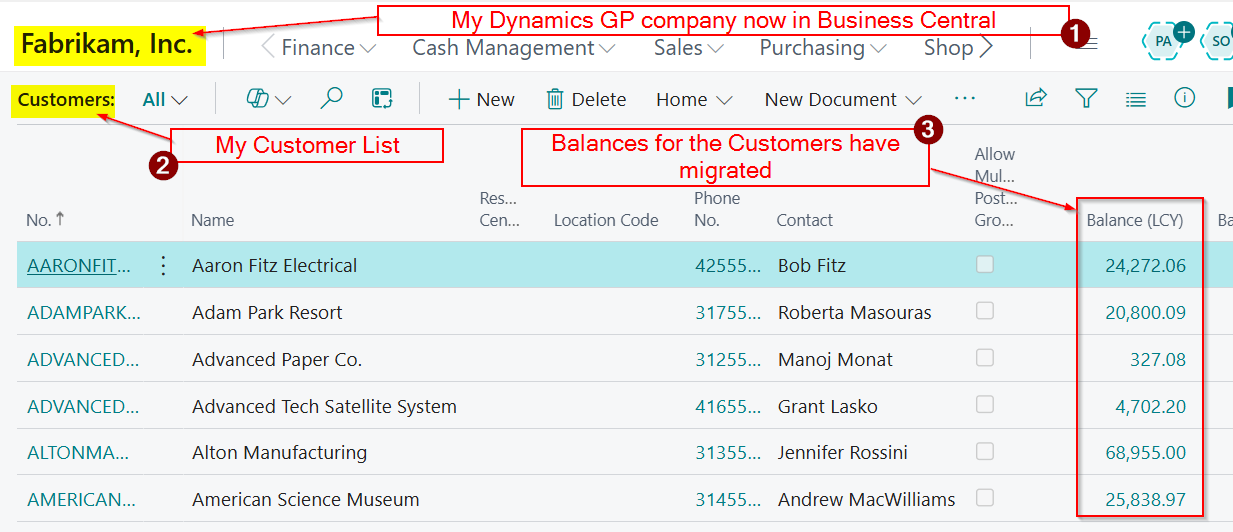
If I then drill down on the balance for “Adam Park Resort” I can see how the OPEN transactions in Dynamics GP have created Customer Ledger Entries in Business Central
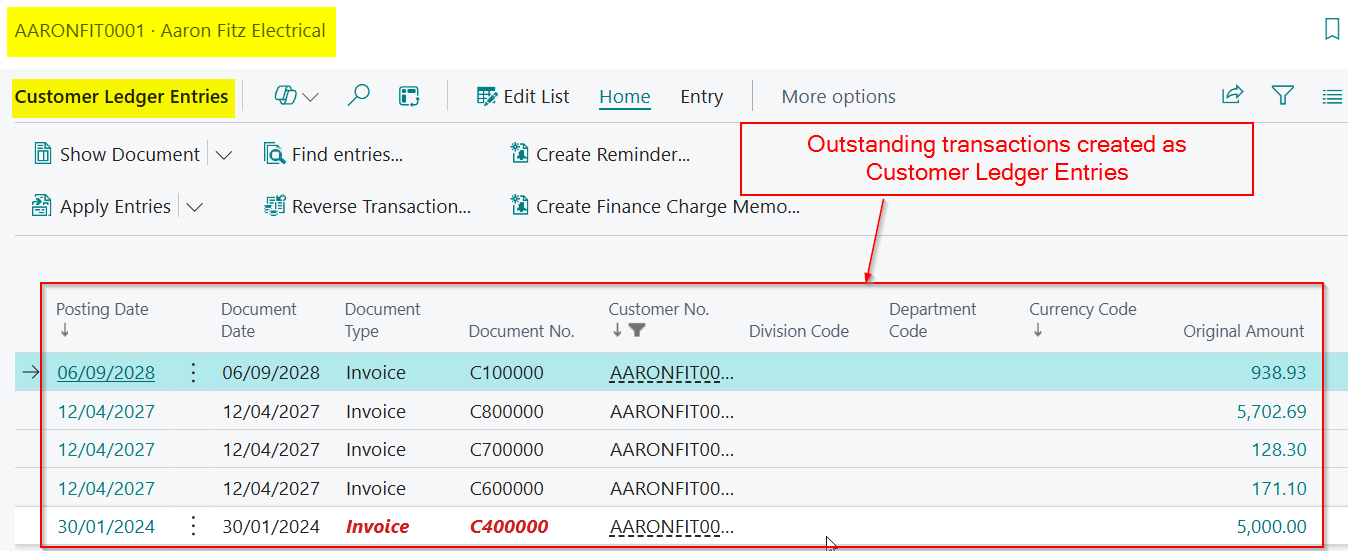
When you go live with Business Central these entries will show on the “Aged Accounts Receivable” report that you should reconcile back to the “Historical Aged Trial Balance” in Dynamics GP.
If can follow the same process to view my migrated purchasing transactions. In this case the General Ledger Entries will have posted in and out of the Creditors control account and I can view and total my Vendor Ledger Entries as well.
Please note you can also migrate paid transactions however this is performed as part of the historical data migration which we’ll cover in Part 2
What do my General Ledger Opening Balances look like in Business Central?
Now we have seen the Customer and Vendor opening balances, let’s have a look at the General Ledger opening balances.
The first thing to note is that you can specify how many years of General Ledger opening balances you wish to migrate via the “GP Company Migration Configuration”. A screen shot of this is below:
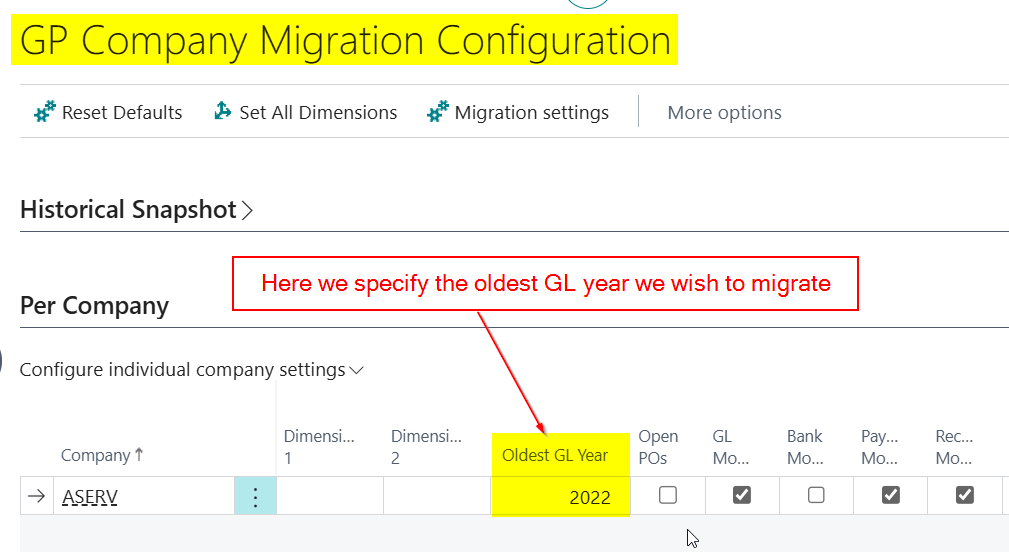
Please note that every single year will then be migrated as an Open Year. So you’ll have to run the “Close Income Statement”, which is Business Central General Ledger Year End process, for those years that have been closed. This will close the Income Statement General Ledger balances to the retained earnings account.
Now we know we can migrate multiple years, lets have a look at how this appears in Business Central 😊.
Before we look at the opening balances its important to understand how the Chart of Accounts differ between Dynamics GP and Business Central.
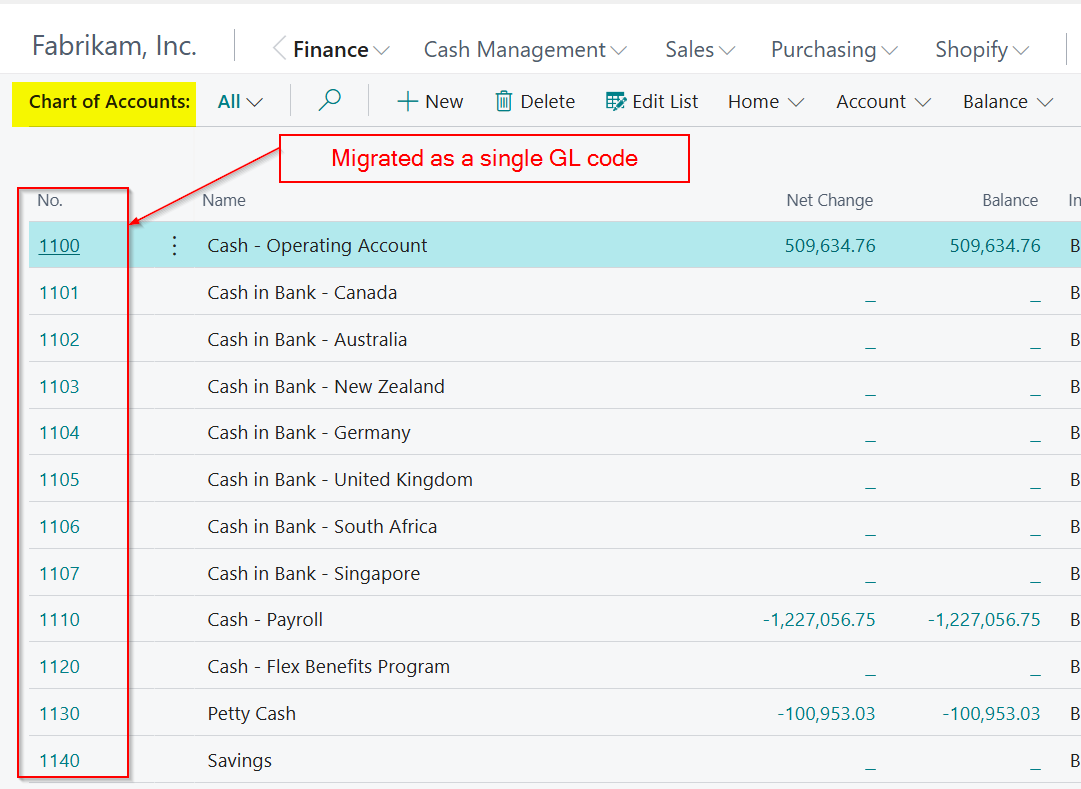
Dynamics GP uses a segmented General Ledger account, whereas Business Central uses a single General Ledger account and Dimensions for extra analysis. Therefore the migration splits the Dynamics GP General Ledger code and uses the “Main Segment” for the General Ledger code and the other segments as dimensions. You can read more about this in my blog post here and here.
Therefore my migrated Fabrikam Chart of Accounts appears as per below in Business Central.
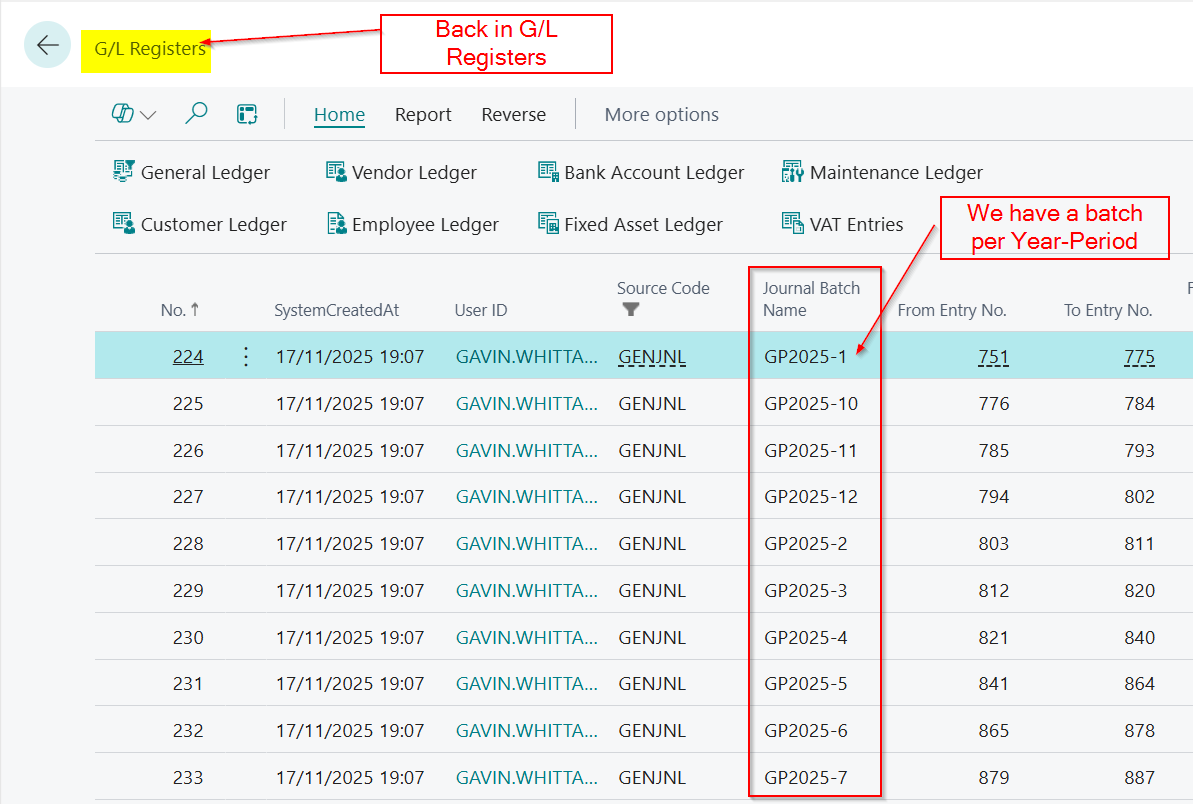
Again, I find the best place to start to look at how the balances have transferred, is the G/L Register page.
Here we can see that we have a register per Year-Period.
If I drill down on the “General Ledger Entries” for GP2025-1, you can see that we get a summarised total for each Dynamics GP General Ledger Code, rather than the individual detailed entries for the period.
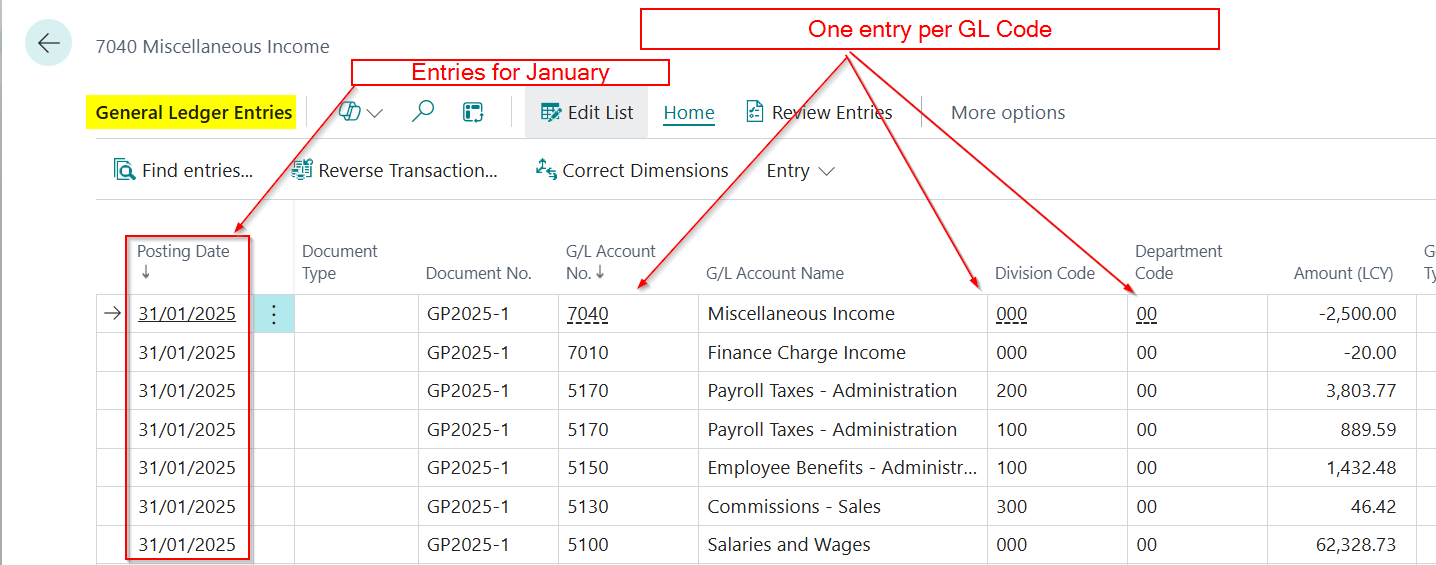
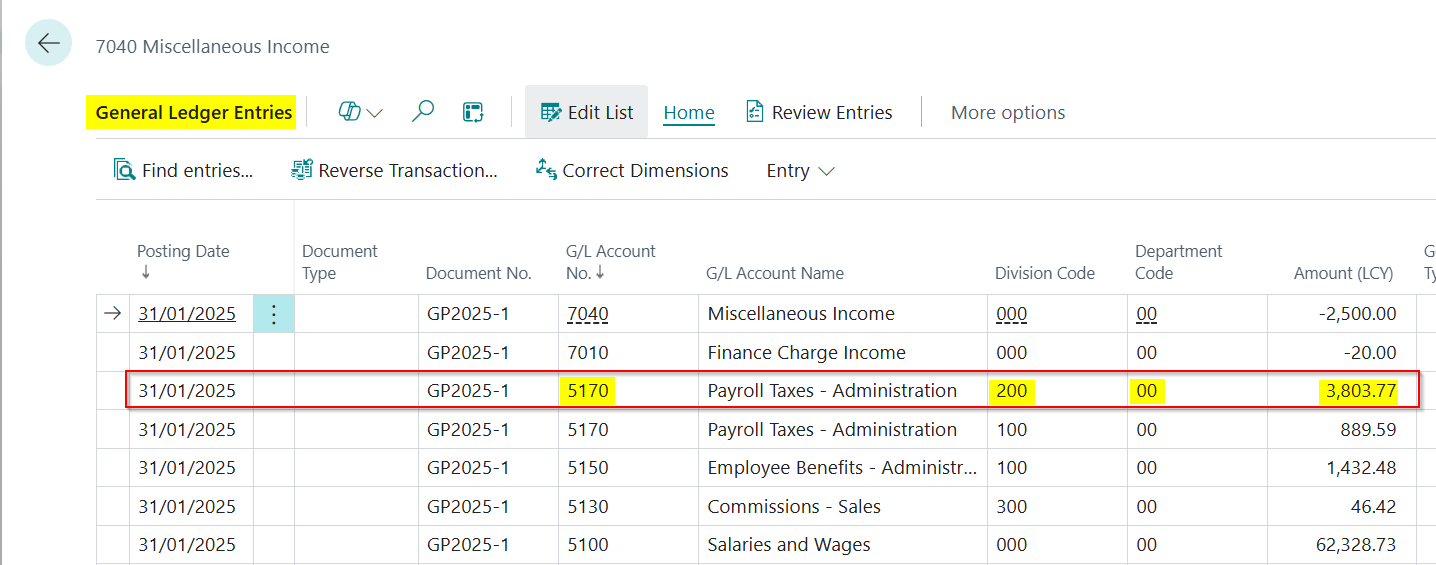
Furthermore, we can match this back to Dynamics GP. So taking the highlighted row below for GL Code 5170 and Division Code 200 and Department Code 00, which is 200-5170-00 in Dynamics GP, we can see we have a balance that has migrated of £3,803.77.
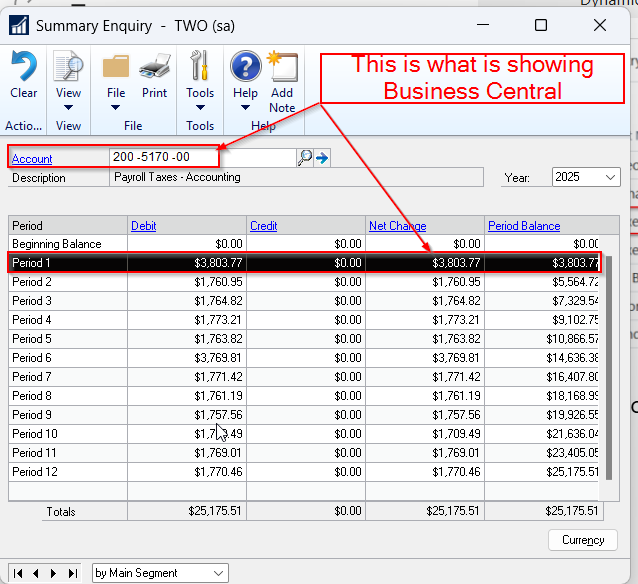
If we have a look in Dynamics GP at code 200-5170-00 we can see the same monthly balance for period 1 of 2025
Taking this a step further, if I go straight to the “General Ledger Entries” page to see all migrated entries, and then filter to the GL code 5170, Division of 200 and Department 00, I can match every single period amount to that Dynamics GP summary shown above:
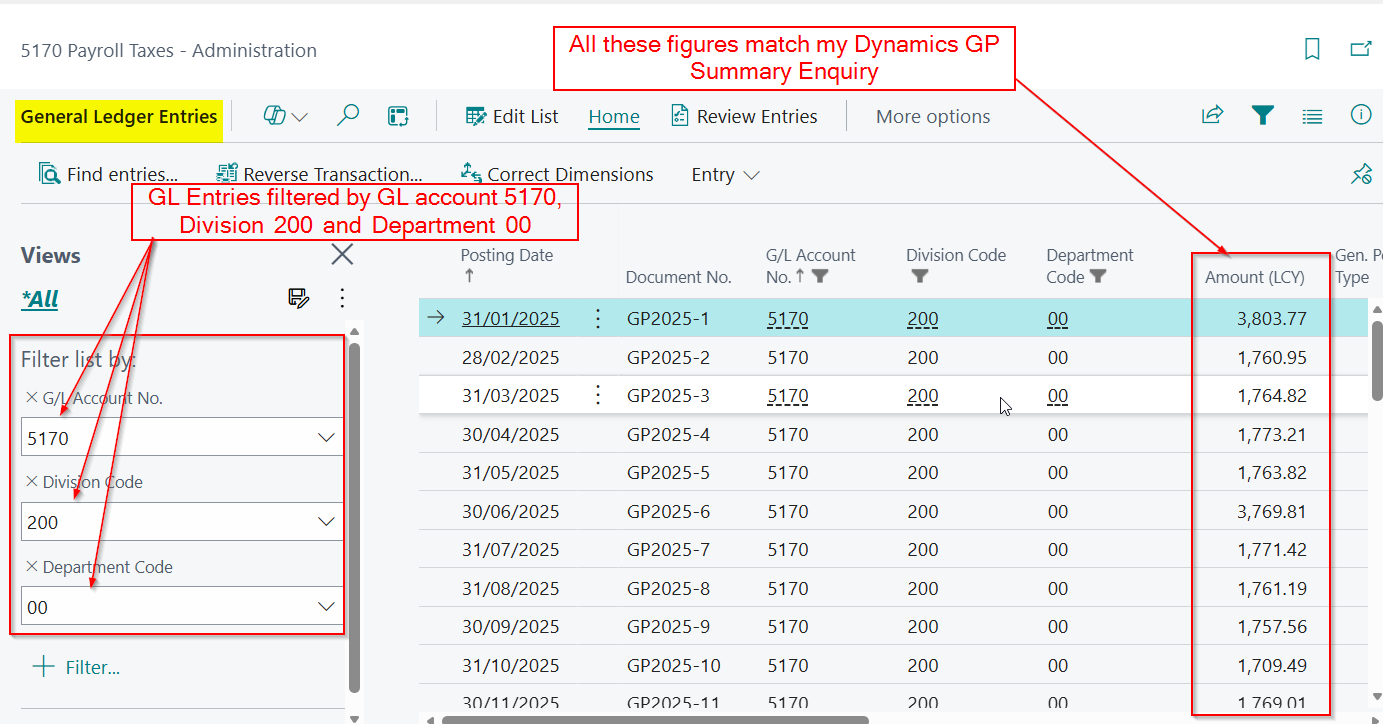
This proves that my migration has worked. All balances have been migrated on a month by month basis.
Whats also great, is now my GL code is seperate from my Division and Department, I can easily get a sum total at GL Code level and dimension level 😊
Conclusion
As we have seen, your opening balances from Dynamics GP migrate cleanly into Business Central, with Customer and Vendor OPEN transactions and summarised General Ledger balances brought across in a clear and reconcilable way.
In Part 2, we’ll take a closer look at historical data and how it appears in Business Central after migration.
Thanks for reading!

 thedynamicsexplorer.com