Dynamics GP Vs Dynamics 365 Business Central – Managing Financial Periods

Introduction

Dynamics GP and Dynamics 365 Business Central both have great options to manage financial periods therefore controlling what date ranges users can post into.

In this post I’ll explore how this is achieved in both products, and point out what I think are the key benefits of each solution.

Dynamics GP

In Dynamics GP you can open and close financial periods using the “Financial Period Setup” window as per below
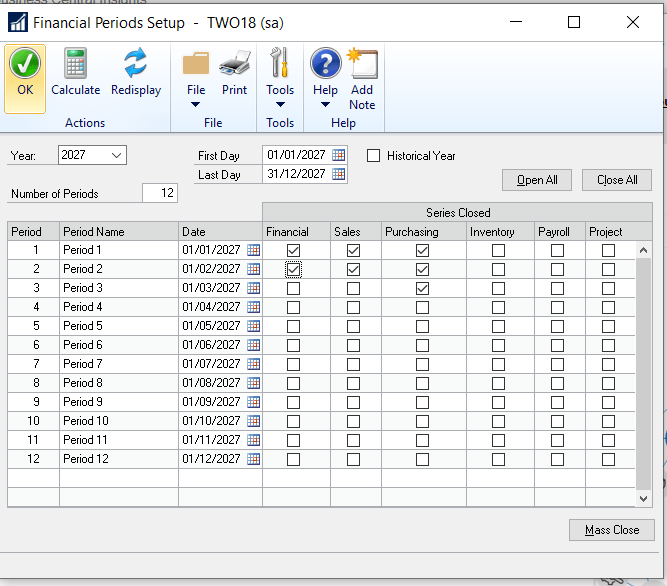
There’s a couple of key takeaways here:

  1. This is a global setting therefore the configuration of this window affects all users of the system. i.e. you can’t allow some users to post into certain periods on an individual basis.
  2. You can close the financial period for one series, (or ledger) while leaving another series open. For example, in the configuration above you can post a Sales transaction with a GL posting date of March, however you can’t post a Purchasing transaction with a GL posting date of March as that has been closed.

Dynamics 365 Business Central

In Dynamics 365 Business Central you can control allowed posting dates in two separate places.

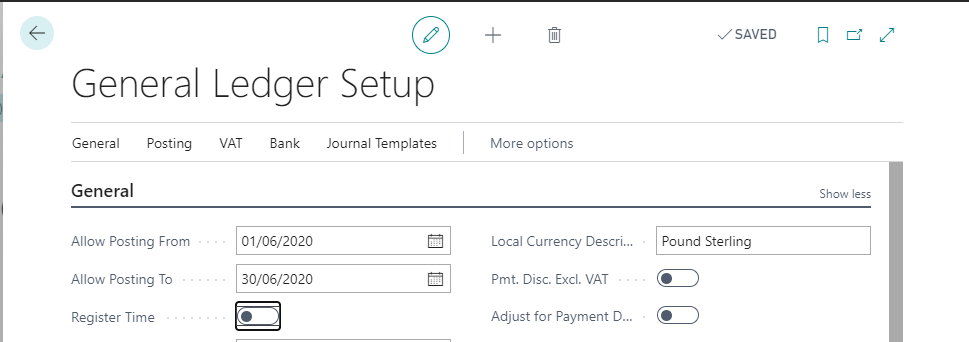
The first is by entering a specific date range in the General Ledger Setup as per below.
The next is at user level via the User Setup window:
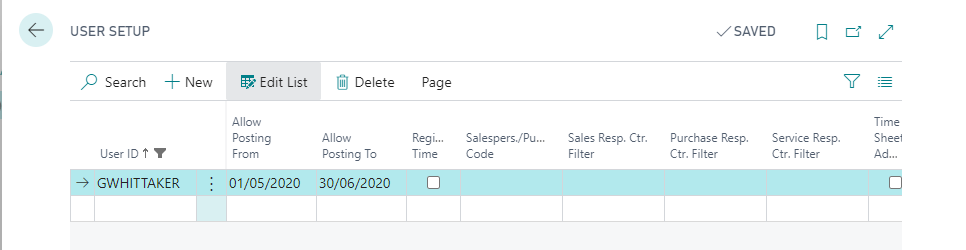
If you haven’t specified a user as having a different “Allowed Posting Date” range in the User Setup window then they are bound to the allowed posting dates in the General Ledger Setup.

The key takeaways here are:

  1. You can have different allowed posting dates for different users.
  2. You can’t completely close one series (ledger) and have another still open.

Conclusion

I think both systems have great features.

I love the way you have the flexibility to only close down certain series (ledgers) in Dynamics GP, as I imagine in the real world departments aren’t ready to close at the same time.

I also like how in Dynamics 365 Business Central we can close a financial period using the “General Ledger Setup” window for the majority of users however you can configure some users, for example a financial controller, to have the flexibility of posting across a larger date range.

Perhaps one day one of the products will incorporate both ideas 🙂

Thanks for reading!

Thinking of making the move to Business Central? We can help

Dynamics GP – How to Unapply a Payables Invoice in HISTORY that’s applied to a OPEN Credit Document

Scenario

I often see this request via support so thought I’d document it on my blog. The question varies however it usually goes something like this:

“I’ve accidentally applied an invoice to a Payment and now I need to unapply this however when I select the Payment in the “Transactions > Purchasing > Apply Payables Document” window the Invoice isn’t available to unapply? How can I unapply the invoice?”

The issue here is the “Apply Payables Document” window only shows OPEN documents and as the invoice has been fully applied its now in HISTORY. Therefore you can’t unapply it via this window.

Please note if both documents were in OPEN you could use the “Transactions > Purchasing > Apply Payables Documents” window to unapply it.

The solution in summary

Unfortunately there’s no easy way to unapply the invoice in this situation.

The fix I often suggest is to apply a dummy transaction to the payment so that it’s also transferred to HISTORY. You can then void the payment, which will unapply the Invoice.

Therefore, in summary, the steps would be:

  1. Post a dummy invoice (or debit note) for the amount remaining on the payment.
  2. Apply the dummy invoice to the payment which will send the payment to HISTORY.
  3. Void the payment via “Transactions > Purchasing > Void Historical Transactions”. This will unapply the Invoice.
  4. Void the dummy invoice via “Transactions > Purchasing > Void Open Transactions”
  5. Post the voided Payment back onto the system.

Detailed solution with an example

I’ve also described the scenario and solution in detail below.

Invoice INV123 has been accidentally applied to Payment 20069 when it should have been applied to Payment 20070. As a consequence Invoice INV123 is in HISTORY but Payment 20069 is still in OPEN meaning the invoice can’t be easily unapplied

This image has an empty alt attribute; its file name is image.png

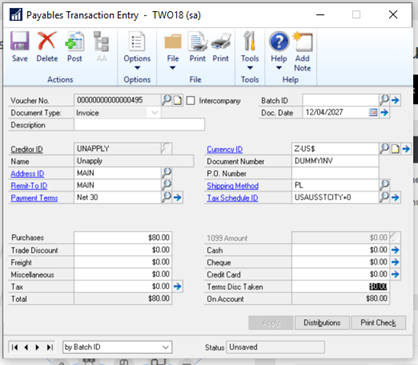
To fix this we first post a dummy invoice for $80.00 (the remaining amount of payment 20069):

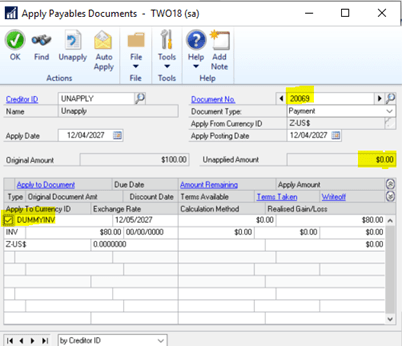
Next we apply this to the Payment via “Transactions > Purchasing > Apply Payables Documents”:

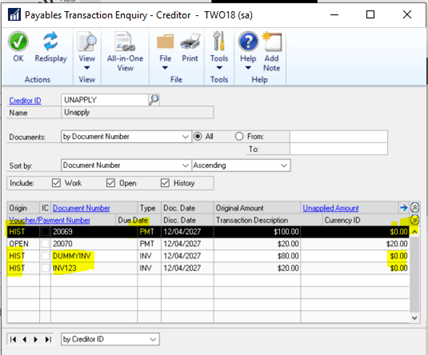
Now the Payment and invoices all show in History:

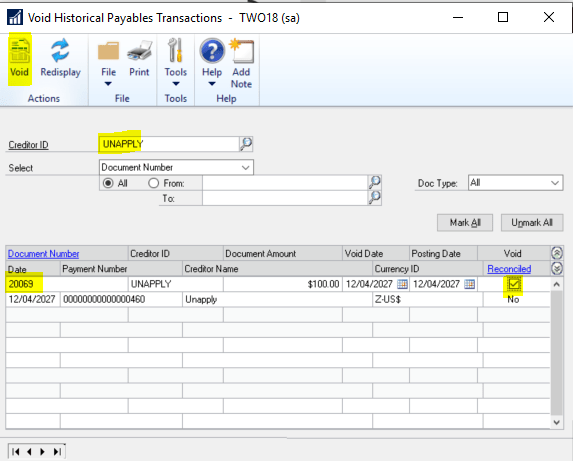
Next we void the payment via “Transactions > Purchasing > Void Historical Transactions”

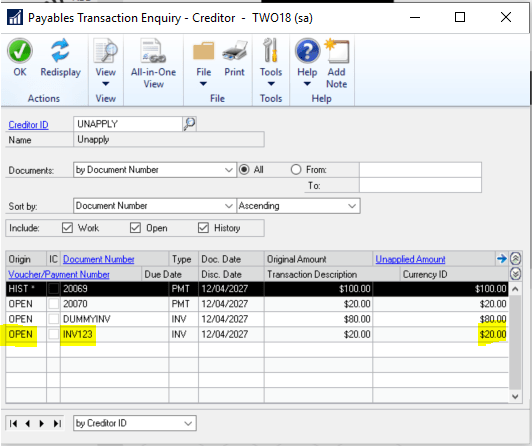
Invoice INV123 is now showing as unapplied (as is the dummy invoice):

We now void the dummy invoice via “Transactions > Purchasing > Void Open Transactions”

And finally post the payment back onto the system

Once this has been done you can go ahead and apply invoice INV123 to the correct payment.

Conclusion

Although there are many steps to unapply the invoice using this process, it does provide a way of unapplying the invoice.

I hope this helps someone in the future.

Thanks for reading!

Thinking of making the move to Business Central? We can help
Dynamics GP – What are the P/L Source Document entries on the year end journal?

When you run the year end routine on the General Ledger in Dynamics GP the system automatically creates a journal to bring forward the balances for the Balance Sheet codes and it also closes all the profit and loss codes to the retained earnings account.

When you look at the header of the year end journal that’s created it shows a source document of BBF (Balance Brought Forward)

However if you take a closer look at the year end journal in smartlist you can see that some of the lines have a source document of “P/L”.

So why the mixture of BBF and P/L source documents for the year end journal?

The BBF entries are created to bring forward the balances of the “Balance Sheet” accounts and the “P/L” entries are created by closing the profit and loss accounts to the retained earnings account. As my demo data has multi currency postings to various profit and loss codes I get one entry per currency.

To confirm the correct amounts have been posted to the retained earnings account I can run the query below in SQL that sums all the amounts posted to the profit and loss accounts for the year 2024, and this reconciles back to the amounts posted to the retained earnings account on the year end journal:

The BBF entries are quite well known but I couldn’t find much information on the P/L source document which is why I created this post.

Thanks for reading!

Thinking of making the move to Business Central? We can help