Dynamics GP to Business Central – How to Control your General Ledger Code and Dimension Combinations using Allowed Values Filter

Introduction

Due to the design of the General Ledger Account structure in Dynamics GP, its easy to control the General Ledger and Dimension combinations you want to use in transactions.

This is because the General Ledger code itself includes the Segment and Nominal code. Therefore if you don’t want a certain segment to be used with a Nominal code, you simply don’t create that General Ledger Code.

However when you migrate to Business Central those segments become “Dimensions” and are by default available to select with any General Ledger code.

In this post I’ll go through how you can enable the same control in Business Central using the “Allowed Value Filter” option when creating your General Ledger accounts.

How it works in Dynamics GP

Let’s say we have a segment for “Cost Centre” in Dynamics GP, and one of those cost centres is 500 for “Research and Development”. If we want to ensure that only the relevant expense codes are used with that Cost Centre, we simply don’t create those General Ledger Code combinations.

For example, I have an expense code for “Office Supplies” of 31010, therefore I don’t create the General Ledger Code 500-31010 in my Chart of Accounts.

However, I also have other Cost Centres for Sales (100), HR (200), IT (300) etc which I would create the relevant General Ledger Codes. For example I’d create the General Ledger code 300-31010 to record my Office Supplies for the IT cost centre.

This is a nice easy way to control postings and ensure incorrect entries aren’t posted.

The Business Central Approach

When you migrate to Business Central, your General Ledger (GL) accounts are consolidated based on the nominal code. For example, General Ledger codes such as 100-31010, 200-31010 and 300-31010 are merged into a single GL code, 31010. The Cost Centre then becomes a Dimension.

In my opinion, this a much better way to manage the General Ledger accounts, as it consolidates my chart of accounts, and I no longer have to create multiple General Ledger accounts every time I introduce a new Cost Centre like I would have to Dynamics GP 😊

However the question now is, how can I control which Cost Centres I can use with my General Ledger Codes in Business Central?

Blocking Dimension Values by General Ledger code

The solution to this issue is the “Allowed Values Filter” to limit the Dimension Values allowed on your General Ledger Account Card.

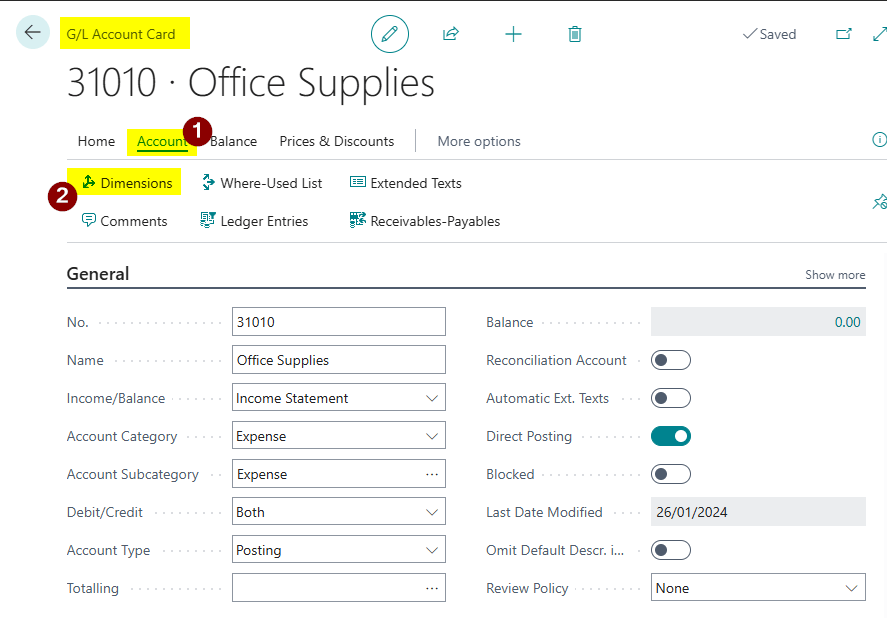
To do this open your General Ledger Account card and click “Account > Dimensions”.
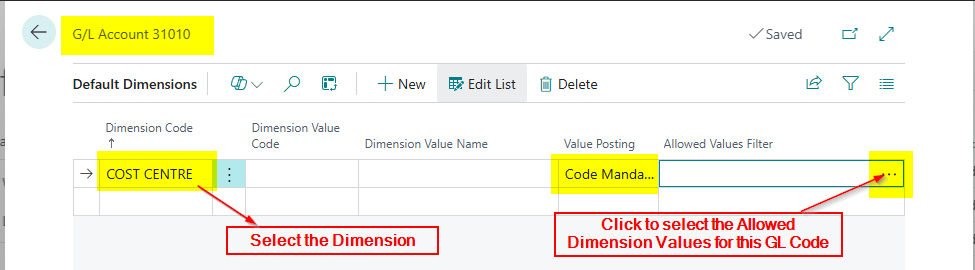
Next choose the relevant Dimension, in this case “Cost Centre”, and click to select the “Allowed Values Filter”.

This only works if you select “Code Mandatory” for the posting which is usually ok for Dynamics GP migrations
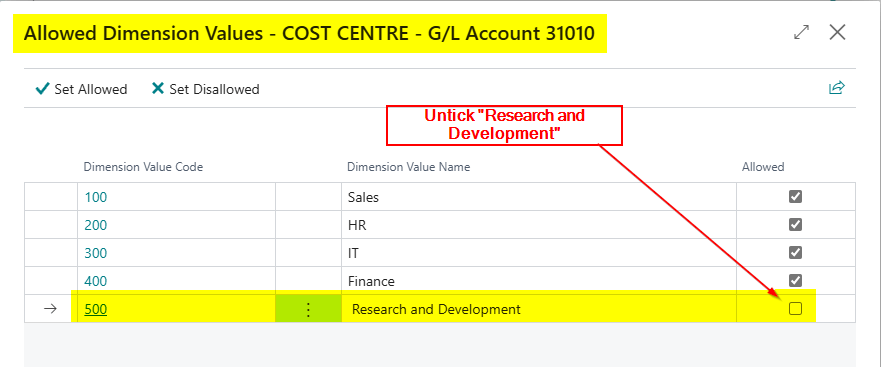
Now I can untick the Cost Centres I don’t want to be used with this General Ledger code.
Conclusion

In this post I’ve shown how by leveraging the “Allowed Values Filter” in Business Central, you can maintain the same level of control over General Ledger and Dimension combinations as in Dynamics GP, ensuring only valid Cost Centres are used with specific General Ledger codes 😊.

Thanks for reading!
Dynamics GP to Business Central – How to Recreate the GL Summary Enquiry using G/L Account Balance, Analysis Mode or an Analysis View

Introduction

A common query I see when migrating Dynamics GP users to Business Central is “how can I view my General Ledger balances, like I can in Dynamics GP using the Summary Enquiry window

In this post, I’ll first outline the key differences between the account structures in Dynamics GP and Business Central. Then, I’ll explain what happens to your GL account structure during migration if you use the Microsoft migration tools. Finally, I’ll share three methods to view your GL balances in Business Central in a way that feels familiar to Dynamics GP users.

Spoiler: in one of the methods we use Copilot and natural language to create the view 😊

Dynamics GP Account Code Structure Vs Business Central Dimensions

First lets take a step back, and look at how Dynamics GP and Business Central differ when it comes to the structure of the Chart of Accounts.

In Dynamics GP the GL account code is segmented, whereas Business Central uses a single GL code and dimensions.

For instance, in Dynamics GP, a GL code for Payroll Taxes in the admin department of the north division might look like 200-5170-00. Here, 5170 represents Payroll Taxes, 200 is the admin department, and 00 is the north division. If you have 10 departments and 5 divisions, you could end up with 50 separate GL codes for Payroll Taxes alone.

Given the same scenario in Business Central, you’d just have one GL code for Payroll Taxes, a Dimension called “Department” with your departments, and a Dimension called “Division” with your divisions. This means we’ll only ever have one GL account, but can still analyse to department and division by selecting the dimensions and the relevant dimension values.

Coming from a Dynamics GP background myself, I love this about Business Central 😊. That said, it can create challenges for GP users transitioning to BC, especially when viewing data, as we’ll explore next.

Now we know how the Chart of Accounts structures differ, lets look at the what happens when you migrate the Chart of Accounts from Dynamics GP to Business Central using the Microsoft migration tools.

What happens when you migrate your Chart of Accounts from Dynamics GP to Business Central

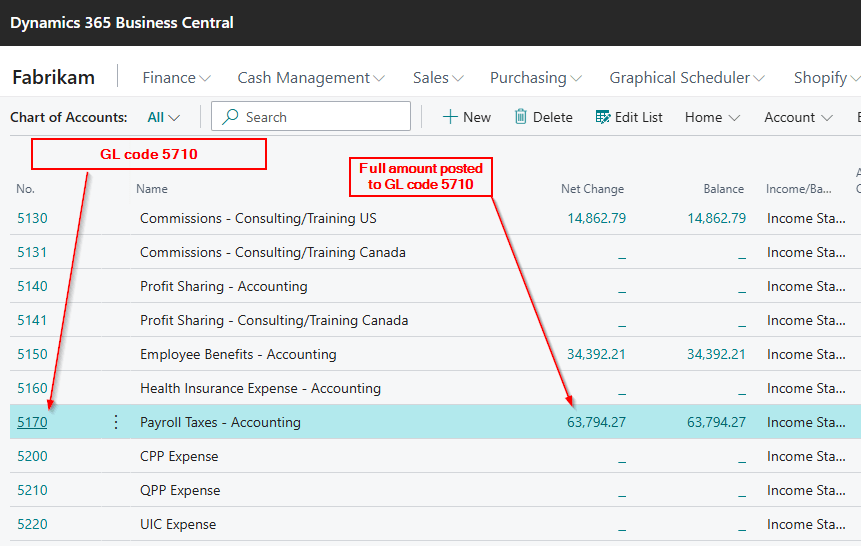
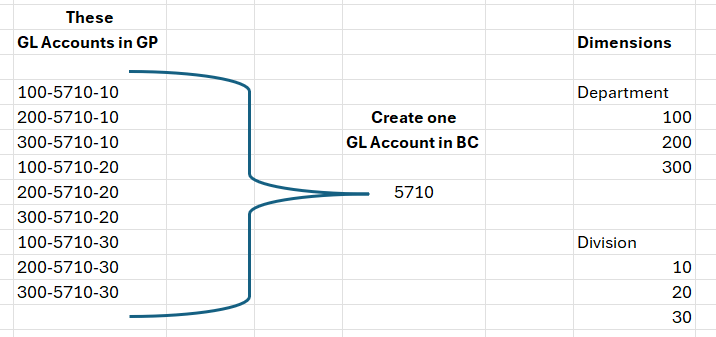
When you migrate your Dynamics GP Chart of Accounts and transactional data to Business Central using Microsoft’s migration tools, the process consolidates your GL codes based on the natural account segment. So in our earlier example , if I did have 50 Payroll Taxes codes for the various department and division combinations, I’d be left with just one GL code called 5170. We would then get Department and Division created as Dimensions. I’ve shown how this works below:

Now when posting transactions for Payroll Taxes in Business Central, I’d pick GL code 5710 and then the Department dimension and the Division dimension.

This consolidation can drastically simplify and shorten the Chart of Accounts, but it can make viewing GL balances “by dimension” a bit trickier, as we’ll see.

Viewing the General Ledger balances in Dynamics GP and Business Central

Now we know how the GL account is structured in Dynamics GP, and how its then migrated to Business Central, let’s take a look at the Summary Enquiry window for one GL code.

Since Dynamics GP’s GL code includes the natural account, department, and division, selecting a code like 200-5170-00 lets you quickly view its balance

For example, below I can see the period balances of my Payroll Taxes GL account (5170) for my Accounting department (200) for my North division (00) very easily

After migrating to Business Central, if you check the Chart of Accounts page, you’ll only see the total balance for GL code 5170. This is because the migration consolidates all amounts into one GL code, combining balances across all departments and divisions. (at transaction level the entries have the GL code, department and division, however the Chart of Accounts shows just the balance at GL code level)

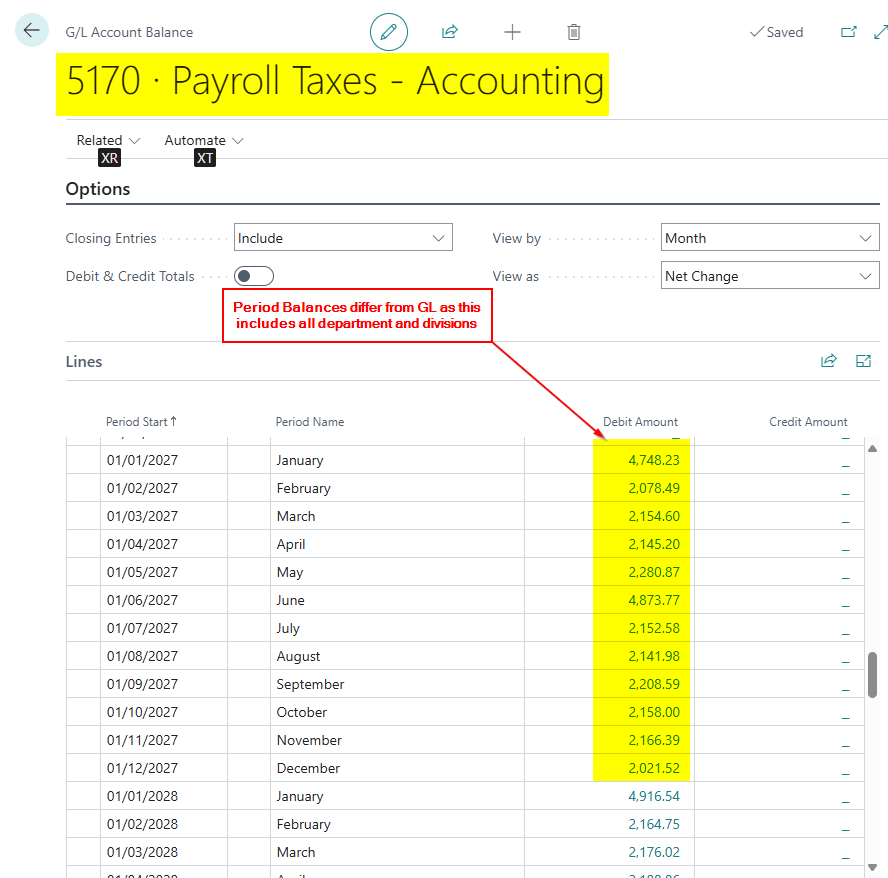
Therefore if I now use the “G/L Account Balance” page in Business Central to view period balances they differ from Dynamics GP as they include balances for all Departments and Divisions

How can I view the GL Balances by period like Dynamics GP?

Fortunately, there are several ways to achieve a Dynamics GP-like view in Business Central. I’ll walk through three methods below

1. Filter the Chart of Accounts page prior to opening the G/L Account Balance page

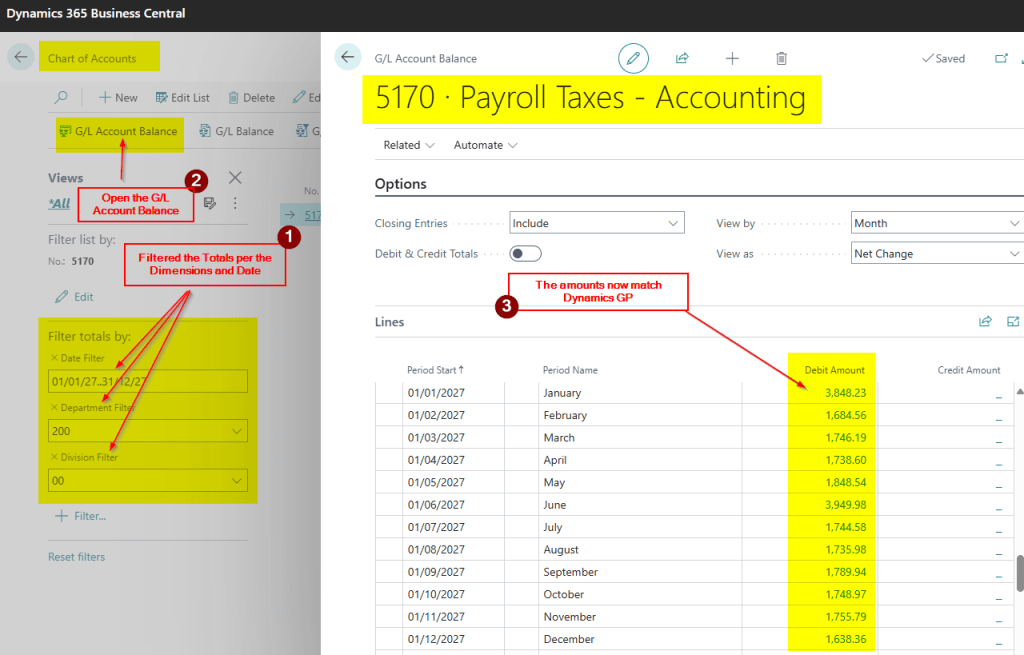
At first glance it looks like you can’t filter the “G/L Account Balance” page however if you filter the “Chart of Accounts” page first, this is carried through to the “G/L Account Balance” page.

For example below I’ve prefiltered the totals of the Chart of Accounts page and then when I open the “G/L Account Balance” page the amounts are filtered and match Dynamics GP summary enquiry

2. Use Analysis Mode from the General Ledger Entry page

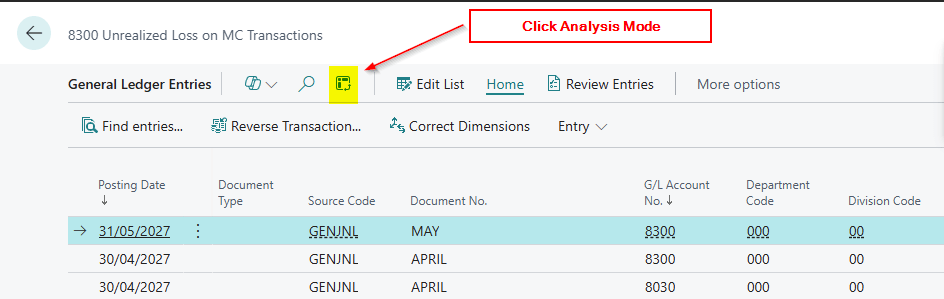
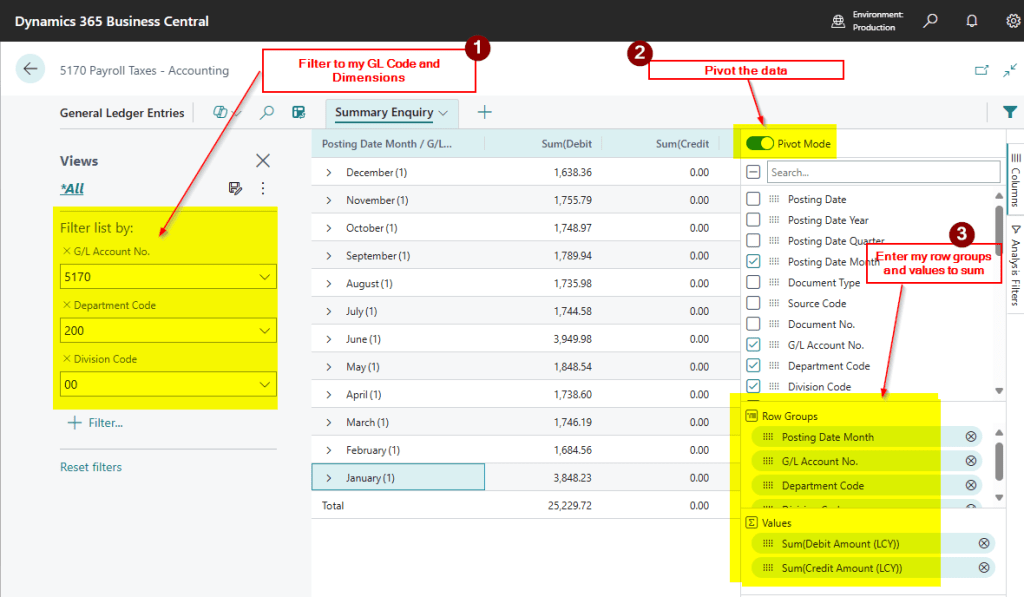
With the new(ish) Analysis Mode available on List Pages we can filter and pivot data. We can utilise this feature to present the data just like Dynamics GP

First go to the “General Ledger Entries” and then click “Analysis Mode”

Then enter the criteria as per below:

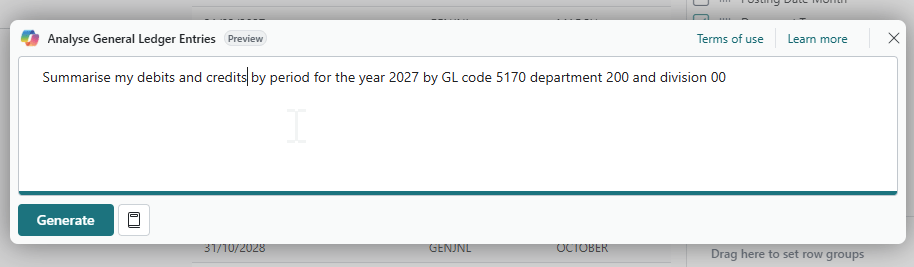
The great thing about this is I can use natural language in Copilot to create the View. For example I entered the text below:

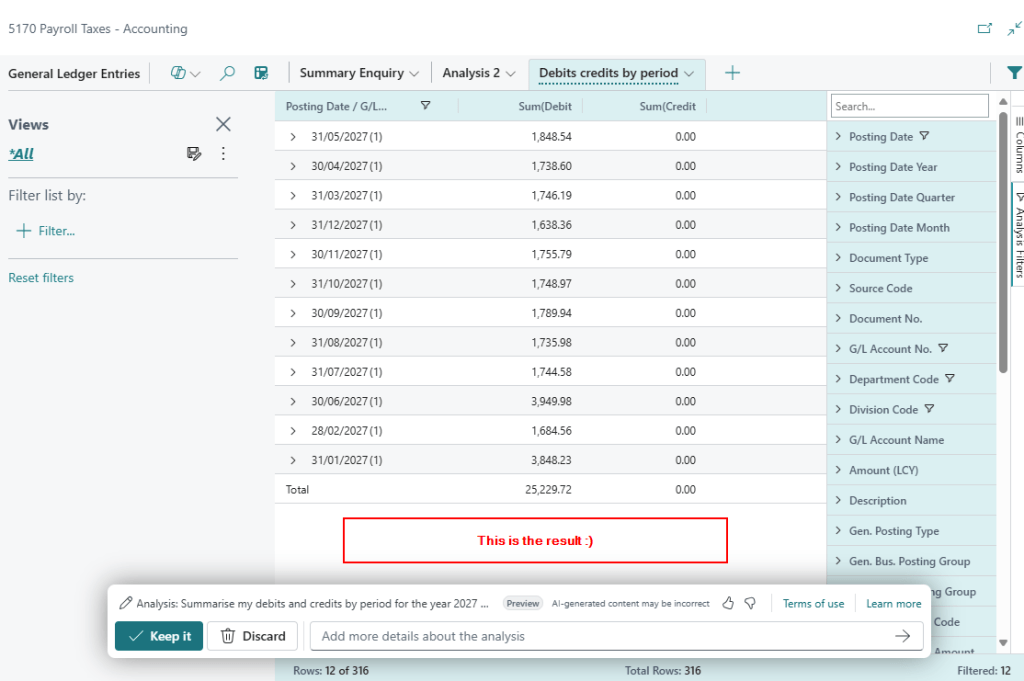
And this is the result. Now that is pretty cool 😊

3. Use an Analysis View

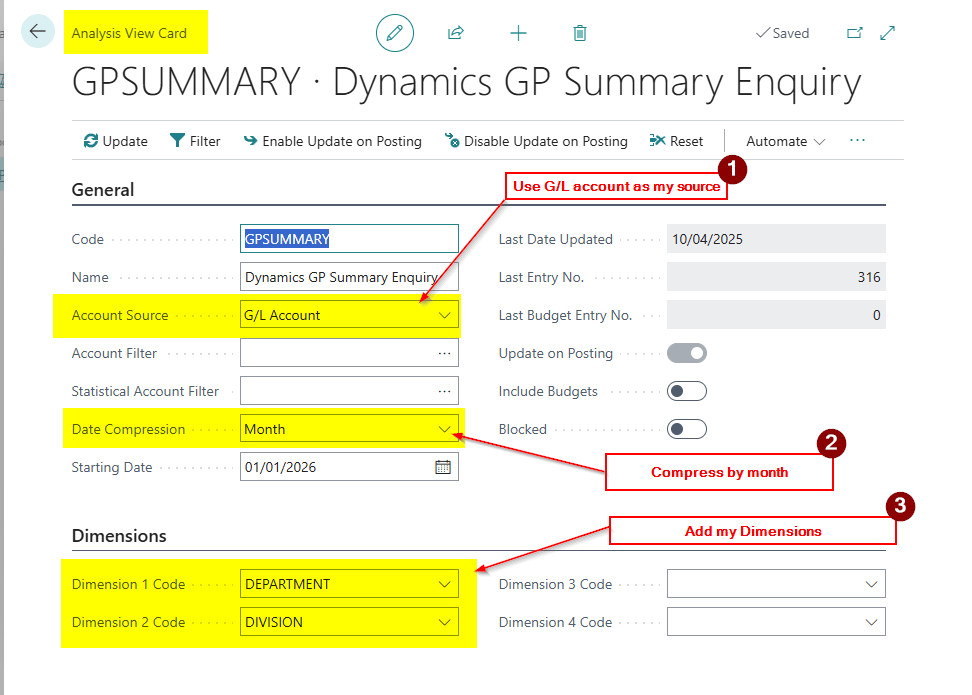
The final way I’ve found to do this is by utilising an Analysis View.

I configure it as per below setting the compression by month and dimensions

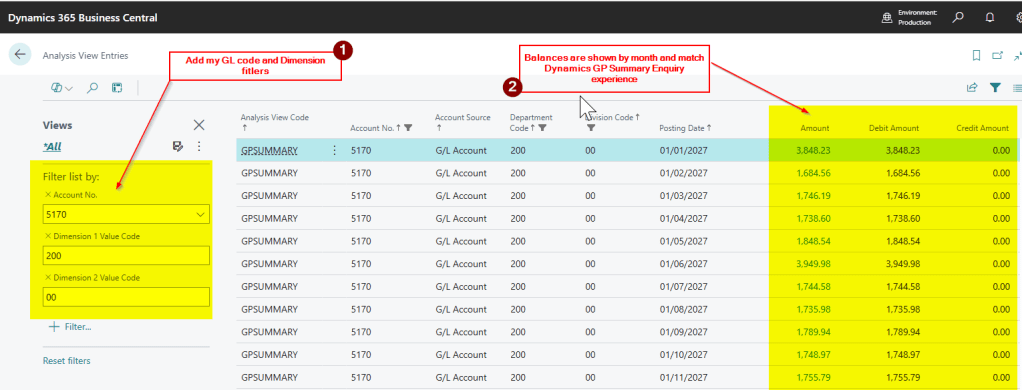
Now when I go to “Analysis View Entries” I can filter and show the balances just like the Dynamics GP summary enquiry

Conclusion

This post highlights all the great features we have in Business Central to filter and slice and dice our data to match our experience’s in Dynamics GP.

In my opinion Business Central is giving you the best for both worlds. You can easily see the balances by GL Code or any combination of dimension.

In Dynamics GP to get a summary total at GL account level (i.e. the balance in 5170 for Payroll Taxes) you need to use “Account Rollup” or export the data and summarise it.

Thanks for reading!

Dynamics GP Vs Dynamics 365 Business Central – Where is the General Ledger Journal Entry Number in Business Central?

Introduction

When you post a transaction in a subsidiary module in Dynamics GP, a journal is created in the General Ledger to record the transaction in the chart of accounts. The journal has its own unique journal number that groups all the distributions related to that transaction together and is stored in the GL table on all the lines.

Being a long time Dynamics GP user, when I started using Business Central, on posting a transaction I looked for the equivalent journal number in the G/L Entries, but couldn’t find it? Yes, there are G/L entries created, but I couldn’t find what I classed as a unique journal number that binds these together just like the Dynamics GP journal number.

In this post I’ll walk through what I regard as the closest equivalent to the Dynamics GP journal number in Business Central.

Dynamics GP – Journal Number

When you post a transaction in a subsidiary module in Dynamics GP, like a Sales Invoice for example, this is recorded in the General Ledger as a Journal Entry.

For example when I post the Sales Invoice below its recorded in the General Ledger using a unique Journal Entry number. The same journal number is stored on all the lines of the journal.

And here’s the Journal Entry recording the transaction in the General Ledger. The journal entry number is stored on all the distribution lines.

Therefore when posting one transaction in Dynamics GP, you get one Journal Entry with a unique number grouping all the distributions relating to that transaction in the General Ledger.

** Please note things like the originating document number and customer number are also transferred and stored in the GL table in Dynamics GP just like Business Central.

Dynamics 365 Business Central – G/L Entries

Going back to the example of a Sales Invoice, when you post a Sales Invoice in Business Central a series of Entries are created including G/L Entries.

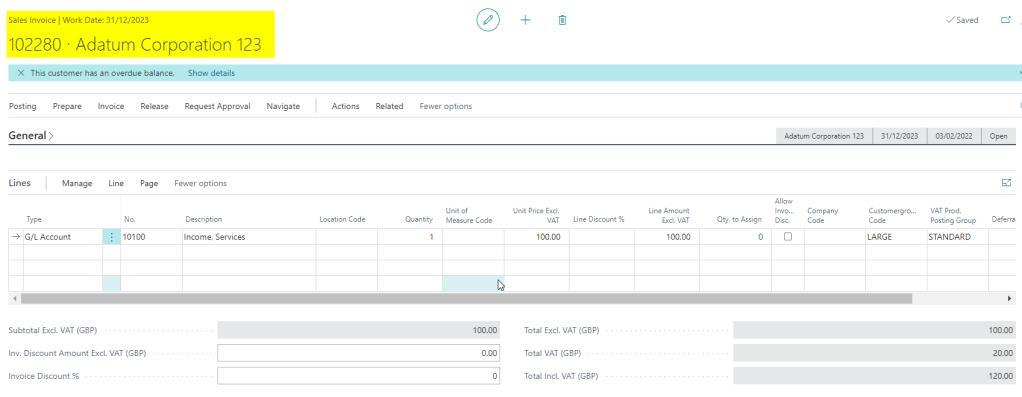
Therefore if I were to post the Sales Invoice below

I’d get the following G/L Entries.

As you can see each line has a unique “Entry No.”. There is no obvious unique number from a GL point of view that groups all these lines together. (You can group them together using the “Document Number” but this is the Sales Invoice document number. There is no GL specific unique reference that groups these together in the G/L Entries table.)

Up steps the G/L Register

Although not obvious at first, whenever you post any transaction in Business Central, along with all the various entries that are created, a G/L Register is also created.

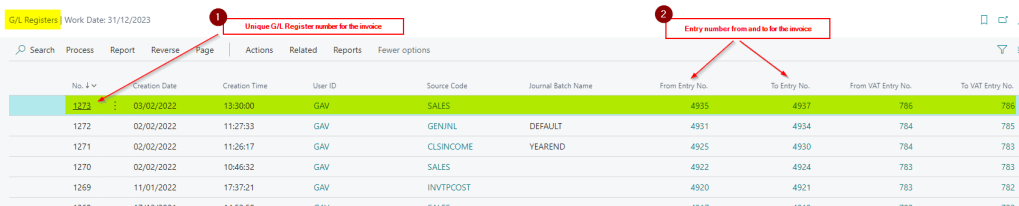
The G/L Register has its own unique number and encompasses all the entries that have been created by posting the transaction. It does this by holding the “From Entry No.” and the “To Entry No.”

Below is the G/L Register that was created by posting the Sales Invoice above

As you can see this has a unique GL reference. This is the “No.” column.

Therefore this is what I regard as Business Centrals equivalent to Dynamic GPs journal number.

Conclusion

Once I’d grasped this concept of entries and registers, I felt I had a greater understanding of the posting flow in Business Central.

Thanks for reading!

Thinking of making the move to Business Central? We can help

** Please note there is also a “Transaction No.” field stored on the G/L Entries which appears unique however I’ve found you can post one document number which can generate more than one “Transaction No.”. I blogged about this here