Dynamics GP to Business Central – How to easily convert your GP word templates to BC word layouts

Introduction

Just like Business Central, Dynamics GP allows you to design your externally facing document layouts, such as Sales Invoices / Customer Statements / Remittance Advice, using Microsoft Word.

When migrating to Business Central, you might have lots of different layouts in Dynamics GP that you need to recreate in Business Central, which can potentially take lots of time and effort.

In this post, using a Sales Invoice as an example, I’ll show how you can quickly and efficiently migrate the structure of the layouts to Business Central, rather than recreating them from scratch.

Step 1: Remove Content Controls from your Dynamics GP Layout

The first step involves removing the existing content controls from your Dynamics GP Sales Invoice layout.

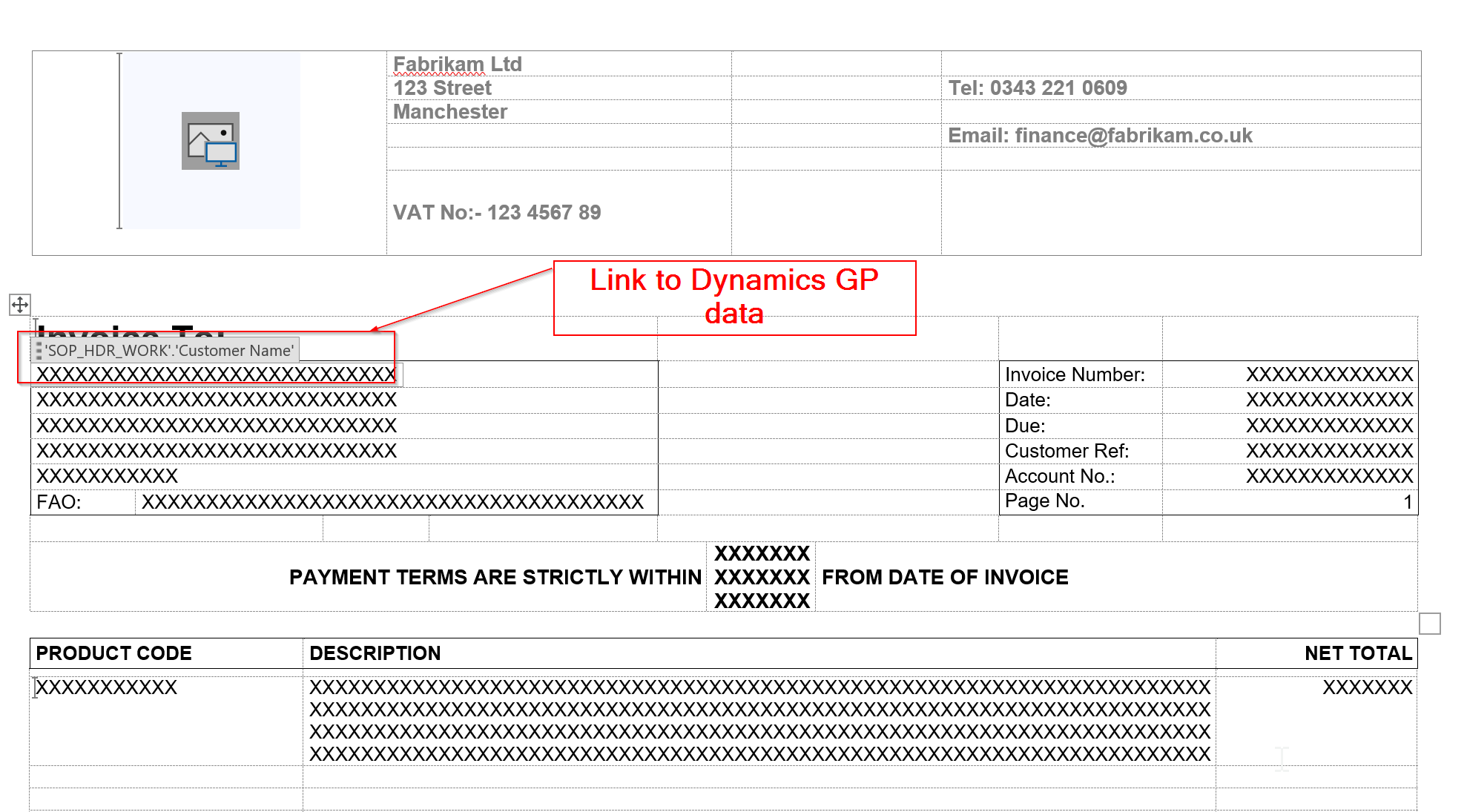
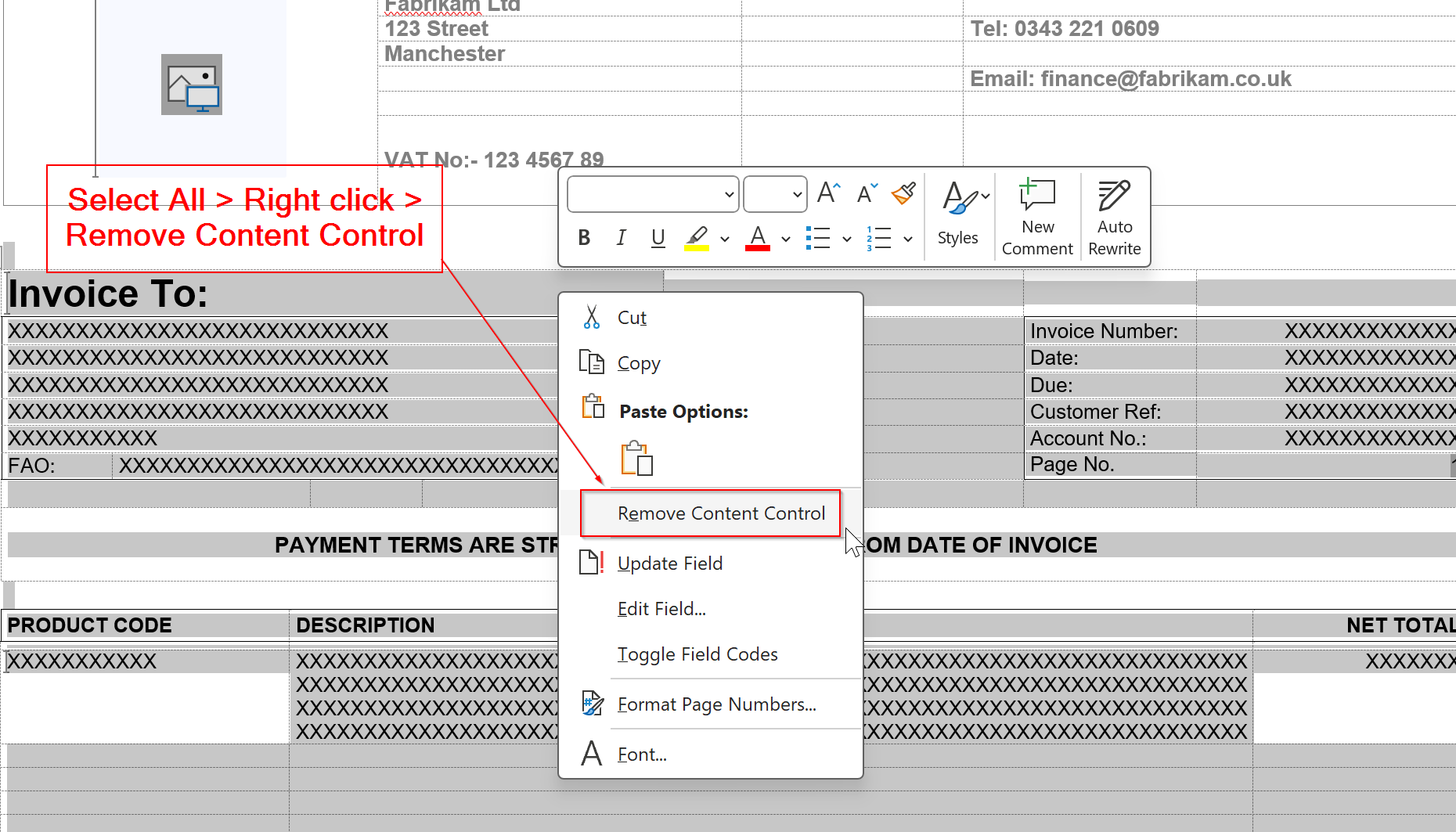
To do this extract your Word Layout from Dynamics GP, open it in Word, and you’ll see it has references to the old Dynamics GP fields as per below:

We need to remove these references, so press CTRL+A to select all, and then right click and choose “Remove Content Control”

This will remove all the content controls from the Word Document.

If the layout has headers or footers, ensure you remove content controls from any of those fields as well.

Step 2 – Import the Word Layout into Business Central

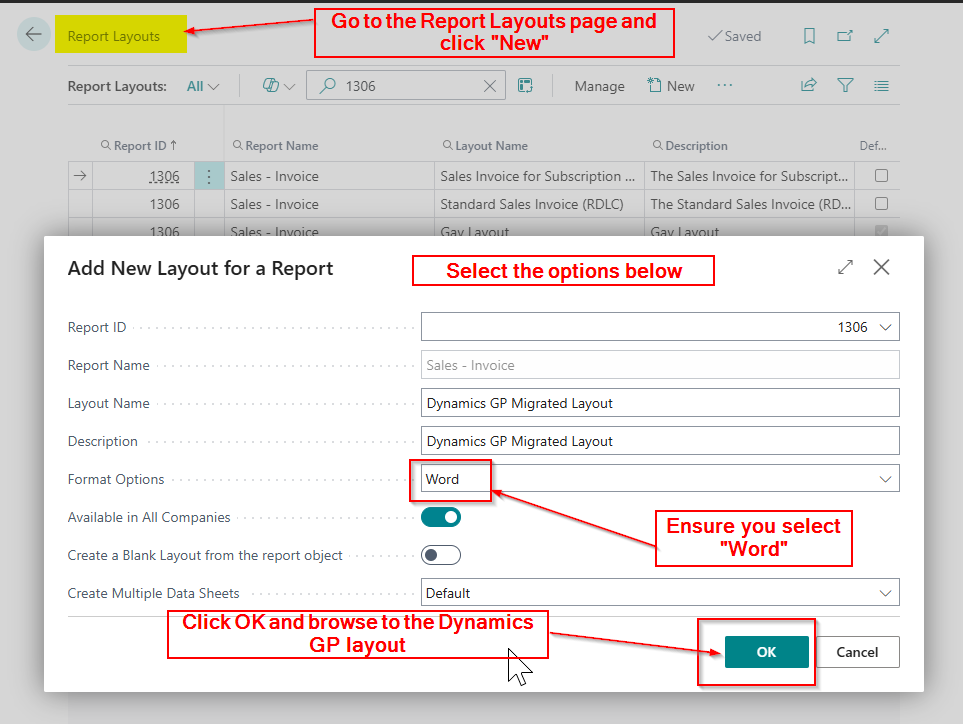
In Business Central, go to the “Report Layouts” page, and click “New” and enter the details as per below. Then click OK, browse to your Dynamics GP layout, which now has no content controls, and import it into Business Central.

Step 3 – Update and Export Layout

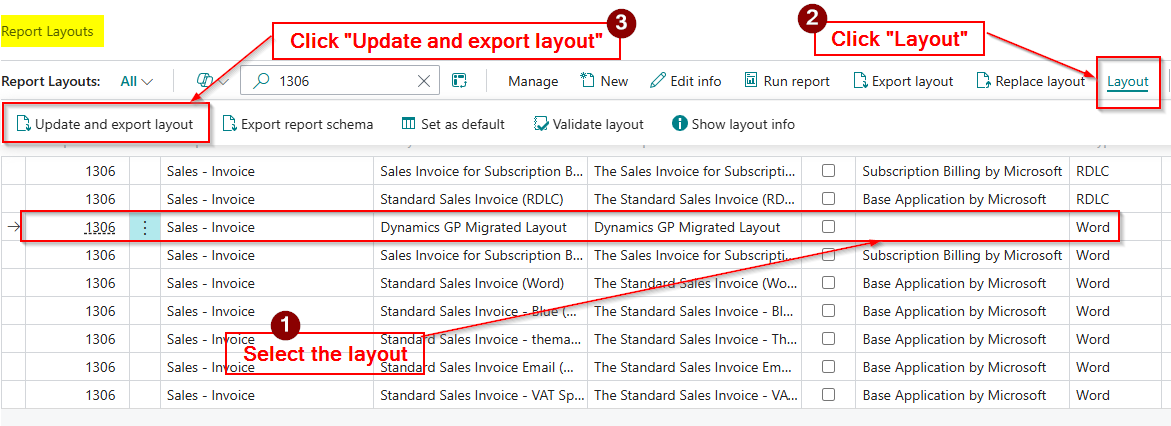
Now the report layout has been uploaded into Business Central, it will show in the “Report Layouts” page.

The next step is to select the layout and click “Update and Export Layout” which will download the layout and add the Business Central data set.

Step 4 – Open the Layout in Word and make the Changes

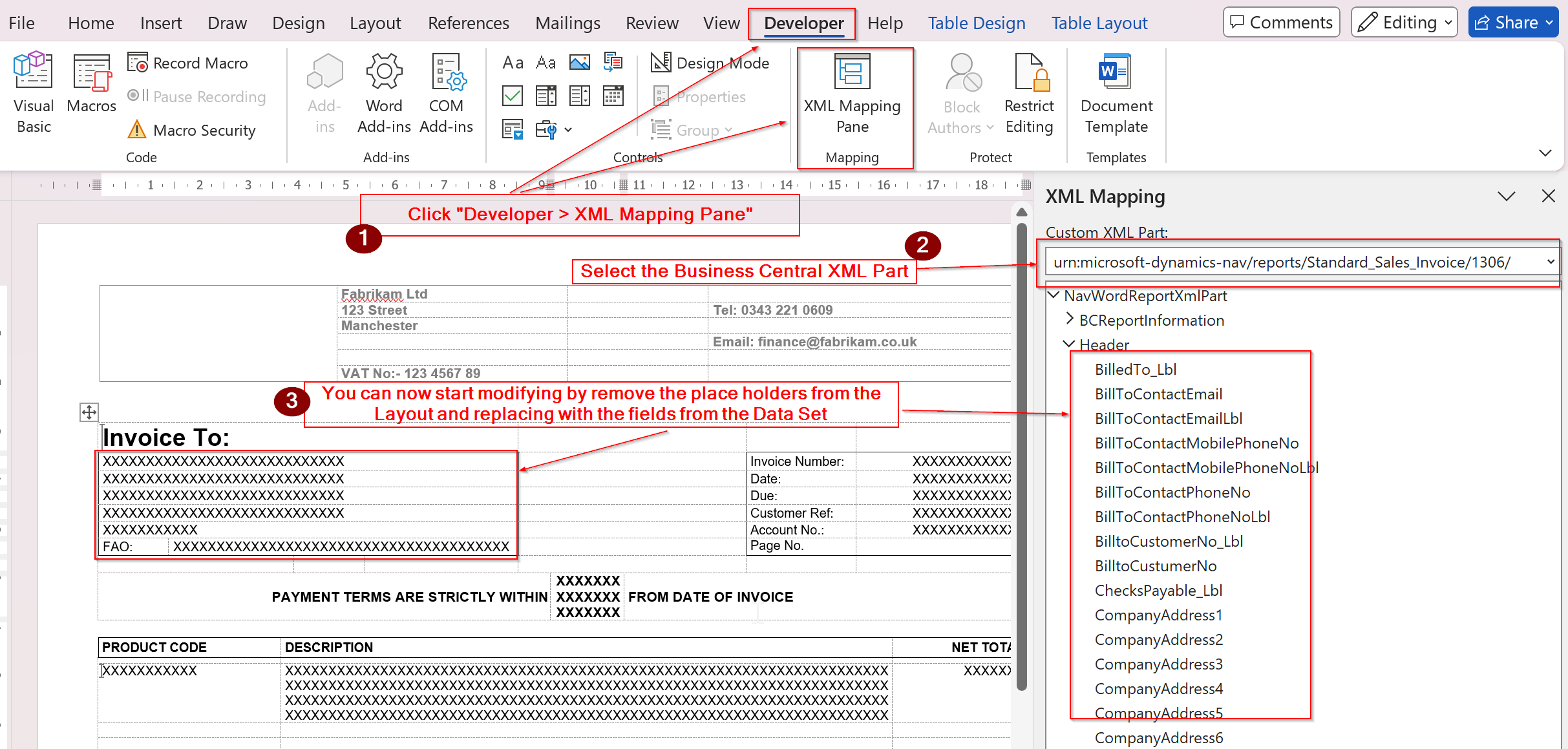
The final step is to open the layout in Word, select the Business Central data set via XML part, and start adding the Business Central fields onto the layout.

The great thing now is, you can methodically remove the text from the layout, and replace it with the relevant fields from the Business Central XML data set. This ensures you keep the original design, saving lots of time compared to recreating it from scratch.

Tip: I recommend keeping a copy of the original Dynamics GP template with its content controls intact, so you can easily reference the Dynamics GP data fields.

Conclusion

This blog outlines a straightforward process for rapidly converting your Dynamics GP layouts to Business Central in just a few simple steps.

Incidentally, this approach can be applied to any Word document you wish to adapt with a Business Central data set, though I’ve found it particularly valuable for Dynamics GP migrations.

Thanks for reading!

Dynamics GP to Business Central – How to Recreate the GL Summary Enquiry using G/L Account Balance, Analysis Mode or an Analysis View

Introduction

A common query I see when migrating Dynamics GP users to Business Central is “how can I view my General Ledger balances, like I can in Dynamics GP using the Summary Enquiry window

In this post, I’ll first outline the key differences between the account structures in Dynamics GP and Business Central. Then, I’ll explain what happens to your GL account structure during migration if you use the Microsoft migration tools. Finally, I’ll share three methods to view your GL balances in Business Central in a way that feels familiar to Dynamics GP users.

Spoiler: in one of the methods we use Copilot and natural language to create the view 😊

Dynamics GP Account Code Structure Vs Business Central Dimensions

First lets take a step back, and look at how Dynamics GP and Business Central differ when it comes to the structure of the Chart of Accounts.

In Dynamics GP the GL account code is segmented, whereas Business Central uses a single GL code and dimensions.

For instance, in Dynamics GP, a GL code for Payroll Taxes in the admin department of the north division might look like 200-5170-00. Here, 5170 represents Payroll Taxes, 200 is the admin department, and 00 is the north division. If you have 10 departments and 5 divisions, you could end up with 50 separate GL codes for Payroll Taxes alone.

Given the same scenario in Business Central, you’d just have one GL code for Payroll Taxes, a Dimension called “Department” with your departments, and a Dimension called “Division” with your divisions. This means we’ll only ever have one GL account, but can still analyse to department and division by selecting the dimensions and the relevant dimension values.

Coming from a Dynamics GP background myself, I love this about Business Central 😊. That said, it can create challenges for GP users transitioning to BC, especially when viewing data, as we’ll explore next.

Now we know how the Chart of Accounts structures differ, lets look at the what happens when you migrate the Chart of Accounts from Dynamics GP to Business Central using the Microsoft migration tools.

What happens when you migrate your Chart of Accounts from Dynamics GP to Business Central

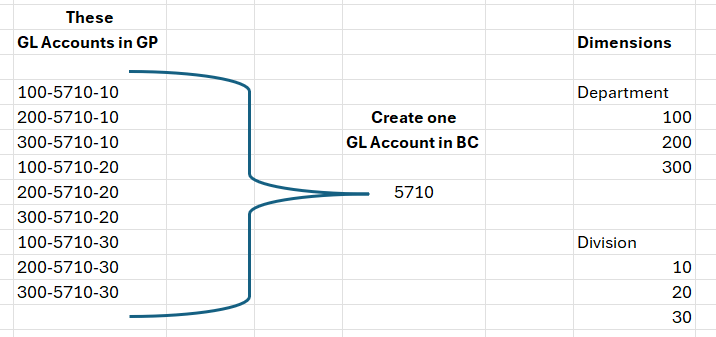
When you migrate your Dynamics GP Chart of Accounts and transactional data to Business Central using Microsoft’s migration tools, the process consolidates your GL codes based on the natural account segment. So in our earlier example , if I did have 50 Payroll Taxes codes for the various department and division combinations, I’d be left with just one GL code called 5170. We would then get Department and Division created as Dimensions. I’ve shown how this works below:

Now when posting transactions for Payroll Taxes in Business Central, I’d pick GL code 5710 and then the Department dimension and the Division dimension.

This consolidation can drastically simplify and shorten the Chart of Accounts, but it can make viewing GL balances “by dimension” a bit trickier, as we’ll see.

Viewing the General Ledger balances in Dynamics GP and Business Central

Now we know how the GL account is structured in Dynamics GP, and how its then migrated to Business Central, let’s take a look at the Summary Enquiry window for one GL code.

Since Dynamics GP’s GL code includes the natural account, department, and division, selecting a code like 200-5170-00 lets you quickly view its balance

For example, below I can see the period balances of my Payroll Taxes GL account (5170) for my Accounting department (200) for my North division (00) very easily

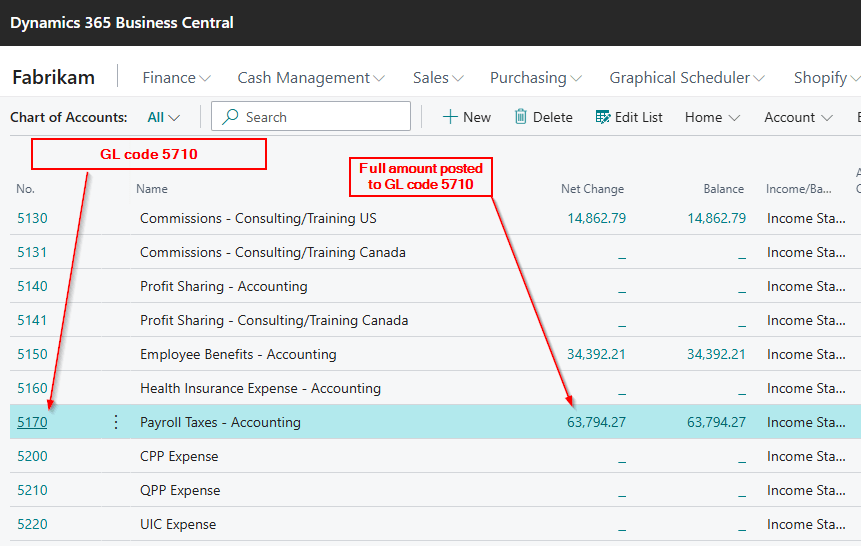
After migrating to Business Central, if you check the Chart of Accounts page, you’ll only see the total balance for GL code 5170. This is because the migration consolidates all amounts into one GL code, combining balances across all departments and divisions. (at transaction level the entries have the GL code, department and division, however the Chart of Accounts shows just the balance at GL code level)

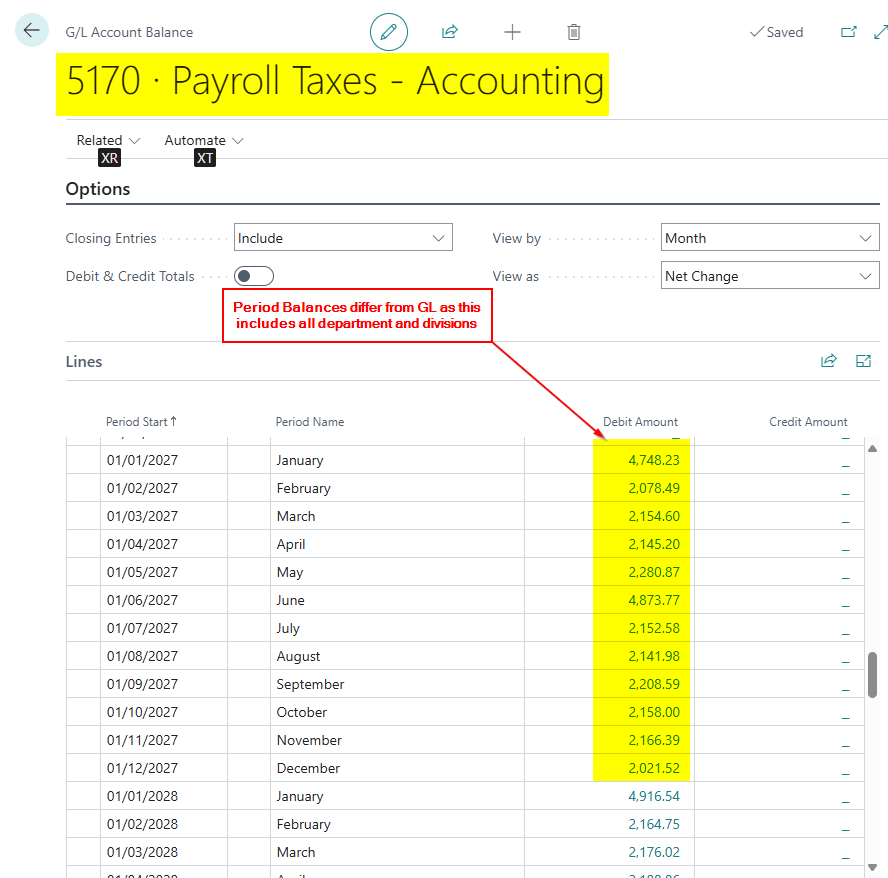
Therefore if I now use the “G/L Account Balance” page in Business Central to view period balances they differ from Dynamics GP as they include balances for all Departments and Divisions

How can I view the GL Balances by period like Dynamics GP?

Fortunately, there are several ways to achieve a Dynamics GP-like view in Business Central. I’ll walk through three methods below

1. Filter the Chart of Accounts page prior to opening the G/L Account Balance page

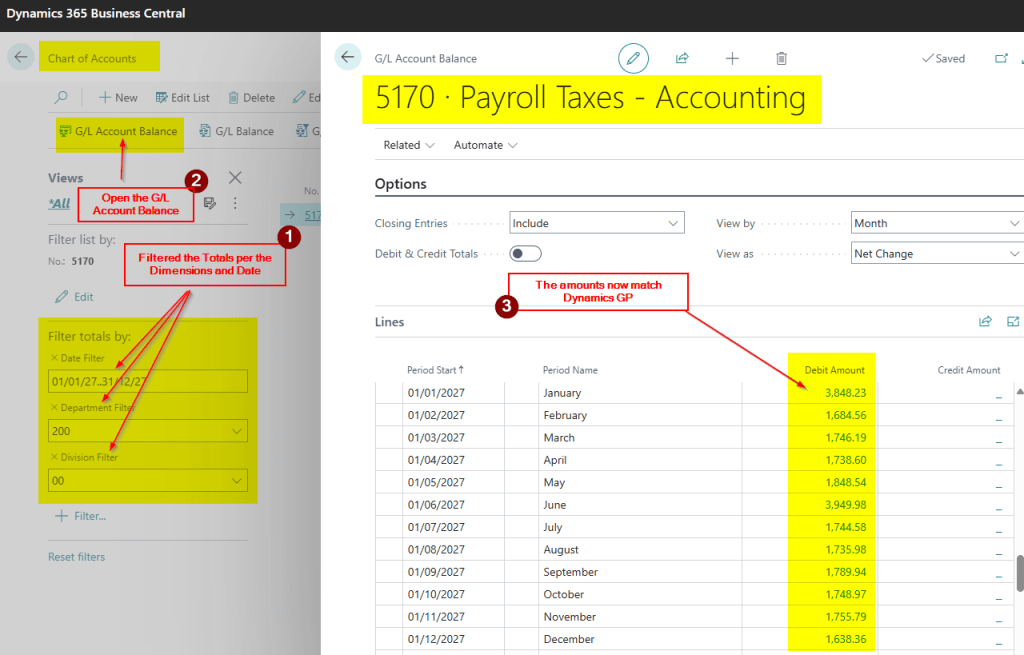
At first glance it looks like you can’t filter the “G/L Account Balance” page however if you filter the “Chart of Accounts” page first, this is carried through to the “G/L Account Balance” page.

For example below I’ve prefiltered the totals of the Chart of Accounts page and then when I open the “G/L Account Balance” page the amounts are filtered and match Dynamics GP summary enquiry

2. Use Analysis Mode from the General Ledger Entry page

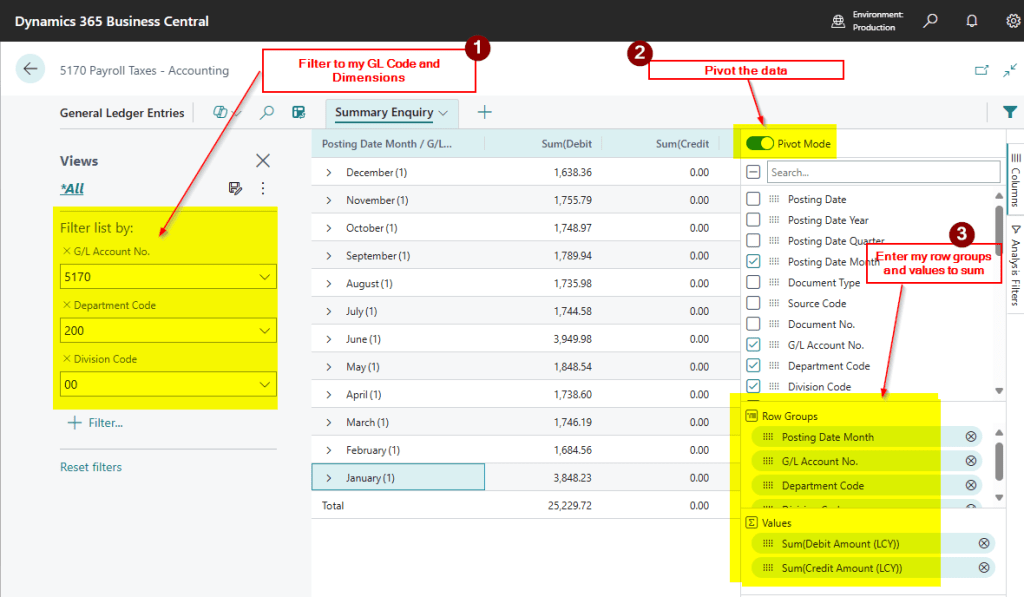
With the new(ish) Analysis Mode available on List Pages we can filter and pivot data. We can utilise this feature to present the data just like Dynamics GP

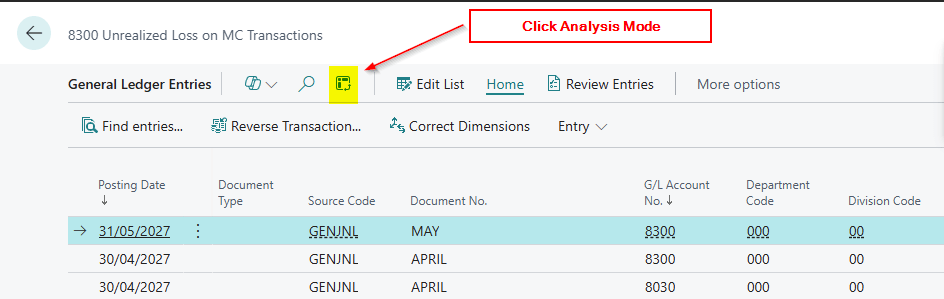
First go to the “General Ledger Entries” and then click “Analysis Mode”

Then enter the criteria as per below:

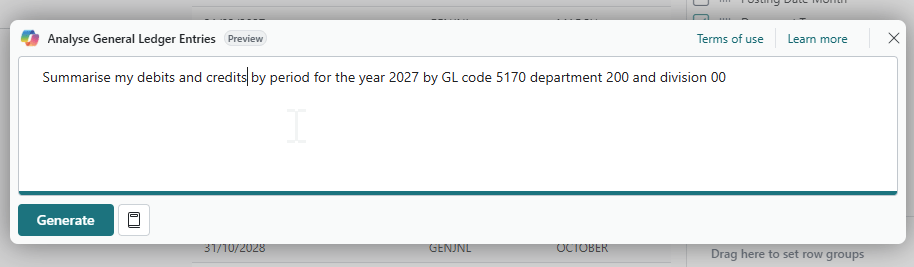
The great thing about this is I can use natural language in Copilot to create the View. For example I entered the text below:

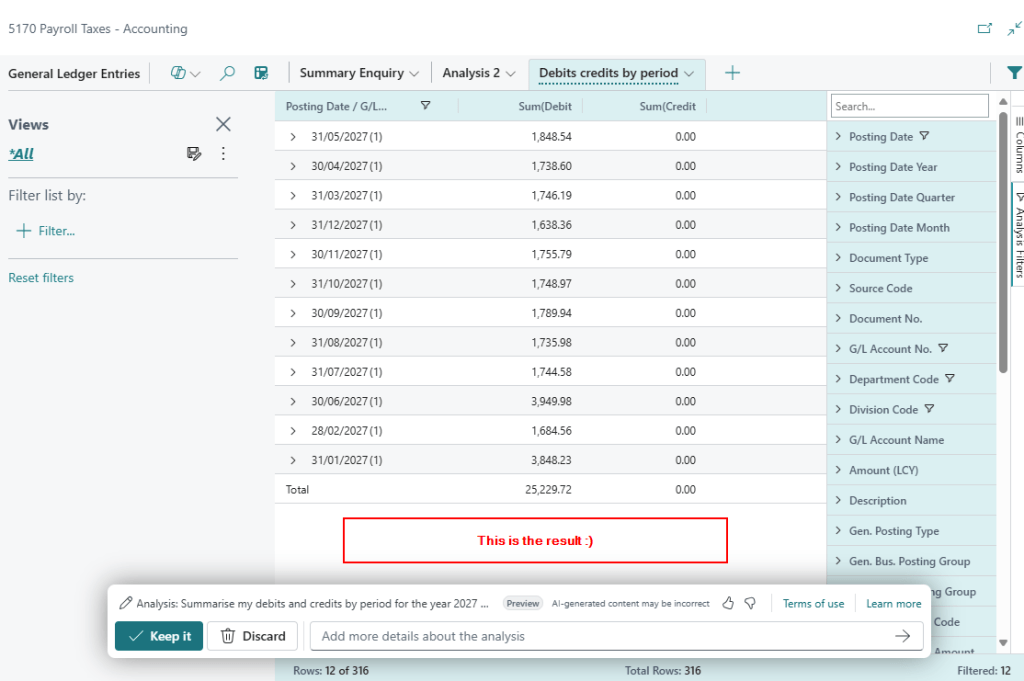
And this is the result. Now that is pretty cool 😊

3. Use an Analysis View

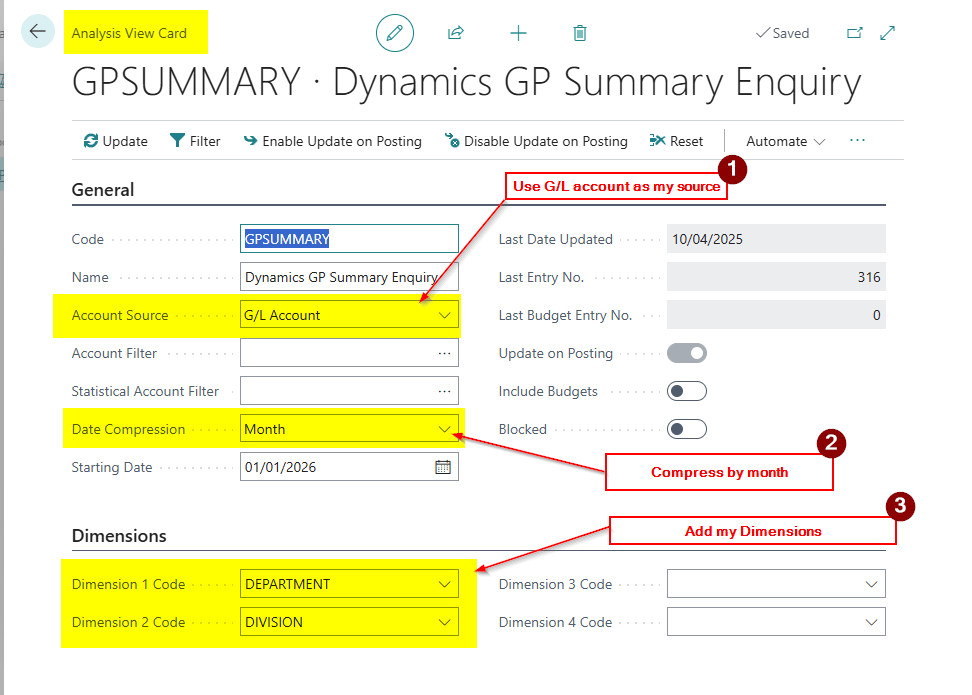
The final way I’ve found to do this is by utilising an Analysis View.

I configure it as per below setting the compression by month and dimensions

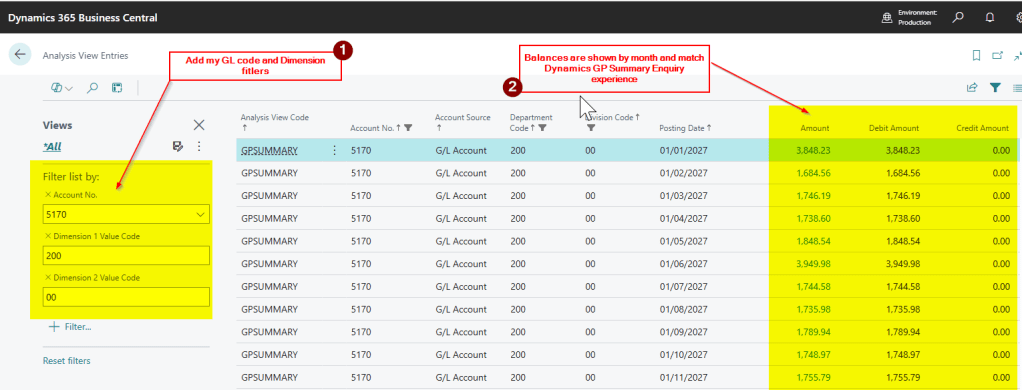
Now when I go to “Analysis View Entries” I can filter and show the balances just like the Dynamics GP summary enquiry

Conclusion

This post highlights all the great features we have in Business Central to filter and slice and dice our data to match our experience’s in Dynamics GP.

In my opinion Business Central is giving you the best for both worlds. You can easily see the balances by GL Code or any combination of dimension.

In Dynamics GP to get a summary total at GL account level (i.e. the balance in 5170 for Payroll Taxes) you need to use “Account Rollup” or export the data and summarise it.

Thanks for reading!

Dynamics 365 Business Central – A closer look at Registers in Business Central

When you post transactions in Business Central, as well as creating all the necessary entries in the system, various registers are also created which link the entries together.

These registers offer a valuable insight into how the system is working and are also a great tool to use when you want to track a transaction through the system.

I often find that registers don’t get the recognition they deserve with some users unaware of their existence.

In this post, we’ll shine a well deserved light on registers and explore why they are such a valuable feature in Business Central.

What is a Register

When you post transactions in Business Central, depending on the nature and type of the transaction, one or more registers are created.

For instance, posting a General Journal that solely impacts G/L accounts, results in the creation of “General Ledger Entries” and a “G/L Register”. (stay tuned for details of other registers the system can create 😊)

This “G/L Register” will have a record of all the entries involved in that journal.

For example, below is a manual depreciation journal entered via the “General Journal” page.

When I post this as well as the “General Ledger Entries”, I also get the G/L Register below.

As you can see the register is offering lots of very useful information. Its telling me who posted the transaction, when the transaction was posted, what batch was used, which module it originated in (via the Source Code), and the entry numbers created (“From Entry No” and “To Entry No” columns). Importantly, it also has a sequential number that is created by the system and can’t be changed. This offers a really good audit of the transactions moving through the system.

Navigate a Register

Now, by using the navigation options on the toolbar of the “G/L Register” page, I can explore the related entries for that G/L Register. For instance, as shown below, clicking the “General Ledger” button prompts the system to open the “General Ledger Entries” page, automatically filtered to the entry range specified in the G/L register (in this case, entries 3740 to 3741).

If you were to post a Sales Invoice, that has GL accounts on it, you would then get “General Ledger Entries” and “Customer Ledger Entries”. Therefore you would be able to navigate to the “Customer Ledger Entries” from the resulting “G/L Register” as well as the “General Ledger Entries”.

For example, I’ve now posted a Sales Invoice which has created a new G/L Register. From this register I can click “Customer Ledger” and “General Ledger” to view the relevant entries.

More Registers

So far, we’ve only just begun to explore registers 😊.

This time, let’s say we have a Sales Invoice that includes Inventory Items. In this case, we’ll get a “G/L Register” for the Customer and General Ledger Entries, but we’ll also get an “Item Register” for the entries related to the items.

The “Item Register” connects the “Item Ledger Entries” and the “Value Entries”. It serves as a useful record of how items are moving through the Inventory module.

For instance, I’ve posted a Sales Invoice for 5 Inventory Items, and below you can see the resulting “Item Register”. From this Item Register, I can view the associated Item Ledger Entries and Value Entries.

If we take things a step further, and I’d had been using a Location that has warehouse activities configured we’d have “Warehouse Entries” created and a “Warehouse Register” to keep track of activity in the warehouse 😊.

For example, I’ve now posted a Sales Invoice that generated movement in the warehouse through “Warehouse Entries”, resulting in the creation of a “Warehouse Register”. I can visit the “Warehouse Register” page to view this, alongside all other warehouse activities. By navigating to the Warehouse Entries, I can see the specific movement from the Bin.

Other registers

So what other registers do we have. You can see a list by searching “Register” in the Tell Me option but the common ones I use are as follows

  • G/L Register
  • Item Register
  • Warehouse Register
  • Fixed Assets Register
  • Project Register

Tip – Filtering Registers

As a final note, being a functional consultant, I find the “Source Code” field especially useful as it enables me to filter and track when specific routines have been run, such as the closure of VAT entries or the posting of the Adjust Exchange Rates process.

To do this, you simply apply a filter on the relevant “Source Code”. In the example below, I’ve filtered on the Source Code “VATSTMT” to check when the VAT was closed.

I must confess, during training and testing, I also use it to check how often users have been posting in the system 😊.

Conclusion

This post goes through how registers work in Business Central and just how useful they can be. They not only provide an audit from a financial perspective but also offer a glimpse into how the system is working with the various entries.

Thanks for reading!