Dynamics 365 Business Central – Take Payment Discount on a Payables Invoice that was posted without payment discount

Introduction

When posting a payables invoice in Dynamics 365 Business Central you can specify payment discount that can be taken if the invoice is paid early. You define this using the option below
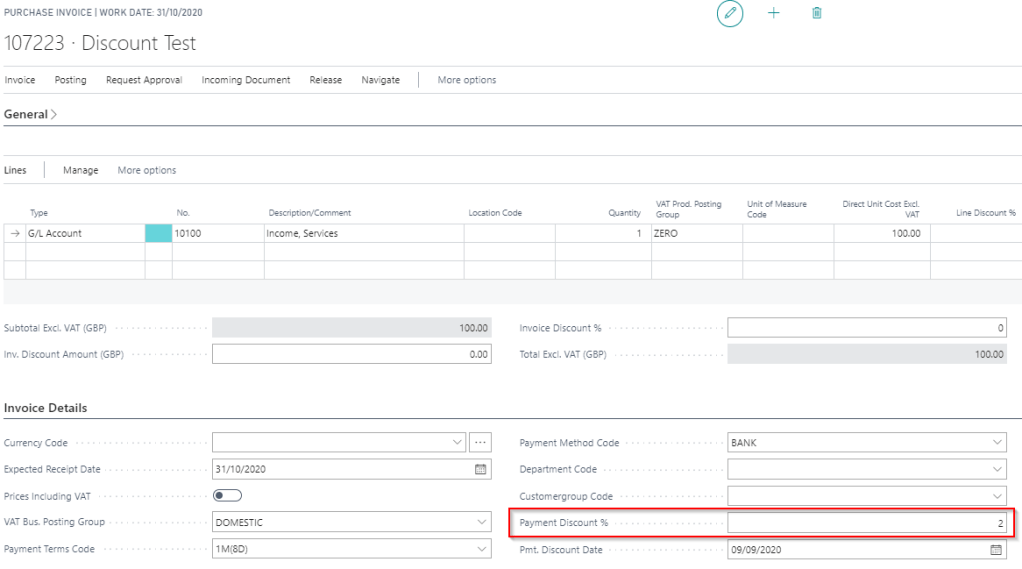
Please note this can also be defaulted for you onto the purchase invoice from the payment terms on the vendor.

However what happens if the “Payment Discount %” wasn’t entered onto the invoice when it was posted? How can you take payment discount?

Scenario

Lets say I’ve posted an invoice as per below for £100.00 and I wish to take 5%, or £5.00, as a payment discount. (Therefore I should only pay £95.00 and take the £5.00 as discount). However at the time of posting the invoice I didn’t specify a “Payment Discount %’

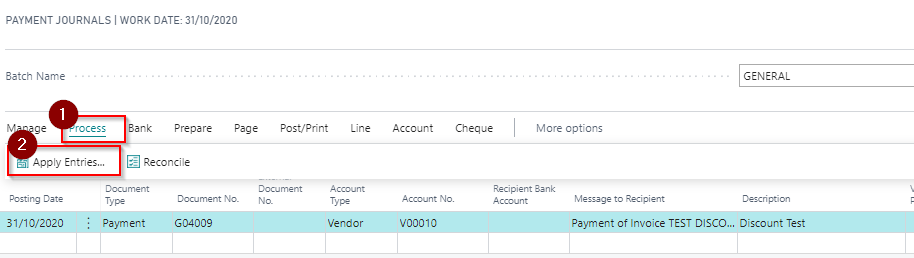
First create the payment journal selecting the Vendor as per below and click “Apply Entries”. (no need to enter an amount at this point)
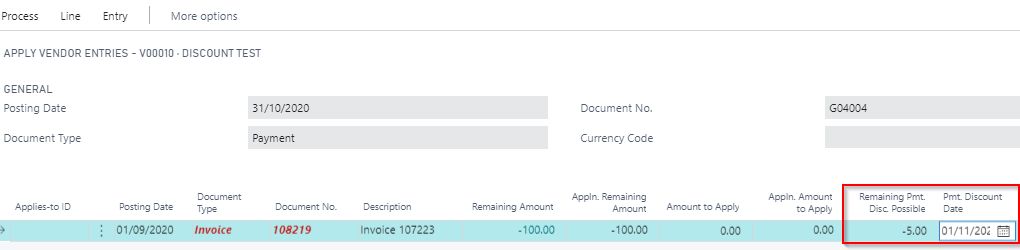
Once in the “Apply Entries” window click into “Remaining Pmt. Disc. Possible” and enter £-5.00. Also click into the “Pmt. Discount Date” and change the date to a date after the date of the payment. In my case I’ll change this to 01/11/2020, as my payment date is 31/10/2020
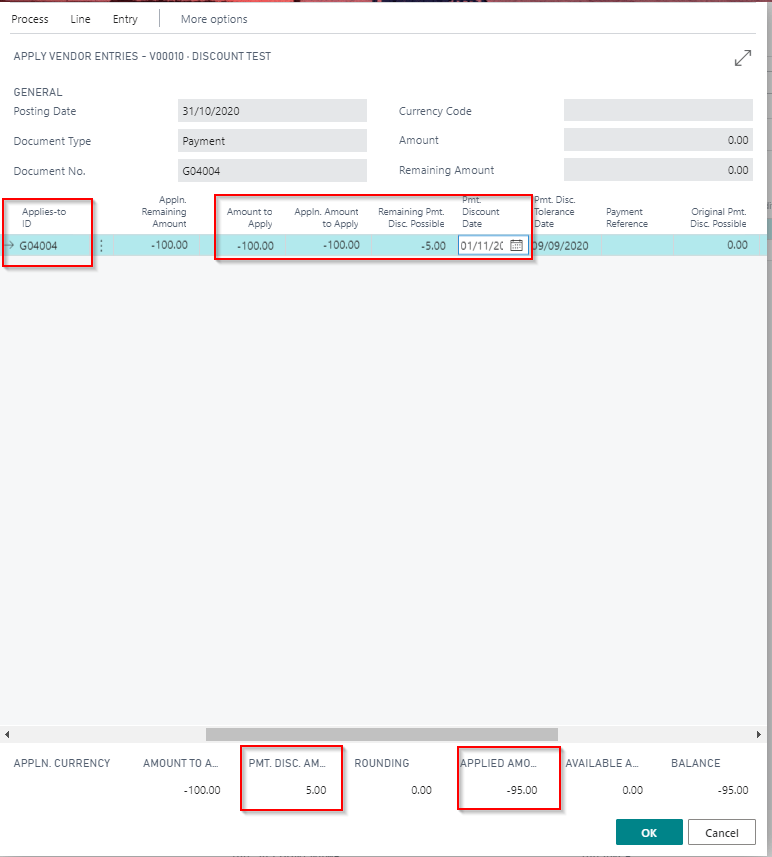
Now when I click “Process > Set Applies-to ID” although it appears to show the full amount being applied, if you look at the foot of page the Payment discount is showing £5.00 and the Applied Amount shows £-95.00
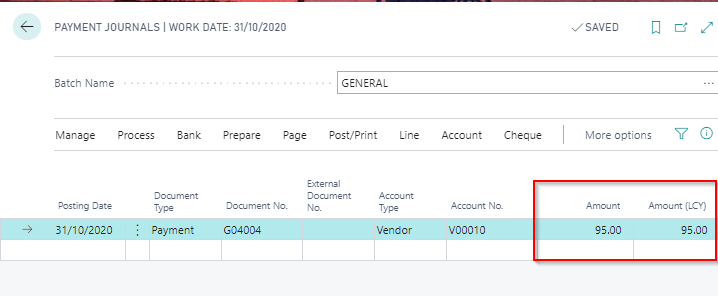
If I click OK this shows the payment amount of £95.00
After I post the payment and check the ledger entries I can see a payment for £95.00 has cleared the full amount of the invoice
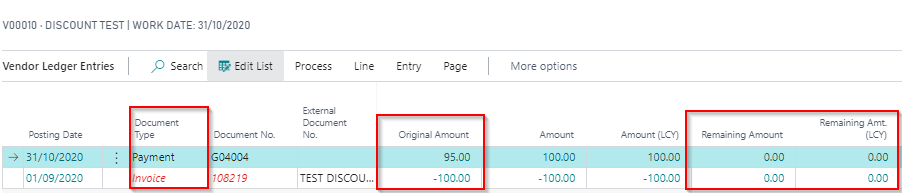
Also, drilling down on the “Remaining Amount” of the Payment you can see the additional “Detailed Ledger Entry” for the discount:
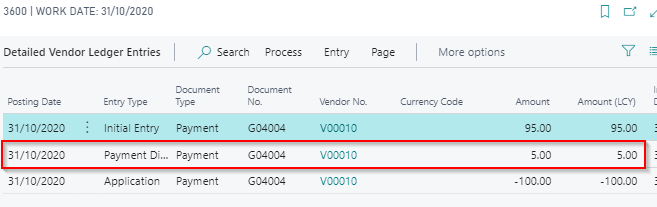
So the key things to note are, when applying the invoice ensure you enter the amount of discount you wish to take in the “Remaining Pmt. Disc. Possible” and also change the “Pmt. Discount Date” so its after the date of the payment.

Thanks for reading!

Dynamics 365 Business Central – Dimension set to “No Code” on GL Code but a value still posts for a exchange gain\loss adjustment

I came across an interesting situation today that I thought was worth documenting to see if there’s any known reason for this behaviour or if I’ve misunderstood something.

I’m unsure if this is a software issue, or by design, however I noticed that even though I’d set the dimension value posting to “No Code” on a GL code, a value was still posting for the dimension in a certain scenario.

The scenario is outlined below but in short the G/L entries affected were exchange gain and loss postings that were automatically created after applying a foreign currency invoice to a foreign currency payment.

The G/L account in question is the exchange gains\losses account. As you see I’ve specified this shouldn’t have any analysis to the “CUSTOMERGROUP” dimension code.

I then posted an Invoice and Payment at different exchange rates and analysed both to the Dimension Code “CUSTOMERGROUP”. (I used different value codes for each transaction as part of the test)

Then I applied the payment to the invoice to force an exchange gain\loss postings as per below.

When posting the application I expected an error however to my surprise this worked, and when I check the G/L entries the GL code 31900 has dimension code analysis posted to “CUSTOMERGROUP”. (its taken from the Payment as I used the dimension value code “MEDIUM” on the payment)

To confirm I’d set this up correctly I tried posting a standard journal to the GL code and I correctly received the error below:

While I appreciate its unlikely the system would ever be setup like this its interesting that the rule of “No Code” appears to have been bypassed in this particular scenario.

It would be interesting to know if there’s any reason for this?

Thanks for reading!

Dynamics GP – Error “Item number/location code does not exist in inventory” integrating via eConnect

This one crops up every now and then on support so I thought I’d document on my blog.

The error indicates that the Item in question hasn’t been assigned to the site via the “Cards > Inventory > Item Quantities” window.

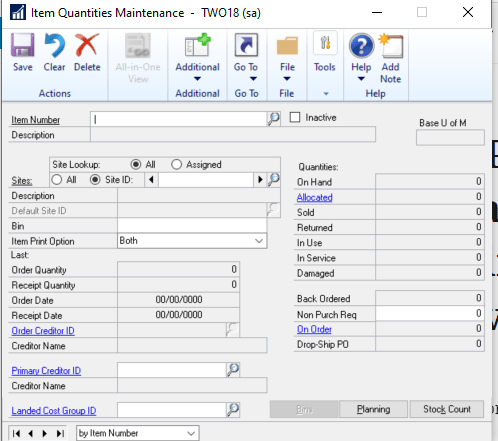
To fix this go to “Cards > Inventory > Item Quantities” to open the “Item Quantities Maintenance” window as per below:

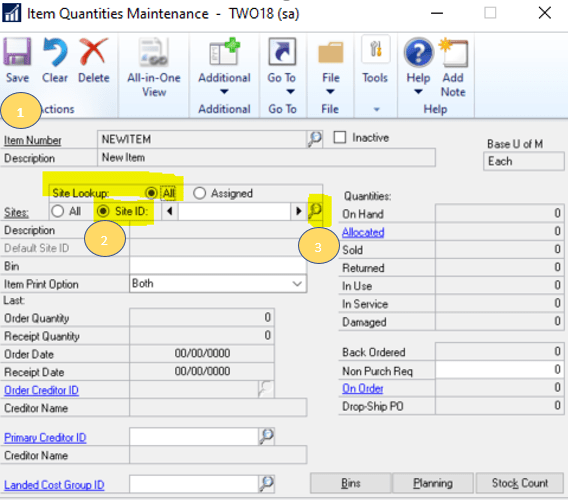
Once you are in this window do the following:

1) Select the Item

2) Click “Site ID”

3) Click the lookup glass (leave “Site Lookup” selected with “All”)

This will show the “Sites” window listing all the sites.

Finally select the site in question and click “Save” to assign the Item to the Site.

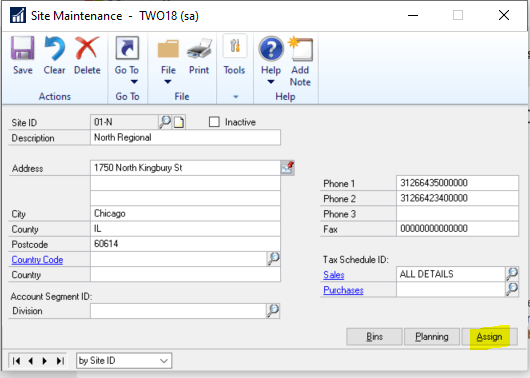
Please note you can also assign all items to a new (or existing) site via “Cards > Inventory > Site” and click “Assign”

Hope this helps anyone troubleshooting this issue.

Thanks for reading!

Thinking of making the move to Business Central? We can help