Due dates are automatically calculated using payment terms however sometimes you may wish to change them after posting the transaction.
You can do this on both the Sales and Purchase side using the relevant “Ledger Entry” page. Below I’ll demonstrate how this is done on a Payables Invoice using “Vendor Ledger Entries”.
Demo
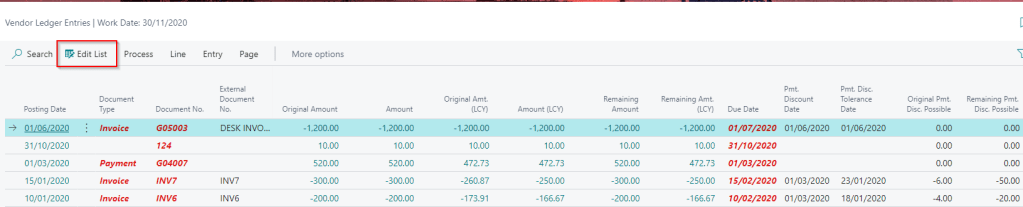
First open the Vendor Ledger Entry page and click “Edit List” off the action pane
You will now see that the Due Date, along with other editable fields, can be changed. Here I’ve changed the due date on the top transaction from 01/07/2020 to 01/08/2020
As you can see I can also change the payment discount and tolerance dates.
Conclusion
Very quick post today but hopefully useful nonetheless.
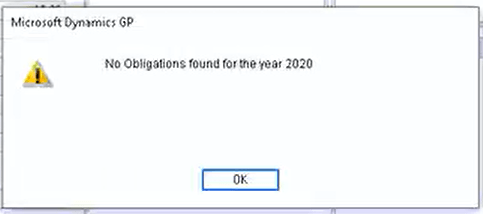
We had a client report the error “No Obligations found for the Year 2020” when trying to retrieve the obligations when doing the VAT return. They were running Dynamics GP 2018 version 18.00.0704.
The exact error is below
We checked all the usual things like company VAT number, and also tried when logged in as “sa” even though the relevant service pack has been applied, however the error persisted. (more details on troubleshooting can be found in this Microsoft link)
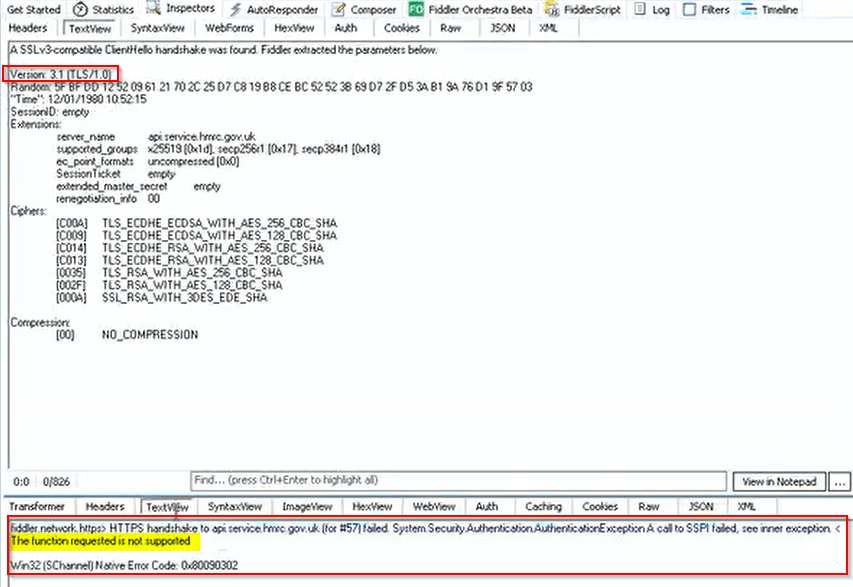
I then had a colleague run a fiddler trace and he noticed that on the tunnel to the HRMC API there were calls using TLS 1.0 and on further investigation the message “The function requested is not supported”
My colleague suspected a change on the HRMC side which was preventing TLS 1.0 from working.
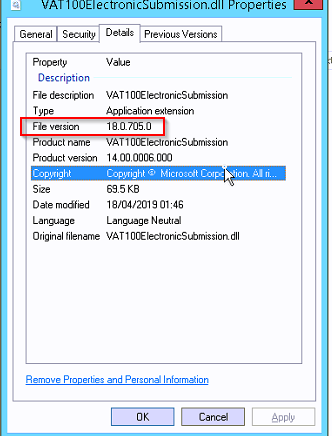
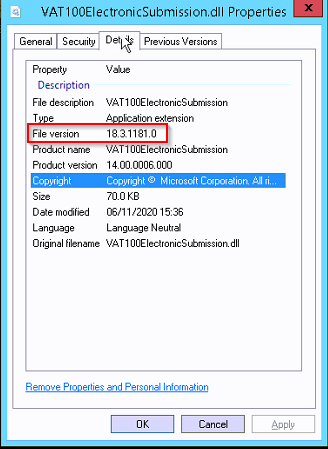
We suspected the file VAT100ElectronicSubmission.DLL located in the GP client folder was responsible for this functionality so I checked the version currently installed which was 18.0.705.0
I then copied the VAT100ElectronicSubmission.dll file from my Dynamics GP 18.3 local install which is version 18.3.1181.0 to the users PC. (i.e. the latest version)
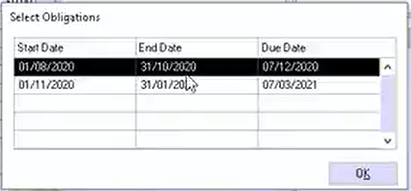
Now when we tried again this all worked! The obligations were retrieved successfully and we are now presented with the “Select Obligations” window
We also tried another PC which had previously had the same issue and this also worked!
Therefore we can only surmise that something has changed at HMRC’s side and there are now issues with certain versions of the VAT100ElectronicSubmission.dll files on older versions of GP.
We now plan on rolling out Dynamics GP 18.3 to all PCs at this site and are waiting to see if this affects other users on the older version.
Conclusion
Again we can only guess, however it seems something may have changed at the HMRC side which is preventing making tax digital submissions when you have an older version of the VAT100ElectronicSubmission.dll file. We found the solution is to replace this file with the most recent copy available with Dynamics GP 18.3.
Fingers crossed this helps others who may encounter this issue.
Thanks for reading!
Thinking of making the move to Business Central? We can help
When I talk to users about Dynamics 365 Business Central we often discuss the ledger entries, such as Customer and Vendor Ledger Entries, but never really touch on Detailed Ledger Entries.
They kind of go under the radar, however in reality they perform a crucial function, and underpin lots of information shown on the Ledger Entries screen.
In this post I aim to give them some well deserved limelight as I go through just how important a role they play in business central.
Ledger Entries
If we first take a look at the “Customer Ledger Entries” page we can see this is showing all the various documents we have posted against our customers.
In fact, this is the main page that’s used when you want to see a full history of all the documents we have posted to our customers. Using this page we can quickly see outstanding invoices, payments and much more.
It also displays things like Posting Date, Document Type, Document Number, Customer No and then a variety of Amount columns.
What’s interesting to note is that all the amount columns are hyperlinks, which we can click to view more information on that amount. However before we do this let’s take a deep dive into the “Customer Ledger Entries” table to gather more information on those columns.
Lets get technical
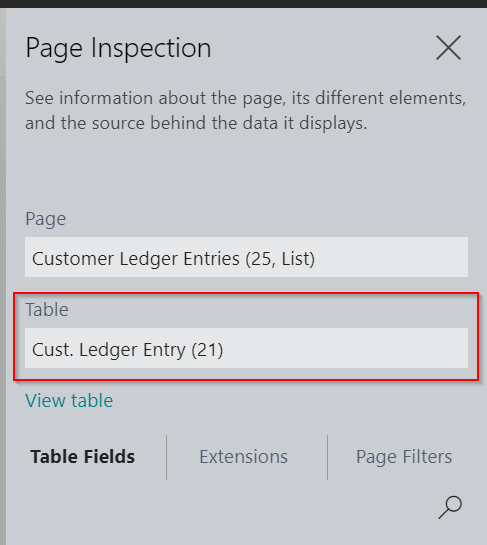
To figure out why those amount columns have hyperlink drilldowns let’s first check what table the “Customer Ledger Entry” page is based on. We can do this by clicking “CTRL + ALT + F1” to view the Page Inspection. In here we can see its based on the “Cust. Ledger Entry (21)” table
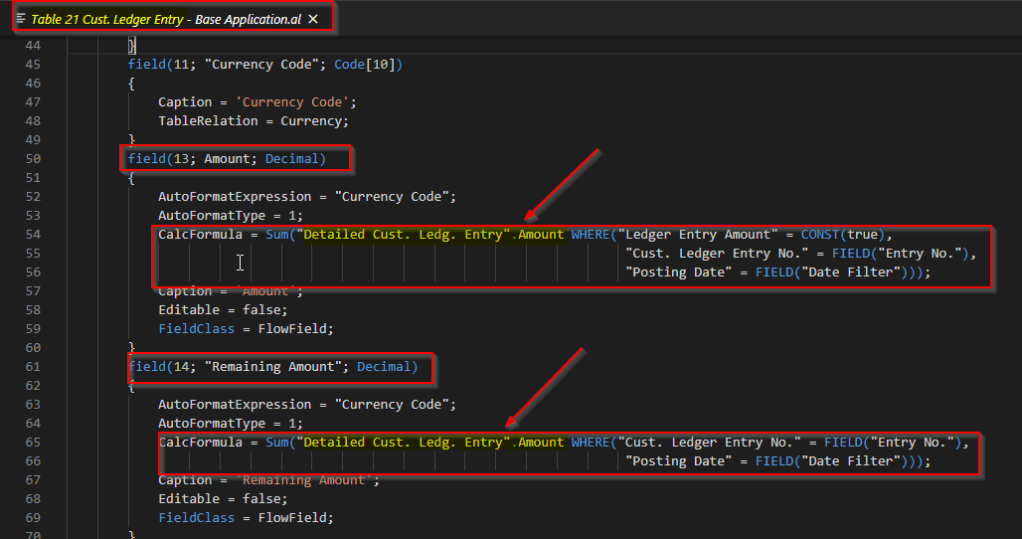
Now let’s open that table in “VS Code” and take a look at a couple of those amount columns. Specifically we’ll look at the “Amount” and “Remaining Amount” columns
Here we can see that the “Amount” and “Remaining Amount” columns aren’t physically stored in the “Cust. Ledger Entry” table. They are in fact calculated fields (flowfields) based on data in the “Detailed Ledger Entry” table.
So, when we see those amounts on the “Customer Ledger Entry” page we are in fact seeing totals based on data in the “Detailed Ledger Entry” table. This is why they are showing as hyperlinks. Very cool!
** What’s even more cool is that to maintain high performance they are implemented using SQL indexed views on the Detailed Ledger Entry table (I explain more on how this works in this article)
Wrapping up
Armed with this information we can see why whenever we post a sales transaction we get “Detailed Ledger Entries”, as well as the more commonly known “Customer Ledger Entries”. The “Detailed Ledger Entries” are maintaining the “Amount” fields on the “Customer Ledger Entries” table and (therefore) page.
Therefore its now apparent just how much of a crucial role they are playing in maintaining the amounts and outstanding amounts on the “Customer Ledger Entry” page we use so often.
Its worth noting “Detailed Ledger Entries” are created for a whole manner of things that affect balances on transactions. The most obvious would be when we apply one transaction to another. For example if I apply the invoice to the cash receipt from my earlier screen shot I’ll get “Detailed Ledger Entries” to reflect this.
** The system will create two detailed ledger entries. One for the invoice and once for the payment and both will have a type of “Application”
If when I drill down on the “Remaining Amount” on the Invoice it takes me to the related “Detailed Ledger Entries” and if we sum the “Amount” column it comes back to 0.00 which is reflected on the “Customer Ledger Entry”
** Incidentally we can get a list of all the different types by looking at the “Entry Type” on the “Detailed Ledger Entries” table in VS code
Conclusion
In summary the “Detailed Ledger Entries” are there to keep track of changes to the amounts of the “Customer Ledger Entries”. This way the system doesn’t have to maintain summary running totals on the “Customer Ledger Entries”.





 thedynamicsexplorer.com