When discussing Direct Cost Applied and Purchases accounts with newcomers to Business Central, they invariably initiate a conversation about their purpose and significance. As a result of this, I decided to create a video where I share my insights 🙂
There may be times when you need to post a full VAT only journal to record a VAT adjustment. In these scenarios you want no effect in the General Ledger, but wish to have an adjusting VAT entry appear on the VAT statement.
In this post, I’ll walk through the necessary steps for setting up VAT for these scenarios. Once the setup is complete, I’ll explain the process for posting the VAT only journal.
VAT Setup
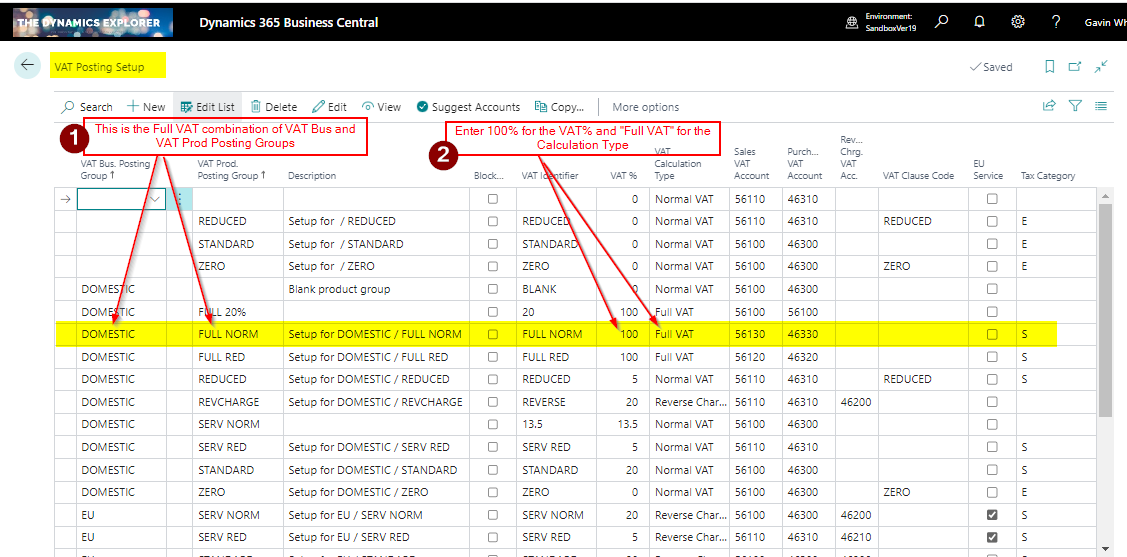
First, we need to add the necessary VAT combination in the VAT Posting Setup window. For this I go to the “VAT Posting Setup” window.
In this window I add the following VAT combination.
Now if I use the combination of “Domestic” and “Full Norm” in a journal this should calculate full VAT at 100%.
VAT Journal
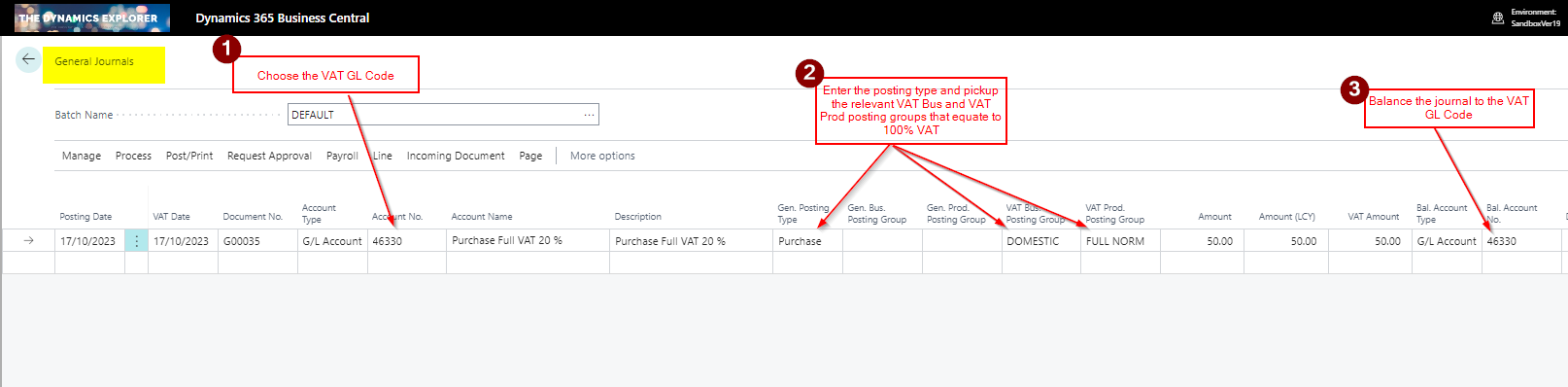
Now the VAT Posting Setup is complete, I’ll post the correcting VAT adjustment journal using the “General Journal” page as per the screen shot below.
In this journal I’m doing the following:
1) First I’m selecting the VAT GL Code
2) Then I’m selecting the relevant VAT Business and VAT Product Posting Group for the Full VAT combination
3) Lastly, I’m balancing the journal to the same VAT GL code
This produces the following GL Entries. As you can see there is no effect in the General Ledger.
The posting also creating this VAT Entry
Therefore, although we have no effect in the General Ledger, we have a VAT entry to record the adjustment on the VAT Statement. We just need to edit the VAT statement to pickup the VAT Business and VAT Product posting combinations
VAT Statement
To ensure this is picked up on the VAT Statement go to the VAT Statement page and add the combination:
Conclusion
This post shows how you can setup Business Central to post VAT adjustments that won’t affect the General Ledger but do create adjusting VAT entries.
The UK version of Business Central gives the ability to submit your VAT return via the Making Tax Digital functionality. This enables you to connect to HMRC and download your VAT obligations and subsequently submit your VAT return.
However I’ve found that sometimes even though the VAT return has been submitted to HMRC and the “VAT Return Status” changes to “Accepted” the “Status” of the VAT Return remains as “Open” and consequently the message “Your VAT Return is Overdue…” is displayed on the Home Page (depending on your role centre) and also in the “Additional Information” on the VAT Return Periods page.
In this post I’ll walkthrough how you can remove this message.
VAT Returns Period Page
As per the screen shot below I’m getting the message “Your VAT return is overdue since 07/08/23” in the “VAT Return Periods” page however the VAT Return Status is “Accepted”.
The period in question is 01/04/2023 (1st of April 2023) until the 30/06/2023. Therefore in order to remove this message I click “Get VAT Return Periods” and enter the same dates into the page as per below
The system then connects to HMRC to gather data on that range and although there are no new overdue VAT Return Periods in that date range it updates the status of any VAT returns within the date range.
You are then presented with the update box below
This message states “Retrieve VAT return periods successful. Including 0 new and 1 modified”.
This means although no new VAT Return Periods were received in the date range 1 was modified.
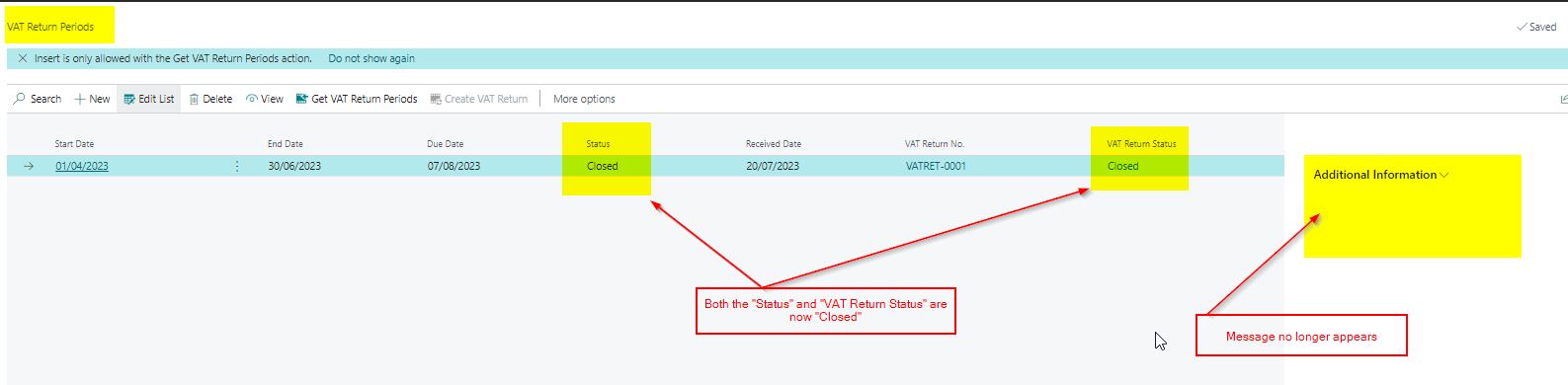
Now both the “VAT Return Status” and “Status” are closed and the message has gone 🙂
Conclusion
This post explains how you can update both the “VAT Return Status” and “Status” of a submitted VAT return using the “Get VAT Return Periods” option.
If you have numerous VAT returns showing the same issue you can enter a large date range and have the system update all your VAT return statuses.


 thedynamicsexplorer.com