Dynamics 365 Business Central – How to post a Payment in one company and apply to an invoice in another company using Intercompany functionality

Introduction

A client has multiple companies set up in Business Central, and trades with the same customers in many of these companies. Occasionally, a customer would pay cash to one company even though the Sales Invoice has been posted to a different company. They would make several adjustments in both companies to reconcile this. However, upon investigation, I found that this can be managed using the standard Intercompany functionality.

Pre-requisites

To demonstrate the solution, we’ll be using the Intercompany functionality. This needs to be set up beforehand, but the setup process won’t be covered in this post.

Scenario

As mentioned previously the scenario is that we have two Business Central companies and these companies trade with some of the same customers.

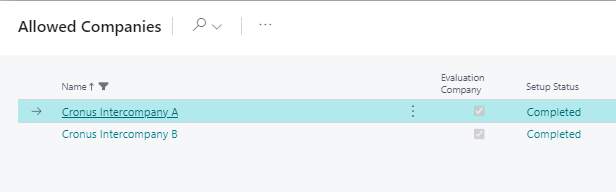
The companies in Business Central in my scenario are called “Cronus Intercompany Company A” and “Cronus Intercompany Company B”
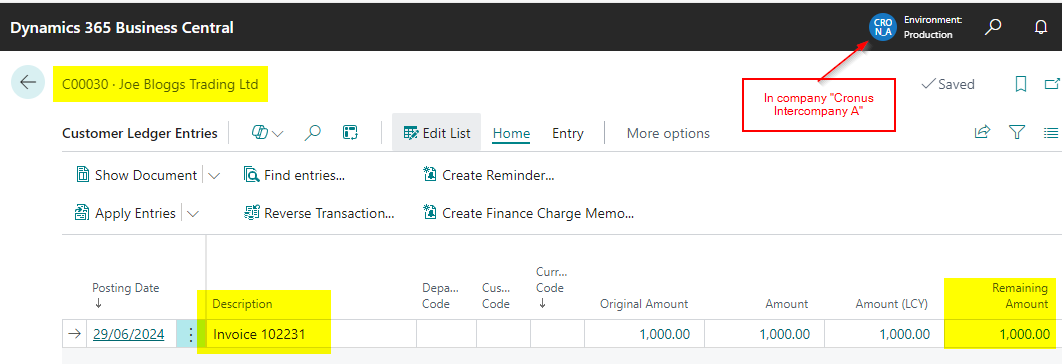
In this scenario, we have raised a Sales Invoice for £1000.00 in “Cronus Intercompany A” as shown below

This shows outstanding in the Customer Ledger Entries on the account of “Joe Bloggs Trading Ltd” in Cronus Intercompany A.
The payment to pay the Sales Invoice is then deposited by “Joe Bloggs Trading Ltd” into the bank account of “Cronus Intercompany B” rather than “Cronus Intercompany A”.

Solution using Intercompany Journals

In order to resolve this we need to do two things. The first thing is record the payment in Cronus Intercompany B and the next is close (apply) the open Sales Invoice in Cronus Intercompany A.

Therefore we will first record the cash in Cronus Intercompany B, using an Intercompany Journal as per below:
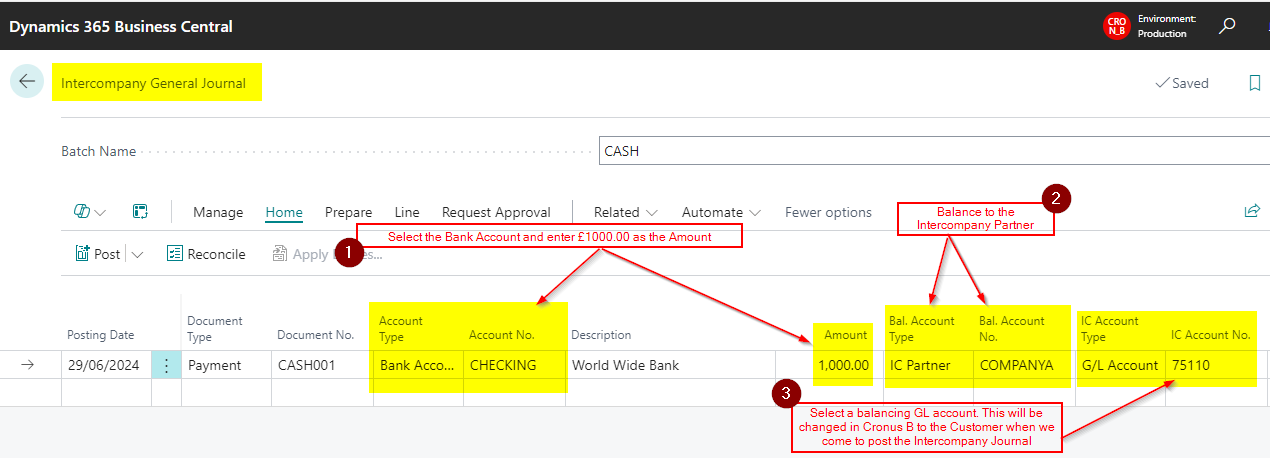
A quick summary of the steps above are as follows:

  1. Select a Document Type of Payment and Account Type of Bank Account and then pickup the relevant Bank Account. Then enter the value of the cash payment, in this case £1000.00
  2. Balance the line to the Intercompany Partner
  3. Enter a Intercompany GL account. (this will be changed to the customer “Joe Bloggs Trading Ltd” when we come to post the Intercompany Journal in “Cronus Intercompany A”)

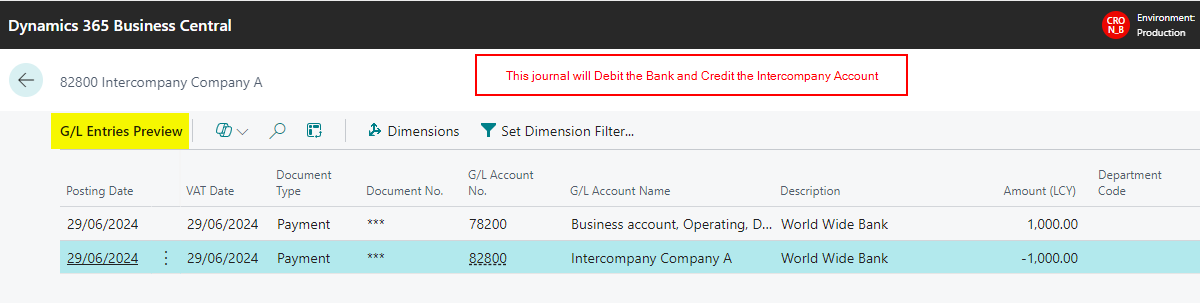
The General Ledger Entries we get when posting this journal are as follows:
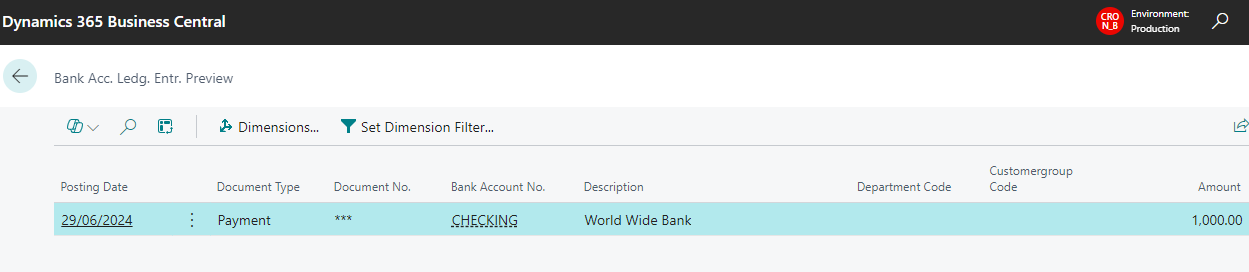
We also get a Bank Account Ledger Entry we can reconcile when we come to do the Bank Reconciliation
Once this has been posted we can log into “Cronus Intercompany A” and the Intercompany Journal is initially showing as per below:

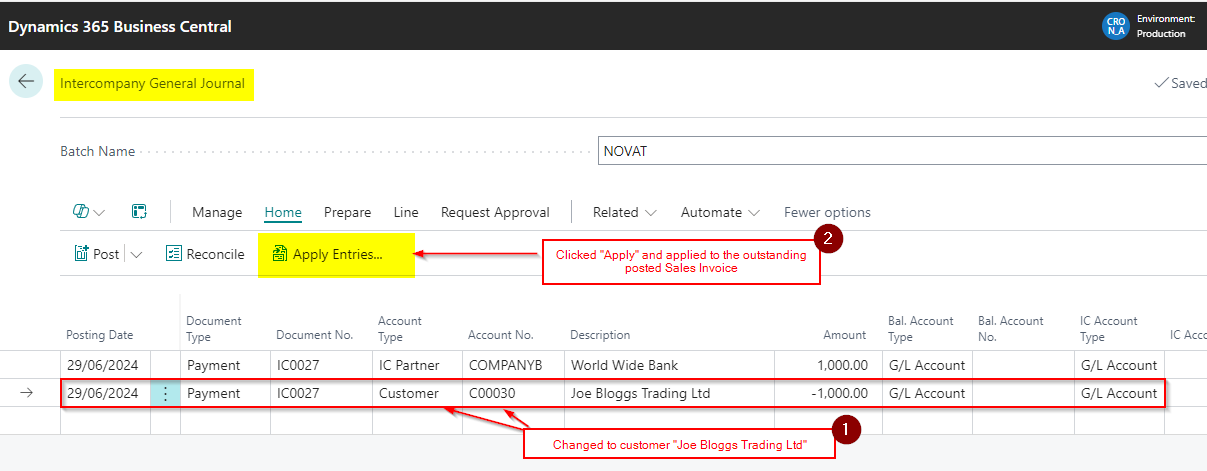
I’ll now change that second line to the Customer “Joe Bloggs Trading Ltd” and also click “Apply” and apply the journal to the posted Sales Invoice.
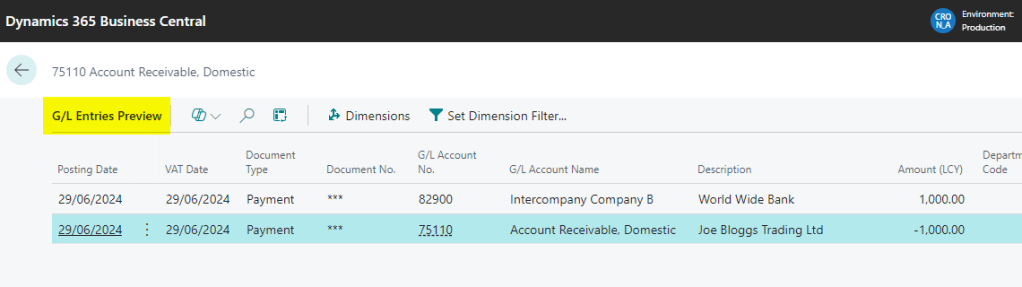
When I look at the General Ledger Entries I can see this is hitting the Intercompany GL Account and also Crediting my Accounts Receivable (Debtors Control)
I also get a Customer Ledger Entry and Detailed Customer Ledger Entries to close the Sales Invoice on the customers account.

Therefore after posting this the customer account is as per below:
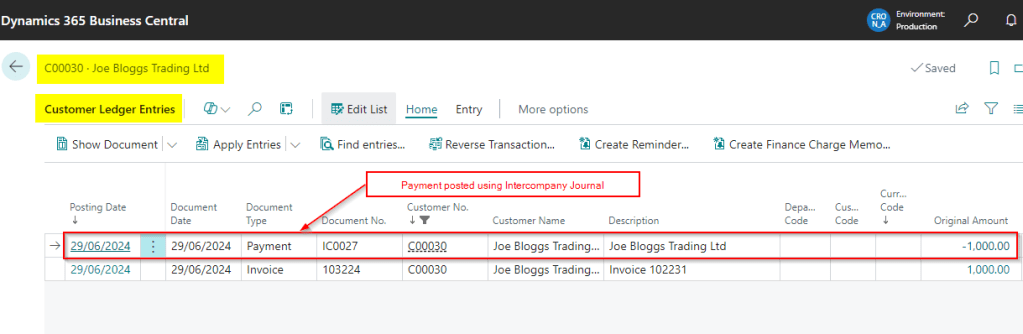
The process is now complete. The payment has been recorded in Cronus Intercompany B and applied to the Sales Invoice in Cronus Intercompany A.

Conclusion

This is a unique scenario however using the method described and demonstrated above we have shown how its possible to post a Cash payment in one company and apply this to a Sales Invoice posted in another company in two simple steps.

Thanks for reading!
Dynamics 365 Business Central – Why can’t I see all of the General Ledger accounts in the General Posting Setup page

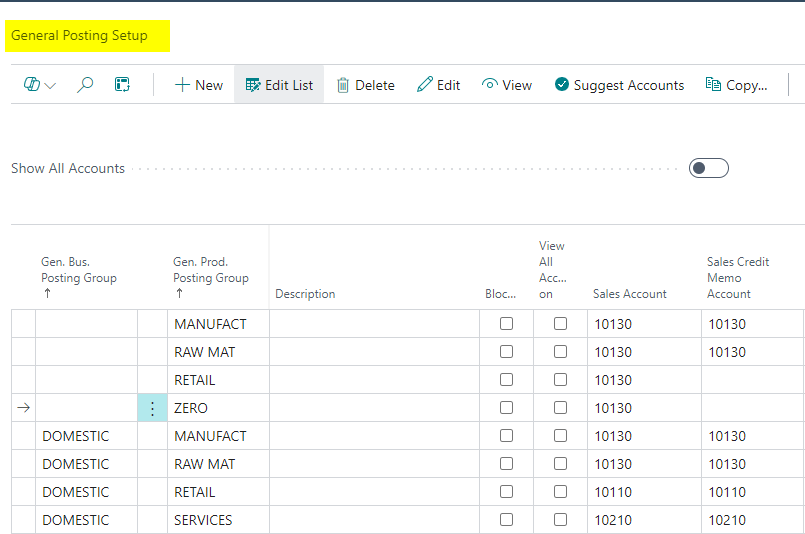
The “General Posting Setup” page is one of the most important pages in Business Central. Its in this page you tell Business Central what General Ledger codes to use based on the combinations of your General Business and General Product Posting Groups. (you can read more on posting groups in this post)

Below is a screen shot of the “General Posting Setup” Page from my Cronus Demo company:

However, by default, when setting the General Ledger codes, the system uses filters to only show certain General Ledger codes, which can be confusing when you don’t see a full list of GL accounts to select from.

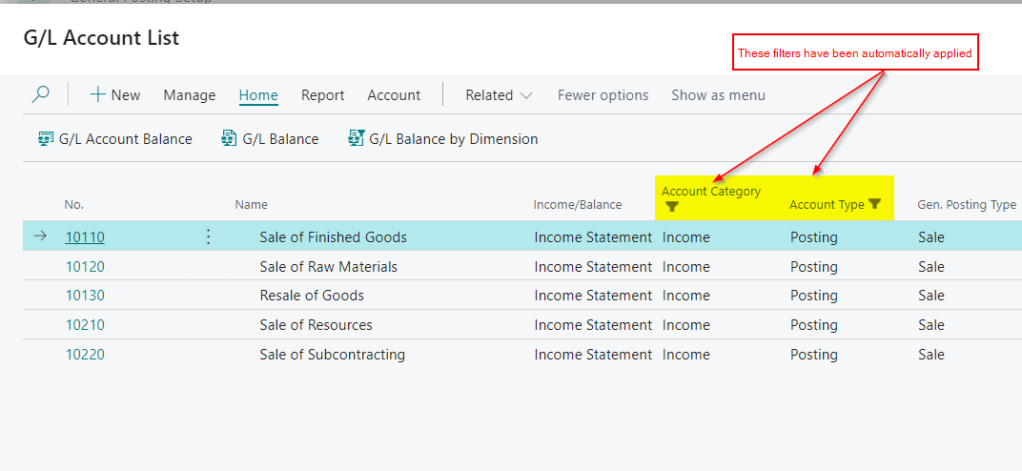
For example, in my Cronus demo company, when I click to select a “Sales Account” I’m only presented with the list in the screen shot below. If you look closely you can see the system has automatically applied filters to the “G/L Account List”, which limits the list of GL accounts I can see.

Taking this a step further, if I choose to “Inspect Pages” on this page, I can see the Filters that have been applied as per below (to inspect pages press CTRL+ALT+F1)

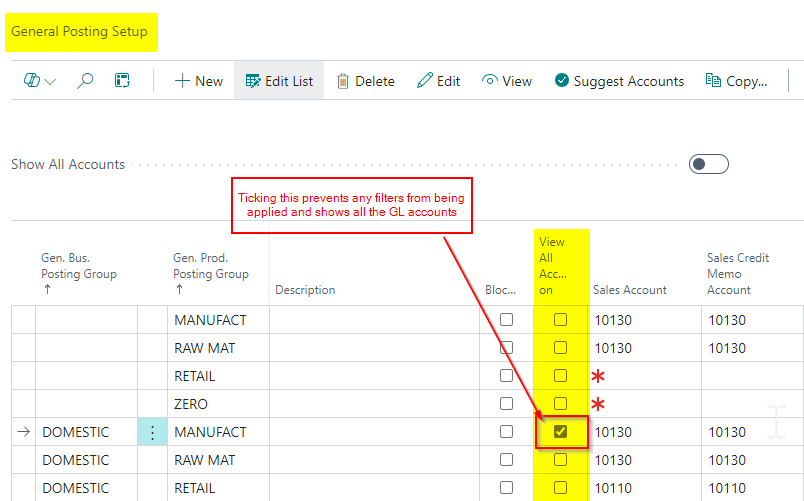
To prevent the system from applying any filters, so you can see and choose from all accounts, just tick the option “View All Accounts on Lookup” checkbox as per below:

You’ll now see all “Posting” accounts when you go to select a General Ledger account 😊.

I hope this clarifies why you may not see all your GL accounts on the “General Posting Setup” page in certain instances.

Thanks for reading!

Dynamics 365 Business Central – How I post opening balances for the General Ledger in Business Central

Introduction

In previous posts I’ve looked at how I post opening balances for various modules in Business Central. Links to these articles can be found below:

Today I wanted to discuss how I post opening balances for the General Ledger. (I perhaps should have started with this one 😀)

I use a couple of approaches when posting opening balances for the General Ledger, choosing the method based on the level of transactional detail required. In this post I’ll discuss all three methods including which one I commonly recommend and why.

Please note in all the methods described below, right after posting the opening balance journal, I print and save a copy of the General Ledger Trial Balance. I also make a note of the G/L Register from the “G/L Register” page in Business Central. (although I name the batch OPENBAL-GL so its easy to spot anyway)

Preparation

For all the methods, I use a predefined configuration package that I export to Excel, ask the client to populate with data, and then import back into Business Central.

This includes key fields like the Posting Date, Account Number, Dimensions, and Amounts. A copy of the configuration package can be found here along with other free stuff 😊

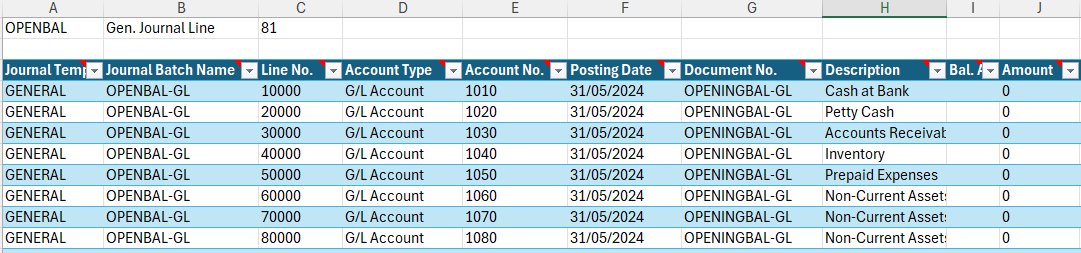
A screen shot of Excel Spreadsheet is below:

Example of Excel Template for Opening Balances

Method 1 – Post Total Opening Balances as of Go Live Date

This method involves posting the balance of each General Ledger code in one journal, using one document number, on the required go live date.

Therefore if you were going LIVE with Business Central on the 31st of May 2024 you’d collect your General Ledger balances as of this date from your existing system and populate the Excel Spreadsheet with this data.

Important considerations should be given to the control accounts such as the Sales and Purchase control account to ensure these balance to any imported Sales and Purchase Ledger transactions.

Once the journal has been imported, and you are happy with the balances, you can post the journal to record the opening balances.

This is the quickest and easiest way to post opening balances for the General Ledger, but it has limitations. The primary drawback is the lack of historical financial reporting in Business Central. In contrast, Method 2, while more time-consuming, provides greater detail.

Method 2 – Post Total Opening Balances and Period Balances

This method involves posting opening balances for a set period prior to your go-live date and then posting additional period balances up to the go-live date, resulting in a final go-live balance.

For example, if you plan to go live with Business Central on 31st of May 2024, and want 12 months’ worth of summary information prior to this, you would post an opening position as of 31st of May 2023, using a document number like “OPENBAL-GL-MAY23.” Then, you would post balances for each of the 12 monthly periods from June 2023 through May 2024 using different document numbers, such as “PERIODBAL-GL-JUN23” and “PERIODBAL-GL-JUL23.” all building up to a total balance as of May 2024.

This approach allows you to report month-on-month using only Business Central data as soon as you start using the system. For instance, after being live with Business Central for June 2024, you could compare June 2023 data to the live data for June 2024.

Method 3 – Posting Opening Balances and Detailed Information

The final method can only realistically be used when the company is very small and doesn’t have lots of transactions.

This method involves posting an opening position followed by the detail information for a set period of time.

For example if your year end is 31st of December 2023 and you wanted to go live with Business Central as of 31st of May 2024 you could post the opening balance from your existing system as of the 31st of December 2023 and then enter each transaction manually from 31st of December 2023 to the 31st of May 2024. (in this scenario it doesn’t really matter when you go live as you are entering detailed information from the 31st of December 2023)

As you can imagine this is the most labour intensive method so is generally only used on companies with few transactions.

** You also have to post opening balances for the sub ledgers as of 31st of December 2023 and then enter detail information. This can be very labour intensive if there are lots of transactions.

Conclusion

All methods provide a solution for posting opening balances into Business Central. I prefer to use Method 2 because, although it requires a bit more effort, it allows for comparison reporting as soon as you go live with Business Central.

Thanks for reading!

Want further help with Business Central?

If you’d like more help with Business Central, I also run Rapid365, which provides Business Central implementation and support services for UK businesses, supporting you through setup and go-live.

👉 View services and pricing at Rapid365.co.uk/pricing