Introduction
This is another blog in a series I’ve been writing comparing functionality in Dynamics GP to Dynamics 365 Business Central.
In this post I’ll compare Dynamics GP Class ID’s to Dynamics 365 Business Central Templates. Both offer a method to quickly setup static data like customers and vendors however as usual both offer slightly different features and functionality.
Dynamics GP – Class ID’s
When creating static data like customers or vendors in Dynamics GP you can use Class IDs to make the process more efficient. As the Class ID is stored on the customer card, we also generally advise to create Class’s as a way to group together similar customers or vendors.
Below is the Debtor “Class ID” that can be used for defaults when setting up Customers in Dynamics GP. (this is accessed via the “Tools > Setup > Sales > Debtor Class” menu option)
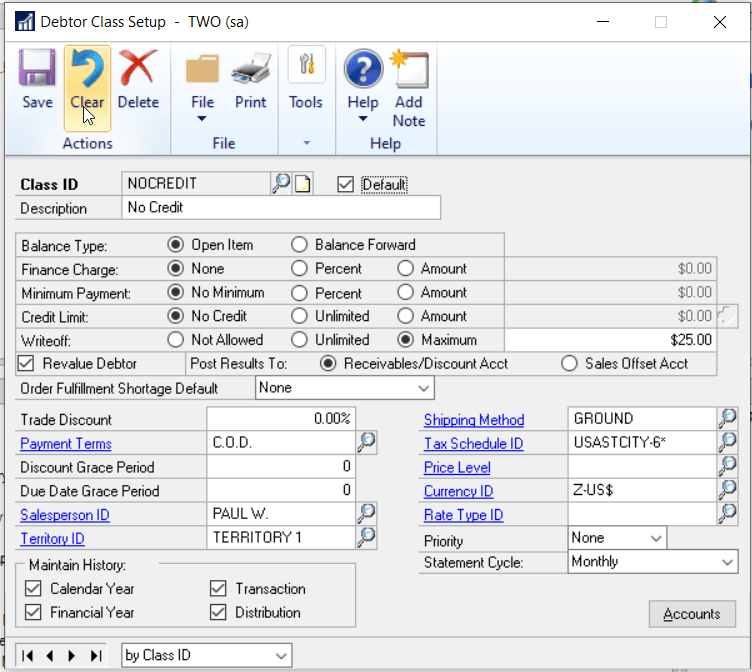
As you can see various options can be set on the Class that the customer will then inherit if its assigned this Class. Things like the payment terms, the credit limit, currency and so on. We also specify the default GL codes that can should be used.
Once its setup you physically assign the Class ID to your customers as per below and the customer will inherit the settings from the Class ID.
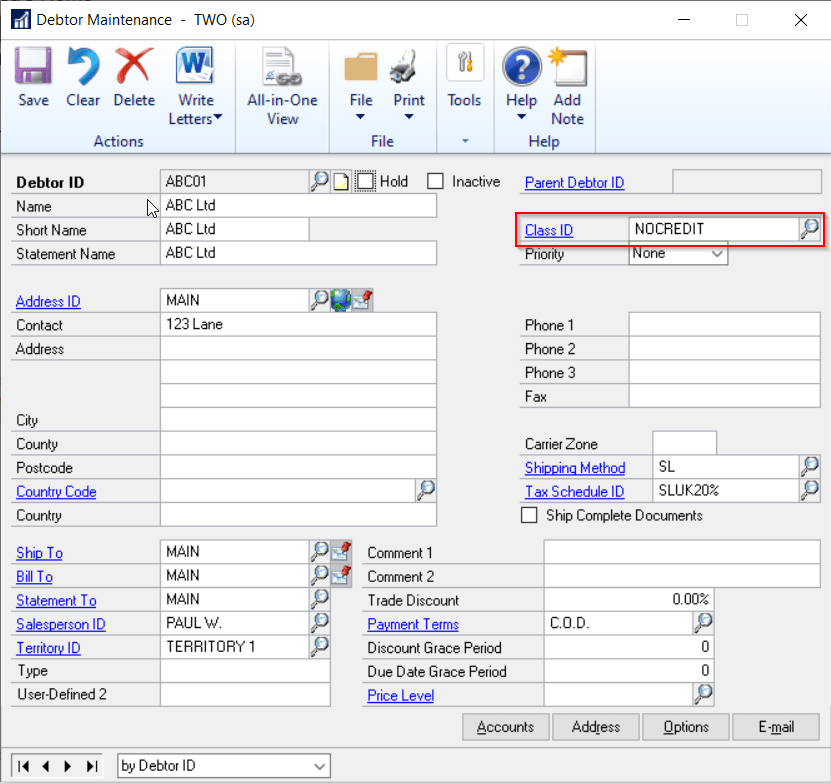
You can then make any tweaks to the customer setup after the settings from the Class have been copied. For example you may wish to have slightly different discount on this debtor to what was on the Class ID.
One interesting feature of the Class ID is, if you make a specific change on the Class ID you can then roll this down to all Customers that are assigned this Class. (or not if you prefer). For example you may change the Sales Person on a Class and roll this change down to all Customers in the Class and only this change will be rolled down. (therefore other tweaks you had made on the Customer would be unaffected)
As the Class ID is physically stored against the customer you can also run certain reports by Class ID such as the various trial balance reports.
Dynamics 365 Business Central – Templates
In Dynamics 365 Business Central we can use “Templates” to assist in creating static data such as customers and vendors.
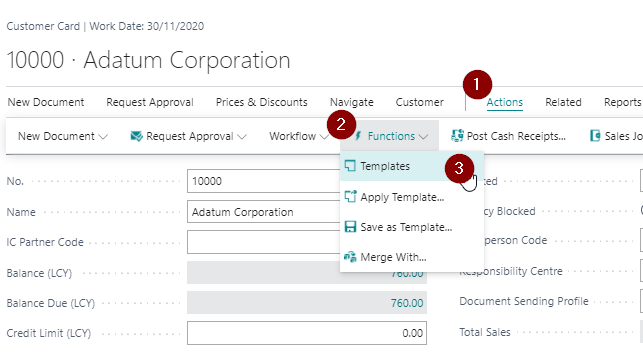
To do this I can select “Actions > Functions > Templates” when in a customer page.
Next I can click “Actions > New Document > New”
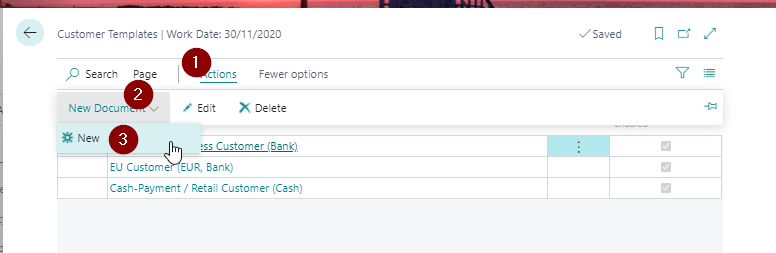
This would present me with a “Customer Template” I can create as per below:
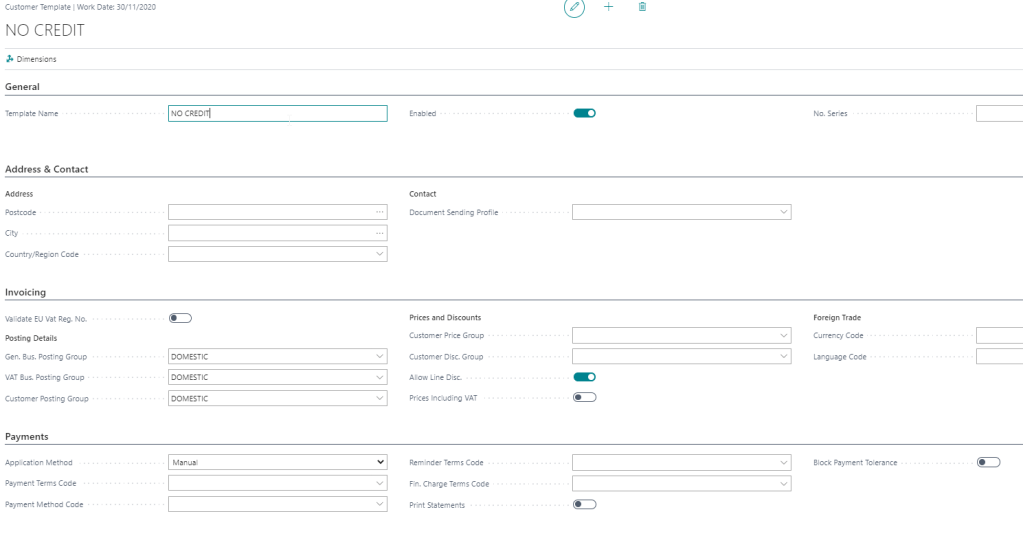
In this page I can set things like default payment terms, currency codes and also posting groups for GL codes.
Once I’ve entered the default information on the template I can select this when creating new customers so those settings are inherited. I can also then edit and tweak any settings that are specific to this customer.
**Please note the template you used to create a customer isn’t saved on the customer.
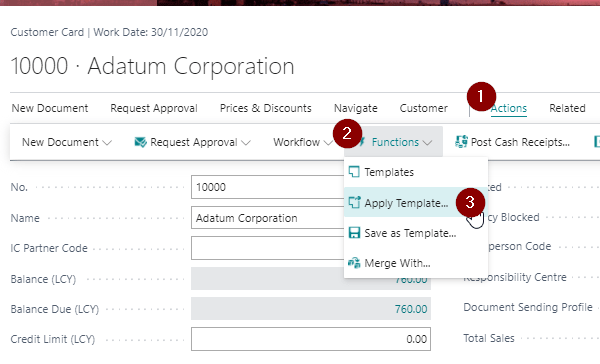
Also, if I’ve accidentally assigned the incorrect template to a customer I can reapply another template via the option below whilst in the customer page
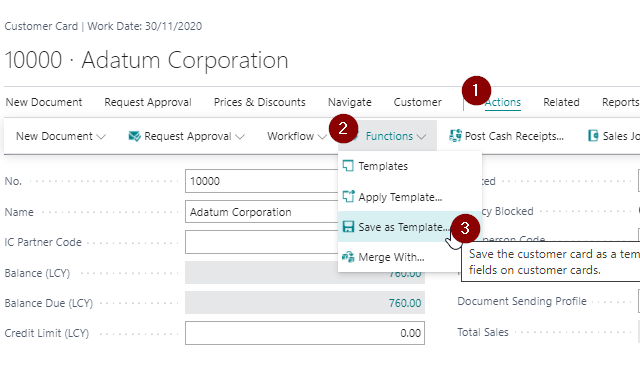
I can also create a new template based on the settings of a customer that’s already been created (or any existing customer). To do this I’d select the option below in the customer page:
Conclusion
Both Dynamics GP and Dynamics 365 Business Central offer great solutions to improve the efficiency of entering static data.
The difference with Dynamics GP is the Class ID stays with the customer enabling you to group certain debtors and run reports based on certain Classes whereas the template is just used to copy information to the customer.
Another interesting feature of Class Ids in Dynamics GP is the ability to change the Class and roll down any changes to the associated debtors.
Thanks for reading!
Thinking of making the move to Business Central? We can help


 thedynamicsexplorer.com