A client reported the error “Date is not valid” when running Depreciation on their Fixed Assets register and as it took a little while for me to find the solution I thought I’d share 🙂
The Error
The client had been running depreciation without issues when they suddenly started receiving the error below:
I checked dates being used for the Depreciation job and this seemed fine. I also checked the regional date settings in the “User Settings” page but again all looked fine.
After investigation several new assets had been imported without a “Depreciation Starting Date” on the Depreciation book.
I therefore updated “Depreciation Starting Date” and re-ran the Depreciation and it went through fine.
Only a short post but hopefully will help someone else who encounters this issue.
When you reverse a journal entry using the standard “Reverse” feature there’s no option to change the posting date. By default the journal will automatically reverse on the same date as the original journal postings. This isn’t ideal if you have closed the period and want the reversal to post into a different period.
In this post I’ll show how you can reverse a journal and change the date using the “Posted General Journal” feature. I’m a big fan of this feature as it not only gives the ability to reverse a journal with a different date but you can also reverse multiple journals.
The Issue
As discussed, when reversing a journal using the standard functionality there’s no way to change the “Posting Date”. The field highlighted below isn’t editable.
If the financial period is closed, posting the reversal into a different period becomes necessary, which prevents the ability to use the standard feature.
Configuring Posted General Journal Functionality
Before we can use the Posted General Journal functionality we first have to ensure its enabled on the various General Journal Templates.
Therefore search “General Journal Templates” and tick the option “Copy to Posted Jnl” as per below:
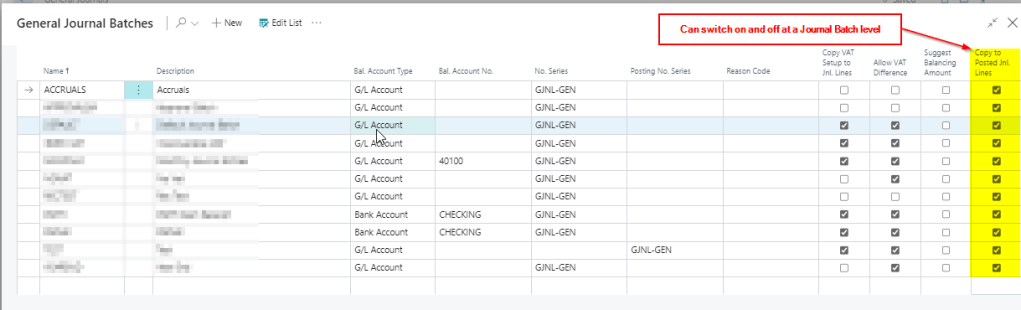
When the option has been selected on the General Journal Template, it can then be toggled off and on at a Journal Batch level as well:
With this option enabled any journal that’s subsequently posted creates “Posted Gen. Journal Lines” in addition to the usual General Ledger Entries.
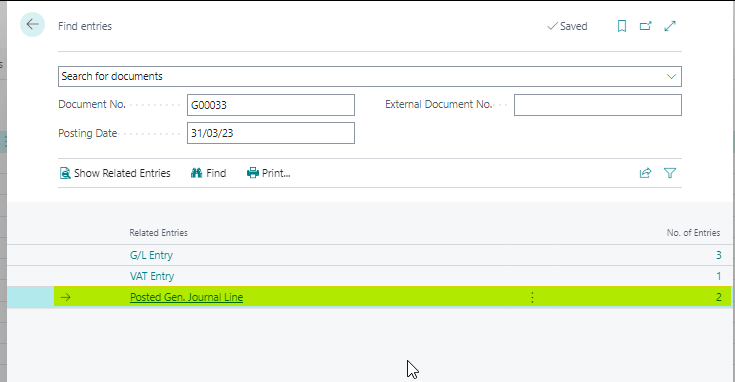
For example I clicked “Find Entries” on a General Ledger Entry and I can see additional “Posted Gen. Journal Lines”
I find this really useful as if you drill down on the “Posted Gen. Journal Line” it opens the Posted General Journal page which provides a snapshot of the journal that was posted.
This is very similar to how a snapshot of a Sales Invoice is taken and saved as a “Posted Sales Invoice” which you can refer back to.
Reversing a Journal using the Posted General Journal Page
Now we have the option switched on we can walk through how to reverse a journal.
First open the “Posted General Journal” page. You can either search this directly or drill down from the “Find Entries” page.
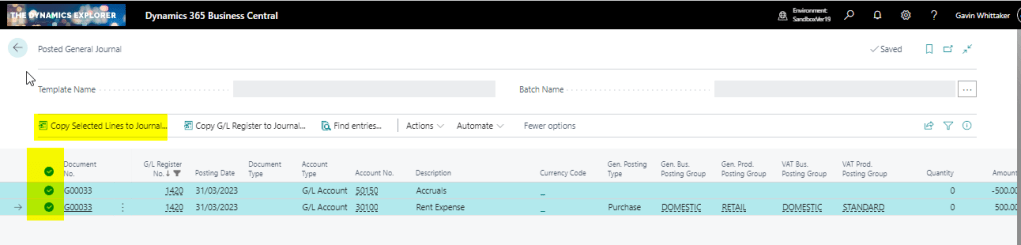
Once in the “Posted General Journal” page locate the entry you wish to reverse. In my example I’m going to reverse document number G00033.
I therefore filter on this document number and select both lines and choose “Copy Selected Lines to General Journal” as per below:
** Please note you can also select “Copy G/L Register to General Journal Lines” **
Next I’ll choose to replace posting date with an April date and also to reverse the sign:
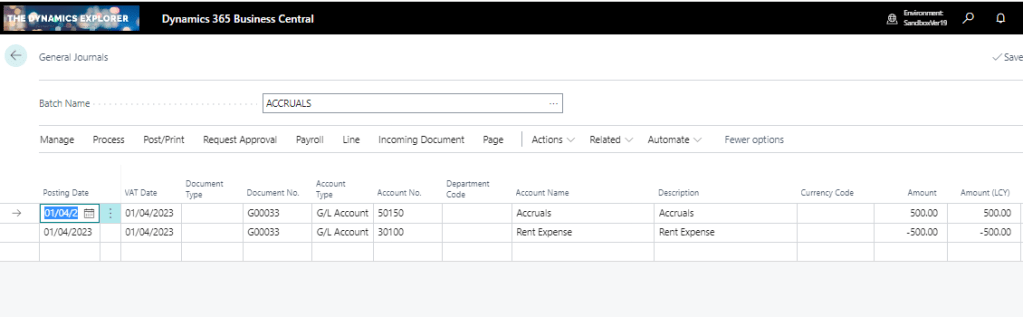
Now when I open the ACCRUALS batch its the reversing journal is ready to post.
You can also use this functionality to reverse more than one journal at once and I’ve also used it to find out the G/L Register number of a journal postings 🙂
Conclusion
As you can probably tell I’m a big fan of this functionality. I think this is because of my background using Dynamics GP which creates similar snapshots of posted journals.
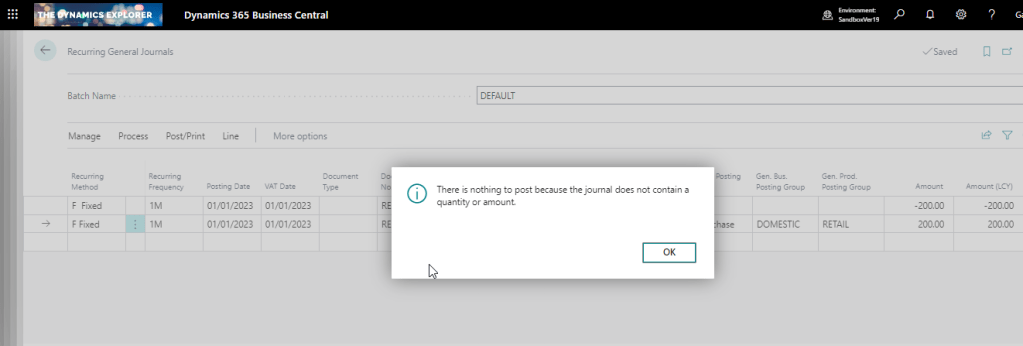
When attempting to post a recurring general journal you receive the message “There is nothing to post because the journal does not contain a quantity or amount” even though you have specified the General Ledger codes and the amounts and everything appears fine.
This is a common query that crops up, and also something I see from time to time in the forums, so I thought I’d write it up for reference and to hopefully help anyone else who receives this message.
The Recurring General Journal
Below is a recurring general journal. I’ve populated all the required fields however when I try and post it I get the message below:
The Solution
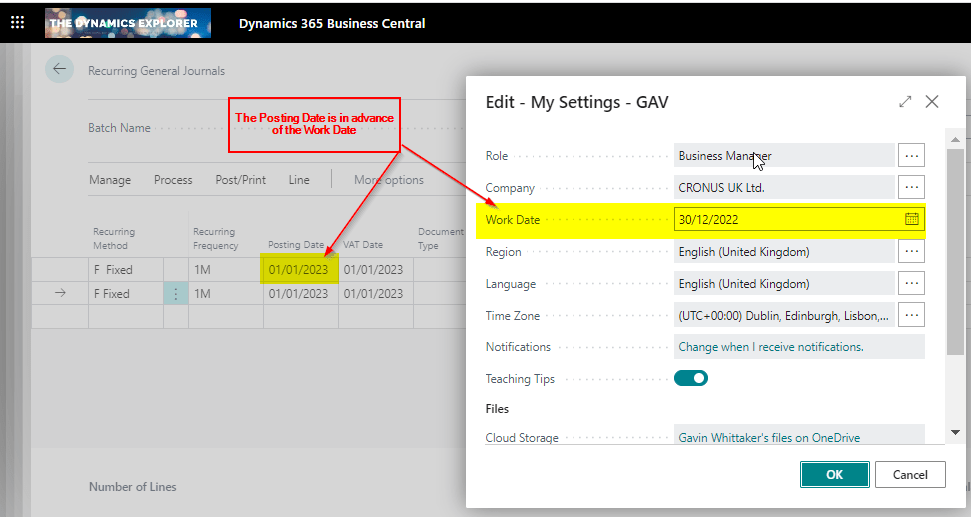
The reason I’m getting this message is because of the unique way in which a recurring general journal works. In a Recurring General Journal the “Posting Date” is compared to the “Work Date” and if the posting date is greater than the work date you receive this message.
I’ll therefore compare the Posting Date on my journal to my Work Date, and as you can see the Posting Date is in advance of my Work Date:
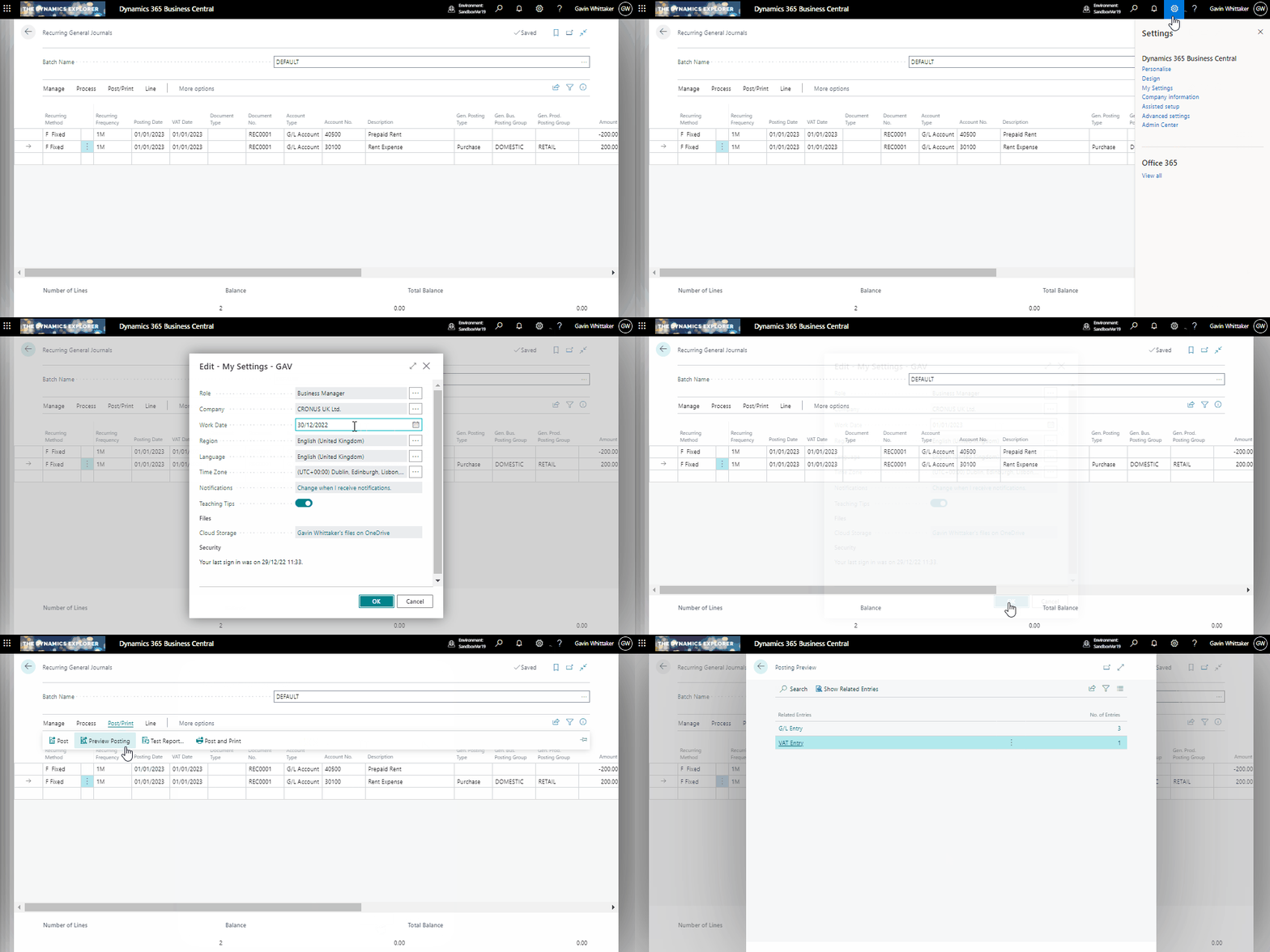
Therefore, in my case, the solution is to change the user date to a date of 01/01/23 (or a date in advance of 01/01/23) and try again:
After doing this my journal will now post 🙂
Conclusion
As far as I’m aware, this is the only journal that behaves this way. For example, I can post a General Journal and the system won’t check the Work Date against the Posting Date.
I suspect the primary reason for this behaviour is to prevent a user mistakenly posting a recurring general journal numerous times, as by default the lines remain on a recurring general journal after you have posted it, and the posting date automatically advances based on the “Recurring Frequency”. (i.e. if the recurring frequently in 1M the Posting Date changes by one month).
Therefore you could post the journal once and then post it again by accident. Having the system perform this simple check prevents this.



 thedynamicsexplorer.com