This is the second in a two part series looking at what your Dynamics GP data looks like when its migrated into Business Central.
In the first part we explored how opening balances are migrated and how they appear in Dynamics GP. We also looked at some of the options you have when migrating the opening balances, like preventing them auto posting so you can make changes if you were thinking of modifying the Chart of Accounts or adding dimensions. You can read the full post here.
In this post I want to look at how the Historical data migrates and where you can find the historical transactions in Dynamics GP. We’ll specifically look at Sales and Financial transactions.
Please note the migrated historical Purchasing data can be found in the same place as the Sales data you just select the Vendor List rather than Sales List
In my opinion this is one of the main reasons you might consider using the Microsoft tools to migrate your Dynamics GP data to Business Central. The migration of the Historical transactions is one of the first questions you I’m asked on almost every Business Central project, regardless of whether the client is moving from Dynamics GP. Normally the answer is no, or you can but it will involved lots of work and expense. This isn’t the case when moving from Dynamics GP to Business Central. The migration tooling does all the hard work for us and we can reap all the benefits.
Just like the previous post I’ll be using a migrated copy of the Dynamics GP “Fabrikam” text company I’ve migrated into my demo Business Central environment.
Options for Migrating Historical Data
Before we look at the migrated data let’s have a quick look at the options available when migrating the data.
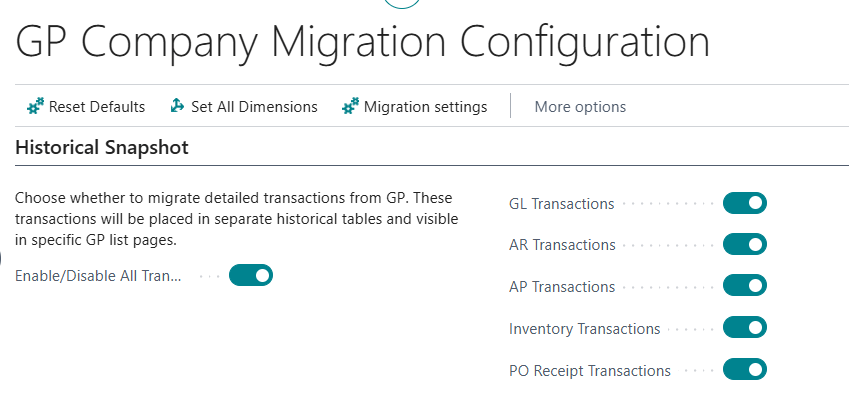
In the “GP Company Migration Configuration” page we are offered the option to migrate the following modules:
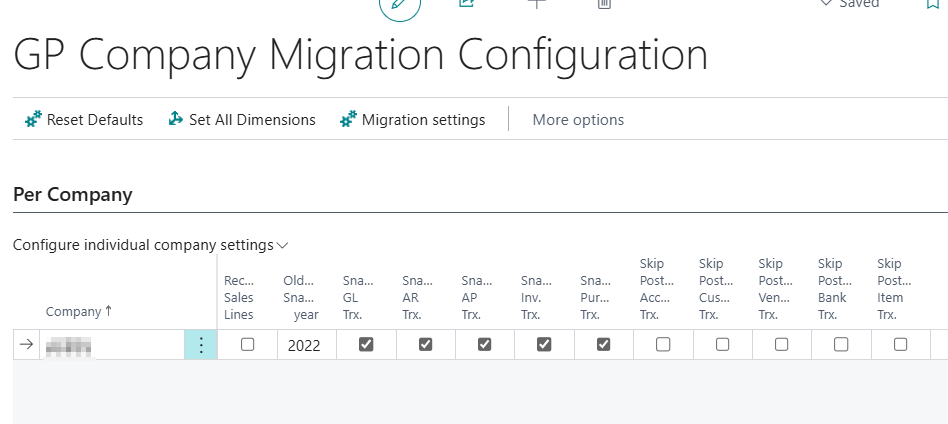
We can also specify how many years of history you can migrate using the setting below:
I tend to select all modules and set the history to around 6 years.
Now we know what we can migrate, let’s take a look at where we can find the historical transactions in Business Central, and what they look like 😊.
What do my Historical Sales and Receivables Transactions look like and where can I find them?
Let’s first take a look at some Sales Transactions.
The historical data doesn’t create Customer Ledger Entries, as they have already been fully paid. The historical transactions are migrated into special tables, which can be accessed in various areas of Business Central.
There are a few places you can see your migrated Sales historical transactions however my favourite place is via the “Factbox” on the Customer List Page.
Here I’ve opened the Customer List page and you can see the tiles on the Factbox I can use to see my Dynamics GP transactions
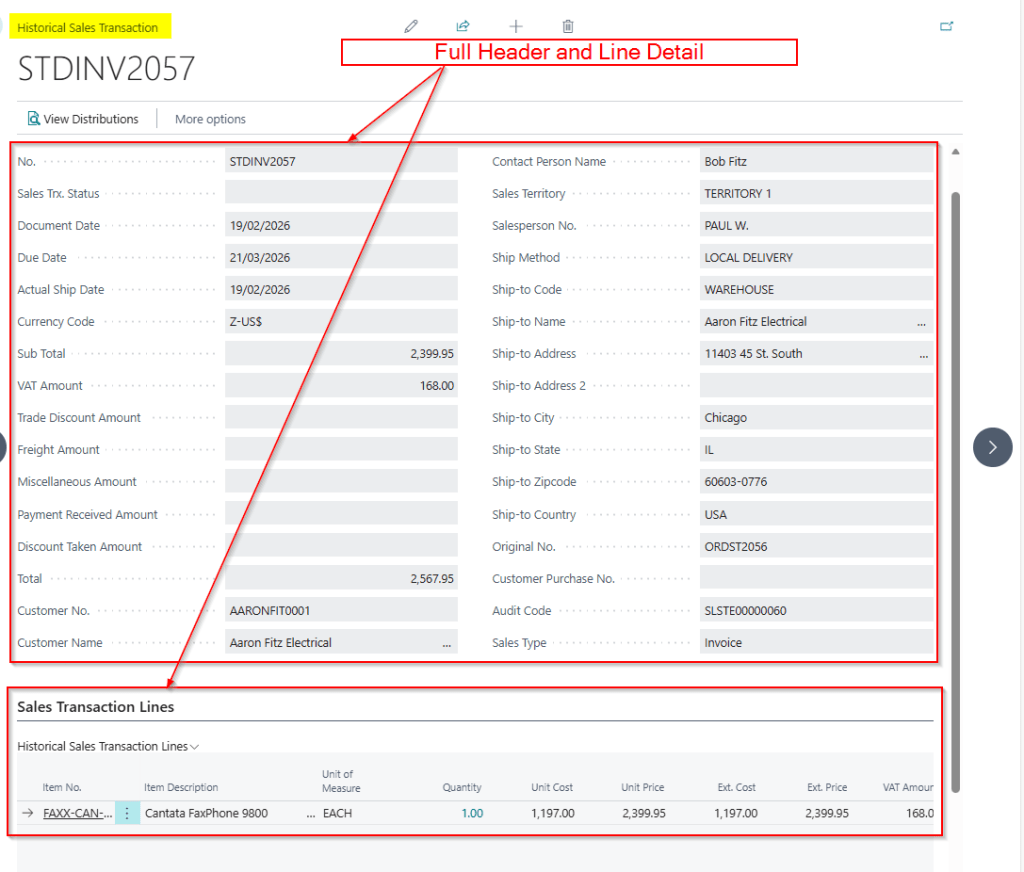
If I click on the “GP Sales Transactions” tile I can see a full list of the “Sales Order Processing” transactions that have migrated from Dynamics GP:
From here I can drill down onto them and see “Distributions” and the Sales Lines
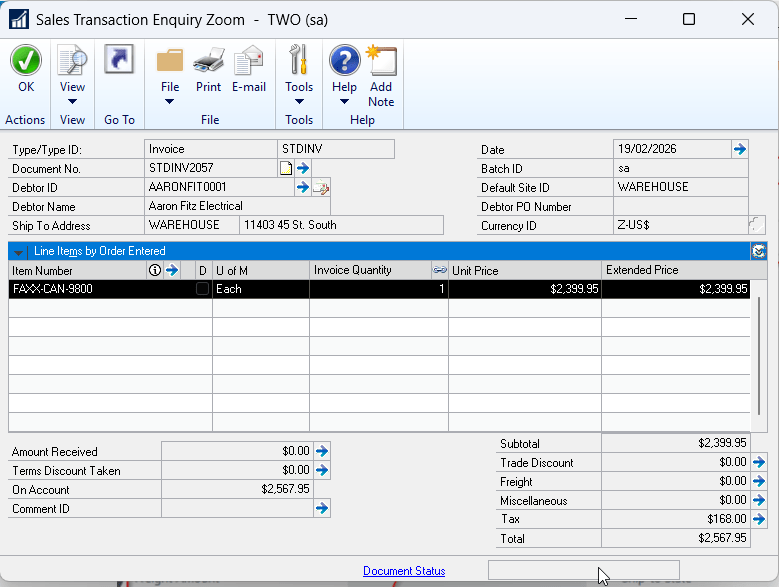
Here’s the same transaction in Dynamics GP. You can see all the detail has migrated
This information being available in Business Central is incredibly useful.
For example I can view the detail on previous Sales Orders and Sales Invoices I’ve sent to my customers. I no longer have to keep referencing my legacy Dynamics GP system for this type of information. Its seamlessly at my finger tips right in Business Central.
But wait it gets better!! Let’s now have a look at the information in the “GP Receivables Transactions” tile.
Note that when you post a Sales Invoice in Dynamics GP, as well as the Posted Sales Invoice, you also get a RM (Receivables Management) type transaction which is a little like the “Customer Ledger Entry” in Business Central. By drilling down on the “GP Receivables Transactions” we are looking at this RM transaction. This is what you apply cash receipts to and what Debtors reports are based off.
After selecting the “GP Receivables Transactions” tile we can see a list of all the fully paid migrated historical transactions:
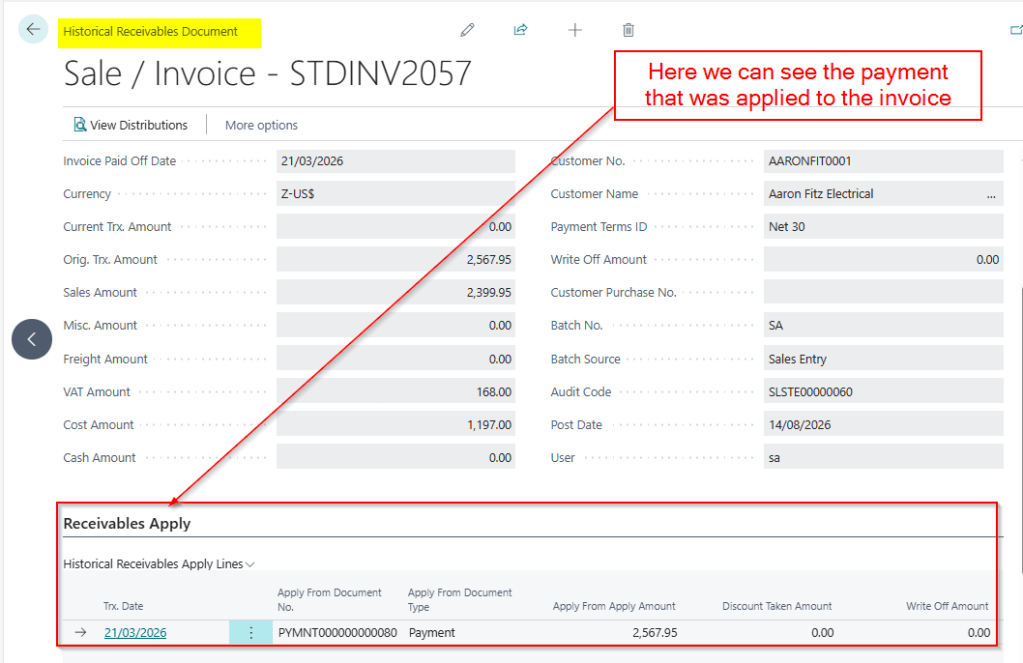
If I drill down on our invoice from the earlier example, STDINV2057, we can now see the Payment that was applied to it.
Amazing! We can see the exact payment that paid the invoice.
This gives me lots of advantages. For example, if I have credit control queries from my customers, I can answer them from right inside Business Central. No need to switch between systems, its right here at my finger tips.
What do my historical Financial Journals look like and where can I find them?
Now let’s take a look at the historical financial data that is migrated.
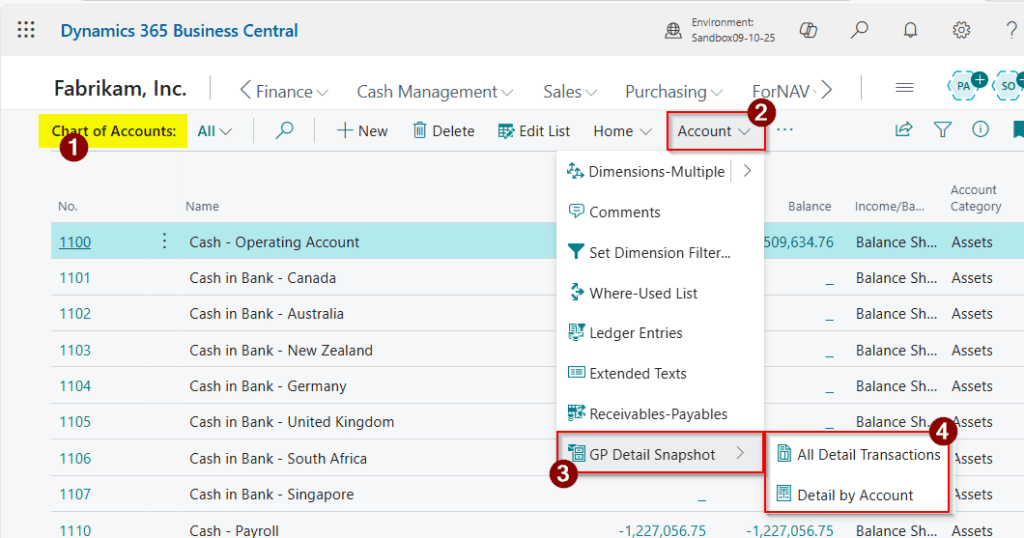
To find the historical Financial data you first go to the “Chart of Accounts” page and from here I can select “Account > GP Detail Snaphot” to get the various options as per below:
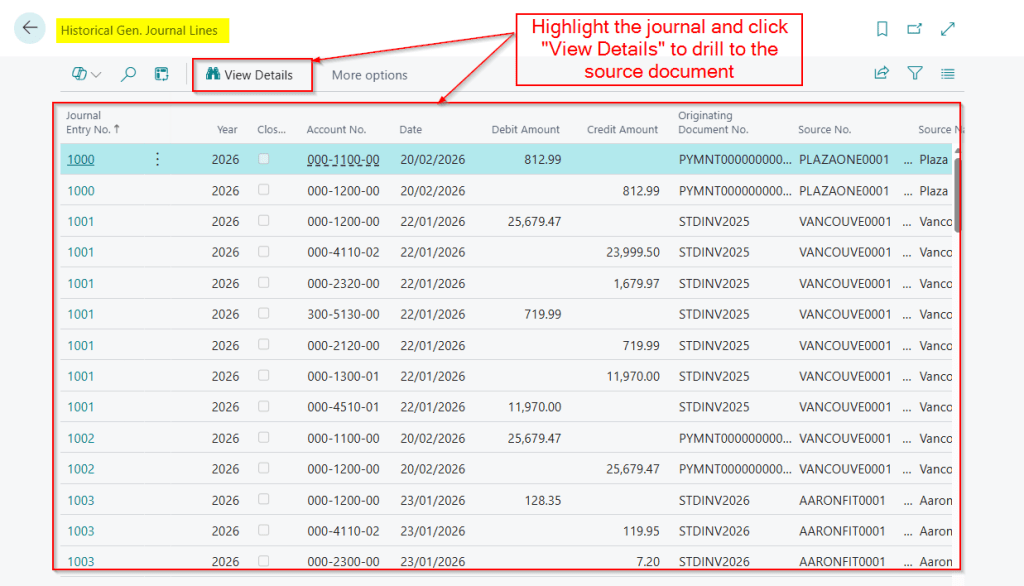
I’ll first click “All Detail Transactions” and this takes us to a full list of all the journals that have migrated.
If you are missing you’re old segmented GL structure you can see it here 😊.
What’s absolutely fantastic is you can highlight a journal and click “View Details” to view the originating transaction. For example if I highlight the payment above and click “View Details” it shows me the payment.
I can even see the Invoice that the payment paid 😊.
If I now click the “Detail by Account” option I can see my whole GL account structure and I’m able to drill down and view the journals per account:
Again this is amazing information that I no longer have to go into Dynamics GP to view.
Now if I have queries on balances or I make regular journal adjustments I can view the historical entries right inside of Business Central.
Conclusion
In this post, we’ve explored how historical data from Dynamics GP is migrated into Business Central using Microsoft’s Cloud Migration tools, and how that data can be accessed for day-to-day reference.
Being able to view historical sales transactions, applied payments, and detailed financial journals directly inside Business Central provides massive value when migrating from Dynamics GP to Business Central.
I would even argue that even if you decide not to go live using a migrated GP company, there can still be significant benefit in migrating your historical data into Business Central as a separate reference company. This allows users to access GP history in a familiar Business Central interface, without impacting the live transactional company. This could strike a nice balance between keeping historical information accessible and starting fresh.
Ultimately, having historical GP data available inside Business Central helps make the new system a true single point of reference.





 thedynamicsexplorer.com